
這是歷史版本頁面 — 看 1Password for Windows 最新版本
密碼多到記不住?1Password for Windows 能幫你管什麼
 1Password for Windows 7.3.654
資料更新 2019-01-09
閱讀約 5 分鐘
你每天打開瀏覽器,登入公司信箱、網路銀行、購物網站、社群帳號,每一處都要密碼。有些網站要求大小寫加符號,有些規定不能跟別站重複,你根本記不住,最後不是按「忘記密碼」重新設定,就是偷偷把密碼寫在記事本裡。明明知道這樣不安全,但面對十幾個帳號,實在沒有更好的辦法。
用瀏覽器內建的自動填入,換一台電腦或換瀏覽器,密碼就全部不見了;用記事本記,等於把鑰匙放在門口腳踏墊下面。這類密碼管理工具的切入點,是把所有帳號密碼收進一個加密的資料庫,你只需要記住一組主密碼,其餘交給軟體自動填入、自動產生強密碼,並在需要時同步到其他裝置。
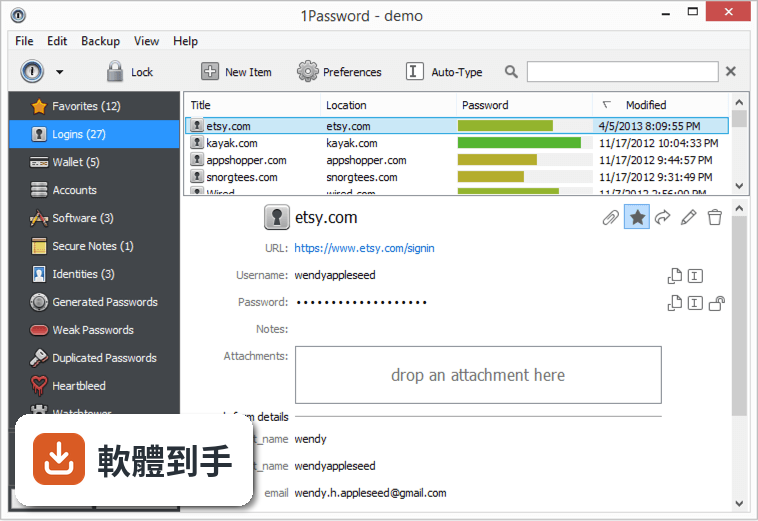
011Password for Windows 到底能拿來做什麼?
它主要做三件事:產生高強度隨機密碼、幫你在網站登入時自動填入帳號密碼、把信用卡、身分證字號、筆記等敏感資料加密存放在保險庫裡。另外它會偵測你哪些密碼太弱、被重複使用,或出現在已知的資料外洩事件中,並提醒你更換。
02它怎麼幫我自動填入網站的登入資料?
安裝後它會在 Chrome、Firefox、Edge 等瀏覽器加入擴充功能。當你登入一個網站,它會詢問是否儲存這組帳號密碼,下次再開同一個網站,點一下擴充功能圖示就能自動填入。就算你換瀏覽器,只要登入同一個 1Password 帳戶,密碼都會跟著過去。
03我有很多信用卡和會員卡資料,它也能一起管理嗎?
可以。它的保險庫除了登入資料,也支援信用卡、護照、會員卡、銀行帳戶等類別。填寫購物結帳表單時,它能自動帶入姓名、地址、卡號等欄位,不用逐格打字。你也可以把不適合貼在電腦上的純文字筆記,例如 Wi-Fi 密碼或保險單號,一起收進去。
04它能不能幫我產生不容易被破解的密碼?
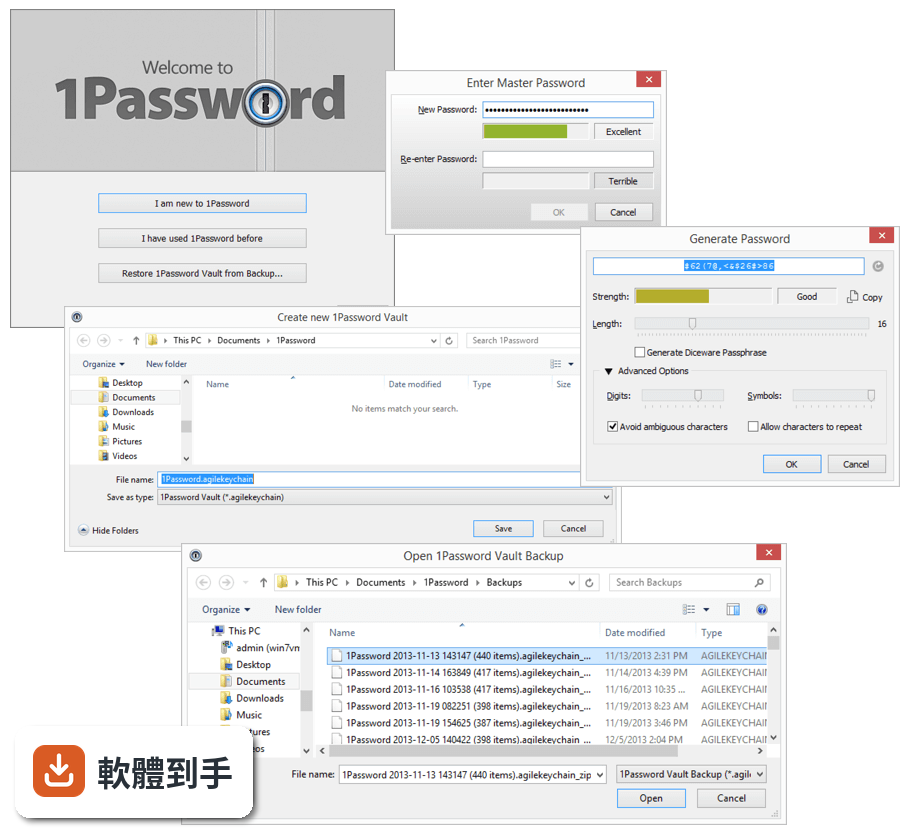
內建密碼產生器,可以指定長度和是否包含符號,一鍵產生隨機密碼並直接存進保險庫。你不需要知道產生的密碼內容,反正登入時它會自動填入。這樣做的好處是每個網站都用完全不一樣的密碼,就算某個網站被駭,其他帳號不會跟著遭殃。
05換電腦或手機的時候,我的密碼要怎麼帶過去?
它支援 Windows、macOS、iOS、Android,以及瀏覽器擴充功能。你在新裝置安裝軟體後,用同一組帳戶和主密碼登入,保險庫內容就會同步過來。官方說明提到可透過 iCloud、Dropbox 或區域 Wi-Fi 同步,其中 Wi-Fi 同步時資料不會離開你的區域網路。
06我家人也想用,這套軟體有家庭方案嗎?
官方有 Family Plan,一個訂閱最多涵蓋 5 個成員,每個人有自己的保險庫,也可以共用特定密碼,例如家裡共用 Wi-Fi 或串流平台帳號。管理員可以透過簡易控制台管理成員權限。如果你只是個人使用,也有 Individual Plan 可選。
07我忘了主密碼,還有辦法救回來嗎?
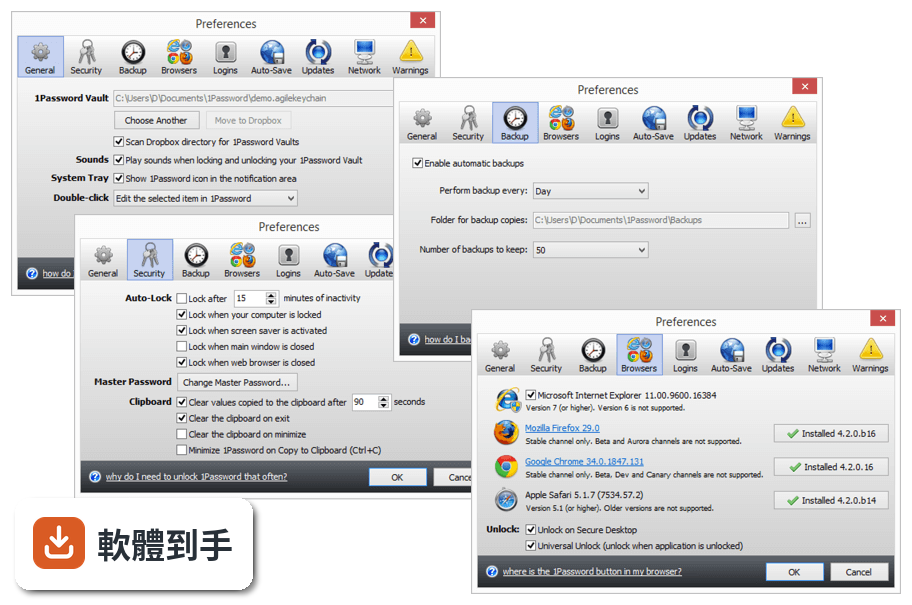
它採用零知識架構,意思是你的保險庫內容只有用主密碼才能解開,官方也無法幫你解密。如果你忘了主密碼,必須靠註冊時取得的 Emergency Kit,裡面有帳戶資料和救援金鑰。沒有 Emergency Kit 就無法恢復,這點在註冊時就要妥善保管。
08我現在用的是其他密碼管理軟體,可以轉過來嗎?
官方說明指出,它支援從 LastPass 和 Dashlane 等常見密碼管理工具匯入資料。你不需要手動一筆一筆重新輸入,匯入後再檢查一下分類是否正確即可。如果你用的工具不在官方列出的名單中,可能需要先確認是否有匯出功能,再手動整理。
09這套軟體有試用版嗎?要怎麼開始用?
官方提供所有方案的免費試用,你可以在試用期間測試功能再決定是否付費。安裝流程是下載安裝檔、執行安裝程式、註冊帳戶、設定主密碼,然後在其他裝置登入同步。要注意的是,介面語言是英文,沒有繁體中文介面,操作上需要基本的英文閱讀能力。
10什麼樣的人不適合用這套軟體?
如果你完全無法接受英文介面,這套軟體操作起來會比較吃力。如果你不想付月費或年費,它沒有永久免費方案,試用期結束後需要選擇訂閱方案才能繼續使用。另外,如果你對「忘了主密碼就無法恢復」這點感到不安,可能需要考慮其他提供帳戶恢復機制的服務。
下載與官方連結
前往官方網站 下載 1Password for Windows
1PasswordSetup-7.3.654.exe · 9.07 MB · 連結指向軟體原廠
版本紀錄
- 2026-10-20 1Password 8.12.42 185 MB
- 2026-10-02 1Password 8.12.40 185 MB
- 2026-10-02 1Password 8.12.38 185 MB
再看 5 筆
- 2026-09-09 1Password 8.12.36 185 MB
- 2026-08-25 1Password 8.12.34 185 MB
- 2026-08-11 1Password 8.12.32 185 MB
- 2024-02-22 1Password 8.10.26
- 2024-02-22 Select Version
這一版改了什麼
What's new in this version:
New:
- Unlock using Secure Desktop is here! Click the Secure Desktop icon to create an isolated desktop where only the 1Password processes will be authorized to run on and you can type in your master password to unlock 1Password. You can also trigger Secure Desktop via Control + Enter in the empty Master Password field to avoid using the mouse
- Categories and item templates are now localized. When you create a new item in your language, 1Password will check for and download the latest localizations from our 1Password.com service
- Customize your own keyboard shortcuts for 1Password
- Configure 1Password to open your Login items in a new browser tab, current tab, or in a new browser window – you can choose the option in 1Password mini settings > Open URLs in
- A fresh new look to the item viewer with more useful features such as password strength, colorized passwords, click to copy or right-click for more options, and so much more
- Password strength is now available in the item viewer
- A newly redesigned item editor
- New item editor now has up/down buttons to help reorder your fields and sections
- Yes, you read that correctly, 1Password now supports reordering custom sections in the item editor
- Quickly customize your field type and/or delete fields by using the keyboard shortcut Shift + Enter
- 1Password now records the password history for all items, not just Login and Password items. Only the first password field will be used to record the password history for certain templates with multiple password fields
- Added Copy One Time Password option to the quick copy menu on Logins (Control + Shift + C)
- Speaking of the Quick Copy menu, it is now available in 1Password mini as well
- Added new default credit card images for the most popular credit card types
- Control + Shift + N can be used to quickly create a new item for the category you're viewing
- Type in Window is now an option in every field's context menu
- We have rebuilt and optimized our Folder Sync engine for standalone vaults. It is faster, smarter, and uses less of your system's valuable resources
- Adding and modifying custom icons for standalone vaults is now available
- Change your standalone vault's password by right-clicking on it in the vault list in the sidebar to select Edit vault... and enter the new vault password
- Drag and drop files to items to add them as attachments in standalone vaults
- 1Password now shows Beta on its titlebar to help indicate it will receive beta updates
- 1Password now has its own in-house installer. The new installer will give us more flexibility, help bypass the "file in use" issues, and avoid incomplete installs due to false positives by certain anti-malware solutions
- Added an advanced troubleshooting option to reset all 1Password data. This will help those who need to start over with 1Password but picked up an old 1Password database, or forgot their Master Password and need to start fresh
- Added Settings to the context menu for the 1Password notification tray icon
- Added a troubleshooting option to reveal the 1Password directory in Explorer for customer support purposes
- 1Password will output a list of supported command line arguments via 1Password.exe --help and 1PasswordSetup(version).exe. For command prompt, use start 1Password -help
- 1Password.exe has been added to Windows' list of registered app paths. This allows us to open 1Password in the Windows run dialog without entering the full path to the 1Password executable file. This will enable quicker and easier functions such as 1Password --diagnostics to
generate a diagnostics report directly for customer support purposes
Improvements:
- Watchtower's Reused and Weak Passwords categories now exclude items with PINs that contain 6 digits or fewer and do not contain a saved website address
- 1Password now ranks Watchtower banners by their severity, meaning the Vulnerable banner will show for an item that may be also using a weak or reused password
- Item lists within Watchtower categories are now filtered in real-time when searching
- Watchtower banners are now collapsible
- Watchtower can now be manually updated in 1Password Watchtower settings
- The top action bar has been redesigned along with the top of the item list
- 1Password now auto-labels new fields when using the add new field button
- Item titles can be clicked to copy them
- Item titles will minimize to the top as they are scrolled out of view
- Field buttons have been redesigned
- Certain parts of URLs are now highlighted differently to make it easier to read
- Passwords are also easier to read. They are now colorized to tell numbers and symbols apart and are now using our custom Courier Prime Bits font
- Copy individual parts of the address field
- Credit card numbers are formatted with spacing (determined by card type) for better readability
- 1Password can now select the right card type based on the IIN ranges for the credit card number being entered
- The remaining time animation has been redesigned for the One-Time Password field
- Added a button next to a new custom field to let you specify a field type without entering data first
- Fields with empty values will not be shown in the item viewer
- The password history for the item is no longer shown in the item editor as they're not changeable
- Move to Trash button has been moved to the bottom of the item
- When changing the password for standalone vaults, 1Password will create a backup of the vault prior to the password change
- Selecting the first item after starting 1Password is more responsive now. {OPW-316
- Adjustments were made to focus 1Password mini better when clicking the 1Password extension in the web browsers
- You can disable specific shortcuts now in 1Password. Select "Disabled" in the shortcut's dropdown menu
- Improved handling of 1Password keyboard shortcuts with international keyboards
- Added a keyboard shortcut for opening the main 1Password window
- New generated passwords will be word-wrapped in 1Password mini’s password generator
- When there is no username saved for a Login item, 1Password would show an empty subtitle in the item list. Now, it'll show `-` instead. This will help confirm the username is not saved when using 1Password mini to fill
- When searching, switching vaults will retain the same search terms in the same category, but switching categories now resets the search
- Type in Window via 1Password mini will now show a smaller, scrollable list of windows instead of taking up the entire screen
- Type to select is available for the Type In Window list
- Tabs are now inserted in the notes field. Use Control + Tab or Control + Shift + Tab to shift focus to the next field or visa versa
- We no longer restore previous clipboard content when clearing the clipboard. For filling Logins with TOTP, we will clear the clipboard after the TOTP expires (give or take 2 seconds) or sooner if the clipboard settings kicks in first
- 1Password can now refresh custom icons in real time after syncing standalone vaults
- 1Password now shows a progress bar when signing into a large 1Password account for the first time
- 1Password now notifies you if you're offline due to dismissing the multi-factor authentication dialog
- The notification tray app on the taskbar has been rebuilt to directly call Windows APIs with native code instead of using the UI libraries. This will improve the stability of 1Password
- When creating a new standalone vault, 1Password will validate the title and paths to make sure it complies with Windows' restrictions, such as invalid characters and max file path length
- 1Password will now ask for the master password before you can export your data
- 1Password installer has a new retry mechanism. It will try ten times to replace its files and if it fails, it'll inform the user on the next action before try again. If nothing works, cancelling the update will ensure the user can still use the current version
- Polished the look of 1Password installer when reporting installer-related issues
- We've added more detailed logs for our installer to log when it fails to update or remove old files
- The F12 keyboard shortcut has been changed to Control + F12 for the 1Password Developer Tools window
- The keyboard shortcut for Open and Fill in the item list in the main 1Password window has been changed from Enter to Control + Enter. This ensures pressing the Enter key in the Logins item list selects the item to view it and does not accidentally trigger Open and Fill for that item
- 1Password’s start-menu shortcut will be migrated to the Start Menu > Programs directory for better compatibility with third-party apps like application launchers that use the Start Menu > Programs directory to find programs
- As an advanced command line option, 1Password can now open or create a new database in a separate location (1Password.exe --database=); note the database path must not be in the admin-protected directories
- Updated large parts of the 1Password codebase to prepare it for future features and general improvements across the board
- Updated translations from our translation team
Fixed:
- The default vault for saving setting didn't persist after restarting 1Password
- 1Password didn't autosave the in-progress edit when it exited via 1Password > Exit menu and an item was still in the edit mode
- 1Password didn't automatically save the proxy credentials when it prompts for it
- Watchtower checked non-Login items with custom password fields that aren't supposed to be included
- Watchtower will now check all template password fields in other categories, except the custom password fields
- Inactive 2FA in Watchtower didn't include Login items with saved URLs that didn't have either the http:// or https:// protocol saved
- 1Password will no longer show AgileBits.OnePassword.SectionAddressFieldPart error when changing a custom address field to a different type
- The custom field type menu didn't show a checkmark on the current selected type
- Super-long notes would cause 1Password to hang. We will switch 10K or larger secure notes to a non-wrapping text view to avoid the performance issue
- 1Password would show dates a day later for folks that live in in the UTC + 12/13/14 time zones (New Zealand, for example)
- After unlock, 1Password sometimes didn't respond to the first click on the sidebar
- 1Password now filters out the NULL (string terminator) character when pasting in text with that character as it would truncate the rest of the text
- Removed excessive logs caused by connecting to the 1Password extension in Microsoft Edge
- When a device had been de-authorized, 1Password reset the local database but did not reset the app back to the welcome view
- 1Password would restore a cached rendered 1Password mini view before showing the locking animation when it should've shown a locked view right off the bat. To fix this aggressively, we are now dismissing 1Password mini windows completely when it auto-locks in the background. We'll try to find a way to maintain a locked mini view without the rendering glitch
- When removing or renaming tags on the sidebar without selecting the tag first, 1Password would process the item list instead of just the tagged items
- If the setting for Windows Hello cannot be changed due to Group Policy or an unsupported Windows version, 1Password incorrectly showed it grayed out "On" instead of "Off"
- 1Password did not remove all registry keys related to 1Password extension during the uninstallation
- Notification tray icon should be more reliable now. You may notice a duplicate 1Password entry in the Taskbar settings, this may be cleared up by Windows in time
- Item icons would get clipped when resizing
- 1Password would crash if you created a new vault and saved it to a directory where an existing vault with the same name existed
- When closing the 1Password window and reopening it, it didn't restore the last used item
- 1Password mini wouldn't select the last item used consistently
- In the item list, certain item subtitles would show an extra line due to an embedded EOL flag that wasn't filtered out
- Certain large standalone vaults couldn't be compressed fully due to its size
- 1Password would halt its sync or import when it encountered one problematic item it couldn't import, even if there were more items to import
- Now, it'll notify about skipped items but continue to import the rest of the data
- In certain rare conditions, opening the main 1Password window from the notification icon wouldn't do anything
- A few missing separator bars in the Setting views
- Entering a custom value for a credit card type that is not in the list was not being saved
- Changing the item's custom icon via clipboard could cause 1Password to crash if the image is of not supported format
Security:
- The 1Password Developer Tools windows did not automatically close themselves when 1Password auto-locked