
這是歷史版本頁面 — 看 Ableton Live 最新版本
編曲到一半卡住?Ableton Live 的 Session View 能幫你什麼
 Ableton Live 11.0.5
資料更新 2021-07-13
閱讀約 6 分鐘
寫歌寫到一半,靈感斷掉,看著編曲軟體的時間軸一片空白,不知道下一步要放什麼。或者你已經有一堆零散的旋律片段、鼓點、貝斯線,卻怎麼排都覺得不對勁,拖來拖去就是組不成一首完整的歌。這種「有素材卻拼不起來」的卡關,是很多做音樂的人共同的困境。
傳統的編曲方式是把所有素材照時間順序排好,但靈感往往不是線性出現的。當你只是想快速試試「這段配那段好不好聽」,或想在演出時即時觸發不同段落,一條時間軸反而礙手礙腳。於是有些音樂軟體改從「即興、拼貼、即時觸發」的角度切入,讓你先在一個自由的空間裡亂試,試出感覺後再整理成完整作品。
01Ableton Live 跟其他編曲軟體差在哪?
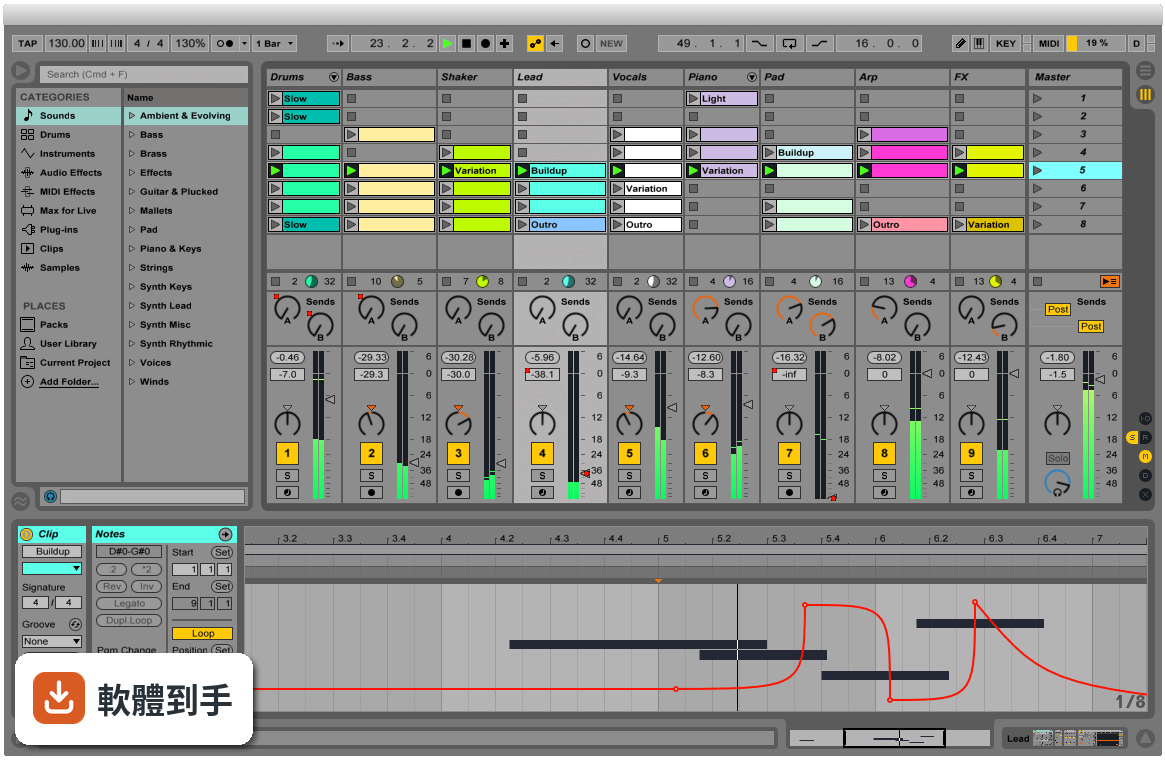
它最特別的是同時提供兩種工作視圖。Arrangement View 跟傳統編曲軟體一樣,把素材沿時間軸排列;Session View 則是一格格可以隨時觸發的格子,你可以把各種聲音片段放進去,用滑鼠或 MIDI 控制器即時開關、重疊、組合。這種設計讓「試東西」變得很直覺,不用先想好順序,先玩再說。
02它的 Session View 實際用起來是什麼感覺?
想像你把幾十個聲音片段擺在一個大面板上,每個片段都可以獨立播放或停止。你可以一邊放著鼓組,一邊試著觸發不同的貝斯或和弦片段,看哪幾個搭在一起順耳。找到喜歡的組合後,再把這些片段錄進 Arrangement View 排成完整歌曲。對習慣先亂試再整理的人來說,這個流程比直接面對一條時間軸順手很多。
03它能不能錄音?MIDI 編輯方便嗎?
可以。官方說明明確提到能從任何來源錄製音訊和 MIDI,也提供 MIDI 和音訊效果器、虛擬樂器。MIDI 編輯方面,它具備完整的編輯工作流程,可以處理音符、力度、長度等細節。不過實際編輯手感好不好,還是建議自己下載試用版操作看看,每個人習慣的編輯方式不太一樣。
04它內建的音色和效果器夠用嗎?
官方說明提到內建大量聲音、樂器和效果器,涵蓋合成器、取樣、EQ、壓縮器等常用工具。Intro、Standard、Suite 三個版本內容不同,Standard 和 Suite 有更多樂器、音色包和效果器。如果你需要特定類型的音色,也可以透過 Max for Live 擴充,社群做了很多免費或付費的裝置可以裝。
05現場演出用這套軟體實際嗎?
官方把現場演出列為主要用途之一。它會自動幫你對齊拍點,讓你可以即時觸發迴圈、播放軟體或硬體樂器、處理其他樂手的音訊輸入,不用手忙腳亂地對拍。Session View 的格子設計本來就很適合現場即時觸發不同段落,很多電子音樂演出者確實用它來做現場編排。
06新手學音樂製作適合用這套嗎?
官方說它「快速、有趣、直覺」,介面也強調可自訂。但要注意介面語言只有英文,不熟悉英文介面的人初期會比較吃力。另外它功能很多,Intro 版功能較精簡,對新手來說反而比較不會被淹沒。建議先從 Intro 版開始,或下載試用版摸熟流程,再決定要不要升級。
07做電子音樂的人是不是比較適合它?
它的即時音訊處理、時間拉伸、音高轉換、Audio-to-MIDI 轉換等功能,對電子音樂製作確實很實用。你可以把一段錄音直接轉成 MIDI 再編輯,或把任何音訊素材任意變速變調。不過這不代表其他曲風不能用,只是它的工作流程設計上,對以片段拼貼、電子聲響為主的創作方式特別友善。
08我英文不好,介面只有英文會很卡嗎?
會,這點要老實說。它的介面語言只有英文,沒有中文選項。如果英文閱讀不順,初期光是搞懂每個按鈕和選單的功能就要花不少時間。雖然網路上有很多教學影片可以參考,但操作時還是得面對英文介面。英文真的不行的話,可以考慮其他有中文介面的編曲軟體。
09我只有 Mac 或手機,能用嗎?
官方 FAQ 說它目前提供 macOS 和 Windows 版本,你提供的資料顯示支援 Windows 10/11 64 位元。手機和平板沒有原生版本,只有第三方 app 可以跟 Ableton Live 專案做某種程度的整合,但無法完整使用這套軟體。如果你主要用手機或平板創作,這套軟體現階段不適合你。
10想跟朋友線上一起做音樂,這套行嗎?
官方 FAQ 明確說它沒有原生支援即時協作。你們可以互相交換專案檔或音訊檔來合作,但沒辦法像 Google Docs 那樣兩個人同時在同一個專案裡編輯。如果你很需要即時線上協作,這套軟體做不到,得另外找其他工具搭配,或考慮其他有協作功能的音樂軟體。
11預算有限,試用版夠用嗎?
它的授權型式是 Trial,代表你可以先試用再決定。但試用版通常有功能限制或使用期限,實際限制要看官方規定。如果你只是偶爾做做音樂、不想花錢,可以考慮其他免費或開源選項,例如 MuseScore 雖然定位不同,但至少是免費的。長期要認真做的話,再評估付費購買哪個版本。
12它跟 Cubase、REAPER 那些比起來,我該選哪個?
這要看你的工作習慣。Ableton Live 的強項是 Session View 的即興創作和現場演出流程;Cubase 和 REAPER 在傳統線性編曲、混音方面有各自的擁護者。評分方面,Cubase Pro 有 501 人評分,REAPER 有 117 人,Ableton Live 是 277 人評 7.58 分。建議先想清楚你主要做錄音混音還是做電子音樂、現場演出,再下載試用版實際比較。
下載與官方連結
ableton_live_trial_11.0.5_64.zip · 連結指向軟體原廠
版本紀錄
- 2026-11-01 Ableton Live 12.4.16 4.2 GB
- 2026-10-26 Ableton Live 12.4.7 4.1 GB
- 2026-09-18 Ableton Live 12.4.6 4.1 GB
再看 5 筆
- 2026-08-27 Ableton Live 12.4.5 4.1 GB
- 2026-07-14 Ableton Live 12.4.3 4.1 GB
- 2026-06-12 Ableton Live 12.4.2 4.1 GB
- 2026-05-29 Ableton Live 12.4.1 4.1 GB
- 2026-05-05 Ableton Live 12.4 4.1 GB
這一版改了什麼
What's new in this version:
New features and improvements:
Arrangement View:
- Using "CMD"-click (Mac) / "CTRL"-click (Win) no longer deselects track headers that contain a hidden lane selection
- Take lane headers with a standby selection are now shown in the respective standby selection color when more than one track, take lane, and/or automation lane is selected
- It is now possible to rename multiple selected tracks simultaneously
Clip View:
- The Sample tab's Clip Gain control has been changed back to a vertical slider, and it has been repositioned above the Transpose controls
- The Sample tab's Reverse button now shows an icon instead of text
- The Sample tab's Reverse and Edit buttons are now positioned next to each other
- Added a Pitch dial to the Sample tab, which enables shifting an audio clip's pitch in semitones. The Transpose controls now appear as adjacent slider controls, positioned beneath the Pitch control
- When multiple audio clips with different Clip Gain values are selected, the value range is shown with split triangle handles on the Clip Gain slider
- Added some visual refinements to the Clip View tabs
- Improved the names of MIDI controllers that appear in the Control chooser when the Clip View's Envelopes tab is visible and the "MIDI Ctrl" is selected in the Device chooser
Follow Actions:
- The Follow Action Chance slider now displays a split triangle instead of just a black bar when it is showing multiple different values
Interface:
- Updated various Help View lessons
- Updated various Help View lesson translations in German, Spanish, French, Italian, Japanese and Chinese languages
- Updated some Japanese and Chinese info text translations
- The audio engine can now be turned on or off via a new "Audio Engine On" entry in the Options menu, or using the "CMD"+"ALT"+"Shift"+"E" (Mac) / "CTRL"+"ALT"+"Shift"+"E" (Win) keyboard shortcut
- The Overload Indicator is disabled by default for new Live 11 installations
- Live's performance is improved when deselecting many clips at once
- Max for Live:
- Updated the bundled Max build to version 8.1.11. For the changelog, visit: http://cycling74.s3.amazonaws.com/support/version_8_1_11.htm
- The following new properties and functions are available in the Clip API
- add_warp_marke
- move_warp_marke
- delete_warp_marke
- sample_rat
- sample_lengt
- The Max for Live API now supports large dicts
MIDI Editing:
- It is now possible to resize the velocity, probability, and per-note expression lanes in the MIDI Editor using the mousewheel/pinch gesture while holding "ALT"
- The background color of lane headers is now consistent with the Notes tab
- Clicking on a lane with a standby selection now selects that lane instead of collapsing the time selection
MPE Editing:
- The "Pitch Bend Range Settings..." context menu entry now appears when right-clicking in the area where per-note pitch-bend is editable
- When the Expression tab is open, making a time selection in the Note Editor or the Slide/Pressure expression lane while editing per-note expression now only shows the focused lane with a selection highlight, while all other lanes are shown with a standby selection highlight
- When the Expression tab is open, using the "Zoom to Clip Selection" command (or "Z" key shortcut) now adjusts the zoom level according to pitch bend values contained in the time selection
- It is now possible to clear all per-note Pitch, Slide and Pressure expression envelopes of a note at once by using the "Clear All Envelopes" entry in the context menu of the per-note expression breakpoint editor
Multi-Clip Editing:
- When clips are selected/unselected in the Session View, the highlighted track and scene now point to the foreground clip, if any exists
- Changing the foreground clip from the Clip View updates the highlighting of the track (in both the Session View and Arrangement View) and the scene corresponding to the new foreground clip
- Clicking on a clip's multi-clip loop bar in the Clip View updates the highlighted track, even if this clip is already the foreground clip
- New Devices and Device Improvements:
- The enabled/disabled state of a plug-in device's MPE Mode is now saved with that device's default configuration
- Plug-in devices now look similar to built-in Ableton devices when disabled
Chorus-Ensemble:
- The Chorus-Ensemble device now uses less CPU when certain settings are applied
Phaser-Flanger:
- In the Phaser-Flanger device, when the LFO Stereo Mode is set to Spin and the Spin value is changed, a second LFO line is now visible and its frequency changes accordingly
Spectral Resonator:
- The Spectral Resonator device now uses about 15% less CPU
- The Spectral Resonator device now uses about 20% less CPU when very few partials are audible
- The spectrogram should now display about 30% of its former CPU load. Note: this is only visible in the system's CPU monitor, not in Live's audio processing meter
- When low polyphony and unison voices are set, less CPU usage should be shown
Spectral Time:
- The background of the Stereo slider now displays a blue color when its value is above 0%
- "Freeze On/Off" is now called "Frozen On/Off" in Automation Mode and on Push
- "Delay DryWet" is now called "Delay Mix" in Automation Mode, and "Mix" in the device UI and on Push
- In the Spectral Time device, the spectrogram should now display about 30% of its former CPU load. Note: this is only visible in the system's CPU monitor, not in Live's audio processing meter
- The Spectral Time device now runs at about 60% of its previous CPU load
Wavetable:
- Added support for Drum Rack choke groups to the Wavetable device
Push:
- When editing multiple MIDI clips at once, a connected Push device now follows all highlight changes of tracks/scenes, and the focus on the corresponding track
- Updated the notification style for scenes, and updated the scene name visualization to include the absolute position, tempo and time signature on Push
- Adjusting multiple encoders while recording automation now creates less undo steps on Push 1 and 2
Session View:
- When a Session track slot is highlighted but not selected, using the Arrow Up/Down keys, Home/End, or PageUp/PageDown keys now moves the highlight to the adjacent track slot in the given direction
- It is now possible to rename multiple selected scenes simultaneously
- It is now possible to rename multiple selected tracks simultaneously
- In the Session View's Track Status display, the remaining play time of an unlooped clip now always displays the seconds with two digits (e.g., "10:07" instead of "10:7")
Control Surfaces:
- Added support for the Roland Fantom
- Added control surface support for the M-Audio Hammer 88 Pro, Oxygen Pro Mini and Oxygen MKV Series
The functionality of the Oxygen Pro control surface script has been drastically changed. Specifically:
- The Rewind and Fastforward buttons will now rewind and fastforward the Arrangement position
- Turning the Encoder will now scroll the Session frame up and down
- Holding the Encoder down and turning it will scroll the selected Scene up and down
- The Knobs can now control multiple features (Device parameters, Track Panning, Track Sends and, in the case of the 25 key, Track Volume) that can be selected
- by holding down Shift and pressing the Pads used for DAW KNOB CONTROL. Additionally, it is possible to toggle between controlling Send A and Send B
- by holding down Shift and pressing the SENDS Pad
- Live's Takeover feature is now enforced for the Knobs and Faders when switching between DAW and Preset Modes
- The Pads now provide LED feedback in respect to Clip/Clip Slot states in Live
- The Buttons beneath the Faders can now control multiple features (Track Arming, Track Muting, Track Soloing and Track Selection) that can be toggled
- between via the Mode button
- Fixed an issue where the Session frame was visible even when the hardware was not connected
Fixed:
Arrangement View:
- Fixed an issue where Live hangs when zooming in Arrangement View in some cases
- Previously, reordering automation lanes via dragging and dropping or using the "CMD" and Arrow Up/Down (Mac) / "CTRL" and Arrow Up/Down (Win) keys would not mark the document as modified
- Fixed the width of the divider line between Arrangement lanes and track/lane headers
- Previously, after selecting content by clicking on the Arrangement loop brace or pressing "CMD"+"A" (Mac) / "CTRL"+"A" (Win), content of tracks nested in a folded Group Track would not be selected when unfolding the containing Group Track
- Previously, track lanes and headers could not be deselected via "CMD"+click (Mac) / "CTRL"+click (Win) when their tracks contained hidden and selected automation lanes, take lanes, and/or Group Tracks
- Fixed a crash that could occur when restoring the Arrangement View's zoom state using the "Z" keyboard shortcut after deleting a take lane
- Fixed a crash that could occur when clicking in a track's main lane after track content had been selected during recording, under certain circumstances
- Previously, mixer controls in linked tracks would still be linked when selecting a take lane, after multiple track headers had previously been selected
- Arrangement clip headers no longer have an uneven appearance
- Previously, an Arrangement clip header would not be displayed as having a standby selection when the focus was moved away
- Previously, it was not possible to unlink all tracks when some tracks were nested inside a Group Track
- Fixed a crash that occurred when inserting a take lane
- Fixed a crash that could occur when trying to move a selected main automation lane by pressing the "CMD" and Arrow Up/Down (Mac) / "CTRL" and Arrow Up/Down (Win) keys
Control Surfaces:
- User Remote Scripts work as expected on Windows again
- Devices:
- The EQ Eight device will now scale the displayed spectrum the same way as the Channel EQ and Hybrid Reverb devices
- Previously, the Operator device could crash or calculate inaccurate frequencies when its Fixed Mode and Spread parameters were enabled
- In the Spectral Resonator and Spectral Time devices, the limiter's LED now correctly lights up when the limiter is active
- Switching between oscillator effects in the Wavetable device now changes labels within each matrix as expected
- In the Sampler, Simpler, and Wavetable devices, the MPE label text now updates according to the device's selected/deselected state
- Previously in the Spectral Resonator and Spectral Time devices, gaps would sometimes appear in the Spectrogram at high frequencies
- A Max for Live device's background color now updates correctly after moving that device between tracks
- Fixed two bugs in the MPE Control device:
- The Pressure curve would not follow Live's themes when the device was instantiated while using the Dark theme
- Global PB would be interpreted as Note PB under certain circumstances
- The Surge Synth Team's "Surge" VST/AU plug-in device now has its internal MPE Mode activated by default when started in Live. Deactivating the device's MPE Mode in Live will also cause Surge to deactivate MPE Mode internally
Interface Improvements:
- Mouse-clicks on a return track no longer "fall through" to audio/MIDI tracks or Group Tracks that are covered by that return track
- When left-clicking the CPU meter, the drop-down menu that appears is now aligned at the left-hand of the CPU meter
- The Launch Macro Variation button can be mapped as expected again
- Fixed a crash that could occur when dragging an empty frozen MIDI clip to an audio track
- Fixed a crash that could occur when freezing a track after recording, under certain circumstances
- Fixed the alignment of the Launch text label that appears in the expanded view of the Clip View's Clip box
- Previously, when copying a folder with audio files to another folder which was already in Places, the files would not appear in the browser
- Previously, when saving a Live Set file (such as a clip or preset) in the root folder of the temporary current Project, that file would not be copied over to the final destination Project
- Fixed the spelling of the "Sostenuto" parameter that appears in the Control chooser when the Clip View's Envelopes tab is visible and the "MIDI Ctrl" is selected in the Device chooser
- Previously, resizing the Device View, as a result of switching to the Arrangement View, while no clip was selected would result in automation lanes having the wrong height when switching back to the Session View
- Previously, using Tempo Follower and Tap Tempo at the same time could create a conflict with Live's tempo. To prevent this, Tempo Follower is now disabled as long as Tap Tempo is active
- Previously, the waveform of an audio clip in the Detail View would be displayed in a dimmed color, although that clip was not audible while Audition Mode was enabled
- Using pinch gestures to zoom once again works in expression lanes
- Previously, the vertical zoom level and scroll position in the MIDI Note Editor were sometimes wrong when switching from the Expression tab to the Notes tab
- Added the following changes for Windows:
- On Windows 10, Live requires version 1803 or higher to be used on HiDPI screens
- Live's second window is no longer shown separately in the list of windows that appears when pressing "Alt"+"Tab". It also cannot be minimized anymore. These changes highlight that the second window is not a stand-alone window, but secondary to the main window
- When switching virtual desktops, floating windows are no longer shown on the new virtual desktop
- When using virtual desktops, floating windows (e.g., the Max editor, plug-in devices, or Live's Preferences) are now only shown on the virtual desktop where Live is
- Fixed a bug that enabled performing certain actions (e.g., stopping playback) while a modal dialog was shown
- Previously, the selection on an auditioned take lane would look different when Draw Mode was active
- Previously, adding a device via double-clicking could create two undo steps
- Fixed a performance regression when loading a Live Set with many devices
- Previously, when exporting a video, the Export Audio/Video dialog would remain disabled when choosing an export file name that matched an existing video file (but not an existing audio file) and then choosing not to overwrite the existing file
- Fixed an issue where a Rack's selector buttons for chains and devices would swap places, under certain circumstances. Fixed various minor UI alignment and sizing issues that affected other elements within Racks
- Fixed a spacing issue in Drum Racks. In all Racks, the Rand and Map buttons now always align with the right border of the Macro Controls section, and they appear as "R" and "M" when six or less Macro Controls are shown
- For MIDI clips, program change controls now appear in the order [Bank][Sub][Pgm] instead of [Pgm][Bank][Sub]
- Fixed a crash when scrolling in the Clip View's Sample/Note Editor with the mouse button held down
- Fixed a bug that generated false disk overload indications, even when no sample dropouts occurred
- Previously, Link would not become disabled when opening a new Set
- Fixed a crash when unfolding a nested Group Track containing a selected clip
- The Pitch control in the Clip View's Sample tab once again works as expected when multiple clips are selected
- The Clip Activator button once again works as expected
- Previously, after selecting a Group Track header, the track highlight would sometimes immediately jump to a track within that Group Track
- Max for Live:
- Sending a getpath message to a live.object that operates upon the GroovePool no longer causes an error
- Sending a getpath message to a live.object that operates upon a Groove no longer causes an error
- GroovePool, Groove and DeviceIO now all have a canonical_parent property
- Replacing a licensed Max for Live device with an unlicensed one no longer creates a "fake" device that informs the user of a missing license. Also, it is no longer possible to inadvertently trigger Temporary Demo Mode when attempting to perform another action that breaches any current limitations, in cases where a "fake" device was created
- The LOM ID of a routable MIDI input/output is now retained after moving and saving the containing Max for Live device
MIDI Editing:
- Upon setting Scale Name and Root Note values for a MIDI clip, those values remain visible (but grayed out), even when Scale Mode is disabled
- When enabled, the Scale (aka Fold to Scale) button becomes disabled (instead of grayed out) whenever folding to scale is not possible
- Previously, when using the Arrow Up/Down keys in the Velocity or Chance Editor while no notes were selected, a false value was temporarily shown in the respective editor's lane header
- When multiple MIDI clips are selected and the Envelopes and Expression tabs are not displayed, the Notes tab is now left-aligned
MPE Editing:
- Previously, per-note pitch bend editing was unavailable when a MIDI Effect Rack or Instrument Rack was used, under certain circumstances
- Previously, when the Expression tab was visible, making a rectangular selection of a single note in the MIDI Note Editor would incorrectly set the focus to pitch bend expression editing
- Fixed a bug that caused a note's per-note pitch bend range to get reset to +/- 48 semitones when copying and pasting a track
- Fixed a bug that could cause notes to be affected by expression parameters (including pitch bend) from previous notes
- Previously, when the Expression tab was open and the MIDI Note Editor was folded, zooming to selected notes would sometimes scroll out of view
Push:
- Changes to a scale or root note on Push while recording a MIDI clip are now applied to that newly-recorded clip
Session View:
- When using a device parameter's "Show Automation" or "Show Modulation" context menu command while a Session clip is playing, Live now switches to the Envelopes tab in the Clip View when no clip is selected
- Shift-clicking on an empty track slot in the Session View no longer changes the scene and track highlighting
- Previously, the Follow Action Time marker was sometimes displayed at the wrong position in unwarped clips
- Improved the text contrast in the Session View's Track Status display for unlooped clips
- Previously, when triggering a scene with assigned Follow Actions after stopping Live's transport, that scene's tempo was not respected
- The "Stop" Follow Action now works as expected for scenes
- Setting the scene tempo or time signature from the Python API (Max and Push) will enable the respective scene control and display the correct value being set