
這是歷史版本頁面 — 看 Ableton Live 最新版本
編曲到一半卡住?Ableton Live 的 Session View 能幫你什麼
 Ableton Live 11.1
資料更新 2022-02-01
閱讀約 6 分鐘
寫歌寫到一半,靈感斷掉,看著編曲軟體的時間軸一片空白,不知道下一步要放什麼。或者你已經有一堆零散的旋律片段、鼓點、貝斯線,卻怎麼排都覺得不對勁,拖來拖去就是組不成一首完整的歌。這種「有素材卻拼不起來」的卡關,是很多做音樂的人共同的困境。
傳統的編曲方式是把所有素材照時間順序排好,但靈感往往不是線性出現的。當你只是想快速試試「這段配那段好不好聽」,或想在演出時即時觸發不同段落,一條時間軸反而礙手礙腳。於是有些音樂軟體改從「即興、拼貼、即時觸發」的角度切入,讓你先在一個自由的空間裡亂試,試出感覺後再整理成完整作品。
01Ableton Live 跟其他編曲軟體差在哪?
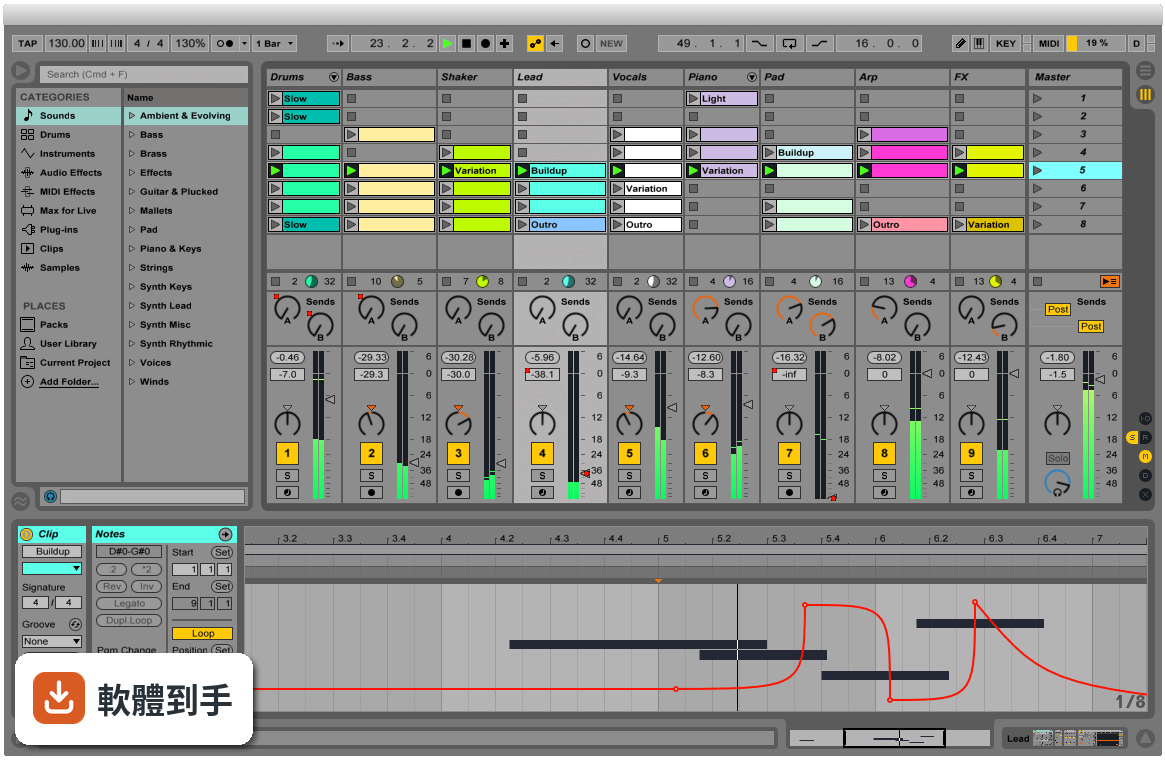
它最特別的是同時提供兩種工作視圖。Arrangement View 跟傳統編曲軟體一樣,把素材沿時間軸排列;Session View 則是一格格可以隨時觸發的格子,你可以把各種聲音片段放進去,用滑鼠或 MIDI 控制器即時開關、重疊、組合。這種設計讓「試東西」變得很直覺,不用先想好順序,先玩再說。
02它的 Session View 實際用起來是什麼感覺?
想像你把幾十個聲音片段擺在一個大面板上,每個片段都可以獨立播放或停止。你可以一邊放著鼓組,一邊試著觸發不同的貝斯或和弦片段,看哪幾個搭在一起順耳。找到喜歡的組合後,再把這些片段錄進 Arrangement View 排成完整歌曲。對習慣先亂試再整理的人來說,這個流程比直接面對一條時間軸順手很多。
03它能不能錄音?MIDI 編輯方便嗎?
可以。官方說明明確提到能從任何來源錄製音訊和 MIDI,也提供 MIDI 和音訊效果器、虛擬樂器。MIDI 編輯方面,它具備完整的編輯工作流程,可以處理音符、力度、長度等細節。不過實際編輯手感好不好,還是建議自己下載試用版操作看看,每個人習慣的編輯方式不太一樣。
04它內建的音色和效果器夠用嗎?
官方說明提到內建大量聲音、樂器和效果器,涵蓋合成器、取樣、EQ、壓縮器等常用工具。Intro、Standard、Suite 三個版本內容不同,Standard 和 Suite 有更多樂器、音色包和效果器。如果你需要特定類型的音色,也可以透過 Max for Live 擴充,社群做了很多免費或付費的裝置可以裝。
05現場演出用這套軟體實際嗎?
官方把現場演出列為主要用途之一。它會自動幫你對齊拍點,讓你可以即時觸發迴圈、播放軟體或硬體樂器、處理其他樂手的音訊輸入,不用手忙腳亂地對拍。Session View 的格子設計本來就很適合現場即時觸發不同段落,很多電子音樂演出者確實用它來做現場編排。
06新手學音樂製作適合用這套嗎?
官方說它「快速、有趣、直覺」,介面也強調可自訂。但要注意介面語言只有英文,不熟悉英文介面的人初期會比較吃力。另外它功能很多,Intro 版功能較精簡,對新手來說反而比較不會被淹沒。建議先從 Intro 版開始,或下載試用版摸熟流程,再決定要不要升級。
07做電子音樂的人是不是比較適合它?
它的即時音訊處理、時間拉伸、音高轉換、Audio-to-MIDI 轉換等功能,對電子音樂製作確實很實用。你可以把一段錄音直接轉成 MIDI 再編輯,或把任何音訊素材任意變速變調。不過這不代表其他曲風不能用,只是它的工作流程設計上,對以片段拼貼、電子聲響為主的創作方式特別友善。
08我英文不好,介面只有英文會很卡嗎?
會,這點要老實說。它的介面語言只有英文,沒有中文選項。如果英文閱讀不順,初期光是搞懂每個按鈕和選單的功能就要花不少時間。雖然網路上有很多教學影片可以參考,但操作時還是得面對英文介面。英文真的不行的話,可以考慮其他有中文介面的編曲軟體。
09我只有 Mac 或手機,能用嗎?
官方 FAQ 說它目前提供 macOS 和 Windows 版本,你提供的資料顯示支援 Windows 10/11 64 位元。手機和平板沒有原生版本,只有第三方 app 可以跟 Ableton Live 專案做某種程度的整合,但無法完整使用這套軟體。如果你主要用手機或平板創作,這套軟體現階段不適合你。
10想跟朋友線上一起做音樂,這套行嗎?
官方 FAQ 明確說它沒有原生支援即時協作。你們可以互相交換專案檔或音訊檔來合作,但沒辦法像 Google Docs 那樣兩個人同時在同一個專案裡編輯。如果你很需要即時線上協作,這套軟體做不到,得另外找其他工具搭配,或考慮其他有協作功能的音樂軟體。
11預算有限,試用版夠用嗎?
它的授權型式是 Trial,代表你可以先試用再決定。但試用版通常有功能限制或使用期限,實際限制要看官方規定。如果你只是偶爾做做音樂、不想花錢,可以考慮其他免費或開源選項,例如 MuseScore 雖然定位不同,但至少是免費的。長期要認真做的話,再評估付費購買哪個版本。
12它跟 Cubase、REAPER 那些比起來,我該選哪個?
這要看你的工作習慣。Ableton Live 的強項是 Session View 的即興創作和現場演出流程;Cubase 和 REAPER 在傳統線性編曲、混音方面有各自的擁護者。評分方面,Cubase Pro 有 501 人評分,REAPER 有 117 人,Ableton Live 是 277 人評 7.58 分。建議先想清楚你主要做錄音混音還是做電子音樂、現場演出,再下載試用版實際比較。
下載與官方連結
ableton_live_trial_11.1_64.zip · 連結指向軟體原廠
版本紀錄
- 2026-11-01 Ableton Live 12.4.16 4.2 GB
- 2026-10-26 Ableton Live 12.4.7 4.1 GB
- 2026-09-18 Ableton Live 12.4.6 4.1 GB
再看 5 筆
- 2026-08-27 Ableton Live 12.4.5 4.1 GB
- 2026-07-14 Ableton Live 12.4.3 4.1 GB
- 2026-06-12 Ableton Live 12.4.2 4.1 GB
- 2026-05-29 Ableton Live 12.4.1 4.1 GB
- 2026-05-05 Ableton Live 12.4 4.1 GB
這一版改了什麼
What's new in this version:
New features and improvements:
Native Apple Silicon Support:
- Live 11.1 adds native support for Apple M1 computers
Arrangement View Improvements:
- You can use the left arrow key to navigate from an automation lane or take lane to the main track, this will fold the lanes as well. You can also use the left arrow key to navigate from tracks in a group to the main Group Track.
- The Arrow Left/Right shortcut has been added to the Arrangement Track Title Bar info text. The shortcut folds/unfolds the track.
- The Arrow Left/Right shortcut has been added to the Toggle Additional Automation Lanes info text. The shortcut folds/unfolds additional automation lanes.
Browser:
- A new Devices icon has been added to Live’s Browser:
- When viewing Sets in the browser, you will see a Devices icon for device chains on a track that contain at least one device.
- When you expand a Live Set in the browser, either from the Current Project folder, Templates folder, or a folder of Sets you have added in Places, you can unfold the tracks in the Set to reveal their device chains. These chains can then be moved into the current open Set using drag and drop or by double-clicking on the chain. The Device settings from the original Set are retained but any previously recorded automation is not.
Capture MIDI
- In the first captured MIDI clip (in an empty set with the transport stopped), if the detected loop is eight bars or less, the first played note is considered the start of the loop.
- When only one note is played in the first captured MIDI clip (in an empty set with the transport stopped), the loop boundaries are set to the note start and end, and the tempo is accordingly calculated, resulting in a one, two, four, or eight bar loop. This is particularly useful when playing a rhythmical sample with a single MIDI note.
- In Session View, new captured clips now use the “Adaptive Grid: Narrow” setting instead of “Fixed Grid: 1/16.”
Clip View:
- Added responsive Clip View options:
- In Clip View, all clip properties are now displayed in panels/tabs instead of separate panels. Clip View properties can be arranged vertically by moving the mouse cursor to the left from the Clip View panel edge next to the Sample Editor/MIDI Note Editor.
- Clip View properties can also be arranged automatically, which switches between the horizontal and vertical views depending on the height of the Clip View area. Select “Arrange Clip View Panels Automatically” from the View menu to enable this option.
- When Clip View panels are arranged vertically, the individual tabs (e.g. Clip, Audio, Envelopes, etc) can be collapsed and expanded using the arrow icon to the right of the tab header.
- When Clip View panels are arranged vertically, the individual tabs (e.g. Clip, Audio, Envelopes, etc) can be folded/unfolded using the Arrow Left/Right keys.
- Sample information for audio clips (e.g. sample name, sample rate, etc) is also displayed in the Clip View and appears differently in the vertical/horizontal view modes.
- Clip View panels can now be accessed using keyboard shortcuts. In MIDI clips, ALT + 1 switches to the Notes panel, ALT + 2 switches to the Envelopes panel, and ALT + 3 switches to the Note Expression panel. In audio clips, ALT + 1 switches to the Audio panel and ALT + 2 switches to the Envelopes panel.
- Clip View can be toggled to its maximum height using the keyboard shortcut CTRL+ALT+E (Win) / CMD+OPT+E (Mac) or the View menu entry “Expand Clip Detail View.”
- The chosen Responsive Clip View mode is now saved in Live’s Preferences.cfg file.
- When multiple audio clips are selected, the sample properties (sample rate, bit depth, and channel count) for all samples will be displayed in the Clip View. If a value is not the same for all samples, the character “*” will be displayed. In Clip View, you will also see the total number of samples selected.
- The Pitch dial is now smaller and the Gain slider has been enlarged.
- When switching between panels in Clip View using the keyboard shortcuts ALT + 1/2/3, the panel header that was switched to will be selected.
- If Clip View is arranged horizontally when Live is first opened and either the Audio or Notes tab is selected, the corresponding panels in both audio and MIDI clips will remain unfolded when switching to Clip View’s vertical arrangement.
Comping:
- You can now duplicate selected take lanes using the keyboard shortcuts CMD + D (Mac) / CTRL + D (Win), or by right-clicking on the take lane header and selecting “Duplicate.”
- Changing the color of a clip in a take lane changes the color of the corresponding clip in the track’s main lane and vice versa. Splits are created on the updated clips in certain cases when the relation between other highlights on different clips change.
- The horizontal lines that separate multiple take lanes match the color of the clips that are in those lanes.
- When renaming multiple tracks or take lanes using the context menu option, you will see the edit field when you right-click on a track or take lane.
Control Surfaces:
- When navigating between devices on a selected track with the PreSonus ATOM SQ, you can now scroll between devices by holding the navigation buttons down.
- If an invalid CC, note, or channel value is used in a UserConfiguration.txt file, the associated User Remote Script can still be loaded.
Core Library:
- Frequency Shifter presets are still available in Core Library/Devices/Audio Effects/Legacy/Frequency Shifter
CPU Meter:
The CPU meter drop-down menu now can be customized to display:
- both the Average or Current CPU usage levels
- only the Average level, with the Current level switched off
- only the Current level, with the Average level switched off
- Alternatively, the CPU meter can also be switched off entirely
- By default, Live will not display the Current level; it must be enabled from the drop-down menu
Interface:
- You can use the left and right arrow keys to switch between radio buttons anywhere in Live. If you are switching between radio buttons on a device that is inside of a Rack with the left and right arrow keys, you can get back to moving between devices in the Rack using the left and right arrow keys by hitting the ESC key.
- In Session and Arrangement View, the Monitor radio buttons now have a default state that can be restored. When the In/Out section is expanded, you can press the Delete key to reset the Monitor radio buttons to the default (“Off” for audio tracks and “Auto” for MIDI tracks). This option is also accessible via the Edit menu option “Return to Default.”
- The Quantize Settings dialog buttons in the MIDI Note Editor now say “Apply” and “Close” instead of “OK” and “Cancel.”
- Deactivated device title bars are easily readable in all Live Themes, even if the device is selected.
- On Mac, the mouse cursor will now display an arrow pointing in a single direction when hovering over split views which can be resized in one direction only.
- An error message will be displayed in the status bar if an auto-update cannot be downloaded.
- Added a new "MIDI Envelope Auto-Reset" entry to the Options menu:
- When enabled, certain MIDI control message types that are not automated for a given clip will automatically reset at the start of a new clip.
- Note: for users who intentionally work opposite to this behavior, enabling this change will make corresponding Live Sets behave differently
- In Live 11.0.5, "MIDI Envelope Auto-Reset" is disabled by default
- In Live 11.1, "MIDI Envelope Auto-Reset" is enabled by default for new Sets, and disabled by default in older Sets
- Updated various info texts
- Updated some Help View lessons
- Added support for keyboard shortcuts on French keyboard layouts for macOS versions 10.14 and older. Keyboard shortcuts that have numbers can be accessed without having to press Shift to access the number keys.
Max for Live:
- Updated the bundled Max build to version 8.2.1
- Link functions have been added to the Max for Live API
- You can access the IDs of newly created notes using the Python API or the Max for Live API
- It is possible to get a dictionary of all the notes in a MIDI clip using the Python API or Max for Live
- It is now possible to call select_notes_by_id on a Clip object in Max for Live, passing a list of note IDs. This will select only those notes that have the provided IDs.
- Users can now get and observe the average_process_usage, peak_process_usage, and a track's performance_impact via Max for Live
- When Max fails to load, an error message will be displayed that contains a link to a Knowledge Base article that explains potential causes for the issue and steps to take to resolve it
- Error reporting in the Max Window is more consistent
- Four new theme colors are available in Max for Live
- amxd~: ‘realtime_params’ attr for realtime report of parameter data from outlets
- Dynamic Colors: ability to use a name which references a dynamic color (follows Live or Max color Themes)
- live.adsr~ / live.adsrui: new objects
MPE:
Added an MPE Settings dialog box to the I/O section of Live’s mixer. You can use the settings to:
- configure the MPE zone and range of note channels used by Live when sending MPE to an external MIDI device or plug-in
- select the upper or lower zone and number of note channels
- select multi-channel mode, which sets an arbitrary range of note channels
- The above MPE settings can be used for hardware synths that require a specific MPE configuration, or plug-ins that do not officially support MPE but can be used with MPE controllers due to their multi-timbral support.
Multi-Clip Editing:
Time selection interactions, note selection interactions, and new note editing options have been added to multi-clip editing:
- Time in the MIDI Note Editor can be selected across loop and clip boundaries
- Note editing (e.g. copy, cut, paste, delete) can be used when working with note selections across clips and loop boundaries
- Notes can be cut or copied from multiple clips and inserted into the same set of clips, as long as the clip selection/foreground clip has not changed, or into a different clip once that new clip has been selected.
- Selected loop bars can now be duplicated using the context menu or the CMD + D (Mac) / CTRL + D (Win) keyboard shortcuts
- In Arrangement View, it is possible to draw notes in background clips without first changing the foreground clip. Notes can also be drawn continually across clip boundaries, except in Focus Mode.
- When using a pen to draw notes with "Draw Notes with Pitch Lock" enabled, any notes that cross a loop boundary are no longer deleted
- When more than 64 clips or eight tracks are selected in Arrangement View, the MIDI Note Editor is no longer available for multi-clip editing to prevent potential performance issues.
New Devices and Device Improvements:
- Introduced "Shifter", a new audio effect in Live Standard and Suite. Shifter is a multi-purpose audio effect for pitch shifting, frequency shifting, and ring modulation. The pitch or frequency of incoming audio can be tuned using Coarse or Fine parameters and further adjusted with a Tone filter and Window parameter. Shifter also has Delay, LFO, and Envelope Follower sections for additional modulation. The Shifter device can set pitch or frequency using its own parameters or by incoming MIDI notes.
- Introduced the Align Delay device, which is now included in the set of Max for Live devices that come with a Suite license, or a Standard plus Max for Live license. Align Delay is a Max for Live device that delays incoming signals by samples, milliseconds, or meters/feet.
- Introduced the Shaper MIDI device, which is now included in the set of Max for Live devices that come with a Suite license, or a Standard plus Max for Live license. Shaper MIDI is a Max for Live MIDI device that uses multi-breakpoint envelopes to generate mappable modulation data.
- The Cytomic Filters, which are used in the Wavetable, Echo, Simpler, Sampler, Operator, and Auto Filter devices, have been updated and improved in stability, sound and performance. As of 11.1, the Cytomic filters (particularly the MS2 and SMP options) might deviate in sound compared to previous Live versions, especially when driven hard.
- An update to the Softtube libraries may cause subtle sound changes in the Amp and Cabinet audio effects.
- In the Sampler, Wavetable, Impulse, Simpler, Channel EQ, Hybrid Reverb, Chorus-Ensemble, Phaser-Flanger, Echo (output knob only), Spectral Resonator (input send only) devices, Gain controls now increment/decrement consistently by 1 dB when pressing the up/down arrow key, or by 0.1 dB when pressing the [Shift] key.
Spectral Time:
- The effect order can now be reversed using two radio buttons “Frz > Dly” or “Dly > Frz” on the right panel of the Spectral Time device above the Dry/Wet knob.
- A “Zero Dry Signal Latency” option has been added to the context menu in the Spectral Time device. Enabling it reduces the latency of the dry signal to zero instead of syncing it with the output of the effect. This option is useful when playing a live instrument through Spectral Time and monitoring the output.
Spectral Resonator:
- In the Spectral Resonator device, the Shift parameter will now increment/decrement by one semitone when pressing the up or down arrow keys, or by one octave when holding the Shift key.
Wavetable:
- A context menu option for Hi-Quality mode has been added to the Wavetable device. When Hi-Quality is off, Wavetable modulation is calculated every 32 samples. Low-power versions of the Cytomic filters are also used to further reduce CPU. Using Wavetable with Hi-Quality mode off can save up to 25% CPU compared to having it enabled, which is ideal for working with large sets or maintaining low latencies. Please note that as of 11.1, Hi-Quality mode will be off by default when loading a new instance of Wavetable or any of its Core Library presets. However, any user presets or Live Sets created previously will still load Wavetable in Hi-Quality mode to ensure sound consistency with earlier Live versions. Subtle sound differences may occur when Hi-Quality mode is enabled.
Packs:
- For the latest Live Pack updates and bugfixes, check out the Packs Release Notes.
Push Device Visualization:
- On Push 2, the Hybrid Reverb parameter banks Algorithm 1 and Algorithm 2 have been renamed to Algorithm Pg 1 and Algorithm Pg 2. Also some parameters for Hybrid Reverb on Push 2 have been rearranged for easier navigation.
- Updated some parameter names for the Chorus-Ensemble device on Push 2
- The Saw Up and Saw Down icons for Sampler’s LFO waveforms on Push 2 now appear as expected
Session View Improvements:
- Using the left and right arrow keys to navigate the Session View no longer skips return tracks, if they are visible
- Multi-selecting scenes now behaves the same as multi-selecting clip slots
- Selecting scenes no longer highlights the Master track, instead the scene itself is highlighted
- Navigating from the last clip slot to a scene with the right arrow key will highlight the Master track
- You can click on a scene number or the Master track header to access the Master track and Scene View panel
Setup:
- To avoid incompatibilities, you will be asked to save Live Sets created with an older version of Live as a new file in Live 11.1
- In Live’s Preferences, file paths that are unavailable (e.g. if an external drive is not connected) display a “(not available)” message. Paths that haven’t been set yet display a “(not set)” message.
Fixed:
Live Bugfixes:
- Devices that use beat sync divisions now remain in sync when the device is re-enabled during playback
- The Filter LFO dropdown menu in the Tension device now appears as expected
- Previously, when merging a device chain containing no instrument with another device chain containing an instrument, the instrument would be deleted from the merged chain
- Live no longer moves samples from a temporary project to the final saved project folder
- Fixed a bug that created file path issues with the Live Recordings temporary folder if it was also saved and renamed in Places
- The undo text for changed clip colors has been corrected in the Edit menu
- Previously, if a plugin was grouped into an Instrument or Drum Rack, the MPE settings of the plugin were not retained when the Rack was saved as a preset
- Fixed a crash that occurred if non-supported MPE data (e.g. MIDI CCs other than Pitch, Slide, or Pressure) was sent to a Sampler/Simpler device.
- Fixed a crash that occurred when clicking on a parameter in Live and adjusting the same parameter using an encoder on Push at the same time
- Fixed a crash that occurred if all return/delay tracks were deleted and then a track containing a take lane was duplicated and moved. Live would crash if undo was selected twice after duplicating and moving the track.
- In the Filter/Mod section of the Delay device, a custom icon for the Ping Pong setting is now displayed on Push 2
- Fixed a crash that occurred when going to “Save Set as Template” from the File menu, then typing the name of the set, and finally pressing the [Escape] key twice to cancel the process
- Fixed a bug that caused peak CPU load to be calculated incorrectly if the buffer size selected in Live’s Preferences wasn’t a multiple of 64 samples
- Fixed a crash caused by loading multiple instances of certain VST3 plug-ins when Live’s transport was running
- Fixed an issue in Session View that caused notes to sometimes be triggered twice when recording a MIDI clip with both “Record Quantization” and “Chase MIDI Notes” enabled
- Fixed an issue caused when using multiple Control Surface scripts that are set to automatically arm MIDI tracks
- When highlighting an area of a take lane using Draw Mode, the clip name appears as expected.
- Plug-ins that cannot be loaded appear with a standard device background that includes a more detailed error message.
- Loading .alc files from Core Drum Kits into Arrangement View now preserves the Drum Rack chain routings
- In Arrangement View, the dialog box that appears when multi-clip editing is no longer available because more than eight tracks are selected appears as expected
- When several audio clips with different pitch values are selected, you will see the range of values for each clip highlighted in blue on the Pitch dial in Clip View
- Renaming take lanes in linked tracks works as expected
- Folded clips with long fades appear as expected
- Fixed an issue that caused clip fades to reset when resizing adjacent clips
- Fixed a crash caused by some VST3 plug-ins with certain undesignated MIDI CC mapping parameters
- The CTRL + 5 fixed/zoom adaptive grid keyboard shortcut works as expected on Windows
- Fixed an issue in Session View that caused notes to sometimes be triggered twice when recording a MIDI clip with both “Record Quantization” and “Chase MIDI Notes” enabled.
- Fixed two bugs that caused the time selection to not be updated as expected when editing several clips compared to editing a single clip
- E-Piano Wurli.adg preset: Volume Macro is now excluded from randomization
- Womp Bass.adg preset: Typo in original file name is now fixed. If the preset was previously part of Collections it needs to be added again.
- Fixed a crash caused by copying and pasting a device from the browser into a Drum Rack’s return chain in the Session Mixer under certain conditions
- Fixed a crash caused by clicking in a certain area of the Sample Editor when editing unwarped audio clips in Clip View
- Fixed a crash that occurred if a user tried to change the scale of a Live Set from Push while having the Focus mode on in multi-clip editing mode without a clip selected
- Fixed an issue that caused some Live Sets to become corrupted even though the sets could be opened normally in earlier Live versions
- Removing the MIDI mapping of the Pitch control in audio clips using the Delete key works as expected
- Fixed a bug that caused the Pitch parameter in audio clips to move too quickly when “Pen Tablet Mode” was enabled in Live’s Preferences
- Fixed a crash caused by pressing Tab or Shift-Tab while holding the mouse cursor on a parameter in Clip View
- In Draw Mode, when Pitch Lock is off, users will now get consistent results: a line/curve of notes will follow mouse movement without producing gaps or unexpected layers
- In Draw Mode, when Pitch Lock is on, users can draw back and forth along a key track without removing any notes that are placed underneath (the same as in Live versions prior to 11.0).
- When syncing Live to an external MIDI clock, if the MIDI clock signal gets lost, the Ext Sync button will switch off after the dialog in Live appears saying that the signal has been lost
- The grid spacing is now displayed in the MIDI editor as expected after warping and unwarping audio clips
- Fixed an issue when resizing audio clips in Arrangement View using the mouse and Shift key that caused clips to continually be resized even after letting go of the mouse
- Fixed an issue in several Control Surface scripts that resulted in incorrect LED button states when deleting tracks
- Fixed an issue on Apple silicon computers where Drum Racks nested inside of an Instrument Rack could produce CPU overload and audio dropouts even when many of the nested chains were silent.
- Fixed a bug that caused the Freezer section of the Spectral Time device to remain active even if the device itself was deactivated
- Fixed an issue that caused auto-updates to fail on certain computers on Windows OS
- Fixed an issue that caused MPE pitch bend breakpoints to be removed if a note transformation, such as Quantization, was applied
- Fixed a crash caused by certain plug-in parameters if they no longer existed in a newer version of the plug-in. Plug-in parameters that are no longer available will be displayed as deactivated.
- Fixed a crash caused by pasting a track in Arrangement View immediately after scrolling with a mouse wheel or trackpad
- Fixed a crash that occurred when deleting the last scene in Group Tracks under certain circumstances
- Fixed a crash that occurred when frequently switching the Max for Live Note Delay device on and off in between note on and off messages
- Fixed an issue with the Note Length MIDI effect that caused the incorrect velocity to be generated in release mode if a note was released after recording in a loop
- The Launchpad Mini MK3 control surface script now works as expected when pressing the Scene Launch Buttons after entering and then existing Session Overview
- Fixed an issue that caused the Scale MIDI Effect to cut off played notes if the scale was set to a single note
- AU plug-ins are now informed about silent inputs so that they can release CPU resources and report output silence if possible. This will allow any device in the device chain after the AU plug-in to release CPU resources as well.
- Fixed a crash on Windows that occurred if a dialog window opened while a context menu was also visible
- Fixed an issue that caused Push to get stuck on the logo screen
- MIDI notes and waveforms no longer jiggle when dragging a clip back and forth from its left edge
- On Windows, closing a VST3 plug-in window no longer minimizes Live
- In large sets containing thousands of scenes, Live’s UI no longer lags when changing a parameter value with MIDI CC
- Crashes that occurred when dropping a device with no MIDI or audio output onto a device chain are now prevented
- Fixed certain crashes that involved VST3 plug-ins or Max for Live devices on Windows
- Fixed a crash caused by dragging multiple Drum Rack chains into the panel window of the rack that displays how many chains are selected
- Fixed a crash that occurred when freezing or rendering audio in certain scenarios. An error message will now appear saying that the rendering process has been stopped and to contact Support.
- A custom location for the User Library or Factory Packs will not reset back to default if Live launches and cannot find the custom path (for example, a disconnected external hard drive).
- Fixed several issues with the MackieControl and MackieControl_Classic control surface scripts that caused incorrect button LED feedback.
- When using the Mackie Control Surface script, the Mixer button LED will flash on or off depending on whether Follow is on or off in Live.
- Max for Live Bugfixes
- When the LFO device's modulation waveform exceeds its minimum/maximum, it now draws a horizontal line, as is consistent with the Envelope Follower and Shaper devices. The MPE Control device no longer creates high CPU spikes when receiving MIDI CC 64 (Sustain).
- Fixed various bugs that affected these bundled Max for Live devices: Envelope MIDI, LFO, Note Echo, and MIDI Monitor.
- Fixed a bug with the Expression Control device
- Fixed a bug that caused the Max for Live device MPE Control to block MIDI Program Change messages
- Key events keep working when a selected Max for Live device becomes invisible
- Selected parameters of a Max for Live device can still be controlled by key events even if the device is no longer visible
- The correct return IDs of newly created notes will be added to new clips when using the Python API or Max for Live API
- Mapped waveforms in the LFO device appear as expected
- Setting the MPE Control device Pitch Curve to an S Curve shape works as expected
- Fixed an issue that could cause CPU spikes when using Channel Aftertouch in the MPE Control device
- Control Surfaces are now represented by their LOM ID as expected when retrieving the list of control_surfaces via live_app in Max for Live
- The waveform displays in the Max for Live devices Envelope Follower and Shaper now appear as expected
- Assigned grooves are no longer lost when using the "duplicate_clip_to_arrangement" Max for Live API function to duplicate a Session clip to Arrangement View
- amxd~: notifies parameter hub when device state changes
- jit.gl.model: fixed file loading when embedded in a Max for Live device
- jsliveapi: eliminate crash when there's no 'this' for operations
- jsliveapi: improved handling of large strings
- live.* UI objects: improve negative value handling with some units
- live.* ui objects: Outputs the correct value when opened and initialized by pattr
- live.banks: error reporting refinements
- live.banks: fixed bank renaming in response to '-' argument
- live.banks: fixed crash when adding a new bank with index 1 when banks are empty
- live.banks: fixed crash with certain 'edit' messages
- live.banks: fixed crashing with bad input
- live.dial: fixed large mode automation drawing
- live.drop: ensure value when restoring
- live.scope~: fixed delayed drawing after deletion
- Help patchers: fixed crash clicking '?' menu in Live
- Device project: fixed hang when changing the "development path type"
- Editor Startup: improved Windows startup times
- Live Object Model doc: updated with Live 11 additions
- Parameters: filters hidden parameters before generating automation for Live
- pcontrol: scheduler works in patches opened via load message
- Timing: improved locked metro accuracy
- Max Console in Max for Live: long text wrapped and shows device name
- Object Browser: Max for Live UI objects shown in correct category
- Object Palette: icons added for all live.* UI objects
- Parameters Window / Inspector: auto-quote Info Title / Info
- Parameters: only dirty if it exists in a Max for Live device
- Performance: CPU usage improvements after starting Editor
- jit.gl.lua: fixed outlet functionality (fixes Inspired by Nature Max for Live devices)
- live.scope~ / live.adsrui: updated icons
- umenu: improved popup positioning with multiple displays at mixed resolution/zoom
- Windows: increased main thread stack size to match OSX (8 MB)