
這是歷史版本頁面 — 看 ACDSee Photo Studio Professional 最新版本
照片多到整理不完?ACDSee Photo Studio 能做什麼
 ACDSee Photo Studio Professional 2023 17.0.0 Build 2627 (64-bit)
資料更新 2023-09-21
閱讀約 6 分鐘
你硬碟裡堆了好幾年的照片,從相機拍的 RAW 檔到手機備份的 JPEG 全混在一起。想找某次出遊的照片,得開好幾個資料夾慢慢翻;想修一張過曝的圖,又得另外開一套編輯軟體,來回切換浪費時間。你只是想好好把照片歸檔、順手調整一下,卻發現手上沒有一套工具能同時搞定這兩件事。
用 Windows 內建的檢視器看不了 RAW 檔,用免費看圖軟體又幾乎沒有整理功能。把照片丟上雲端怕隱私問題,買 Adobe 系列又要年年訂閱。這類工具的切入點,是把「管理照片」和「編輯照片」放進同一個軟體裡,讓你先用標籤、評分、人臉把照片分類好,再在同一個介面裡完成 RAW 調整、去雜訊、放大修復這些事,不用在不同軟體之間搬檔案。
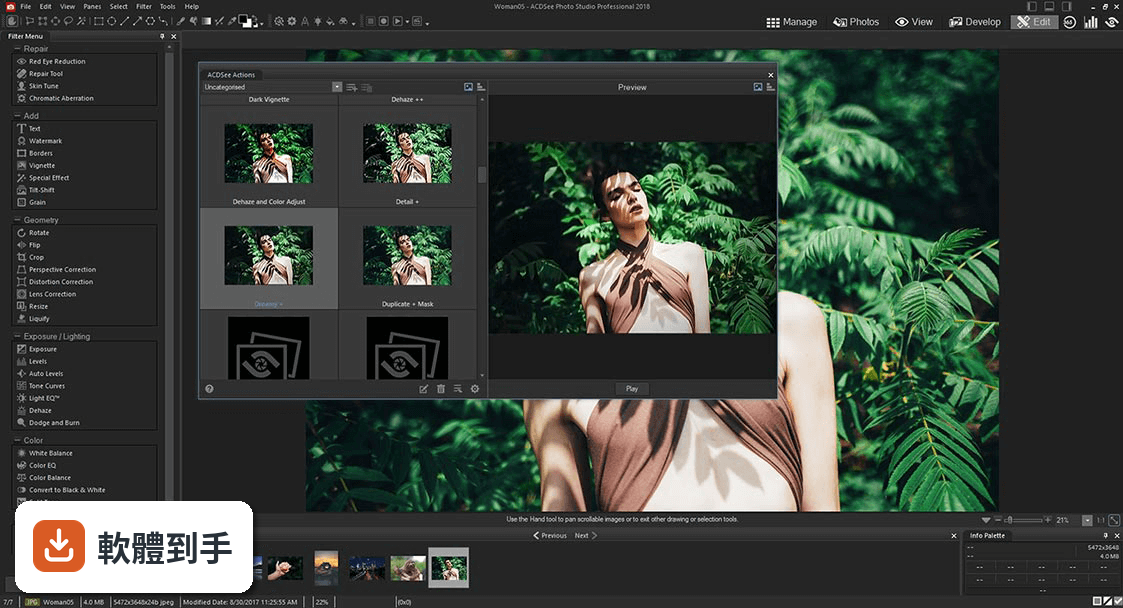
01ACDSee Photo Studio Professional 到底能做什麼?
它是一套把 RAW 編輯和照片管理綁在一起的軟體。主要分四個模組:Manage 負責匯入和整理照片,View 是快速全螢幕預覽,Develop 做 RAW 檔的曝光、白平衡等調整,Edit 則提供圖層、去背、修圖等畫素級工具。另外還有批次處理、人臉辨識、AI 放大等功能,一套涵蓋從匯入到輸出的流程。
02整理幾千張照片,它有什麼辦法?
在 Manage 模組裡,你可以幫照片加關鍵字、標籤和評分,之後用搜尋和篩選功能快速過濾。它有人臉辨識,會自動把同一張臉的照片歸在一起,也有 AI 關鍵字功能,會自動為照片下標籤。資料夾和搜尋結果可以開在不同分頁,方便同時比對多個檢視畫面,不用一直切換視窗。
03RAW 檔修圖,它跟 Photoshop 差在哪?
Photoshop 是通用影像編輯軟體,RAW 檔通常要另開 Camera Raw 外掛來處理。ACDSee 的 Develop 模組本身就是針對 RAW 設計,曝光、對比、白平衡、清晰度這些調整都直接做在裡面,而且是非破壞性編輯,原始檔不會被改動。如果你主要是修 RAW 而不是做合成設計,它的流程會比 Photoshop 更直接。
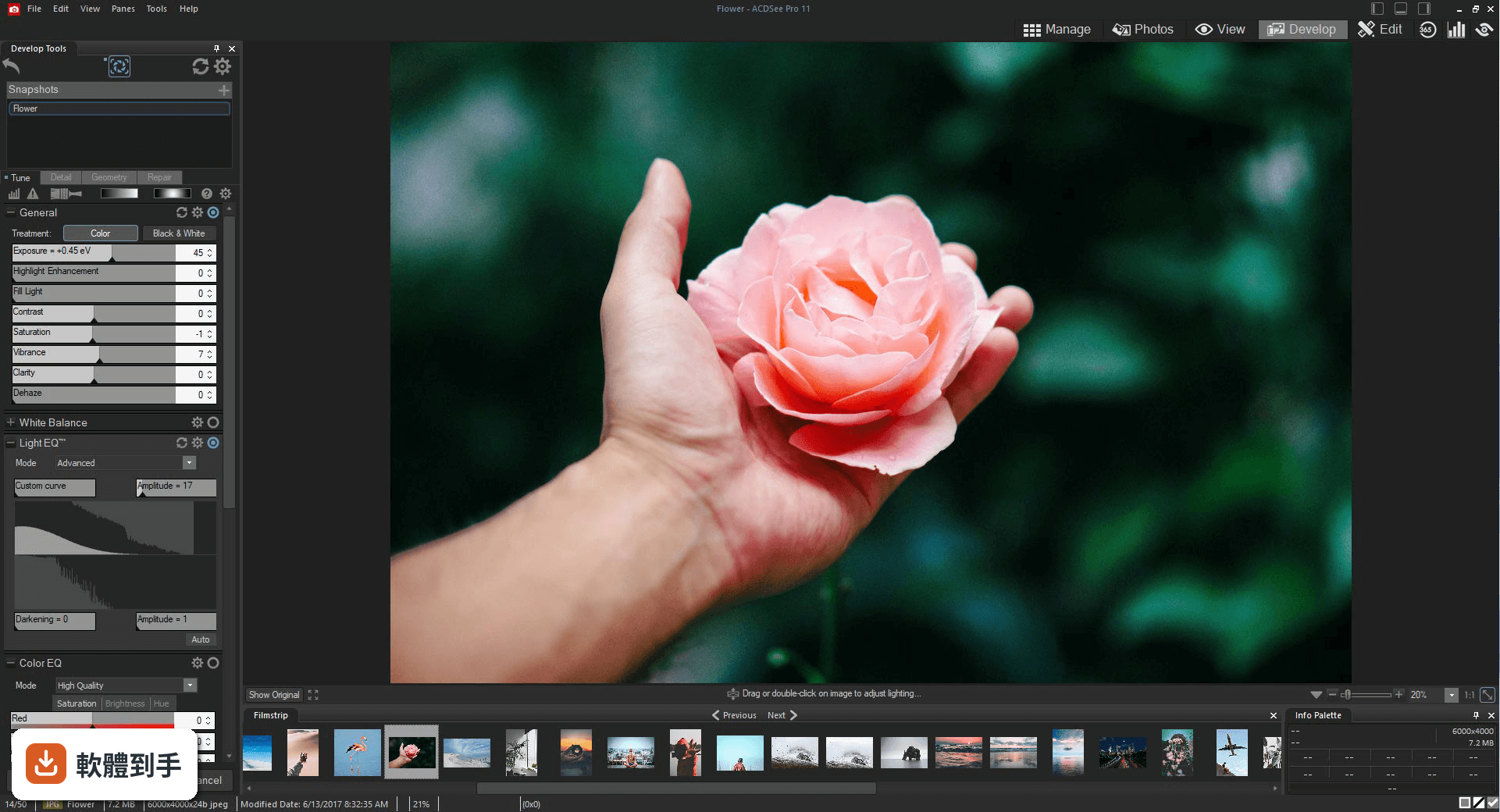
04它說的 AI 功能,實際用起來是什麼感覺?
官方列出的 AI 功能有幾項:AI Super-Resolution 可以把低解析度或老照片放大,號稱不失真,而且支援批次處理;AI Object Masking、AI Subject、AI Sky 則是在 Develop 模式的遮罩工具裡,可以自動選出物體、主體或天空,省去手動描邊。另外還有 AI 關鍵字和 AI 人臉辨識,用於整理照片時自動分類。
05一次處理很多照片,它有沒有比較快的做法?
有批次處理功能,可以同時選取多張照片套用相同的調整,例如一次調整曝光、白平衡或套用濾鏡。AI Super-Resolution 也支援批次放大。如果你有大量照片要做同樣的修正,可以先把一張調好,再把引數套用到其他張,不用一張一張重弄。
06完全沒學過修圖的人,用這軟體會不會太難?
官方 FAQ 說它的介面設計對初學者友善,有教學和指南可以參考。實際操作上,Manage 和 View 兩個模組的邏輯跟一般檔案總管類似,拖曳就能整理照片;Develop 模組的滑桿也直覺。不過介面是英文的,如果英文不熟,選單和工具名稱會需要花時間對照,這點要先有心理準備。
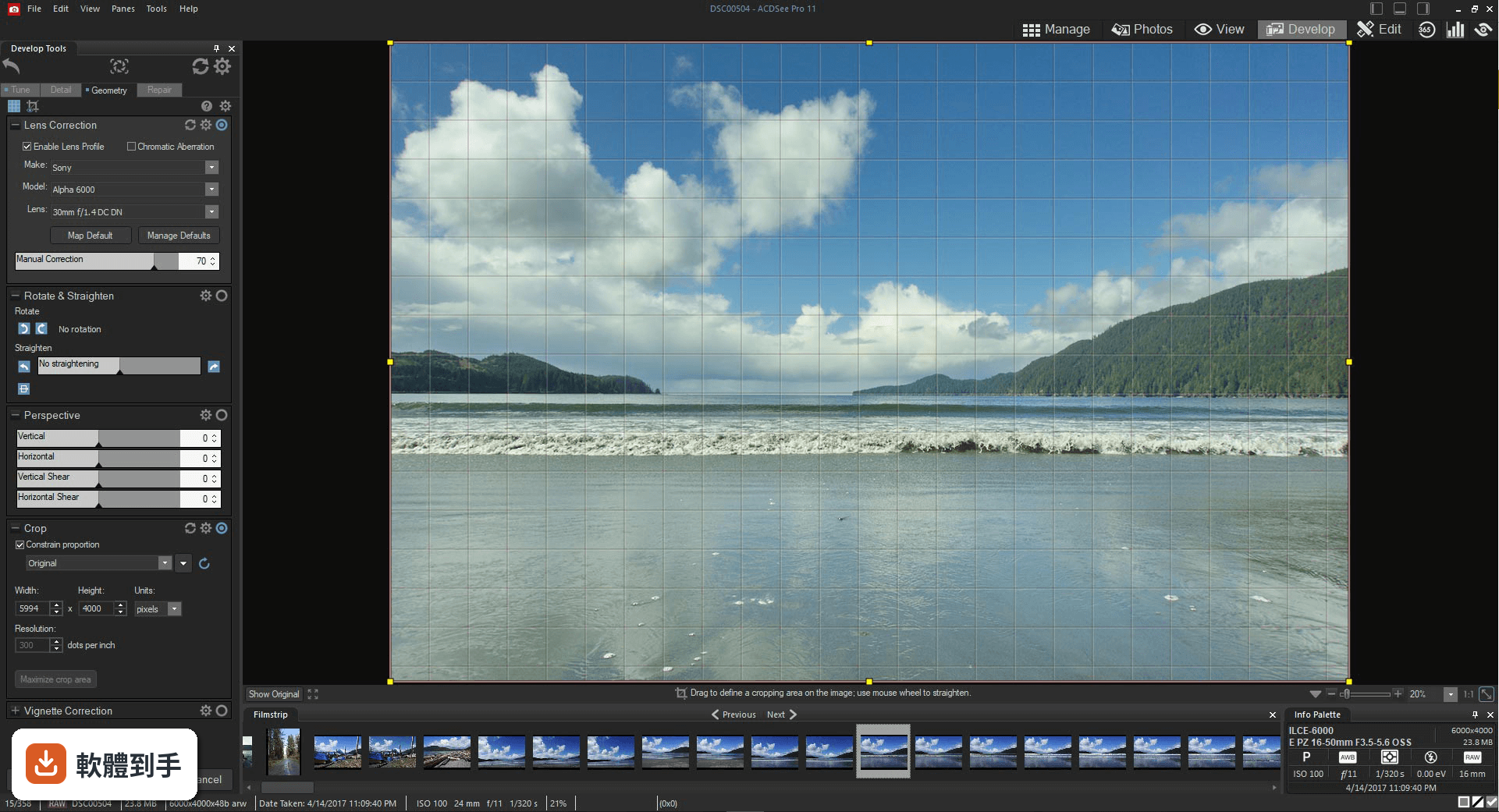
07靠拍照接案的人,拿它當主力工具夠用嗎?
它有完整的 RAW 編輯、圖層、遮罩、GPU 加速,也支援輸出到 Photoshop 或其他外部編輯器繼續處理,工作流程上算是齊全。要注意的是授權規定:一個授權只能裝在一台機器上,除非另外買多裝置方案。如果你有桌機和筆電都要用,要確認授權方案是否涵蓋。
08只是出門玩拍了一堆照片,用它會太浪費嗎?
如果你只是偶爾整理旅遊照片,它的功能確實超出需求,而且介面是英文的,學習成本可能比你想的高。免費的看圖軟體加上 Google 相簿或內建工具,可能就夠用了。不過如果你照片量很大、又希望保留 RAW 檔的調整彈性,它的整理功能會比免費工具省事很多。
09介面只有英文,看不懂怎麼辦?
官方資料顯示介面語系只有 English,沒有中文選項。如果英文閱讀有困難,操作上會比較吃力,尤其是 Develop 和 Edit 模組裡的大量專業術語。建議先下載試用版實際操作看看,確認自己能不能接受英文介面,再決定要不要購買。
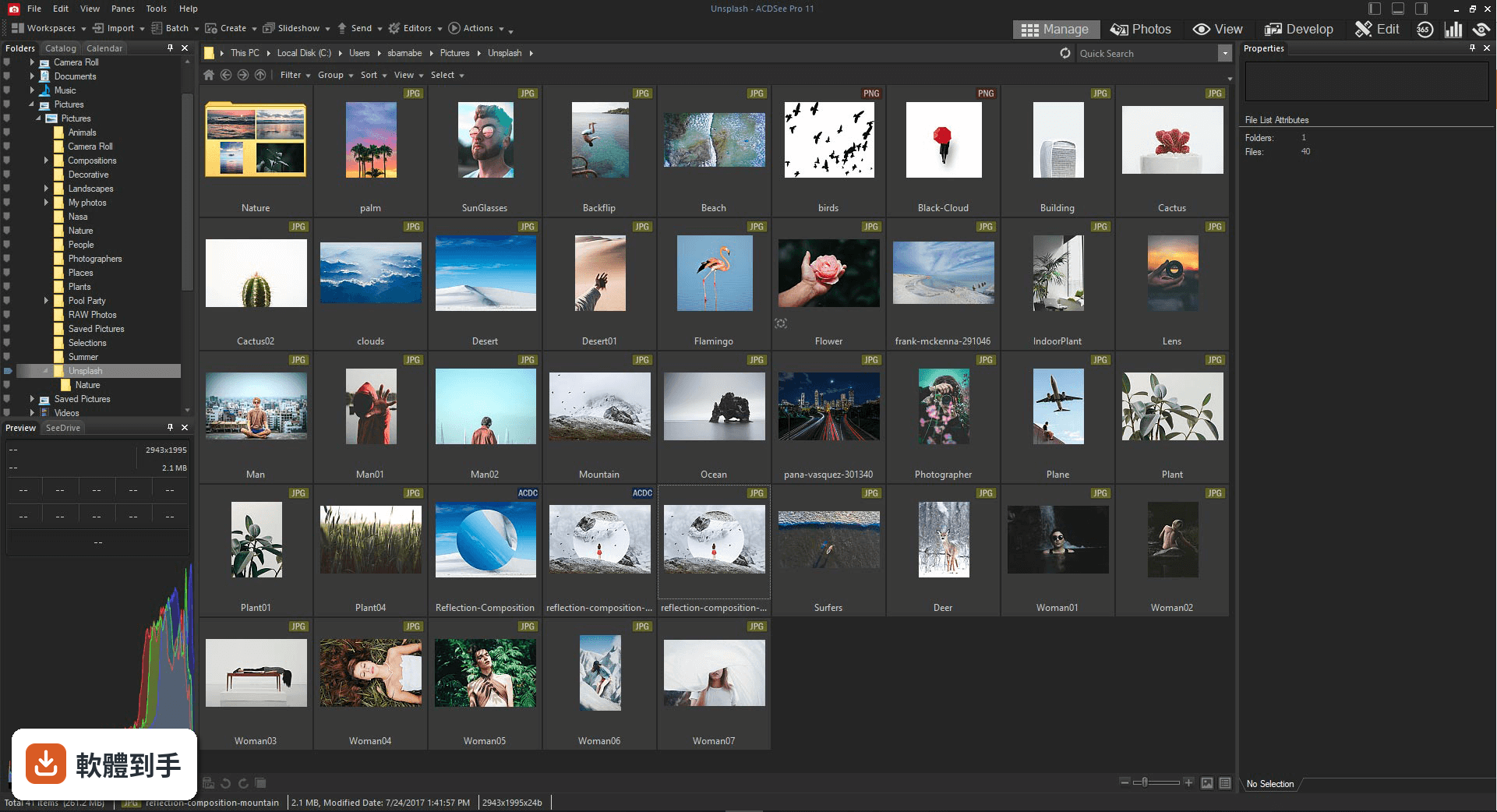
10它跟 Lightroom 比,選哪個比較好?
兩者都是 RAW 編輯加照片管理,但方向不同。Lightroom 是雲端優先,照片同步和跨裝置存取比較方便;ACDSee 是本地管理,照片檔案留在自己硬碟,隱私性較高。ACDSee 有一次性買斷方案,Lightroom 則是訂閱制。如果你不想年年付費、又重視檔案自主權,ACDSee 會是比較符合需求的選擇。
11我電腦是 Mac,可以用嗎?
不行。官方支援系統只有 Windows 10 和 Windows 11,沒有 macOS 版本。Mac 使用者需要找其他方案,例如 Lightroom 或 Capture One 都有 Mac 版。如果你主要用 Mac 工作,這套軟體可以直接跳過。
12它多久更新一次?會不會買了就沒人管?
根據收錄的版本紀錄,這套軟體從 2017 年開始持續有更新,近 12 個月更新 2 次,近 24 個月更新 5 次,算是維持穩定的更新節奏。不過目前只有 30 人評分,參考樣本偏少,實際使用體驗可以多找論壇或社團的討論來判斷。
下載與官方連結
前往官方網站 下載 ACDSee Photo Studio Professional
acdsee-photo-studio-professional-2024-0-0-2627-win · 連結指向軟體原廠
版本紀錄
- 2026-09-20 ACDSee Photo Studio Professional 2027 20.0.0 Build 3719 (64-bit) 777.94 MB
- 2026-01-07 ACDSee Photo Studio Professional 2026 19.0.1 Build 3450 (64-bit) 575.79 MB
- 2025-09-18 ACDSee Photo Studio Professional 2026 19.0.0 Build 3354 (64-bit) 575.8 MB
再看 5 筆
- 2025-02-27 ACDSee Photo Studio Professional 2025 18.1.0 Build 3131 (64-bit) 573.89 MB
- 2024-12-12 ACDSee Photo Studio Professional 2025 18.0.1 Build 3056 (64-bit) 570.74 MB
- 2024-09-19 ACDSee Photo Studio Professional 2025 18.0.0 Build 2988 (64-bit) 570.8 MB
- 2024-05-22 ACDSee Photo Studio Professional 2024 17.1.1 Build 2859 (64-bit) 514.2 MB
- 2024-04-25 ACDSee Photo Studio Professional 2024 17.1.0 Build 2837 (64-bit) 514.19 MB
這一版改了什麼
What's new in this version:
- AI Keywords, effortlessly organize and search for your photos using AI detected keywords for your images
- Embed ACDSee Keywords and Categories into IPTC Keywords and Supplemental Categories. Easily transfer your Keywords and Categories from ACDSee into IPTC and vice versa.
- Filter the ACDSee Categories and Keywords lists in the Properties pane to quickly find what you want
- Automatic Import Options, import your options from ACDSee Photo Studio 2022 or newer
- AI Select Sky, Subject, and Background in Develop Mode for non-destructive editing
- New Masking Group in Develop Mode, find all your masking tools in one convenient place
- Copy and paste masks in Develop Mode, as well as duplicate masks, and convert masks into a Brush mask
- AI Select Background in Edit Mode, easily select the background of any image with a single click
- AI Select Sky and Subject have been added to Edit Mode
- Brush Settings for Flow, Opacity, and Jitter in Edit Mode
- In People Mode, added an option to display a thumbnail and customizable metadata fields when hovering over a face thumbnail
- Overhauled the Embed ACDSee Metadata process. Simplified the options and added the ability to skip the options and summary page
- Added RAW support for 21 new camera models
- Added or updated 150+ cameras and lenses in the Lens Correction feature
- Improved Auto Category for ISO by increasing its ISO max range up to 102401+
- Improved performance for Category Browsing: Selecting “include subcategories” no longer makes browsing run considerably slower
- Improved performance when Expanding All on a large ACDSee Category or Keyword list
- Improved HDR to remember the last preset used
- Added support for Display P3 color profile on HEIC/HEIF images
- Improved support for Google Pixel DNGs
- Improved support for HEIC and added support for HIF files
Fixed:
- an issue where Imported Date was not visibly read-only
- an issue where the results from Advanced Search were being unnecessarily re-scanned
- an issue where page orientation settings wouldn’t be saved after printing
- an issue in Photomerge – Panorama where clicking Auto-Crop would also select the checkbox for !! Remove Vignetting
- an issue when after uploading to Flickr, a Page not Found error would appear
- an issue that would cause uploading to SmugMug to stop working