
這是歷史版本頁面 — 看 Adobe Camera Raw 最新版本
拍了一堆RAW檔卻不會修?Adobe Camera Raw 能幫你什麼
 Adobe Camera Raw 26.0
資料更新 2021-10-27
閱讀約 8 分鐘
打開電腦,看著記憶卡裡幾百張 RAW 檔,你其實有點不知道從哪裡開始。當初為了保留最多細節,特意把相機設定成 RAW 格式,結果回家一開檔,畫面灰灰的、顏色平淡,跟你現場看到的完全不一樣。你只是想讓照片看起來正常一點,卻發現一般看圖軟體根本打不開這種檔案,就算打開了,能調的選項也少得可憐。
很多人遇到這種狀況,第一個念頭是上網找免費修圖軟體,但裝了之後才發現,光是搞懂介面就花掉整個晚上,更別說要一張一張調整白平衡、曝光、雜訊。其實這類工具的核心切入點很單純:讓你在不破壞原始檔的前提下,把 RAW 檔的顏色和明暗還原成你記憶中的樣子,而且可以一次套用同一組設定到幾百張照片上。你不用從零學一套完整修圖軟體,只需要一個能處理 RAW 檔的插件就夠了。
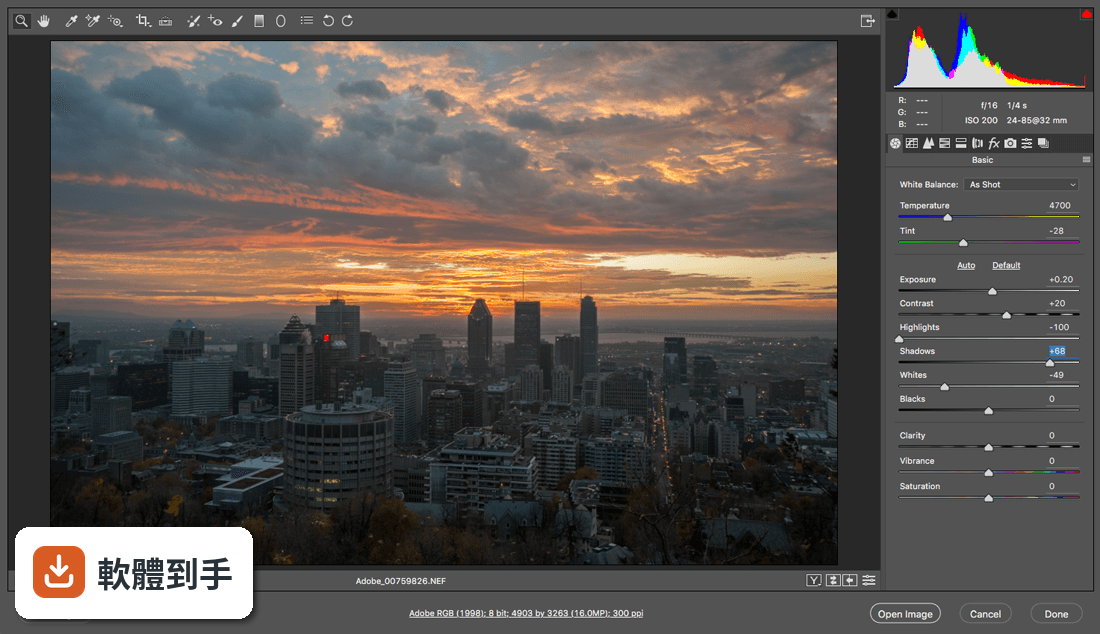
01Adobe Camera Raw 到底能幹嘛?跟一般修圖軟體有什麼不同?
它是一個掛在 Photoshop 或 Lightroom 裡面的插件,專門處理 RAW 檔。跟一般修圖軟體最大的差別是,它讀取的是相機感光元件記錄的原始資料,不是已經壓縮過的 JPEG,所以調整白平衡、曝光、亮部陰影的時候,畫質彈性大很多。你可以在裡面調整色溫、色調、曝光、對比、清晰度,還有 HSL 色彩控制,也能修正鏡頭變形和紫邊。所有調整都是非破壞性的,原始檔永遠不會被改動,隨時可以回到一開始的狀態。
02沒有 Photoshop 或 Lightroom 的話,這套軟體能單獨使用嗎?
不行。Adobe Camera Raw 是插件,不是獨立軟體,你必須先裝好 Photoshop、Photoshop Elements、After Effects 或 Bridge 其中一套,它才會跟著出現,不需要另外安裝。如果你手上沒有任何 Adobe 軟體,這套工具對你來說等於不能用。官方資料明確寫了這點,所以如果你的預算或習慣裡沒有打算用 Adobe 產品,可能要考慮其他能獨立執行的 RAW 編輯程式。
03這套軟體支援哪些相機的 RAW 檔?
官方列出的支援品牌包括 Canon、Nikon、Sony、Fujifilm、Panasonic、Leica、Hasselblad、Olympus、Pentax、Sigma、DJI、GoPro、Huawei、Xiaomi 等,涵蓋範圍很廣,連空拍機和手機的 RAW 檔都有列入。不過每一版 Camera Raw 支援的相機型號和鏡頭型號會不太一樣,如果你用的是比較新的機身,建議先到 Adobe 官網查一下你手上這台相機有沒有在支援清單裡,免得裝了才發現打不開。
04我拍的是 JPEG 不是 RAW,用這套軟體還有意義嗎?
可以用,但效果沒有 RAW 那麼明顯。官方說明指出,這套軟體雖然是設計給 RAW 檔用的,但 JPEG 和 TIFF 檔也能丟進去調整,只是 JPEG 本身已經壓縮過,亮部陰影的還原空間有限,調整幅度太大會出現畫質劣化。如果你平常都拍 JPEG,只是想偶爾救一下過暗或偏黃的照片,它還是能派上用場,只是不要期待能像 RAW 檔那樣大幅度的後製彈性。
05幾百張照片一張一張調太累了,有沒有辦法一次套用?
有批次處理功能。你可以在某一張照片上把白平衡、曝光、鏡頭校正這些參數調好,然後把這組設定存成預設集(preset),之後選取其他照片,一鍵套用同一組設定。這對婚禮、活動、旅遊這種一次拍大量照片的場合很實用,至少能先把所有照片的白平衡和曝光拉回正常範圍,再針對少數特別需要微調的畫面個別處理。
06這套軟體適合什麼樣的人用?
適合已經在用 Photoshop 或 Lightroom 的人,尤其是拍 RAW 檔的攝影師。如果你本來就是 Adobe 生態的使用者,ACR 不需要額外安裝、不需要學新介面,打開 RAW 檔就會自動跳出來,工作流程是順的。另外,如果你需要聯機拍攝(把相機接電腦,從軟體直接控制快門和設定),它也支援這個功能。但如果你是偶爾拍幾張、不想訂閱 Adobe 方案的人,它就不太適合你。
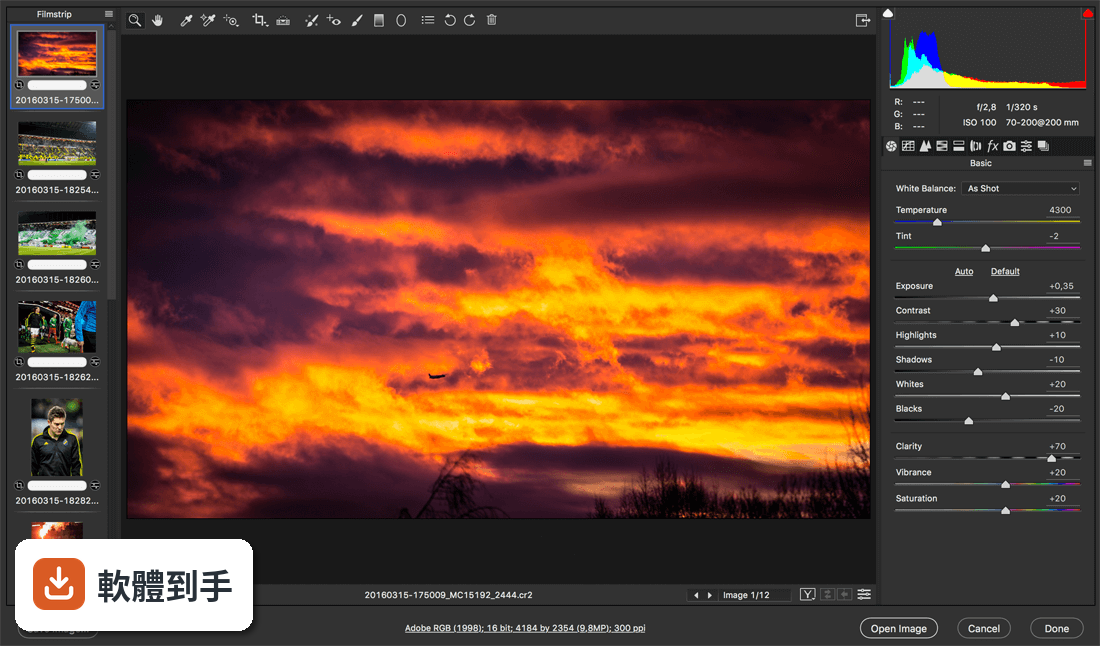
07我只想簡單調個亮度,不想學一堆面板和滑桿,這套會不會太複雜?
它的介面確實是面向專業攝影師設計的,面板和滑桿很多,對初學者來說一開始會有點眼花。官方資料也提到它對初學者來說學習曲線比較陡。如果你只是想把照片調亮一點、加一點飽和度,其實用內建的基本面板就能做到,不用碰其他進階功能。但如果你連 Photoshop 或 Lightroom 都不熟,建議先從 Lightroom 的「開發模組」開始摸,那邊的介面跟 ACR 幾乎一樣,但流程更直覺。
08這套軟體是免費的嗎?還是要另外付錢?
軟體本身標示為 Freeware,但前提是你已經有 Photoshop 或 Lightroom。也就是說,ACR 這個插件不用另外花錢買,但它不能脫離 Adobe 軟體獨立運作,而 Photoshop 和 Lightroom 需要訂閱 Adobe Creative Cloud 才能使用。官方資料也明確提到這點,說它需要 Creative Cloud 訂閱。所以實際上的花費取決於你原本有沒有 Adobe 方案,如果沒有,等於要為了用 ACR 而多付一筆訂閱費。
09介面只有英文嗎?我看不懂英文操作有辦法用嗎?
官方資料顯示介面語系是 English,沒有提到其他語言。如果你對英文介面不熟悉,操作上會有一些門檻,尤其是 HSL 色彩調整、鏡頭校正這些進階面板,裡面的術語不少。不過 ACR 的介面邏輯跟 Lightroom 幾乎一樣,如果你用過 Lightroom 的中文版,大概能猜出每個滑桿在幹嘛。真的看不懂的話,可能要考慮其他有中文介面的 RAW 編輯軟體。
10我電腦是 Windows 10,跑得動嗎?還是要升級?
官方資料寫支援 Windows 10 和 Windows 11,所以你的系統在支援範圍內。不過實際跑不跑得動,取決於你裝的 Photoshop 或 Lightroom 版本,以及電腦的記憶體和顯示卡。官方說明也提到,系統需求會隨版本和搭配的 Adobe 軟體而變,建議先確認你的電腦符合 Photoshop 或 Lightroom 的最低需求,再來評估 ACR 跑起來順不順。
11這套軟體跟 RawTherapee、Darktable 這些免費 RAW 編輯軟體比起來,有什麼差?
最大的差別是,ACR 不是獨立軟體,它必須依附在 Adobe 生態裡;RawTherapee 和 Darktable 是免費且可以獨立執行的程式,不需要訂閱任何東西。功能面上,ACR 的強項是跟 Photoshop 和 Lightroom 的整合,你修完 RAW 可以直接丟進 Photoshop 繼續合成或修圖,流程很順。但如果你不想訂閱 Adobe,或不想被綁在特定軟體生態裡,那些獨立軟體會是更自由的選擇,只是介面和操作邏輯要重新適應。
12我聽說這套軟體更新很頻繁,是為什麼?不更新會怎樣?
它的更新紀錄確實很密集,近一年內更新了 11 次,近兩年 19 次。主要原因是相機廠商不斷推出新機型,新的 RAW 格式需要新版 ACR 才能讀取,所以 Adobe 必須持續更新來支援新相機和新鏡頭。如果你不更新,舊版可能讀不到新相機拍的 RAW 檔,但如果你都用同一台舊相機,不更新也不會影響既有功能。只是要注意,新版 ACR 可能要求新版 Photoshop 或 Lightroom,舊版 Adobe 軟體不一定能裝最新版 ACR。
下載與官方連結
Illustrator_Set-Up.exe · 連結指向軟體原廠
版本紀錄
- 2026-10-14 Adobe Camera Raw 18.7 1.7 GB
- 2026-08-28 Adobe Camera Raw 18.6 1.7 GB
- 2026-08-05 Adobe Camera Raw 18.5 1.7 GB
再看 5 筆
- 2026-06-22 Adobe Camera Raw 18.4 1.7 GB
- 2026-06-17 Adobe Camera Raw 18.3.2 1.7 GB
- 2026-05-23 Adobe Camera Raw 18.3.1 1.7 GB
- 2026-04-24 Adobe Camera Raw 18.3 1.7 GB
- 2026-03-17 Adobe Camera Raw 18.2.2 1.7 GB
這一版改了什麼
What's new in this version:
Adobe Illustrator CC 2021 26.0
Fixed:
- The AdobeXMPScript framework that was used to read XMP data is missing in Illustrator 25.4
- Pre-typed text cannot be modified using the Fonts style menu in the Properties panel
- The buttons in the Recolor Artwork panel display incorrect tooltips
- In the Swatch Options window, the color created in HSB mode displays sliders for RGB
- The modified unit values in Preferences > Units > General are not saved accurately
- In CC Libraries, the input, search, and rename functions for double-byte characters do no work
- In the Properties panel, values within each field cannot be dragged and selected
- The color picker does not apply the selected color to the object when the gradient slider is selected in the gradient panel
- When scaleAction Javascript is applied on the selected objects, the objects are deselected
Adobe Illustrator CC 2021 25.4.1.498
- Outline view reverts to CPU Preview and will not re-engage GPU Preview mode
- Pasting text on selected text changes the text properties
- Fill Color (Global/Spot) of Objects is removed when you change any of the stroke properties
- CC Library panel does not work or freezes when accessed
- Unexpected behavior is noticed for Pattern swatches in Illustrator 25.3.1
- When you use Optical Type in version 25.3, the text is displayed without spaces
- [macOS only] The clipping path with a Japanese name is not recognized and the PSD image is displayed unmasked
- In Illustrator 25.3.1, a dot is displayed in En Space when Stroke and Round Caps are added to the text
- Canvas Rotation feature is obstructing Pinch in and Pinch out gestures on the trackpad
- Learn more tips dialog does not disappear or unable to close
- Graphics copied from Illustrator 25.3 are inserted in Figma as raster images instead of vector
- Can’t type ö and ü from German Keyboard
- Stability fixes
Adobe Illustrator CC 2021 25.3.1.390
- Change log not available for this version
Adobe Illustrator CC 2021 25.3.0.385
- Gaussian blur effect does not scale the object
- Multiple opacities applied on text do not display correctly in GPU preview
- Attributes panel shows Overprint in mixed selection state
- Paths drawn using Pencil tool do not appear smooth
- CC Library panel does not work or freezes when accessed
- [macOS only] Customized texture effect does not work when uploaded in Illustrator
- System compatibility report dialog displays when the GPU drivers are up to date
- Performance / Display issue with rotated line gradients, arrows, and appearances
- The color setting automatically changes to Emulate Adobe Illustrator 6.0 while switching from Illustrator to Photoshop
- Upon closing a file in Illustrator, all open files automatically close
- Text position changes while using Type on path tool
- Mojikumi set None is saved incorrectly
- Stability fixes
Adobe Illustrator CC 2021 25.2.0.220
- Share access and edit cloud documents: Invite your team members to seamlessly collaborate and edit your cloud documents. Cloud documents shared with you can be accessed directly in Illustrator
- Snap to Japanese glyph: Use the new Japanese-specific snapping guides to snap your artwork components precisely with the Japanese glyph
- System compatibility report on launch: A System Compatibility Report dialog is displayed on launching Illustrator to notify you about system incompatibilities
- Stability and performance: Experience better product stability and performance as we fixed many issues in this release that you reported to us
Adobe Illustrator CC 2021 25.1.0.90
Repeat artwork:
- Instantly create repeat objects and manage their styles. Choose Mirror to create perfectly symmetrical mirror art, Radial to radially distribute an object, and Grid to create multiple copies of an object along a grid.
- Snap to glyph
Enhanced glyph snapping:
- Glyph snapping feature has been improved to provide you a better experience, specifically when you snap objects to angular guides
Adobe Illustrator CC 2020 25.0.1
- Change log not available for this version
Adobe Illustrator CC 2020 25.0.0.60
Recolor artwork:
- Auto-extract color palettes from vector or raster objects and easily apply them to your designs
Enhanced cloud documents:
- Embed Photoshop cloud documents into Illustrator cloud documents. View, mark, and revert to older versions as needed
Smart glyph snapping:
Easily position text and other objects precisely around the boundary of live text using smart glyph guides
Enhanced Type:
- Set font size based on height references, align objects with visual glyph bounds, and align text vertically in a text frame
Adobe Illustrator CC 2020 24.3.0.569
- Change log not available for this version
Adobe Illustrator CC 2020 24.2.3.521
- Change log not available for this version
Adobe Illustrator CC 2020 24.2.2.518
- Change log not available for this version
Adobe Illustrator CC 2020 24.2.1.496
- Change log not available for this version
Adobe Illustrator CC 2020 24.2.0.490
- Change log not available for this version
Adobe Illustrator CC 2020 24.1.3.428
- Change log not available for this version
Adobe Illustrator CC 2020 24.1.2.408
- Change log not available for this version
Adobe Illustrator CC 2020 24.1.2.402
- Change log not available for this version
Adobe Illustrator CC 2020 24.1.2.376
- Change log not available for this version
Adobe Illustrator CC 2020 24.1.0.369
- Change log not available for this version
Adobe Illustrator CC 2020 24.0.2.373
- Change log not available for this version
Adobe Illustrator CC 2020 24.0.330
- Change log not available for this version
Adobe Illustrator CC 2019 23.1.0
- Change log not available for this version
Adobe Illustrator CC 2019 23.0.6
- Change log not available for this version
Adobe Illustrator CC 2019 23.0.5
- Change log not available for this version
Adobe Illustrator CC 2019 23.0.3
- Change log not available for this version
Adobe Illustrator CC 2018 23.0
Freeform gradient:
- Illustrator now offers a new gradient type called Freeform, which provides new color blending capabilities to create richer and photorealistic gradients that look more natural. Freeform gradient provides you the flexibility to create color stops at any place in your object. You can add, move, and change the color of color stops to seamlessly apply gradients to objects. Creating a freeform gradient fill is a simple and efficient way to create a smooth color gradation
The Freeform gradient type can be applied in two modes:
- Points: Use this mode to create color stops as independent points in the object
- Lines: Use this mode to create color stops over a line segment in the object
Global editing:
- Illustrator now provides a new Global Edit option, which lets you edit all similar objects globally in one step. This feature comes handy in situations when multiple copies of an object, such as a logo, are present in the documents. To manually edit all such objects one-by-one can be difficult and time-consuming task, and may lead to errors. The Global Edit option helps you edit them globally in a simple and easy manner. You can also use this option to edit similar groups
Visual font browsing:
The Character panel now includes the following new and enhanced options:
- A new tab Find More is provided to let you browse thousands of fonts from hundreds of type foundries from within Illustrator, activate them instantly, and use them in your artwork. Activated fonts are available for use in all Creative Cloud applications
- More sample text options are now available in the drop-down list. You can also select a text on the artboard to use as sample text. You can control the size of sample text by selecting the sample text size options
- The Show Similar Fonts and Add to Favorites options are available inline for every font. These are displayed when you hover over a font
- The Fonts Classification filter is now a drop-down list that shows a sample of the font types, instead of just the font type name
- A new Apply Recently Added filter is provided to filter all fonts that are added in the last 30 days
Customizable toolbar:
- Illustrator now provides two toolbars – Basic and Advanced. The Basic toolbar contains a set of tools that are commonly used while creating illustrations. All other tools are available within the toolbar drawer that you can open by clicking the Edit Toolbar button (...) at the bottom of the toolbar
- The Advanced toolbar is a full-fledged toolbar that you can open by choosing Windows > Toolbars > Advanced or select Advanced in the drop-down menu of the drawer
- You can also create your own custom toolbars. In any toolbar, you can add, remove, group, or re-order tools according to your requirements
Presentation mode:
- You can now display the current Illustrator document in a full-screen presentation mode. In this mode, the application menu, panels, guides, grids, and selections are hidden. It is a non-editable mode, in which you can only view and browse through artboards using the arrow keys. Use this mode to present your design ideas
Trim view:
- Illustrator now provides a new view mode called Trim View, which is useful for previewing how a design would look without guides, grids, or elements that extend beyond the edge of the artboard. In this mode, any artwork falling outside the artboard is clipped and all non-printing objects on the canvas, such as grids and guides is hidden. You can continue to create and edit your artwork in this mode
Scalable user interface:
- You can now scale the user interface of Illustrator based on your screen resolution. When you launch Illustrator with updated preference settings, it identifies your screen resolution and adjusts the application scale factor accordingly. You can scale the user interface on your screen using the user interface preferences dialog
Faster zoom:
- The overall zoom performance in Illustrator has been significantly improved. For complex artworks, a temporary raster is now used to enable a faster zooming and panning experience
Content-Aware Crop:
- (Only on Windows 64-bit and macOS) When you select the Crop Image option to crop an image on the artboard, Illustrator now identifies the visually significant portions of the selected image. A default cropping box is then displayed based on this identified portion of the image. You can adjust the dimensions of this cropping box if needed. Once you are done, you can click Apply in the Properties panel or press Enter (Windows) or Return (macOS) to crop the image
Actual size preview:
- When you choose View > Actual Size, Illustrator now sets the actual size of the display elements irrespective of your monitor size and resolution. When you perform a 100% zoom for a document, the size of every object in the document is the actual representation of the physical size of the object. For example, if you open a new artboard of A4 size and click Actual Size, the artboard size is changed to an actual A4 sheet.
Puppet Warp enhancement:
- Illustrator now identifies the best areas to transform your artwork and automatically add pins to the artwork. You can also add or delete pins if you want. This feature is enabled by default when the Puppet Warp tool is selected. To disable this feature, deselect the Enable Content Aware Defaults option by choosing Edit > Preferences > General
Home screen:
When you launch Illustrator, it now displays a Home screen, which includes the following:
- A wide range of tutorials to help you quickly learn and understand the concept, workflow, tips, and tricks
- Popular presets to get you started with the new documents quickly
- Display and access to your recent documents
- Create New button to create a new document and Open button to open an existing document
- The contents of the Home screen are tailored based on your familiarity with Illustrator and your Creative Cloud membership plan
Enhanced Properties panel:
The Properties panel now includes the following new controls:
- Variable font options
- Delete icon for single effects
- Width Profile option to set width profiles
- Corner option to change the curve of anchor points
- Blend Option for blending objects
- Merge Live Paint button to merge Live Paint groups
Animated zoom in Outline mode:
- In the previous Illustrator versions, when you viewed your artwork as outlines or paths, Illustrator automatically switched from the GPU Preview mode to the CPU Preview mode
- Now, the Outline mode is GPU enabled. Viewing artwork in the GPU Outline mode displays smoother paths and reduces the time it takes to redraw the complex artwork on high-density display screens
License Stock images:
You can now search for an image in the Libraries panel and send a request to get the licensed version of an image. Choose the image and do the following:
- In the Libraries panel, iIn the Search Adobe Stock box, type a search string for the image
- In the search results, if you place the pointer on the selected image, the License and Save to downloads icon is displayed. Click this icon to get the licensed version of the image
Support for South East Asian scripts:
Illustrator now includes the support for five new South East Asian languages, so your documents can include text composed in these scripts: Thai, - Burmese, Lao, Sinhalese, and Khmer