
這是歷史版本頁面 — 看 Disk Drill for Windows 最新版本
誤刪檔案救得回來嗎?Disk Drill 能做什麼
 Disk Drill for Windows 4.4.606.0
資料更新 2021-11-04
閱讀約 6 分鐘
你剛把記憶卡插進電腦,發現照片不見了;或者清空資源回收筒之後,才想起裡面有一份重要的 Excel。當下你大概會先打開資源回收筒翻一遍,沒有,然後開始上網搜尋「刪除的檔案怎麼救回來」。這種時候你需要的不是備份軟體,而是一套能把已刪除資料重新找出來的工具。
一般人第一個念頭是去找免費軟體,但免費方案常常掃描得到檔案、真正要恢復時卻卡關,不是限制檔案大小就是要求付費解鎖。另一條路是送修,但報價高、要等好幾天,而且不一定救得回來。資料救援軟體做的事情其實很直接:掃描儲存裝置上殘留的檔案痕跡,讓你在恢復之前先看到哪些檔案還在、能不能救,再決定下一步。
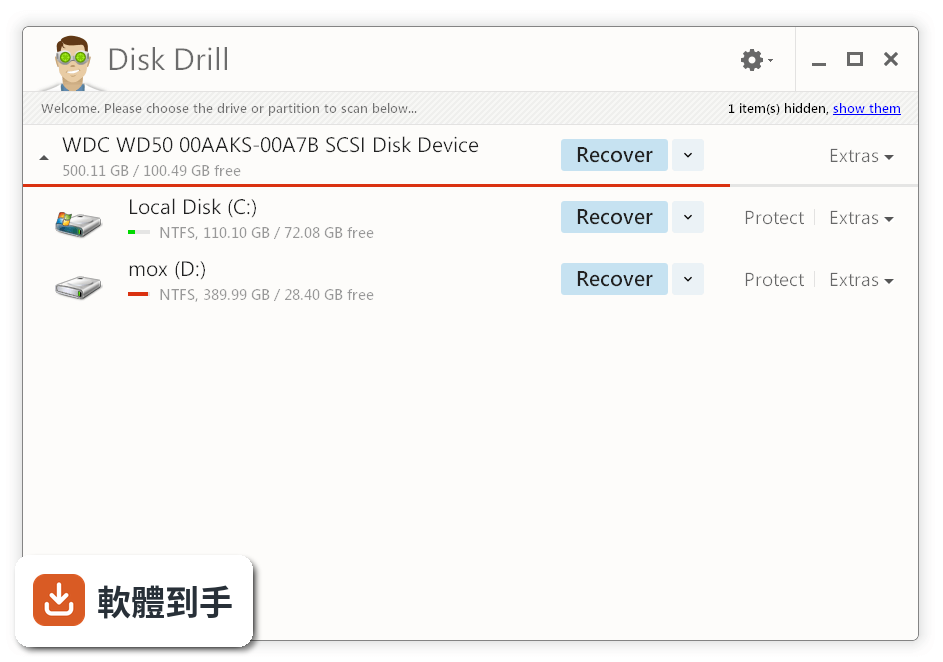
01Disk Drill 免費版到底能不能恢復檔案?
可以,但有上限。安裝後掃描和預覽檔案都是免費的,免費恢復額度是 500 MB。如果你要救的資料超過這個量,就必須升級到付費版本才能完整恢復。建議先掃描看看,確認檔案還在、預覽沒問題,再決定要不要花錢升級。
02它掃描一顆硬碟大概要多久?
官方沒有給具體時間,實際速度取決於硬碟容量、檔案數量和掃描模式。它有兩種模式:Quick Scan 適合剛刪除的檔案,速度較快;Deep Scan 適合格式化或分割區遺失的狀況,會花比較久。掃描過程中可以暫停,之後再從中斷的地方繼續,不用重來。
03不小心格式化隨身碟,裡面的照片還能救嗎?
有機會。它的 Deep Scan 就是針對格式化、分割區損壞這類情況設計的,而且支援 FAT、exFAT、NTFS 等常見檔案系統。需要注意的是,格式化之後最好不要再往隨身碟寫入任何新資料,否則原本的檔案痕跡可能被覆蓋掉,救回來的機率會下降。
04除了硬碟和隨身碟,它還能掃描哪些裝置?
只要是能連到 Windows 電腦的儲存裝置,它都能掃,包括記憶卡、數位相機、手機(iPhone 和 Android 都有提到)。甚至連 iPod 也在官方列出的支援範圍內。換句話說,只要裝置能被 Windows 辨識為磁碟機,就可以嘗試用這套軟體掃描。
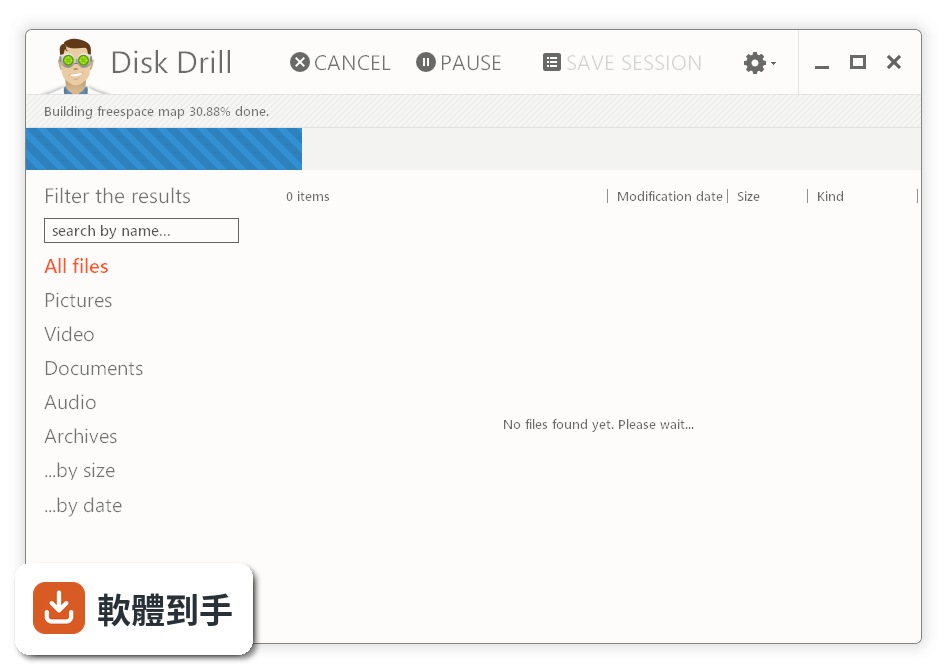
05掃描結果一大堆檔案,怎麼找到我要的那一個?
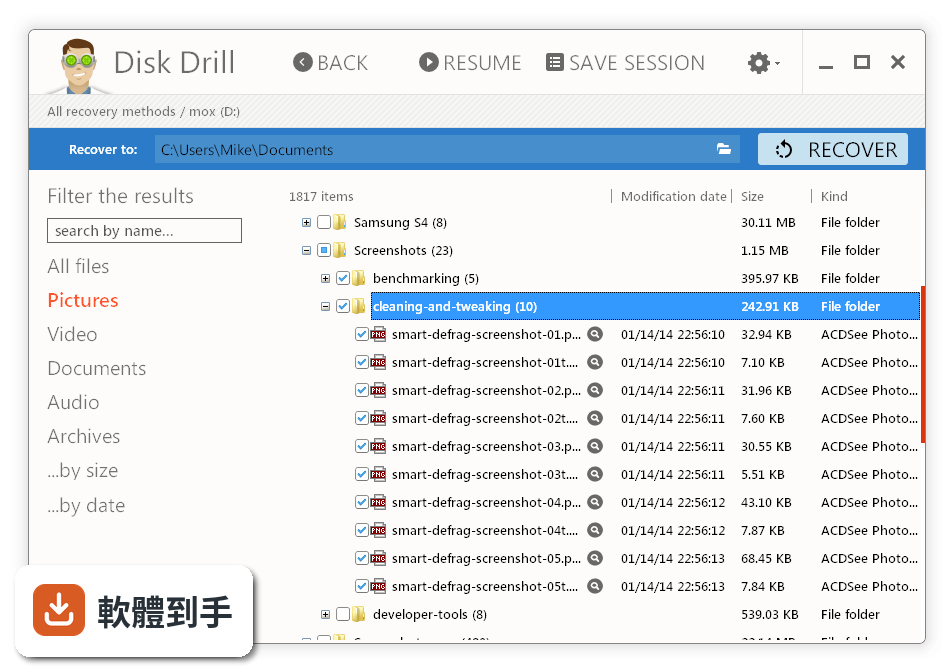
它提供檔案類型篩選功能,可以依照文件、照片、影片、音樂等類型過濾結果。在恢復之前也可以先預覽檔案內容,確認是不是你要的那個版本。這在檔案很多的時候很實用,不用一個一個點開來看。
06我英文不好,這套軟體有中文介面嗎?
沒有。它的介面語言只有英文,官方資料沒有提到任何中文支援。如果你對英文介面不熟悉,操作上可能會需要花一點時間摸索。不過它的介面設計偏向簡潔,按鈕和流程不算複雜,但這終究是英文環境,要自行評估能不能接受。
07電腦新手用這套軟體會不會太難?
官方資料說它的介面是給初學者設計的,掃描只要按一個按鈕就開始,恢復流程也有逐步引導。實際操作上,你只需要選擇磁碟、按下掃描、預覽檔案、然後恢復,流程不算複雜。但要注意的是,救援軟體的使用時機通常伴隨著緊張情緒,建議先冷靜下來照步驟走。
08我已經把檔案刪掉很久了,還有救嗎?
官方沒有明確說刪除多久之後就救不回來。關鍵在於刪除之後,那個磁碟空間有沒有被新的資料覆蓋過去。如果刪除後你持續正常使用電腦、安裝軟體、下載檔案,原本的資料痕跡可能已經被蓋掉。建議先掃描看看,預覽結果會告訴你哪些檔案還完整、哪些已經損壞。
09這套軟體和 Wise Data Recovery 或 DiskDigger 比起來,選哪個好?
這幾套都是資料救援工具,但定位不太一樣。Disk Drill 的評分人數(230 人)比 Wise Data Recovery(128 人)和 DiskDigger(80 人)都多,表示使用者的回饋樣本較大。功能上 Disk Drill 多了 Recovery Vault 和 S.M.A.R.T. 監控,但這些是付費功能。如果你只需要偶爾救一次小檔案,免費額度 500 MB 以內就夠用;如果常常需要救援大量資料,就要比較各家的付費方案。
10它有所謂的「資料保護」功能,那是什麼?
那是付費版的功能,叫 Recovery Vault 和 Guaranteed Recovery。簡單說,它會在檔案刪除時偷偷保留一份記錄,之後恢復會更快、更完整。另外還有 S.M.A.R.T. 監控,會在硬碟快要故障之前發出警告。這些功能必須在資料遺失之前就先安裝並啟用,如果已經刪檔了才裝,就來不及了。
11這套軟體適合什麼樣的人用?
適合兩種人:一種是偶爾誤刪檔案、需要救回少量文件或照片的人,免費額度 500 MB 以內可以應付;另一種是經常處理重要資料、願意付費換取 Recovery Vault 保護功能的人。它的介面設計對初學者友善,英文介面不是障礙的話,算是容易上手的選擇。
12什麼情況下不建議選這套?
如果你需要恢復的檔案超過 500 MB 又不打算付費,那免費版對你來說就只是「看得到吃不到」。另外,介面只有英文,如果你完全無法閱讀英文,操作上會比較吃力。還有,如果你要救援的是 Mac 電腦的硬碟,這套是 Windows 版本,要注意你的作業系統是 Windows 10 或 11 才能安裝。
下載與官方連結
前往官方網站 下載 Disk Drill for Windows
disk-drill-win.exe · 連結指向軟體原廠
版本紀錄
- 2026-07-23 Disk Drill 6.3.1398 54.04 MB
- 2026-02-24 Disk Drill 6.2.1278 51.35 MB
- 2025-11-20 Disk Drill 6.1.1162 50.98 MB
再看 5 筆
- 2025-08-22 Disk Drill 6.0.1054 51.15 MB
- 2025-08-04 Disk Drill 6.0.1053 51.18 MB
- 2025-06-24 Disk Drill 6.0.1045 51.16 MB
- 2025-06-18 Disk Drill 6.0.1042 51.17 MB
- 2025-02-11 Disk Drill 5.7.917 27.15 MB
這一版改了什麼
What's new in this version:
New:
- Disk Drill is now officially compatible with Windows 11
- New comprehensive notification popup upon the scan completion
- The session saving progress is now shown in a modal window for user’s convenience
- During a backup copy creation, Disk Drill scans for and informs about bad blocks on the disk and whether their number is critical for the disk’s further functioning
- Confirmation alerts were added for cancelations of scan, recovery and backup processes
- The preview window has been tremendously updated: scale and rotate the supported file previews; pin the window on top; a previewed file can be selected for recovery even faster now with a conveniently placed checkbox. The preview window now also remembers its position and size
- Increased scanning speed by optimizing the “empty” blocks scan
- If bad blocks are found on a disk during the scan process, Disk Drill shows a message with related information and recommendations
- The backup process offers more flexibility now by allowing you to indicate the start and end positions for backup, or specify its desired size
Improved:
- Image size detection greatly improved for JPG files
- A much better detection of Enhanced Windows Metafile (EMF) files
- Better detection of X3F files for Sigma sd Quattro cameras
- Better support for the BRAW (Blackmagic RAW) format with its new codecs
- Better handling of interrupted Deep Scans
- A greatly improved scan process for NTFS systems with their partitions formatted in Acronis software
- A much better recovery for CR3 (Canon RAW format) files, specifically for the Canon EOS R6 (craw with HDR preview), Canon EOS R5 (craw HDR, FW 1.2.0), Canon EOS 1DX Mark III (craw w/ HDR FW 1.0), and Canon EOS R5 (craw/craw HDR FW 1.0) cameras
- Recovery chances of the found files are dynamically refreshed as they are calculated (even when scrolling the list of scan results)
- Multiple minor tweaks in the interface to make it even more comprehensive and native to Windows OS
- A new informer when attempting to store backups of partitions larger than 4 GB on FAT32 systems
- The recovery log always contains all the files selected for recovery, even if the recovery process itself was paused midway
- The overall recovery algorithms stability during the recovery of badly corrupted FAT systems has been greatly improved
- When attempting to open a session created in a newer version of Disk Drill, the app will give a comprehensive warning of an unsupported session format
- Disk Drill will now properly inform users when the storage device with the DMG file being scanned gets disconnected
- Greatly enhanced recovery chances calculation on Windows x86
- Updated support for bitmap image files – those that contain multiple images, icons and cursor files for OS/2
- Log files now contain extended information about scan durations for every drive scanned
Fixed:
- During installation, Disk Drill checks whether Windows Management Instrumentation (WMI) is running on a computer, which is important for a proper software launch
- Minor text edits in various localizations to make sure all messages fit in their windows
- Software crash when quitting a scan and clicking “Yes” to confirm
- The already recovered empty files (0 bytes) were still selected for recovery upon going back to scan results
- Recovered empty files (0 bytes) didn’t have the “Success!” status assigned to them
- Erroneous assignment of the “Success!” recovery status in certain scenarios to the files that haven’t been recovered yet
- Disabled “Scan entire disk” and “Skip” options after a disk partition was scanned and disk was then disconnected and connected again
- The “Review Found Items” option was not displayed when using the “Undelete protected data” method on system disks with data protection enabled