
這是歷史版本頁面 — 看 FlashFXP 最新版本
FlashFXP 4.0.0 Build 1510
 FlashFXP 4.0.0 Build 1510
資料更新 2010-12-10
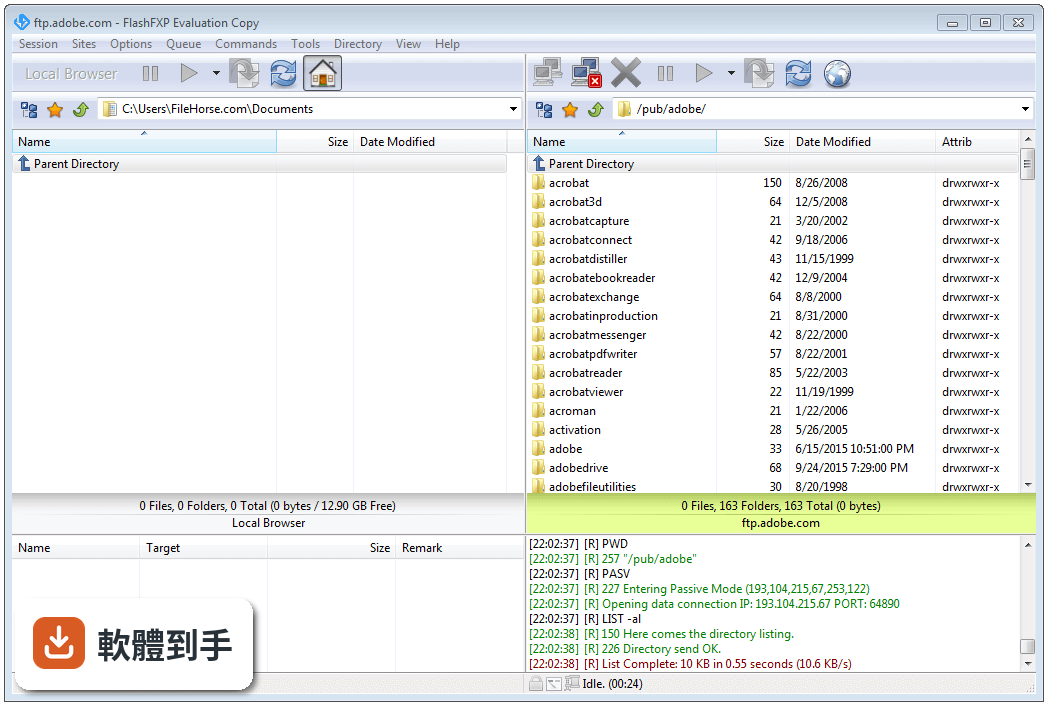
下載與官方連結
FlashFXP4_1510_Setup.exe · 3.27 MB · 連結指向軟體原廠
版本紀錄
- 2026-08-27 FileZilla 3.71.1 (64-bit) 12.14 MB
- 2026-08-21 FileZilla 3.71.0 (64-bit) 12.14 MB
- 2026-06-06 FileZilla 3.70.6 (64-bit) 12.14 MB
再看 5 筆
- 2026-05-08 FileZilla 3.70.5 (64-bit) 12.12 MB
- 2026-04-20 FileZilla 3.70.4 (64-bit) 12.1 MB
- 2026-02-14 FileZilla 3.69.6 (64-bit) 12.15 MB
- 2025-11-12 FileZilla 3.69.5 (64-bit) 12.14 MB
- 2025-08-01 FileZilla 3.69.3 (64-bit) 11.88 MB
這一版改了什麼
What's new in this version:
The skip list:
- The skip list has been completely redone, Each skip list rule has a scope of where it can be applied. name of file, name of folder, path of file, path of folder, and any. You can define per site skip lists.
- When you import your v3 data files your skiplist is converted to the new format and if you had the "skip list applies to directories" option in v3 checked then all existing skiplist entries are set with a scope of any.
- That means it will match name of file, name of folder, path of file, path of folder. You can multi-select and right click to change multiple rules at once. Rules containing a open bracket [ will be escaped as [ see below for an explanation. Please make sure your rules are set properly.
- The pattern matching system has changed in v4, We now use a subset of the regular expression rules for pattern matching.
- Matches a subset of regular expressions (* ? and [])
- * Matches zero or more of any character
- ? Matches exactly one character
- [] Matches character from
- [^] Matches character not in
- where can include multiple ranges and escaped characters matches a slash , [ matches a open bracket [
- Only characters within need to be escaped, with the exception of the [ character, If you need to match a [ then it must always be escaped.
The task scheduler:
- The task scheduler uses Windows scheduling service to run the tasks, there's email notification and lots of different options that is sure to suite your needs.
- You can assign individual selective transfer rulesets to each task.
- The old queue schedule is available for people who want to do one time scheduling and this is now moved to the right click queue menu.
- Windows 7 users will see the file progress on the task bar button.
- Improved and optimized local shell file browser.
- Improved and optimized file transfers.
Improved and optimized tcp/ip buffer sizes:
- You can now select larger buffers as well as the new auto mode. The auto mode may provide better results than default but not necessary better than a larger fixed size. It depends on the network conditions. You can also configure tcp/ip buffers per-site. In my tests a larger buffer size works best with LAN based servers. This build displays a debug message on connect indicating whether or not auto buffer shaping is activated.
Improved FTP File Search:
- The FTP File Search now provides an additional filter which allows you to do a sub search on the results. When the sub-search is activated the background color changes to a light blue.
The New right click options:
- Open location, which changes to the folder in the remote browser.
- Copy to Clipboard (Copy HTTP, URL, Name, Path + Name)
- New File (Now you can create a file locally and when you save the changes it will upload it to the server.)
- Improved and optimized performance and display of the ftp session window.
- In addition if the FlashFXP application window is activated you'll see the lines scroll and appear more fluid like. If the window is inactive then the updates are grouped together.
Queue changes:
- You can now change the type of transfer to/from upload, download, fxp.
- You can assign a selective transfer rule set to each individual item in the queue (i.e. transfer only log files in one folder and only php files in another).
- Synchronize with delete allows you to delete any files from the target that do not exist on the source.
Improved logging system:
- You can now have multiple log files per session instead of a single merged log like in v3.x.
- In addition you can configure the type of information that is logged including schedule tasks.
- Session Log
- File Transfers (Upload, Download, Site to Site)
- As well as the transfer results (Successful, Failed, or skipped)
- File Transfer Summary
- For example you can configure FlashFXP to only log uploads that are successful.
- New toolbar backgrounds:
- We've included 43 different background themes to use on the tool bar, or you can use your own.
- Bitmap Backgrounds can be loaded externally.
- LiveUpdate settings have been moved into the Preferences.
- You can now define the default character encoding in the Preferences. Previously this setting was only per-site.
- You can now customize the file listing font and background colors.
New File Transfer Rule system:
- The new rule system can evaluate the file size and/or date. Use the MLSD command for directory listing is recommended for accuracy. If you add a rule that wont be evaluated because a preceding rule takes precedence then the rule will appear in red and striked out.
- New Remote editing feature that automatically detects when the file has been changed and uploads the file.
- You can disable automatic uploads per file type under File Associations for files that you need to manually upload.
- Upgraded to the latest version of FastMM memory manager.
- Updated SFTP engine to the latest version, this improves compatibility with certain SFTP servers.
Updated MadExcept to the latest version:
- MadExcept is used for exception handling, the new version should improve crash reports and make life a little easier
- Updated button images and redesigned a couple interface dialogs.
- Many improvements and redesign to the preferences, site manager dialogues as well as adding new dialogues and preference categories to support new features.
- There is more control over the options since all existing and new options are now in their correct categories, previously this was not quite the case. The intention is to improve usability and allow the user to exercise better control over their desired set up to meet the requirements of their specific network conditions.
New Integrated Translation Editor:
- Everyone who submits a line of text that is used in the final translation will receive credit. Translation credits will be displayed on a new special tab in the about box.