
這是歷史版本頁面 — 看 FreeCommander 最新版本
Windows檔案總管不夠用?FreeCommander雙窗格管理
 FreeCommander XE 2021 Build 840
資料更新 2020-12-18
閱讀約 5 分鐘
你手上同時有兩三個專案在跑,檔案散落在不同的資料夾裡。每次要搬檔案,就是開兩個視窗,來回切換、複製、貼上,一天重複幾十次。明明只是整理檔案,卻花掉大半個下午,而且視窗一多,桌面就亂成一團,連自己剛剛開的資料夾都找不到。
Windows 內建的檔案總管其實夠用,但它的設計就是一次看一個資料夾。當你需要頻繁比對兩邊內容、同步資料夾、或同時處理多個位置的檔案時,這種單窗格的操作方式就變成瓶頸。這類雙窗格檔案管理工具,核心做法就是讓你在同一個畫面裡同時看到兩個資料夾,搬移、複製、比對都直接在左右兩邊完成,省掉切換視窗的動作。
01FreeCommander 跟 Windows 檔案總管有什麼不一樣?
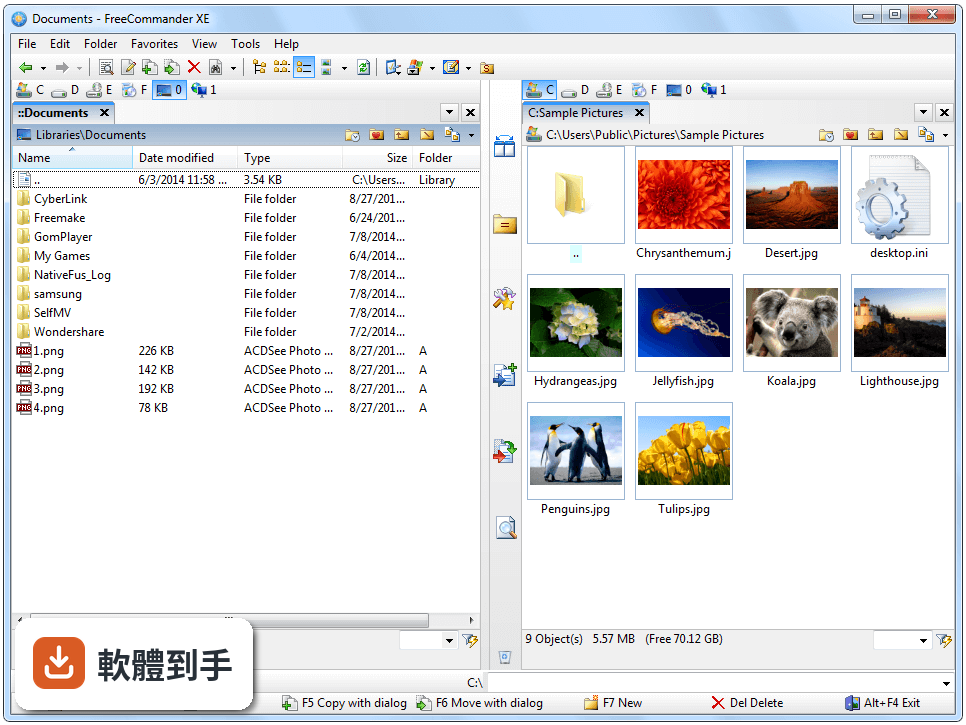
它採用雙窗格介面,左右兩邊各顯示一個資料夾,搬移或複製檔案時直接從左邊拖到右邊,不用開兩個視窗。另外提供分頁瀏覽,可以在同一個視窗內開多個資料夾分頁。內建檔案檢視器,預覽圖片或文字檔不用另外開軟體。這些都是檔案總管沒有的操作方式。
02它可以用來同步兩個資料夾的內容嗎?
可以。內建檔案同步功能,可以比較兩個位置之間的檔案差異,然後選擇要複製或刪除哪些檔案,讓兩邊內容一致。這在備份檔案或整理散落各處的檔案時很實用,不用自己手動比對哪邊的檔案比較新。
03壓縮檔可以直接處理嗎?還是要先解壓縮?
可以直接管理 ZIP、RAR 等壓縮檔格式,不需要先解壓縮就能瀏覽內容、取出檔案或加入新檔案。對於經常收到壓縮檔、需要快速檢視裡面有什麼的人來說,省掉解壓縮再重新壓縮的步驟。
04它有支援 FTP 或遠端伺服器連線嗎?
32 位元版本支援 FTP,64 位元版本支援 FTP 和 SFTP。可以連到遠端伺服器進行檔案傳輸,不需要另外安裝 FTP 使用者端軟體。不過官方資料沒有提到雲端儲存服務的整合,如果你主要用 OneDrive 或 Google Drive,需要搭配這些服務的桌面同步工具使用。
05介面可以自己調整嗎?
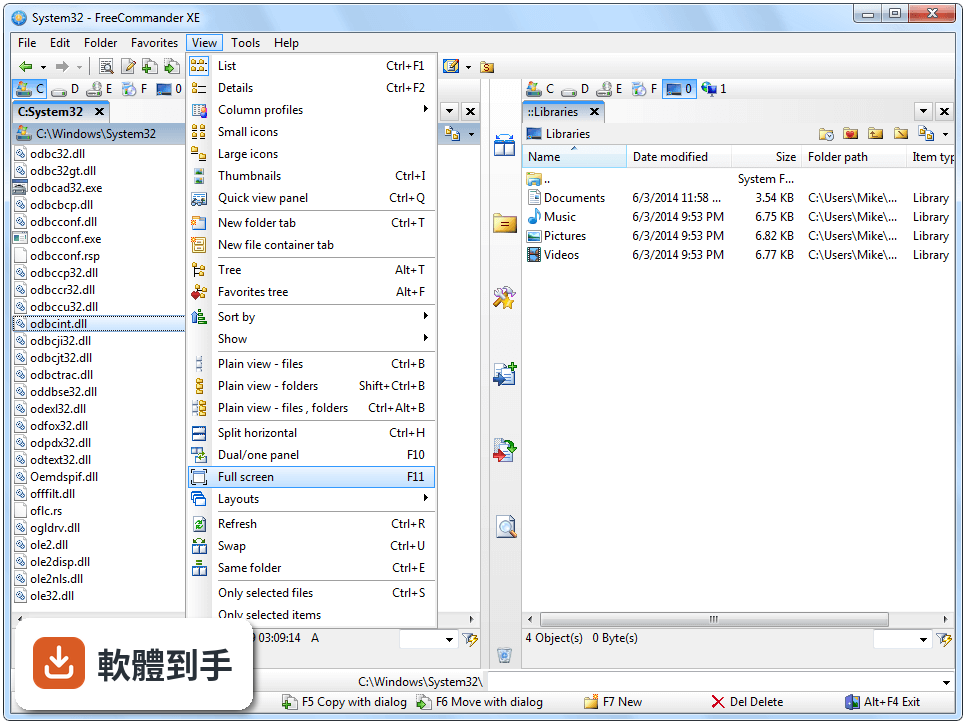
可以。工具列、快速鍵、色彩配置都能修改,64 位元版本還內建深色和淺色主題。官方說明提到介面看起來比較傳統,不像現代軟體那麼花俏,但對於追求簡潔、不要太多幹擾的人來說,這種樸素設計反而是優點。
06這套軟體適合什麼樣的人用?
適合每天需要大量搬移、複製、整理檔案的人,例如同時處理多個專案的上班族、需要管理大量素材的設計或影音工作者。攜帶版可以放在 USB 隨身碟帶著走,在別台電腦上使用時不需要安裝。如果你只是偶爾整理一下檔案,檔案總管可能就夠了。
07我英文不好,用起來會很吃力嗎?
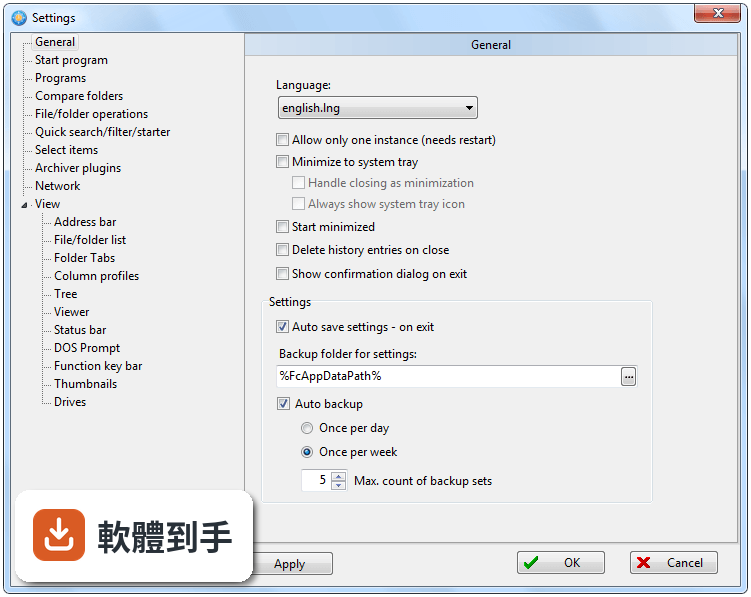
介面是英文的,沒有中文語系。不過檔案管理操作大多是圖示和右鍵選單,常用功能的位置記住之後,需要閱讀的文字不多。如果你對英文介面完全排斥,或需要中文說明檔案來學習操作,這套軟體可能不適合你,可以考慮有中文介面的 Double Commander。
08它跟 Total Commander 比起來如何?
Total Commander 有 206 人評分,FreeCommander 只有 34 人評分,使用者的回饋樣本數有差距。Total Commander 是付費軟體,以外掛和自訂性聞名;FreeCommander 的 32 位元版本免費,64 位元版本需要付費。如果你需要大量外掛擴充功能,Total Commander 的生態系更成熟,但如果你只需要基本雙窗格操作,免費版本就夠用。
09我的電腦是 Mac,可以用嗎?
不行,這套軟體只支援 Windows 7 到 Windows 11,官方資料明確說沒有 Mac 或 Linux 版本。如果你用的是 Mac,官方建議可以試試 Commander One 這類替代工具,但這只是官方說法,實際使用情況需要自己確認。
1064 位元版本要付費,跟免費的 32 位元版本差在哪?
64 位元版本多了幾個功能:原生顯示右鍵選單(32 位元需要外部工具)、內建 PDF 檢視器、可以在 PDF 和 Office 檔案中搜尋文字、支援 SFTP、內建深色主題,而且更新頻率較高。32 位元版本完全免費,但功能較少,更新也比較慢。如果你不需要這些進階功能,免費版就夠用。
11這套軟體還有在持續更新嗎?
根據收錄的版本紀錄,近 12 個月有 2 次更新,近 24 個月有 4 次,屬於持續維護中的軟體。64 位元版本每年會收到多次更新,32 位元版本大約一年一次。跟長期停滯的免費軟體比起來,它的維護狀況算穩定。
12它的評分只有 7 分,是不是不好用?
目前 34 人評分,平均 7.08/10,樣本數不多,參考價值有限。對比同類軟體,Double Commander 有 206 人評分、Total Commander 有 206 人評分,回饋數量多很多。如果你在意社群共識,可以先去試用 Double Commander 或 Total Commander 再決定,但 FreeCommander 的免費版本沒有成本,直接裝來試用也是一個方式。
下載與官方連結
FreeCommanderXE-32-public_setup.exe · 連結指向軟體原廠
版本紀錄
- 2026-02-02 FreeCommander XE 2026 Build 941 18.19 MB
- 2025-12-28 FreeCommander XE 2026 Build 940 18.18 MB
- 2024-12-28 FreeCommander XE 2025 Build 921 18.07 MB
再看 5 筆
- 2024-12-22 FreeCommander XE 2025 Build 920 18.07 MB
- 2024-02-06 FreeCommander XE 2024 Build 901 15.12 MB
- 2023-12-18 FreeCommander XE 2024 Build 900 15.12 MB
- 2022-12-17 FreeCommander XE 2023 Build 880
- 2022-02-13 FreeCommander XE 2022 Build 861
這一版改了什麼
What's new in this version:
Fixed:
- Viewer - mouse wheel zoom function is inverted
- New status bar item can not be created if program started with default settings parameter
- Minor Toolbars dialog filter vs icons issue
- Viewer - "fit to window" sometimes is broken
- The position of the scroll bar may be wrong after switching from detailed view to thumbnail view
- Temporary and not locked file container TAB not always removed on program closing
- Aborting the drag&drop operation with ESC can lead to an unwanted selection of files/folders (NC selection mode)
- Viewer form (F3) option "Stay on top" does not work correctly
- Exception on main window activating if only one pane visible and refresh option "Refresh when FreeCommander is activated" is checked
- Program start is faulty and program can not be closed - this behavior only appears when the program is started from a shortcut that has "Properties/Shortcut/Run: Maximized"
- Manipulate files with emojis in their name is not possible
- Default action issue with multiple files
- Function "Same folder Ctrl+E" sometime does not switch the folder properly
- Window size and position lost when exit from fullscreen
- Tabs drag&drop - always active tab is dropped if the option "With click on the active tab - change to the last active" is active
- Wrong data populating (right-shifted columns) after F10 (top/bottom split)
- Column width not remembered across close/re-open
- Recycle Bin panel switch issue
- The definition of the font size for dialogs (Tools->Settings->View) does not work for Settings dialog
- "Layouts edit" dialog - after deleting of the last layout the OK button is not active (it is not possible to delete all layouts)
- Mounted volume size is not properly shown in progress bar of the drive bar
- Search dialog doesn't find content of folder with semicolon in its name
- Focus is lost if deleting a file in the thumb view mode 735
- Next/previous tab shortcuts broken when using some context menu options
- Tab name maybe not updated
- Tooltip for button in the action toolbar maybe wrong if custom icon is used
- Renaming a file that is open in Quick View can break the display in Quick View
- Status info for '..' item was never used
- Keyboard shortcuts maybe lost when using "Desktop Snapshot"
- Sorting Windows columns of date type does not work properly for many timestamp formats (e.g. in recycle bin)
- Opening program links from the FreeCommander Desktop is broken
- Keyboard shortcuts do not work in Quick View pane
- Exception possible if copy/move files from library
- Internal viewer issues after clicking buttons to change view
- Deleting/copying a file from the desktop can throw an exception
- Opening ftp/sftp path from favorite folders tree broken
- Context menu function "Rename" partially broken
- Empty favorite toolbar will be shown if all toolbar items are defined as visible only in menu
- Opened tree pane may slow down some operations
- Multirename form - tooltip always on top #p31690
- Color issue in the setting dialog
- Tree pane - rename with F2 key is partially broken if the option "Allow rename on slow double click" is disabled
- Thumbnail of the text file is blurry if dark background is used
- Text thumbnails with unicode format broken
- Deleting the item '..' from context menu may cause freezing
- Plain view is not preserved after FC restart on left panel
- Problem with text color of the active tab
- Customize favorite toolbars - Changing the order of the buttons has no effect if you add a separator
- Rar archives cannot be opened if encryption for file names has been activated. Workaround - first open an archive without encryption.
- Define action toolbars - option "Show drop down arrow only" is broken
- Search files/folders - The same file can exist several times in the result list if the search location is not correctly defined #p31283
- Search files/folders - cancellation of the deletion dialog is not handled correctly
- Search files/folders - file selection in the result list maybe wrong after deleting of some files from the list
- Position of active item is not updated when using quick viewer
- If we press backspace in a subfolder, FC goes to parent folder, but sometimes fails to focus on the subfolder (when folders are sorted at the end of the list and extension ist not showed in the name column)
- Exception in search dialog
- Bug in saving settings (FavoritesTreeColorSelectedNodeInactive)
- Selection maybe broken if hover time is used
- Position issue when switching modes in plain view
- Language defined as command line parameter is not correctly set
- Multi rename problem
- Dialog display issue after FC restart with 'Defined font' for dialogs
- File list display issues after renaming
- Quick filter delete/backspace bug
- File container drag&drop and cut refresh issue
- Automatic view may not work if the "View type" option is set to
- Some tabs are not created when the layout is restored
- Quick search does not work properly if some other options are active
- Program freezes on startup if the drive last used is no longer connected and plain view mode was used on program close. 2#p34572
- Focus is lost on refresh if option "Switch view mode automatically ..." is active
- Tree maybe not shown if switching from single-panel to dual-panel mode
- Sorting is wrong if auto selectable view is active and all options are set to "No change"
Implemented:
- New action - focus newest file/item in the list (by last access timestamp)
- New action - focus next/previous item in the list
- Attributes/Timestamp dialog - set file timestamp from EXIF
- Settings->Tree - new color can be defined "Selection - Inactive"
- Settings->Tree - new color can be defined "Background - Inactive"
- Viewer form (F3) - set window to foreground if already open and use last saved size/position if multiple window allowed.
- Make folder/file list - timestamp format added on Settings tab
- Drive panel - width of the volume name button is definable in the setting
- Support for 4K monitors
- Quick Viewer - Copy selected text to the clipboard with the shortcut Ctrl+C.
- SFTP (64 bit only) - public key login is possible now
- When started "As Admin": Warning symbol is added to the program icon - new option in Settings->View
- New variable added %ActivSelOrDir% - same as %ActivSel% but return current path if nothing is selected in the file list (for example when selecting ".." in file list)
- New action added - Close all tabs in both panels; Closes all not locked folder tabs in both panels
- New action added - Close all tabs with confirmation; Closes all folder tabs with confirmation dialog
- New action added - Select the first file / folder; Select first file (if currently focused item is a folder) or folder (if currently focused item is a file) in the list
- When started "As Admin": Warning symbol is added to the program icon and the word "(Admin)" appears in the title bar.
- Thumbnails for SVG files
- SFTP - Symbolic links are properly handled now
- "Attributes/Timestamp..." dialog - new attribute "Recall on data access" added (e.g. for not local OneDrive files)
- "Settings->File/folder list - Items color" - definig color for attribute "Recall on data access" is possible now
- Search dialog - the quick view pane is restored when the form is opened
- "Define action toolbars" dialog - defined custom symbols are now visible in the list
- Thumbnail view for .wmf and .emf files
- The visibility of the favorite toolbars is now per Layout definable
- New item added to the tab context menu: Close all not locked folder tabs; If clicked with CTRL key - close not locked tabs in both panels
- "About" dialog resizeable; More paths info added
- Overwrite dialog for copy/move FreeCommander operation - rename in place is now possible
- Toolbar separator - details definable
- "Tools -> Define keyboard shortcuts" - it is possible to define the second shortcut for each action
- New column is posible "Relative path"
- New columns category for pictures added: EXIF
- Option available in the freecommander.ini file: TreeSortNodesType=X (0->like so far; 1->sort by path name; 2->sort by display name)
- Quick filter accept '*.' for selecting items without dot
- Compare folders - new option added "Ignore extension"
- Search files/folders - menu item added "Edit -> Copy name without extension"
- "Tools -> Dos box" selecting the item with pressed SHIFT key opens the dos box as admin
- Address bar toolbar - big icons allowed
- New option for viewer - Use mouse wheel for: zooming/switching files
- New option to define in the [Form] section of the freecommander.ini - ThumbOpenAndSelectMode=1 ;
- When this line is defined, a click on the symbol opens the file / folder and a click on the label selects the file / folder.
- Context menu in viewer (images) - new item added "Save - overwrite without confirmation"
- Favorite tool button - new item added for context menu: Run - With "Run as" dialog
- Define favorite tool - new placeholder parameter %ActivItemNoExt% added
- Attributes/Timestamp dialog - "Save/Load timestamp" function added
- Multirename - new EXIF property added: Focal length of lens in mm, Lens model name, Orientation of the camera
- Tab context menu - new menu item added "Switch locked path to current"
- Thumbnail size 1024 added (for high resolution monitors)
- Volume buttons added for VLC player
- New action added - Show layouts popup menu
- New action added - Change to last active tab (Ctrl+PgUp)
- New timestamp formats added for the definition of the screenshot file name
- New option for quick filter - Keep filter on tab change
- New placeholder for using in the status bar: [fc_columnProfile] - name of the used column profile
Changed:
- Viewer settings - "Ignore list" changed to "Ignore files - filter list"
- Folder->Open focused->In the other pane (new Tab)/In the same pane (new Tab) - these functions are implemented now for several selected elements
- Long path support improved
- Address bar editing - spaces at the end of the path are removed now
- Folder synchronize - comparison with only two options "Name" and "Size" is now possible. Until now comparison with only these two options always provided "?" as a result.
- The unit "kB" will be no more shown in the column "Size kB"