
這是歷史版本頁面 — 看 GIMP 最新版本
不想花錢買 Photoshop?GIMP 能取代它嗎
 GIMP 2.10.12
資料更新 2019-06-15
閱讀約 6 分鐘
你手上有一張照片要修,或是一張海報要做,打開電腦才發現,大家口中的 Photoshop 一個月要付好幾百塊訂閱費。你只是想裁切、調色、去個背,偶爾加點文字,不是每天靠它吃飯,實在不想為了這件事每個月乖乖掏錢。於是你開始找免費的替代方案,下載了幾個軟體,卻發現不是功能太陽春,就是介面卡卡的,連開個檔案都要摸索半天。
免費的影像編輯軟體其實不少,但多數不是功能太簡陋,就是只支援特定格式,真正要拿來做點像樣的作品時,往往卡在關鍵功能上。這類工具的切入點,是提供接近專業等級的編輯能力,同時不跟你收費——但代價是介面比較複雜、學習曲線比較陡,而且很多操作邏輯跟你想像的不太一樣。你需要的是一套功能夠完整、能應付日常修圖需求的軟體,而不是只能裁圖加濾鏡的玩具。
01GIMP 到底是什麼?跟 Photoshop 差在哪?
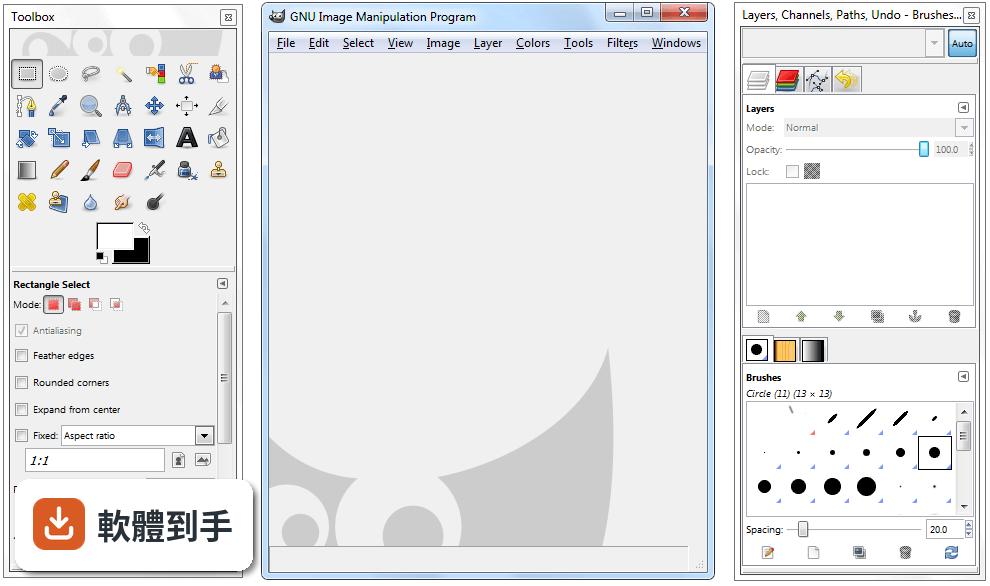
GIMP 是一套開放原始碼的影像編輯軟體,官方定位是 Photoshop 的免費替代品,提供照片修圖、影像合成、圖形創作等功能。它跟 Photoshop 最大的差別在於授權型式——GIMP 完全免費,而 Photoshop 需要付費訂閱。功能面上,GIMP 涵蓋了圖層、遮罩、色階調整、濾鏡等常見編輯工具,但操作介面和部分進階功能與 Photoshop 不同,需要時間適應。
02這套軟體能開 Photoshop 的 PSD 檔嗎?
可以,但有限制。GIMP 支援開啟 PSD 檔案,不過官方說明指出,相容性僅限於較簡單的專案,如果檔案裡含有 Photoshop 特有的進階調整圖層或特效,可能無法完整呈現。建議開啟後仔細檢查圖層和效果是否正確,必要時直接跟對方要原始檔或轉存成通用格式,會比較保險。
03它可以用來畫畫嗎?還是只能修照片?
可以畫圖,但主力不是這個。GIMP 提供多種筆刷和鉛筆工具,可以自訂筆觸效果,也有基本的路徑工具,適合數位繪畫的入門使用。不過它本質上是點陣圖編輯軟體,向量功能有限,如果你主要需求是畫插畫或設計向量圖形,官方建議搭配 Inkscape 一起使用,會比單靠 GIMP 順手。
04除了修圖,它還能做什麼?
它支援多種檔案格式的讀取和匯出,包括 JPEG、PNG、GIF、PSD、TIFF、WebP 等,所以也能拿來做影像格式轉換。另外,GIMP 內建腳本和程式演算法框架,支援 C、C++、Perl、Python、Scheme 等多種程式語言,可以寫腳本批次處理大量圖片,例如一次調整上百張照片的尺寸或色彩。
05介面看起來很複雜,有辦法簡化嗎?
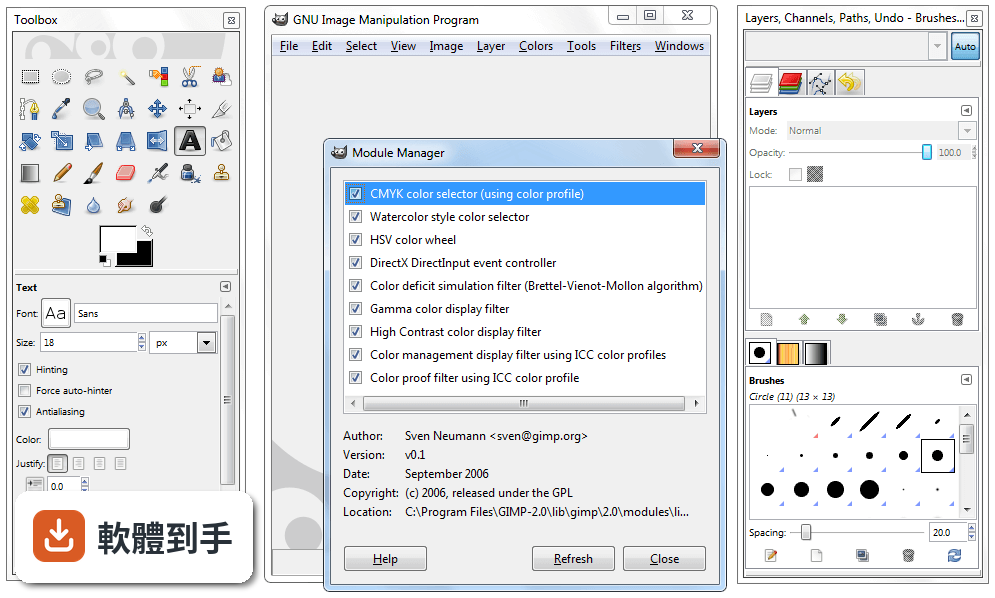
可以。GIMP 的介面支援自訂,你可以依自己的工作習慣調整面板位置和工具列,也提供單視窗模式,把原本分散的浮動視窗整合成一個統一介面,減少雜亂感。初次啟動時會初始化資源和載入外掛,之後開啟速度會比較快。如果還是覺得複雜,可以先從左側工具列的基礎功能開始摸索。
06新手完全沒用過專業修圖軟體,適合直接學這套嗎?
可以學,但要有心理準備。GIMP 的功能完整,相對地介面也比一般免費軟體複雜,官方自己也承認初次使用會覺得有點嚇人。不過一旦熟悉了工具位置、圖層面板和可停靠對話框之後,操作效率會明顯提升。網路上有官方文件和大量社群教學影片可以參考,學習資源不算少,只是需要花時間投入。
07專業設計師或攝影師拿它來工作,夠用嗎?
官方說法是可以的,尤其適合需要免費且功能多元的影像編輯器的個人或組織。它有良好的色彩管理能力,能確保數位和印刷媒體的顏色呈現正確,也能跟 Scribus、Inkscape 等其他免費軟體搭配,組成完整的桌面出版工作流程。但如果你需要的是業界標準的特定功能,付費軟體可能還是比較符合需求。
08我只需要偶爾裁圖、調亮度,有更簡單的選擇嗎?
如果你的需求真的很基本,GIMP 可能超出你的需要。資料中提到的 Paint.NET 就是更簡潔的免費編輯器,適合基礎編輯需求,而且有 316 人評分,比 GIMP 的 254 人多一些。另外,Windows 內建的小畫家或線上編輯工具也能應付簡單裁切和調整,不一定要安裝功能這麼完整的軟體。
09介面只有英文,看不懂怎麼辦?
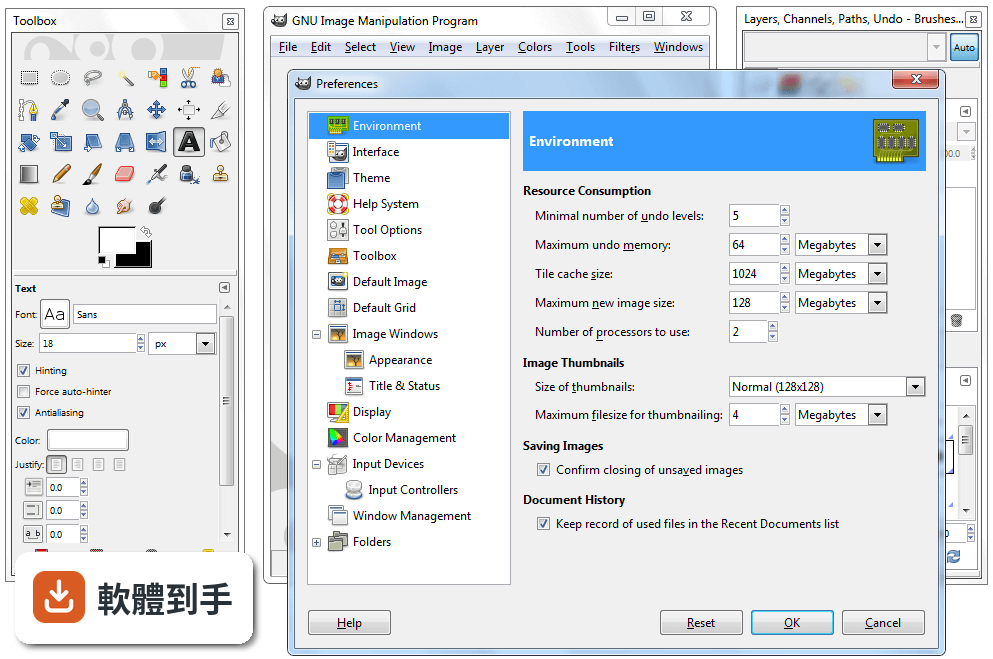
這確實是個門檻。GIMP 的介面語系是英文,沒有內建繁體中文選項,對不熟悉英文介面的人來說,操作上會比較吃力。你可以考慮安裝中文語系檔或尋找社群提供的中文化方法,但這需要額外設定。如果英文介面讓你卻步,可以參考其他有中文介面的免費編輯軟體,或先從英文介面的基礎功能開始學起。
10這套軟體安全嗎?下載會不會中毒?
官方說明指出,從官方網站或 FileHorse 下載是安全的,但務必確認使用的是最新版本,並從可信賴的來源取得,以避免漏洞風險。GIMP 是開放原始碼軟體,程式碼公開可檢視,理論上安全性有一定保障,但任何軟體都有潛在風險,下載後建議先用防毒軟體掃描,並定期更新版本。
11它跟 Photoshop 比起來,有什麼明顯的弱點?
主要有三點。第一,PSD 相容性有限,複雜的 Photoshop 檔案可能無法完整呈現。第二,向量功能薄弱,官方建議需要大量向量繪圖時改用 Inkscape。第三,介面只有英文,對中文使用者不友善。另外,Photoshop 有龐大的外掛生態系和業界標準地位,這點 GIMP 短期內難以追上。
12我該直接選 Photoshop 嗎?還是先用 GIMP 就好?
取決於你的預算和需求。如果你只是偶爾修圖、不想付月費,GIMP 是功能完整的免費選擇,值得花時間學習。如果你需要與他人協作、交換 PSD 檔案,或仰賴 Photoshop 的特定外掛和功能,那付費訂閱可能比較實際。資料中也提到,需要特定業界標準功能的人,可能還是會偏好付費方案。
下載與官方連結
gimp-2.10.12-setup.exe · 223.23 MB · 連結指向軟體原廠
版本紀錄
- 2026-09-11 GIMP 3.2.6 181.54 MB
- 2026-04-20 GIMP 3.2.4 179.42 MB
- 2026-03-29 GIMP 3.2.2 177.54 MB
再看 5 筆
- 2026-03-15 GIMP 3.2.0 293.63 MB
- 2026-01-25 GIMP 3.0.8 289.61 MB
- 2025-10-06 GIMP 3.0.6 296.06 MB
- 2025-05-19 GIMP 3.0.4 286.27 MB
- 2025-03-25 GIMP 3.0.2 374.46 MB
這一版改了什麼
What's new in this version:
Improving curves editing and Curves tool:
- Generic curves interaction
The interaction with curves in general has been greatly enhanced, which is an improvement both to the Curves tool and all other places where curves need tweaking (currently paint dynamics and input device settings):
- Relative motion when dragging points
- When dragging an existing curve point, it won’t “jump” anymore to the cursor position upon pressing the button. Instead it will move relatively to its current position as the cursor moves. This allows selecting a point with a quick click without moving it, and adjusting a point position more easily
- Additionally, when the cursor hovers above a point, or when dragging a point, the coordinate indicator now show the point’s position, rather than the cursor’s
- Snap to curve when holding Ctrl
- When holding down Ctrl while adding or dragging a point, the Y-coordinate will snap to the original curve. This is particularly useful for adding points along the curve
- Likewise, the coordinate indicator shows the snapped coordinates
- Curves tool specific interaction
Additionally, some improvements are specific to the Curves tool:
- Numeric input of Curves tool points
- Two new spin-buttons labelled “Input” and “Output” are now available in the Curves tool interface. They allow setting the selected point’s coordinates numerically and accurately if needed
- Add smooth or corner curve-point types
- Control points can now be either smooth or corner points. Smooth points produce a smooth curve, while corner points result in sharp angles (previously, all points were smooth and this is still the default)
- Corner points are displayed using a diamond shape, instead of a circle and the type can be changed in the Curves tool
- TIFF now has layer support!
- Thanks to Tobias Ellinghaus, well known as a darktable developer, TIFF can now export images without merging layers
- Support of user-installed fonts on Windows
- Though not fully tested, we now have a temporary support of a new Windows 10 feature. Windows 10 users indeed now have the ability to install fonts without admin permissions since a recent update
- Therefore we added this non-admin font folder to our search path when running GIMP. It should be only a temporary workaround since eventually this should be supported by fontconfig, the upstream library used to manage fonts
Note also that it is not fully tested because of our lack of Windows developers. Therefore we are mostly hoping it will work as expected, and this is a good time to make a call again:
- Are you a Windows developer? Do you love GIMP? Please contribute
- Seriously, none of our current developers use Windows and bugs are piling up in our bug tracker for this platform (same can be said on macOS by the way), whereas GIMP is so enjoyably stable on GNU/Linux. We are happy to do the occasional good deeds, but there are limits to what we can do for a platform we don’t use. On the other hands, we happily welcome patches and new contributors!
- Faster painting
- GIMP now doesn’t replace the paint buffer on every dab if the paint color/pixmap hasn’t changed. This results in faster painting on specific cases
- As a by-product of the change, the color-from-gradient dynamics is now fixed when the image has a color profile
- Incremental mode in the Dodge/Burn tool
- The Dodge/Burn tool got a new “Incremental” option which, similarly to the Paintbrush, Pencil, and Eraser tools, applies the effect incrementally as the pointer moves
- Free Select tool creates preliminary selection
- One of GIMP 2.10.0 changes which annoyed many people was that the Free Select tool was not creating a selection immediately when the region was closed. One was forced to perform an additional confirmation step (Enter or double-click)
- This was done on purpose because we wanted to leave ability to tweak the polygonal selection that is built into the Free Select tool. Yet it could obviously be better, proof being the Rectangle Select tool which still allowed to edit the rectangle even though a selection was pre-created
- The Free Select tool now works the same way: even though a preliminary selection exists (allowing to directly copy or delete a contents without additional step), you will still be able to edit this free selection as long as you don’t start another selection nor change tools
New Offset tool:
- New Offset tool shifts pixels and optionally wraps them around the edges so that you could create repeatable patterns
- Offset filter New Offset tool used to make a repeatable heart pattern
- There’s a simple on-canvas interaction available: just drag on the canvas to shift the layer
- You can activate the new filter either via Layer > Transform > Offset menu, or via Shift+Ctrl+O shortcut
- Moving an intersecting pair of guides
- The Move tool can now move together an intersecting pair of guides. by dragging the guides at their point of intersection. This is useful when the guides are used to mark a point, rather than a pair of lines (e.g., as is the case for the mandala symmetry guides, which mark the symmetry’s point of origin)
Bug fixing:
- Many bugs were fixed, some more severe than others (in particular a few crashes), as well as some code cleaning, factorization, and so on. The usual deal
- More than the new features, we actually thought these issues were enough to warrant this new release
Among most pesky bugs fixed:
- crashes for various reasons, with more crashes to fix yet
- various color management related bugs
- unwanted change of foreground and background colors in tools’ presets
- brush transformation improved and fixed in various places in symmetry painting mode
- a few localization bugs, and most importantly broken translation display for several supported languages (so far, we believe it to be a bug in the Pango dependency)
- some brush format bugs
- And more. GIMP 2.10.12 is the result of about 200 commits in 2 months! We will focus below on two specific bug fixing which deserve mentioning
- Improved symmetry painting support
- The symmetry painting backend got some improvements, which resulted in a few fixes, in particular some artifacts could occur with big brushes or in the Clone/Heal tool when the brush was cropped to the bounds of a drawable. These are now fixed
- In the Ink tool as well, the brush shape was not properly transformed. This has been fixed as well
- Just open the Symmetry Painting dockable dialog, choose a type of symmetry and paint away
Color space mixup on exporting images:
- Several people noticed that exporting some images ended up in washed-up colors sometimes. This was because in some cases, we were exporting by error sRGB colors with a linear profile (especially visible in GIMP 2.10.10 since we were exporting profiles by default even when using a default GIMP profile). We fixed this and took the opportunity to improve GIMP’s export logics
- Now we are always exporting an explicitly set profile as-is, and pixel colors are stored according to this profile expectation. If you manually assigned a profile, GIMP should indeed always follow your request
On the other hand, if no explicit profile was set, we implemented various strategies depending on the format:
- If the export format is able to store high-bit depth colors (e.g. PNG up to 16-bit and TIFF up to 64-bit), we follow the work format
- If the export format is 8-bit only (such as JPEG), we transform the data to sRGB in order to avoid posterization and shadow artifacts (except if your work format is 8-bit linear, then we leave it as 8-bit linear for minimal loss)
- Note that there are still edge cases which we may not find optimal yet regarding how profiles are handled. These should all be greatly improved when we will merge the “Space Invasion” code (an ongoing mid-term project, as we were already talking about it when releasing GIMP 2.10.8). This code merge should hopefully happen soon enough
- Around GIMP
GEGL and babl:
- During this development span, GEGL 0.4.16 got released (91 commits), as well as babl 0.1.64 (31 commits) and 0.1.66 (7 commits)
- The biggest user-visible change is probably the cubic sampler coefficient change, which used to produce smooth interpolation, suitable for some cases, but not as sharp as people would expect in most other cases. Now in all places where there is choice of interpolation (all transformation tools, Warp Transform tool, etc.), the result with cubic has changed and produces sharper results
- Another notable improvement in GEGL is an updated memory management, by conditionally freeing memory from the heap (thanks to manual calls of malloc_trim()), hence forcing the underlying libc to release memory more often. This behavior is especially suitable for long-running applications whose memory need can greatly vary, such as GIMP. In practice, it means that GIMP process’ memory size will now shrink much faster when you will close big images on supporting systems