
這是歷史版本頁面 — 看 Greenshot 最新版本
Windows截圖總要開小畫家改半天,Greenshot能幫上什麼
 Greenshot 1.1.4.2622
資料更新 2013-05-09
閱讀約 6 分鐘
開場第一段:你正在寫一份操作手冊或回報一個系統錯誤,畫面停在某個視窗,你想把這一段截下來,加上一個箭頭指向按鈕,再框出重點。按下 PrintScreen 之後,貼進小畫家,裁切、拉箭頭、打字、存檔——光是這套流程就花掉兩分鐘,而且每次截圖都要重來一次。如果一天要截十幾張圖,光是處理這些重複動作就讓人煩躁。
開場第二段:Windows 內建的截圖工具只能做最基本的矩形擷取,截完之後要另外開繪圖軟體才能加註解,更別說要輸出成不同格式或直接貼進郵件。一般人的習慣做法是「截圖 → 貼上 → 手動編輯 → 另存新檔」,步驟多又容易出錯。這類工具的切入點是:把「擷取畫面」和「標註重點」兩件事合在一起,截完圖立刻進入編輯狀態,標完就能存檔或複製,省掉中間切換軟體的時間。
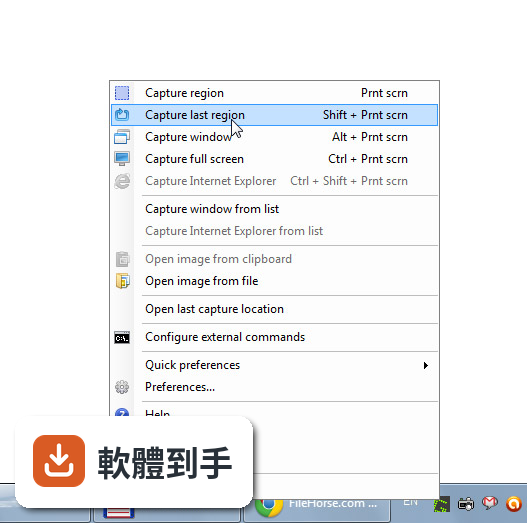
01Greenshot 可以截哪些範圍的畫面?
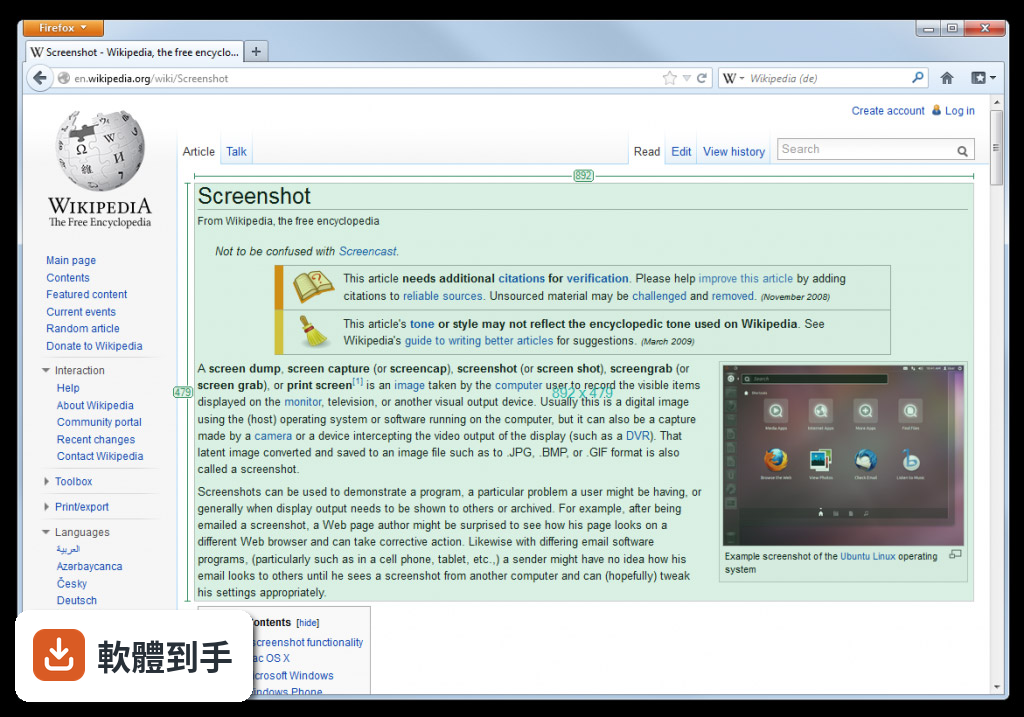
它提供三種基本擷取模式:全螢幕、單一視窗、自選區域。全螢幕就是整個桌面,視窗模式會自動偵測你點到的應用程式視窗,區域模式則是用滑鼠拖曳框出你要的範圍。另外,它也能從 Internet Explorer 擷取完整的捲動網頁,不需要手動分段截圖再拼接。
02截完圖之後能不能直接加文字或箭頭?
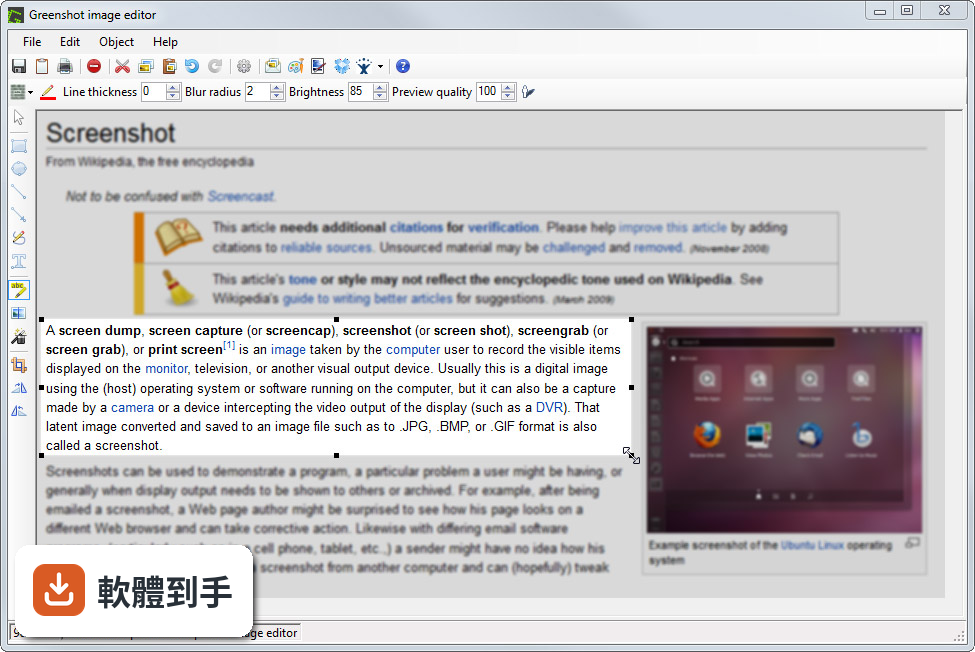
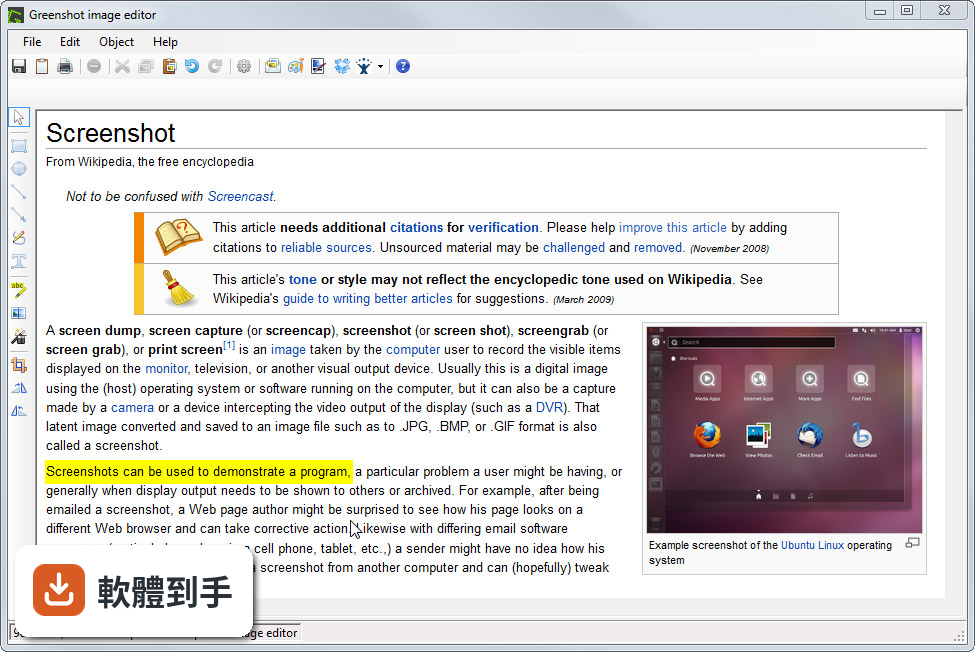
可以。截圖完成後會直接進入編輯畫面,提供文字、箭頭、形狀、螢光筆等標註工具,也能用模糊或塗黑功能遮住敏感資訊。編輯完可以直接存檔、複製到剪貼簿,或丟進郵件、Office 文件,不需要先存檔再另外開軟體處理。
03截圖存檔支援哪些格式?
支援 PNG、JPEG、BMP、GIF 四種格式。存檔時可以選要存到哪個資料夾,也能直接複製到剪貼簿,方便貼進即時通訊軟體或文件。如果你需要透明背景,PNG 是比較合適的選擇;照片類的畫面用 JPEG 檔案會比較小。
04熱鍵可以自己設定嗎?
可以。安裝時或安裝後都能自訂快捷鍵,例如設定成按某個組合鍵直接截全螢幕、截當前視窗或截自選區域。設定好之後,按一下就進入擷取狀態,不需要先打開主視窗再點選項,對需要頻繁截圖的人來說能省下不少時間。
05多螢幕環境下能正常使用嗎?
可以。官方說明指出它完整支援多螢幕擷取,你可以選擇截某一個螢幕的畫面,或框選跨螢幕的區域。如果你工作時同時接兩個以上螢幕,這點可以放心使用。
06寫文件或做簡報的人適合用嗎?
適合。它的標註工具(箭頭、文字、高亮)正好對應文件撰寫和簡報製作時的需求,截圖後直接加說明,不用另外開繪圖軟體。官方也提到這類工具對專案經理、軟體開發者、技術文件撰寫者和測試人員來說效率較高,因為這些角色經常需要把畫面狀態記錄下來。
07不想安裝軟體,有免安裝版本嗎?
有。官方提供 Portable ZIP 版本,下載解壓縮後直接執行,不需要安裝程序。這對公司電腦鎖安裝權限、或你只想暫時用一下的情況很方便。不過要注意,免安裝版不會自動建立捷徑或檔案關聯,第一次使用時需要手動找到執行檔。
08介面是英文的,英文不好會很難上手嗎?
介面確實只有英文,但操作邏輯很直觀:選擷取模式、拖曳框選範圍、用工具列上的圖示按鈕做標註。圖示本身有辨識度,不太需要閱讀大量文字。如果你對英文介面完全排斥,可以考慮其他有中文介面的截圖工具,例如 PicPick 或 FastStone Capture。
09我需要更進階的編輯功能,例如錄影或浮水印,這套夠用嗎?
它的編輯功能偏向基本標註,官方說明也承認「基本標註功能」是它的定位。如果你需要螢幕錄影、影片剪輯、浮水印、或更精細的影像處理,這套軟體幫不上忙。這種情況可以看看 ShareX(開源、功能更多)或商業軟體 Snagit。
10我在 Mac 或 Linux 上工作,能用這套嗎?
不行。官方說明明確指出它僅支援 Windows 作業系統(Windows 8/10/11)。如果你主要使用 Mac 或 Linux,需要找其他跨平台方案,例如 Flameshot(Linux 常用)或 Shottr(Mac 專用),這套軟體無法在你的系統上執行。
11這套軟體評分人數不多,用起來會有風險嗎?
目前收錄的評分有 47 人參與,分數約 7.38/10,樣本數不算多。它的優點是開源免費、沒有付費牆,缺點是介面只有英文、更新頻率不算頻繁(近兩年只有一次更新)。如果你在意的是「免費、開源、基本功能穩定」,它符合條件;如果你需要頻繁更新或大量社群支援,可以考慮評分人數更多的 PicPick(91 人評分)或 LightShot(87 人評分)。
12跟 ShareX 比起來,哪個比較適合我?
官方文件將 ShareX 列為功能相近的替代方案,並描述它為「具備廣泛自訂選項的開源截圖工具」。ShareX 的功能範圍比 Greenshot 廣,例如支援更多上傳目的地和自動化流程,但介面也相對複雜。如果你只需要「截圖 → 標註 → 存檔」的簡單流程,Greenshot 的輕量設計比較直接;如果你需要大量自動化或進階輸出選項,可以研究 ShareX。
下載與官方連結
Greenshot-INSTALLER-1.1.4.2622.exe · 1.2 MB · 連結指向軟體原廠
版本紀錄
- 2026-10-20 Greenshot 1.3.328 3.8 MB
- 2026-10-08 Greenshot 1.3.323 3.8 MB
- 2026-03-21 Greenshot 1.3.315 3.8 MB
再看 5 筆
- 2017-09-14 Greenshot 1.2.10.6
- 2017-01-29 Greenshot 1.2.9.129 1.7 MB
- 2017-01-01 Greenshot 1.2.9.112 1.68 MB
- 2016-12-20 Greenshot 1.2.9.104 1.68 MB
- 2016-11-03 Greenshot 1.2.8.14 1.31 MB
這一版改了什麼
What's new in this version:
Features added:
- General: Added zoom when capturing with a option in the settings for disabling the zoom. (this can also be done via the "z" key while capturing.)
- General: Better Windows 8 integration: Capture window from list now has the apps and the interactive window capture is not confused by apps or the app launcher.
- General: Added Special-Folder support for the OutputPath/Filenames, now one can use the following values: MyPictures, MyMusic, MyDocuments, Personal, Desktop, ApplicationData, LocalApplicationData. Meaning one can now set the output path to e.g. ${MyPictures}
- General: Greenshot now also comes as a "for PortableApps" download, this now will be released just like the other files (installer & .zip)
- Editor: Added a new image format "Greenshot" which allows the user to save the current state and continue editing later. (was already in the 1.1.1.2550)
- Editor: The capture is now displayed in the center of the editor
- Editor: Added horizontal and vertical alignment for text boxes.
- Printing: Added option to force monochrome (black/white) print
- Plug-in: Added Photobucket plugin
Bugs resolved
- On Windows XP Firefox/java captures are mainly black. This fix should also work with other OS versions and applications.
- Fixed issue with opening a screenshow from the clipboard which was created in a remote desktop
- Exporting captures to Microsoft Office applications give problems when the Office application shows a dialog, this is fixed by displaying a retry dialog with info.
- Exported captures to Powerpoint were displayed cropped, which needed extra actions to correct.
- Picasa-Web uploads didn't have a filename and the filename was shown as "UNSET" in Picasa-Web.
- The window corners on Windows Vista & Windows 7 weren't cut correctly. While fixing this issue, we found some other small bugs which could cause small capture issues on Vista & 7 it also used more resources than needed.
- Resize issues with some the plugin configuration dialogs.
- Elements in 1.0 are drawn differently as in pre 1.0
- Fixed missing filename in the Editor title
- Pasting captures as HTML-inline in Thunderbird doesn't work when using 256-colors.
- Fixed a problem with the editor initialization, in some small cases this gave an error as something happend at the same time.
- Added some checks for some configuration values, if they were not set this caused an error
- If copying an image from Outlook via the clipboard the image was cropped
- Image exports to Microsoft Word didn't have the "Lock aspect ratio" set
- Colors were disappearing when "Create an 8-bit image if colors are less than 256 while having a > 8 bits image" was turned on
- Auto-filename generation cropping title text after period
- when pasting elements from one editor into another the element could end up outside the visible area
- External Command plug-in issues. e.g. when clicking edit in the External Command plug-in settings, than cancel, and than edit again an error occured.
- Stability improvements for when Greenshot tries to open the explorer.exe
- Error while dragging an obfuscation
- InvalidCastException when using the brightness-filter
- Reported in forum: Fixed a problem with the OCR, it sometimes didn't work.
- Flickr configuration for the Family, Friend & Public wasn't stored.
- If Greenshot is linked in a Windows startup folder, the "Start with startup" checkbox wasn't checked.
- Some shortcut keys in the editor didn't respond.
- Fixed some issues with capturing windows that were larger than the visible screen, logic should now be more reliable.
- Fixed some cases where Dragging & Dropping an image from a browser on the editor lost transparency.
- Undo while in an Auto-Crop made the editor unusable.
- When first selecting a printer, the main printer destination has been replaced by the selected one, making the Windows printer dialog unavailable for further prints
- Open last capture in explorer doesn't open the right location
- Fixed some issues where the sub-menus of the context menu moved to the next screen.
- When having Outlook installed but not the Office plugin there was no EMail destination.
Languages:
- Added Indonesian
- Installer: Added Spanish
- Installer: Added Serbian
- Installer: Added Finnish
- General: Fixes for many languages