
這是歷史版本頁面 — 看 Greenshot 最新版本
Windows截圖總要開小畫家改半天,Greenshot能幫上什麼
 Greenshot 1.2.4.9
資料更新 2014-12-26
閱讀約 6 分鐘
開場第一段:你正在寫一份操作手冊或回報一個系統錯誤,畫面停在某個視窗,你想把這一段截下來,加上一個箭頭指向按鈕,再框出重點。按下 PrintScreen 之後,貼進小畫家,裁切、拉箭頭、打字、存檔——光是這套流程就花掉兩分鐘,而且每次截圖都要重來一次。如果一天要截十幾張圖,光是處理這些重複動作就讓人煩躁。
開場第二段:Windows 內建的截圖工具只能做最基本的矩形擷取,截完之後要另外開繪圖軟體才能加註解,更別說要輸出成不同格式或直接貼進郵件。一般人的習慣做法是「截圖 → 貼上 → 手動編輯 → 另存新檔」,步驟多又容易出錯。這類工具的切入點是:把「擷取畫面」和「標註重點」兩件事合在一起,截完圖立刻進入編輯狀態,標完就能存檔或複製,省掉中間切換軟體的時間。
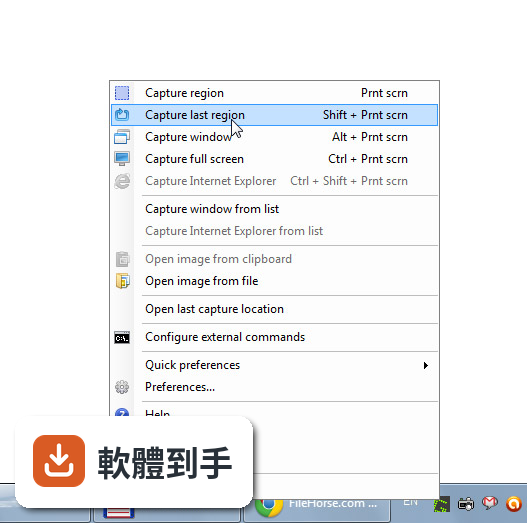
01Greenshot 可以截哪些範圍的畫面?
它提供三種基本擷取模式:全螢幕、單一視窗、自選區域。全螢幕就是整個桌面,視窗模式會自動偵測你點到的應用程式視窗,區域模式則是用滑鼠拖曳框出你要的範圍。另外,它也能從 Internet Explorer 擷取完整的捲動網頁,不需要手動分段截圖再拼接。
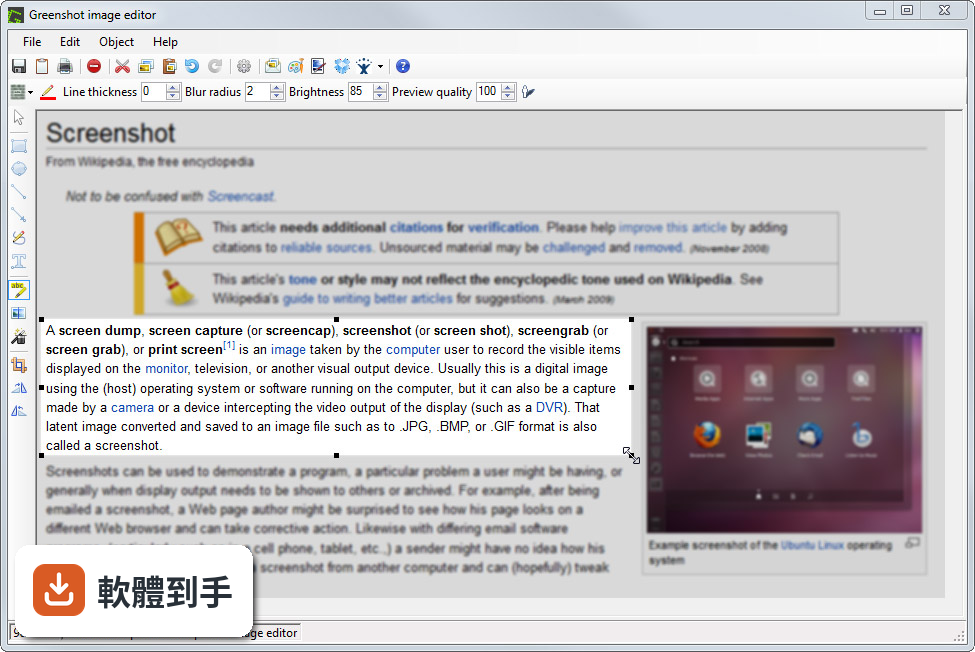
02截完圖之後能不能直接加文字或箭頭?
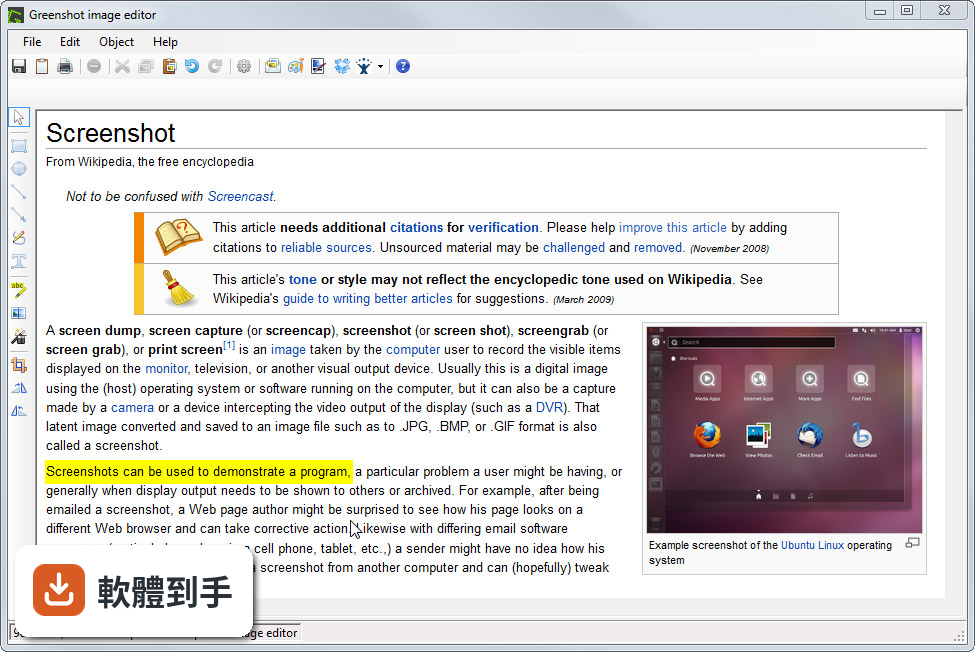
可以。截圖完成後會直接進入編輯畫面,提供文字、箭頭、形狀、螢光筆等標註工具,也能用模糊或塗黑功能遮住敏感資訊。編輯完可以直接存檔、複製到剪貼簿,或丟進郵件、Office 文件,不需要先存檔再另外開軟體處理。
03截圖存檔支援哪些格式?
支援 PNG、JPEG、BMP、GIF 四種格式。存檔時可以選要存到哪個資料夾,也能直接複製到剪貼簿,方便貼進即時通訊軟體或文件。如果你需要透明背景,PNG 是比較合適的選擇;照片類的畫面用 JPEG 檔案會比較小。
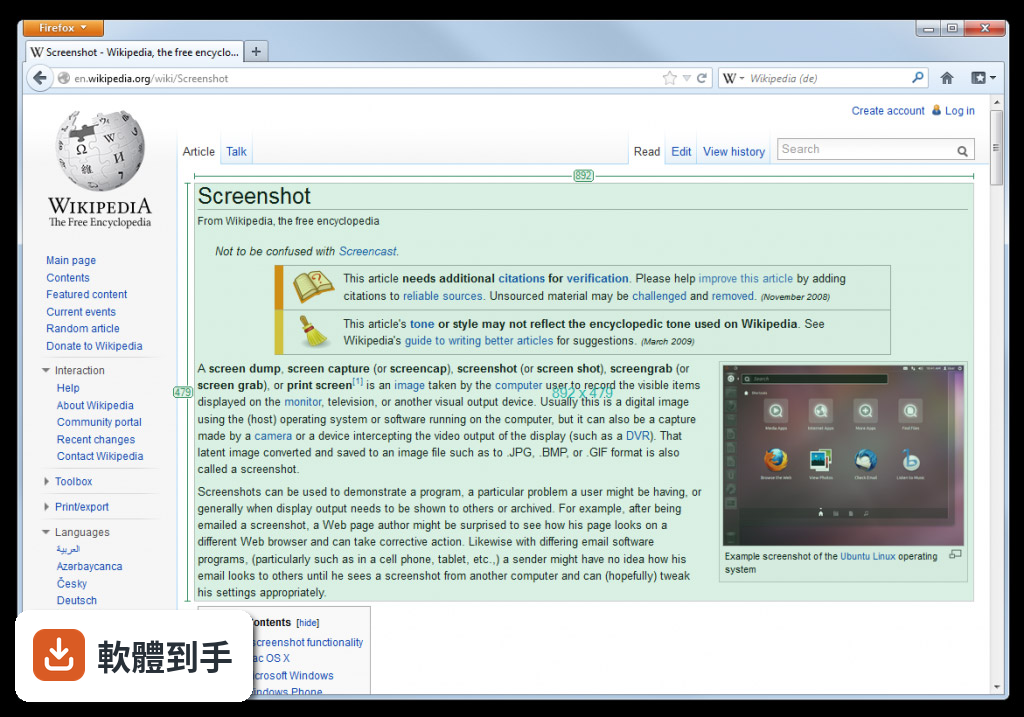
04熱鍵可以自己設定嗎?
可以。安裝時或安裝後都能自訂快捷鍵,例如設定成按某個組合鍵直接截全螢幕、截當前視窗或截自選區域。設定好之後,按一下就進入擷取狀態,不需要先打開主視窗再點選項,對需要頻繁截圖的人來說能省下不少時間。
05多螢幕環境下能正常使用嗎?
可以。官方說明指出它完整支援多螢幕擷取,你可以選擇截某一個螢幕的畫面,或框選跨螢幕的區域。如果你工作時同時接兩個以上螢幕,這點可以放心使用。
06寫文件或做簡報的人適合用嗎?
適合。它的標註工具(箭頭、文字、高亮)正好對應文件撰寫和簡報製作時的需求,截圖後直接加說明,不用另外開繪圖軟體。官方也提到這類工具對專案經理、軟體開發者、技術文件撰寫者和測試人員來說效率較高,因為這些角色經常需要把畫面狀態記錄下來。
07不想安裝軟體,有免安裝版本嗎?
有。官方提供 Portable ZIP 版本,下載解壓縮後直接執行,不需要安裝程序。這對公司電腦鎖安裝權限、或你只想暫時用一下的情況很方便。不過要注意,免安裝版不會自動建立捷徑或檔案關聯,第一次使用時需要手動找到執行檔。
08介面是英文的,英文不好會很難上手嗎?
介面確實只有英文,但操作邏輯很直觀:選擷取模式、拖曳框選範圍、用工具列上的圖示按鈕做標註。圖示本身有辨識度,不太需要閱讀大量文字。如果你對英文介面完全排斥,可以考慮其他有中文介面的截圖工具,例如 PicPick 或 FastStone Capture。
09我需要更進階的編輯功能,例如錄影或浮水印,這套夠用嗎?
它的編輯功能偏向基本標註,官方說明也承認「基本標註功能」是它的定位。如果你需要螢幕錄影、影片剪輯、浮水印、或更精細的影像處理,這套軟體幫不上忙。這種情況可以看看 ShareX(開源、功能更多)或商業軟體 Snagit。
10我在 Mac 或 Linux 上工作,能用這套嗎?
不行。官方說明明確指出它僅支援 Windows 作業系統(Windows 8/10/11)。如果你主要使用 Mac 或 Linux,需要找其他跨平台方案,例如 Flameshot(Linux 常用)或 Shottr(Mac 專用),這套軟體無法在你的系統上執行。
11這套軟體評分人數不多,用起來會有風險嗎?
目前收錄的評分有 47 人參與,分數約 7.38/10,樣本數不算多。它的優點是開源免費、沒有付費牆,缺點是介面只有英文、更新頻率不算頻繁(近兩年只有一次更新)。如果你在意的是「免費、開源、基本功能穩定」,它符合條件;如果你需要頻繁更新或大量社群支援,可以考慮評分人數更多的 PicPick(91 人評分)或 LightShot(87 人評分)。
12跟 ShareX 比起來,哪個比較適合我?
官方文件將 ShareX 列為功能相近的替代方案,並描述它為「具備廣泛自訂選項的開源截圖工具」。ShareX 的功能範圍比 Greenshot 廣,例如支援更多上傳目的地和自動化流程,但介面也相對複雜。如果你只需要「截圖 → 標註 → 存檔」的簡單流程,Greenshot 的輕量設計比較直接;如果你需要大量自動化或進階輸出選項,可以研究 ShareX。
下載與官方連結
Greenshot-INSTALLER-1.2.4.9-RELEASE.exe · 1.29 MB · 連結指向軟體原廠
版本紀錄
- 2026-10-20 Greenshot 1.3.328 3.8 MB
- 2026-10-08 Greenshot 1.3.323 3.8 MB
- 2026-03-21 Greenshot 1.3.315 3.8 MB
再看 5 筆
- 2017-09-14 Greenshot 1.2.10.6
- 2017-01-29 Greenshot 1.2.9.129 1.7 MB
- 2017-01-01 Greenshot 1.2.9.112 1.68 MB
- 2016-12-20 Greenshot 1.2.9.104 1.68 MB
- 2016-11-03 Greenshot 1.2.8.14 1.31 MB
這一版改了什麼
What's new in this version:
New features:
- Added the possibility to select the region to capture by using the keyboard, use the cursor keys to move the cursor (ctrl-key speeds up the movement) and the enter key to mark the start and ending
- Added support for another clipboard format "Format17" (aka CF_DIBV5) which could improve the result of the "open image from clipboard" and drag&drop actions
- Editor: a resize effect with settings window has been added
- Editor: a settings window for the torn-edge effect has been added, the settings will be stored
- Editor: a settings window for the drop shadow effect has been added, the settings will be stored
- OneNote: Enabled and enhanced the OneNote destination, so we can test this and see if it's worth releasing
- External command: If a command outputs an URI this will be captured and placed on the clipboard, the behaviour currently can only be modified in the greenshot.ini
- Image editor now has a speech bubble
- Image editor now has auto incrementing labels
- Greenshot will now store the last used region in the greenshot.ini, which makes it also available after a restart
- Due to the fact that more and more high DPI displays are used, we added a setting to change the icon size
- Improvement of the torn edge settings dialog
- Improvement of the font family settings, also changed the used font for every family making it easier to find your font
Changes:
- Optimized Greenshots update check to use even less traffic by checking the time-stamp of the update feed before downloading it
- JIRA: With JIRA 6.x using the SOAP (Webservice) API the access has gotten really slow, we improved the performance slightly by loading some information parallel (In Greenshot 2.x we will move to another API)
- Dynamic destination context-menu: If a destination has child items the parent is still selectable and executes the default export, we now no longer repeat the parent in the children
- Dynamic destination context-menu: We are now leaving the sorting to the destination code, this allows us to e.g. show the default printer on top of the list
Fixed Bugs:
- Repeating hotkeys are now prevented
- Image editor: 'Obfuscate' and 'Highlight' and more, now should rotate / resize correctly
- Image editor: Autocrop now also considers the elements
- Greenshot crashing Chrome running in 'Windows 8 Mode'
- Accessibility issues: Editor "File" menu entry can't be activated and missing translations
- removed horizontal alignment of textbox in input mode, as it caused problems with textbox focus and could not be implemented consistently anyway (no vertical alignment possible)
- Fixed error that occurred when double-clicking systray icon before the first time a screenshot was saved to file
- Shadow (drop shadow or torn edge) grows if a filter (highlight etc) is used and an element is moved around
- While drawing a textbox there are black vertical lines inside
- Fixed an issue with processing the response from Imgur, which caused the error "Value cannot be null. Parameter name: key"
- UI jumps when Textbox or SpeechBubble tools are selected, and changing to another tool (also the other way around)
- IE capture only works once
- Alignment of the text and speech-bubble wasn't always correctly saved in the .greenshot file
- After resizing the canvas the edges had a slightly different color (1px)
- color dialog didn't accept HTML color names
Languages:
- New language: Latvian
- Updates for Ukrainian, Japanese and Italian translation