
這是歷史版本頁面 — 看 Kdenlive 最新版本
免費剪片軟體Kdenlive能取代付費剪輯工具嗎
 Kdenlive 19.04.0
資料更新 2019-04-24
閱讀約 6 分鐘
你剛下載了一支影片素材,想剪掉中間幾段廢話、加上字幕和轉場,再輸出成一支能丟上YouTube的成品。你打開電腦,發現系統裡只有陽春的「相片」App或線上剪輯網站,不是浮水印礙眼,就是輸出解析度被鎖死,不然就是上傳到一半瀏覽器當掉,整個進度付諸流水。你只是想好好剪一支片,不是想跟工具搏鬥。
很多人第一個念頭是找免費軟體,但免費的陽春工具往往功能殘缺,而功能完整的專業軟體又貴得嚇人。訂閱制一年下來也是一筆開銷,更別提學習曲線陡峭,打開介面就讓人想關掉。這類開放原始碼的剪輯工具切入點是:不花錢、功能盡量齊全、支援格式夠廣,讓一般使用者不必先投資金錢和時間,就能完成從剪接到輸出的完整流程。
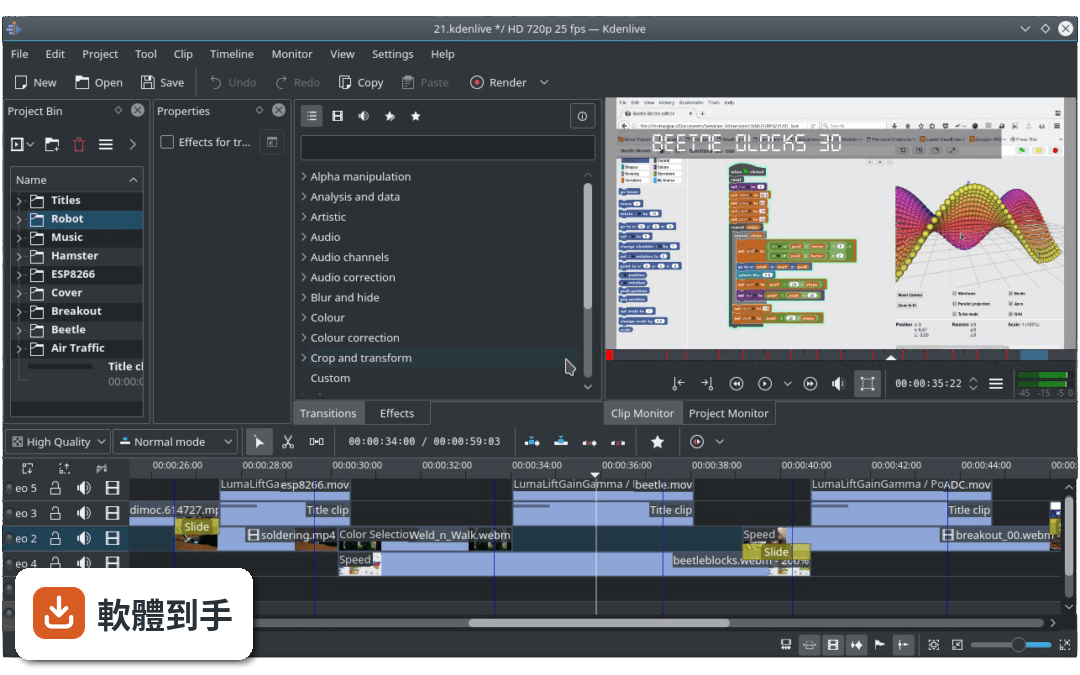
01Kdenlive這套軟體到底能做什麼?
它是一套開放原始碼的影片剪輯軟體,核心功能包含多軌影音編輯,可以同時排列多條影片和音訊軌道,各自獨立鎖定或靜音。支援的格式很廣,因為底層使用FFmpeg,大部分常見的影音格式都能直接匯入,不需要先轉檔。也提供數十種效果和轉場,從色彩校正到音訊調整都有,還有關鍵影格動畫、代理編輯、自動備份和時間軸預覽等功能。
02它跟Windows內建的剪輯工具比起來,差在哪裡?
最大的差異在於多軌時間軸和效果系統。內建工具通常只能做單軌的簡單裁剪,而這套軟體可以同時疊好幾層影片、圖片和字幕,各自調整位置和透明度。效果方面,內建工具只有少數濾鏡,這套軟體有數十種效果且大部分可以設定關鍵影格,讓參數隨時間變化。另外它支援的格式也遠比內建工具多,幾乎不用先轉檔。
03匯入影片後,處理起來會不會很卡?
如果你用的是高解析度素材或加了複雜效果,即時預覽確實可能不順。它有提供「代理編輯」功能,會自動建立低解析度的暫用副本,讓你在任何電腦上都能順暢剪輯,最後輸出時再用原始高解析度檔案渲染。另外也有「時間軸預覽」功能,可以把時間軸的某一段先預先渲染,播放時就會很流暢。不過這兩個功能都需要額外花時間等待建立。
04它的操作介面好上手嗎?
介面是英文的,而且功能很多,初次打開會覺得資訊量很大。不過它支援自訂介面配置,你可以把常用的面板拖到自己習慣的位置,也可以存成不同佈局切換使用。快捷鍵也能全部自訂。如果你之前用過任何非線性剪輯軟體,概念是相通的,只是按鈕位置要重新熟悉。如果完全沒經驗,需要花一點時間看教學影片。
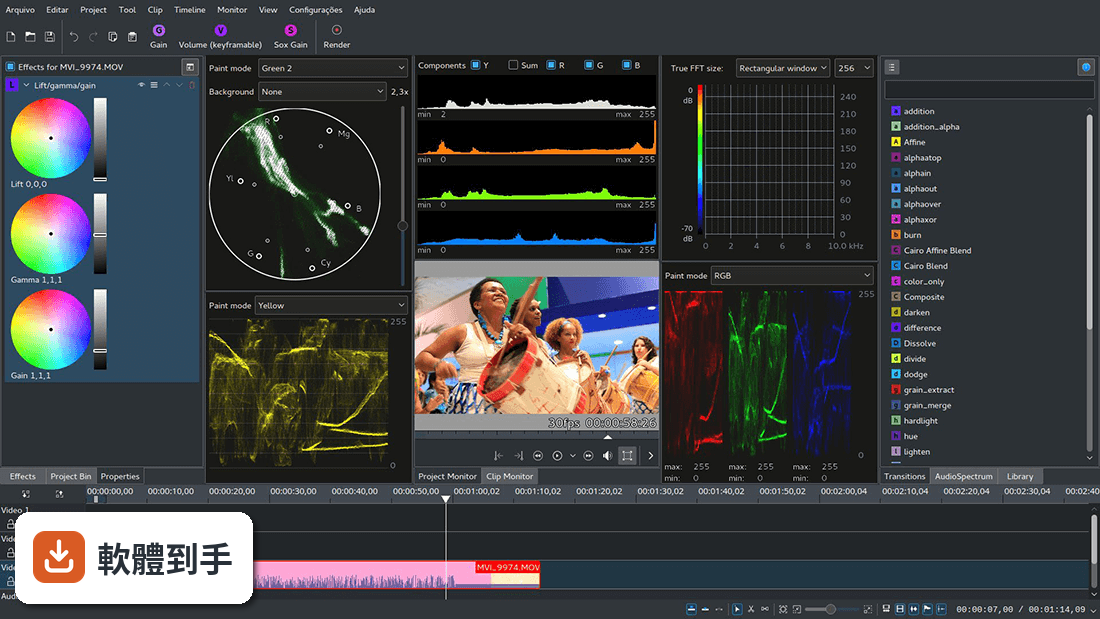
05剪到一半當機,檔案會不會不見?
它有自動備份機制,專案檔每隔幾分鐘就會自動儲存一次,而且會保留舊版本,讓你可以回溯到之前的狀態。這代表就算程式突然關閉,你損失的頂多是最近幾分鐘的進度,而不是整個專案。不過這只保護專案檔本身,你匯入的原始素材還是要靠自己另外備份。
06這套軟體適合完全沒剪過片的新手嗎?
可以試,但要有心理準備。它的功能比陽春軟體多很多,相對的介面也複雜,而且完全沒有中文介面,對英文不熟的人會多一層障礙。如果你只是偶爾剪一支家庭影片,學習成本可能偏高。但如果你願意花幾個小時看教學、熟悉介面,它提供的功能足夠你用很久,不用一開始就花錢買軟體。
07電腦效能普通,跑得動嗎?
官方建議至少4GB記憶體,8GB以上比較順暢,處理器要現代多核心,顯示卡要支援OpenGL 2.0以上。如果你的電腦是文書機等級,跑1080p的簡單剪輯還行,但高解析度素材或複雜效果就會很吃力,渲染輸出也會比較慢。這種情況下可以善用代理編輯功能,但最終輸出還是會花較多時間。
08它跟OpenShot或VSDC比起來,該怎麼選?
這幾套都是免費剪輯軟體,但取向不太一樣。Kdenlive的功能深度和格式支援廣度通常比OpenShot完整,時間軸和效果系統也比較成熟。VSDC的介面邏輯不同,有些人覺得更直覺。不過Kdenlive的更新頻率明顯比OpenShot高,代表bug修復和新功能加入比較積極。建議都裝來試剪一小段,看哪套的操作邏輯你比較能接受。
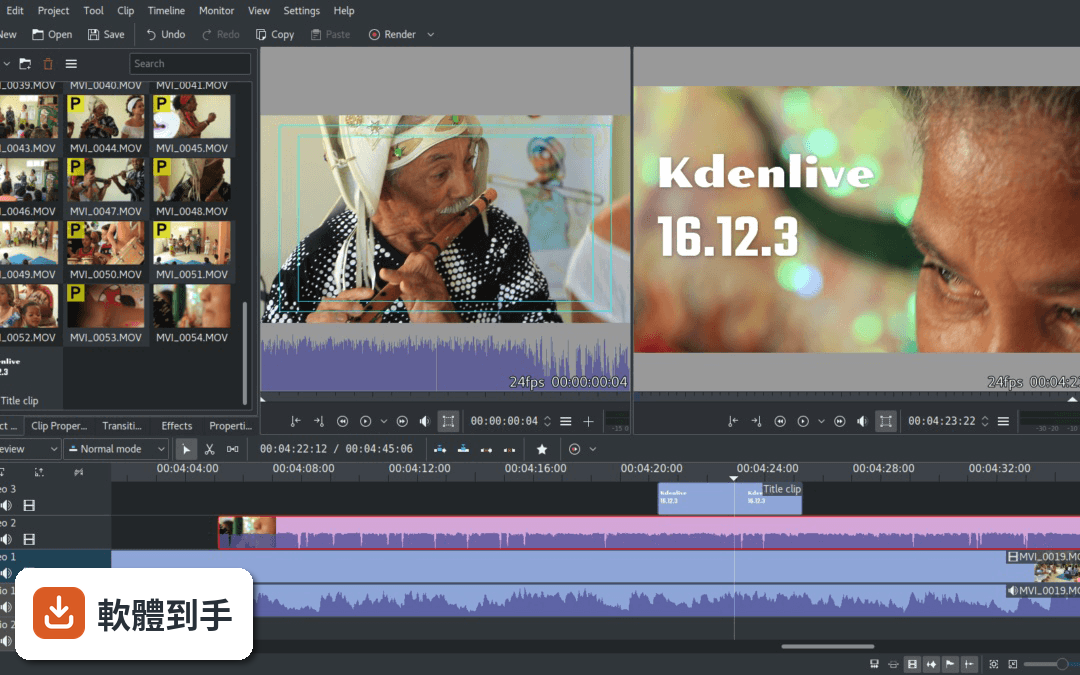
09我主要是剪Vlog上傳YouTube,它夠用嗎?
基本需求都涵蓋了。多軌剪輯可以放影片、背景音樂、旁白和字幕,內建效果可以調色、銳化、加文字,轉場也有基本款可用。輸出時可以選擇適合YouTube的解析度和格式。不過它的內建標題模板不多,如果你需要大量花俏的片頭或動態文字,可能要自己用其他工具製作再匯入,或下載額外的模板資源。
10什麼情況下不該選這套軟體?
如果你需要進階的音訊處理工具,例如專業的等化器、降噪或混音功能,它的音訊工具相對陽春,你可能需要另外用Audacity之類的軟體處理音訊再匯入。如果你很依賴現成的標題模板和轉場素材庫,它的內建數量偏少。另外如果你完全無法接受英文介面,操作會很痛苦,這點要列入考量。
11它跟DaVinci Resolve比起來,哪個比較適合我?
DaVinci Resolve是業界等級的軟體,功能更強大,尤其色彩校正和進階音訊是它的強項,但學習曲線也更陡,對硬體要求更高。Kdenlive的定位是功能完整但相對輕量,開機快、操作反應也比較直接。如果你只是要剪日常影片,Kdenlive的負擔比較小;如果你打算往專業調色或後期發展,DaVinci Resolve的成長空間更大,但付出的學習成本也更高。
12這套軟體有中文介面或中文教學資源嗎?
官方介面只有英文,沒有內建中文語系。不過因為它是知名開源軟體,網路上有不少中文教學文章和影片,搜尋「Kdenlive 教學」可以找到很多資源。如果你英文閱讀沒問題,官方說明文件和論壇也有詳細資料。介面雖然是英文,但常用的剪輯功能單字其實不多,用一段時間就會習慣。
下載與官方連結
kdenlive-19.04.0-2.exe · 78.9 MB · 連結指向軟體原廠
版本紀錄
- 2026-10-14 Kdenlive 26.08.2 129 MB
- 2026-09-12 Kdenlive 26.08.1 129 MB
- 2026-09-01 Kdenlive 26.08.0 129 MB
再看 5 筆
- 2026-07-07 Kdenlive 26.04.3 129 MB
- 2026-06-07 Kdenlive 26.04.2 128 MB
- 2026-05-11 Kdenlive 26.04.1 128 MB
- 2026-05-03 Kdenlive 26.04.0 128 MB
- 2025-11-09 Kdenlive 25.08.3 119 MB
這一版改了什麼
What's new in this version:
Split Audio/Video:
- We have changed the way timeline tracks work. Each track is now either audio or video, and will only accept audio and video clips respectively. When dragging an AV clip from the project bin in timeline, the clip will be automatically split, the video part going on a video track, and the audio part on an audio track.
Configurable layout:
- Tracks can be individually resized. (Holding down shift makes all video or audio tracks change in height simultaneously.)
- Switch live between two different layout modes (Mixed or Split).
Keyboard Navigation:
- You now have the possibility to move clips and compositions with your keyboard. To do it, select a clip in timeline and use the “Grab Current Item” (Shift+G) function from the Timeline menu.
- You can then move the item with your arrow keys. Keyframes can also be moved individually. Just click on a keyframe in timeline, then move it left/right with arrows, change its value with + and -. Alt+arrow to go to another keyframe.
Improved keyframe handling:
- Add a new keyframe by double clicking in timeline.
- You can move a keyframe without altering it’s value by using the vertical line that appears when you are above or below a keyframe.
- Remove a keyframe by dragging it far above or below the clip limits.
Audio Recording:
- An option in track headers allows you to have audio record controls. This enables you to play your project while recording a voice over comment. Very handy for making tutorials. (Not available in the AppImage version yet.)
Other improvements:
- Configurable thumbnails for each track. You can choose to display between In frame, In/Out frames, All frames or No thumbnails.
- Improved workflow due to keyboard shortcuts and track targets.
- Added group hierarchy (group of groups).
- You can now copy/paste timeline clips between different projects (if you have 2 running instances of Kdenlive or after opening a different project) using the standard copy/paste.
- Clip name always displayed when scrolling.
- Individual clips can now be disabled while still in the timeline but with no audio and no video – (works for all clip types)
- Faster timeline preview with support for hardware accelerated encoding.
- Improved feedback on move/resize.
- Automatic timeline color switch when changing the color theme.
- When using the Razor tool (x), you can now press shift while moving the mouse cursor over a clip to preview the cut frame.
Project Bin:
- Improve management of proxy clips (can now be deleted for each clip).
- Shortcut icon to drag only the audio or only the video of a clip in timeline.
- Improved management of audio/video streams, also allowing to enable/disable audio or video for a clip.
Monitors:
- Monitor toolbar: move with the mouse to the upper right corner of the monitor to access the toolbar.
- Support multiple guide overlays.
- Shortcut icon in clip monitor to drag only the audio or only the video of a clip in timeline.
- Support for external monitor display using Blackmagic Design decklink cards.
Effects and Compositions:
- Major improvements to the Speed effect.
- Added back the Motion Tracker. (For compiled MLT versions with OpenCV support only.)
- You can now define preferred effects and compositions. These will appear in the timeline context menus and in the effect/composition baskets for easier access.
- Organized effects under 3 categories, “Main” (which contains the most important audio/video effects), “Video effects” and “Audio effects”.
- Tested and removed all effects which are not working.
- When dragging a composition from the list into timeline, it will automatically adjust its duration (to fit the entire clip or the duration of a clip overlap depending on the context).
- Move the whole Rotoscoping mask at once. Moving all points in the mask: A cross is displayed at the center of all points that allows moving the whole mask.
- 1 click transitions
Titler:
- Added configurable visual guides.
- Visualize missing elements, allowing to move or delete them.
- A combobox allows you to choose the default background, between checkered, black and white.
- Align buttons now cycle to allow you to align to safe margins and frame border instead of just frame border.
Rendering:
- Added support for HW accelerated render profiles.
- Added support to render with a transparent background for export formats that support alpha channel.