
這是歷史版本頁面 — 看 KeePass Password Safe 最新版本
密碼多到記不住?KeePass 免費開源密碼管理器能做什麼
 KeePass Password Safe KeePass 2.03 Alpha
資料更新 2007-10-11
閱讀約 6 分鐘
你手上至少有十幾個帳號:Windows 登入、Email、網站會員、FTP、論壇……每個都要密碼,而且最好都不一樣。以前偷懶用同一組,結果某個論壇被駭,連 Email 都被登入,才發現事情大條。現在想好好整理,卻不知道從哪裡開始——用瀏覽器記住密碼是方便,但換電腦、換瀏覽器就全部不見,而且瀏覽器本身也不夠安全。
一般人最常做的就是把密碼寫在記事本或 Excel 裡,但這等於把鑰匙放在門口地墊下。密碼管理器的切入點很簡單:你只需要記住一組主密碼,其他所有密碼都鎖在一個加密的資料庫裡,要用時再解鎖。KeePass 就是這個領域的老牌開源工具,從 2005 年開發到現在,靠的是社群信任和可審查的原始碼,而不是華麗的介面。
01KeePass 是什麼?跟一般記密碼的軟體有什麼不同?
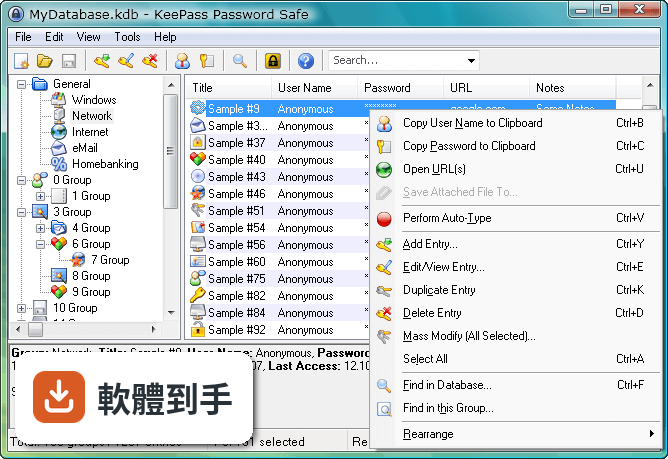
KeePass 是一套開源密碼管理器,把所有的帳號密碼集中存放在一個加密資料庫裡,用一組主密碼或金鑰檔案解鎖。跟瀏覽器內建記密碼功能不同,它的資料庫是用 AES 和 Twofish 加密,而且原始碼公開,任何人都可以檢查加密有沒有實作正確。免費、無廣告,也不需要註冊帳號。
02密碼存在哪裡?會不會被偷?
所有密碼存在一個以主密碼或金鑰檔案鎖住的資料庫檔案裡,檔案本身用 AES 和 Twofish 加密。沒有主密碼或金鑰檔案,就無法開啟內容。你可以把這個檔案放在自己的隨身碟、NAS 或雲端硬碟,但 KeePass 本身沒有內建雲端同步,傳輸和備份的責任在自己身上。
03可以帶著走嗎?還是只能裝在電腦上?
有提供免安裝的便攜版,放在隨身碟裡直接執行,不需要安裝。資料庫檔案也可以跟著隨身碟走,換一台電腦就能用。不過要注意,便攜版需要目標電腦有安裝 .NET Framework 4.7 以上版本,而且介面是英文的。
04可以從別的密碼軟體匯入資料嗎?
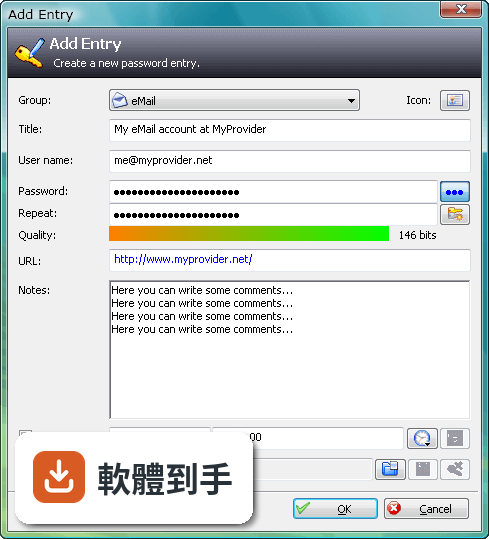
可以。KeePass 支援從多種格式匯入,也支援匯出成 TXT、HTML、XML 和 CSV。如果你原本用 Excel 或 CSV 記密碼,可以先整理成 CSV 再匯入。匯出功能也可以用來備份或轉移到其他軟體,但匯出後的檔案是明文,要小心存放。
05自動輸入密碼是怎麼運作的?
內建 Auto-Type 功能,可以設定讓 KeePass 自動幫你輸入使用者名稱和密碼。它會模擬鍵盤輸入,所以不需要複製貼上,避免密碼留在剪貼簿裡。也可以設定全域快速鍵,在任何視窗按下快捷鍵就自動填入。但這功能在部分網站或應用程式上可能因為輸入框設計不同而失效,需要自己調整設定。
06適合什麼樣的人用?
適合願意花時間自己管理資料庫的人。KeePass 的運作方式是把所有責任交給你:主密碼自己記、資料庫自己備份、同步自己處理。如果你習慣把東西掌握在自己手裡,不喜歡雲端服務,也不介意英文介面,那它很夠用。它也適合需要管理大量帳號的 IT 人員,可以用群組分類和自訂欄位。
07跟瀏覽器內建的密碼管理比起來,有什麼差別?
瀏覽器內建功能方便,但綁定特定瀏覽器,換瀏覽器或重灌電腦就麻煩。KeePass 的資料庫是獨立檔案,不受瀏覽器限制,而且加密強度更高。但相對的,KeePass 沒有自動填表單的功能,需要靠 Auto-Type 或手動複製貼上,使用上沒有瀏覽器那麼順手。
08手機上能用嗎?
官方沒有提供手機版。資料庫檔案格式是公開的,市面上有第三方 App 可以開啟 KeePass 資料庫,但那些 App 不是官方出品,相容性和安全性需要自行確認。如果你主要用手機記密碼,KeePass 可能不是最方便的選擇。
09需要雲端同步嗎?KeePass 有內建嗎?
KeePass 沒有內建雲端備份或同步功能。如果你要把資料庫放在 Dropbox、Google Drive 之類的地方,需要自己設定,而且每次修改後要手動上傳。如果多台電腦要同步,也要自己處理檔案衝突的問題。不想自己管理同步的人,用起來會覺得很麻煩。
10介面只有英文,看不懂怎麼辦?
介面語系只有英文,沒有官方中文。不過 KeePass 支援多國語言套件,可以另外下載中文語言檔,但需要自己安裝設定。如果連安裝語言檔都覺得困難,或希望介面預設就是中文,那這套軟體對你來說門檻會比較高。
11跟其他密碼管理器比起來,為什麼評分人數不多?
在收錄的比較名單中,KeePass 有 98 人評分,RoboForm 有 117 人,Kaspersky Password Manager 有 77 人。評分人數少不代表不好,但表示使用者的基數相對小。KeePass 的介面停留在早期風格,沒有現代密碼管理器常見的自動填表、雲端同步、行動裝置 App,這些都是它評分人數不多的可能原因。
12什麼樣的人不建議用 KeePass?
如果你需要手機和電腦之間無縫同步、想要自動填寫網頁表單、或希望介面是中文且現代化,那 KeePass 會讓你花很多時間在設定和維護上。它沒有官方手機版、沒有內建雲端同步、介面老舊且只有英文。這些需求可以考慮其他有持續更新、介面較現代的密碼管理器,但那些通常是付費或訂閱制。
下載與官方連結
前往官方網站 下載 KeePass Password Safe
KeePass-2.03-Alpha-Setup.exe · 1.43 MB · 連結指向軟體原廠
版本紀錄
- 2026-05-02 KeePass 2.61.1 4.38 MB
- 2026-03-05 KeePass 2.61 4.38 MB
- 2025-11-03 KeePass 2.60 4.23 MB
再看 5 筆
- 2025-07-10 KeePass 2.59 4.15 MB
- 2025-03-05 KeePass 2.58 4.34 MB
- 2024-10-08 KeePass 2.57.1 4.32 MB
- 2024-06-02 KeePass 2.57 4.2 MB
- 2024-02-05 KeePass 2.56 4.19 MB
這一版改了什麼
What's new in this version:
- Added multi-document support (tabbed interface when multiple files are opened).
- KeePass 2.x now runs on Windows 98 / ME, too! (with .NET 2.0).
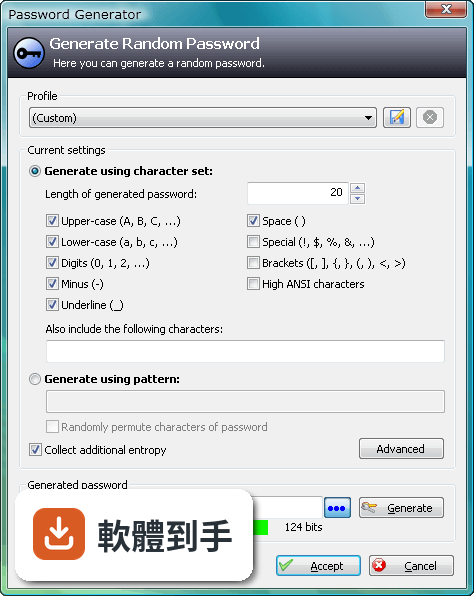
- Added option to permute passwords generated using a pattern (this allows generating passwords that follow complex rules).
- Added option to start minimized and locked.
- Added support for importing Passwort.Tresor XML files.
- Added support for importing SplashID CSV files.
- Added '--exit-all' command line parameter; call KeePass.exe with this parameter to close all other open KeePass instances (if you do not wish to see the 'Save?' confirmation dialog, enable the 'Automatically save database on exit' option).
- Added support for CF_CLIPBOARD_VIEWER_IGNORE clipboard format (clipboard viewers/extenders compliant with this format ignore data copied by KeePass).
- Added support for synchronizing with multiple other databases (select multiple files in the file selection dialog).
- Added ability to specify custom character sets in password generation patterns.
- Added pattern placeholder 'S' to generate printable 7-bit ASCII characters.
- Added pattern placeholder 'b' to generate brackets.
- Added support for starting very long command lines.
- Entry UUID is now shown on the 'Properties' tab page.
- Added Spanish language for installer.
- KeePass now creates a mutex in the global name space.
- Added menu command to save a copy of the current database.
- The database name is now shown in the title of the 'Enter Password' window.
- Added "Exit" command to tray icon context menu.
- Pressing the 'Enter' key in the password list now opens the currently selected entry for editing.
- Added '-GroupName:' parameter for 'AddEntry' command in the KPScript KeePass scripting tool (see plugins web page).
- Added URL example in 'Open URL' dialog.
- Added support for plugin namespaces with dots (nested).
- Added ability to specify the characters a TAN can consist of.
- '-' is now treated as TAN character by default, not as separator any more.
- Added ability to search using a regular expression.
- Notes in the entry list are now CR/LF-filtered.
- Added {PICKPASSWORDCHARS} placeholder, KeePass will show a dialog which allows you to pick certain characters.
- The password generator dialog is now shown in the Windows taskbar if the main window is minimized to tray.
- Caps lock is now disabled before auto-typing.
- Improved installer (added start menu link to the CHM help file, mutex checking at uninstallation, version information block, ...).
- Plugin architecture: added cancellable default entry action event handler.
- Added support for subitem infotips in various list controls.
- Group name is now shown in the 'Find' dialog (if not root).
- Pressing the 'Insert' key in the password list now opens the 'Add Entry' dialog.
- Last search settings are now remembered (except search text).
- The column order in the main window is now remembered.
- Pressing F2 in the groups tree now initiates editing the name of the currently selected group.
- Pressing F2 in the password list now opens the editing dialog.
- The 'About' dialog is now automatically closed when clicking an hyperlink.
- Entries generated by 'Tools' - 'Password Generator' are now highlighted in the main window (visible and selected).
- Extended auto-close functionality to some more dialogs.