
這是歷史版本頁面 — 看 Komodo Edit 最新版本
免費程式碼編輯器老字號 Komodo Edit 現在還值得用嗎
 Komodo Edit 9.0.0 Build 15707
資料更新 2015-03-24
閱讀約 6 分鐘
寫網頁或寫 Python 腳本時,你打開一個編輯器,想要有語法色、自動補全、按一下就能跳去改某個函式。免費的記事本太陽春,裝了大型 IDE 又覺得卡頓、啟動慢,尤其只是要改個設定檔或寫支小工具,殺雞用牛刀的感覺很明顯。你需要的是一個能專注在「寫程式」這件事上、不會一直打擾你的編輯器。
免費的編輯器很多,但很多不是功能太精簡,就是綁特定語言或平台。有些號稱輕量,裝完才發現要自己東拼西湊外掛,光設定就花掉一下午。Komodo Edit 這類工具的切入點,是提供一個開箱即用的多語言編輯環境,把語法檢查、自動補全、程式碼折疊這些寫程式的基本需求先做好,讓你可以把時間花在寫程式本身,而不是跟編輯器搏鬥。
01Komodo Edit 到底能做什麼,跟一般記事本差在哪?
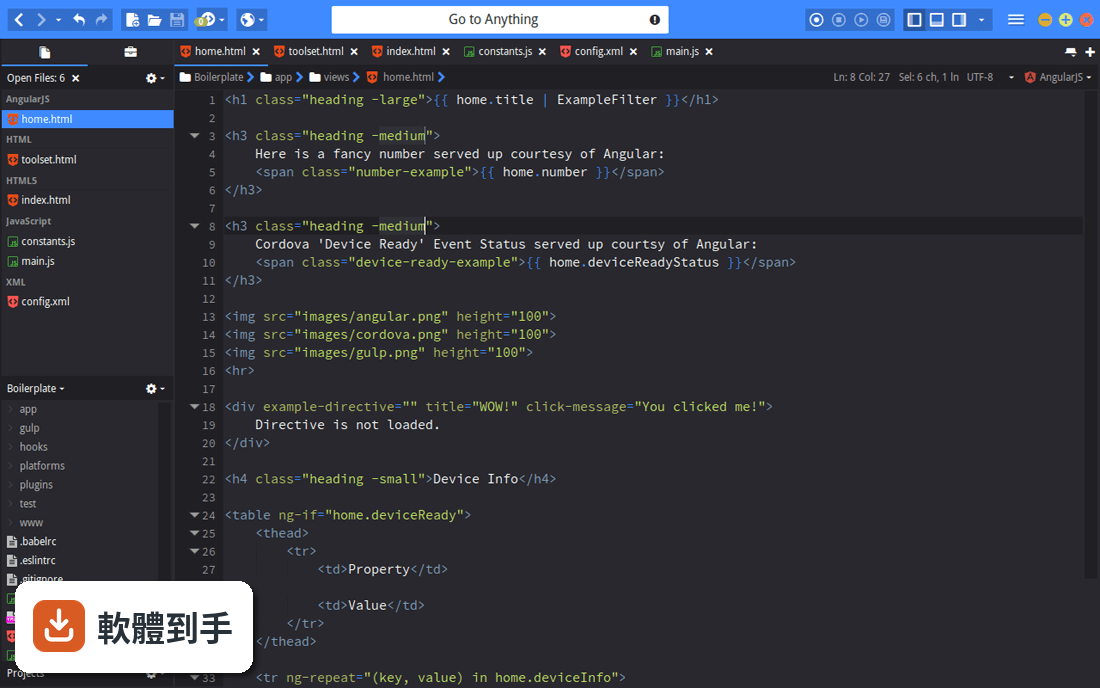
它是一個多平台的程式碼編輯器,支援 PHP、Python、Ruby、Perl、JavaScript、CSS、HTML 等多種語言。跟記事本最大的差別在於,它會在你輸入的當下做背景語法檢查,拼錯或語法不對會立刻標示出來;同時提供自動補全和呼叫提示,寫到一半會跳出建議或函式說明,減少查文件的時間。
02它支援哪些程式語言?我想拿來寫網頁前端可以嗎?
官方列出的語言包含 PHP、Python、Ruby、Perl、Tcl、JavaScript、CSS、HTML,以及 RHTML、Template-Toolkit、HTML-Smarty、Django 這類模板語言。寫網頁前端用的 HTML、CSS、JavaScript 都在支援範圍內,也有語法上色和程式碼折疊,拿來寫靜態網頁或前端檔案是夠用的。
03語法檢查是怎麼運作的?是存檔後才檢查嗎?
它是背景即時檢查,你打字的時候就會在編輯區標出錯誤,不用等存檔。這對抓括號沒閉合、少了分號這類小錯誤很直接,寫到哪檢查到哪。不過要注意,它檢查的是語法層面的錯誤,不是邏輯錯誤,程式能跑但結果不對這種事它管不著。
04除了寫程式,它有沒有其他實用的功能?
有幾個值得一提的。它內建 Markdown 預覽,編輯 .md 檔時可以直接在分割視窗看到轉換後的 HTML,而且不用存檔就會即時更新。另外有一個 Commando 快速面板,可以用模糊比對搜尋檔案、跳到你想要的任何地方,類似「Go to Anything」的概念。還有程式碼片段(Snippets)功能,常用程式碼可以存起來重複插入。
05它能不能像 VS Code 那樣裝外掛擴充功能?
可以,它支援 XPI 擴充套件,機制跟 Firefox 的擴充套件一樣,用的是 Mozilla 標準 API,也支援用 Python 和 JavaScript 自己寫擴充。所以如果你有特定需求,可以去找現成的 XPI 來裝,或自己寫一個。不過擴充生態的規模跟 VS Code 比起來小很多,這點要先有心理準備。
06這套軟體適合什麼樣的人用?
適合需要一個跨平台、多語言編輯器的人,尤其是常寫 PHP、Python、Perl 這類動態語言,又不想被特定 IDE 綁住的使用者。它也適合喜歡自訂編輯器的人,因為可以調色系、改行高,甚至模擬 Vi 或 Emacs 的按鍵操作。如果你只是偶爾改個設定檔、寫點小程式,它提供的功能已經很夠用。
07我習慣用 Vim 或 Emacs 的按鍵,這套軟體能配合嗎?
可以,它內建 Vi 模擬和 Emacs 按鍵綁定,不用另外裝外掛就能切換。這對從終端機編輯器轉過來的人來說比較友善,可以保留原本的操作習慣,同時享有圖形介面的語法檢查和自動補全。不過 Vi 模擬的完整度跟真正的 Vim 比還是有差距,如果你重度依賴 Vim 的某些進階操作,可能要實際測試看看。
08它跟 Komodo IDE 有什麼關係?我該直接買 IDE 嗎?
Komodo Edit 是 Komodo IDE 的免費開源精簡版,IDE 多了除錯、單元測試、程式碼重構、效能剖析,以及跟 Gulp、Grunt、Docker、Vagrant 等工具的整合。如果你只是寫程式、編輯檔案,Edit 就夠了;但如果你需要完整的開發流程工具鏈,IDE 才是你要的。不過 IDE 是付費軟體,而且評分人數比 Edit 少,可以先從 Edit 開始用看看。
09這套軟體一直沒更新,會不會有相容性問題?
它的版本紀錄顯示最近一次更新是 2020 年,之後就沒有新版本了。這代表它不會再修 bug 或支援新的語言特性,如果你用的語言或工具鏈持續在演進,可能會遇到語法檢查不認得新語法的情況。另外它官方支援的系統是 Windows 7 到 10,如果你用 Windows 11,可能要自己確認能不能正常運作。
10介面只有英文,對中文使用者來說會很難上手嗎?
介面確實只有英文,沒有中文語系。對不習慣英文介面的人來說,選單和設定項目需要花點時間熟悉。不過程式碼編輯器的操作邏輯大同小異,常用的功能就那幾個,而且網路上有不少教學文章可以參考。如果你完全無法接受英文介面,可以考慮其他有中文語系的編輯器。
11我該拿它跟 Atom 比嗎?哪個比較好?
tom 的評分人數有 170 人,比 Komodo Edit 的 83 人多,代表 Atom 的使用者基數比較大,社群資源和擴充套件也比較豐富。但 Atom 本身也已經停止維護,兩者都屬於不再活躍開發的專案。如果你在意的是長期維護和社群支援,兩者都不是最佳選擇;如果你只是需要一個能用的編輯器,Komodo Edit 的功能完整度是夠的。
12什麼樣的情況不該選 Komodo Edit?
如果你需要除錯、單元測試、程式碼重構這些進階功能,它沒有,那是 IDE 的範疇。如果你用的是比較新的程式語言或框架,它可能不支援或語法檢查會誤判。如果你很在意軟體是否持續更新,它已經多年沒有新版本,這點要考慮進去。另外,如果你需要中文介面,它只有英文,這也是一個限制。
下載與官方連結
Komodo-Edit-9.0.0-15707.msi · 72.95 MB · 連結指向軟體原廠
版本紀錄
- 2020-02-12 Komodo Edit 12.0.1 Build 18441 74.8 MB
- 2020-01-16 Komodo Edit 12.0.0 Build 18431 74.8 MB
- 2019-01-09 Komodo Edit 11.1.1 Build 18206 74.8 MB
再看 5 筆
- 2018-06-21 Komodo Edit 11.1.0 Build 91033 90 MB
- 2017-12-20 Komodo Edit 11.0.2 Build 18122
- 2017-10-31 Komodo Edit 11.0.1 Build 18119 74.7 MB
- 2017-09-26 Komodo Edit 11.0.0 Build 18063 74.7 MB
- 2017-07-25 Komodo Edit 10.2.3 Build 17708 74.7 MB
這一版改了什麼
What's new in this version:
- Track Changes: The editor has gained a new left margin, which highlights unsaved changes, as well as any uncommitted SCC changes. Clicking on the margin will show a diff dialog of the changes, and you can also revert these individual changes.
- Markdown Viewer: When a markdown file is open in Komodo, you’ll be able to easily HTML preview that markdown with a click of a button. The Komodo markdown viewer uses GitHub markdown styling.
- Go Lang: Initial support for the Go programming language has been added to Komodo. It provides syntax coloring, code folding, syntax checking (linting) and code intelligence with completions, calltips, outline and goto definition.
- Kopy.io: This allows you to easily share snippets of code with other people (like a pastebin) directly from Komodo. Simple make a text selection and right-click and use the Share Code via Kopy.io. Even better is that Kopy.io supports client side encryption, so you can make those shared pastes more secure.
- Notifications: Messages shown to the user now appear in a separate popup panel that overlays the main Komodo editor window (previously they appeared in the Komodo statusbar). There are notification preferences which allows you to control which messages get displayed in the popup panel.
- Color Schemes: We’ve changed all the default Komodo color schemes. All schemes included in Komodo are now Base16, that is, they are based on a set of 16 different base colors, which are re-used by different parts of the scheme. You can also tweak the editor line height spacing now directly in the color scheme preferences page.
- Menu Bar: The Komodo main menu bar is now hidden by default (Windows and Linux. You can use the Alt key to toggle the menu visibility. Whilst the top-level menu is hidden, the unified button menu will be visible in the toolbar. You can also control menu visibility through the View > Toolbars menu.
- PHP 5.6 Support: We’ve added support for PHP 5.6, with a new Xdebug module (for PHP debugging and Code Profiling), updates for keyword changes and updates to code intelligence to provide the latest API data for PHP 5.6.
- Python PEP 8 Syntax Checking: PEP 8 syntax checking has been added. You can turn it on by visiting the Python Syntax Checking preferences. For those that don’t know - PEP 8 is the official style guide for Python code.
- CSS Code Formatting: Komodo now includes a CSS code formatter - so you can keep your CSS looking beautifully structured. We’re using a JavaScript CSS Beautify library from Sencha Labs.
- Komodo Developer APIs: We’ve been overhauling the Komodo APIs, to make it easier to load and access the methods inside of Komodo. We’re now making use of CommonJS (aka Node.js) require() calls to load individual modules - you can see the full list of supported modules in the sdk directory. Examples and more information can be found in the Komodo wiki. We’ve also added convenient console.log() and friends support - the messages show up in the Komodo Notifications pane.
- Performance: Various performance tweaks were made to Komodo to improve the editing performance, as well as improving the search speed, syntax checking times and general responsiveness of Komodo. Other Mentionables:
- Statusbar has moved to be above the bottom pane (attached to the editor view)
- CSS code formatter was added
- Preference page now has a simple and advanced mode
- Startpage has been removed - instead a Quick Launch page is shown when no views are opened
- Workspaces can be saved and loaded on demand - see the File > Workspace menu
- High DPI configurations on Windows should work correctly - no blurred fonts
- Tab Width indentation preference has changed from 8 spaces to 4 spaces
- Find Results now has a toolbar command to copy the find results to the clipboard
- SCC Commit dialog now displays the current branch name
- Re-organised various menus, including tab and editor context menus
- Sections list (IDE) has merged with breadcrumbs widget
- Tabs v’s spaces indentation detection was improved
- Komodo was updated to use the Mozilla 31 code base
- Opt-in analytics module was added. This is entirely optional and we do not track user specific information.
- Komodo Sync has been removed for Komodo 9; similar functionality may be re-introduced in a later version of Komodo. Icons: Most of the Komodo UI icons have been updated - here is a list of the most noticeable icon changes:
- file icons
- language icons
- places icons
- toolbox icons
- preference page
- code intelligence icons (completions, sections list, code browser) Commando: This popup dialog is the combined successor of the “Fast Open” dialog and “Invoke Tool” dialog. Commando provides the following search tools and features:
- fuzzy matching
- string match highlighting in the results panel
- find any file under a particular folder
- tool (macro, run command, snippet, …) search
- bookmark integration
- shortcuts (go-tool) integration
- custom category filtering Commando also comes with an easy to use API so that you can easily add your own custom search “scopes”. Bug Fixes:
- Editor: Stop scrolling jumps when word wrap is enabled and editor is resized. (Bug 106383)
- Projects: Ensure project restore loads the correct files. (Bug 106386)
- Places: Ensure SCC status icon changes for edited files. (Bug 104886)