
這是歷史版本頁面 — 看 LibreCAD 最新版本
收到DXF檔打不開?LibreCAD免費畫2D圖能做什麼
 LibreCAD 2.1.0
資料更新 2016-06-05
閱讀約 5 分鐘
你手上有一份DXF檔,可能是客戶寄來的、同事轉給你的,或你自己從某個系統匯出的。你只想打開來看、稍微量個尺寸、改幾條線,但電腦裡沒有裝任何能開DXF的軟體。上網找了一圈,AutoCAD 貴得嚇人,免費的看圖軟體又常常只能看不能改,你卡在「檔案就在眼前,卻動不了」的狀態。
一般人遇到這種狀況,第一個念頭是找盜版 AutoCAD,但安裝麻煩、來源可疑,而且你只是偶爾畫個圖,根本用不到那麼多功能。另一條路是找線上轉檔工具,但把設計圖傳到陌生網站,心裡總是不踏實。這類問題的切入點其實很簡單:你需要一套能裝在自己電腦上、免費、能開 DXF 又能畫 2D 圖的軟體,不用像 AutoCAD 那麼強大,只要該有的繪圖工具都有就好。
01LibreCAD 可以開 AutoCAD 的 DXF 檔嗎?
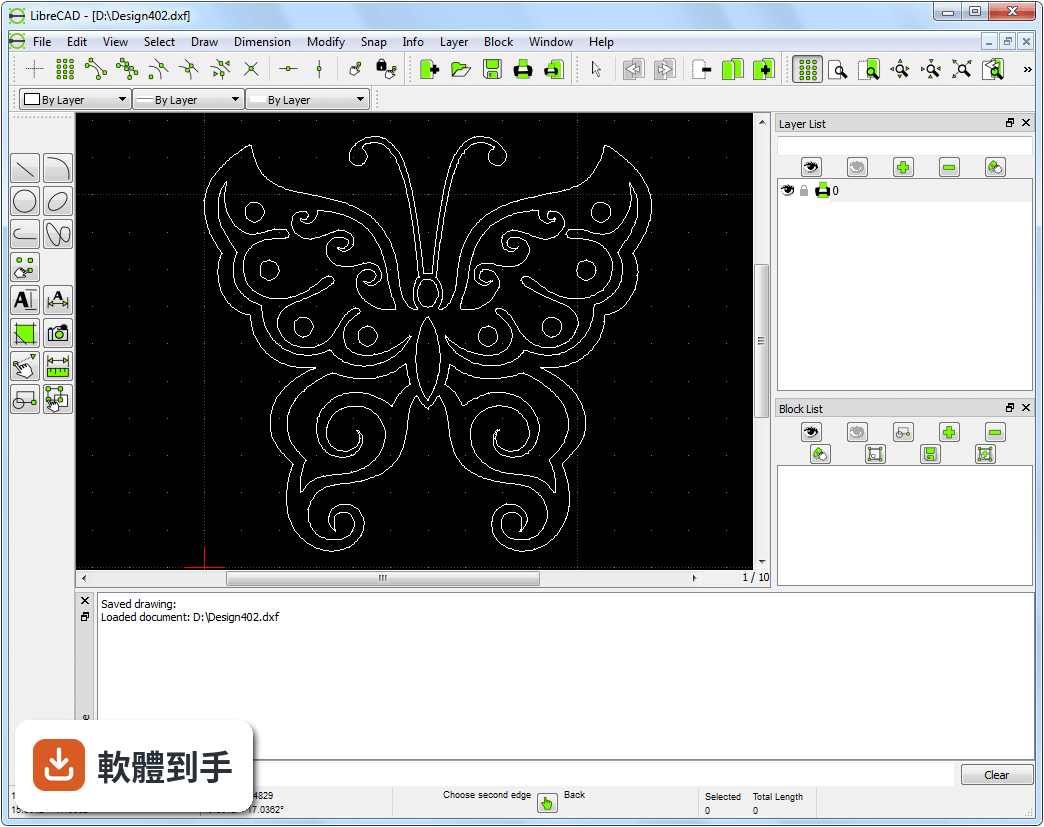
可以。LibreCAD 原生支援 DXF 格式,這是 AutoCAD 通用的交換格式,所以別人用 AutoCAD 存的 DXF 檔,拿到 LibreCAD 裡通常能直接開啟。要注意的是它不支援 DWG 格式,如果對方給你的是 DWG 檔,你得先請對方轉成 DXF,或用其他工具轉檔後再開。
02這套軟體能畫 3D 嗎?
不行,LibreCAD 是純 2D 的 CAD 軟體,沒有 3D 建模功能。如果你需要畫立體圖、做 3D 模型,官方說明裡明確提到要改用 FreeCAD 或 Blender 這類軟體。它擅長的是平面圖、工程圖、配置圖這類 2D 繪圖工作。
03它跟 AutoCAD 差在哪裡?
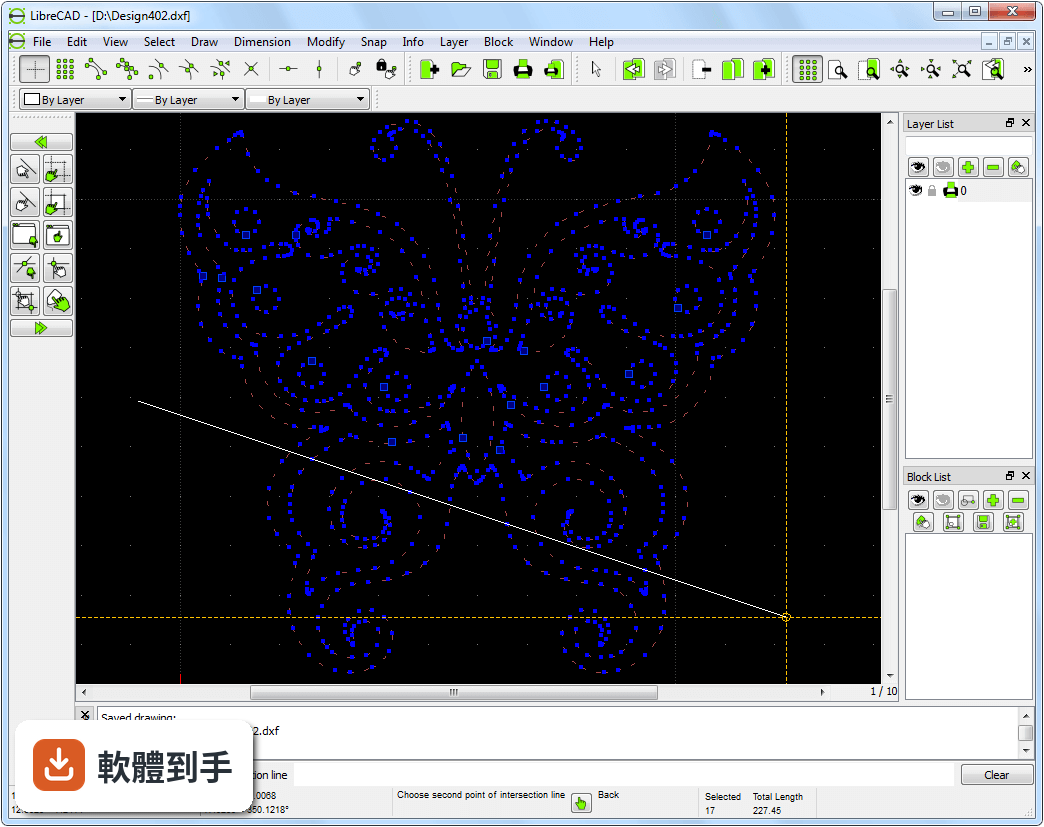
最大的差別是價格和 3D 功能。AutoCAD 是付費軟體,LibreCAD 完全免費;但 LibreCAD 只做 2D,AutoCAD 有完整的 3D 建模能力。在 2D 繪圖這塊,LibreCAD 提供了線、聚合線、圓、弧、橢圓、雲形線、文字等工具,也支援圖層、圖塊、鎖點和量測,基本繪圖需求都能應付,但官方也承認它缺少一些高階 CAD 軟體才有的進階功能。
04這套軟體要錢嗎?
不用,LibreCAD 是開放原始碼軟體,採用 GPLv2 授權,完全免費,沒有隱藏費用,也不用擔心授權到期或年費問題。你可以自由使用、複製,甚至修改它的原始碼。這點在官方 FAQ 裡寫得很清楚,是「完全免費且開放原始碼,沒有隱藏成本」。
05它能匯出哪些格式?
主要支援 DXF 格式的匯入和匯出,這是它與其他 CAD 軟體互通的主要橋樑。另外它也可以把圖面匯出成多種影像格式,方便你分享或放進簡報裡。如果你需要跟使用 AutoCAD 的人協作,用 DXF 格式交換檔案是沒問題的。
06這套軟體適合什麼樣的人用?
適合需要畫 2D 工程圖、平面配置圖、機械零件圖的人,尤其是學生、個人工作者、小型工作室,或偶爾才需要開 DXF 檔的人。因為它免費、跨平台(Windows、Linux、macOS 都能跑),而且官方文件說它介面設計讓新手容易上手,繪圖工具都排在畫布周圍,不用花時間找功能在哪。
07新手完全沒用過 CAD 軟體,學得會嗎?
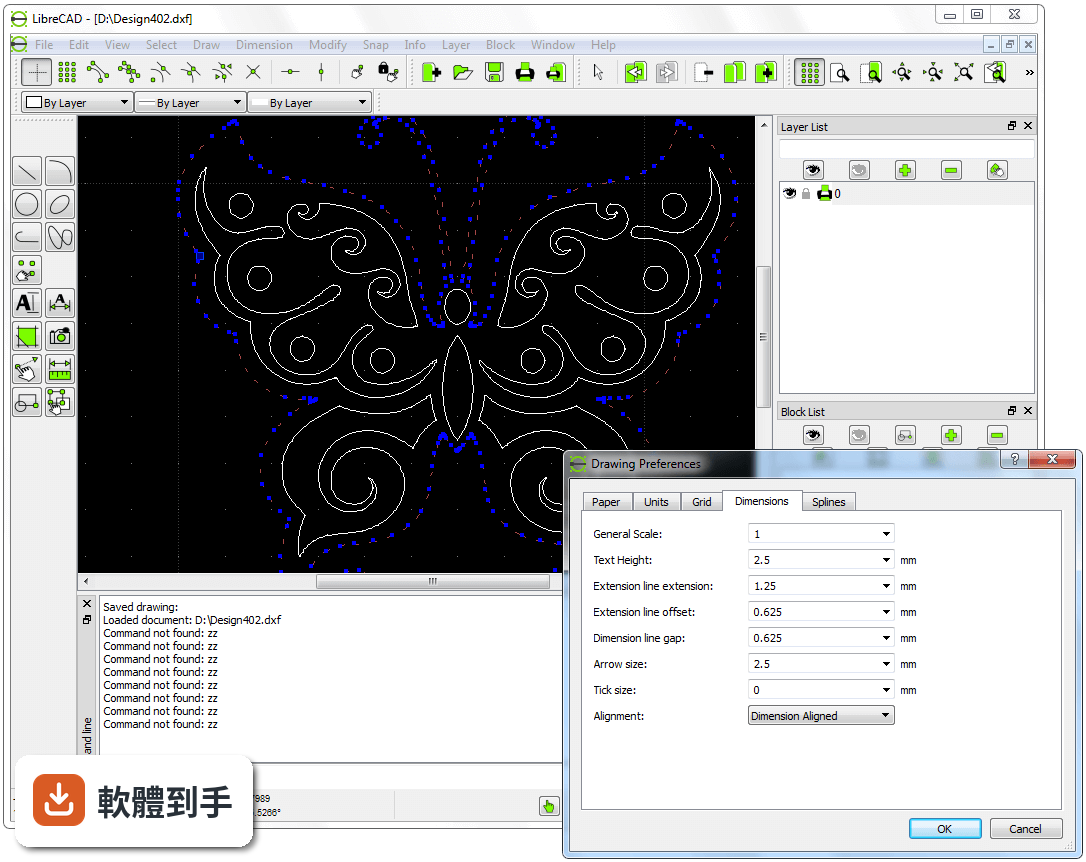
可以,但需要一點耐心。LibreCAD 的介面有主工具列、圖層工具列、圖塊工具列、指令列、繪圖區和狀態列,結構算清楚。官方也提到有完整的文件、大量的教學和可自訂的介面。不過它預設介面是英文的,如果你不熟悉英文介面,初期會需要花時間對照功能名稱,這點要有心理準備。
08什麼情況不該選這套軟體?
如果你需要 3D 建模,直接跳過它。如果你手上都是 DWG 檔,而且對方無法轉成 DXF,那它幫不上忙。另外,如果你需要的是 AutoCAD 等級的進階功能——例如非常複雜的參數化設計、進階塑形工具——官方也承認 LibreCAD 可能缺少這些,這種需求應該考慮付費軟體。
09它跟 FreeCAD 比起來,哪個比較適合我?
看你要畫 2D 還是 3D。LibreCAD 是純 2D,FreeCAD 是 3D 建模軟體,兩者定位不同。如果你只需要平面圖、工程圖,LibreCAD 的 2D 工具比較直接;如果你要畫立體零件、做 3D 模型,那就選 FreeCAD。也有人兩個都裝,2D 用 LibreCAD、3D 用 FreeCAD,都是免費的。
10這套軟體有中文介面嗎?
官方資料顯示它的介面語系是英文,但官方功能說明中提到它支援多種語言,且持續增加中。實際上有沒有繁體中文介面,建議你直接到官方網站下載安裝後確認,或到討論區問一下其他使用者的經驗。如果英文介面對你來說是障礙,這點需要先確認再決定要不要用。
下載與官方連結
LibreCAD-Installer-2.1.0.exe · 27.97 MB · 連結指向軟體原廠
版本紀錄
- 2026-10-17 LibreCAD 2.2.1.6 80.7 MB
- 2026-05-02 LibreCAD 2.2.1.5 51.8 MB
- 2025-07-14 LibreCAD 2.2.1.2 24.5 MB
再看 5 筆
- 2025-02-20 LibreCAD 2.2.1.1 24.5 MB
- 2025-01-05 LibreCAD 2.2.1 24.4 MB
- 2023-07-30 LibreCAD 2.2.0.2
- 2023-07-09 LibreCAD 2.2.0.1
- 2022-12-18 LibreCAD 2.2.0
這一版改了什麼
What's new in this version:
Features
- themed icons option
- exclusive snap mode (only one mode can be enabled)
- custom menu creator (more)
- custom toolbar creator (more)
- boost version in the About window
- links to the contributors page and LICENSE in the About window
- copy button in the About window
- di for divide
- mp for properties
- t2 for trim 2
- command line focus for keycodes
- device option for mouse, trackpad, tablet or touchscreen
- open the file dialog allowing for the last chosen file type
- options menu
- plugins menu
- keycode mode (more)
- commands are shown in the command history when selected in a widget
- option to start the app maximized
- option to hide cursor when snapping
- option to change statusbar height
- hotkey to reload the stylesheet
- option to load a user defined stylesheet
- automatic titlebar orientation for the command line
- option to load preset style (tip: fusion is cross-platform)
- actions to toggle the visibility of dock areas
- alphabetical sorting on toolbars and dockwidgets
- holding shift in the default selection mode creates a deselection window
- square snap indicator shape
- options to set snap indicator lines and shape
- option to exclude scrollbars
- accept command line input with XButton1
- option to start in tab mode
- movable tabs
- option to change the snap indicator's color
- action history context menu when right clicking in the drawing area
- new context menu when right clicking on toolbars and dockwidgets
- order toolbar
- context menu entry to clear command history
- action to toggle fullscreen mode
- option to enable antialiasing
- left sidebar (tool dockwidgets)
- options to clear settings (restore defaults)
- custom toolbar that allows users to add the last triggered action
- open your browser and our wiki from the help menu
- individual toolbars
- categories toolbar
- option to change icon size
- spiderweb snap indicator
Bugs Fixed
- tool options were still shown after a drawing or print preview was closed
- export image's resolution field did not work
- invalid objects were allowed to exist, causing auto-zoom errors
- a layer's inline icons could be highlighted
- layers were activated when clicking their inline icons (e.g. visibility)
- lengthen options were overlapping on OS X
- recent file paths were not truncated when extremely long
- the file menu width was determined by recent file path length
- arrow size of 0 produced undefined behavior for radial dimensions
- could not copy information from the About window on Windows 7
- initial widget layout and geometry was unnecessarily held in memory
- applicationName had a "/" that caused incorrect path generation
- the draft mode button state was not restored on startup
- auto save could not be disabled
- the Window menu was not shown on OS X
- the fixed extension line length option for dimensions didn't work
- the app crashed after undoing a modify operation and then repeating it
- mouse wheel events manipulated the scrollbars instead of zooming on OS X
- the app would try to open any files, in certain folders, as plugins
- could not build with boost 1.6 on Windows
- the app would get stuck in the plugin loop and persist in the background after exit or crash on exit
- the statusbar height and text were not automatically set based on system settings
- the app would not fully maximize on startup on Windows
- the line preview looked unrefined by antialiasing
- the snap indicator and preview didn't show when zooming
- cursor flickered when zooming
- memory leaks
- certain buttons would crash the app when there was no open drawing
- print preview toggling didn't always return to the proper drawing
- print preview toolbar options weren't show / hidden consistently
- snapdist had 'sc' as a keycode instead of 'sd'
Other Services
- made the print preview options less cramped
- added recent files sub-menu
- rewrote the About window
- removed unused help manual (thereby eliminating 4 Qt frameworks and 6 plugins)
- rewrote the README.md
- changed applicationVersion for a more descriptive About dialog
- added new SVG icons (by dellus)
- organized code
- simplified / optimized code
- removed dead code
- eliminated compiler warnings
- updated LICENSE file
- moved grid status to the statusbar
- wrote style / stylesheet article
- wrote stylesheet example
- rewrote / reorganized widget and action code
- converted QC_MDIWindow from a subclass of QMainWindow to QMdiSubWindow
- created new GUI layout