
在電腦上聊 FB 訊息,Messenger for Desktop 能取代網頁版嗎
 Messenger for Desktop 9.0
資料更新 2022-07-27
閱讀約 6 分鐘
你習慣在電腦上開著 Facebook 網頁,就是為了等朋友傳訊息過來。但瀏覽器分頁一多,記憶體吃緊,電腦開始卡頓;或者你只是不想讓同事看到你一直掛在 Facebook 上,卻又怕漏掉重要訊息。把聊天視窗釘在瀏覽器裡,既佔空間又容易分心,關掉分頁又等於斷了聯繫,怎麼做都不對。
最直覺的替代方案是手機開著 Messenger,但人不在手機前就沒輒。另一種做法是另外開一個瀏覽器視窗專門放 Messenger,但這只是把同樣的問題換個地方重現,記憶體照樣被吃掉,通知也不見得會跳出來。於是有人想到:能不能把聊天功能從瀏覽器裡抽出來,變成一個獨立的桌面程式?這就是這類非官方桌面客戶端的切入點——把聊天變成一個專屬視窗,不開瀏覽器也能收發訊息。
01Messenger for Desktop 到底能幹嘛?跟網頁版有什麼差?
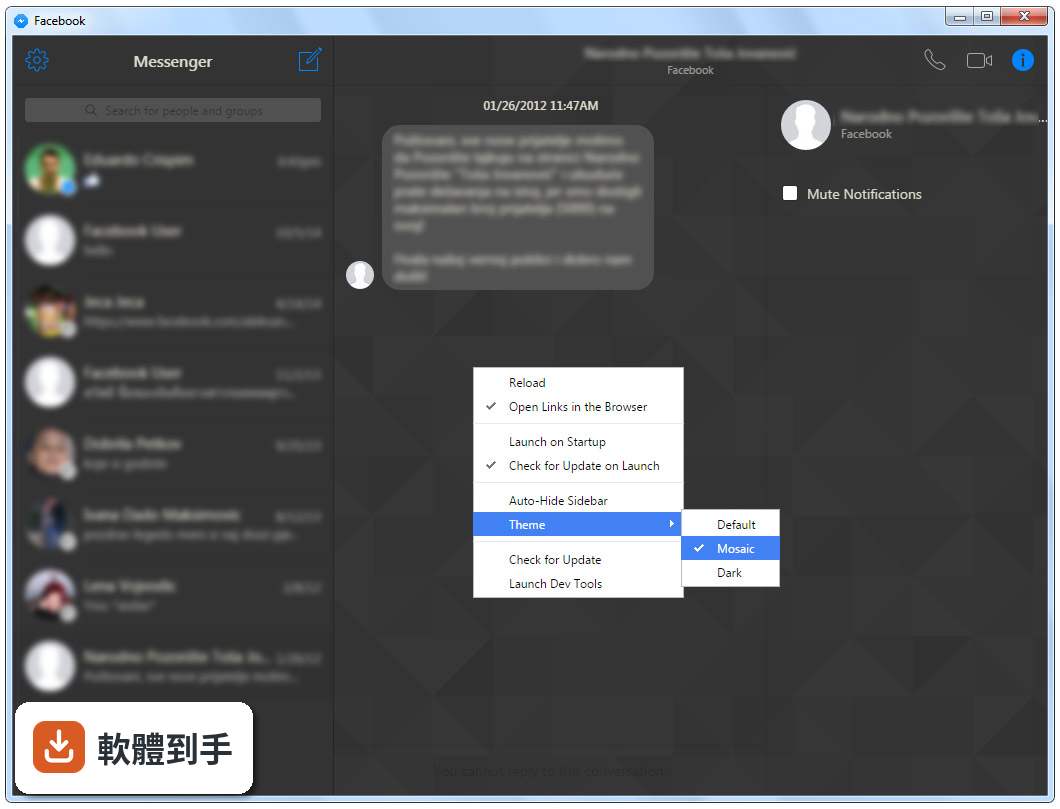
它把 Facebook 的訊息功能包成一個獨立的 Windows 程式,你不用開瀏覽器就能聊天。差別在於它會整合進作業系統,例如開機時自動啟動、用系統原生通知跳出訊息,也可以換主題。它本質上還是連到 Facebook 的伺服器,所以聊天對象、貼圖、群組這些都跟網頁版一樣,只是換了一個比較不佔資源的介面。
02它需要另外申請帳號嗎?
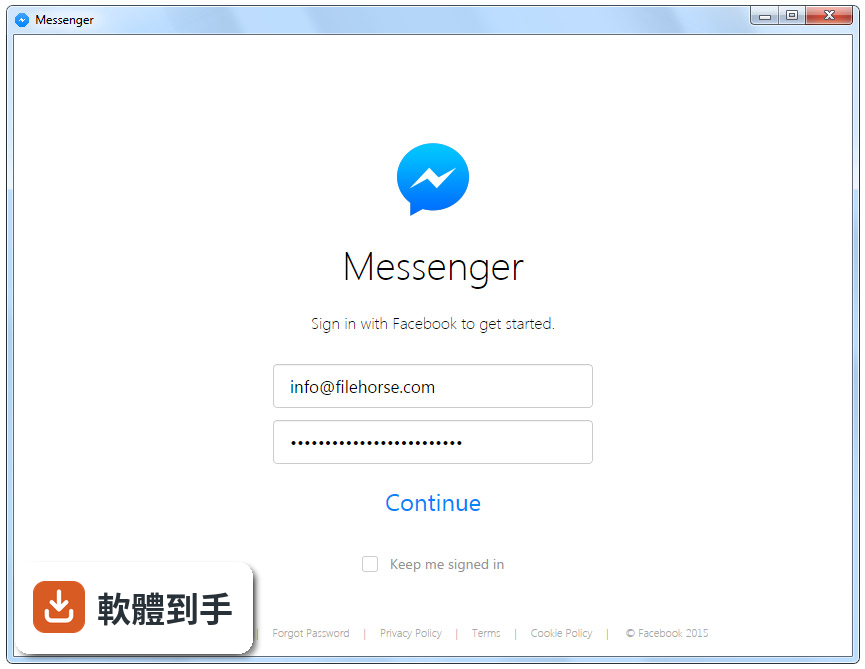
不用。官方說明寫得很清楚,使用它需要一個 Facebook 帳號,也就是說你原本的帳號直接拿來登入就行。它只是把 Facebook 的訊息服務包裝成桌面程式,不會要求你註冊新的東西。第一次開啟時用 Facebook 帳號授權登入,之後就會進到聊天主畫面。
03除了打字聊天,它還能做什麼?
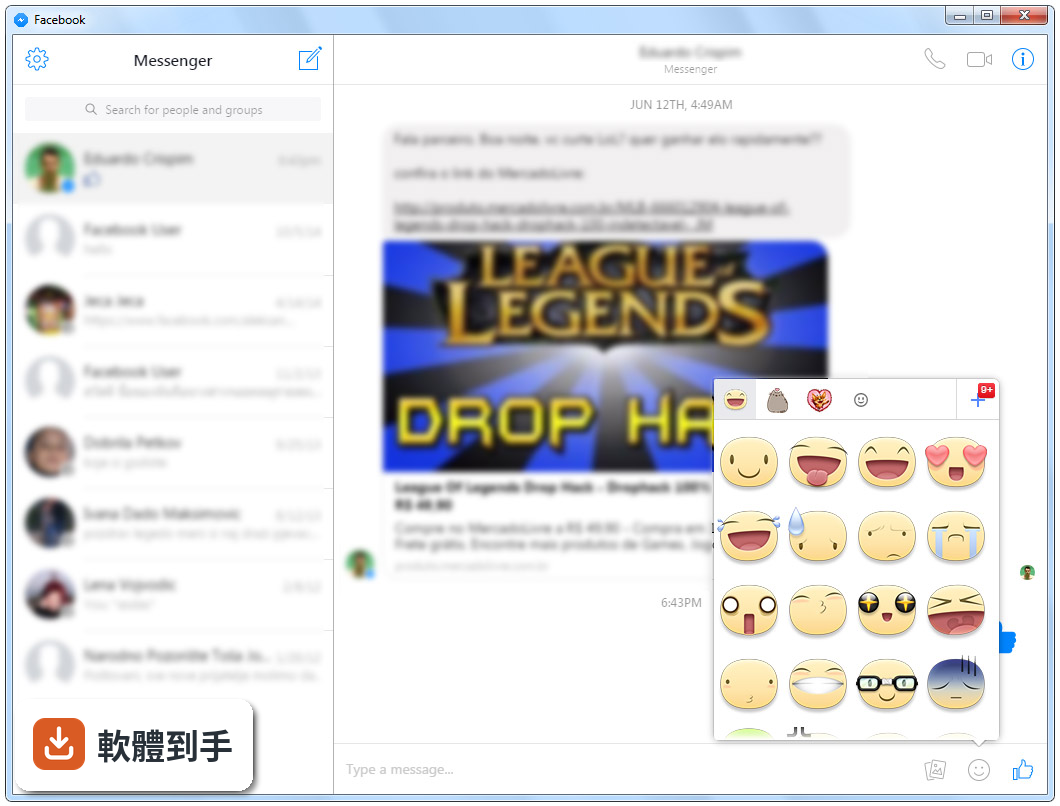
根據官方功能說明,它支援 HD 語音通話、拍照和錄影、傳送貼圖、錄製語音訊息,也能在群組裡聊天。另外它會顯示訊息已讀狀態,讓你知道對方有沒有看到你的訊息。這些功能跟 Facebook 自家的 Messenger 網頁版差不多,等於是把整套訊息服務搬到桌面視窗裡。
04它會不會一直跳出廣告或推播一些不必要的東西?
官方說明強調的是「沒有干擾地聊天」,也就是它不會像網頁版那樣旁邊有一堆動態消息、贊助貼文或推薦內容。你打開它就是一個聊天視窗,沒有其他雜訊。不過它畢竟是非官方軟體,實際使用時會不會有廣告或推播,官方說明沒有提到,這點需要自己安裝後確認。
05電腦很舊、還在用 Windows XP,跑得動嗎?
它支援 Windows XP、Vista、Windows 7 和 Windows 8,所以舊電腦是可以裝的。官方說明也提到它適合不想在瀏覽器裡一直掛著 Facebook 的人,用意就是省資源。不過它沒有列出最低硬體需求,如果你的電腦記憶體特別小,建議先裝起來試跑看看,確認順暢度再決定要不要長期使用。
06這套軟體適合什麼樣的人用?
適合兩種人:一種是工作時需要隨時回訊息、但不想讓瀏覽器一直被 Facebook 佔著的人;另一種是電腦效能有限、開瀏覽器很吃力的人。它把聊天獨立出來,開機自動啟動、通知直接跳系統視窗,對需要「掛著等訊息」的使用者來說,比開網頁方便。但前提是你習慣用 Facebook 的訊息功能,而不是其他通訊軟體。
07它跟官方 Facebook Messenger 有什麼差?為什麼不直接裝官方的?
官方 Facebook Messenger 在 Windows 上沒有推出桌面版程式,你只能用瀏覽器開網頁版。這套軟體就是填補這個空缺的非官方方案,把網頁版包成一個桌面應用程式。差別在於它多了系統整合,例如開機啟動、原生通知、自訂主題。如果你只需要偶爾開網頁回訊息,官方網頁版就夠了;但如果你想要一個常駐的聊天視窗,它才有優勢。
08它是不是沒在更新了?這樣還安全嗎?
它的版本紀錄顯示,最後一次更新停在 2022 年,而且近兩年沒有任何新版本,確實已經停止維護。這代表它不會再修 bug 或補安全漏洞,Facebook 那邊如果改了登入機制或 API,它有可能突然不能用了。如果你很在意安全性,或希望軟體持續跟上 Facebook 的變動,這套軟體可能不適合你。
09我現在用 Windows 10 或 11,可以裝嗎?
官方列出的支援系統只到 Windows 8,Windows 10 和 11 不在官方支援範圍內。它能不能在這些新系統上正常運作,官方沒有提供相關資訊。如果你已經在用 Windows 10 或 11,可以試著安裝看看,但要有心理準備它可能因為系統相容性或 Facebook 改版而無法使用,這部分需要自行測試確認。
10它有手機版嗎?我想手機和電腦同步用。
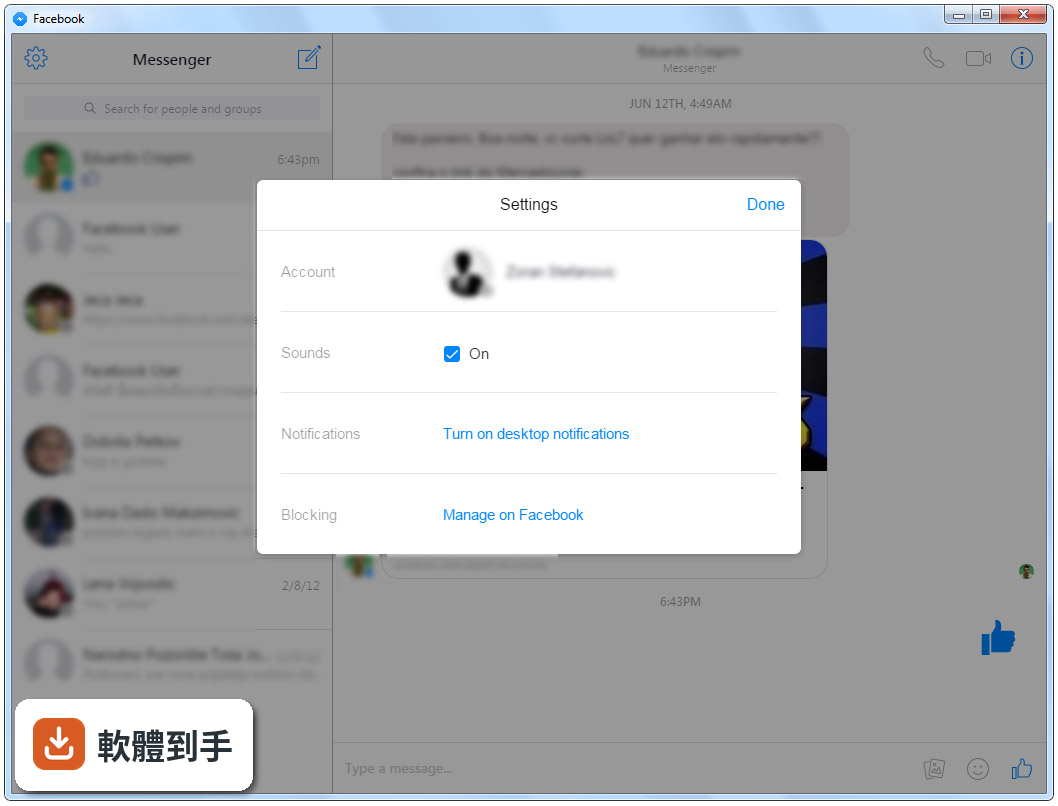
官方說明提到它有 Mac 版本,但沒有提到手機版。它主要定位是桌面程式,手機上你直接用 Facebook 官方的 Messenger App 就好。電腦上用這套軟體、手機上用官方 App,兩邊登入同一個 Facebook 帳號,訊息本來就會同步,不需要額外設定。
11跟其他類似的軟體比起來,它有什麼缺點?
它的使用者評分人數有 705 人,分數是 8.78,算是有一定使用基礎。但它的授權是免費軟體,而且已經兩年沒更新,這是最大的不確定因素。另外它只支援 Windows XP 到 8,新系統可能無法使用。如果你想要一個持續維護、支援新系統的 Messenger 桌面方案,目前沒有看到明顯的替代品,需要自己評估風險。
12我該不該用它來取代瀏覽器開 Messenger?
如果你的電腦是 Windows 8 或更舊的系統、而且你每天都要長時間掛在 Facebook 訊息上,它可以幫你省下瀏覽器資源,開機自動啟動也很方便。但如果你用的是新系統、或你對軟體安全性很要求,它停止更新的狀態就是一個風險。建議先安裝測試,確認登入、通知、通話這些功能都正常,再決定要不要把它當作主要工具。
下載與官方連結
reg-organizer-setup.exe
版本紀錄
- 2022-07-27 Reg Organizer 9.0
- 2022-07-27 Messenger for Desktop 3.1.6
- 2017-04-01 Messenger for Desktop 2.0.9
再看 5 筆
- 2017-03-12 Messenger for Desktop 2.0.6 53.8 MB
- 2017-03-08 Messenger for Desktop 2.0.5 Beta 53.8 MB
- 2016-12-29 Messenger for Desktop 2.0.4 Beta 53.9 MB
- 2016-09-08 Messenger for Desktop 2.0.1 Beta 52.9 MB
- 2016-08-26 Messenger for Desktop 2.0.0 Beta 52.9 MB
這一版改了什麼
What's new in this version:
Reg Organizer 9.0
- The Express Check screen now shows the installed applications, which can be updated
Usability improvements:
- The single button located in the upper left section of the main window always allows you to return to the previous tool
- The version number is always displayed in the main window title (useful when contacting technical support)
- If an update is available, a note about it is shown directly in the main window header next to the version (not available under Windows 7-8.1 or in the dark theme)
- The path to the frequently used settings window has been shortened: A button to go directly to it has been added at the top of the main window (along with the other commands)
- For switches, the enabled state is now displayed on the right, not the left to match similar switches in the Windows interface
- High DPI monitors optimization. Larger interface icons are now used in the systems where the higher system fonts scale is set. This helps to keep the interface proportional. Applies to the status bar and other places across the program
- Startup Applications tool: For applications that can be optimized a context menu command has been added to exclude them from the optimization recommendation
- Some enhancements to the applications uninstalling window's interface
- Increased accessibility: The buttons are correctly recognized by the screen readers programs like JAWS. (It's still a lot of work yet for the full screen readers compatibility as it is very far from perfect as of now.
- Dark theme minor visual improvements
Fixed:
- Applications tool: Reg Organizer could hang when pressing the Uninstall Application button or selecting the Install with tracing command
- Incorrect colors in some windows under the Classic Windows 7 theme
- The Private Data Cleanup tool showed that 1 item was found for some of the parts to be cleaned even though there actually were none
- Under the dark theme, some auxiliary windows were displayed in colors matching the light theme
- The Windows Script Host error could occur when using the application uninstall with reboot function
- Some buttons did not change color when pressed
- Visual artifacts on the edges of horizontal and vertical interface lines under the dark theme
- Windows Vista is no longer supported
Reg Organizer 8.91
- Applications' traces lookup algorithm changes. It is used during the applications' complete removal
- The system cleanup ignore list has been updated
- Social sharing blocks have been updated (not available for all languages)
- The cleanup functions now support Chromium based browser editions installed via MSI packages
- The built-in updater has been improved
Reg Organizer 8.90
- The cleanup functions now support Chromium based browser editions installed via MSI packages
- The built-in updater has been improved
Reg Organizer 8.87
- Bug fixes and improvements
Reg Organizer 8.86
- Applications' traces lookup algorithm improvements
Reg Organizer 8.85
- The Abnormal program termination error has been fixed when running the System Cleanup scan
- Fixed a program crash that sometimes occurred when opening the Applications tool
Reg Organizer 8.82
- Applications' traces lookup algorithm improvements that is used in the complete applications removal function
Reg Organizer 8.81
Applications tool:
- Applications' traces lookup algorithm improvements that is used in the complete applications removal function
- Minor installer improvements
Reg Organizer 8.80
Applications tool:
- Added the new function "Removal tools from the developers". The developers of some applications are providing a special utility for the complete removal of the applications from the system. This function allows you to download such a utility (if one is available for the application) and accomplish complete removal of the application with it.
- The applications installing with tracing function algorithm has been improved
- Registry editor usability improvements
Fixed:
- In the removed applications traces window the context menu command for opening the registry key did not work
- Enabling the "Windows context menu commands" option sometimes led to the restart of the Explorer process (explorer.exe)
Reg Organizer 8.76
- Registry Editor: A new "Paste and Go" command has been added to the registry path field's context menu.
Applications tool:
- Getting the application's traces before uninstalling as well as determining the sizes of the installed applications has been accelerated
- The applications installing with tracing function bugs fixed
Reg Organizer 8.75
- Tested for the Windows 11 preview version compatibility
- An ability to choose any of the program's unofficial translations has been added to Settings
- Bug fixed: The option Obsolete Tools -> Enable the Classic Registry Cleanup tool has been removed from the settings
The Applications tool:
- It is now possible to launch applications from the list as well as open their installation folders. The corresponding commands have been added to the context menu.
- A command to open the uninstall registry key has been added to the application's context menu
- More accurate application sizes are now displayed. When calculating the application's size, the data files it has created are also considered.
- Improved the multiple applications handling support. If you mark an application in the list, a floating panel appears that displays how many applications are marked and helps you to start removing or updating them with one click.
- A new "Refresh Window Data" command has been added to the Settings and Commands menu
- The applications' traces lookup algorithm has been improved
- It is shown on the final application's uninstall step how much space has been freed
- Usability improvements
- Bug fixed: When viewing some backups in the Undo Changes Center window, the list of files included in the backup was not complete
Registry Editor:
- The ability to remove the blocked registry keys was added..
- User interface improvements: The window's available space for the data output has been increased
Reg Organizer 8.70
- Redesigned and improved system load time measurement function in the Startup Applications tool
- Recycle Bin cleaning ability has been added to Private Data Cleanup tool. If cleanup is enabled, you may specify the maximum duration of the files in Recycle Bin, after which they should be removed from there
- When cleaning Obsolete Downloads, deletions are moved to the Recycle Bin
- Registry Editor: When using the Search the Entire Registry command the data is searched in all root keys, not only HKLM and HKU (despite other root keys being derived from these two)
- You can manage all the background tasks of the application, as well as autorun of the Reg Organizer itself, through the new Background Tasks settings section
- A new "Background Functions..." command has been added to the tray icon menu
- The applications' traces lookup algorithm has been improved
- Improved safety of the Maximum Cleanup Mode when using the System Cleanup tool
- Usability improvements
Fixed:
- When clicking on the button next to the Optimizations caption in Express Check, the incorrect interface section might open
- Startup Applications tool: The list could contain invalid services entries, which cannot be removed
- Startup Applications tool: When the notification about a suspicious startup entry appeared, clicking the Disable at Startup button in the notification did not work
- When viewing some backups in the Undo Changes Center window, the list of files included in the backup was not complete
- The Obsolete Downloads location in the cleanup tools was always unavailable for enabling
Reg Organizer 8.60
- Dark interface theme is supported
- The new "Re-Show the Interface Hints" command in the HELP submenu of the Main Menu
Startup Applications tool:
- Smart disabling support. A startup item disabled this way does not disappear from the system, but only stops starting automatically (available under Windows 10 and 8.1)
- Ability to uninstall the program that the startup item belongs to. This applies only for items associated with the programs registered in the corresponding registry keys
- For the startup items associated with the registered applications the context menu command is now available allowing you to view the application to which this startup item belongs to
- Now the startup item can be deleted either in the usual way or with the protection from its reappearance in the system. To delete the item the second way, the corresponding command is added to the item's context menu
- Support for the Windows 10 and 8.1 services running in protected launch mode. Such services cannot be modified, which is now reflected in the user interface
- For some types of startup items such as Task Scheduler entries, these new context menu commands have been added: "Prevent Changing the Delay Time" (for the delayed items) and "Prevent Re-Enabling" (for the disabled ones)
- Usability improvements
Reg Organizer 8.57
- Bug fixed: The icons does not displayed for some programs in the Applications tool's list
- Portable version's updater changes
Reg Organizer 8.56
- All data is now downloaded over a secure protocol (https)
- Bug fixed: The state of the option "Check for the installed applications updates" could not be saved after the program restart
Reg Organizer 8.55
- Reworked the ability to go back to the previous program's tool by the Back button
Applications tool:
- The minimal size for which by default the application is considered large has been increased to 200 Mb
- The applications installing with tracing function improvements
- Visual interface changes (the search field and menu button icons in some tools)
Bugs fixed:
- The access violation error message could occur on the Express Check screen
- Some elements colors haven't corresponded the scheme in case of using the Classic Windows 7 theme
Reg Organizer 8.52
- The algorithm of searching for traces of the application being uninstalled is improved
Reg Organizer 8.50
- The program has been moved to the 64-bit architecture (the previous program versions were 32-bit, but 64-bit Windows was fully supported). This gives a speed increase of up to 20% on specific operations, such as working with the system registry (if your Windows is 64-bit too).
- Support the cleaning of the new Microsoft Edge based on Chromium
- You no longer need to manually run Reg Organizer to completely remove an unnecessary application from the system. Just run the applications' uninstallers in any convenient way, for example, through the Start menu, Apps and Features section of Windows, or manually launch the application's uninstaller from its folder. To start using this feature, enable it via the program's settings.
- Some interface colors have been changed
- Windows shell context menu commands integration has been rewritten and improved. You may use them to install the application with tracing or to perform the complete uninstall directly from the folder's context menu of the Windows shell.
- Improved look of the new startup items notifications
- Earlier when installing a new version of Reg Organizer if the file could not be replaced, the error message "DeleteFile failed - code 5" used to be displayed. Now you will be prompted to restart the system in order to complete the update instead.
- Bug fixed: While installing the applications updates Reg Organizer could request to enter the license key despite the fact that it was already entered
- Windows XP is no longer supported
Applications tool:
- When running the programs' standard uninstaller, the quiet uninstall mode is activated, if it is supported. In quiet uninstall mode, asking the questions by the uninstaller is disabled
- Installing application with tracing function improvements
- The tool's window look has been refreshed
Reg Organizer 8.44
- Change log not available for this version
Reg Organizer 8.43
- The priority level which delayed programs of the Startup Applications tool are launched with has been changed from THREAD_PRIORITY_BELOW_NORMAL to THREAD_PRIORITY_NORMAL. This is better suited for interactive (unlike background) programs
Reg Organizer 8.42
- Bug fixed: Startup Applications tool: When excluding the item from the optimization recommendation the exclusion does not happen if the item is not displaying in the list
Reg Organizer 8.41
Fixed bug:
- The checkboxes states of the Custom Files settings tab items did not saved
- The program could close after clicking on the REG_BINARY value in the registry editor and choosing the "Show characters in the binary value" command
Reg Organizer 8.40
- The Opera browser cleaning added
- Cleaning of Chrome and Yandex has been complemented and enhanced. For example, GPUCache and ShaderCache data cleaning has been added
- Applications Tool: The Universal Windows Platform applications list generation was accelerated by two and a half times. To view them, expand the folder titled "Windows 10 Apps"
- A new setting "Skip the User Account Control warning" added. When enabled, you will be able to launch Reg Organizer using the Desktop shortcut without the User Account Control warning
- The progress is displayed directly on the Taskbar during the long operations
- The new compiler is used. The program's size is reduced
- Fixed bug in the Applications tool: The Universal Windows Platform apps' sizes were not displayed
- Cleaning of the Chrome Cookies and Sites Data section of the Private Data Cleanup could leave some entries not removed
Reg Organizer 8.30
- Checking for the installed programs updates. Straightforward one-click updating of them
- A new private data cleanup part named Files Downloads Links is added. In some cases, for the files downloaded from the Internet also the download link is being stored in the file system. When cleaning up this part, these download links are removed, but the files themselves remain on the disk
- A new registry tweak"Create regular registry backups. Disabled by default for space saving starting from Windows 10 build 1803". Enabling this option will return the regular registry backups creation by the system. Backups will be stored in the folderC:WindowsSystem32configRegBack
- Startup Applications toolA button to delete a startup application has been renamed to Remove and Disable to emphasize that not only removal will be done, but also adding this application to the startup will be prevented in the future
- Because of the addition of the installed applications updates function the Uninstaller tool has been renamed to Applications
- General increasing usability
Reg Organizer 8.28
- The cookies and the data of the popular sites such as Google, Yandex and others are not removed during the private data cleanup.
- Increased the safeness of the cleanup function when dealing with the browser extensions
Reg Organizer 8.27
- Private Data Cleanup tool: A more thorough cleaning of the voice telephony applications private data (downloaded files, image thumbnails).
- Bug fixed: The Registry Optimization function had failed to work if it was executed right after using the System Cleanup tool. This problem used to occur under the 32-bit Windows only.
- Bug fixed: Applications Uninstaller tool: Right-click on the folder in the applications list did not lead to showing the context menu.
Reg Organizer 8.26
- Installer improvement. Added the ability (by setting a corresponding flag option at the uninstall) to remove all Reg Organizer's data and settings from the system when uninstalling it.
- The Startup Processes tool bug fixed: In some cases under the 64-bit operating system the shortcuts pointing to the file in the Program Files folder could be incorrectly recognized as invalid.
Reg Organizer 8.25
- Applications Uninstaller: Added the ability to show those of your applications that you use rarely. In the settings it is easy to change the number of days after which an application should be considered rarely used in case it is not launched at least once (60 by default).
- In the system and private data cleanup tools in the found items displaying window a command has been added for showing an item in the folder or opening in the registry editor (depending on the item type).
- If you disabled an option to open Express Check at program startup, it will not be enabled automatically if switching to this tool.
Bugs fixed:
- System cleanup tool: Fixed hanging up during the Windows Updates Unused Files location location cleanup. Sometimes cleaning up this location can still take much time, up to about 10 minutes.
- Startup Applications tool: In some cases the in was not possible to remove the invalied entry.
- Applications Uninstaller: If to open the application install with tracing window and then immediately press the Close button or click the cross at the window corner the window had closed with the noticeable delay.