
這是歷史版本頁面 — 看 MobaXterm 最新版本
Windows 遠端連線工具一堆視窗好亂?MobaXterm 把 SSH、X11、SFTP 整合在一起
 MobaXterm 20.4
資料更新 2020-10-26
閱讀約 8 分鐘
你手上同時管著好幾台 Linux 伺服器,平常要開 PuTTY 連 SSH、另外開 FileZilla 傳檔案、遇到要跑圖形介面的程式還得再裝一套 X server。三個視窗來回切換,session 設定分散在不同軟體裡,每次重灌電腦就要重新記一遍設定檔放在哪。你只是想趕快把伺服器上的東西改好、檔案丟上去,結果大半時間都花在切換工具和找設定上。
一般人習慣的做法是各裝一套專門軟體:SSH 用一套、SFTP 用另一套、X11 再裝一套。這樣不是不行,但每一套的 session 管理、介面操作、快捷鍵都不一樣,設定檔也各自獨立。這類工具的切入點是:把終端機、檔案傳輸、圖形介面轉發這些遠端工作會用到的功能,收進同一個視窗、同一套 session 管理裡,讓你在一個地方完成連線、操作、傳檔,不用再為了不同協定開一堆程式。
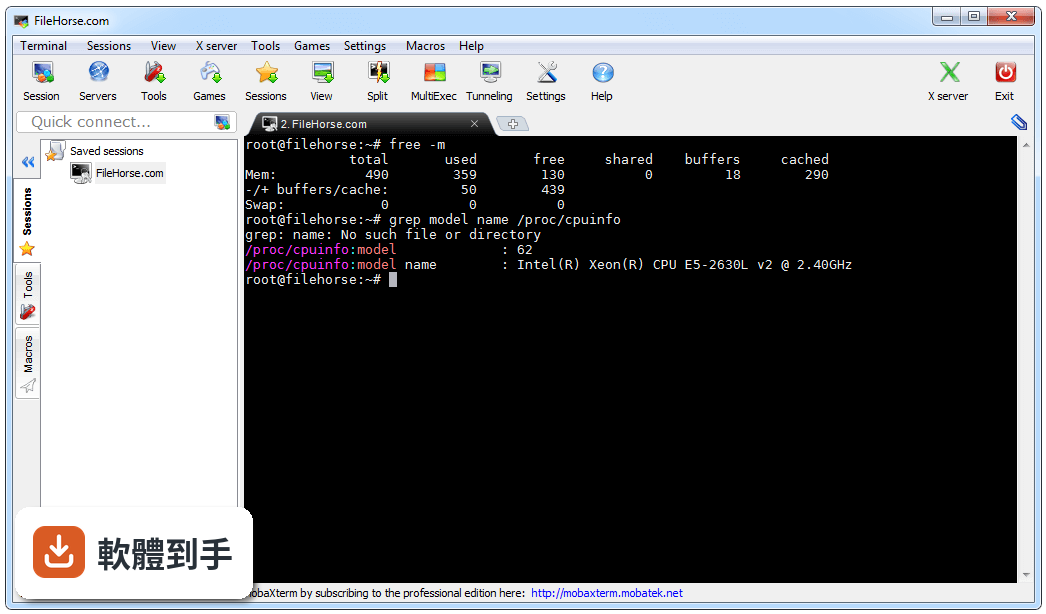
01MobaXterm 到底能拿來做什麼?
它是一套 Windows 上的遠端連線工具箱,把 SSH、Telnet、RDP、VNC、X11 這些協定整合在同一個視窗裡。連上 SSH 之後,右邊會自動跳出 SFTP 瀏覽器,可以直接拖曳檔案傳輸。內建 X server,遠端 Linux 的圖形介面程式可以直接顯示在 Windows 桌面上。另外還附了一組 Unix 指令(bash、grep、awk、sed、rsync 等),在 Windows 上就能跑。
02它跟 PuTTY 有什麼不同?
PuTTY 是單純的 SSH/Telnet 終端機,功能集中在連線和操作指令。MobaXterm 除了終端機之外,還包了 SFTP 檔案瀏覽、X server、RDP/VNC 遠端桌面、以及一組 Unix 指令工具。如果你只需要開一個 SSH 視窗打指令,PuTTY 就夠用;但如果你同時要傳檔、要開圖形介面、要管多台伺服器,MobaXterm 把這些整合在一起,不用另外開好幾套軟體。
03用 SSH 連上伺服器之後,要怎麼傳檔案?
連上 SSH session 後,畫面右側會自動出現一個 SFTP 瀏覽器,顯示遠端伺服器的檔案系統。你可以直接從左邊的 Windows 資料夾拖檔案到右邊,或反向把遠端檔案拉下來。它走的是 SSH 的加密通道,不需要另外開 FTP 軟體或重新登入。免費版限制最多 12 個 session,如果你同時開很多連線,要注意這個上限。
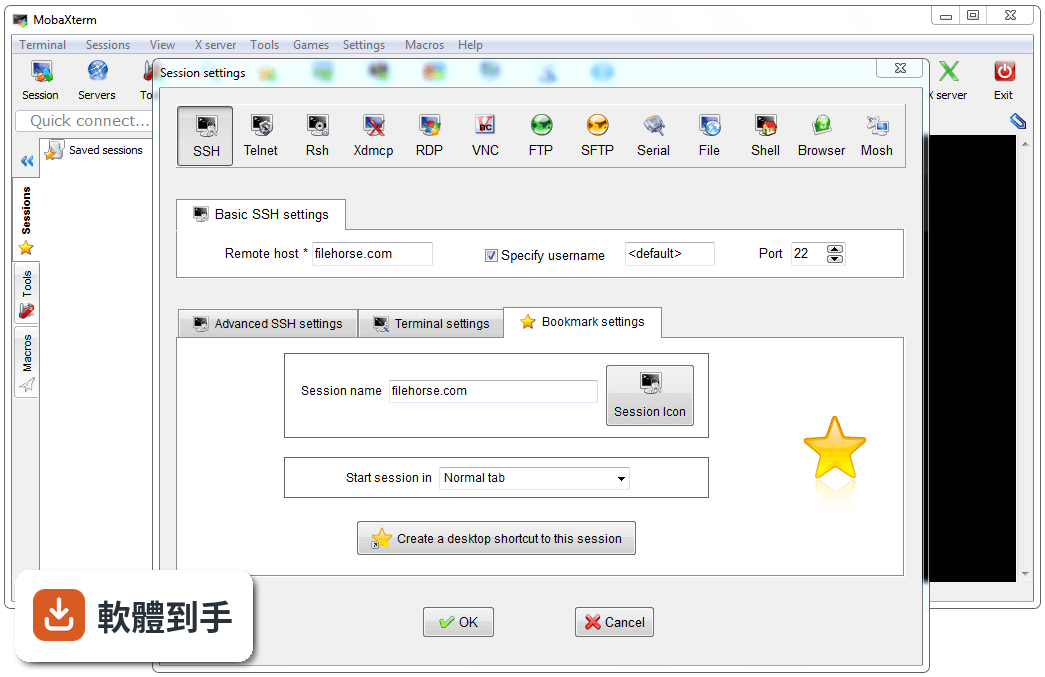
04它能不能直接開遠端的圖形介面程式?
可以。它內建一個基於 X.org 的 X server,連上 SSH 後,在終端機裡執行遠端 Linux 上的圖形程式,視窗會直接顯示在你的 Windows 桌面上。X11-Forwarding 透過 SSH 傳輸,不需要另外設定 DISPLAY 變數。這對需要在伺服器上跑圖形設定工具或開發環境的人來說,省掉自己裝 X server 和設定轉發的麻煩。
05免費版跟付費版差在哪裡?
免費的 Home Edition 包含完整的 X server、SSH、RDP、VNC、SFTP 瀏覽器、X11-Forwarding、主密碼保護、外掛支援,以及可攜版和安裝版。限制是:最多 12 個 session、2 個 SSH tunnel、4 個巨集、Tftp/Nfs/Cron 功能每次最多 360 秒。付費的 Professional Edition 一個使用者 69 美元,解除這些限制,並多了自訂啟動畫面等功能。如果你只是偶爾連個幾台伺服器,免費版通常夠用。
06平常只會用 PuTTY 連線的人,換成這套會比較好嗎?
如果你每天的工作就是開 PuTTY 連 SSH、打指令、關掉,那 PuTTY 已經滿足需求,換過來反而要重新習慣介面。但如果你除了打指令之外,還需要傳檔案、開圖形介面、或同時管理多台機器,MobaXterm 把這些整合在同一個視窗,session 設定也集中管理,會比在 PuTTY、FileZilla、X server 之間切換省事。可以先從免費版試用,看 workflow 順不順。
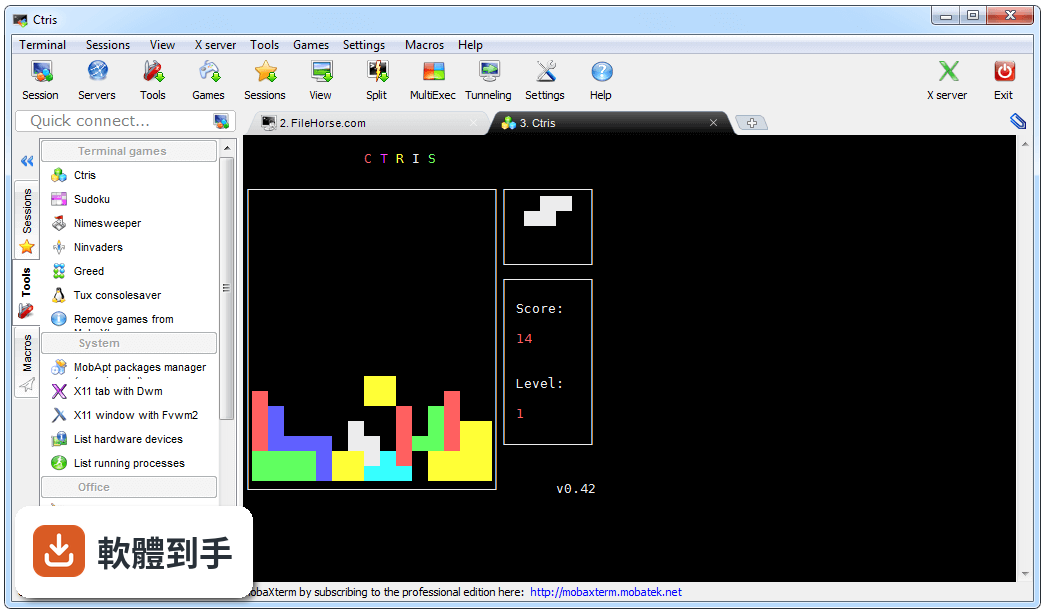
07我同時要管好幾台伺服器,它有沒有辦法一次下指令?
有。它支援 multi-execution 功能,可以同時對多個 session 執行同一條指令。你可以在 session 管理員裡選好幾台機器,然後一次輸入指令,所有連線的終端機都會同步執行。這對要批量改設定、重啟服務、查看狀態的場景很實用。免費版限制最多 12 個 session,如果你要同時操作的機器超過這個數,需要升級到付費版。
08我只需要偶爾連一下 SSH,有必要用這套嗎?
如果你的需求就是「偶爾開個終端機連伺服器打幾條指令」,那這套對你來說太肥了。它內建 X server、SFTP 瀏覽器、Unix 指令工具,這些功能你沒用到,但還是會佔用啟動時間和記憶體。這種情況用 PuTTY 或 KiTTY 這類輕量 SSH 客戶端就夠了。MobaXterm 的價值在於整合,你如果沒有「同時要開很多種工具」的需求,就沒有非用它不可的理由。
09它只有英文介面,會不會很難上手?
介面確實是英文的,沒有中文語系。但它的操作邏輯不算複雜:左邊是 session 管理員,右邊是終端機和 SFTP 瀏覽器,工具列上有新增 session、連線、中斷等按鈕。如果你已經用過 PuTTY 或任何 SSH 客戶端,大概十幾分鐘就能摸熟。比較需要花時間理解的是 X server 和 X11-Forwarding 的設定,但如果你沒有跑圖形介面的需求,可以完全忽略這部分。
10我用的不是 Windows,這套能用嗎?
不行。MobaXterm 是 Windows 應用程式,官方支援 Windows 7 到 Windows 11。如果你用的是 macOS 或 Linux,官方說法是可以透過虛擬機器或 Wine 這類相容層來跑,但這不是原生支援,效能和穩定性都要自己測試。如果你在 Mac 或 Linux 上工作,直接找原生支援你系統的 SSH 客戶端(例如 Termius)會比較實際,不需要繞一圈用相容層跑 Windows 軟體。
11免費版限制 12 個 session,夠用嗎?
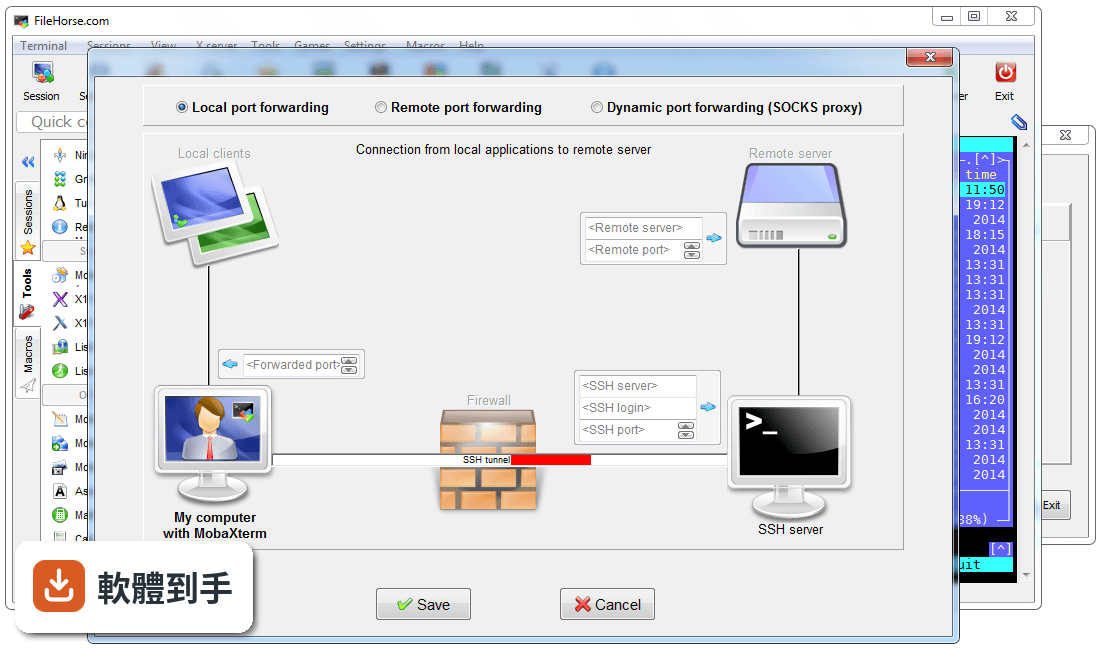
這取決於你同時會開多少連線。12 個 session 指的是同時開啟的連線數,不是儲存的 session 數量。如果你平常同時連的伺服器不超過 10 台,免費版夠用。但如果你有監控多台機器、或需要同時開多個 session 做批次操作的需求,很容易就超過 12 個。另外免費版還有 2 個 SSH tunnel 和 4 個巨集的上限,如果你會用 SSH tunnel 跳板或寫巨集自動化,這些限制會比 session 數更早卡到你。
12這套軟體更新頻繁嗎?會不會用一用就沒人維護了?
根據現有紀錄,它從 2014 年開始持續收錄版本,最近一年內有多次更新,近兩年也有穩定釋出,看起來是持續在維護的軟體。不過它的使用者評分人數不多(44 人評分,7.72/10),樣本數偏少,參考價值有限。如果你在意社群的活躍程度和問題回報速度,可以到它的官方論壇或 GitHub 上看一下最近的討論和回應狀況,再決定要不要長期依賴它。
下載與官方連結
MobaXterm_Installer_v20.4.zip · 25.31 MB · 連結指向軟體原廠
版本紀錄
- 2026-10-27 MobaXterm 26.6 43.55 MB
- 2026-09-12 MobaXterm 26.5 43.52 MB
- 2026-06-12 MobaXterm 26.4 43.37 MB
再看 5 筆
- 2026-04-11 MobaXterm 26.3 41.62 MB
- 2026-04-04 MobaXterm 26.2 41.62 MB
- 2026-03-07 MobaXterm 26.1 41.59 MB
- 2026-02-07 MobaXterm 26.0 41.57 MB
- 2025-11-29 MobaXterm 25.4 41.48 MB
這一版改了什麼
What's new in this version:
Improved:
- improved detection of WSL (Windows Subsystem for Linux) distributions, even with multiple versions of the same distribution
- allow manual selection of any WSL1 or WSL2 distribution and manual selection of its connection type
- allow manual selection of the username for WSL1 and WSL2 distributions instead of using the default one
- improved Wine compatibility for Linux and Mac users, many MobaXterm features now work under Linux or Mac, thanks to Wine, PlayOnMac, PlayOnLinux or Crossover
- graphical applications can now be displayed directly without any extra step needed, on WSL1 and WSL2 distributions
- when running WSL2 applications, a graphical browser allows you to easily browse the distribution filesystem
- when running WSL2 applications, you can use the "remote monitoring" bar to monitor your WSL2 distribution
- improved remote monitoring toolbar compatibility with systems where the "sleep" command does not work
- improved SCP browser compatibility with systems where the "ls" command displays "?" when it cannot list a file
- in WSL, the TERM variable is now set to "xterm-256color" for compatibility with extended terminal color schemes
- checking "Adapt remote DPI" setting in RDP sessions will no longer open the session fullscreen but in a detached window instead
- your DPI settings are now automatically adapted when you connect to a remote Windows 10 desktop using RDP, even when you switch to another monitor
- added the "autoscale" setting in RDP sessions which allows to automatically adapt the remote desktop to local resolution
- added the "redirect microphone" setting in RDP sessions which allows redirecting the default local audio capture device to the remote server
- added support for link-local IPv6 addresses with specified network adapter in SSH sessions with jump hosts
- for PRO users, the customizer program is now able to import your "*.mxtpro" files, in order for you to easily apply any previous customization
- for PRO users, there are now tooltips on each security settings in order to give more details about each option
- for PRO users, there is a new "disable X11 remote access" setting which allows forcing X11 server to be bound to localhost (loopback) network only
- added a right-click menu on the remote monitoring bar in order to select the items to monitor (CPU, RAM, Partitions, File descriptors, ...)
- added 2 options into the remote monitoring right-click menu in order to copy or save the remote server information as text
- added a menu entry in order to disable Forced-ASLR on MobaXterm local terminal tools and utilities
- improved the speed of the "Quick connect" feature, especially when you have many sessions (more than 1000)
- added some more checks at startup in case the "Documents" folder is a network path which is not immediately available
- a new configuration setting "RemoteMonitoringCompatibleMode" (in the "SSH" section) allows the remote monitoring feature to work properly with FISH shell
- the local GIT prompt is now in blue by default instead of red for better readability
- inform the user in the terminal that a workaround exists when a graphical application fails to start because it was run using "sudo" or "su"
- improved some of the MobaFont glyphs for better readability on HD and High DPI monitors
- the "MobaXterm" folder is no more created into "MyDocuments" at MobaXterm startup if you choose the "AppData" folder for MobaXterm profile
- startup speed has been slightly improved by avoiding some useless disk access, threading access to plugins, and setting main form DPI earlier
- improved creation speed of SpinEdit and WebLabel graphic components
- improved speed of upload and download transfers in SFTP sessions
- modified X server startup command when MobaXterm runs into App-V in order to prevent a shell console from being created
- removed the green highlighting color when the prompt is just a "#" character
- added a new "UseOriginalSshAgent" setting in the "SSH" section of the configuration file, in order to use OpenSSH agent instead of Pageant
Improvement: added some more icons for sessions and folders
Fixed:
- in some specific conditions, pressing the "ESCAPE" key to close some dialog windows sometimes did not work
- when opening twice the same SSH session with SSH-browser set to SCP, the "Follow terminal" feature used to follow only the 1st opened session
- after having copied a session from the "CUSTOM" tree to the "USER" tree, the new session is immediately saved in case MobaXterm is closed after that
- fixed some issues when MobaXterm is run from a Unicode PATH or when the profile directory is set to a Unicode PATH
- in MOSH sessions, the "Charset" and "Prediction type" settings were incorrect when the session was created using the Customizer
- fixed an "assertion failed" error message if the "Answerback" feature was manually modified by the user and was set to an empty string
- fixed an "assertion failed" error message when starting 2 SSH tunnels configured as remote port forwarding on the same SSH gateway
- after clicking on "Refresh shared sessions", the shared sessions defined into the professional customizer were not taken into account
- when a WSL distribution was chosen as default shell, right-clicking on a Windows folder and choosing "Open MobaXterm here" did not open MobaXterm into that folder
- the macro popup menu was sometimes hidden behind the terminal in detached window mode
- Xdmcp failed to start with some specific monitor DPI configurations
- in dark mode, the SSH key selection dialog box in the SSH tunnels window was sometimes hidden behind the main window
- when right-clicking on a folder and choose "Open MobaXterm here", if the default shell was Cmd or Powershell, the session was not opened into the selected folder
- starting a session by typing its name in the terminal sometimes failed when the session definition contained a UTF-8 character
- in WSL, the default LOCALE variable was sometimes not set to the chosen default WSL value