
這是歷史版本頁面 — 看 MobaXterm 最新版本
Windows 遠端連線工具一堆視窗好亂?MobaXterm 把 SSH、X11、SFTP 整合在一起
 MobaXterm 21.0
資料更新 2021-03-07
閱讀約 8 分鐘
你手上同時管著好幾台 Linux 伺服器,平常要開 PuTTY 連 SSH、另外開 FileZilla 傳檔案、遇到要跑圖形介面的程式還得再裝一套 X server。三個視窗來回切換,session 設定分散在不同軟體裡,每次重灌電腦就要重新記一遍設定檔放在哪。你只是想趕快把伺服器上的東西改好、檔案丟上去,結果大半時間都花在切換工具和找設定上。
一般人習慣的做法是各裝一套專門軟體:SSH 用一套、SFTP 用另一套、X11 再裝一套。這樣不是不行,但每一套的 session 管理、介面操作、快捷鍵都不一樣,設定檔也各自獨立。這類工具的切入點是:把終端機、檔案傳輸、圖形介面轉發這些遠端工作會用到的功能,收進同一個視窗、同一套 session 管理裡,讓你在一個地方完成連線、操作、傳檔,不用再為了不同協定開一堆程式。
01MobaXterm 到底能拿來做什麼?
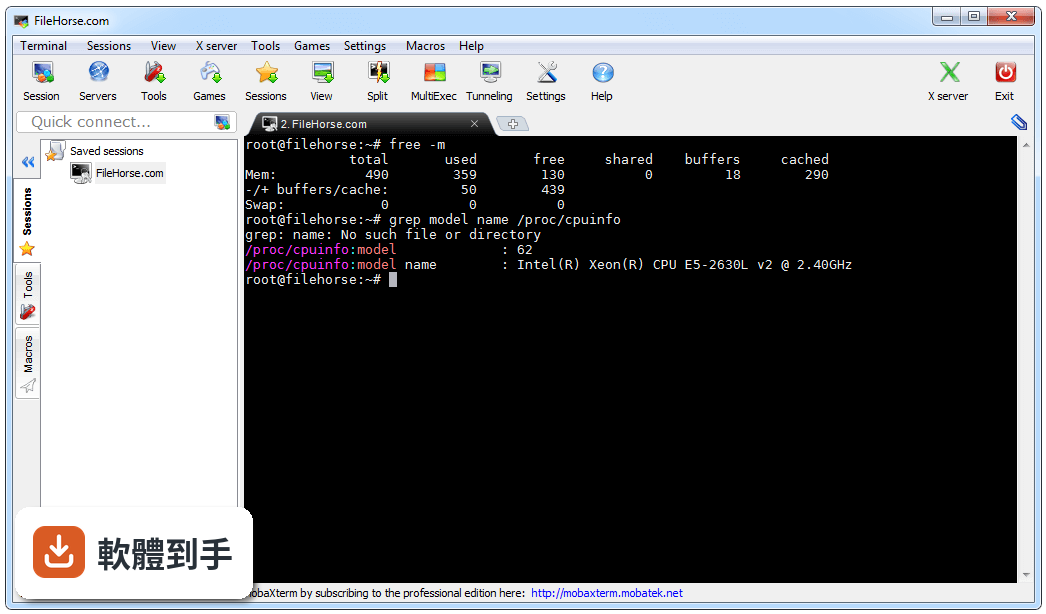
它是一套 Windows 上的遠端連線工具箱,把 SSH、Telnet、RDP、VNC、X11 這些協定整合在同一個視窗裡。連上 SSH 之後,右邊會自動跳出 SFTP 瀏覽器,可以直接拖曳檔案傳輸。內建 X server,遠端 Linux 的圖形介面程式可以直接顯示在 Windows 桌面上。另外還附了一組 Unix 指令(bash、grep、awk、sed、rsync 等),在 Windows 上就能跑。
02它跟 PuTTY 有什麼不同?
PuTTY 是單純的 SSH/Telnet 終端機,功能集中在連線和操作指令。MobaXterm 除了終端機之外,還包了 SFTP 檔案瀏覽、X server、RDP/VNC 遠端桌面、以及一組 Unix 指令工具。如果你只需要開一個 SSH 視窗打指令,PuTTY 就夠用;但如果你同時要傳檔、要開圖形介面、要管多台伺服器,MobaXterm 把這些整合在一起,不用另外開好幾套軟體。
03用 SSH 連上伺服器之後,要怎麼傳檔案?
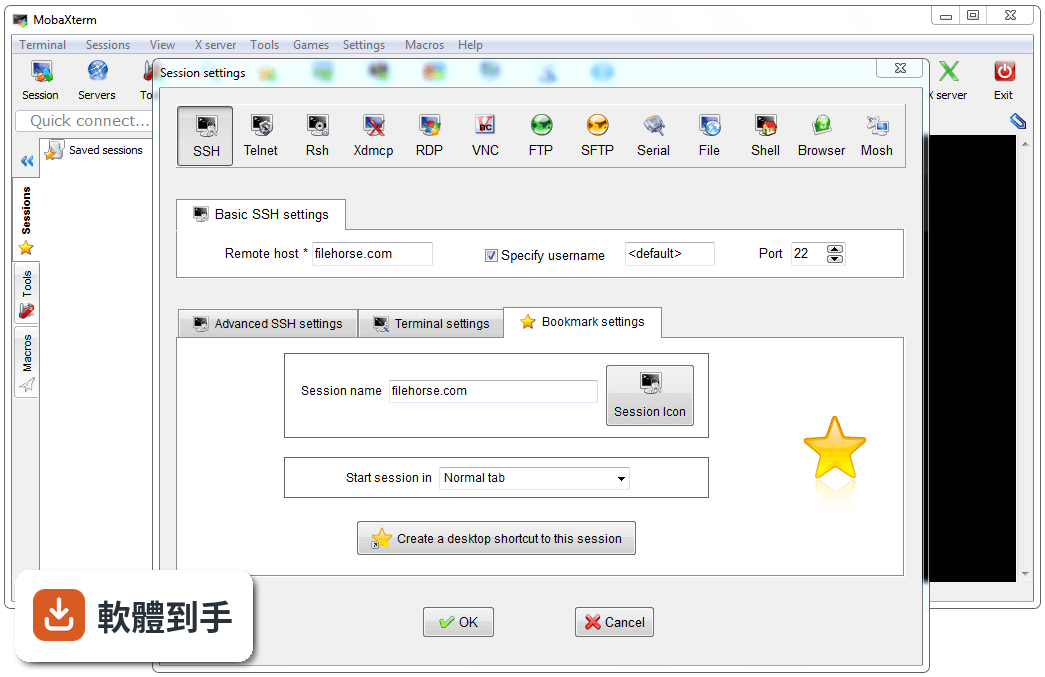
連上 SSH session 後,畫面右側會自動出現一個 SFTP 瀏覽器,顯示遠端伺服器的檔案系統。你可以直接從左邊的 Windows 資料夾拖檔案到右邊,或反向把遠端檔案拉下來。它走的是 SSH 的加密通道,不需要另外開 FTP 軟體或重新登入。免費版限制最多 12 個 session,如果你同時開很多連線,要注意這個上限。
04它能不能直接開遠端的圖形介面程式?
可以。它內建一個基於 X.org 的 X server,連上 SSH 後,在終端機裡執行遠端 Linux 上的圖形程式,視窗會直接顯示在你的 Windows 桌面上。X11-Forwarding 透過 SSH 傳輸,不需要另外設定 DISPLAY 變數。這對需要在伺服器上跑圖形設定工具或開發環境的人來說,省掉自己裝 X server 和設定轉發的麻煩。
05免費版跟付費版差在哪裡?
免費的 Home Edition 包含完整的 X server、SSH、RDP、VNC、SFTP 瀏覽器、X11-Forwarding、主密碼保護、外掛支援,以及可攜版和安裝版。限制是:最多 12 個 session、2 個 SSH tunnel、4 個巨集、Tftp/Nfs/Cron 功能每次最多 360 秒。付費的 Professional Edition 一個使用者 69 美元,解除這些限制,並多了自訂啟動畫面等功能。如果你只是偶爾連個幾台伺服器,免費版通常夠用。
06平常只會用 PuTTY 連線的人,換成這套會比較好嗎?
如果你每天的工作就是開 PuTTY 連 SSH、打指令、關掉,那 PuTTY 已經滿足需求,換過來反而要重新習慣介面。但如果你除了打指令之外,還需要傳檔案、開圖形介面、或同時管理多台機器,MobaXterm 把這些整合在同一個視窗,session 設定也集中管理,會比在 PuTTY、FileZilla、X server 之間切換省事。可以先從免費版試用,看 workflow 順不順。
07我同時要管好幾台伺服器,它有沒有辦法一次下指令?
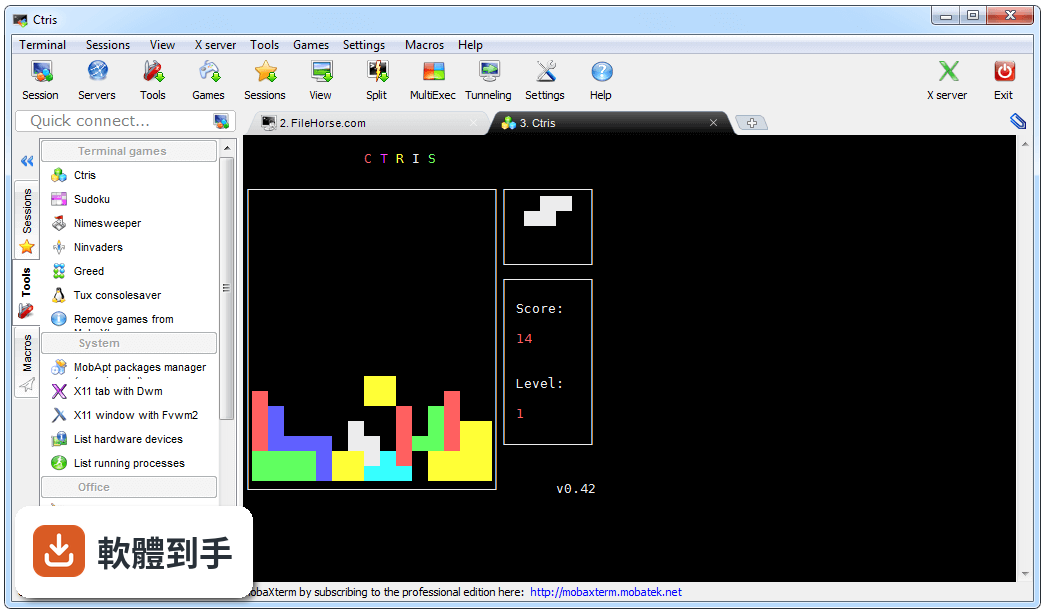
有。它支援 multi-execution 功能,可以同時對多個 session 執行同一條指令。你可以在 session 管理員裡選好幾台機器,然後一次輸入指令,所有連線的終端機都會同步執行。這對要批量改設定、重啟服務、查看狀態的場景很實用。免費版限制最多 12 個 session,如果你要同時操作的機器超過這個數,需要升級到付費版。
08我只需要偶爾連一下 SSH,有必要用這套嗎?
如果你的需求就是「偶爾開個終端機連伺服器打幾條指令」,那這套對你來說太肥了。它內建 X server、SFTP 瀏覽器、Unix 指令工具,這些功能你沒用到,但還是會佔用啟動時間和記憶體。這種情況用 PuTTY 或 KiTTY 這類輕量 SSH 客戶端就夠了。MobaXterm 的價值在於整合,你如果沒有「同時要開很多種工具」的需求,就沒有非用它不可的理由。
09它只有英文介面,會不會很難上手?
介面確實是英文的,沒有中文語系。但它的操作邏輯不算複雜:左邊是 session 管理員,右邊是終端機和 SFTP 瀏覽器,工具列上有新增 session、連線、中斷等按鈕。如果你已經用過 PuTTY 或任何 SSH 客戶端,大概十幾分鐘就能摸熟。比較需要花時間理解的是 X server 和 X11-Forwarding 的設定,但如果你沒有跑圖形介面的需求,可以完全忽略這部分。
10我用的不是 Windows,這套能用嗎?
不行。MobaXterm 是 Windows 應用程式,官方支援 Windows 7 到 Windows 11。如果你用的是 macOS 或 Linux,官方說法是可以透過虛擬機器或 Wine 這類相容層來跑,但這不是原生支援,效能和穩定性都要自己測試。如果你在 Mac 或 Linux 上工作,直接找原生支援你系統的 SSH 客戶端(例如 Termius)會比較實際,不需要繞一圈用相容層跑 Windows 軟體。
11免費版限制 12 個 session,夠用嗎?
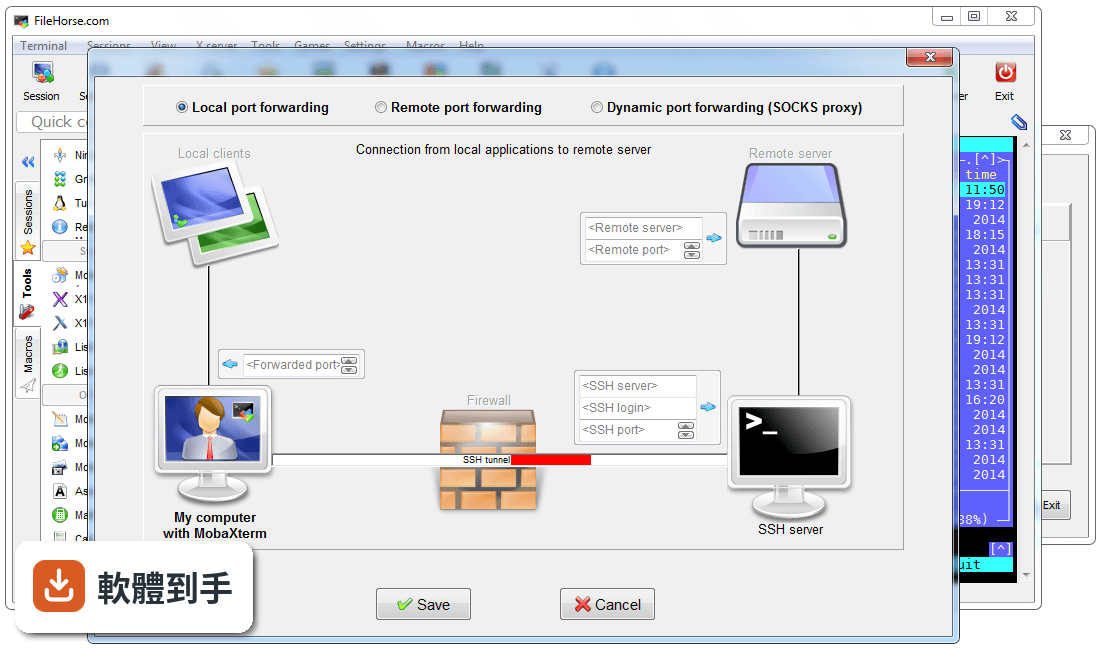
這取決於你同時會開多少連線。12 個 session 指的是同時開啟的連線數,不是儲存的 session 數量。如果你平常同時連的伺服器不超過 10 台,免費版夠用。但如果你有監控多台機器、或需要同時開多個 session 做批次操作的需求,很容易就超過 12 個。另外免費版還有 2 個 SSH tunnel 和 4 個巨集的上限,如果你會用 SSH tunnel 跳板或寫巨集自動化,這些限制會比 session 數更早卡到你。
12這套軟體更新頻繁嗎?會不會用一用就沒人維護了?
根據現有紀錄,它從 2014 年開始持續收錄版本,最近一年內有多次更新,近兩年也有穩定釋出,看起來是持續在維護的軟體。不過它的使用者評分人數不多(44 人評分,7.72/10),樣本數偏少,參考價值有限。如果你在意社群的活躍程度和問題回報速度,可以到它的官方論壇或 GitHub 上看一下最近的討論和回應狀況,再決定要不要長期依賴它。
下載與官方連結
MobaXterm_Installer_v21.0.zip · 連結指向軟體原廠
版本紀錄
- 2026-10-27 MobaXterm 26.6 43.55 MB
- 2026-09-12 MobaXterm 26.5 43.52 MB
- 2026-06-12 MobaXterm 26.4 43.37 MB
再看 5 筆
- 2026-04-11 MobaXterm 26.3 41.62 MB
- 2026-04-04 MobaXterm 26.2 41.62 MB
- 2026-03-07 MobaXterm 26.1 41.59 MB
- 2026-02-07 MobaXterm 26.0 41.57 MB
- 2025-11-29 MobaXterm 25.4 41.48 MB
這一版改了什麼
What's new in this version:
New:
- you can now select "PowerShell 7" or "Windows PowerShell" in Shell session settings
- added a new "Import/Export configuration" feature in the "Settings" menu which allows you to backup or share your MobaXterm configuration as a single file
- added a new "Reset configuration" feature in the "Settings" menu which allows you to reset the entire MobaXterm configuration or only reset some specific defaults
Improved:
- the Professional Customizer is now compatible with Wine, under Linux and Mac OsX
- improved several components design in dark mode (checkboxes, comboboxes, ...)
- many components have been themed for a better look under Wine
- added support for SSH keys with ED25519 algorithm in SFTP sessions
- filtered out several useless entries from the remote monitoring "disk space" section
- the Professional Customizer is now able to embed big plugin files into the generated ZIP archive
- the Professional Customizer can now extract the main executable properly, even if the Windows installer is disabled by some third-party software
- the Professional Customizer allows you to edit all the banners of sessions that rely on a terminal (SSH, WSL, local terminal, telnet, rlogin)
- you can now define the default font charset and select "Use font encoding" as terminal charset (useful for special character encodings)
- you can now define a specific terminal font charset for each terminal-based session
- the local terminal prompt is now adapted when the current path is too long to fit into the terminal width
- the SSH-browser header has been adapted to the dark theme
- an enhanced tooltip and a right-click menu with a list of listening DISPLAYS have been added to the "X" button in the top toolbar
- when the X server is off, its DISPLAY is now reserved in order to prevent sessions that have been started with a specific DISPLAY to lose it
- if the X server is off and an application tries to access it, a popup dialog informs you and allows you to start it
- better detection of each X server and Remote monitoring instances ownership when MobaXterm is launched in "Multi-instances" mode
- the detection of running X server instances has been improved in order to prevent MobaXterm from slowing down
- added a "Start Windows Powershell as admin" menu entry in the "Tools" section
- added a specific icon for imported PuTTY sessions folder
- added an entry in the sessions right-click menu which allows to autodetect and import WSL sessions
- added a right-click menu in the tabs bar which allows to quickly start a specific shell (Bash, Cmd, Powershell, Wsl) or jump to a specific tab
- a check at MobaXterm startup verifies if the CygUtils plugin is obsolete
- better detection of the OneDrive folder when its name is in 8.3 format
- shared sessions with SFTP backend can now use passphrase protected SSH keys
- better auto-detection of the default shell for each WSL session
- better identification of external programs windows that overlap RDP sessions when they are "always on top"
- added some information concerning the currently active network connections in SSH remote monitoring bar
- broken text files with UTF-8 BOM header but ANSI encoding are now automatically identified
- improved the "RemoteMonitoringCompatibleMode" configuration setting which allows the remote monitoring feature to work properly with the Fish shell
- adapted the width of the multi-execution message to the width of the main window
- many tooltips have been added in order to display contextual help when your mouse cursor is over a component
- when you use the search feature of MobaTextEditor and hit the end of the file, searching now continues from the beginning of the file
- the terminal now supports many more font icons for better compatibility with enhanced shell prompts like oh-my-zsh and Powerlevel10K
- the TCPCapture tool can now be started with another user account if the current user account is not an administrator
- better identification of the AltGr key in order to prevent AltGr+Space to be treated as the Ctrl+Space ("Quick macro menu") keyboard shortcut
- added a new "lsfont" tool which prints the complete font character set into the terminal
- added some information about apt-get in case you try to start yum, urpmi, or emerge command in the local terminal
- the "Documents" folder can now be selected under the "Libraries" folder in the file picker
- better detection of all the partitions with their corresponding sizes in the remote monitoring bar
- you can now change text files encoding in MobaTextEditor or convert text files encodings
- the application title is now set after a few milliseconds in order to prevent MobaXterm from being flooded with tab title change requests
- the %USERNAME% variable is now resolved to the local user name in SSH remote command
- improved startup speed and removed some small visual glitches in dark mode
Fixed:
- fixed the tab order in the global settings and sessions windows
- when using the "Quick search" feature and clicking on the blank part under the "New session" icon, the "New session" window was started
- in the SSH-browser and FTP/SFTP sessions, when editing a file and simultaneously clicking on another one resulted in a popup asking if you wanted to rename the file
- in the global settings window, scrollbars no longer lose their dark theme when switching focus with the "TAB" key
- right-clicking on a folder to open MobaXterm terminal in that folder did not work if the default shell was WSL and MobaXterm was already running
- the tab titles were sometimes incorrect when extended characters were used in conjunction with a specific Windows language configuration
- fixed a tab moving issue when "focus follows mouse" was set in Windows
- corrected a slowness issue when browsing for plugins in the Customizer
- the "Terminal type" setting was not properly refreshed the first time a session was edited
- the Display resolution setting of RDP sessions was not taken into account when starting an RDP session just after MobaXterm startup
- fixed a potential redirection ambiguity in the ServersListToMxtSessions.sh script
- fixed a potential missing library file in ZSH shell (64 bit) which prevented Cmd or Powershell from starting properly
- after having selected a file to upload in the explorer dialog, the parent folder is no longer locked by MobaXterm
- fixed a potential issue when reconnecting or duplicating a telnet or rsh session which uses an SSH gateway
- when closing several terminals at the same time, sometimes some of them were missing from the prompt dialog list
- duplicate tab feature now works properly when you duplicate a WSL tab that uses a localhost connection
- removed a small glitch with the "Deep" skin when clicking on the "View" menu item
- removed a casual issue with file sizes greater than 4 GB in the SSH-browser when the SSH-browser mode is set to SCP
- in "Split mode", when cycling through tabs using a keyboard shortcut (Ctrl+Alt+arrow or Ctrl+Tab), the focus can no more be assigned to an invisible tab
- the Slash directory can now be set to the same folder as the application, even if the CygUtils plugin is disabled
- the macros combobox in terminal sessions was out of bounds when Windows DPI setting was at 125%
- when selecting several sessions and launching one of them from the "Recent sessions" panel, all the selected sessions were launched