
這是歷史版本頁面 — 看 MSI Afterburner 最新版本
顯卡超頻怕弄壞?MSI Afterburner 能幫你什麼
 MSI Afterburner 4.1.1
資料更新 2015-05-28
閱讀約 5 分鐘
玩遊戲時畫面卡頓、幀數上不去,打開工作管理員看到顯示卡使用率一直衝高,溫度也跟著飆到八、九十度。你想調整顯示卡設定讓它跑得更順,但又怕亂調會把卡弄壞,於是開始找有沒有工具能安全地調整時脈、風扇轉速,順便監看溫度變化。
一般人遇到這種狀況,直覺是去顯示卡驅動程式裡找設定,但驅動程式內建的超頻選項通常很陽春,看不到即時數據,風扇曲線也不能細調。另一種做法是直接改 BIOS,風險高又麻煩。這類工具切入的點,是提供一個圖形化介面,讓你能拉滑桿調整核心時脈、記憶體時脈和電壓,同時即時顯示溫度、使用率,並把這些數據疊加在遊戲畫面上,邊玩邊看調整效果。
01MSI Afterburner 到底能拿來做什麼?
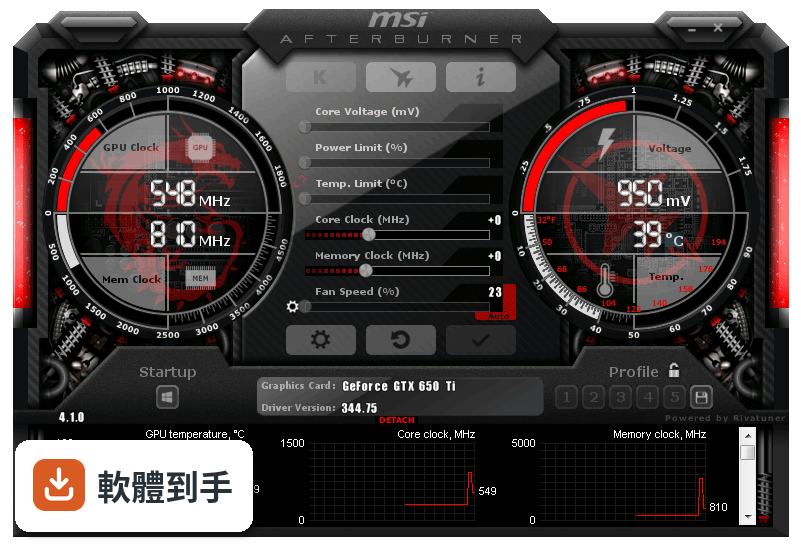
主要做三件事:超頻顯示卡、監控硬體狀態、錄製遊戲畫面。超頻部分可以調整核心時脈、記憶體時脈和電壓,也能自訂風扇轉速曲線。監控功能會即時顯示溫度、使用率、時脈等數據,可以顯示在遊戲畫面上或記錄成檔案。另外內建畫面擷取工具,能錄影或截圖。
02我完全沒超頻過,用這套軟體會不會很危險?
它有提供自動超頻功能,讓軟體自己掃描找出穩定的超頻設定,不需要手動慢慢試。手動調整時,只要照著一般超頻原則——每次小幅增加時脈、調整後跑測試觀察溫度和穩定性——風險是可控的。介面上也有重置按鈕,設定出問題可以一鍵恢復預設值。
03它只能用在 MSI 的顯示卡嗎?
不是。雖然是 MSI 開發的,但它支援多家廠商的顯示卡,官方說明明確指出相容於不同製造商的 GPU。所以就算你的卡是華碩、技嘉或微星的,都能用這套軟體調整。不過實際支援程度還是要看你那張卡的型號,建議安裝後先確認軟體有沒有正確辨識你的顯示卡。
04遊戲中怎麼看目前的溫度和使用率?
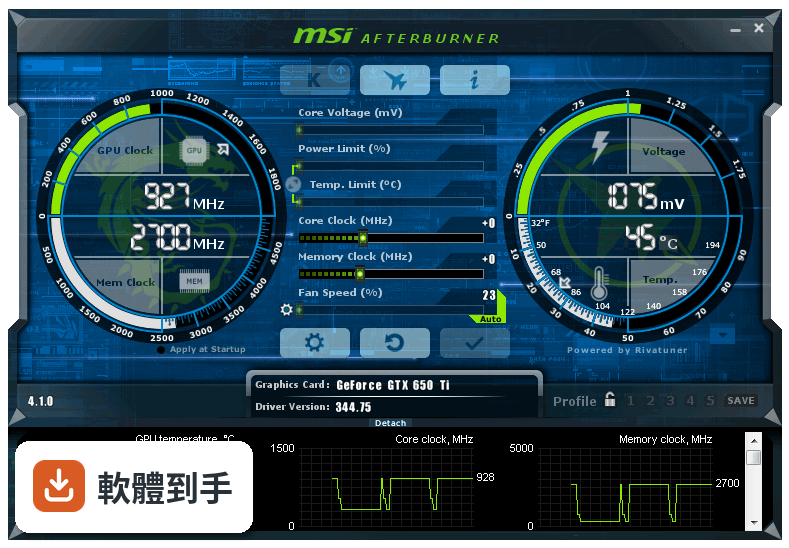
用它的 On-Screen Display(OSD)功能。在設定裡啟用 OSD,選擇要在遊戲畫面角落顯示哪些數據,例如溫度、使用率、時脈、幀數等。進遊戲後這些資訊會疊加在畫面上,你就能即時看到調整設定後對效能的影響,不用跳回桌面切換視窗。
05風扇轉速可以自己控制嗎?
可以。它能自訂風扇轉速曲線,依照不同溫度設定對應的轉速百分比。例如溫度低於五十度時讓風扇轉慢一點減少噪音,超過八十度時全速運轉加強散熱。你可以存多組風扇設定檔,依不同遊戲或應用程式切換。
06這套軟體適合什麼樣的人用?
適合三種人:一是玩遊戲覺得幀數不夠、想透過超頻擠出額外效能的人;二是擔心顯示卡過熱、想自訂風扇曲線控制溫度和噪音的人;三是想錄下遊戲精彩片段或截圖的人。它也有內建錄影功能,支援 H.264 編碼和 WMV、AVI 格式,不用另外裝錄影軟體。
07筆電也能用嗎?
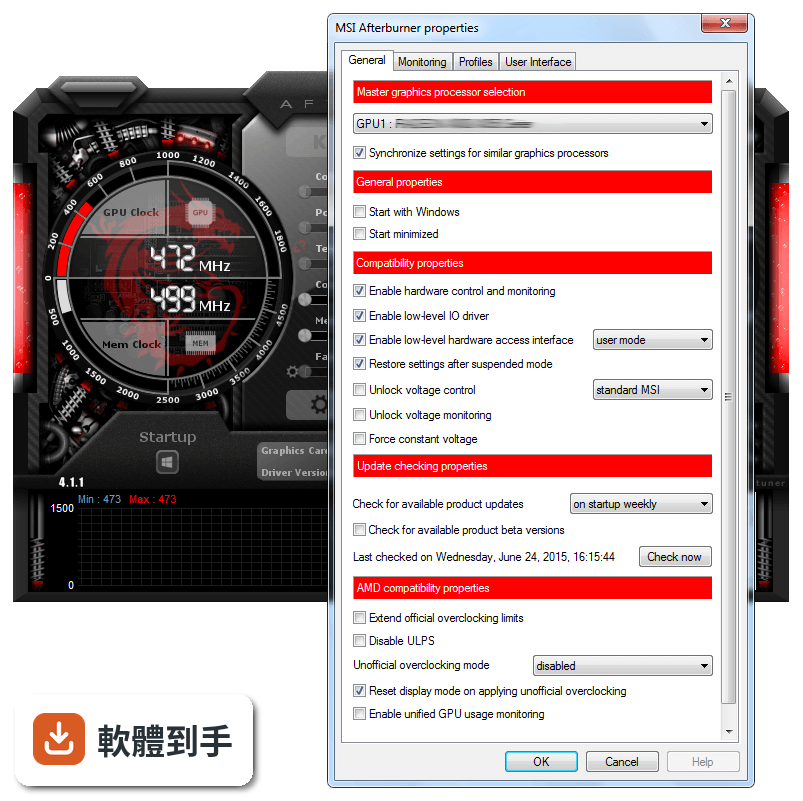
可以用,但有限制。官方說明指出筆電配備獨立顯示卡就能使用,不過因為筆電散熱空間有限,超頻幅度可能受限。如果你只是想在筆電上監看溫度、調整風扇轉速,這套軟體還是能做到。但如果是想大幅超頻提升效能,筆電的散熱條件可能撐不住。
08它能監控 CPU 的溫度嗎?
它主要專注在 GPU 監控,CPU 的部分只有有限的監控能力。如果你需要完整的 CPU 溫度、時脈、電壓數據,官方資料沒有詳細說明這方面的功能。建議另外搭配 CPU 監控工具,或直接看主機板廠商提供的軟體,會比依賴這套軟體更完整。
09介面只有英文,看不懂怎麼辦?
這套軟體的介面確實只有英文,沒有繁體中文選項。不過主要操作介面不複雜,核心時脈、記憶體時脈、電壓、風扇轉速這些都是國際通用的英文詞彙,看久就熟了。如果真的看不懂,網路上有很多中文教學文章和影片,照著步驟操作也能上手。
10它跟 GPU-Z 有什麼不同?我該裝哪個?
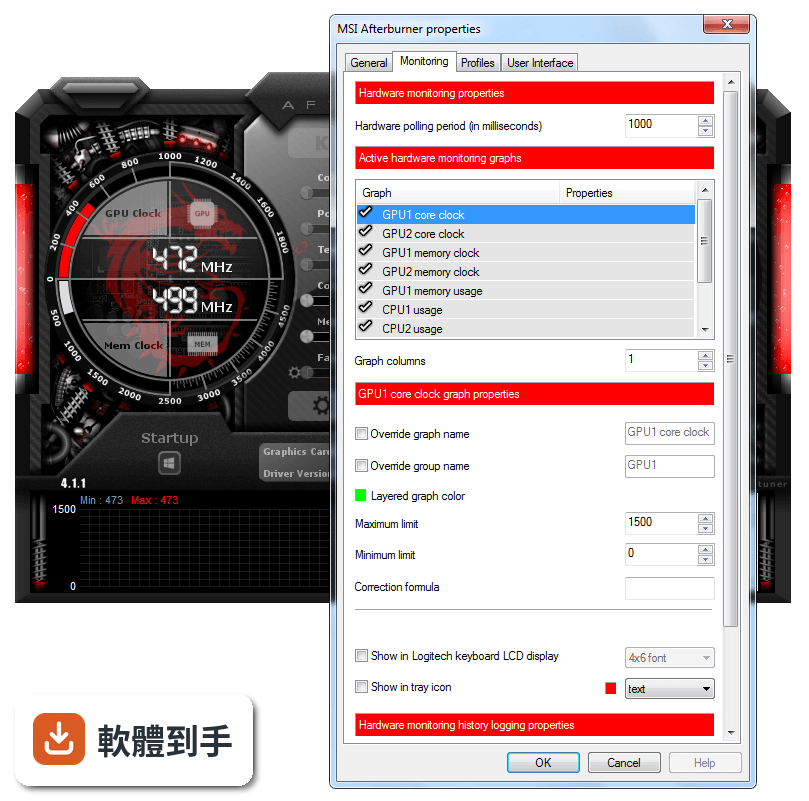
GPU-Z 主要功能是顯示顯示卡的詳細規格資訊,例如製程、記憶體類型、匯流排介面等,偏向查規格、看硬體資訊。MSI Afterburner 則偏重調整和監控,能超頻、調風扇、錄畫面。如果你只是想看顯卡規格,GPU-Z 就夠了;想調整效能或監看即時數據,選 MSI Afterburner。兩者不衝突,也可以都裝。
11這套軟體多久更新一次?還有人在維護嗎?
根據收錄的版本紀錄,它從 2010 年就持續更新到現在,最近一年內仍有釋出新版本。開發商 MSI 有持續在維護,不是放著不管的軟體。不過更新頻率不算高,一年大約一兩次,這對穩定運作的工具軟體來說是正常的。
12有沒有其他功能相近的軟體可以比較?
功能相近的軟體有 GPU-Z、HWiNFO、SpeedFan 和 Intel Extreme Tuning Utility。GPU-Z 偏規格查詢,HWiNFO 偏硬體資訊監控,SpeedFan 主要控制風扇轉速,Intel Extreme Tuning Utility 則針對 Intel CPU 超頻。以顯示卡超頻和遊戲內監控來說,MSI Afterburner 是功能最完整的,但如果你只需要其中某一項功能,其他軟體可能更輕量。
下載與官方連結
MSIAfterburnerSetup.zip · 34.59 MB · 連結指向軟體原廠
版本紀錄
- 2025-10-10 MSI Afterburner 4.6.6 43.83 MB
- 2023-10-04 MSI Afterburner 4.6.5
- 2022-06-27 MSI Afterburner 4.6.4
再看 5 筆
- 2021-03-04 MSI Afterburner 4.6.3
- 2019-11-06 MSI Afterburner 4.6.2 48.37 MB
- 2019-10-19 MSI Afterburner 4.6.2 Beta 4 48.37 MB
- 2019-04-22 MSI Afterburner 4.6.1 45.5 MB
- 2019-04-10 MSI Afterburner 4.6.1 Beta 2 45.51 MB
這一版改了什麼
What's new in this version:
- Added core voltage control for reference design NVIDIA GeForce GTX TITAN X series graphics cards
- Added core voltage control for reference design NVIDIA GeForce GTX 980 Ti series graphics cards
- Now core voltage control via NCP4206 is unlocked on reference design NVIDIA GeForce GTX 690, NVIDIA GeForce GTX 780 and NVIDIA GeForce GTX TITAN series graphics cards when extended MSI voltage control mode is selected
- Added new third party voltage control mode. Traditionally we provided voltage control on reference design graphics cards or on custom design MSI graphics cards only. However, rich set of PWM controllers supported by MSI Afterburner core allows implementing voltage control on many third party custom design graphics cards as well. With this version we introduce original concept of user extendable voltage control mode, allowing experienced users to get access to programmable MSI Afterburner core, get access to full range of voltage controllers supported by it, create custom hardware database and program MSI Afterburner to provide voltage control on many third party custom design graphics cards. Third party voltage control mode requires populating and downloading third party hardware database, please visit MSI Afterburner discussion forums to help adding your custom design cards to the database or download the latest database version
- Fixed bug causing application to crash when “layered with alpha” skin composition mode is selected, application is minimized to system tray and properties are accessed via the context menu of detached monitoring window
Improved hardware monitoring module:
- Added negative temperatures monitoring support for NVIDIA GPUs o Fixed extended CPU family and model detection to address issue with incorrect maximum junction temperature (Tjmax) detection on some Intel CPUs
- Now power users can override the maximum junction temperature (Tjmax) via configuration file if necessary
- Added temperature monitoring for AMD Family 10h – 16h micro architecture CPUs. Please take a note that this functionality is currently experimental and disabled by default. Power users can unlock AMD CPU temperature monitoring via [CPUHAL] section in the configuration file if necessary
- Added correction formulas support. Now you can apply a custom correction formula to any data source in hardware monitoring module. Correction formulas can be useful to apply temperature offsets to custom temperature sensors if necessary (e.g. set formula to “x+20”), display effective memory clock instead of base clock (e.g. set formula to “x*2”), display per-GPU memory usage instead of total memory usage on Crossfire systems (e.g. set formula to “x/2”) and many, many more
- Hardware Monitoring Log file format has been upgraded to v1.5 to provide correction formulas support
- Added “CPU load” graph to multicore CPUs. The graph is displaying the average CPU load across all CPU cores
- Added “CPU temperature” graph to thermal monitoring capable multicore CPUs. The graph is displaying the maximum CPU temperature across all CPU cores
- Added connection retry counter to Logitech LCD monitoring module. Now MSI Afterburner stop trying to connect to Logitech LCD after some failed connection attempts instead of trying to connect to it in endless loop. Retry counter implementation is aimed to bypass the problem with GDI resource leak in Logitech LCD API, which could cause application to crash after some period of time when output to LCD is enabled on the system with no Logitech LCD connected to it
- Added dynamic output format for min / max limits displayed on the graphs. Now MSI Afterburner uses integer output format for limits if the range between minimum and maximum limits is greater than 1, otherwise it uses floating point output format
Improved skin engine:
- Added support for altered USF skins obfuscation scheme used in most recent versions of third party overclocking tools
- Drastically reduced load time for obfuscated USF skin files (*.UXF). Now MSI Afterburner open obfuscated skin files roughly 10 times faster than the previous version
- Reduced skinned GUI initialization time due to cached access to the skin header
- Added support for negative GPU temperature indicators in all skins supplied with application
- Multimedia timer resolution is no longer hardcoded to 10ms. The resolution is now adjustable and set to 16ms by default to reduce timer interrupts related CPU load at the cost of losing some smoothness in GUI animation. Power users can override timer resolution via the configuration file if necessary
- Updated kernel mode driver provides new IOCTLs for safe access to PCI bus required for temperature monitoring on AMD CPUs