
這是歷史版本頁面 — 看 MSI Afterburner 最新版本
顯卡超頻怕弄壞?MSI Afterburner 能幫你什麼
 MSI Afterburner 4.3.0
資料更新 2016-10-27
閱讀約 5 分鐘
玩遊戲時畫面卡頓、幀數上不去,打開工作管理員看到顯示卡使用率一直衝高,溫度也跟著飆到八、九十度。你想調整顯示卡設定讓它跑得更順,但又怕亂調會把卡弄壞,於是開始找有沒有工具能安全地調整時脈、風扇轉速,順便監看溫度變化。
一般人遇到這種狀況,直覺是去顯示卡驅動程式裡找設定,但驅動程式內建的超頻選項通常很陽春,看不到即時數據,風扇曲線也不能細調。另一種做法是直接改 BIOS,風險高又麻煩。這類工具切入的點,是提供一個圖形化介面,讓你能拉滑桿調整核心時脈、記憶體時脈和電壓,同時即時顯示溫度、使用率,並把這些數據疊加在遊戲畫面上,邊玩邊看調整效果。
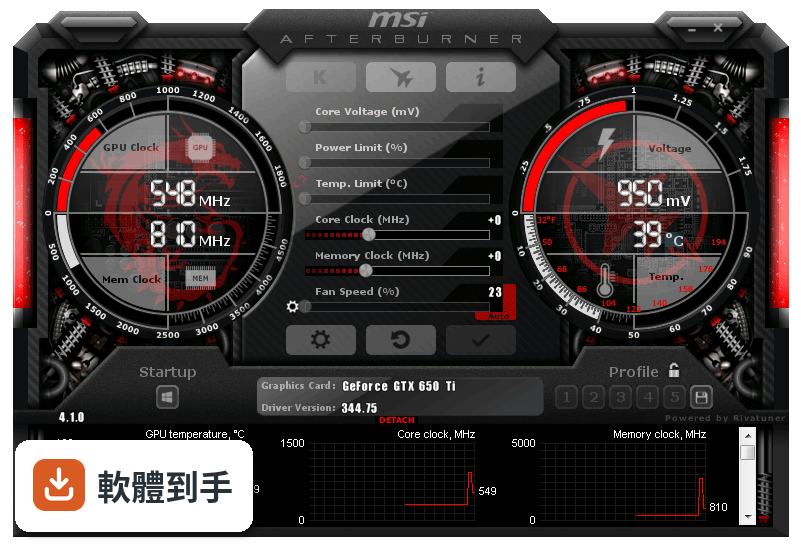
01MSI Afterburner 到底能拿來做什麼?
主要做三件事:超頻顯示卡、監控硬體狀態、錄製遊戲畫面。超頻部分可以調整核心時脈、記憶體時脈和電壓,也能自訂風扇轉速曲線。監控功能會即時顯示溫度、使用率、時脈等數據,可以顯示在遊戲畫面上或記錄成檔案。另外內建畫面擷取工具,能錄影或截圖。
02我完全沒超頻過,用這套軟體會不會很危險?
它有提供自動超頻功能,讓軟體自己掃描找出穩定的超頻設定,不需要手動慢慢試。手動調整時,只要照著一般超頻原則——每次小幅增加時脈、調整後跑測試觀察溫度和穩定性——風險是可控的。介面上也有重置按鈕,設定出問題可以一鍵恢復預設值。
03它只能用在 MSI 的顯示卡嗎?
不是。雖然是 MSI 開發的,但它支援多家廠商的顯示卡,官方說明明確指出相容於不同製造商的 GPU。所以就算你的卡是華碩、技嘉或微星的,都能用這套軟體調整。不過實際支援程度還是要看你那張卡的型號,建議安裝後先確認軟體有沒有正確辨識你的顯示卡。
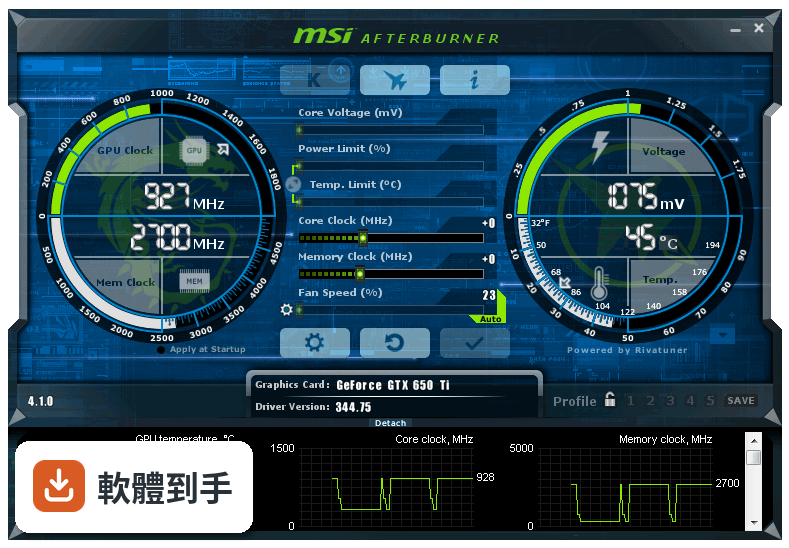
04遊戲中怎麼看目前的溫度和使用率?
用它的 On-Screen Display(OSD)功能。在設定裡啟用 OSD,選擇要在遊戲畫面角落顯示哪些數據,例如溫度、使用率、時脈、幀數等。進遊戲後這些資訊會疊加在畫面上,你就能即時看到調整設定後對效能的影響,不用跳回桌面切換視窗。
05風扇轉速可以自己控制嗎?
可以。它能自訂風扇轉速曲線,依照不同溫度設定對應的轉速百分比。例如溫度低於五十度時讓風扇轉慢一點減少噪音,超過八十度時全速運轉加強散熱。你可以存多組風扇設定檔,依不同遊戲或應用程式切換。
06這套軟體適合什麼樣的人用?
適合三種人:一是玩遊戲覺得幀數不夠、想透過超頻擠出額外效能的人;二是擔心顯示卡過熱、想自訂風扇曲線控制溫度和噪音的人;三是想錄下遊戲精彩片段或截圖的人。它也有內建錄影功能,支援 H.264 編碼和 WMV、AVI 格式,不用另外裝錄影軟體。
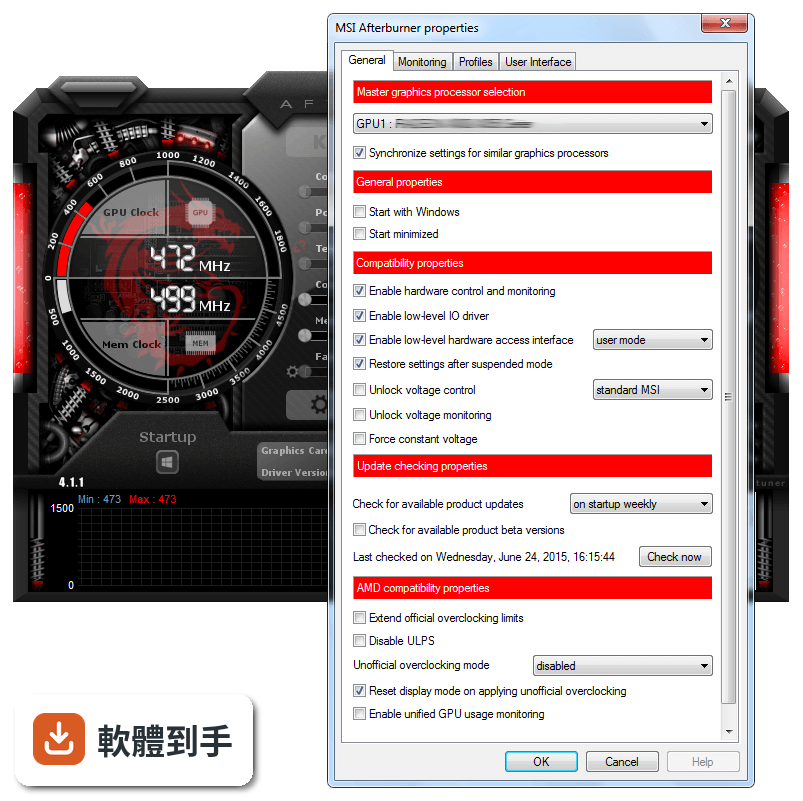
07筆電也能用嗎?
可以用,但有限制。官方說明指出筆電配備獨立顯示卡就能使用,不過因為筆電散熱空間有限,超頻幅度可能受限。如果你只是想在筆電上監看溫度、調整風扇轉速,這套軟體還是能做到。但如果是想大幅超頻提升效能,筆電的散熱條件可能撐不住。
08它能監控 CPU 的溫度嗎?
它主要專注在 GPU 監控,CPU 的部分只有有限的監控能力。如果你需要完整的 CPU 溫度、時脈、電壓數據,官方資料沒有詳細說明這方面的功能。建議另外搭配 CPU 監控工具,或直接看主機板廠商提供的軟體,會比依賴這套軟體更完整。
09介面只有英文,看不懂怎麼辦?
這套軟體的介面確實只有英文,沒有繁體中文選項。不過主要操作介面不複雜,核心時脈、記憶體時脈、電壓、風扇轉速這些都是國際通用的英文詞彙,看久就熟了。如果真的看不懂,網路上有很多中文教學文章和影片,照著步驟操作也能上手。
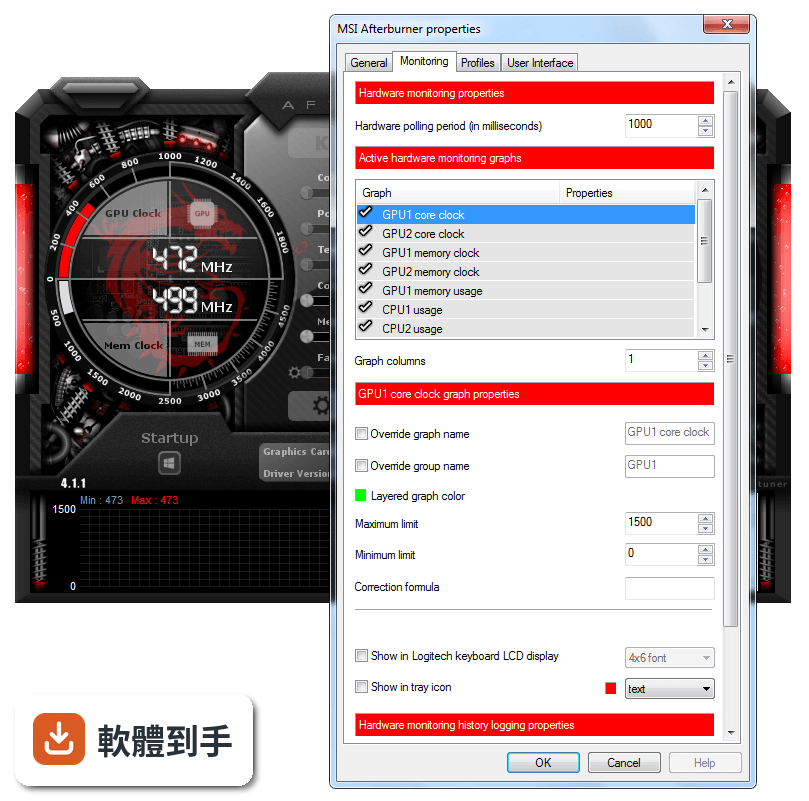
10它跟 GPU-Z 有什麼不同?我該裝哪個?
GPU-Z 主要功能是顯示顯示卡的詳細規格資訊,例如製程、記憶體類型、匯流排介面等,偏向查規格、看硬體資訊。MSI Afterburner 則偏重調整和監控,能超頻、調風扇、錄畫面。如果你只是想看顯卡規格,GPU-Z 就夠了;想調整效能或監看即時數據,選 MSI Afterburner。兩者不衝突,也可以都裝。
11這套軟體多久更新一次?還有人在維護嗎?
根據收錄的版本紀錄,它從 2010 年就持續更新到現在,最近一年內仍有釋出新版本。開發商 MSI 有持續在維護,不是放著不管的軟體。不過更新頻率不算高,一年大約一兩次,這對穩定運作的工具軟體來說是正常的。
12有沒有其他功能相近的軟體可以比較?
功能相近的軟體有 GPU-Z、HWiNFO、SpeedFan 和 Intel Extreme Tuning Utility。GPU-Z 偏規格查詢,HWiNFO 偏硬體資訊監控,SpeedFan 主要控制風扇轉速,Intel Extreme Tuning Utility 則針對 Intel CPU 超頻。以顯示卡超頻和遊戲內監控來說,MSI Afterburner 是功能最完整的,但如果你只需要其中某一項功能,其他軟體可能更輕量。
下載與官方連結
MSIAfterburnerSetup.zip · 38.51 MB · 連結指向軟體原廠
版本紀錄
- 2025-10-10 MSI Afterburner 4.6.6 43.83 MB
- 2023-10-04 MSI Afterburner 4.6.5
- 2022-06-27 MSI Afterburner 4.6.4
再看 5 筆
- 2021-03-04 MSI Afterburner 4.6.3
- 2019-11-06 MSI Afterburner 4.6.2 48.37 MB
- 2019-10-19 MSI Afterburner 4.6.2 Beta 4 48.37 MB
- 2019-04-22 MSI Afterburner 4.6.1 45.5 MB
- 2019-04-10 MSI Afterburner 4.6.1 Beta 2 45.51 MB
這一版改了什麼
What's new in this version:
- Added AMD Ellesmere and Baffin graphics processors families support
- Added Overdrive N (Overdrive 7) technology support for AMD Polaris architecture based graphics cards
- Added core voltage control for reference design AMD RADEON RX 460, AMD RADEON RX 470 and AMD RADEON RX 480 series cards with on-die SMC voltage controller
- Added memory controller usage graph to hardware monitoring module for AMD graphics cards. Currently memory controller usage monitoring is implemented for AMD Ellesmere and Baffin graphics processors families only
- Added GPU power draw graph to hardware monitoring module for AMD graphics cards. Currently GPU power draw monitoring is implemented for AMD Ellesmere and Baffin graphics processors families only
- Added “Erase autosaved startup settings” option to “AMD compatibility properties” section in “General” tab. Starting from AMD Crimson drivers family, the driver is automatically saving hardware settings (e.g. overclocking or fan control settings) in the registry and apply it at Windows startup. It makes settings of any third party hardware overclocking tool virtually permanent, meaning that applied settings stay in the system even after rebooting or powering down the system. However, such implementation is unsafe and even potentially dangerous, because you're no longer able to undo unsafe overclocking with system reboot or even driver reinstall. To prevent such situations, MSI Afterburner can now optionally erase AMD driver's autosaved startup settings after applying new settings to hardware
- Increased default maximum limits for “Core clock”, “Memory clock” and “Memory usage” graphs to improve graphs readability on NVIDIA Pascal series graphics cards
- Community-created third party hardware database providing voltage control support on some non-MSI custom design graphics cards is now included in distributive
- Added uP1816 voltage regulators support to provide compatibility with future custom design MSI graphics cards
- Improved validation and handling of erroneous data reported after TDR or during runtime driver installation on NVIDIA graphics cards
- Improved clock monitoring on GPU Boost 2.0 NVIDIA graphics cards after dynamic uninstallation/reinstallation of display driver during MSI Afterburner runtime
- Added detection of runtime driver installation on NVIDIA graphics cards. Now MSI Afterburner is periodically checking the presence of NVIDIA driver and displaying notification message informing you that the connection with GPU is lost when the driver is being dynamically uninstalled during MSI Afterburner runtime
- Startup profile is now also affected by “Lock profiles” button, which means that you cannot modify or delete your startup overclocking settings while this button is pressed. This feature can be useful to protect startup overclocking settings from modification while temporarily testing various overclocking scenarios on overclocked system
- Added support for unofficial overclocking mode with disabled PowerPlay on PowerPlay7 capable hardware (AMD Tonga and newer graphics processors family)
- Added unofficial overclocking support for AMD Polaris architecture based graphics cards
- Added ability to use low-level hardware access interface on the systems with AMD graphics cards when legacy VGA BIOS image is not mapped to memory (e.g. in UEFI environment)
- Improved compatibility with the systems with both Overdrive 5 and Overdrive 6 API AMD graphics cards installed
- Added driver registry key detection for the secondary display adapters in SLI/Crossfire systems. Due to this improvement it is no longer necessary to temporarily disable Crossfire when altering some settings in “!MD compatibility properties” section (e.g. “Extend official overclocking limits” or “Enable ULPS” settings)
- Improved hardware polling and application startup time on ULPS-enabled Crossfire systems with AMD Fiji and newer AMD graphics processors
- Primary GPU usage is no longer cloned on all secondary GPU usage graphs on Crossfire systems when “Enable unified GPU usage monitoring” is enabled in “!MD compatibility properties”. Please take a note that only the primary GPU load is available on Crossfire systems when this option is enabled
- Updated IO driver provides more secure MMIO access interface
- Fixed bug causing the maximum value to be invisible on some hardware monitoring graphs under certain conditions (e.g. “Framerate” or “Frametime” graphs After closing 3D application)
- Added ability to define numpad keys as hotkeys when in on
- Guru3D RivaTuner Statistics Server has been upgraded to v6.5.0
Added GPU Boost 3.0 technology support for NVIDIA Pascal graphics cards:
- Added percent based overvoltage support
Added voltage/frequency curve customization support. You may use traditional core clock slider on NVIDIA GeForce GTX 1070 and 1080 graphics cards to apply fixed offset to all voltage/frequency curve points as well as use brand new flexible voltage/frequency curve editor window for more precise per-point curve adjustment. The editor window can be activated either with “Voltage/frequency curve editor” button in the main application window or with + keyboard shortcut and it provides you the following features:
- You may independently adjust clock frequency offset for each point with mouse cursor or / keys
- You may hold key to set anchor and fix clock frequency offset in minimum/maximum voltage point and adjust the offset of any other point with mouse to linearly interpolate the offsets between the anchor and adjustment points
- You may hold key while adjusting the offset of any point with mouse to apply the same fixed offset to all points. That’s equal to adjusting the offset with the slider in main application window
- You may press + to reset offsets for all points
- You may switch between traditional core clock control slider in the main window and voltage/frequency curve editor window to see how they affect each other in realtime
- You may press after selecting any point on the curve with mouse cursor to disable GPU dynamic voltage/frequency adjustment and lock the voltage and core clock frequency to a state defined by the target point. This feature allows you to test graphics card stability independently for each voltage/frequency point of the curve using real 3D applications or any stress test of your choice. In addition to stability testing usage scenario, MSI Afterburner allows you to save a curve with locked point setting to a profile, so you may easily switch between dynamic voltage/frequency management and fixed voltage/frequency settings in realtime (e.g. to achieve the maximum performance during benchmarking). Please take a note that fixed voltage and frequency settings do not allow you to disable power and thermal throttling
Added configuration file switch, allowing you to toggle the source for “Power” graph on NVIDIA graphics cards. Normalized total power draw (i.e. normalized value from multiple power sensors installed on the graphics card) is selected by default per NVIDIA recommendation, however you can configure MSI Afterburner to display power draw from GPU sensor only:
- Improved representation of performance limits graphs for NVIDIA graphics cards per NVIDIA recommendations - "Voltage limit” and “OV max limit” graphs have been merged into single “Voltage limit” graph
- Utilization limit” graph has been renamed to “No load limit” graph
- SLI sync” graph is now hidden on the systems with single NVIDIA GPU
- Improved representation of performance limits graphs in On-Screen Display or in Logitech keyboard LCD. Now the names or currently triggered performance limits are being displayed in On-Screen Display or in Logitech keyboard LCD instead of previously used binary limits representation form