
這是歷史版本頁面 — 看 NVDA 最新版本
視障者用電腦卡關?NVDA 免費讀屏能做什麼
 NVDA 2013.2
資料更新 2013-06-24
閱讀約 6 分鐘
視覺障礙者或重度視力衰退的人,坐在電腦前不是「看不到螢幕」這麼簡單——是滑鼠游標不知道在哪、視窗開了幾個搞不清楚、網頁讀到哪一段完全沒概念。明明文書、上網、收信都是日常需求,卻因為讀不到畫面,每一步都卡在「現在到底發生什麼事」。這種狀況下,需要的不是放大鏡,而是把螢幕上的文字變成聲音或點字,讓操作者用聽的、用摸的就知道系統狀態。
一般人直覺會想到「把字放大」或「請人幫忙唸」,但前者對全盲沒用,後者不可能隨時在旁邊。系統內建的朗讀功能往往只覆蓋特定程式,遇到網頁或 Office 就斷斷續續。這類工具的切入點,是直接攔截系統和應用程式送出的文字資訊,再用語音合成或點字顯示器輸出,讓使用者在沒有視覺輔助的狀態下,照樣能操作 Windows、瀏覽網頁、編輯文件。
01NVDA 是什麼?裝了之後到底能做什麼?
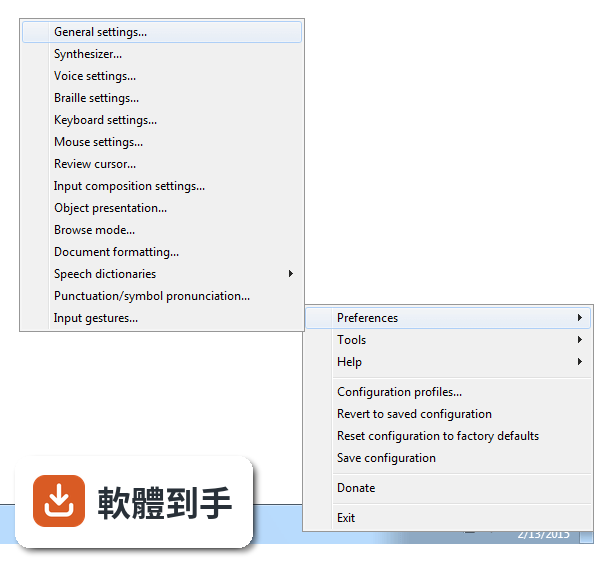
NVDA 是一套免費、開源的螢幕閱讀器,安裝後會用合成語音讀出螢幕上的文字,也能搭配點字顯示器輸出。它讓視障者可以操作 Windows 桌面、瀏覽網頁、使用 Microsoft Office、記事本,以及 Outlook、Thunderbird 等郵件軟體。啟動方式是按下 Ctrl + Alt + N,之後用 Tab 和方向鍵就能在視窗和選單之間移動,系統會即時唸出焦點所在的位置。
02它能不能讀網頁?用鍵盤要怎麼瀏覽?
可以。NVDA 支援 Chrome、Firefox、Edge 等主流瀏覽器,開啟網頁後,用方向鍵上下移動就能逐行讀出文字,按 H 鍵跳到下一個標題,按 K 鍵跳到連結。不需要滑鼠,整頁內容都可以靠鍵盤讀完。遇到圖片或按鈕,它會唸出替代文字或「按鈕」之類的提示,讓你知道這個元素可以做什麼。
03可以接點字顯示器嗎?要怎麼設定?
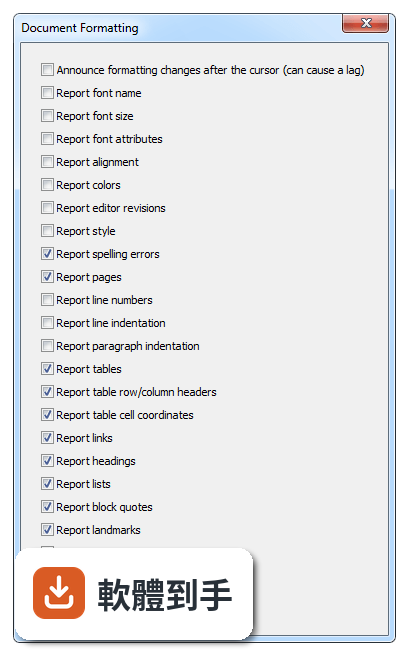
可以。NVDA 支援多種可更新式點字顯示器,透過 USB 或藍牙連線,然後在 NVDA 的設定選單裡找到「點字」項目,選擇你的顯示器型號並調整相關參數。設定完成後,螢幕上的文字會即時轉成點字輸出,適合不想一直聽語音、或需要精確確認拼字的使用者。
04它一定要安裝才能用嗎?能不能帶著走?
不必安裝。NVDA 提供可攜版,可以把程式直接放到 USB 隨身碟裡,插到任何一台 Windows 電腦上就能執行,不需要在該台電腦上安裝軟體。這對需要在不同地方使用電腦的人很方便,例如在學校、圖書館或別人的電腦上,插入隨身碟啟動 NVDA 就能開始操作。
05它支援哪些 Windows 版本?對電腦硬體有要求嗎?
官方說明支援 Windows 7、8、10、11,32 位元和 64 位元都行。硬體需求是處理器 1 GHz 以上、建議 2 GB 記憶體、100 MB 可用磁碟空間,並需要音效輸出裝置來播放語音。點字顯示器是選配,沒有也可以只用語音。整體來說,一般文書用的電腦都跑得動。
06完全看不到的人適合用嗎?還是只有弱視的人能用?
全盲使用者是 NVDA 的主要對象,因為它完全靠語音和點字輸出,不需要任何視覺回饋。弱視的人也可以搭配螢幕放大鏡工具一起使用,NVDA 本身有與放大工具整合的能力,讓還有一點殘餘視力的人同時用聽的和看的來操作。兩種狀況都適用,差別在於怎麼搭配其他輔具。
07不想花錢買商業讀屏軟體的人,用 NVDA 夠嗎?
如果你的需求是讀網頁、用 Office、收發郵件、操作 Windows 基本功能,NVDA 都能勝任,而且完全免費。它更新頻繁,近兩年有多次版本釋出,代表持續在維護。但如果你需要的是商業軟體才有的進階功能,例如更細緻的語音品質或特定專業應用程式的深度整合,NVDA 可能就沒有那些東西。
08它的介面是英文的,不會英文的人能操作嗎?
官方介面語系是英文,但 NVDA 本身支援多種語言的語音輸出,也就是說,它可以用中文或其他語言朗讀螢幕內容。不過,設定選單、快速鍵說明這些操作介面是英文,對完全不懂英文的人來說,初始設定會比較吃力。建議找懂英文的人協助完成第一次設定,之後日常使用主要靠鍵盤指令,不太需要一直看選單。
09有些程式它讀不到,遇到這種情況怎麼辦?
官方說明指出,NVDA 支援大多數標準應用程式,但某些專有或客製化軟體可能功能有限。如果你常用的程式讀不到內容,可以先確認該程式是否有無障礙支援或替代方案,或者改用網頁版。NVDA 本身沒有辦法解決所有應用程式的相容問題,這部分需要自行測試或尋找其他輔助工具搭配。
10它的語音聽起來很機械,會不會影響長時間使用?
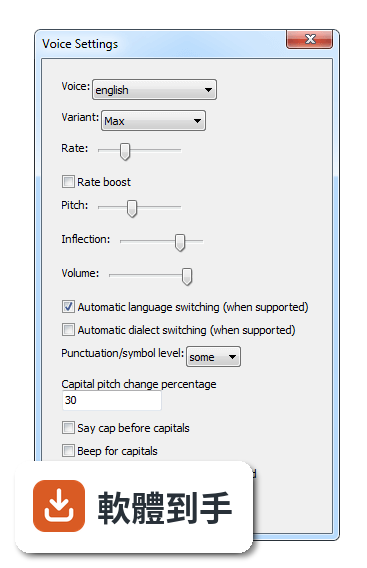
官方說明坦承,NVDA 的語音合成品質比商業付費方案粗糙,聽起來確實比較機械。對長時間聆聽的人來說,這可能造成疲勞,但很多人會透過調整語速、音調和詳細程度來改善。如果你對語音品質非常敏感,可以考慮安裝其他語音引擎,但這需要額外設定,而且效果因人而異。
11跟其他讀屏軟體比起來,NVDA 的評價如何?
在收錄的評分中,NVDA 有 168 人評分,平均 8.18 分(滿分 10 分)。這個分數不算低,但評分人數不算多,參考價值有限。跟它放在一起比較的 Foxit Reader、Adobe Digital Editions、ALLPlayer 都不是讀屏軟體,類別不同,無法直接對比。如果你在考慮付費讀屏,建議先試用 NVDA,確認基本需求能不能滿足,再決定要不要花錢。
下載與官方連結
nvda_2013.2.exe · 15.41 MB · 連結指向軟體原廠
版本紀錄
- 2026-10-26 NVDA 2026.3 66.14 MB
- 2026-05-06 NVDA 2026.1 59.96 MB
- 2026-02-16 NVDA 2025.3.3 48.7 MB
再看 5 筆
- 2025-11-24 NVDA 2025.3.1 48.72 MB
- 2025-11-24 NVDA 2025.3.2 48.72 MB
- 2025-09-15 NVDA 2025.3 48.73 MB
- 2025-08-13 NVDA 2025.2 44.03 MB
- 2025-06-23 NVDA 2025.1.2 42.34 MB
這一版改了什麼
What's new in this version:
New Features:
- Support for the Chromium Embedded Framework, which is a web browser control used in several applications. (#3108)
- New eSpeak voice variant: Iven3.
- In Skype, new chat messages are reported automatically while the conversation is focused. (#2298)
- Support for Tween, including reporting of tab names and less verbosity when reading tweets.
- You can now disable displaying of NVDA messages on a braille display by setting the message timeout to 0 in the Braille Settings dialog. (#2482)
- In the Add-ons Manager, there is now a Get Add-ons button to open the NVDA Add-ons web site where you can browse and download available add-ons. (#3209)
- In the NVDA Welcome dialog which always appears the first time you run NVDA, you can now specify whether NVDA starts automatically after you log on to Windows. (#2234)
- Sleep mode is automatically enabled when using Dolphin Cicero. (#2055)
- The Windows x64 version of Miranda IM/Miranda NG is now supported. (#3296)
- Search suggestions in the Windows 8.1 Start Screen are automatically reported. (#3322)
- Support for navigating and editing spreadsheets in Microsoft Excel 2013. (#3360)
- The Freedom Scientific Focus 14 Blue and Focus 80 Blue braille displays, as well as the Focus 40 Blue in certain configurations that weren't supported previously, are now supported when connected via Bluetooth. (#3307)
- Auto complete suggestions are now reported in Outlook 2010. (#2816)
- New braille translation tables: English (U.K.) computer braille, Korean grade 2, Russian braille for computer code.
- New language: Farsi. (#1427)
Changes:
- On a touch screen, performing a single finger flick left or right when in object mode now moves previous or next through all objects, not just those in the current container. Use 2-finger flick left or right to perform the original action of moving to the previous or next object in the current container.
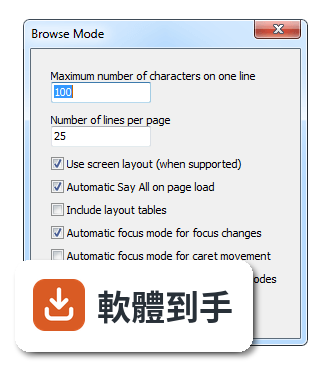
- the Report layout tables checkbox found in the Browse Mode settings dialog has now been renamed to Include layout tables to reflect that quick navigation also will not locate them if the checkbox is unchecked. (#3140)
- Flat review has been replaced with object, document and screen review modes. (#2996)
- Object review reviews text just within the navigator object, document review reviews all text in a browse mode document (if any) and screen review reviews text on the screen for the current application.
- The commands that previously move to/from flat review now toggle between these new review modes.
- The navigator object automatically follows the review cursor such that it remains the deepest object at the position of the review cursor when in document or screen review modes.
- After switching to screen review mode, NVDA will stay in this mode until you explicitly switch back to document or object review mode.
- When in document or object review mode, NVDA may automatically switch between these two modes depending on whether you are moving around a browse mode document or not.
- Updated liblouis braille translator to 2.5.3. (#3371)
Bug Fixes:
- Activating an object now announces the action before the activation, rather than the action after the activation (e.g. expand when expanding rather than collapse). (#2982)
- More accurate reading and cursor tracking in various input fields for recent versions of Skype, such as chat and search fields. (#1601, #3036)
- In the Skype recent conversations list, the number of new events is now read for each conversation if relevant. (#1446)
- Improvements to cursor tracking and reading order for right-to-left text written to the screen; e.g. editing Arabic text in Microsoft Excel. (#1601)
- Quick navigation to buttons and form fields will now locate links marked as buttons for accessibility purposes in Internet Explorer. (#2750)
- In browse mode, the content inside tree views is no longer rendered, as a flattened representation isn't useful. You can press enter on a tree view to interact with it in focus mode. (#3023)
- Pressing alt+downArrow or alt+upArrow to expand a combo box while in focus mode no longer incorrectly switches to browse mode. (#2340)
- In Internet Explorer 10, table cells no longer activate focus mode, unless they have been explicitly made focusable by the web author. (#3248)
- NVDA no longer fails to start if the system time is earlier than the last check for an update. (#3260)
- If a progress bar is shown on a braille display, the braille display is updated when the progress bar changes. (#3258)
- In browse mode in Mozilla applications, table captions are no longer rendered twice. In addition, the summary is rendered when there is also a caption. (#3196)
- When changing input languages in Windows 8, NVDA now speaks the correct language rather than the previous one.
- NVDA now announces IME conversion mode changes in Windows 8.
- NVDA no longer announces garbage on the Desktop when the Google Japanese or Atok IME input methods are in use. (#3234)
- In Windows 7 and above, NVDA no longer inappropriately announces speech recognition or touch input as a keyboard language change.
- NVDA no longer announces a particular special character (0x7f) when pressing control+backspace in some editors when speak typed characters is enabled. (#3315)
- eSpeak no longer inappropriately changes in pitch, volume, etc. when NVDA reads text containing certain control characters or XML. (#3334) (regression of #437)
- In Java applications, changes to the label or value of the focused control are now announced automatically, and are reflected when subsequently querying the control. (#3119)
- In Scintilla controls, lines are now reported correctly when word wrap is enabled. (#885)
- In Mozilla applications, the name of read-only list items is now correctly reported; e.g. when navigating tweets in focus mode on twitter.com. (#3327)
- Confirmation dialogs in Microsoft Office 2013 now have their content automatically read when they appear.
- Performance improvements when navigating certain tables in Microsoft Word. (#3326)
- NVDA's table navigation commands (control+alt+arrows) function better in certain Microsoft Word tables where a cell spans multiple rows.
- If the Add-ons Manager is already open, activating it again (either from the Tools menu or by opening an add-on file) no longer fails or makes it impossible to close the Add-ons Manager. (#3351)
- NVDA no longer freezes in certain dialogs when Japanese or Chinese Office 2010 IME is in use. (#3064)
- Multiple spaces are no longer compressed to just one space on braille displays. (#1366)
- Zend Eclipse PHP Developer Tools now functions the same as Eclipse. (#3353)
- In Internet Explorer, It is again not necessary to press tab to interact with an embedded object (such as Flash content) after pressing enter on it. (#3364)
- When editing text in Microsoft PowerPoint, the last line is no longer reported as the line above, if the final line is blank. (#3403)
- In Microsoft PowerPoint, objects are no longer sometimes spoken twice when you select them or choose to edit them. (#3394)
- NVDA no longer causes Adobe Reader to crash or freeze for certain badly formed PDF documents containing rows outside of tables. (#3399)
- NVDA now correctly detects the next slide with focus when deleting a slide in Microsoft PowerPoint's thumbnails view. (#3415)