
這是歷史版本頁面 — 看 OBS Studio 最新版本
OBS Studio 只有英文介面,中文使用者該怎麼上手
 OBS Studio 22.0.1
資料更新 2018-08-20
閱讀約 7 分鐘
你剛下載了一套錄影軟體,打開卻發現整個介面都是英文。你想錄製電腦畫面、想開直播,甚至只是想錄一段遊戲過程給朋友看,但面對一堆看不懂的按鈕和設定,連「開始錄影」在哪裡都找不到。你上網搜尋,看到很多人推薦這套軟體,但下載後才發現它不像一般軟體那樣裝好就能用,光是搞懂場景、來源、編碼這些名詞就讓人頭痛。
一般人遇到這種狀況,可能會轉而去找其他更簡單的錄影工具,但那些工具往往有浮水印、錄影時間限制,或是不支援直播。這類專業工具的切入點在於:它把錄影、直播、混音、轉場這些功能全部整合在一起,而且開放原始碼、免費使用。代價就是學習曲線比較陡,需要花時間理解它的邏輯,但只要搞懂基本概念,就能做出很專業的畫面。
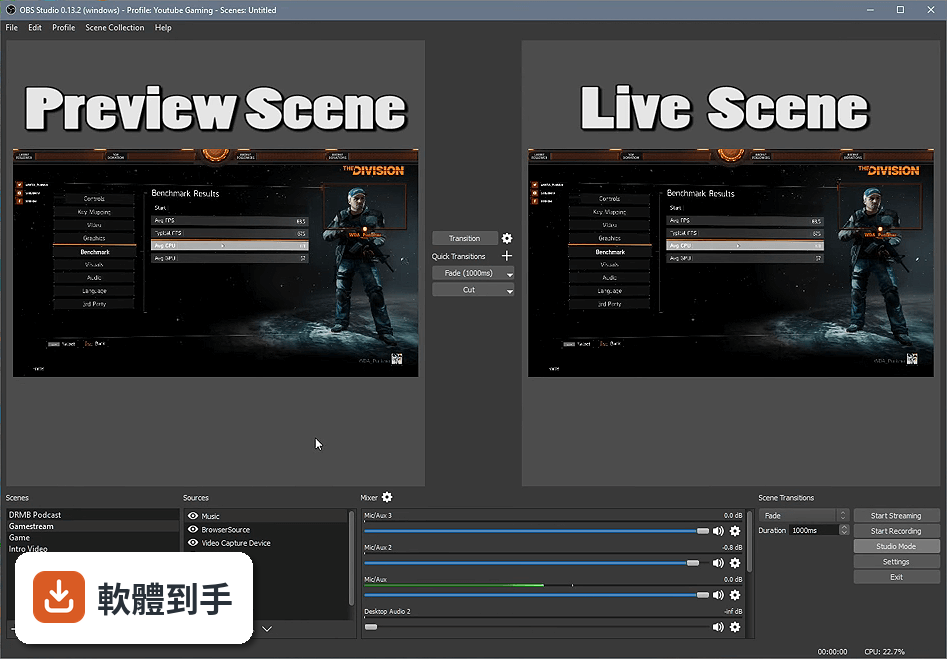
01OBS Studio 到底能拿來做什麼?
它是一套開放原始碼的錄影與直播軟體,可以擷取整個電腦螢幕、特定應用程式視窗、網路攝影機畫面,也能同時錄製麥克風和系統音效。除了錄製成影片檔,它也能直接連接 Twitch、YouTube 等平台進行直播,而且可以同時直播到多個平台。官方說明提到它也能用於視訊會議或螢幕分享,只要把來源設定好就行。
02它能不能同時錄螢幕和直播?
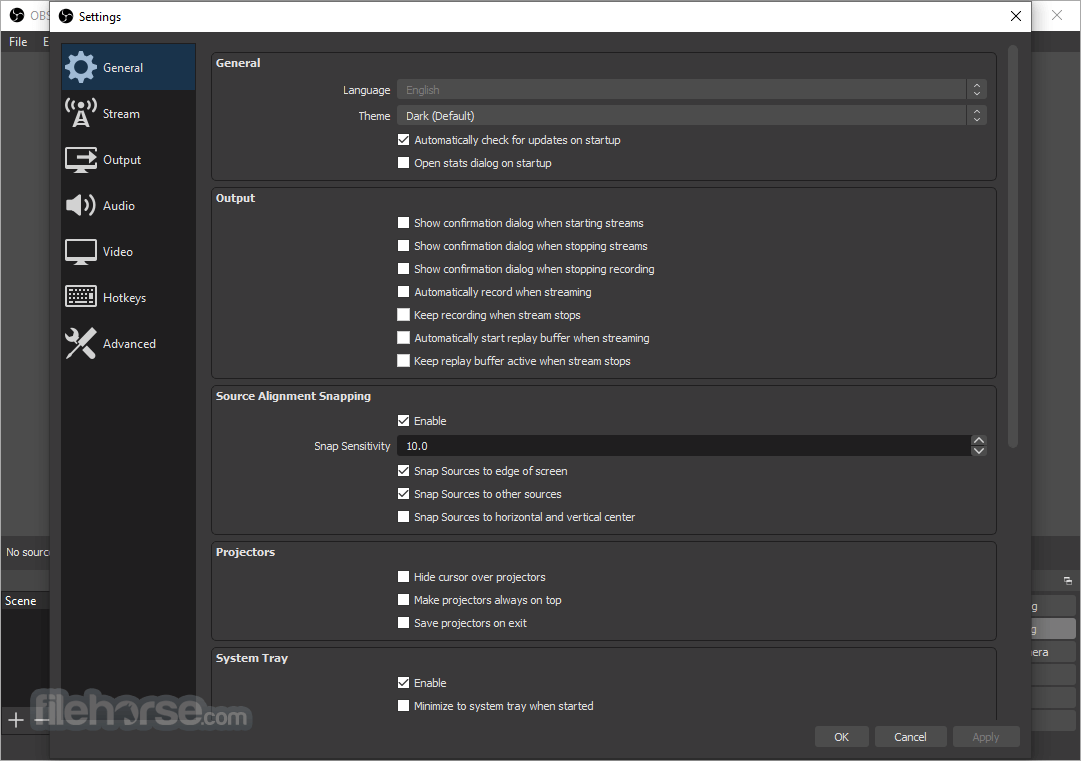
可以。官方說明明確指出,它支援同時進行直播和本機錄影,也就是說你可以在直播的同時,把畫面另外錄成檔案留著之後剪輯或重看。這對需要事後整理精華片段的人來說很方便,不用另外開一套錄影軟體。設定上只要在「設定」裡分別把串流和錄影的選項都開啟,按下「開始直播」和「開始錄影」兩個按鈕就能同時運作。
03可以接遊戲主機來錄嗎?
可以,但需要額外硬體。官方說明提到,要錄 PlayStation 或 Xbox 的畫面,必須透過擷取卡把主機連到電腦,然後在 OBS 裡把擷取卡當作一個來源加入。它本身沒有直接接收主機訊號的功能,所以如果你沒有擷取卡,就無法錄主機遊戲畫面。這點在購買前要先確認自己的設備是否齊全。
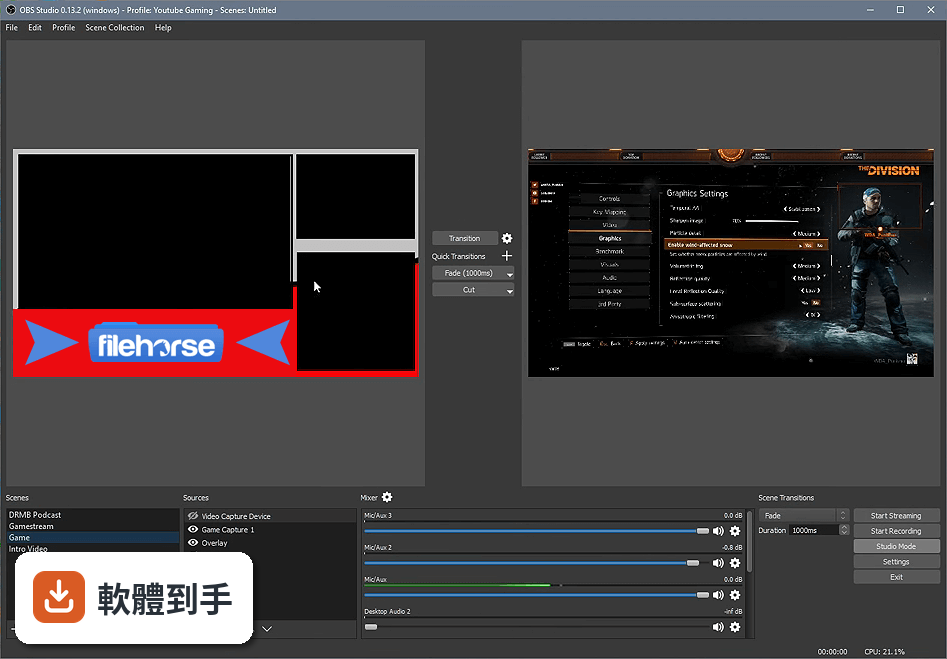
04能不能拿來開視訊會議或分享螢幕?
官方說明有提到,它雖然主要設計給內容創作和直播使用,但也可以用於視訊會議或螢幕分享。做法是把網路攝影機和麥克風加入場景,然後把 OBS 的虛擬攝影機功能當作視訊來源,在 Zoom、Meet 等軟體裡選取它。不過這需要自己摸索設定,官方沒有提供詳細的會議軟體整合教學,實際使用上可能比專門的會議軟體麻煩一些。
05可以同時直播到多個平台嗎?
可以。官方說明指出,它允許使用者同時串流到多個平台,只要在串流設定中分別設定每個平台的伺服器和金鑰,就能一次把畫面送到 Twitch、YouTube 等多個地方。這對想跨平台曝光的人來說很實用,不用開多套軟體。不過要注意,同時直播多個平台會增加上傳頻寬的負擔,網速不夠的話可能會影響畫質或造成延遲。
06我只是一般使用者,偶爾錄個教學影片,適合用這套嗎?
如果你願意花時間學,它確實免費又沒有浮水印,但學習成本不低。它的介面是英文的,而且場景、來源、混音器這些概念需要一段時間才能理解。如果你只是偶爾錄個螢幕畫面,可能用系統內建的錄影功能或更簡單的工具會更快。但如果你打算長期做影片或直播,投資時間學這套是值得的,因為它功能完整且持續更新。
07電腦配備普通,跑得動嗎?
官方說明沒有提供具體的硬體需求數字,只說效能取決於電腦規格、場景複雜度和串流設定,建議要有不錯的處理器、足夠的記憶體和穩定的網路。如果你的電腦是入門機種,錄製簡單的桌面畫面可能沒問題,但同時開多個來源、玩遊戲又要錄影,就可能會卡頓。建議先下載試試看,用工作管理員觀察效能,再調整解析度和位元率。
08我完全不懂設定,上手會不會很困難?
會,尤其是英文介面會讓門檻更高。它的基本流程是:先建立「場景」,然後在場景裡加入「來源」(像是螢幕、視訊鏡頭、圖片),接著在「設定」裡調整輸出解析度和位元率,最後按下「開始錄影」或「開始直播」。官方有提供使用說明,但都是英文的。如果你英文不好,可能得靠網路上的中文教學影片一步步跟著做,會比摸索介面快很多。
09我只有 Mac,可以用嗎?
官方說明提到它支援 Windows、macOS 和 Linux,但這份資料的支援系統欄位只列出 Windows 8、10、11,沒有明確寫出 macOS 的版本範圍。如果你用的是 Mac,建議直接到官方網站下載 macOS 版本試試看,或確認你的系統版本是否在支援範圍內。網路上有很多人在找 Mac 版的下載方式,但官方沒有提供詳細的 Mac 相容性列表,這點需要自行確認。
10介面只有英文,看不懂怎麼辦?
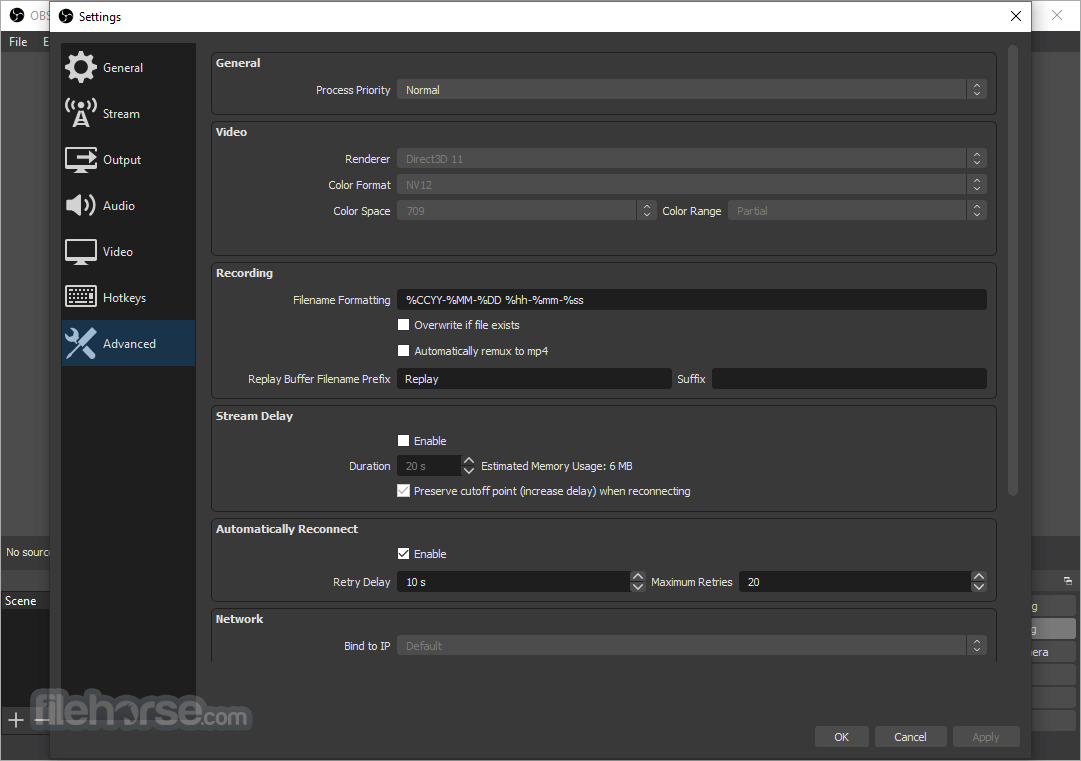
這套軟體目前沒有內建繁體中文介面,官方說明也只提供英文。如果你完全看不懂英文,有幾個變通方式:一是靠網路上的中文教學影片,邊看邊對照操作;二是用瀏覽器的即時翻譯功能,但這對桌面軟體沒用;三是找其他有中文介面的替代軟體,像是 XSplit Broadcaster 或 Streamlabs OBS,但那些可能不是免費的,或功能有所限制。如果你真的很需要中文介面,這套可能不適合你。
11有沒有比它更簡單的替代方案?
有,但各有取捨。資料中提到的替代軟體包括 XSplit Broadcaster,它介面更友善、有內建編輯器,但只有 50 人評分,使用者基數較小;還有 Streamlabs OBS,它整合了 Streamlabs 平台,有預設主題和通知功能,但它是基於 OBS 的,所以學習曲線類似;另外 Nvidia ShadowPlay 是 GPU 加速的錄影工具,但只支援 Nvidia 顯示卡。如果你覺得 OBS 太複雜,可以試試這些,但要注意它們可能不是免費的,或功能沒有 OBS 完整。
12這套軟體安全嗎?會不會有病毒?
官方說明指出,只要從官方網站或 FileHorse 下載,它是安全的、沒有病毒。因為它是開放原始碼軟體,有大量社群使用者持續貢獻開發和測試,而且會定期更新修補漏洞。不過要注意,如果你從不明來源下載,就無法保證安全性。另外,它的更新頻率很高,近兩年有 19 次更新,代表開發團隊持續在維護,這對安全性來說是正面的訊號。
下載與官方連結
OBS-Studio-22.0.1-Full-Installer-x86.exe · 63.3 MB · 連結指向軟體原廠
版本紀錄
- 2026-10-30 OBS Studio 33.0.1 (64-bit) 178.02 MB
- 2026-10-24 OBS Studio 33.0.0 (64-bit) 178.02 MB
- 2026-08-15 OBS Studio 32.2.2 (64-bit) 152.41 MB
再看 5 筆
- 2026-07-27 OBS Studio 32.2.1 (64-bit) 152.42 MB
- 2026-07-22 OBS Studio 32.2.0 (64-bit) 152.44 MB
- 2026-04-22 OBS Studio 32.1.2 (64-bit) 150.5 MB
- 2026-04-03 OBS Studio 32.1.1 (64-bit) 150.46 MB
- 2026-03-12 OBS Studio 32.1.0 (64-bit) 150.49 MB
這一版改了什麼
What's new in this version:
Changes:
- Major improvements to the browser source:Added hardware acceleration to the browser source on Windows for greatly improved performance, reduced resources, and allowing advanced rendering functionality such as WebGL. This reduces CPU usage, reduces RAM usage, and even reduces GPU usage. This option is enabled by default; it can be disabled in the advanced section of settings if needed if there are any unexpected issues; Updated to Chromium version 68; Refactored the entire plugin and pruned approximately 13,000 lines of code (very satisfying for me in particular); The browser source now has accurate frame synchronization on Windows; Fixed all memory leaks of the browser source; Added the ability to use web browsers as widgets (which isn't currently exposed much, but will allow a lot more custom functionality later)
- Added source grouping, allowing the ability to group multiple sources together as a single transformable group: To add a group, you can either select a few sources and then right-click and choose "Group Selected Items", or you can create an empty group in the Add menu; You can seamlessly drag and drop items in and out of groups; You can ungroup a group without affecting the group in other scenes by right-clicking the group and choosing "Ungroup"; Groups show their list of sources as a sub-list within the main scene list, which can be collapsed and hidden if desired; Groups can be referenced (shared) between multiple scenes like any other source; Groups can have their own effect filters applied to them
- Added the ability to set a custom background color to items within the source list to color-code them for improved organization: To set the item's background color, right-click the source item within the source list, and go to "Set Color"; You can use a preset selection of colors within the menu, you can choose a custom color, or you can reset it to default
- Added a "Vertical Layout" option to the mixer's right-click context menu to make the mixer display vertically rather than horizontally
- The multiview can now be configured to show up to 24 scenes at once in general settings if desired
- Added an option to audio settings to allow the user to change the audio meter type: "Sample Peak" and "True Peak"
- Added secure streaming (RTMPS) support for services that support it, such as Facebook
- It is now possible to use more than one Intel QSV encoder at once
- It is now possible to use alt-cropping even on sources that are set to a bounding box transform. This fixes the issue where, for example, alt-cropping would not work after you pressed Ctrl-F on a source. Note that in that case, the rectangle's size will not change, but the contents will realign to the rectangle
- Windowed projectors are now saved and loaded on shutdown/startup
- Audio sources within the mixer now always displayed alphabetically
- Significantly reduced GPU usage when the program is idle (I.E. when the program is not streaming or recording)
- Added a confirmation dialog when the user has not added video sources to any scenes, warning them that they are about to stream a blank screen. This ensures that new users do not inadvertently stream without at least first adding some sources
- The program will now default to the NVIDIA GPU when on laptops that have both NVIDIA and Intel integrated adapters. This can still be overridden in the NVIDIA control panel if desired
Bug fixes:
- Fixed a bug where the browser source wouldn't read local files properly
- Fixed a bug where videos recorded with certain formats would report that they were 1000 FPS in their metadata when they actually weren't
- Fixed a bug where the active monitoring device wouldn't properly change when switching between profiles
- Fixed a bug where pasting filters without a destination source selected would cause a crash
- Fixed a bug where projectors would close whenever "Always On Top" was toggled
- Fixed a bug where the recording option "Generate file without space" was not working with the replay buffer
- Fixed a bug where certain size cursors would appear the incorrect size in Game/Window/Display captures on Windows
- Fixed a bug where in-program hyperlinks would show up with a bad contrast (dark blue) even in dark themes
- Fixed a bug where stream output would stop if a stinger transition had a very late transition point assigned to it (an invalid floating point calculation would be put in to the audio data, which would in turn cause the audio encoder to fail and stop encoding, and thus stream output to stop)
- Fixed a bug on macOS where VLC would not be found for the VLC source despite VLC being installed
- Fixed a bug on macOS where audio monitoring devices would not show up correctly, and fixed a few minor issues with audio monitoring on macOS
- Fixed a bug where Mixer's FTL service would cause a crash on macOS
- Fixed a bug where the color property (when showing the properties of sources/filters) would not show the actual color the user had set it to
- Fixed a bug where hotkey labels would not update when sources and transitions are renamed, and could cause the hotkey to not be saved correctly
- Fixed a bug where creating a new profile with advanced output mode active would not enforce the service's settings (such as keyframe interval)
- Fixed a bug where hotkeys for start streaming and stop streaming would disappear when going in/out of studio mode
- Fixed a few minor memory leaks