
這是歷史版本頁面 — 看 Password Safe 最新版本
密碼多到記不住?Password Safe 免費開源密碼管理能做什麼
 Password Safe 3.44
資料更新 2017-10-08
閱讀約 5 分鐘
你手上至少有十幾個網站帳號,從網路銀行、電子郵件到購物平台,每個都要求不同規則的密碼。一開始你還認真想,後來實在記不住,只好把密碼寫在記事本、存在 Excel,甚至乾脆全部用同一組。直到某天收到一封「您的帳號疑似被盜用」的通知信,你才發現那些偷懶的習慣遲早會出事。你需要的是一個能幫你記住所有密碼、又不會被別人偷走的工具。
瀏覽器內建的密碼記憶功能雖然方便,但換電腦、換瀏覽器就全部不見,而且密碼以明文形式存在本機,懂一點技術的人都能翻出來。把密碼存在雲端筆記軟體更危險,等於把鑰匙放在門口地墊下。這類密碼管理工具的切入點很簡單:用一個你記得住的「主密碼」,加密保護一整包你記不住的密碼,要用時再解鎖取出來。
01Password Safe 跟 KeePass 有什麼差別?
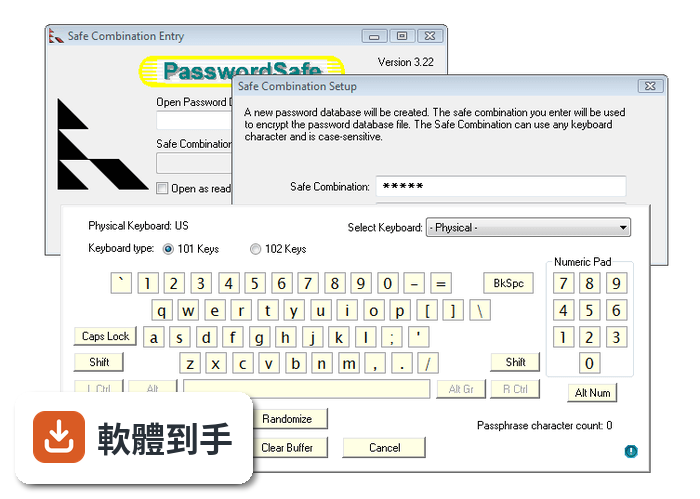
兩者都是開源密碼管理軟體,核心功能相近,都提供加密資料庫、密碼產生器和自動輸入。KeePass 的擴充套件較多,社群生態更豐富;Password Safe 的介面相對單純,由 Bruce Schneier 發起,更新頻率穩定。資料顯示 Password Safe 有 80 人評分、KeePass 有 98 人評分,兩者評價都不錯。實際選哪套,建議都裝來試用,看哪個介面你比較順手。
02這套軟體能把密碼存在哪裡?
它把密碼存在一個加密的資料庫檔案裡,預設存放在本機磁碟。你可以把這個檔案複製到隨身碟、外接硬碟,或放到自己的雲端硬碟資料夾(如 Dropbox、Google Drive)做同步。官方說明提到支援備份與同步,但具體同步方式由你自行安排,軟體本身沒有內建雲端服務。
03它怎麼幫我產生不容易被破解的密碼?
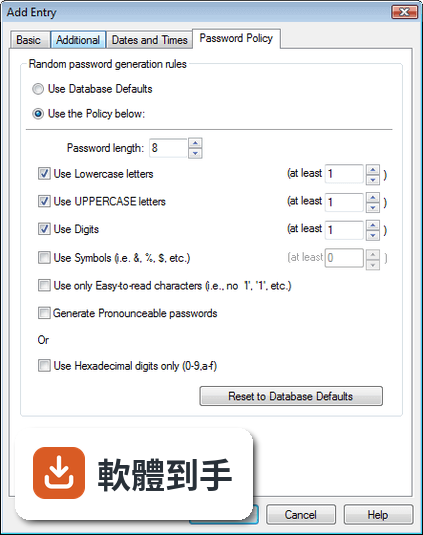
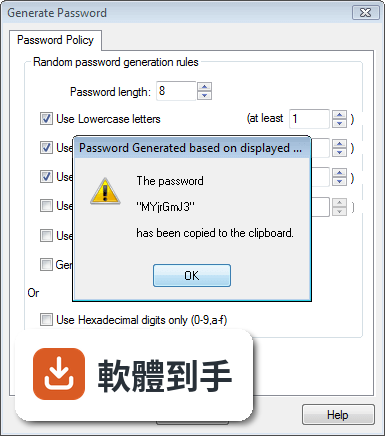
內建密碼產生器,可以依照你的需求設定密碼長度,以及是否包含大小寫字母、數字和特殊符號。產生的密碼會直接存入資料庫,不需要自己記。官方資料顯示它採用 Twofish 加密演算法保護資料,密碼產生器是其中一項標準功能。
04自動輸入帳號密碼是怎麼運作的?
它的 Auto-Type 功能會在你開啟網站或應用程式登入頁面時,自動幫你填入帳號和密碼。官方說明指出,它可以在網站和應用程式中自動輸入登入憑證。使用前需要先設定好對應的條目,把網址或視窗標題跟登入資訊綁在一起,之後開啟該網站就能觸發自動填入。
05我現在用的密碼管理軟體,裡面的資料能轉過來嗎?
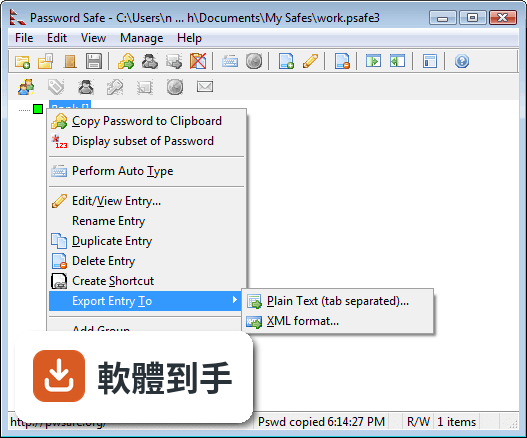
官方 FAQ 明確表示可以從其他密碼管理軟體匯入資料,讓轉換過程比較順利。具體支援哪些軟體的匯入格式,官方說明沒有逐一列出,建議下載後在匯入功能選單中確認,或查閱官方文件。
06這套軟體適合什麼樣的人用?
適合不想把密碼交給雲端服務、偏好自己掌控資料的人。它是開源軟體、免費使用,沒有隱藏費用,對預算有限但重視密碼安全的人來說是務實選擇。官方資料提到全球有超過 500 萬使用者,介面設計以簡潔直觀為原則,新手和老手都能快速上手。
07我英文不好,用起來會很吃力嗎?
官方介面語系只有英文,沒有繁體中文。雖然操作介面不算複雜,但如果你對英文介面不熟悉,選單和設定的理解會多花一些時間。官方資料顯示它支援多種語言,包含簡體中文,但繁體中文不在其中。如果你需要全中文介面,可能要考慮其他有繁體中文的密碼管理軟體。
08它能在手機上使用嗎?
官方資料顯示它支援 Windows、macOS 和 Linux,但沒有提到手機版。如果你需要在手機上查密碼,這套軟體可能不適合。你可以把加密資料庫檔案放到手機上,但沒有對應的 App 就無法解鎖讀取。手機使用者建議考慮有手機版、且支援同格式匯入的密碼管理工具。
09這套軟體跟 LastPass 比起來,哪個比較多人用?
以評分人數來看,LastPass 有 122 人評分,Password Safe 有 80 人評分,LastPass 的樣本數較多。但評分人數多不代表一定適合你。LastPass 是商業服務,提供雲端同步和免費方案;Password Safe 是開源軟體,資料完全由你掌控。兩者定位不同,一個是雲端服務、一個是本地資料庫,選擇取決於你對資料存放方式的偏好。
10它的介面會不會很老舊?
官方資料的「缺點」欄位明確提到,介面可能比一些現代軟體顯得老舊,也缺少部分高階密碼管理軟體提供的進階功能。如果你很在意視覺設計和操作流暢度,建議先看官方網站或教學影片的實際畫面,再決定是否安裝。
11我該不該把公司帳號密碼也存進去?
官方資料提到它適合個人和組織使用,但公司帳號通常涉及多人共用、權限管理、稽核紀錄等需求,這套軟體的功能設計偏向個人使用,沒有提到團隊共用或權限控管。公司環境建議先確認資安政策是否允許,並評估是否有更適合團隊協作的密碼管理方案。
下載與官方連結
pwsafe-3.44.0.msi · 連結指向軟體原廠
版本紀錄
- 2026-10-09 Password Safe 3.73.0 22.7 MB
- 2026-09-07 Password Safe 3.72.2 22.7 MB
- 2026-07-04 Password Safe 3.72.1 22.7 MB
再看 5 筆
- 2026-06-20 Password Safe 3.72.0 21.4 MB
- 2026-03-28 Password Safe 3.71.0 21.4 MB
- 2025-11-19 Password Safe 3.70.1 21.2 MB
- 2025-11-09 Password Safe 3.70.0 21.1 MB
- 2025-06-30 Password Safe 3.69.0 21 MB
這一版改了什麼
What's new in this version:
Bugs fixed:
- Perform autotype of correct entry when the user changes the selection made by a Find
- The protected entry padlock symbol is now used in all places where a protected entry is listed in any dialog
- If an expired or about to be expired entry is edited at database open (requires warning preference to be enabled), the database will be saved if the 'Save database immediately after any change' preference is enabled. After the open is complete, these changes can be undone/redone if required
- Tree and List views now retain focus when a shortcut entry is created
- Remember Find toolbar state when restoring from minimized
- The virtual keyboard font size setting is now persistent
- Remember if PasswordSafe was maximized when exited
Changes:
- The option that allows you to change the color of the system tray icon displayed when Password Safe is initially started and when there's no open database has been removed. The standard PasswordSafe brown icon will be used
- Use the Add/Edit font in preference to the Tree/List font outside the actual Tree/List views (since the Tree/List fonts may be too large)
New:
- When exporting a group or the results of a filter, if any additional entries have been exported (e.g. base entries of aliases or shortcuts already exported), they will be noted in the Export report
- The default font for the password field is now 12pt Consolas
- The default font for Tree/List views, Add/Edit fields and an entry's Notes is now 10pt Segoe UI Symbol
- A new symbol (paperclip - Unicode U+01F4CE) to indicate that an entry has an attachment (V4 databases only) has been implemented but, if the currently selected Tree/List font does not support it and the user is not running Windows 10, then the old symbol ('+') will be used
- Close/exit is now allowed via System Tray icon when the database is open in read-only mode
- The list of expired entries now shows protected entries in italics, indicating that they must be unprotected before they can be updated
- The main window can now be set to be partially transparent via Manage->Options->Display