
這是歷史版本頁面 — 看 Postbox 最新版本
郵件堆到找不到東西,Postbox 能幫上什麼忙
 Postbox 7.0.0
資料更新 2019-09-04
閱讀約 5 分鐘
你每天打開郵件收件匣,幾十封新信湧進來,有些是待辦、有些是帳單、有些是客戶的合約附件。你當下沒空處理,想說晚點再找,結果三天後要翻那封信,卻怎麼搜都搜不到。Gmail 網頁版開了又關,關鍵字換了好幾組,附件檔案就是沉在郵件海裡,你開始懷疑自己是不是根本沒收到過。
一般人遇到這種狀況,最直覺的做法是改用更精確的搜尋字串,或是手動把郵件分類到資料夾。但郵件量一大,這些方法就失效了——搜尋要碰運氣,分類要花時間維護,而且換一台電腦、換一個裝置,整個整理邏輯又要重來。這類郵件管理工具的切入點,是幫你把郵件內容先建立索引,讓搜尋不只是比對主旨和寄件人,而是連內文、附件、日期都能被撈出來,同時把 Gmail 的標籤和快捷鍵搬進桌面程式,讓你不必一直開瀏覽器。
01Postbox 跟直接用 Gmail 網頁版有什麼差?
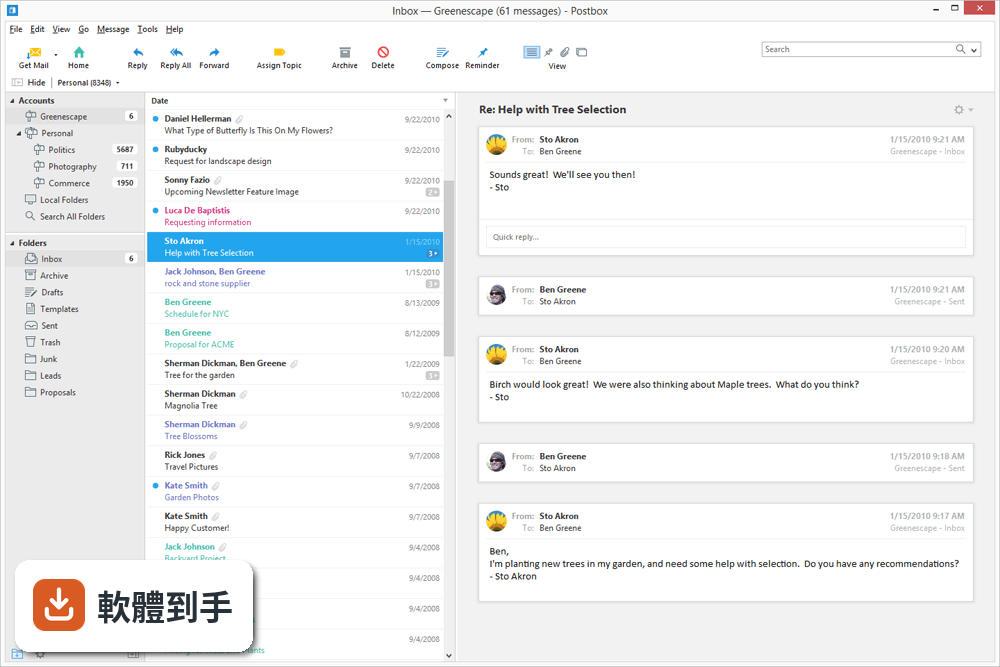
Postbox 是桌面郵件程式,會把郵件下載到本機建立索引,搜尋時不用等網路慢慢轉。它支援 Gmail 原生標籤、重要郵件專屬檢視、寄信後封存,還有 Gmail 快捷鍵,等於把網頁版的操作習慣搬到視窗裡。如果你常同時開很多信、需要快速切換,桌面程式的反應速度通常比瀏覽器順。
02它搜尋信件到底能多精確?
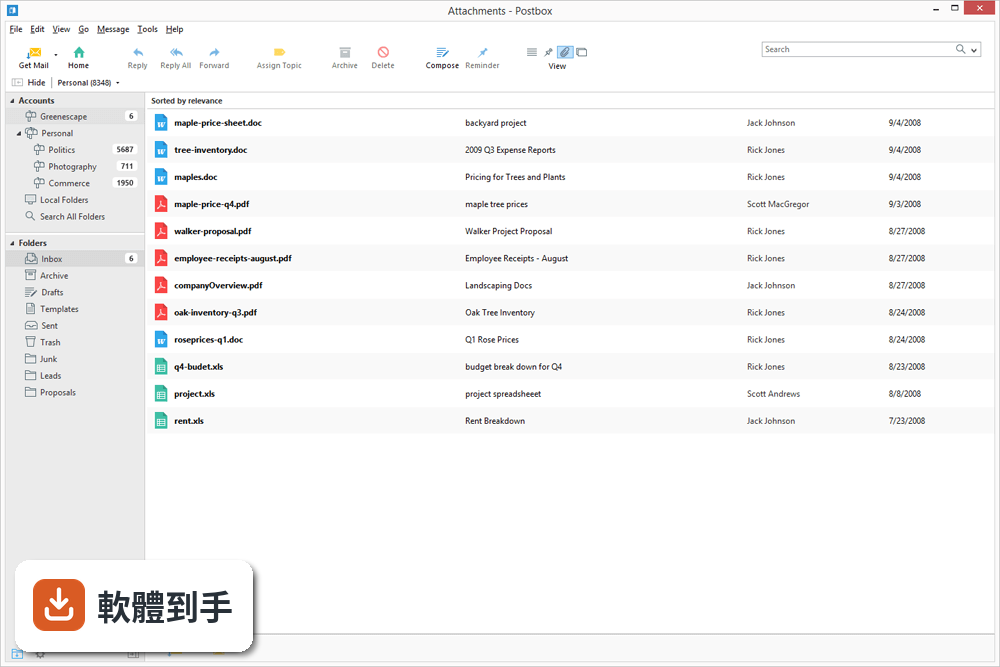
官方說明強調搜尋速度快,而且能從介面幾乎任何位置開始找,不用先回到某個資料夾。它會把郵件內容、附件、日期都建立索引,所以你可以用內文關鍵字、日期範圍、寄件人組合條件去撈,而不是只能碰運氣比對主旨。實際能做到什麼程度,建議用試用版丟幾封舊信進去測。
03它對 Gmail 的支援具體表現在哪裡?
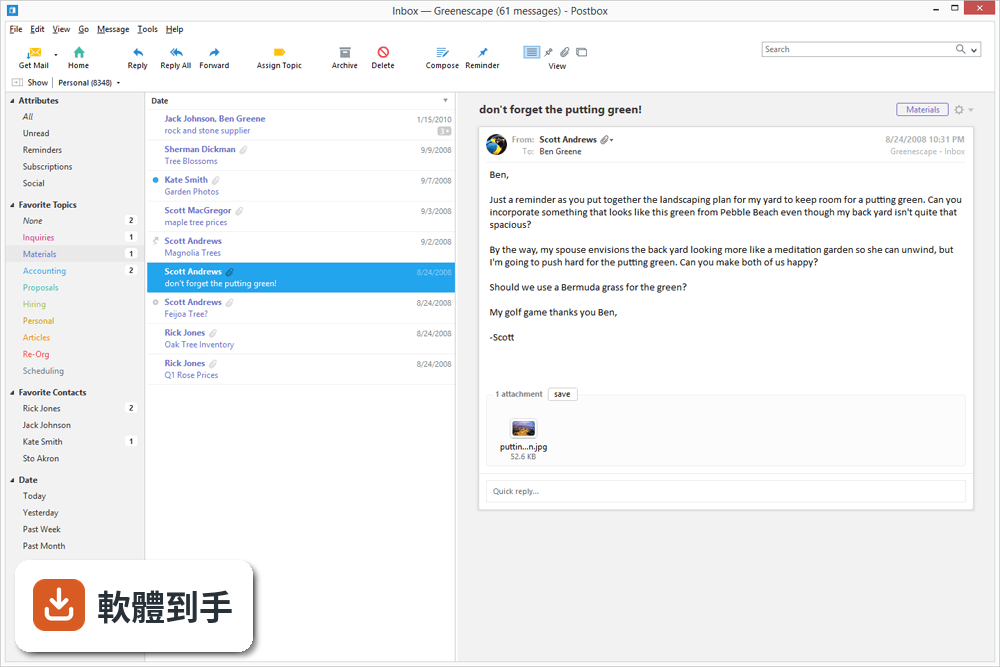
它支援 Gmail 原生標籤,也就是你在 Gmail 設的標籤會同步進來,不用另外建資料夾。它還有「重要」郵件的專屬檢視,以及 Gmail 快捷鍵,例如封存、寄信後封存這些動作。另外,它能把信件中偵測到的日期轉成 Google 日曆事件,省去手動建行程的步驟。
04介面可以自己改嗎?
可以。官方說明提到介面是「超可自訂」,版面乾淨,你可以依自己的工作流程調整欄位、排序、顯示方式,讓郵件程式配合你的習慣,而不是你去適應它。具體能改到什麼程度,例如能不能自訂工具列或主題色,官方沒有細列,需要裝試用版確認。
05它除了收信,還能做什麼?
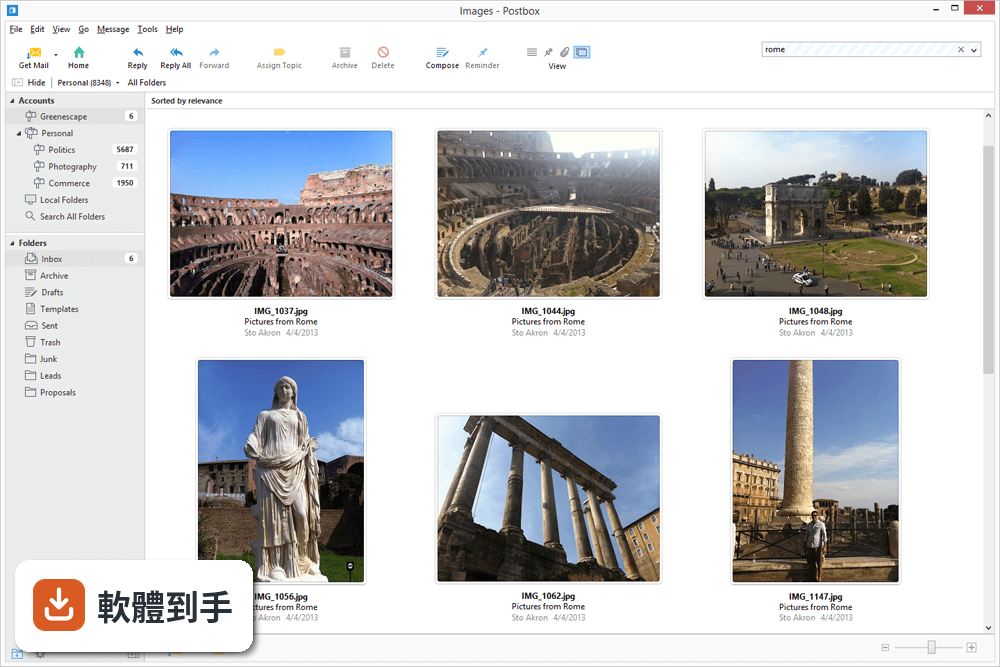
主要還是圍繞郵件管理:搜尋、分類、檢視、整合 Gmail 功能。它沒有提到行事曆、通訊錄同步以外的功能,也沒有即時通訊或團隊協作。如果你期待的是像 Slack 那種聊天式工作平台,它不屬於這類工具。它的定位就是讓你在郵件上更快找到東西、更快處理完。
06什麼樣的人適合用這套軟體?
郵件量很大、常常需要回頭找舊信的人,尤其是重度使用 Gmail 的使用者。如果你已經依賴 Gmail 標籤和快捷鍵,又覺得瀏覽器分頁很干擾,這套軟體把這些功能搬進桌面,可能適合你。另外,喜歡自己調整介面、希望郵件程式配合工作流程的人,也會覺得它的可自訂性有用。
07它適合不常用郵件的人嗎?
不太適合。如果你一天只開幾次信箱、郵件量少,用網頁版或手機 App 就夠了,多裝一個桌面程式反而佔資源。它的價值建立在「郵件很多、需要快速搜尋」的前提上,沒有這個痛點,它的功能優勢就無感。試用版可以裝來玩,但沒有迫切需求的話,安裝後大概也會放著不用。
08這套軟體還在持續更新嗎?
根據收錄的版本紀錄,它最後一次更新停在 2022 年 9 月,之後就沒有新版本。開發商 Postbox, Inc. 目前沒有釋出更新的跡象。如果你在意軟體是否持續維護、能不能跟上新的郵件協定或安全標準,這點需要列入考量,因為長期不更新可能影響相容性。
09它只有 Windows 版嗎?
官方說明提到也有 Mac 版,所以不是只有 Windows。Windows 版支援 Windows 7、8、10,但沒有提到 Windows 11,如果你用的是新系統,安裝前最好確認相容性。另外,它沒有提到手機版或網頁版,所以它定位是桌面郵件程式,不是跨平台同步工具。
10它的授權方式會不會是問題?
它是 Trial 授權,官方說明寫「免費 30 天全功能試用」,代表試用期滿後要付費才能繼續用。如果你只是偶爾需要整理郵件,付費可能不划算。另外,它的評分人數只有 25 人,樣本數偏少,參考價值有限。市場上還有其他郵件程式,例如 Thunderbird 是免費的,可以比較看看。
11它跟其他郵件工具比起來,有什麼要注意的?
它的評分雖然高(9.24/10),但只有 25 人評分,代表性不足。功能相近的軟體中,Messenger for Desktop 有 705 人評分,能見度明顯高很多。如果你在意社群規模和長期維護,Postbox 的更新停滯和低評分人數是兩個警訊。建議先裝試用版,確認搜尋和 Gmail 整合真的符合需求,再決定是否付費。
下載與官方連結
postbox-7.0.0-win32.exe · 45.39 MB
版本紀錄
- 2022-09-24 Postbox 7.0.58
- 2022-09-14 Postbox 7.0.57
- 2022-04-12 Postbox 7.0.56
再看 5 筆
- 2022-01-02 Postbox 7.0.54
- 2021-12-09 Postbox 7.0.53
- 2021-11-18 Postbox 7.0.52
- 2021-10-26 Postbox 7.0.51
- 2021-10-22 Postbox 7.0.50
這一版改了什麼
What's new in this version:
Themes:
- Postbox now ships with 20 beautiful themes spread across light and dark modes. To select a new theme, click the Themes button in the toolbar or select a theme from the View > Theme menu
- The "Default" option will automatically switch between the original "Light" and "Dark" themes based upon the OS preference or dark mode state
Clips:
Clips let you quickly insert pre-formatted blocks of HTML into your messages. It works similarly to Responses and Signatures, but Clips have two additional capabilities:
- Clips can insert CSS into the <head> region of a message
- A default Clip can be used per identity when new messages are composed
- This means that you can now create sophisticated newsletters, brand templates, or stationary and use them as needed or by default per identity
- Theoretically, any email template that you can create or find on the web can now be used in Postbox
Like Signatures and Responses, we've included a suite of example Clips that you can use in your messages, including:
- checked bullets
- numbered bullets
- buttons
- callouts
- description list
- horizontal rules
- image blocks
- quotes
- social follow blocks
- text blocks
- tables
- To access Custom Clips, open the Compose window, make sure the Clips button is added to the Toolbar, press and hold the Clips button, then select Custom Clips from the menu
Labs:
- Similar to add-ons, our Labs feature will allow for experimental 3rd-party code to be used within Postbox
- The first Labs project will be OpenPGP support provided by a specially designed version of Enigmail for Postbox and can be enabled under the Tools menu (remember to add the appropriate buttons to the Compose window toolbar)
- Unlike add-ons which can be arbitrarily installed, only a select number of Labs projects will be available for Postbox. Given that Labs projects contain 3rd-party experimental code, they are not officially supported by Postbox, Inc.
- If there's a 3rd-party solution you would like to see in Postbox, contact the 3rd-party developer directly. Please do not contact Postbox asking us to support code we do not develop, thanks.
Cloud File Sharing for Business:
By popular demand, we've added two new services to our Cloud File Sharing feature:
- Dropbox for Business
- OneDrive for Business
Quick Copy:
- This works similarly to Quick Move but copies the message to the desired folder instead of moving it. The keyboard shortcut "c" will bring up the Quick Bar, and from there you can type the name of the folder you wish to copy the message to
- Gmail Labeling Mechanism:
We've created a new mechanism for Gmail labeling that mirrors the actions used for Quick Move, Quick Switch, and Quick Copy. Type the "l" key to bring up the Quick Bar, then autocomplete against the desired label name
- Gmail labeling works similarly to Topic assignment in the Quick Bar, and you can now assign multiple labels at once
Highlight & Strikethrough in Compose:
- The compose formatting toolbar now supports text strikethrough and highlighting
New Filter Actions:
We've added three more filter actions:
- Add Prefix to Subject
- Add Suffix to Subject
- Add Sender to Address List
Other Improvements:
- Improved Gravatar Support
- Date Pickers in the Search Bar
- Alphabetical sorting of Topics in the editor panel
- vCards can now be imported to the Address Book by double-clicking on them
- Improved styling for vCard display
- Improved status messages in the preview pane
- Added option and set default to limit Conversation View to messages in the Inbox, Sent, and Archive folders in Preferences | Options > Display > Conversations
- Added Quick Post actions to the Quick Bar with the keyboard shortcut “q”
- Multiple selected messages now display a message count in the preview area
- Added OAuth2 (Yahoo) to the account settings page
- Implemented preference to hide/show signatures in conversation view
- Improved the options for remote image loading
- Improved icon display when using different resolutions on Windows
- Implemented TCP keepalive option to improve connections
- Added preference to MIME encode 8-bit headers to fix Yahoo character and question mark issues
Changes in Behavior:
- Removed the default preference for composition background color
- Changed font sizes from points to pixels in the compose window, which may require that you change your default composition size
- Increased line-height for composition and display
- Changed delete behavior for Google accounts to better mirror what Gmail does on the web
Bug Fixes:
- Fixed an issue that could cause URLs with line breaks in them to not open in a browser
- Fixed an issue that could cause messages to not be Marked as Read after deleting when the Preview Pane is closed
- Fixed an issue that could prevent child messages from being selected when the message preview pane is closed
- Fixed an issue when contextual-clicking non-selected messages and performing actions, the selector didn’t return to the previously selected message
- Fixed an issue when contextual-clicking non-selected messages and performing actions, the action would be performed on the previously selected message
- Fixed an issue when the default send server was not being respected when clicking on an email address in the contact card
- Fixed an issue when using arrow keys to select contacts in the addressing auto-complete widget
- Fixed an issue that could cause sort order to get reset after a file or image search
- Fixed an issue that could cause the Task Bar icon to reset during updates on Windows
- Fixed an issue that could cause duplicate .ics file icons to display
- Fixed an issue with the Account Wizard where ymail.com accounts were not recognized as Yahoo accounts
- Fixed an issue that wouldn’t allow multiple messages to be set as Reminder at once
- Fixed an issue with addressing messages from the Compose Sidebar recent contacts list
- Fixed an issue where image attributes were not preserved when selecting a different image during message composition
- Fixed an issue to prevent files stored in the clipboard to be added during a drag and drop action in the Compose window
- Fixed a crash that could occur when parsing attachments
- Fixed an issue with scam detection connectivity
- Fixed an issue that caused excess CPU while Postbox was at rest and not actively indexing
- Fixed an issue that could cause read receipts to not display
- Fixed an issue that could prevent attachments from displaying
- Fixed a regression that prevented Spotlight from indexing messages on macOS
- Fixed an issue where selected attachments in compose would not deselect when clicking in the message body
- Fixed an issue where messages forwarded as attachment contained the wrong display name
- Fixed an issue that would prevent addressing autocomplete if Gravatar was turned off
- Fixed an issue that caused avatars to duplicate in the Compose Sidebar if Gravatar was turned off