
這是歷史版本頁面 — 看 PowerArchiver 最新版本
Windows 壓縮工具除了 7-Zip 和 WinRAR,PowerArchiver 能用嗎
 PowerArchiver 2019 19.00.50
資料更新 2019-07-19
閱讀約 6 分鐘
你正在找一套 Windows 上用的壓縮軟體。系統裡累積了一堆壓縮檔要解開,有些是 ZIP、有些是 7z,偶爾還會收到 RAR;同時你也想把舊資料打包起來省空間,甚至希望某些檔案能加密再傳給別人。你試過系統內建的 ZIP 功能,但遇到 RAR 就沒輒,格式一多就開始頭痛。
你大概也聽過 7-Zip 免費、WinRAR 有名,但前者介面陽春、後者試用期到了會一直跳提醒。你真正想要的是:一套能處理多種格式、介面清楚、最好還能順便做備份或加密的工具。這類軟體很多,差別在於支援的格式、加密方式、以及介面順不順手,選錯就是多裝一套佔空間的程式。
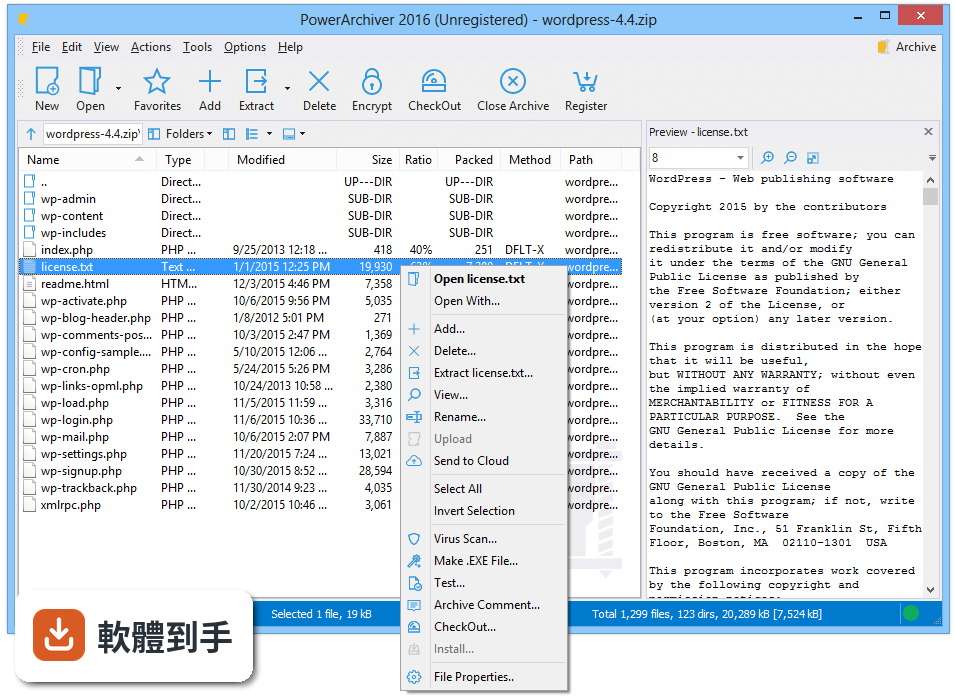
01PowerArchiver 這套軟體到底能做什麼?
它是一套壓縮與備份工具,主要功能包括壓縮、解壓縮、加密、批次處理、備份排程,以及連上 FTP 或雲端空間直接管理檔案。支援的格式有 ZIP、ZIPX、PA、7z、TAR/GZ/BZ2、CAB、ISO 等,也能解 RAR。另外內建轉換工具,可以把檔案在不同格式之間轉換,還有編碼解碼功能。
02它支援哪些壓縮格式?我常收到 RAR 檔,它能開嗎?
官方列出的格式包含 ZIP、ZIPX、PA、7z、TAR/GZ/BZ2、CAB、ISO,並提到具備快速的 RAR 解壓縮能力。也就是說,RAR 檔案可以解開,但建立壓縮檔時不保證能產生 RAR 格式。如果你只需要解 RAR,這套可以勝任;若要建立 RAR 壓縮檔,就得另外找 WinRAR。
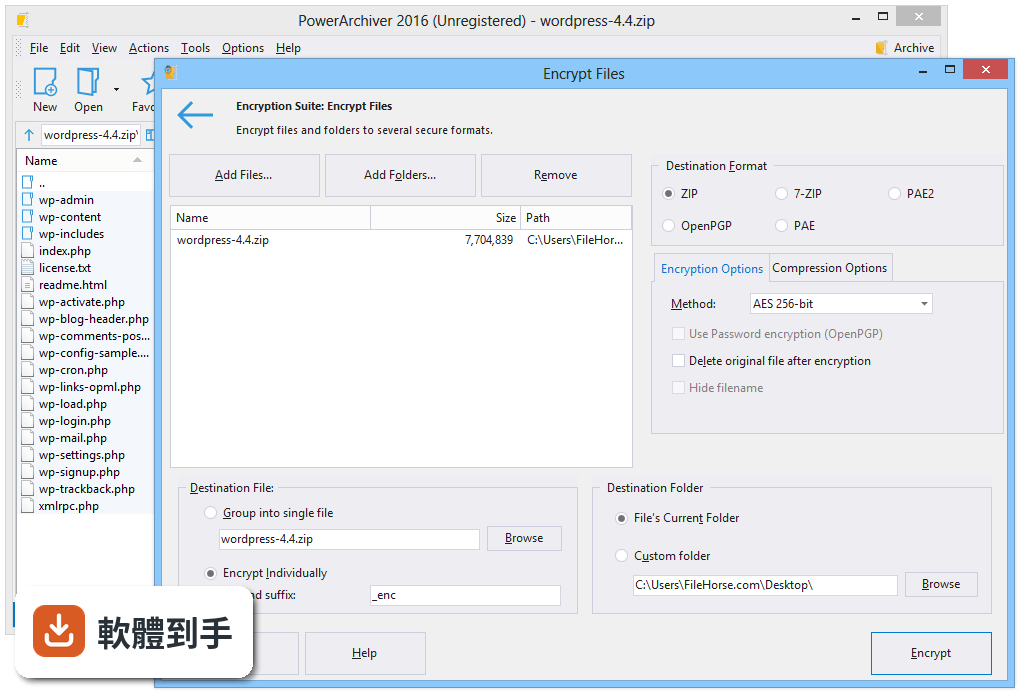
03加密功能是怎麼用的?我想把檔案鎖起來再傳給別人。
建立或開啟壓縮檔後,切到加密分頁,選擇加密方式和設定密碼,之後這個壓縮檔就會被加密。官方說明提到採用 AES-256 位元加密,並符合 FIPS 140-2 標準。加密後的檔案需要密碼才能開啟,適合存放敏感資料,但對方也要有能解密的軟體才行。
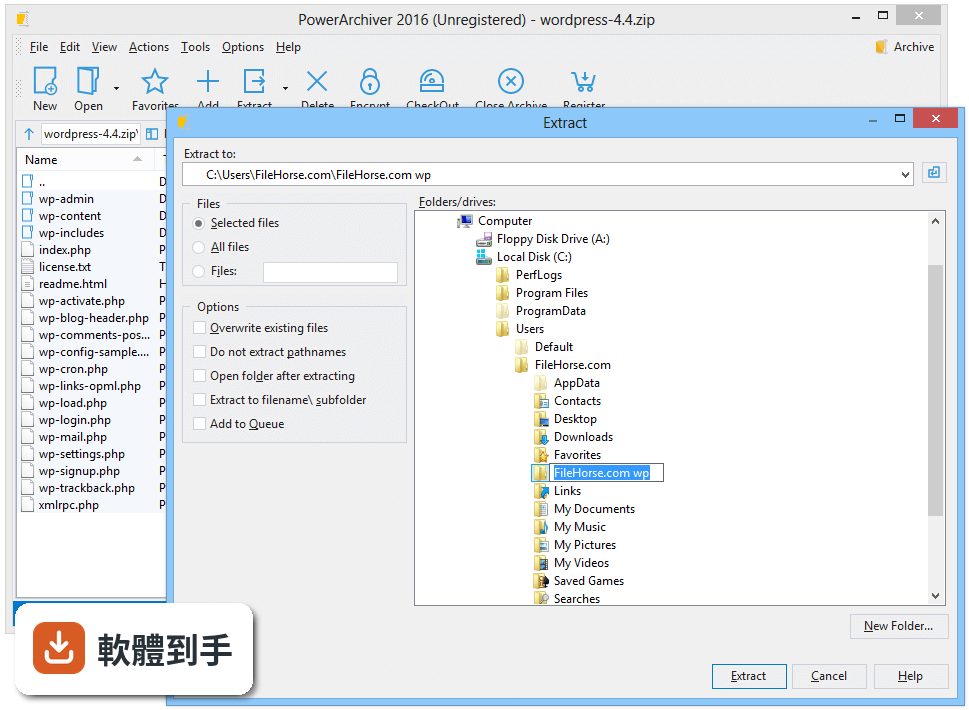
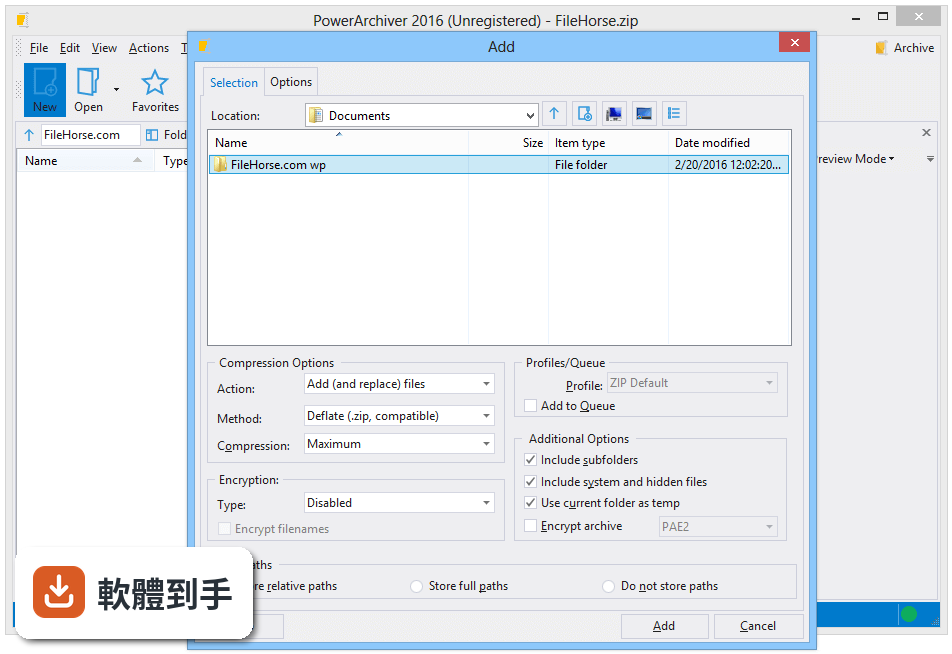
04能不能一次壓縮很多檔案或資料夾?我有一整個目錄要打包。
可以。批次壓縮是它的功能之一,選取多個檔案或資料夾後,軟體會同時處理,不需要一個一個慢慢壓。批次解壓縮也一樣,選多個壓縮檔就能一次解開。如果你常常要處理大量檔案,這個功能可以省下不少時間。
05備份功能是怎麼運作的?我想定時把重要資料備份起來。
它提供備份與還原功能,可以在備份分頁設定來源資料夾、目的地資料夾、壓縮選項和排程時間。設定好之後,軟體會依照排程自動建立備份檔,不需要每次手動操作。這對定期備份文件或專案資料來說滿實用的,但排程時電腦必須在開機狀態。
06我英文不好,這套軟體有中文介面嗎?
官方資料顯示介面語系只有英文,沒有中文。如果你對英文介面不熟悉,操作上可能會需要花時間摸索。功能選單和設定項目都是英文,建議先到官方網站看操作說明或截圖,確認自己能接受再安裝。
07跟 7-Zip 比起來,它有什麼優勢?
7-Zip 是免費開源軟體,介面比較陽春,但壓縮率高。PowerArchiver 多了加密、備份排程、FTP 整合、雲端服務連線(Google Drive、OneDrive、Dropbox 等)和內建編輯器,功能面更完整。如果你只需要基本壓縮解壓縮,7-Zip 就夠用;若需要備份和雲端整合,這套才有優勢。
08我常用雲端硬碟,它能直接連 Google Drive 或 Dropbox 嗎?
可以。官方說明提到支援 Google Drive、OneDrive、Dropbox、Amazon S3、Yandex Disk、Box 和 HiDrive 等雲端服務,可以直接在軟體裡存取和管理雲端上的壓縮檔,也能上傳或下載檔案。雲端快取系統有最佳化,瀏覽大量檔案時速度會比較快。
09這套軟體是免費的嗎?還是要付費?
授權型式是 Trial,也就是試用版,不是免費軟體。試用期過後可能需要付費才能繼續使用完整功能。如果你不想付費,可以考慮 7-Zip 或 Ashampoo ZIP Free,這兩套是免費的。Ashampoo ZIP Free 在評分人數上明顯較多,但功能面可能沒有 PowerArchiver 完整。
10它的評分只有 7.18,而且只有 77 個人評,是不是不好用?
評分人數確實偏少,樣本數不足,參考價值有限。對比之下,7-Zip 有 246 人評分、Bandizip 有 115 人、WinRAR 和 Ashampoo ZIP Free 各有 1584 人。評分人數多通常代表使用者基數大,但不等於功能好壞。建議你先裝試用版實際操作看看,確認介面和功能是否符合需求。
11我已經在用 WinRAR 了,還有必要換這套嗎?
WinRAR 是市面上最常見的壓縮軟體,支援 RAR 和 ZIP,使用者多、評分人數也多。PowerArchiver 的優勢在於額外功能,像是備份排程、FTP 和雲端整合、內建編輯器。如果你只需要基本壓縮解壓縮,WinRAR 已經夠用;若想要整合備份和雲端管理,再考慮這套。
12這套軟體適合什麼樣的人用?
適合需要處理多種壓縮格式、又想要加密和備份功能的人。特別是常用雲端硬碟或 FTP 傳檔、希望在同一個介面完成壓縮、加密、備份和雲端存取的使用者。如果你只是偶爾解個 ZIP 檔,用系統內建功能或免費軟體就夠了,不需要多裝一套付費工具。
下載與官方連結
powarc190050.exe · 38.58 MB · 連結指向軟體原廠
版本紀錄
- 2025-12-03 PowerArchiver 2023 22.10.02 51.6 MB
- 2025-08-13 PowerArchiver 2023 22.10.01 51.16 MB
- 2024-12-24 PowerArchiver 2023 22.00.11 51.08 MB
再看 5 筆
- 2023-06-24 PowerArchiver 2023 22.00.09 52.13 MB
- 2022-08-09 PowerArchiver 2022 21.00.18 40.9 MB
- 2022-07-01 PowerArchiver 2022 21.00.17 41.1 MB
- 2022-04-05 PowerArchiver 2021 21.00.15
- 2021-07-06 PowerArchiver 2021 20.10.03
這一版改了什麼
What's new in this version:
Modern Win10 – Simplified Ribbon UI:
- For a long time, PowerArchiver has featured an advanced interface with great design which was welcomed by most PowerArchiver users and therefore, for the 2019 version, we are bringing our new and improved version of the Simplified Ribbon based on Microsoft Office 2019. Simplified Ribbon UI bridges the gap between the Classic toolbar interface that has been around for 25 years, and Ribbon UI that has been in PowerArchiver for last 10 years. The new interface features less buttons which allow users to concentrate on important features. The new Ribbon UI still features tabs reducing need for classic menus and shows a more organized display of buttons. It looks awesome while convenient to use. We have also added an application navigation bar in Windows 10 style to the left side of PowerArchiver, so that all of our tools and features are easily accessible – and in classic PowerArchiver tradition, if it’s not an interface that you would like to use – you can turn it off! You will also notice a redesigned File menu to the left of the home tab in the W10 interface. It has been redesigned to look great, fit in with the Ribbon interface and offer access to various file management functions that PowerArchiver has to offer. Everything is beautifully skinned too and several skins of different looks are available from the start.
SmartAI – Intelligent decision making:
As everything around us is becoming more intelligent, why not PowerArchiver? PowerArchiver 2019 now features an assistant called SmartAI. SmartAI will optimize your compression, save power, change to dark mode when necessary, enable FIPS mode system wide and enable you to work conveniently with touch screens:
- SmartAI FIPS modes – lets administrators enforce FIPS policy across a single computer or whole network. PowerArchiver is the first software that will enable this mode in Windows itself, and provide visual guidance during usage to ensure that users understand if they are not in compliance. During start-up it will show an alert as a warning if FIPS mode is not properly activated. The SmartAI mode has several modes with various warning levels
- SmartAI Windows Skin Detection– it will detect what Windows 10 theme are you using – dark or light, and let you customize which PowerArchiver skin will be used when you use dark or light Windows 10 theme
- SmartAI PowerSave Mode – SmartAI will detect that your laptop is on battery and when you battery level is under certain %, it will turn on Power Saving mode in PowerArchiver, where PowerArchiver will reduce its power usage to minimum
- SmartAI Touch mode – SmartAI will detect that you are using a touch compatible computer, and will switch to the Touch mode where the interface will be easier to use and you may activate Gesture options. This mode makes PowerArchiver easier to use on Windows tablets and touch computers
- SmartAI Compression Optimization – It will automatically switch codecs in ZIP, 7zip and PA formats to increase compression or speed based on your compression strength selection. Previously featured as Optimized mode in PowerArchiver for a long time and still a one-of-a kind feature among archivers
- SmartAI Gestures – Comprehensive gesture mode that will let you use predefined and customizable gestures, making your life easier on touchscreens and especially convertible laptops, where sometimes touch is so much easier to use. In true PowerArchiver spirit, it is completely customizable and you can set it up as you want and assign gestures as you please. Gesture will also work with your mouse, when turned on
Added faster ZIP modes and mp3 support in zipx:
- Last year we have added the strongest yet fastest ZIP engine on the market. This year we are adding a new engine that is optimized for speed specifically and is used for Fast and Super Fast compression strength. It also uses multiple cores/threads and works on byte level. It can provide 2x faster compression than before! Added packmp3 support for ZIP engine, to make it fully compatible with WinZip
PowerArchiver Mini is back:
- PowerArchiver Mini has returned for 2019! PowerArchiver Mini is our Windows Explorer Preview feature where you can work directly from Windows Explorer Preview window (make sure you turn it on). Not only does it show the file list of a selected archive, you can also browse folders, open individual files and extract them with one of the available options. It is super easy to use and very intuitive. We are also adding Explorer tooltips that will show information about the archive and a summary of the files inside as a tooltip when you hover over an archive in Windows Explorer
Private Mode option:
- New Private Mode feature that clears the PowerArchiver history and cleans the temp folder with US DoD 5220.22-M approved methods
Full Gesture support:
- PowerArchiver has great support for Gestures. You can swipe around the interface intuitively with many PowerArchiver actions available. In true PowerArchiver spirit, it is completely customizable and you can set it up as you want and assign gestures as you please
Many other improvements:
- We have also added full support for screen readers in Classic toolbar. Filelist is all new and fully supports skinning, large dpi, gesturing and everything you can imagine. If you use 4k screens that are 13″ large, you will love the new PowerArchiver 2019! Open and New archive dialogues are now sporting the Windows 10 look, fully skinned too. Everything simply looks great.