
這是歷史版本頁面 — 看 Remote Desktop Manager Enterprise 最新版本
遠端連線一多就亂?Remote Desktop Manager 能幫你管什麼
 Remote Desktop Manager Enterprise 8.1.0.0
資料更新 2013-03-11
閱讀約 7 分鐘
你手上同時管著十幾台伺服器、幾台虛擬機器,還有同事臨時要你開個遠端桌面進去處理問題。每次都要從記事本翻IP、找密碼,不同機器用不同協定,有的走RDP、有的走SSH、有的還要先連VPN才能進去。連線一多,光是在一堆視窗和分頁之間切換就耗掉大半時間,更別說同事跟你借帳號密碼時,你根本搞不清楚誰用過哪台機器。
一般人習慣的做法,是把所有連線資訊記在Excel或記事本裡,密碼貼在共用文件,要用時再複製貼上。但這樣一來,密碼散落各處、權限無法控管、誰連過哪台機器完全沒有紀錄。這類工具的切入點,是把所有遠端連線的設定、帳號密碼、連線方式集中到同一個地方,讓你用一套軟體統一開啟各種遠端連線,同時把團隊共用的權限和稽核紀錄一起管起來。
01Remote Desktop Manager 到底能拿來做什麼?
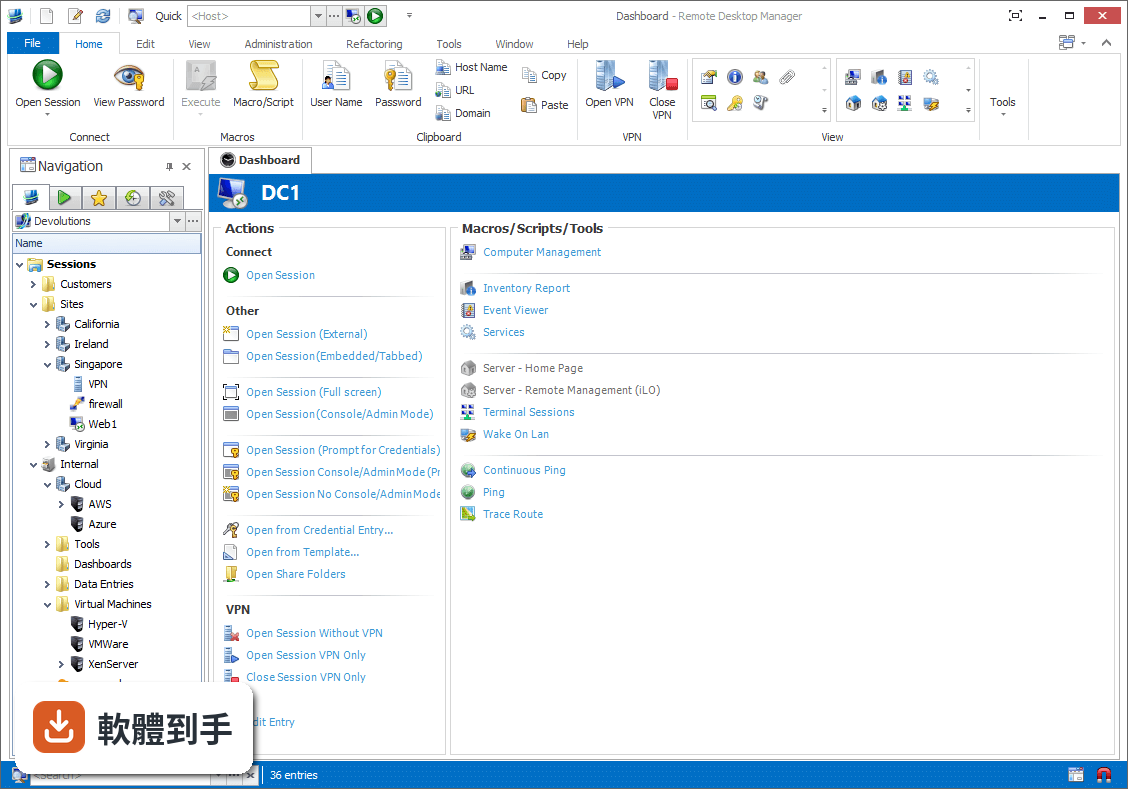
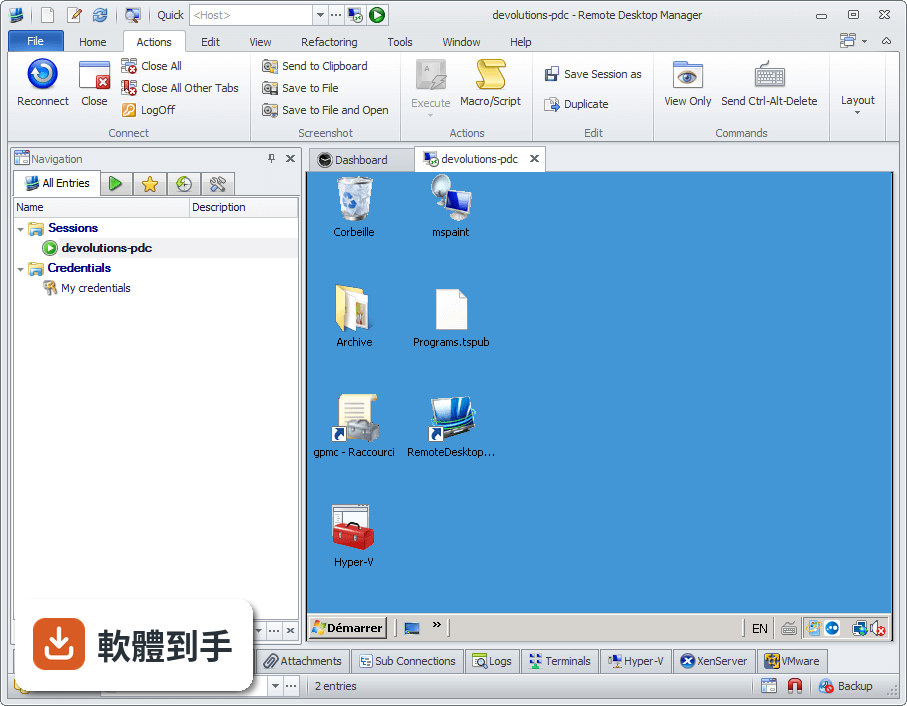
它是一套把各種遠端連線集中管理的工具。你可以把RDP、SSH、VNC、Telnet、FTP、VPN等不同協定的連線設定全部建在同一個介面裡,之後要連哪台機器,直接從清單點一下就會呼叫對應的程式開啟。它同時具備密碼管理、資料庫共用、角色權限控管和稽核報表功能,適合需要管理大量連線的IT人員。
02它支援哪些遠端連線類型?
官方說明列出支援的協定和程式相當多,包括VPN、FTP、SSH、Telnet,以及LogMeIn、VNC、Terminal Services、TeamViewer、Microsoft Remote Desktop、VMware、VirtualPC、X Window、Dameware、Citrix、Hyper-V、Oracle VirtualBox、Radmin、PC Anywhere等。也就是說,你原本習慣用的遠端工具,大多可以從這套軟體直接呼叫啟動。
03密碼管理是怎麼運作的?
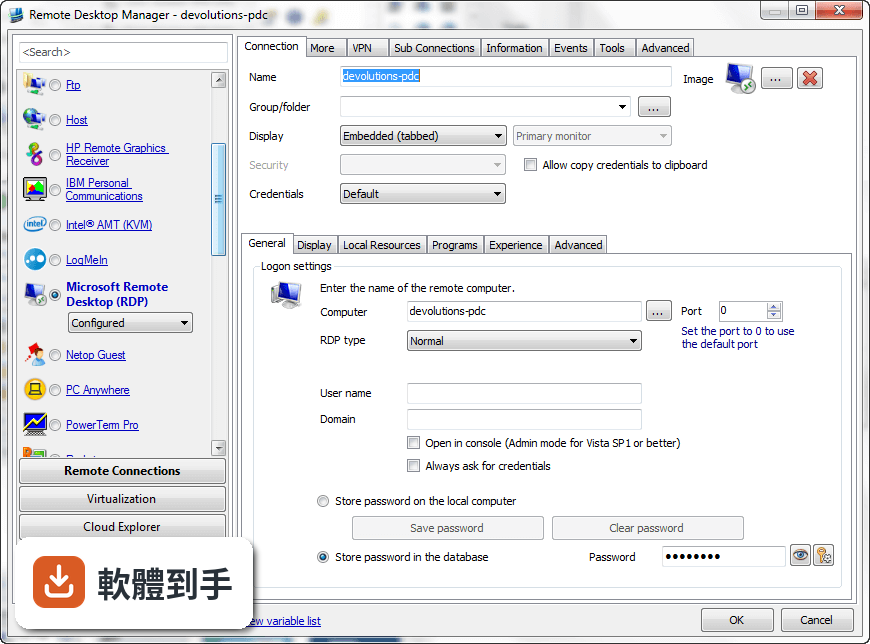
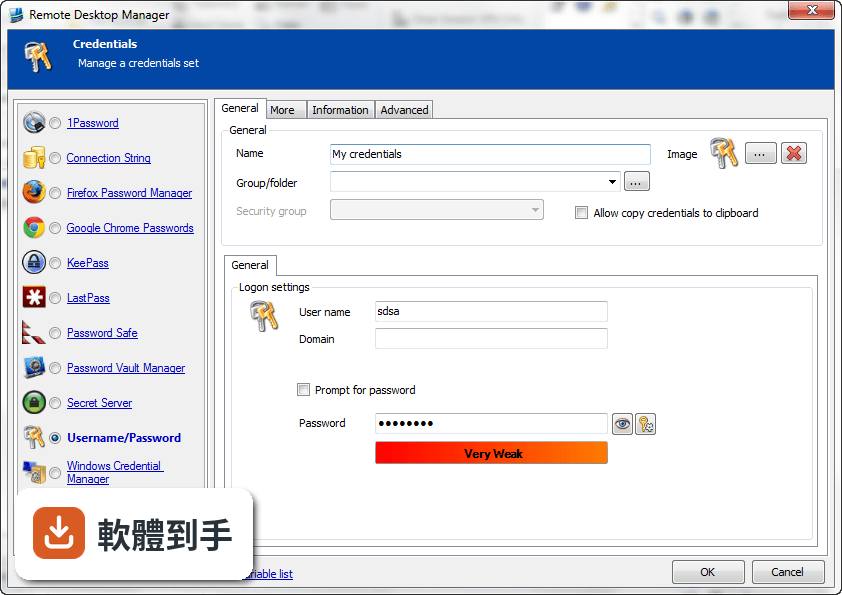
它內建密碼管理功能,可以把各台機器的登入帳號密碼儲存在加密的資料庫裡,連線時自動帶入,不需要每次手動輸入。加密方式採用AES 256位元金鑰,結合使用者自訂的私鑰和主密碼。不過實際使用上,密碼庫的建立、備份和還原流程,建議先看官方文件確認細節。
04多人協作時,權限怎麼控制?
它支援共用資料庫和角色權限控管(Role-Based Access Control),可以設定不同成員只能看到或操作特定資料夾與連線。另外也提供兩步驟驗證(2FA)和稽核報表,能記錄誰在什麼時間連了哪台機器。這些功能在官方說明中都有提到,但實際設定步驟和權限細部選項,需要安裝後自行摸索。
05快速連線功能怎麼用?
它提供Quick Connect功能,只要輸入主機名稱或IP位址,就能快速用Microsoft Remote Desktop、VNC或網頁方式連線,不需要事先建立完整的連線設定。另外也支援範本(Template),可以把常用的連線參數存成範本,之後套用即可。系統匣圖示的右鍵選單也能快速開啟連線、檢視目前工作階段或切換資料來源。
06什麼樣的人適合用這套軟體?
官方說明指出,它的主要使用者是專業人士、網路管理員和IT部門,用來管理虛擬機器和各種遠端連線。如果你日常工作需要同時維護多台伺服器或虛擬機器,而且連線方式混雜多種協定,這套軟體能幫你把連線資訊集中管理。如果只是偶爾遠端連一兩台電腦,用系統內建的遠端桌面就夠了。
07個人使用者用得上嗎?
官方說明提到它可以在免費模式下使用,且「幾乎所有專業使用者都會滿意」,只有需求較高的人才需要升級到Enterprise方案。不過要注意,這套軟體的授權型式是Trial,也就是試用版,官方註明30天試用期。免費模式具體能用哪些功能、試用期滿後是否還能繼續用,需要自行向開發商確認。
08新手容易上手嗎?
官方列出的缺點之一就是「對初學者來說設定可能較複雜」。它需要先建立或開啟資料庫,再逐一新增連線、設定帳號密碼、組織資料夾,對沒接觸過集中管理概念的人來說,學習曲線比較陡。如果你只是要連一兩台機器,直接用Windows內建的遠端桌面或PuTTY會簡單很多。
09介面只有英文,看不懂怎麼辦?
這套軟體的介面語系是English,沒有繁體中文介面。如果你對英文介面不熟悉,操作上會比較吃力,尤其是權限設定、資料庫管理這類進階功能,選項多且用語專業。這種情況下,可以考慮改用有中文介面的遠端連線工具,或先看官方文件確認每個欄位的意思再動手設定。
10只有 Windows 版,用 Mac 的人能用嗎?
官方資料顯示它支援的作業系統是Windows 7到Windows 11,以及Windows Server系列。雖然官方頁面有「Download Remote Desktop Manager for Mac」的連結,但那是另一個產品,功能可能與Windows版有差異。如果你主要使用Mac,建議先確認Mac版的功能是否完整,或考慮其他跨平台的遠端連線管理工具。
11免費版和付費版差在哪?
官方說明指出,進階功能需要付費授權,免費模式適合一般專業使用者,而Enterprise方案是為「有數百名使用者的大型企業」設計,解鎖更多工具和服務。具體哪些功能被鎖住、付費方案怎麼計價,官方頁面沒有列出細節,需要到Devolutions官網查詢或聯絡銷售人員。
12和 PuTTY、MobaXterm 比起來,它有什麼不同?
PuTTY是單一的SSH和Telnet用戶端,MobaXterm則整合了多種網路工具和Unix命令,兩者都偏重「連線工具」本身。Remote Desktop Manager的定位不太一樣,它比較像「連線的總管」——本身不取代PuTTY或VNC,而是把這些程式的連線設定、帳號密碼、使用權限集中管理。如果你只需要連SSH,PuTTY就夠;如果連線很多且要管權限,才需要這種集中管理工具。
下載與官方連結
前往官方網站 下載 Remote Desktop Manager Enterprise
Setup.RemoteDesktopManager.8.1.0.0.exe · 19.99 MB · 連結指向軟體原廠
版本紀錄
- 2026-11-02 Remote Desktop Manager Enterprise 2026.3.16.0 223 MB
- 2026-10-16 Remote Desktop Manager Enterprise 2026.3.15.0 222 MB
- 2026-10-10 Remote Desktop Manager Enterprise 2026.3.13.0 222 MB
再看 5 筆
- 2026-10-01 Remote Desktop Manager Enterprise 2026.3.12.0 217 MB
- 2026-09-26 Remote Desktop Manager Enterprise 2026.3.10.0 216 MB
- 2026-09-24 Remote Desktop Manager Enterprise 2026.3.9.0 215 MB
- 2026-09-20 Remote Desktop Manager Enterprise 2026.3.8.0 162 MB
- 2026-09-17 Remote Desktop Manager Enterprise 2026.3.5.0 162 MB
這一版改了什麼
What's new in this version:
- Added "Disable auto update" in data source settings
- Added "Disable shared favorites" in data source settings
- Added a blank triming for the filter
- Added a menu in RDMS console to create and export the data source configuration
- Added a menu to enable/disable the RDP smart sizing while connected
- Added a message search for the global logs
- Added a message to delete all shortcut or only the selected
- Added a new global variable: $APPLICATION_USER$
- Added a new sesion type Citrix Web
- Added a new SQLite data source type
- Added a new undocked work area screen mode for RDP
- Added a Properties menu
- Added a ScreenConnection url validation
- Added a serial number import from csv
- Added a test login for the RDMS Active Directory integration
- Added a type column in the tree list view
- Added a validation for duplicate group/folder
- Added an automatic close PVM when RDM automatically starts it
- Added an context menu in the session dashboard to hide the macros/scripts/tools
- Added an Edit buton for the opened embedded session
- Added an enter credential button for LastPass
- Added an error message when RDMS is unable to save
- Added an option for "Auto focus tab on item select"
- Added an option for "Auto select item on tab focus"
- Added an option to disable the opened session auto focus
- Added an option to disable the scrollbar theme
- Added an option to enable the Auto detect connection quality
- Added an option to select the sub connection on host connection type double click
- Added an option to specify the continuous ping wait time
- Added auto expand on double click in all cloud explorer browser
- Added back the tab group bar in the ribbon UI
- Added bank routing number
- Added credential support in the quick connect dialog
- Added Disable drag and drop in the data source settings
- Added domain variable support for the SSH shell
- Added embedded/external mode as a possible user specific setting
- Added existing session column in import
- Added export html/csv/xml for all types
- Added finger print validation support for the SSH connection
- Added grab input button in the classic UI
- Added IE 10 emulation mode
- Added more advanced rdp settings like allow background input and min interval send input
- Added more information variables: $INFORMATION_EMAIL$, $INFORMATION_MACHINE_NAME$, $INFORMATION_COMPANY$
- Added more keyboard shortcuts
- Added more proxy settings for SSH and Telnet
- Added phone number support for Microsoft VPN
- Added quick connect and create session for AWS instances
- Added RDP 8.0 new actions
- Added settings override for data entry
- Added shortcut manager
- Added support for Large Address Aware system
- Added support for Password Vault Manager link in Terminal Server
- Added support for variables like $APPLICATION_PATH$ in installation path
- Added support of connection broker high availability for RDP (external mode)
- Added Team Viewer VPN support for linked session
- Added the "Offline mode enabled" value in My Data Source Information
- Added the [Enter] command to execute a submit in web session
- Added the column type in the list view details
- Added the ForceHttps in the RDMS settings
- Added the keyboard layout setting for embedded RDP
- Added the possibility to list all bucket at the same time with Amazon S3
- Added the possibility to locate session by machine name in ScreenConnect
- Added the possibility to Remember password with RDMS
- Added the possibility to rename a group directly in the editor
- Added the possibility to use the environment variables with the private key path
- Added the quick toolbar customization
- Added the web browser selection for LastPass and 1Password credential types
- Added user specific setting for more types like web session
- Added user specific setting support for Group/Folder
- Added Verified password field for bank account
- Added view remote server log support for RDMS
- Added VPN User Specific Setting support
- Added vrb import support for VisionApp
- Auto hidden navigation bar can now be focused with Ctrl+L
- Changed the application to be more responding while waiting for the VPN connection
- Changed the default shortcut for Execute Typing Macro (Ctrl+Shit+A)
- Changed the Dropbox implementation to be compatible with the API changes
- Continuous ping undocked dialog position and size is now saved
- Create a new dashboard for the VPN
- Enhanced the Current work area size when undocked
- Fixed a bug with the new folder disabled in Azure Storage Explorer
- Fixed a cycle on double click of the data source combo box
- Fixed a move form issue when the top panle is disabled
- Fixed a possible crash with the Tab Group and an RDP session
- Fixed a possible disabled cache issue
- Fixed a possible extract VPN issue
- Fixed a possible issue with shortcut in list view
- Fixed a possible issue with SSH template and port
- Fixed a possible issue with the database test connection and the advanced settings
- Fixed a possible issue with the enter key and the filter
- Fixed a problem with a shorcut when a session is already opened
- Fixed a refresh bug after a delete in Azure Storage Explorer
- Fixed a reversed priority order issue with the group
- Fixed a sort error when clicking on the parameter or username column
- Fixed an dashboard issue when the navigation bar is unpinned
- Fixed an error in the WMI session tool
- Fixed an issue when the connection and undocked and the menu toggle fullscreen
- Fixed an issue with company and site variables in sub connection
- Fixed an issue with the auto sliding panel not working on lost focus
- Fixed an issue with the bold font for an opened renamed session
- Fixed an issue with the Disable Smart Filter in classic UI
- Fixed an issue with the domain variable in a web session
- Fixed an issue with the duplicate of a sub connection
- Fixed an issue with the export and some settings lost by group entries
- Fixed an issue with the Ping and an external credential entry
- Fixed an issue with the PowerShell remote
- Fixed an issue with the variable selection
- Fixed an naming issue (slash) with the PVM connection
- Fixed an priority order issue in list view
- Fixed some check host availability issues
- Fixed some minor issue with customer variables
- Fixed some possible addons issue with PowerShell
- Improved the Apply template with more sub-connection options
- Improved the data source combo box
- Improved the DropBox error handling
- Improved the import dialog
- Improved the log trace
- Improved the online backup subscription dialog
- Improved the VPN wait time with a new dialog
- Minor UI fixes
- New skin for the internal web server used with LastPass
- Selected entry is now synched with the filter dialog on close
- Updated the SSH/Telnet embedded third party
- Upgraded the ActiveX to RDP8