
這是歷史版本頁面 — 看 Remote Desktop Manager Enterprise 最新版本
遠端連線一多就亂?Remote Desktop Manager 能幫你管什麼
 Remote Desktop Manager Enterprise 10.0.0.0
資料更新 2014-09-23
閱讀約 7 分鐘
你手上同時管著十幾台伺服器、幾台虛擬機器,還有同事臨時要你開個遠端桌面進去處理問題。每次都要從記事本翻IP、找密碼,不同機器用不同協定,有的走RDP、有的走SSH、有的還要先連VPN才能進去。連線一多,光是在一堆視窗和分頁之間切換就耗掉大半時間,更別說同事跟你借帳號密碼時,你根本搞不清楚誰用過哪台機器。
一般人習慣的做法,是把所有連線資訊記在Excel或記事本裡,密碼貼在共用文件,要用時再複製貼上。但這樣一來,密碼散落各處、權限無法控管、誰連過哪台機器完全沒有紀錄。這類工具的切入點,是把所有遠端連線的設定、帳號密碼、連線方式集中到同一個地方,讓你用一套軟體統一開啟各種遠端連線,同時把團隊共用的權限和稽核紀錄一起管起來。
01Remote Desktop Manager 到底能拿來做什麼?
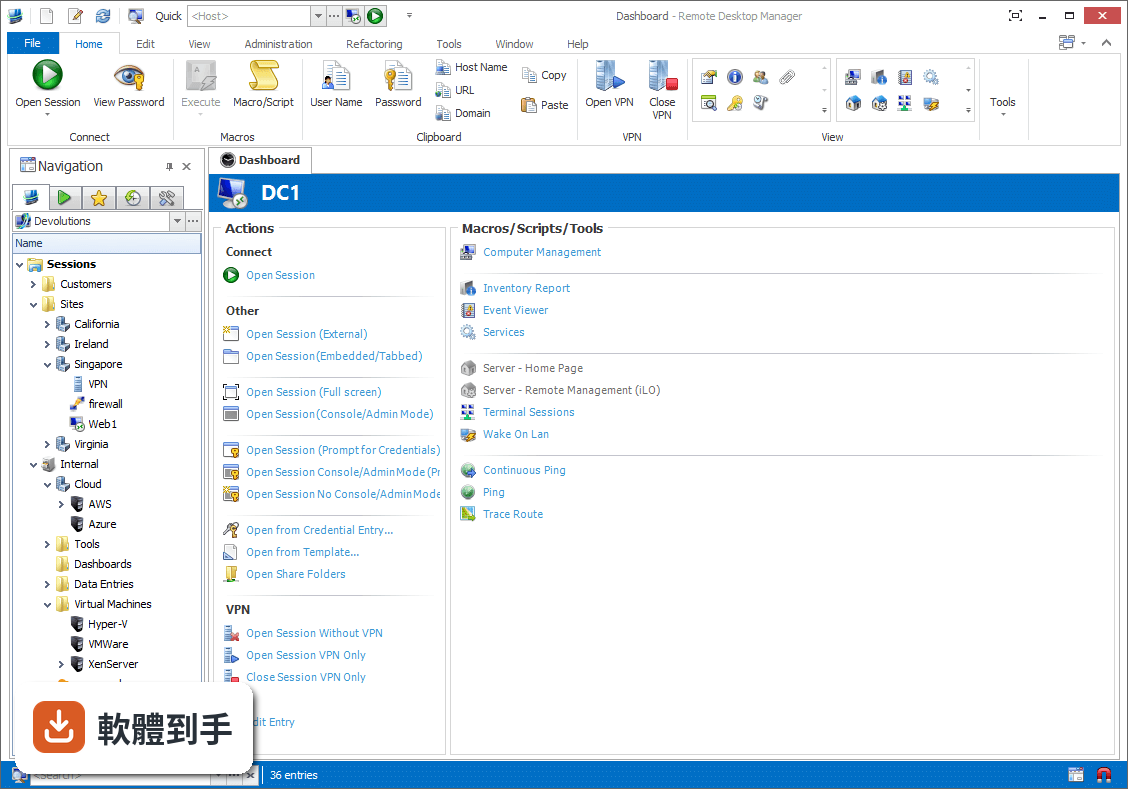
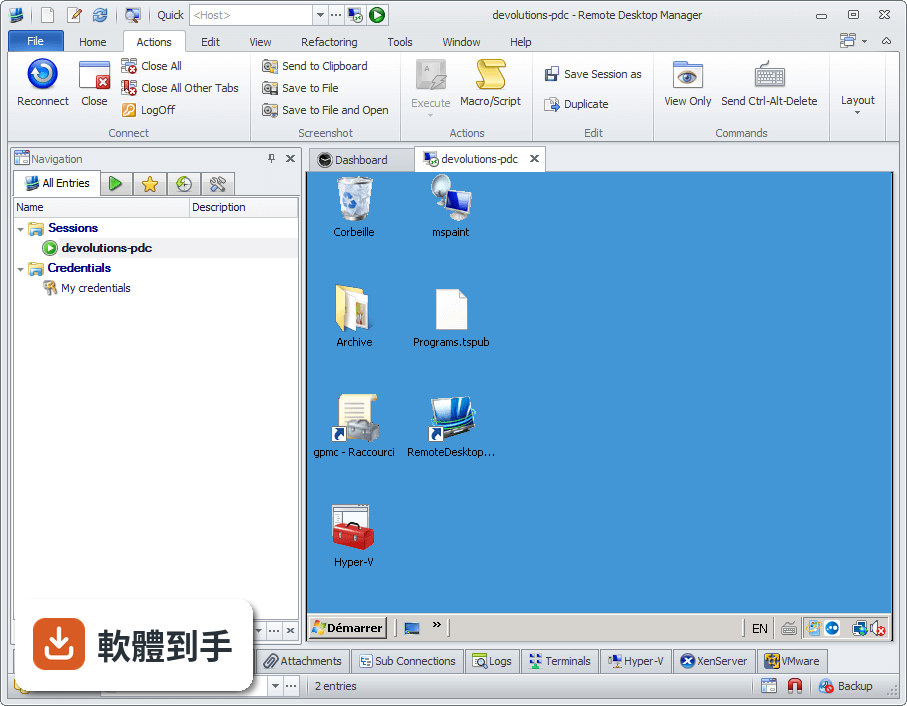
它是一套把各種遠端連線集中管理的工具。你可以把RDP、SSH、VNC、Telnet、FTP、VPN等不同協定的連線設定全部建在同一個介面裡,之後要連哪台機器,直接從清單點一下就會呼叫對應的程式開啟。它同時具備密碼管理、資料庫共用、角色權限控管和稽核報表功能,適合需要管理大量連線的IT人員。
02它支援哪些遠端連線類型?
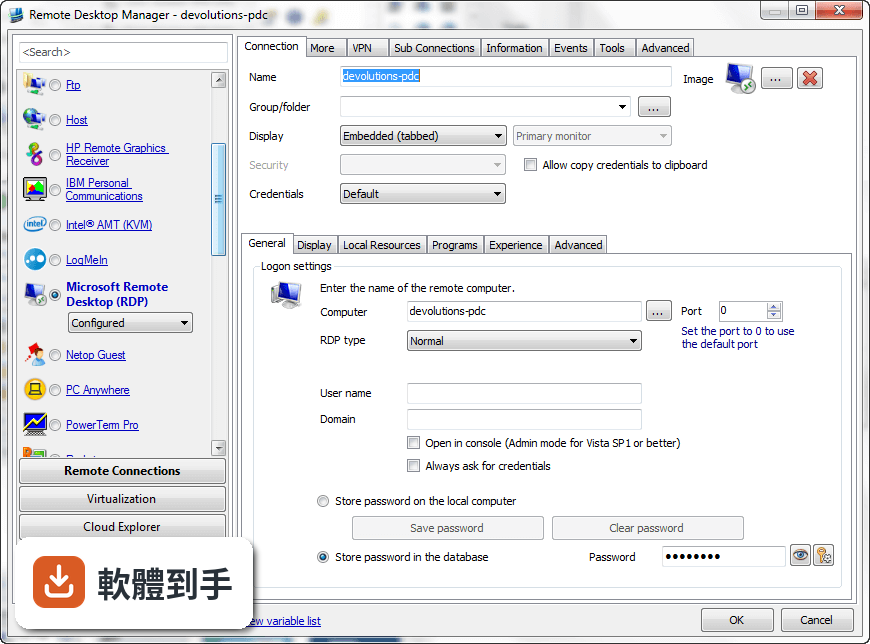
官方說明列出支援的協定和程式相當多,包括VPN、FTP、SSH、Telnet,以及LogMeIn、VNC、Terminal Services、TeamViewer、Microsoft Remote Desktop、VMware、VirtualPC、X Window、Dameware、Citrix、Hyper-V、Oracle VirtualBox、Radmin、PC Anywhere等。也就是說,你原本習慣用的遠端工具,大多可以從這套軟體直接呼叫啟動。
03密碼管理是怎麼運作的?
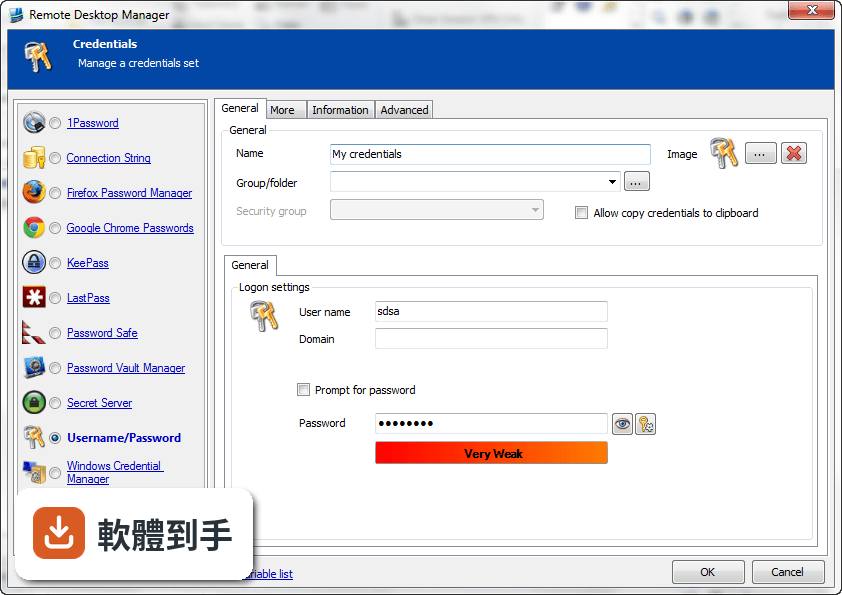
它內建密碼管理功能,可以把各台機器的登入帳號密碼儲存在加密的資料庫裡,連線時自動帶入,不需要每次手動輸入。加密方式採用AES 256位元金鑰,結合使用者自訂的私鑰和主密碼。不過實際使用上,密碼庫的建立、備份和還原流程,建議先看官方文件確認細節。
04多人協作時,權限怎麼控制?
它支援共用資料庫和角色權限控管(Role-Based Access Control),可以設定不同成員只能看到或操作特定資料夾與連線。另外也提供兩步驟驗證(2FA)和稽核報表,能記錄誰在什麼時間連了哪台機器。這些功能在官方說明中都有提到,但實際設定步驟和權限細部選項,需要安裝後自行摸索。
05快速連線功能怎麼用?
它提供Quick Connect功能,只要輸入主機名稱或IP位址,就能快速用Microsoft Remote Desktop、VNC或網頁方式連線,不需要事先建立完整的連線設定。另外也支援範本(Template),可以把常用的連線參數存成範本,之後套用即可。系統匣圖示的右鍵選單也能快速開啟連線、檢視目前工作階段或切換資料來源。
06什麼樣的人適合用這套軟體?
官方說明指出,它的主要使用者是專業人士、網路管理員和IT部門,用來管理虛擬機器和各種遠端連線。如果你日常工作需要同時維護多台伺服器或虛擬機器,而且連線方式混雜多種協定,這套軟體能幫你把連線資訊集中管理。如果只是偶爾遠端連一兩台電腦,用系統內建的遠端桌面就夠了。
07個人使用者用得上嗎?
官方說明提到它可以在免費模式下使用,且「幾乎所有專業使用者都會滿意」,只有需求較高的人才需要升級到Enterprise方案。不過要注意,這套軟體的授權型式是Trial,也就是試用版,官方註明30天試用期。免費模式具體能用哪些功能、試用期滿後是否還能繼續用,需要自行向開發商確認。
08新手容易上手嗎?
官方列出的缺點之一就是「對初學者來說設定可能較複雜」。它需要先建立或開啟資料庫,再逐一新增連線、設定帳號密碼、組織資料夾,對沒接觸過集中管理概念的人來說,學習曲線比較陡。如果你只是要連一兩台機器,直接用Windows內建的遠端桌面或PuTTY會簡單很多。
09介面只有英文,看不懂怎麼辦?
這套軟體的介面語系是English,沒有繁體中文介面。如果你對英文介面不熟悉,操作上會比較吃力,尤其是權限設定、資料庫管理這類進階功能,選項多且用語專業。這種情況下,可以考慮改用有中文介面的遠端連線工具,或先看官方文件確認每個欄位的意思再動手設定。
10只有 Windows 版,用 Mac 的人能用嗎?
官方資料顯示它支援的作業系統是Windows 7到Windows 11,以及Windows Server系列。雖然官方頁面有「Download Remote Desktop Manager for Mac」的連結,但那是另一個產品,功能可能與Windows版有差異。如果你主要使用Mac,建議先確認Mac版的功能是否完整,或考慮其他跨平台的遠端連線管理工具。
11免費版和付費版差在哪?
官方說明指出,進階功能需要付費授權,免費模式適合一般專業使用者,而Enterprise方案是為「有數百名使用者的大型企業」設計,解鎖更多工具和服務。具體哪些功能被鎖住、付費方案怎麼計價,官方頁面沒有列出細節,需要到Devolutions官網查詢或聯絡銷售人員。
12和 PuTTY、MobaXterm 比起來,它有什麼不同?
PuTTY是單一的SSH和Telnet用戶端,MobaXterm則整合了多種網路工具和Unix命令,兩者都偏重「連線工具」本身。Remote Desktop Manager的定位不太一樣,它比較像「連線的總管」——本身不取代PuTTY或VNC,而是把這些程式的連線設定、帳號密碼、使用權限集中管理。如果你只需要連SSH,PuTTY就夠;如果連線很多且要管權限,才需要這種集中管理工具。
下載與官方連結
前往官方網站 下載 Remote Desktop Manager Enterprise
Setup.RemoteDesktopManager.10.0.0.0.exe · 81.26 MB · 連結指向軟體原廠
版本紀錄
- 2026-11-02 Remote Desktop Manager Enterprise 2026.3.16.0 223 MB
- 2026-10-16 Remote Desktop Manager Enterprise 2026.3.15.0 222 MB
- 2026-10-10 Remote Desktop Manager Enterprise 2026.3.13.0 222 MB
再看 5 筆
- 2026-10-01 Remote Desktop Manager Enterprise 2026.3.12.0 217 MB
- 2026-09-26 Remote Desktop Manager Enterprise 2026.3.10.0 216 MB
- 2026-09-24 Remote Desktop Manager Enterprise 2026.3.9.0 215 MB
- 2026-09-20 Remote Desktop Manager Enterprise 2026.3.8.0 162 MB
- 2026-09-17 Remote Desktop Manager Enterprise 2026.3.5.0 162 MB
這一版改了什麼
What's new in this version:
Added:
- $TOOL_USERNAME$, $TOOL_DOMAIN$ and $TOOL_PASSWORD$ variables
- "Use entry color in tab text" option
- column to view the local or user specific setting flag
- data source policy to disable the quick connect
- deleted status for the todos
- Disconnect All / Logoff All action for group
- disconnect all menu
- Don't show again option for the system message
- focus session in the dashboard
- grouping in the group dashboard
- list of custom forbidden password
- log audit when a macro or a script is executed
- log cleanup dialog
- map contact button in the dashboard
- menu Select Dashboard in the connection tab page
- new Active Directory console session type
- new advanced option: Allow non upgraded data source
- new advanced option: Use application installation folder for local play list
- new advanced option: Use application installation folder for offline cache
- new csv field name template to specify the template in the import
- new extension manager to install KeePass and the web browser extension
- new occurance column in the password analyser
- new option Force restore application with desktop shortcut
- new report with the connection logs
- new wallet data entry type
- password generator template editor
- policy in the data source settings to force Google Authenticator
- PowerShell execution mode
- prompt for data source at startup option
- property Only available for credentials for a group entry
- Putty manager tool to import and export your sessions
- random port generator tool
- refresh menu in the trayicon
- select data source menu
- session setting to go automatically offline on connection
- setting to automatically go in offline mode
- setting to include the description in the AD import
- setting to select the status types and include the status message in the status report
- setting to specify the default ribbon after a connection
- show macro script tool panel option in User Interface -> Dashboard
- silent mode for the AD synchronizer
- switch data source shortcut (Ctrl+Shift+D)
- sync framework
- Terminal playback (ANSI) tool
- Terminal Services console
- test credentials for RDMO
- user specific setting manager
- view setting for the embedded file explorer
- warning message when deleting a session with attachments, subconnections or todos
- window picker to select the command line path parameters
- Agent wait dialog
- Agent wait timeout
- automatic filter focus when the navigation pane is expanded
- export to Excel for the search logs
- export to excel in the log report
- import setting feature
- option to configure or remove the duplicate suffix
- option to highlight the active tab page
- option to list the play list in the tray icon
- option to save the fingerprint for SSH
- option to specify the default type path
- batch execute script for built-in SSH and Telnet
- contact referenced by in the dashboard
- credential group support for VPN
- credential support for contact including the new variables $CONTACT_USERNAME$ and $CONTACT_PASSWORD$
- drag and drop support to add attachment
- duplicate sub-connection support
- dynamic credentials support in user specific settings
- edit hosts file in application tools
- embedded Chrome support
- folder only export support
- gateway support for SSH Shell
- group dashboard column customization
- import with network scan
- in the SDK ISession3.GetSessionToolsCredential
- inherited VPN from groups
- Managed Engine Password Manager Pro support
- more expiration reports
- more options for Contacts in batch edit
- more RoboForm import compatibility
- multiple cmdlet for data source management
- My Personal Private Key
- new expired report for software licenses
- new PowerShell CmdLet to export entries
- new PowerShell CmdLet to manage users/security groups/roles
- new PowerShell CmdLet to refresh the user interface
- private vault support for Tools
- private vault support for VPN
- Putty-style doubleclick & drag and tripleclick & drag support in embedded SSH and Telnet
- report customizable style (css)
- session tool visibility customization in options
- sort entries dialog
- support for certificate located in other stores and locations
- support for documents, contact and data entries in the playlist
- the /RestrictedAdmin support in RDP external mode
- the a Touch UI setting to optimize the display
- the add-on cache to display the image even when it's not installed
- the application version in the global opened connection grid
- the auto type selection for attachment
- the connection type name in the filter criteria
- the contact reference in the filter and advanced search
- the favorite column image in the group dashboard
- the Gateway type and reusable gateway configuration
- the Jump settings in batch mode
- the Keep Tab Opened on disconnect as a user specific setting
- the macro/script/tool visibility property
- the new Pleasant Server My Account Settings
- the new Secret Server My Account Settings
- the note in the possible filter criteria
- the password modification date in the password analyser report
- the possibility to automatically close a VPN after a delay
- the possibility to create a guest connection from the VMWare console
- the possibility to directly embed a PowerShell script
- the possibility to embed the Putty session directly in RDM
- the possibility to hide/exclude some types in options
- the possibility to hide/exclude some types in the data source settings
- the possibility to override the terminal color in options
- the possibility to save the ica file embedded with compression
- the possibility to specify the jump host in group/folder
- the RDP drive settings in the user specific settings
- the security column in the group dashboard
- the shared play list
- the sign-out button in the RDMO backview
- the sub connection in the html export
- the use certificate only property for the Microsoft VPN
- the VPN automatic detection with the network adaptor
- Tools connection group support
- two new events: after connect and before disconnect
- Undelete support for the shared template
- user specific settings for the private key
- VPN and Tools user specific settings support Changed:
- the Last week filter to not include today (use Last 7 days instead)
- the port for SSH and telnet when switching the built-in mode
- External RDP password are now cleared on disconnect Fixed:
- beta issue when closing a tabs
- bug with the Add Folder
- bug with the template and the security group not saved
- data entry default image issue
- double master key prompt issue with desktop shortcut
- edit issue with the Citrix color depth
- offline password issue
- performance issue with the typing macro
- possible cache issue with RDMO
- possible issue when no host file found on the computer
- possible issue with an infinite loop while using the variables
- possible issue with long folder name in Lastpass
- possible issue with the application close and the default playlist
- possible issue with the enter when the navigation pane is undocked
- possible offline file corrupted issue
- export all entries default extension issue
- integration issue with Visio
- issue with a sub connection that should not allow other sub-connection
- issue with embedded Visio
- issue with RDMO and AlwaysAskForPassword when "Disable password saving for data source access" is checked
- issue with the alternate host and the resolved IP
- issue with the always ask for password and MariaDB offline mode
- issue with the ampersand in the trayicon context menu
- issue with the batch edit VPN advanced settings
- issue with the copy credentials and the explorer type
- issue with the custom open prompt and the user specific settings
- issue with the edit play list that creates an duplicate entry
- issue with the extract credential refactoring
- issue with the Import from
- issue with the new Screen Connect version
- issue with the Open and prompt for credentials
- issue with the session tool SDK and the multi select
- issue with the tool ping and the prompt for credentials
- issue with VMware and the latest PowerCLI version 5.5 R2
- the offline and playlist destination folder to follow the option folder Improved:
- AD importer
- entry copy/paste feature
- import type from CSV
- jump actions
- jump configuration with inherited support
- KeePass integration to allow the lookup by name
- Pleasant Server integration
- RDM agent - launches RDM directly, no longer using .rdmj OS redirect
- RDMO offline security
- report management with the protocol handler
- Roboform import
- SQLite password initialization
- Standard edition migration
- Increased the MRU maximum limit to 200
- Integrated Chocolatey for all the supported applications
- Lot of cosmetic improvements
- Minor beta fixes
- Minor improvement of the Tools menu when the ribbons are disabled.
- Minor UI improvements
- New dashboard tile UI
- Old installation files are now cleared after an update
- Optimized the batch save performance for refactoring and import from CSV
- Re-enabled the credential change type for My Personal Credentials and Embedded Credentials
- Removed the private keys from the credential list combo
- Removed the Standard edition (replaced by the Free edition)
- Reorganized the web entry to support all the credential types including the private vault
- Update the log report to support the column customization
- Updated the embedded SSH and Telnet
- Updated the Rebex integrated components
- Updated to the .NET Framework 4.0