
這是歷史版本頁面 — 看 Safari for Windows 最新版本
Windows 上還需要 Safari 嗎?它現在能做什麼
 Safari for Windows 4.0.4
資料更新 2009-11-12
閱讀約 7 分鐘
你大概是在某個討論串或老文章裡看到「Safari 也有 Windows 版」這句話,於是好奇之下想找來裝裝看。可能是懷念 Mac 上那個簡潔的瀏覽器介面,也可能是想試試蘋果做的軟體在 Windows 上跑起來是什麼樣子。結果搜尋半天,下載連結零零落落,裝好之後介面全是英文,開某些網站還卡卡的,你開始懷疑自己是不是裝到了什麼來路不明的東西。
其實你遇到的狀況很正常。一般人習慣直接去官網下載最新版,但 Safari 在 Windows 上早就停止維護,最後一版停在十多年前。這類「官方已停止更新、但還是找得到安裝檔」的軟體,最大的問題不是裝不起來,而是你不知道裝了之後會遇到什麼——安全性、網頁相容性、能不能繼續用,這些都得自己承擔。這篇文章要處理的,就是「這套軟體現在裝來到底能做什麼、還值不值得用」這件事。
01Safari for Windows 現在裝了還能正常開網頁嗎?
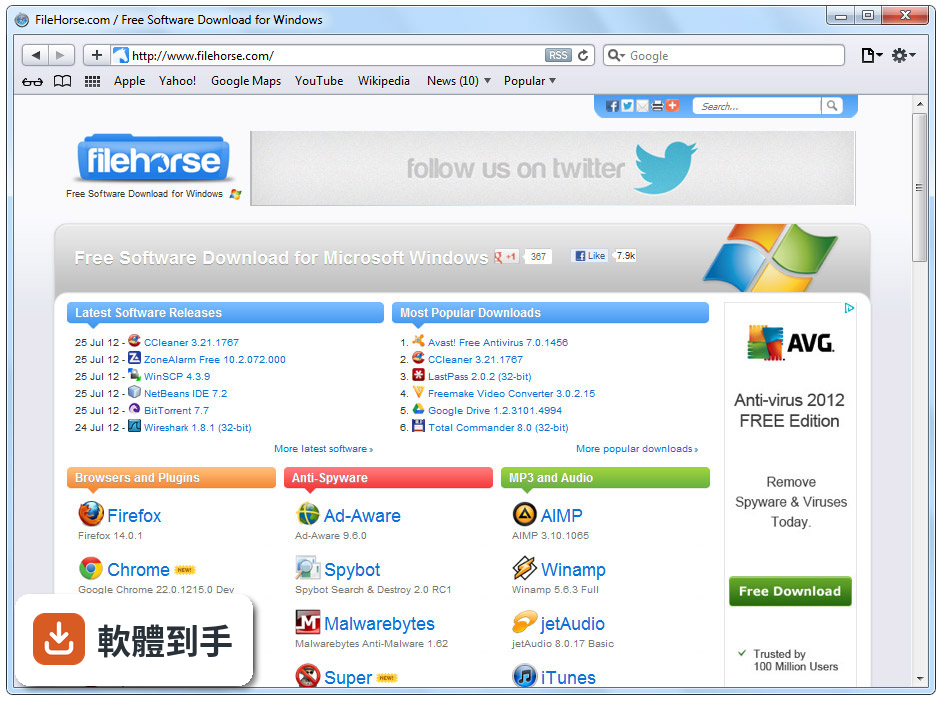
可以開,但體驗停留在過去。最後一版是 5.1.7,之後再也沒有更新,所以它能正常顯示的網頁以當年的標準為主。現在的網站大量使用新的加密協定和網頁技術,這套瀏覽器可能無法完整支援,遇到版型跑掉、影片不能播、按鈕沒反應都是可能的。拿來開簡單的靜態網頁或舊網站沒問題,但作為日常瀏覽器會很吃力。
02它跟 Chrome 或 Firefox 比起來有什麼不一樣?
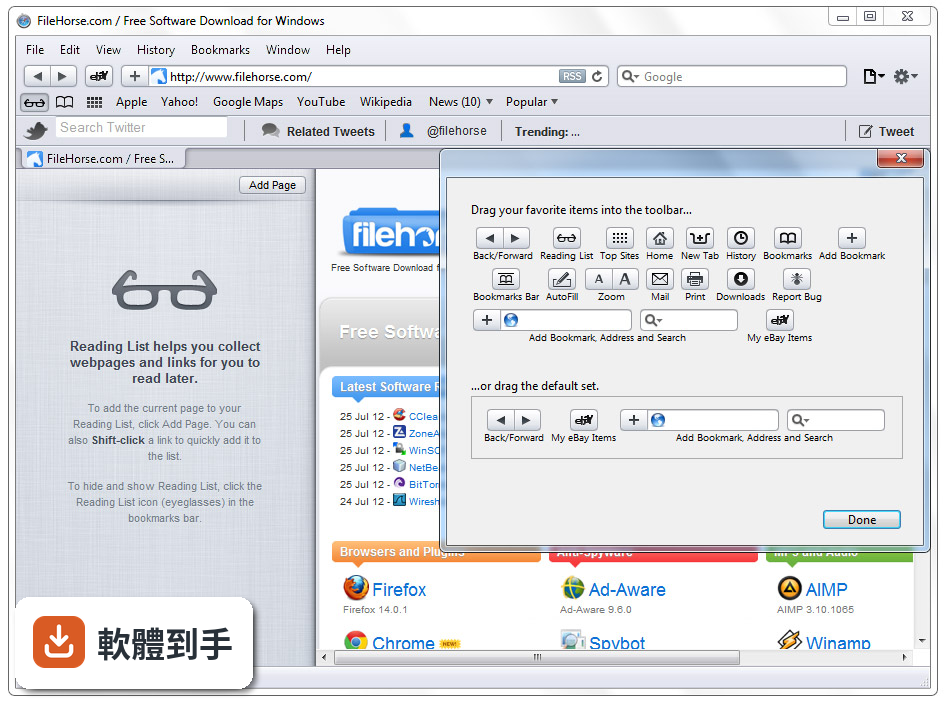
核心差異在於它用的是 WebKit 渲染引擎,跟 Chrome 的 Blink 和 Firefox 的 Gecko 是不同路線。介面上它走極簡風,網址列和搜尋列合在一起,有閱讀器模式可以去掉廣告只看文章,也內建了防追蹤功能。但這些特色在當年是新鮮事,放到現在各家瀏覽器早就都有類似功能,甚至做得更完整。它的優勢只剩「用起來像 Mac 上的 Safari」這個熟悉感。
03它能不能同步蘋果裝置的書籤和分頁?
官方說明提到 iCloud Tabs 功能,可以讓你在 Mac、iPhone、iPad 上看到彼此開著的分頁。但這是建立在 iCloud 同步服務上的,而 Windows 版的 Safari 停在 5.1.7,這個版本對應的 iCloud 同步機制早已被蘋果改了好幾輪。實際上能不能順利同步,需要自己裝了測試才知道,官方文件沒有針對 Windows 版給出目前的設定步驟。
04它的隱私保護功能現在還有用嗎?
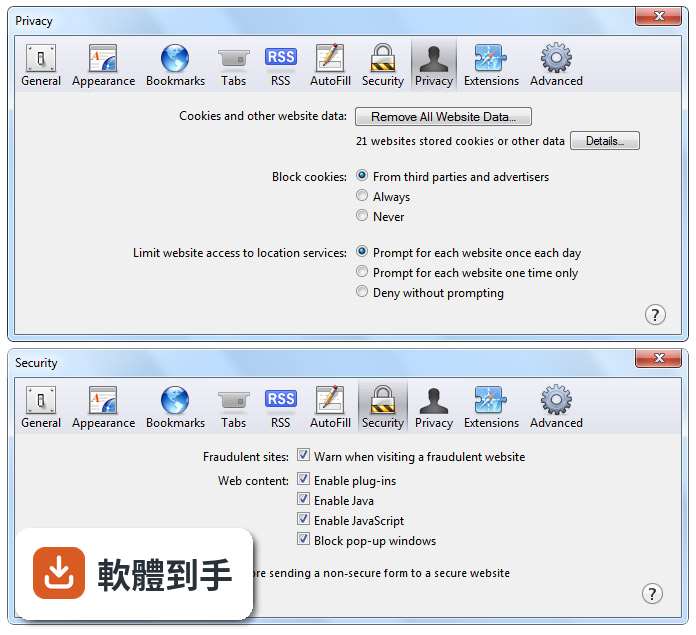
它內建「不要追蹤我」的請求功能,也有私密瀏覽模式,這些在當年是領先的設計。但要注意,這些功能是針對當年的網路環境設計的,現在的追蹤技術遠比那時候複雜,舊版 Safari 的防護機制攔不住現代的跨站追蹤和指紋辨識。如果你很在意隱私,不建議把這套當主力瀏覽器,它的保護能力已經跟不上現在的威脅。
05安裝過程會不會很麻煩?
安裝本身不難,下載安裝檔後照著步驟點下一步就好,安裝檔也不大。真正的麻煩在於「找到可靠的安裝檔」。蘋果官方已經不提供 Windows 版的下載頁面,你只能從第三方網站找舊版安裝檔,來源是否乾淨、有沒有被改過,這些都無法保證。裝之前最好檢查檔案雜湊值,或至少確認下載網站的信譽。
06什麼樣的人適合裝這套軟體?
有兩種人可能適合。一種是懷舊型使用者,想看看十多年前蘋果做的 Windows 瀏覽器長什麼樣子,裝來體驗一下介面和操作邏輯。另一種是開發者或網頁設計師,需要測試網站在舊版 WebKit 引擎下的顯示效果,這套可以當作參考環境之一。除此之外,一般使用者找不到理由選它,因為現代瀏覽器在功能和安全性上都全面超越它。
07它吃資源嗎?舊電腦跑得動嗎?
官方說明強調它節能、速度快,JavaScript 引擎也針對多核心處理器做過最佳化,以當年的標準來說確實算輕量。但那是針對十多年前的硬體和網頁設計的,現在的網頁動輒幾十 MB 的腳本和圖片,舊版 Safari 跑起來不一定比現代瀏覽器省資源。如果你的電腦真的很舊,與其裝這個,不如找專門為舊硬體設計的輕量瀏覽器。
08它的擴充套件多嗎?
不多。官方說明自己也承認,Safari 的擴充套件數量比不上其他瀏覽器。Windows 版的擴充套件生態更是早就停擺,當年有的一些套件現在也多半失效或找不到下載來源。如果你依賴瀏覽器擴充功能來擋廣告、管密碼、截圖之類的,這套基本上幫不上忙,建議直接放棄它。
09為什麼蘋果不再更新 Windows 版了?
蘋果在 2012 年推出 5.1.7 之後就停止了 Windows 版的維護,官方說明裡明確寫著「Apple no longer offers Safari updates for Windows」。原因沒有官方說法,但合理推測是蘋果把資源集中在 macOS 和 iOS 的生態系上,Windows 版只是早期推廣 Safari 引擎的過渡產品,任務完成後就收掉了。這也意味著它不會再有任何安全性更新,漏洞只會越積越多。
10跟其他老牌瀏覽器比起來,它有什麼優勢嗎?
它的優勢只有一個:如果你同時用 Mac 和 Windows 兩台電腦,而且很習慣 Mac 上 Safari 的操作手感,裝這套可以讓兩邊介面一致。除此之外,它的速度、安全性、網頁相容性、擴充套件數量,全部輸給現役瀏覽器。資料裡列出的 Lunascape、Maxthon 等軟體,雖然評分人數也不多,但至少還有在維護,比 Safari for Windows 的處境好一些。
11裝了之後會不會有安全風險?
有,而且風險不低。這套軟體超過十年沒有安全性更新,任何在這段期間被發現的瀏覽器漏洞它都無法修補。再加上你只能從第三方網站下載安裝檔,安裝檔本身也可能被植入惡意程式。如果你只是好奇想試試,建議在虛擬機器或完全不重要的舊電腦上安裝,不要拿它登入任何需要輸入帳號密碼的網站。
12那到底該不該裝它?
如果你沒有特殊需求,答案是不該。它的最後版本停留在 2012 年,安全性、相容性、功能性全面落後,蘋果官方也已經放棄維護。市場上有大量持續更新的免費瀏覽器可以取代它,沒有理由選一個停止維護的軟體來冒險。除非你是開發者要測舊版引擎,或純粹想懷舊,否則裝了只會給自己找麻煩。
下載與官方連結
SafariSetup.exe · 28.26 MB · 連結指向軟體原廠
版本紀錄
- 2012-05-10 Safari 5.1.7
- 2012-03-27 Safari 5.1.5 36.71 MB
- 2012-03-13 Safari 5.1.4 36.72 MB
再看 5 筆
- 2011-11-30 Safari 5.1.2 36.52 MB
- 2011-10-13 Safari 5.1.1 36.52 MB
- 2011-07-21 Safari 5.1 36.06 MB
- 2011-04-15 Safari 5.0.5 33.97 MB
- 2011-03-10 Safari 5.0.4 33.97 MB
這一版改了什麼
What's new in this version:
# Full-Page Zoom
Zoom in or out on web content using keyboard shortcuts, Multi-Touch gestures, or the Zoom toolbar button for more comfortable reading. Images and graphics scale up while your text remains razor sharp, keeping the web page layout consistent as you zoom. To add the Zoom button to your toolbar, simply choose Customize toolbar from the View menu and drag the button onto your toolbar
# ARIA Support
Safari supports Accessible Rich Internet Applications (ARIA). The ARIA standard helps web developers make dynamic web content more accessible for people with disabilities. With ARIA, sites taking advantage of advanced technologies like AJAX and JavaScript can now easily interoperate with assistive technologies.
# Speculative Loading
Safari loads the documents, scripts, and style information required to view a web page ahead of time, so they’re ready when you need them.
# CSS Effects
Pioneered by Safari, CSS effects help developers add polish to websites by stylizing images and photos with eye-catching gradients, precise masks, and stunning reflections that require only a few lines of code
# Acid 3 Compliance
Safari is the first — and only — web browser to pass Acid 3. Acid 3 tests a browser’s ability to fully render pages using the web standards used to build dynamic, next-generation websites, including CSS, JavaScript, XML, and SVG.
# CSS Canvas
Using CSS Canvas, web designers can position canvas elements anywhere an image can be placed using CSS. Safari is the first web browser to support CSS Canvas.
# Nitro JavaScript Engine
Safari 4 introduces the Nitro JavaScript engine, an advanced bytecode JavaScript engine that makes web browsing even faster. In fact, Safari 4 executes JavaScript up to 6 times faster than Internet Explorer 8 and up to 4 times faster than Firefox 3.1.
# HTML 5 Offline Support
Web developers can now create applications that you can use even when you don’t have access to the Internet. Thanks to HTML 5 offline support, designers can build web applications that store themselves on your computer, where you have immediate access to them. Along with the application, web developers can also choose to store the application’s data on your system, so you always have the information you need. Applications and data can be stored in a traditional SQL-like database serving as an application cache or as a “super cookie,” which stores data in the familiar cookie format.
# Cover Flow
Using Cover Flow, you can flip through websites as easily as you flip through album art in iTunes. Cover Flow displays your bookmarks and history as large graphical previews, so you can pick out a website instantly.
# History View
Take a closer look at your browsing history in the History view. Search for previously visited sites, drag web pages to your bookmarks, and clear individual items. Safari displays your history using Cover Flow, so you can flip through your search results as easily as you flip through iTunes album art.
# Top Sites
Safari automatically identifies your favorite sites and displays them as a wall of stunning graphical previews. To visit one of your top sites, just click any of the previews. As you browse, Safari identifies the websites you’re most interested in based on how often and how recently you visit a site. So as you explore the web and discover new websites, your top sites will change to match your evolving tastes.
# Customize Number of Top Sites
To set the number of sites Safari displays on your Top Sites page, click the Edit button in Top Sites and choose Small, Medium, or Large in the lower-right corner to display 24, 12, or 6 site thumbnails, respectively.
# Pin Top Sites
To organize your top sites the way you want, click the Edit button and drag site thumbnails to any position in the Top Sites grid. You can pin sites to specific locations by clicking the pushpin that appears over the site.
# Smart Address Field
Enter web addresses quickly and easily. As you begin to type an address in the address field, Safari automatically completes it with the most likely match — called the Top Hit — and highlights it. Simply press the Enter key to connect to the site. If the Top Hit is not the site you intended to visit, check the list of relevant suggestions, drawn from your bookmarks and browsing history, that Safari displays. Click to select the site you want to visit.
# Top Sites: Fresh News
You can see at a glance when one of your top sites has been updated. Just look for the star in the upper-right corner to see which sites have fresh content to review.
# Powerful Tools
Apple has brought its expertise in Mac OS X and iPhone development tools to the web. Safari 4 includes a powerful set of tools that make it easy to debug, tweak, and optimize a website for peak performance and compatibility. To access them, turn on the Develop menu in Safari preferences.
# Web Inspector
The Web Inspector gives you quick and easy access to the richest set of development tools ever included in a browser. From viewing the structure of a page to debugging JavaScript to optimizing performance, the Web Inspector presents its tools in a clean window designed to make developing web applications more efficient. To activate it, choose Show Web Inspector from the Develop menu.
# Databases
Safari is the only browser that includes tools for managing the offline databases that will be part of the next generation of websites. The Databases pane in Safari 4 allows you to view tables and databases and even execute SQL queries.
# Resources
The Resources pane graphs the order and speed at which website components load over the network. It’s also the first tool that lets you sort data based on loading parameters such as latency, response time, and duration. You can graph page resources by either size or load time. Clicking a resource in the left column brings up detailed data on the right. For text resources, such as documents and scripts, you see the text source of the file. For image and font resources, you view a graphical preview of the file.
# Elements
Take a closer look at your page’s structure with the Elements pane, which makes it easy to examine your Document Object Model (DOM) and Cascading Style Sheets (CSS) rules. You can even make quick changes to your DOM or CSS and immediately preview how the changes affect your page.
# JavaScript Debugger
The Scripts pane features the powerful JavaScript Debugger in Safari 4. To use it, choose the Scripts pane in the Web Inspector and click Enable Debugging. The debugger cycles through your page’s JavaScript, stopping when it encounters exceptions or erroneous syntax. The Scripts pane also lets you pause the JavaScript, set breakpoints, and evaluate local variables.
# JavaScript Profiler
Optimize your JavaScript code using the state-of-the-art JavaScript Profiler in Safari 4. The Profiler lists the performance characteristics of each of your script’s functions, making it easy to pinpoint problem areas and drill down to the offending lines of code.
# CSS Effects
Using CSS effects, a new technology pioneered by Safari, developers can stylize images and photos with eye-catching gradients, precise masks, and stunning reflections, providing an extra layer of polish to their websites by adding just a few lines of code.
# Full History Search
Use Full History Search to instantly find pages you’ve visited in the past. To find a page, simply begin typing in the Search History field in Top Sites. There’s no need to remember page titles or complex URLs. Safari stores all the text from every page you visit, so you can base your search on any word or phrase that appeared on the site you want to find. And since Safari displays the results using Cover Flow, you can flip through large graphical previews until you recognize the site you want.
# Smart Search Field
Find what you’re looking for instantly. As you enter text in its search field, Safari recommends relevant searches courtesy of Google Suggest and lists your most recent searches, presenting them in an easy-to-read list.
# Full-Page Zoom
With Full-Page Zoom, it’s easy to take a closer look at small print on your favorite sites. Shrink or magnify the contents of web pages using Multi-Touch pinch gestures on your MacBook, MacBook Air, or MacBook Pro trackpad. Images, videos, and other page elements adjust while your text remains razor sharp, keeping your page layout consistent as you zoom.
Two fingers on a Mac trackpad
# Inline Progress Indicator
Safari was the first browser to move the progress indicator into the address field, making it more visible and freeing up space for web content. At a glance, you can see exactly when a site is finished loading.
# Windows Native Look
If you’re using Safari on a PC with Windows Vista or Windows XP, you’ll feel right at home because Safari features a native look — just like other Windows applications — including a native title bar, borders, and toolbars.
# Windows Font Rendering
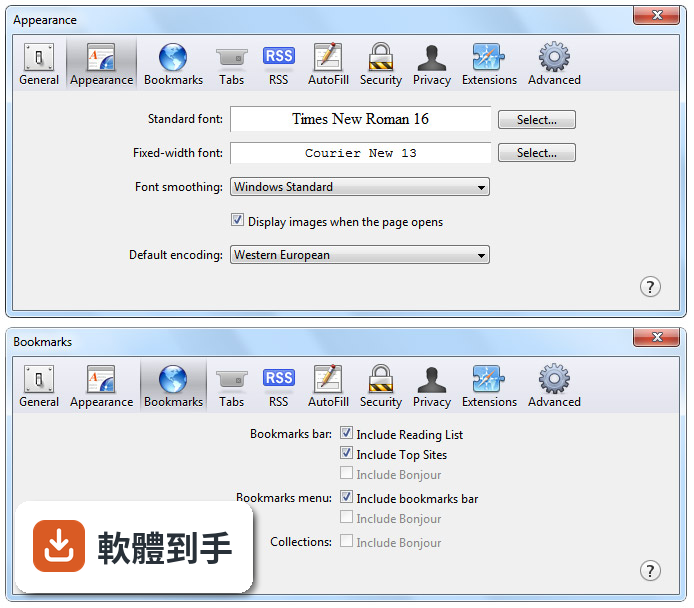
Safari on Windows now uses Windows Standard fonts to deliver a more consistent experience. You can also choose to use Apple fonts. Thanks to the anti-aliasing algorithm in Safari, you enjoy crisp, gorgeous fonts. The algorithm preserves the subtleties of each font while rendering each character with a crispness that makes your favorite sites a pleasure to read.