
這是歷史版本頁面 — 看 ShareX 最新版本
截圖後還要慢慢修圖上傳?ShareX 把流程一次做完
 ShareX 13.6.1
資料更新 2021-09-12
閱讀約 6 分鐘
開頭先說一個畫面:你正在處理工作,突然看到螢幕上有一段對話、一個錯誤訊息、或一張圖表需要記錄下來。你按下截圖快捷鍵,畫面是存下來了,但接下來才是麻煩的開始——檔案不知道存到哪、要開小畫家裁切、要加箭頭標註、要另存新檔、再打開瀏覽器上傳到雲端或傳給同事。光是為了分享一張圖,就花了五分鐘在重複的步驟上。
一般人習慣的做法是「截圖 → 開編輯器 → 標註 → 另存 → 上傳」,每一步都是分開的軟體,每一步都要手動操作。偶爾截一張圖還好,但如果你一天要截十幾張、甚至幾十張,這些重複動作累積起來非常可觀。這類工具的切入點,就是把「截圖、編輯、上傳」串成一條自動化的流程,讓你在按下快捷鍵之後,剩下的步驟由軟體接手,而不是你一個一個慢慢點。
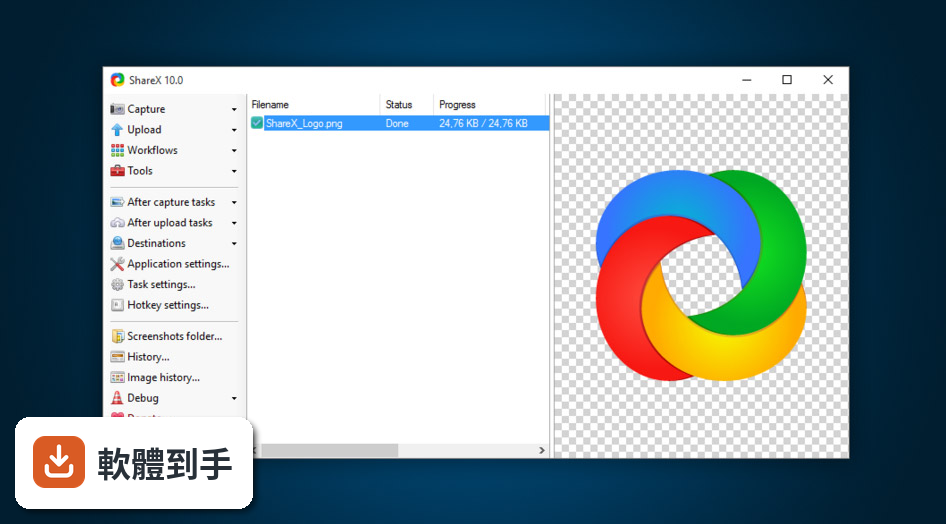
01ShareX 跟一般截圖工具有什麼不同?
一般截圖工具多半只做到「把畫面存下來」,但 ShareX 把後續的處理也包進來。截圖之後,它可以自動開啟內建編輯器讓你標註,編輯完可以直接上傳到超過 80 個服務,例如 Imgur、Dropbox、Google Drive,也可以存到自己的 FTP。也就是說,從按下快捷鍵到取得分享連結,整個流程可以在同一個工具裡完成,不需要另外開瀏覽器或檔案總管。
02它除了截靜態畫面,能不能錄影?
可以。它支援螢幕錄影,可以錄成影片或 GIF 動圖,而且可以選擇要不要收錄麥克風或系統音效。錄影功能是透過 FFmpeg 來處理的,所以如果你需要錄製操作步驟、回報 bug 給工程師、或做簡短的教學動畫,不需要再另外裝一套錄影軟體。錄完之後,同樣可以走自動上傳的流程。
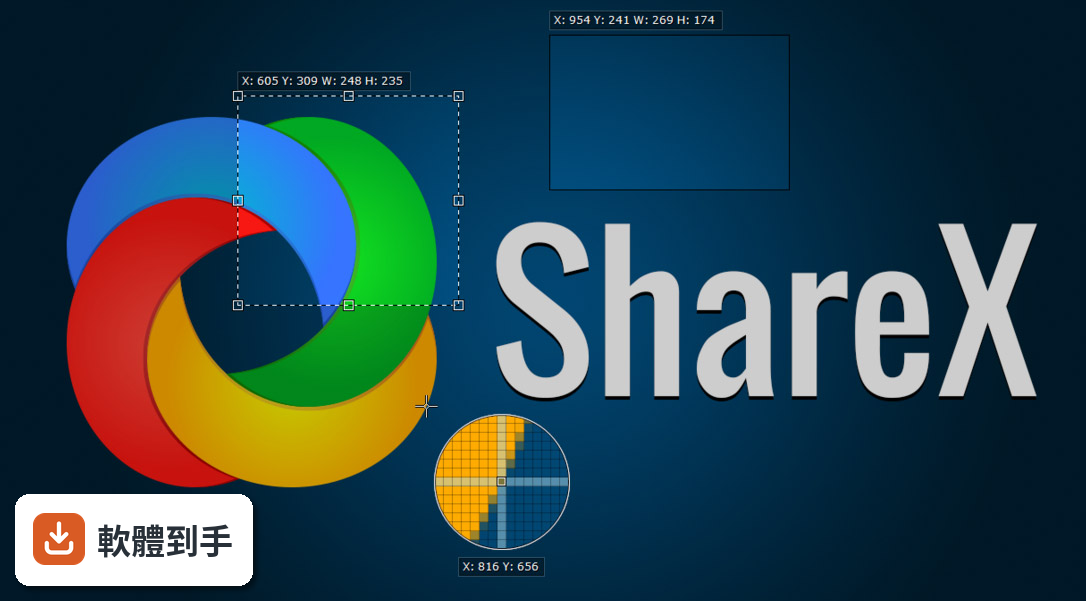
03捲動截圖是什麼?什麼時候會用到?
捲動截圖指的是把超出螢幕範圍的內容一次抓下來,例如整頁網頁、很長的對話紀錄、或一份長條圖表。一般截圖只能拍到目前看到的範圍,但 ShareX 可以自動捲動頁面並拼接成一張完整的長圖。這個功能在需要保存網頁全文、備份聊天紀錄、或截取長型資訊圖表時特別實用。
04它內建的編輯器夠用嗎?還是要另外開其他軟體?
內建編輯器具備基本的標註功能,包括箭頭、形狀、框選、模糊馬賽克、文字輸入,也可以加上浮水印。對於「截圖後要圈重點、遮掉個資、加說明文字」這類需求,不需要再開其他繪圖軟體。如果你需要更進階的影像處理,例如圖層、濾鏡、去背,那還是得用專業的影像編輯軟體,但一般截圖後的標註工作,內建編輯器已經足夠。
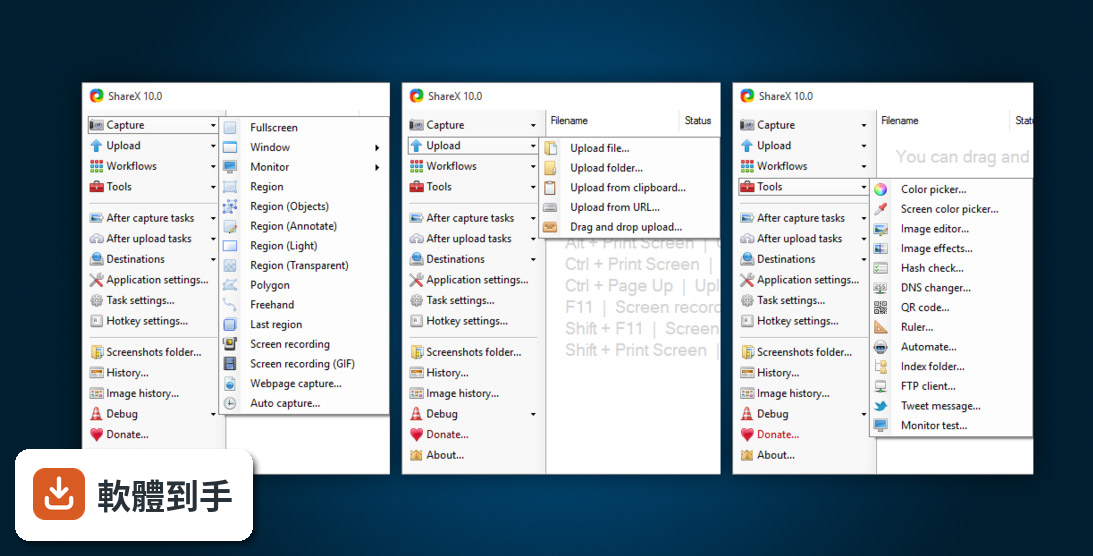
05它能不能把圖片上的文字抓出來?我常常需要把截圖裡的文字複製出來。
可以,它內建 OCR(光學字元辨識)功能。你截圖之後,可以選取圖片中的文字區域,它會辨識並輸出成可複製的文字。這在處理掃描文件、翻拍投影片、或從影片畫面中擷取文字時很實用。不過要注意,OCR 的辨識準確度會受到圖片清晰度、字型、以及語言影響,如果你需要高精度的辨識,可能還是要搭配專門的 OCR 軟體。
06我每天要截很多圖,有沒有辦法讓流程更自動化?
它的核心設計就是自動化。你可以設定「工作流程」,例如:按下快捷鍵截圖 → 自動存檔 → 自動上傳 → 自動把連結複製到剪貼簿。也可以設定觸發條件,讓特定類型的截圖走不同的流程。幾乎每個功能都可以指定全域快捷鍵,包括截圖、上傳、開啟編輯器。設定好之後,日常截圖就變成「按一下 → 貼上連結」這麼簡單。
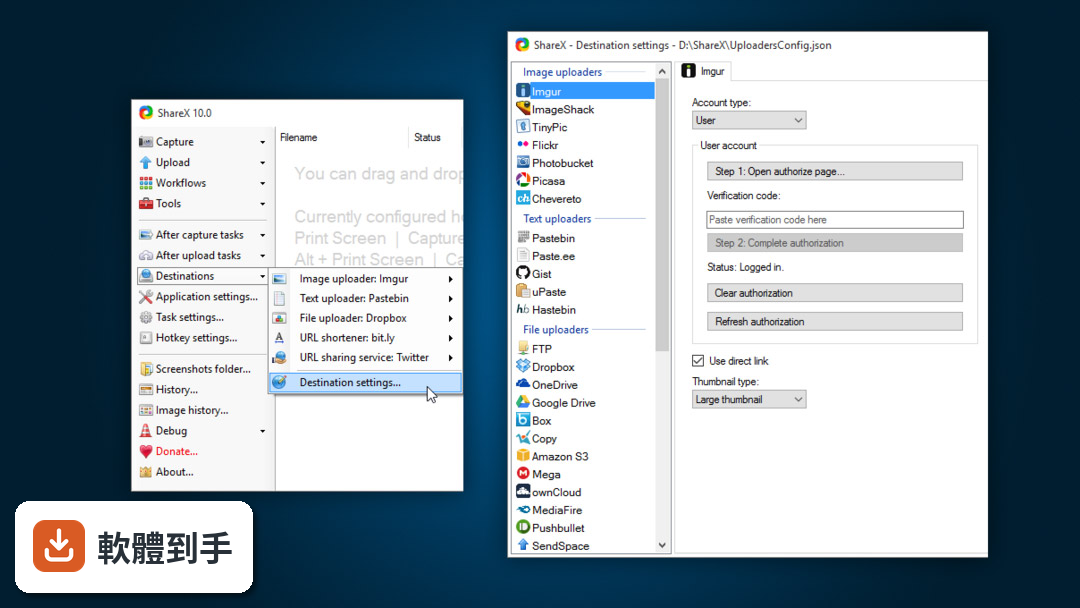
07我只是一般使用者,偶爾截個圖而已,適合用這套嗎?
如果你只是偶爾截圖、而且不需要上傳或編輯,這套軟體對你來說可能功能過多,介面也會顯得複雜。它的介面是英文的,左邊是導覽列、右邊是詳細設定,初次打開會覺得資訊量很大。如果你只需要「按一下、存檔、貼上」這種簡單需求,其他更輕量的截圖工具(例如 LightShot)可能更直覺。但如果你願意花一點時間熟悉介面,它的免費和功能完整性確實有優勢。
08介面只有英文,會不會很難上手?
介面確實只有英文,沒有中文語系。如果你對英文介面不熟悉,剛開始會需要花時間摸索每個功能的位置。不過它的操作邏輯是「設定好之後用快捷鍵觸發」,所以實際使用時,你主要會用到的就是那幾個快捷鍵,不太需要一直看介面。如果你完全無法接受英文介面,可以考慮 PicPick 或 FastStone Capture,它們有中文介面,但功能就沒有 ShareX 這麼多。
09我用的不是 Windows,可以用這套嗎?
不行,它只支援 Windows 系統,官方資料顯示支援 Windows 8、10、11,沒有 macOS 或 Linux 版本。如果你用的是 Mac 或 Linux,這套軟體無法使用。在 Mac 上,可以找其他原生支援的截圖工具;在 Linux 上,也有其他開源截圖方案可以考慮。如果你主要使用 Windows,那這套軟體就沒有系統相容性的問題。
10我看到它的評分人數不多,會不會有問題?
它的評分人數確實不多,只有 45 人評分,分數是 7.34 分。評分人數少代表樣本數小,參考價值有限,但這並不代表軟體有問題。從版本紀錄來看,它更新相當頻繁,近一年內有多次更新,表示開發團隊仍在持續維護。如果你擔心穩定性,可以先在虛擬機器或次要電腦上試用,確認符合需求再正式使用。
11我只需要簡單截圖,不想學一堆設定,有沒有更簡單的選擇?
如果你只需要「截圖 → 存檔」或「截圖 → 上傳」,而且不想花時間設定,那 ShareX 對你來說可能太複雜。它的優勢在於自動化和深度客製化,但這也代表你需要花時間學習和設定。更簡單的選擇包括 LightShot,它輕量、介面簡單,適合快速截圖;或 PicPick,它結合了截圖和基本繪圖功能,介面也比較直覺。這些工具雖然功能較少,但學習成本低很多。
下載與官方連結
ShareX-13.6.1-setup.exe · 連結指向軟體原廠
版本紀錄
- 2026-10-20 ShareX 22.0.0 126 MB
- 2026-07-04 ShareX 21.0.0 133 MB
- 2026-05-24 ShareX 20.2.0 120 MB
再看 5 筆
- 2026-05-06 ShareX 20.1.0 116 MB
- 2026-05-01 ShareX 20.0.4 116 MB
- 2026-01-28 ShareX 19.0.2 108 MB
- 2026-01-20 ShareX 19.0.1 108 MB
- 2025-08-24 ShareX 18.0.1 102 MB
這一版改了什麼
What's new in this version:
- ShareX is now using .NET Framework 4.8 which will be automatically downloaded if it is not available on the system
- Updated Inno Setup to 6.2.0 which has modernized graphics
- Updated Inno Setup Dependency Installer script which is now using the new built in Inno Setup downloader to download .NET Framework
- Added “Glow” image effect, which allows you to make a gradient outer glow around your screenshots*
- Removed social buttons toolbar and news button from the main window
- Added Twitter button which will replace our previous news panel, please make sure to follow our Twitter account if you would like to receive ShareX related news or tips
- Added Discord button, you can join our Discord server to get support from the community
- Added “Menu font” theme option, and changed default font size of menu and context menus to 9.75 pt
- Added Bing visual search button to the main window context menu and also as a URL sharing service destination, this works as both an image search and a great OCR service
- Added quick image combine buttons to main window context menu*
- You must select multiple images from main window by holding Ctrl or Shift and then selecting multiple thumbnails to be able to see these buttons in right click context menu
- When a screenshot is taken, the window title and process name of the active window is stored in history as meta tag
- This will greatly improve searching screenshots in the ShareX history window. For example if you take a screenshot from the Spotify window then you can either search “spotify” (process name) or specific artist name or song name (window title) which are stored in a meta tag. If you take screenshots on your browser, you can search the website you took it on (since the website name is generally in the Window Title)
- Added an option to adjust JPEG quality automatically to fit best quality under target file size (Task settings -> Image)
- Reorganized tools menu to group similar tools together with separators between them
- Tweet message moved to upload menu from tools menu
- Improved the “First time upload” dialog to save people from unintentional uploads: added big “Attention” text with red background and locked the “Yes” button for 5 seconds
- Improved error message of custom uploaders to include more specific error messages with the host name included
- Added multi line support to custom uploader argument value fields
- Allow empty multipart/form-data value in custom uploader
- Added copy URL buttons to response window
- Added simple search bar to history window which lets you search by file name, window title and process name; you can also use wildcard characters while searching
- Image history window search bar also supports searching meta tags now
- Added advanced search button to the history window toolbar which toggles panel with more filtering options
- The Image Preview now fills the right side, since the filtering options have been moved to advanced search
- Added “Copy stats to clipboard” button to the history window toolbar
- Added “Toggle more info” button to the history window toolbar, which toggles panel at bottom right to show more info about selected history entry such as tags
Added hotkeys to history window context menu entries:
- Enter Open URL or file
- Ctrl + Enter Open file
- Shift + Enter Open folder
- Ctrl + C Copy URL
- Shift + C Copy file
- Alt + C Copy image
- Ctrl + Shift + C Copy file path
- Ctrl + U Upload file
- Ctrl + E Edit image
Added history settings window, which currently contains:
- Maximum item limit (allows loading history window faster)
- Remember search input
- Remember window state
- If dev mode is enabled then pressing Ctrl + F5 while in the history window loads fake history data
- If dev mode is enabled then main window title, tray icon text and about window will show full version info with build type and admin privilege status, for example: ShareX 13.6.0 Dev (Debug, Admin)
- Removed ge.tt file uploader because it is no longer in service
- “Delete file locally” after capture task now also works for file uploads if “Task settings -> Advanced -> UseAfterCaptureTasksDuringFileUpload” option is enabled