
這是歷史版本頁面 — 看 Shotcut 最新版本
免費剪片軟體 Shotcut 適合新手嗎
 Shotcut 21.12.21
資料更新 2021-12-22
閱讀約 6 分鐘
你剛拍完一支影片,想把它剪成有片頭、有字幕、有轉場的成品,打開電腦卻發現自己連要從哪一步開始都不知道。你不想每個月付錢訂閱剪輯軟體,也不想用線上工具上傳幾百MB的檔案然後等它慢慢轉檔。你只是想要一套裝在電腦裡、不用花錢、功能夠用的剪輯工具,把影片做出來就好。
免費的選擇其實不少,但很多號稱「簡單」的軟體,等你真的打開才發現介面陽春到連裁切都不順手;而功能完整的商業軟體,不是要訂閱就是試用期一過就鎖功能。這類開源剪輯工具的切入點,是用「沒有付費牆」的方式提供接近專業等級的功能,但代價是介面比較複雜、學習曲線比較陡,而且很多細節需要自己摸索設定。
01Shotcut 是免費的嗎?商業用途也可以嗎?
是,Shotcut 完全免費且開放原始碼,沒有付費版本,也沒有功能限制。它採用 GPL 授權,個人使用和商業用途都允許,不會因為你拿來接案或放上 YouTube 賺廣告費就要求你付錢。這點在剪輯軟體裡比較少見,多數免費軟體會用浮水印或輸出限制來逼你升級,Shotcut 沒有這層限制。
02它支援哪些影片格式?需要先轉檔才能剪嗎?
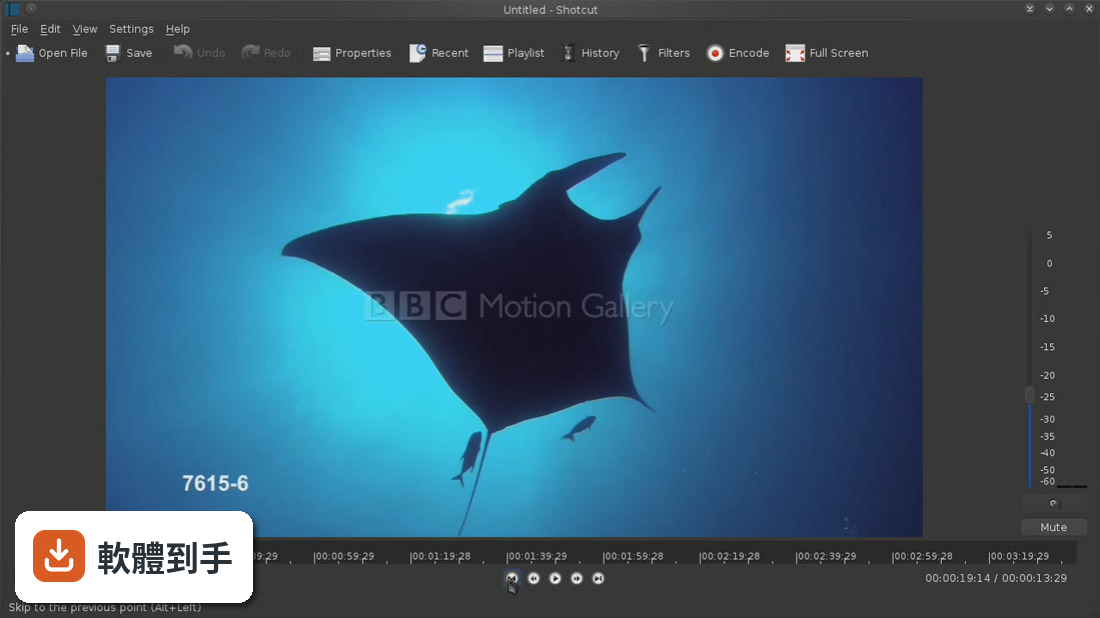
它透過 FFmpeg 支援數百種影音格式,常見的 MP4、MOV、AVI、MKV 都能直接開啟,不需要先轉檔。特別的是它採用「原生時間軸編輯」,不需要先把素材匯入專案,直接開啟檔案就能拖到時間軸上開始剪。這對手上有一堆不同來源素材的人來說很方便,省掉一個匯入等待的步驟。
034K 影片剪輯跑得動嗎?
官方說明指出它支援 4K 以上解析度的專案,但實際跑不跑得動取決於你的電腦配備。它的 GPU 加速功能可以在支援的系統上加速部分濾鏡和硬體編碼,但官方也提到低階電腦偶爾會出現效能問題。如果你要剪 4K,建議記憶體至少 8GB 以上,否則預覽時可能會卡頓。
04有 GPU 加速嗎?渲染會不會很慢?
有,它在支援的系統上提供 GPU 加速,用於特定濾鏡的處理和硬體編碼/解碼。但要注意,不是所有效果都支援 GPU 加速,有些濾鏡仍然只靠 CPU 運算。實際渲染速度會因專案複雜度、濾鏡數量、影片長度和電腦規格而異,沒有固定的效能數據可以參考。
05介面可以自己調整嗎?
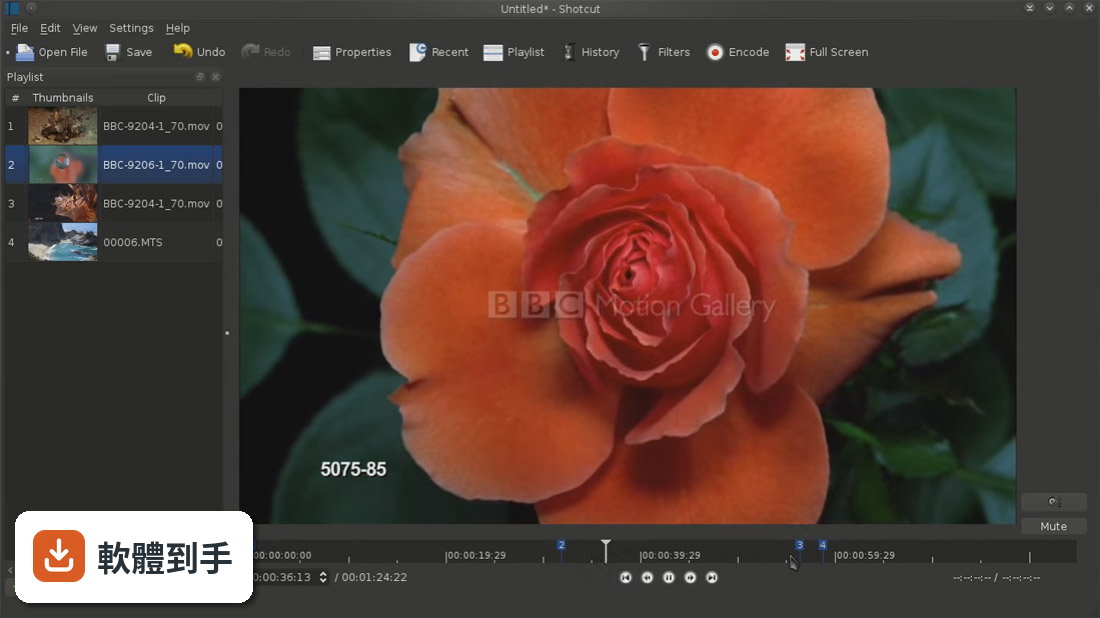
可以,它的介面是模組化設計,所有面板都可以取消停靠、重新排列或隱藏。你可以把常用的濾鏡面板拖到喜歡的位置,把不用的面板關掉,依照自己的工作習慣配置版面。對新手來說,第一次打開可能會覺得面板很多很雜,但花點時間整理後,之後操作會順手很多。
06完全沒有剪輯經驗的人適合嗎?
官方自己都說它對初學者來說學習曲線比較陡。它的操作邏輯偏向專業非線性剪輯,不像一些入門軟體有引導式教學或拖曳式範本。如果你完全沒碰過剪輯軟體,建議先看官方教學影片或找網路教學文,從最基本的裁切和輸出開始學,會比直接亂點摸索來得快上手。
07做 YouTube 影片夠用嗎?
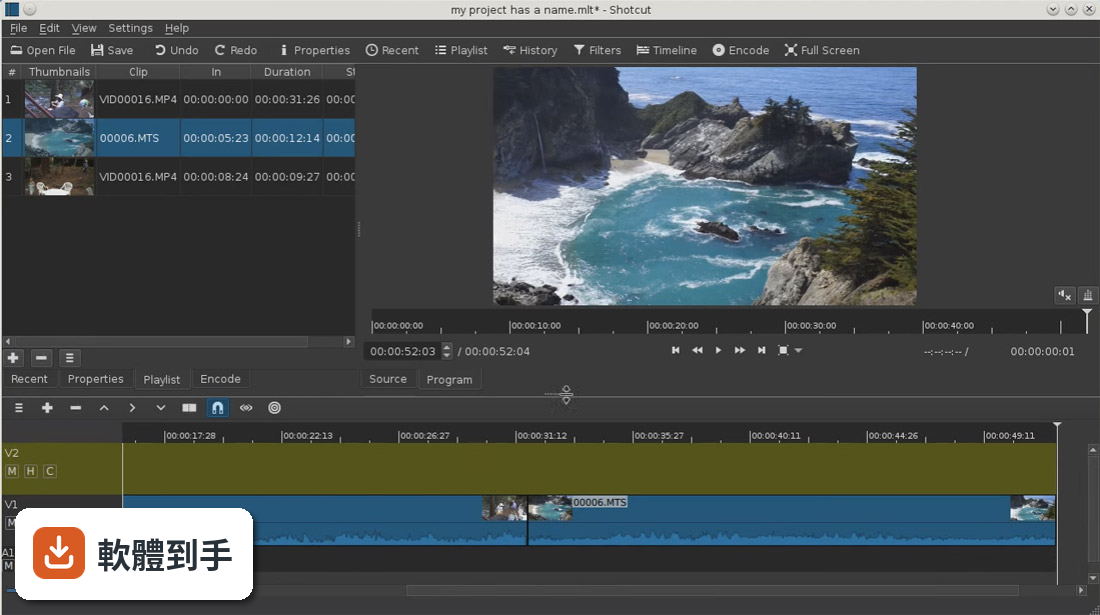
夠用,而且很多 YouTuber 和獨立創作者在用。它具備多軌時間軸、關鍵幀動畫、色度鍵(綠幕去背)、調色、音訊濾鏡等功能,一般 YouTube 影片需要的字幕、轉場、背景音樂混音都做得出來。比較需要注意的是它沒有內建範本或特效包,片頭片尾和轉場都要自己從零開始做。
08需要多人協作或雲端功能的人適合嗎?
不適合。官方明確列出它缺乏即時協作功能,也沒有雲端同步或專案共享機制。如果你需要跟團隊成員同時編輯同一個專案,或在不同電腦之間同步工作進度,Shotcut 幫不上忙。這種需求應該找有雲端協作功能的商業軟體,而不是這類單機開源工具。
09想要內建範本和特效包的人適合嗎?
不適合。官方 FAQ 明說它沒有預製的範本或特效包,所有轉場、片頭、文字動畫都要自己手動建立。如果你習慣套用現成模板快速出片,或希望軟體提供大量特效庫讓你挑選,Shotcut 會讓你覺得很陽春。它的強項是給你工具讓你自己做,而不是給你現成的東西。
10電腦配備比較舊,跑得動嗎?
官方建議最低 4GB 記憶體,但推薦 8GB 以上,CPU 需要 64 位元的 Intel 或 AMD 處理器。安裝空間約 500MB,另外還要留空間給專案檔。如果你的電腦只有 4GB 記憶體,剪 HD 畫質可能還行,但剪 4K 或加很多濾鏡時,預覽和輸出都會明顯變慢,甚至可能卡頓。
11介面只有英文,看不懂怎麼辦?
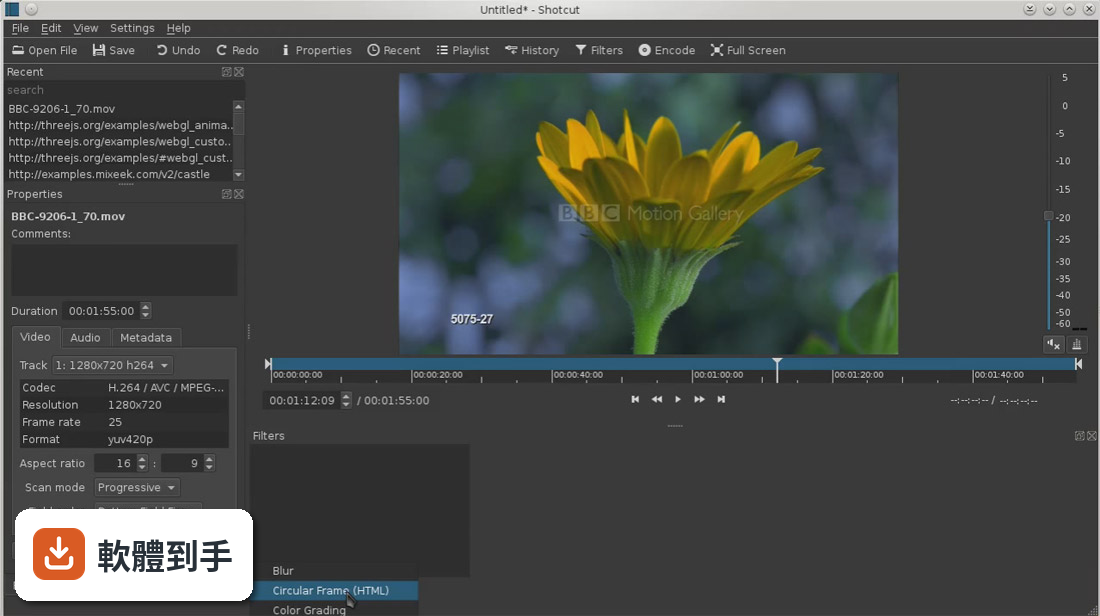
這是它目前比較大的門檻,官方介面只有英文,沒有繁體中文選項。如果你對英文介面不熟悉,建議先看中文教學影片,記住常用功能的英文名稱和位置,例如 Export(輸出)、Filters(濾鏡)、Timeline(時間軸)。操作久了會慢慢記住位置,但初期確實需要多花時間適應。
12跟 OpenShot 比起來,哪個比較適合我?
兩者定位不同。OpenShot 介面比較簡單,適合想要快速上手、不需要太多進階功能的人;Shotcut 功能更完整,有更多濾鏡和關鍵幀控制,但學習成本較高。如果你只是偶爾剪個家庭影片,OpenShot 可能夠用;如果你打算長期做影片、需要精細控制,Shotcut 的潛力更大。可以兩套都裝來試試看。
下載與官方連結
shotcut-win64-211221.exe · 連結指向軟體原廠
版本紀錄
- 2026-09-27 Shotcut 26.9.27 146 MB
- 2026-08-02 Shotcut 26.8.1 155 MB
- 2026-07-16 Shotcut 26.7.16 155 MB
再看 5 筆
- 2026-06-27 Shotcut 26.6.25 135 MB
- 2026-04-30 Shotcut 26.4.30 121 MB
- 2026-02-28 Shotcut 26.2.26 134 MB
- 2026-02-01 Shotcut 26.1.30 137 MB
- 2026-01-01 Shotcut 25.12.31 134 MB
這一版改了什麼
What's new in this version:
- Recently, a major security vulnerability was found in the log4j software, and many people are asking if an app they run uses log4j. Shotcut does not use log4j. log4j is for Java software, and Shotcut does not use Java.
More For Markers:
- Added View > Markers panel with search, seeking, and editing (Ctrl+Shift+6, shift+command+6 on macOS)
- Added File > Export > Markers as Chapters...
- This outputs in the format used to make chapters for YouTube
- Added previously used colors to the marker context menu
- Added keyboard shortcuts < and > to seek between markers
- Added a Ripple markers with edits button to the Timeline toolbar (Alt+R, option+R on macOS)
- Fixed delete marker keyboard shortcut may delete wrong marker
- Fixed Export > From > Marker may export from wrong region marker
More New Stuff:
- Added Properties > Rotation for video clips to override orientation by some multiple of 90 degrees
- Added support for keyframes to the Hue/Lightness/Saturation and Chroma Hold video filters
Changes:
- Updated MLT engine to version 7.4.0 (required for added keyframe support in some filters above)
- Added a file save dialog upon repairing a project file to prevent overwriting a previous repair
- Removed some harmless error messages in logs
- Changed Properties > Audio > Sync to hide when it is not applicable (no video track in the clip)
- Change the units of the Hue parameter in the Hue/Lightness/Saturation video filter to degrees
- Improved the accuracy of bubble help when trimming in Timeline and Keyframes
- Improved the accuracy and snap reliability of the 10 and 20-pixel grid player overlays
- Improved various mouse and keyboard operations in Timeline and Keyframes
- Improved the VMAF speed and accuracy of the Properties > Measure Video Quality...
Fixed:
- Timeline > menu > Track Operations > Insert Track breaks video track blending (broke in v21.10)
- copy and paste multiple clips from another project can change the video mode (broke in v21.10)
- Open Other > Audio/Video Device capture (broke in v21.10)
- a crash when changing Properties of Audio/Video Device
- a crash in Old Film: Projector video filter with 360p preview scaling
- a possible crash in the Mosaic video filter when width or height is 0
- the output alpha channel of Timeline with more than one video track (thanks @andre-caldas!)
- the Time Remap video filter distorts audio when the speed is zero and resampling
- the color range of LUT (3D) video filter on transitons with full range clips
- a possible crash in Audio Loudness scope
- window is initially all white and a small white window appears on startup on Windows
- unwanted keyframes appear in Corner Pin video filter when trimming in
- ugly pink video - not black background - after undo a remove/ripple-delete operation
- keyframes can sometimes be dragged before previous or after next
- double-clicking a keyframe does not delete it
- incorrect filter parameter values after the last keyframe after a Split operation
- a crash pasting from the clipboard to an empty timeline
- inaccurate frame rate override with many decimal places in Properties > Convert > Advanced
- incorrect colors when reloading the Audio Spectrum Visualization filter UI
- being able to select the last filter when there are many Filters applied