
這是歷史版本頁面 — 看 SpeedCommander 最新版本
檔案總管不夠用?SpeedCommander 雙視窗管理能做什麼
 SpeedCommander 17.51 Build 9200 (64-bit)
資料更新 2018-11-05
閱讀約 5 分鐘
你正在整理一個塞滿各種檔案的文件夾,想比對兩個資料夾的內容、把散落在不同位置的檔案一次搬好,或是同時開兩個視窗來回拖放。Windows 內建的檔案總管一次只能開一個視窗,要在不同資料夾之間複製、移動、比對,就得不停切換視窗,視窗一多整個桌面亂成一團,光是找檔案就耗掉大半時間。
有些人會改用「取代檔案總管」的雙視窗工具,讓兩個資料夾並排顯示,左邊選來源、右邊選目的地,複製移動只要按個鍵就完成。這類工具的核心不是把視窗變漂亮,而是把「同時處理兩個位置」變成基本操作,再往上加壓縮、同步、FTP 這些日常會用到的功能。SpeedCommander 就是走這個路線的其中一套。
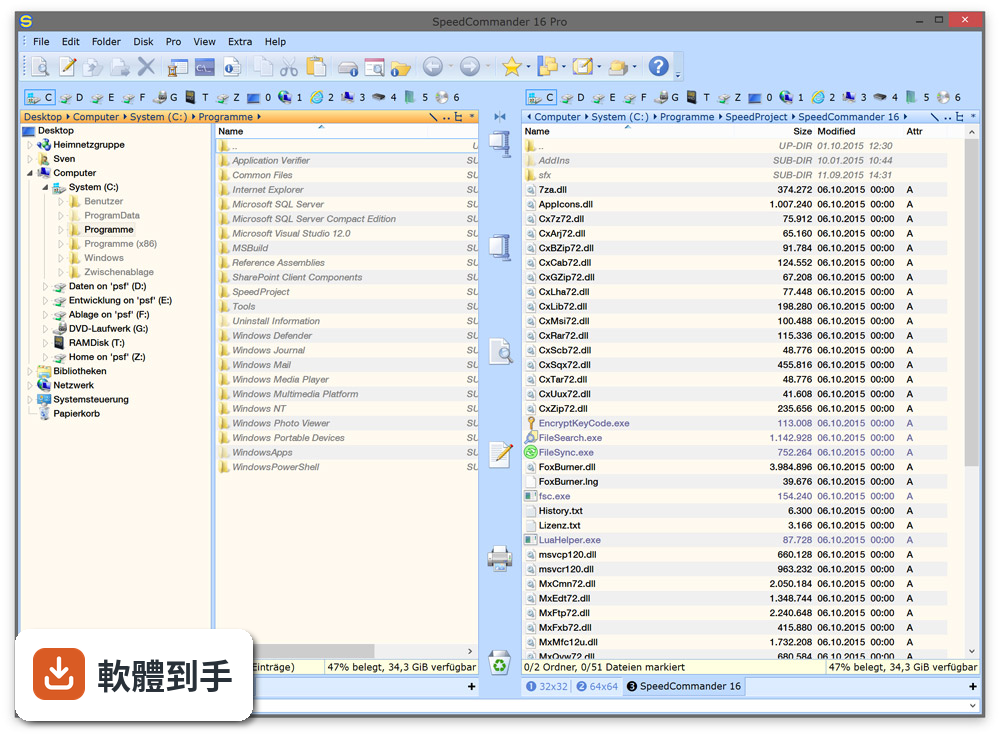
01SpeedCommander 跟 Windows 內建的檔案總管差在哪?
它採用雙視窗並排設計,左右兩邊各顯示一個資料夾,可以同時看到來源和目的地。複製、移動、刪除、重新命名這些基本操作都能用鍵盤或滑鼠完成,不需要像檔案總管那樣開一堆視窗切來切去。介面是英文,第一次打開會需要一點時間適應按鍵配置。
02它能處理哪些壓縮格式?
官方說明提到支援 13 種壓縮格式,包含 ZIP、RAR、7z 等常見格式,可以直接在軟體裡壓縮和解壓縮,不需要另外開 WinRAR 或 7-Zip。實際支援的完整格式清單,官方文件沒有逐一列出,如果你有特定格式要處理,建議先到官網確認。
03內建的檔案檢視器可以看哪些檔案?
官方宣稱內建檢視器支援超過 80 種檔案格式,涵蓋常見的文件、圖片、影片等類型,不需要為了看一個檔案另外開對應的應用程式。但官方說明沒有列出這 80 種格式的完整清單,如果你有特殊格式的檔案,最好先確認是否在支援範圍內。
04它能不能連 FTP 或遠端伺服器?
可以。官方功能說明提到支援 FTP、FTP-SSL 和 SFTP,也就是說除了本機檔案管理,也能連到遠端伺服器做檔案傳輸。Pro 版另外支援直接存取雲端儲存空間,以及燒錄光碟和 ISO 映像檔處理,但這些是付費版才有的功能。
05檔案同步功能是怎麼運作的?
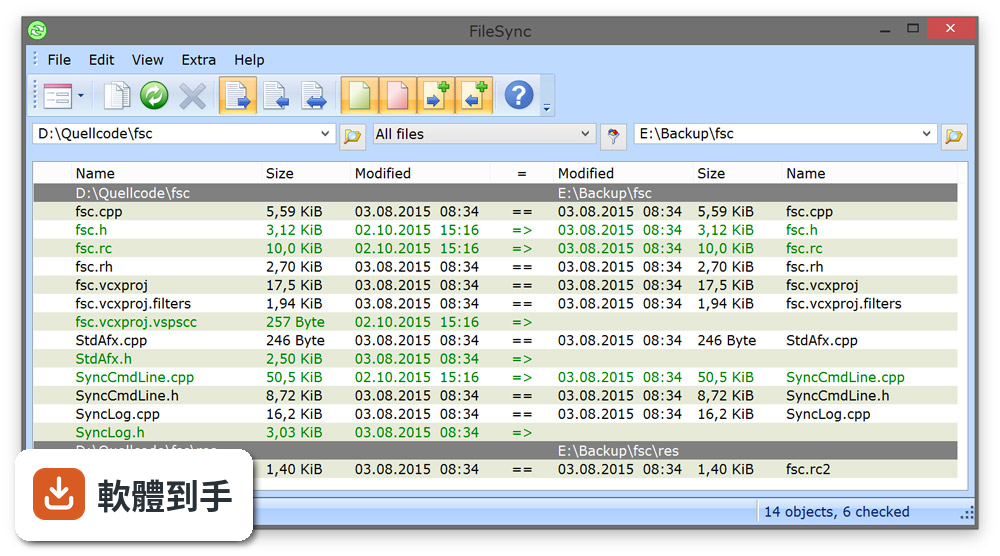
它提供檔案同步功能,可以在兩個位置之間比對並同步檔案,確保兩邊的資料一致。具體的同步模式(例如雙向同步、單向鏡像)官方說明沒有詳細描述,實際操作時可以自己試試看。如果你需要的是自動定時同步,這套軟體是否支援,官方文件沒有提到。
06什麼樣的人適合用這套軟體?
習慣用鍵盤操作、不想一直滑鼠點來點去的人會比較適合,因為它強調鍵盤和滑鼠都能操作。另外,經常需要同時處理兩個資料夾、大量搬移檔案、或需要內建檢視器減少開其他程式的使用者,雙視窗設計能省下不少切換視窗的時間。願意花時間讀英文介面和文件的人,才能發揮它的完整功能。
07它適合電腦初學者嗎?
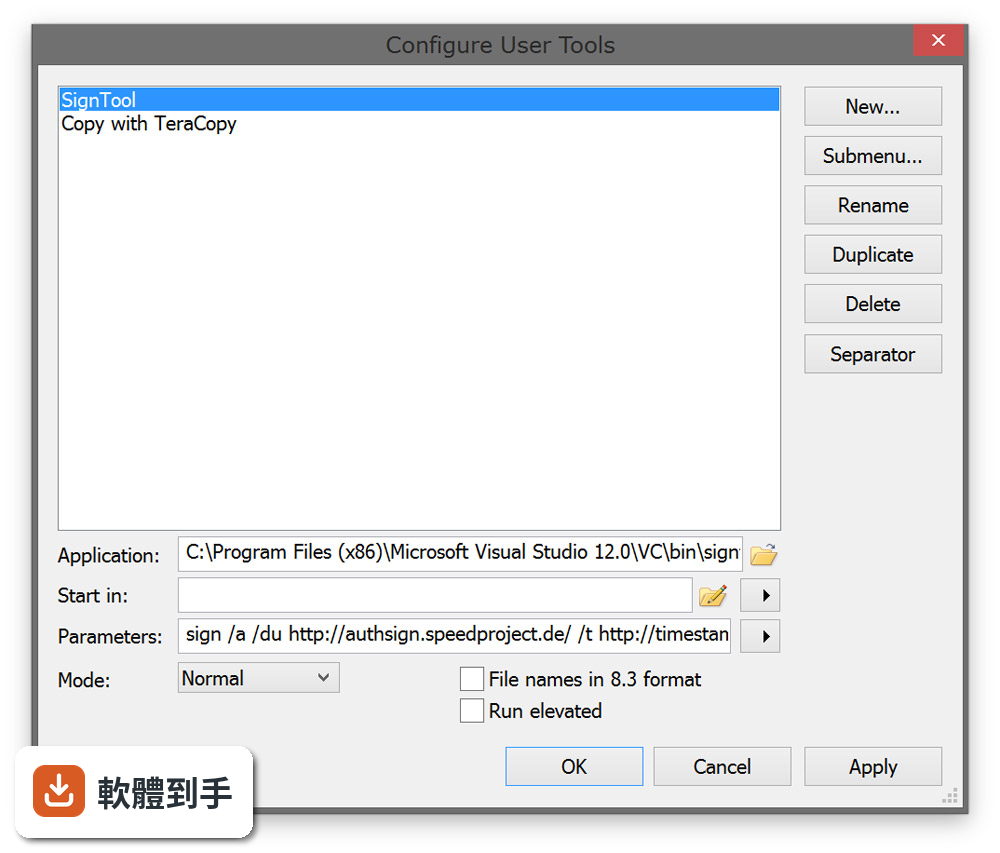
不太適合。介面是英文,而且官方說明自己都提到「進階功能有學習曲線」。如果你只是偶爾搬幾個檔案,Windows 內建的檔案總管就夠用了,不需要為了偶爾的需求去適應一套新軟體。這套軟體的功能設計偏向經常處理大量檔案的人,初學者用起來會覺得按鍵和選單很複雜。
08什麼情況不該選它?
如果你需要中文介面,這套軟體只有英文,操作上會多一層障礙。另外它只有 Windows 版本,Mac 或 Linux 使用者無法使用。如果你只是想要一個免費的雙視窗檔案管理器,它是試用版,60 天試用期過後需要付費購買,長期使用要考慮這筆費用。
09它的試用版有什麼限制?
官方說明提供 60 天免費試用,試用期滿後需要購買授權才能繼續使用。官方沒有明確列出試用版和付費版的功能差異,只提到 Pro 版有雲端存取和燒錄功能。如果你打算長期使用,試用期結束前要決定是否付費,不然軟體會無法繼續使用。
10它的使用者評價如何?
在收錄的評分中,它獲得 6.56/10 分,但只有 23 人評分,樣本數不多,參考價值有限。同類軟體中,Total Commander 有 115 人評分、XYplorer 有 49 人評分、Multi Commander 有 51 人評分,評分人數都比較多。如果你在意社群回饋的參考性,可以多看看這幾套的評價再決定。
11它跟 Total Commander、XYplorer 這些同類軟體比起來如何?
功能定位很接近,都是雙視窗檔案管理器,支援壓縮、FTP、同步這些功能。差別在於 SpeedCommander 的評分人數明顯少於 Total Commander 和 XYplorer,表示實際使用者的數量可能比較少,遇到問題時能找到的討論和教學也比較少。功能細節的差異官方沒有提供比較表,建議自己裝試用版實際操作看看。
12這套軟體還在持續更新嗎?
根據收錄的版本紀錄,它持續有在更新,近 12 個月內有 2 次更新,近 24 個月內有 4 次,表示開發者還有在維護。不過更新頻率不算高,如果你很在意軟體是否頻繁修正問題,可以參考這個更新節奏來判斷。
下載與官方連結
sc17_x64.exe · 連結指向軟體原廠
版本紀錄
- 2026-10-22 SpeedCommander 22.40 Build 12100 (64-bit) 23.9 MB
- 2026-07-06 SpeedCommander 22.30 Build 12000 (32-bit) 21.7 MB
- 2026-07-06 SpeedCommander 22.30 Build 12000 (64-bit) 23.9 MB
再看 5 筆
- 2025-06-02 SpeedCommander 21.50 Build 11600 (32-bit) 21.1 MB
- 2025-06-02 SpeedCommander 21.50 Build 11600 (64-bit) 23.2 MB
- 2023-07-03 SpeedCommander 20.40 Build 10900 (32-bit)
- 2023-07-03 SpeedCommander 20.40 Build 10900 (64-bit)
- 2022-02-21 SpeedCommander 19.60 Build 10400 (32-bit)
這一版改了什麼
What's new in this version:
SpeedCommander 17.51 Build 9200 (64-bit)
- When restarting or shutting down Windows 10 (from 1709), the message 'This app prevents restart' was displayed
- Pro version: No error message if the free space in the target directory is insufficient when creating a disk image
- List view: When double-clicking a folder shortcut (.lnk) in the desktop directory, the linked directory was not displayed in SpeedCommander
- List view: After switching to SpeedCommander, the selection bar disappeared under certain circumstances
- List view: Direct renaming of an entry in the NC selection mode was triggered if the mouse button or is pressed
- Folder window: When loading a saved layout, UNC paths were not opened when 'Always show top level when enabling network environment' is enabled
- Quick view: After changing the encoding in the text viewer, the file has not been reloaded
- Quick view: Partially unclean display of image files under Windows 7 with 125% DPI scaling
- SpeedEdit: When using the splitter, the file numbers in the lower area were shortened for files with more than 1000 lines
SpeedCommander 17.50 Build 9100 (64-bit)
- SpeedEdit: Multiple selection by additionally pressing the Ctrl key while selecting text with the mouse
- SpeedEdit: Simultaneous entry and deletion of characters in column markers as well as multiple selection
- File operation: Free-floating progress window could be inadvertently closed by clicking the close button
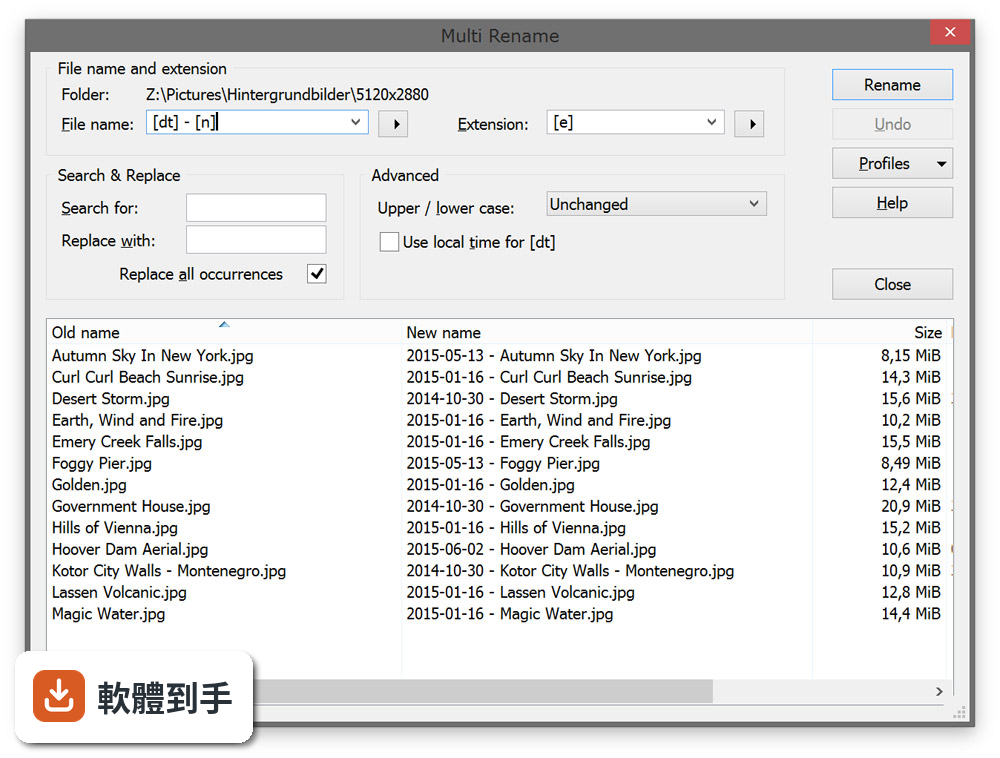
- Multiple renaming: When using the name token for the last characters [n, -x, y] the characters were partially calculated incorrectly
- RAR: No error message when displaying a RAR archive if an incorrect password is entered when opening the archive
- ZIP: Crash when opening a ZIP archive if a file name in the archive is longer than 1024 characters
SpeedCommander 17.40 Build 9000 (64-bit)
- List view: After switching to a higher-level folder via the breadcrumb bar, the subordinate folder is focused
- MFC update (Visual Studio 2017 - 15.6)
- Context menu entry of Bitdefender 2018 is not displayed
- Hook for GetModuleFileName was not correctly removed when quitting SpeedCommander / FileSearch
- Pro version: When copying to HiDrive, the time stamp for the last change was set to 1.1.1970
- Pro version: OAuth login to HiDrive stopped working
- List view: SpeedCommander stopped responding when a new folder was created in an empty folder window and pressed in the empty input field
- SpeedView: Under certain circumstances, background was not completely drawn when zooming in / out images
SpeedCommander 17.30 Build 8900 (64-bit)
- Quick View: Improved support for certain BMP / JPG / PNG image files
- File storage / burning projects: "Folder - Jump to - Link destination" changes in the opposite window to the path name of the entry
- Pro version: Switching the callback url for the Google Drive login to HTTPS
- SpeedEdit: Update Scintilla to version 3.7.4
- RAR: Update unrar to version 5.58
- FTP: Update OpenSSL to version 1.0.2m
- List view: Temporary fix for the mouse jump problem when selecting files with the mouse under Windows 10 (1709) (Preferences dialog: Advanced - Special)
- RAR: RAR5 archives were displayed in Quick View with version number 20.0
- FTP: Icons of program files on FTP servers may not be displayed correctly on Windows 10 (1709)
SpeedCommander 17.20 Build 8800 (64-bit)
- Environment variable% SCXMLDIR% points to SpeedCommander's setup directory
- SCBackupRestore: Automatically back up the configuration when exiting SpeedCommander using the AddIn SCBackupOnExit
- Possible crash when loading a layout
- Quick View: Menu commands in the Quick View window were disabled when clicking with the mouse in the docked Quick View
- Quick View: "Go to page" dialog in the PDF viewer has been centered with the main window instead of centered to the Quick view
- Multiple Rename: "SC.Extension" contained invalid characters for filenames without extensions
- ZIP: For ZIP archives created under Linux, the ZIP64 file information (files larger than 4 GiB) was not detected correctly
- 7z: Time stamp for the archive file in the confirmation dialog before overwriting was displayed incorrectly (2h offset)
- SpeedEdit: Some icons in style 'Office 2003' have not been displayed correctly
- FileSearch: Text search for individual characters could crash if "Detect all occurrences" is activated
SpeedCommander 17.10 Build 8700 (64-bit)
- Change log not available for this version
SpeedCommander 17.00 Build 8600 (64-bit)
Dockable information windows:
- Quick View, Folder Information, and Drive Status can be displayed docked or free-floating
Main password for passwords and passwords:
- The passwords for FTP sites and access caches for cloud connections can be encrypted with a self-selected main password
Unlocking Bitlocker Drives:
- When you click on an encrypted bitlocker drive in the drive bar, the Unlock dialog is automatically displayed
Direct access to cloud and WebDAV providers:
- The Pro version can be accessed on Box and HiDrive as well as on MagentaCLOUD, 1 & 1 MediaCenter, GMX MediaCenter and other WebDAV providers without any additional additional programs
Group the columns in the field selection dialog by categories:
- The available columns in the field selection dialog are sorted by categories for a better overview and can be found more quickly
Quick filter for instant filtering:
- The Quick Filter window allows you to dynamically filter entries in List view
Improved progress window for file operations:
- In the docked state, the progress window is now displayed over the entire width. Source and destination folders are displayed with the complete name
Separate folder history for each tab:
- Each individual tab has its own folder history
Revised filter dialog:
- Filters can be marked as view and / or file operation filters. Color and font style for view filters can be customized directly in the filter dialog. Filters can also be duplicated
Metadata as filter attributes:
- Extended file properties (eg image size, bit rate, recording date) can be used in a file filter
Easier filtering of dates:
- Date information can be in the form today , yesterday, this week , last week , this month , last month , this year and last year
Easier filtering of text elements:
- The filtering of text elements (eg file names) can contain the attributes and does not contain synonymous without substitute characters. The attributes is regular and is not regular allow the use of regular expressions
New key exchange, signature and MAC algorithms for SFTP:
- The key exchange algorithms diffie-hellman-group-exchange-sha256 , ecdh-sha2-nistp256 , ecdh-sha2-nistp384, and ech-sha2-nistp521 are supported. Also new is the support for the signature algorithms ecdh-sha2-nistp256 , ecdh-sha2-nistp384 and ecdh-sha2-nistp521 and the MAC algorithm hmac-sha2-512
- Enhanced macro support for file operations, archives, FTP servers, and add-ins
- New objects allow you to start file operations as well as access to archives, FTP servers, and add-ins via the macro interface
Help objects for the macro interface:
- The Path object contains help functions for the simple handling of path names. The AppHelper object facilitates access to the ping and sleep function as well as to the clipboard
Revised macro editor:
- Line numbers in the macro editor increase the clarity of longer macros. Automatic correction for the case sensitivity of functions, keywords, constants, and operators has been improved. Debugging is now also possible in the 64-bit version
Transfer folder attributes and folder timestamps when synchronizing:
- When synchronizing in one direction using FileSync or FileSync command line (fsc), folder attributes and timestamps of the source folders can be transferred to the target folders
Search for empty folders:
- The Find Empty Folders option in FileSearch allows you to find empty folders easily
- Search for different text formats in a search run
- The search for different text formats (ANSI, ASCII, Unicode) takes place in a single search. Text files in UTF-8 format are also supported
Text search via the IFilter interface:
- FileSearch also uses the IFilter interface of Windows and can now also find text in Office and PDF documents
Search for extended file properties:
- FileSearch supports the use of file filters and can also search for extended file properties (eg image size, bit rate, recording date)
Easy to search / exclude:
- Searched filenames can also be entered in FileSearch without the use of proxy characters
Improved display of Unicode text:
- SpeedEdit uses the Direct2D DirectWrite technology to display Unicode text better
Storage in various text formats:
- SpeedEdit displays a selection field for the encoding in the file open / save dialog. In addition, the current encoding of the text document is displayed in the status line
New file icons for linked archive files:
- Archives files associated with SpeedCommander are displayed with a new file icon
SpeedCommander 16.41 Build 8600 (64-bit)
- Change log not available for this version
SpeedCommander 16.40 Build 8500 (64-bit)
- Pro version: Switch to Dropbox API 2.0
- Pro version: Maintain timestamps when uploading to Google Drive and Dropbox
- Pro version: More detailed error message when accessing cloud storage
- Modified file filters were not updated when applications ran in parallel
- List View: Settings for MaxImageThreads and MaxSubItemThreads were reversed (Advanced – Tweaks)
- List view: “Copy file name to clipboard” did not work within virtual shell folders
- File operations: Error message when pasting files from the clipboard when the source files did not exist (VMWare)
- File operations: The confirmation dialog before copying/moving files did not display file names with a length over 50 characters
- Pro version: Under some circumstances, default project settings for burn projects were not saved
- Pro version: Timestamps in the default project settings for ISO media were not initialized properly
- Pro version: After updating a burn project, the error dialog displayed the OK button too far to the left
- SFTP: Filenames beginning with a space would not be displayed properly and could neither be copied nor deleted
- AddIn: Option “Overwrite all files without prompting” in confirmation dialog did not work as intended
- CAB: CAB archives were not created properly
- RAR: Crash when deleting files from a RAR 2.9 solid archive
- TAR: Possible crash when creating TGZ archives
- UUE: Filenames with spaces within UUE archives were not displayed properly
- SpeedEdit: No prompt for saving changes when closing files with a middle mouse click
- fsc: No check whether source and target folder were accessible before starting comparison
- SCBackupRestore: Backup times were not displayed if the base folder contained the string ‘-backup’
- SCBackupRestore: Minor limitations during use if the ‘Windows Management Instrumentation’ service was deactivated
SpeedCommander 16.30 Build 8400 (64-bit)
- Change log not available for this version
SpeedCommander 16.20 Build 8300 (64-bit)
- Change log not available for this version