
這是歷史版本頁面 — 看 Sublime Text 最新版本
想要輕量又快的程式編輯器,Sublime Text 適合誰
 Sublime Text 4142
資料更新 2022-11-10
閱讀約 6 分鐘
你正準備打開一個幾百 MB 的設定檔或 log 檔,電腦卻像卡住一樣,游標轉圈圈,等了好幾秒才回應。或者你正在改一份前端專案,要在十幾個檔案裡重複修改同一段程式碼,一個一個慢慢找、慢慢改,改到眼睛都快花了。你只是想要一個打開快、編輯順、不會一直跳通知干擾你的文字編輯器,卻發現系統內建的記事本太陽春,其他編輯器又太笨重。
一般人遇到這種狀況,直覺是上網找「免費的文字編輯器」,但下載安裝後才發現,很多編輯器為了追求功能齊全,介面塞滿按鈕、開檔要等、記憶體吃很兇,反而讓電腦變得更慢。這類工具真正的切入點,是提供一個輕量、反應迅速、把常用操作濃縮成快速鍵的編輯環境,讓你把注意力放在程式碼本身,而不是被工具本身拖累。它不追求什麼都內建,而是讓你自己決定要裝什麼。
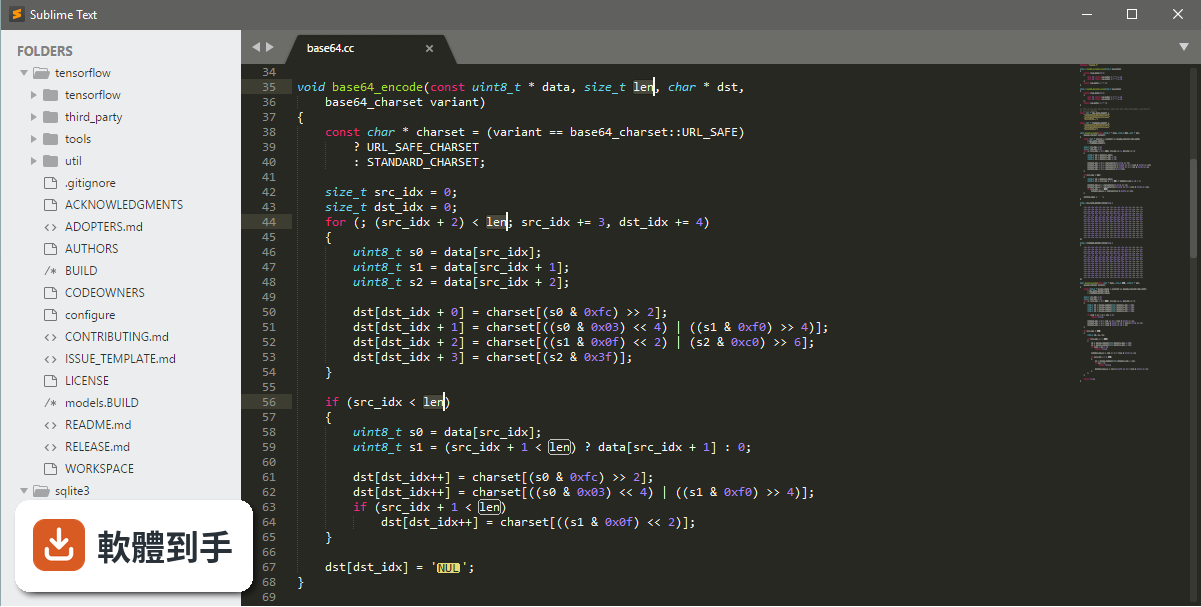
01Sublime Text 到底能做什麼?
它是一套在 Windows 上執行的文字編輯器,主打輕量與快速。支援多種程式語言的語法高亮與自動補全,可以同時開啟多個檔案分割畫面編輯,也有指令面板、Goto Anything 快速跳轉等功能。對開發者、程式設計師或需要大量編輯文字的人來說,它提供了一個反應迅速、可高度自訂的編輯環境。
02它的多重選取功能實際用起來是什麼感覺?
你可以按住 Ctrl 同時用滑鼠點選多個位置,或選取一段文字後,用快速鍵把下一次出現的相同文字也加進選取範圍。選取後直接打字,所有選取的位置會同時被修改。這對一次改多行重複的程式碼、或同時修改多個變數名稱很有幫助,省去一個一個慢慢改的時間。
03指令面板和 Goto Anything 要怎麼用?
指令面板用 Ctrl + Shift + P 開啟,輸入關鍵字就能執行各種指令,例如安裝外掛、切換語法、開啟設定檔。Goto Anything 用 Ctrl + P 開啟,輸入檔名可以快速切換檔案,輸入 @ 加上函式名稱可以跳到該函式,輸入 : 加上行號可以直接跳到那一行。這兩個功能都是靠鍵盤操作,減少滑鼠點選的時間。
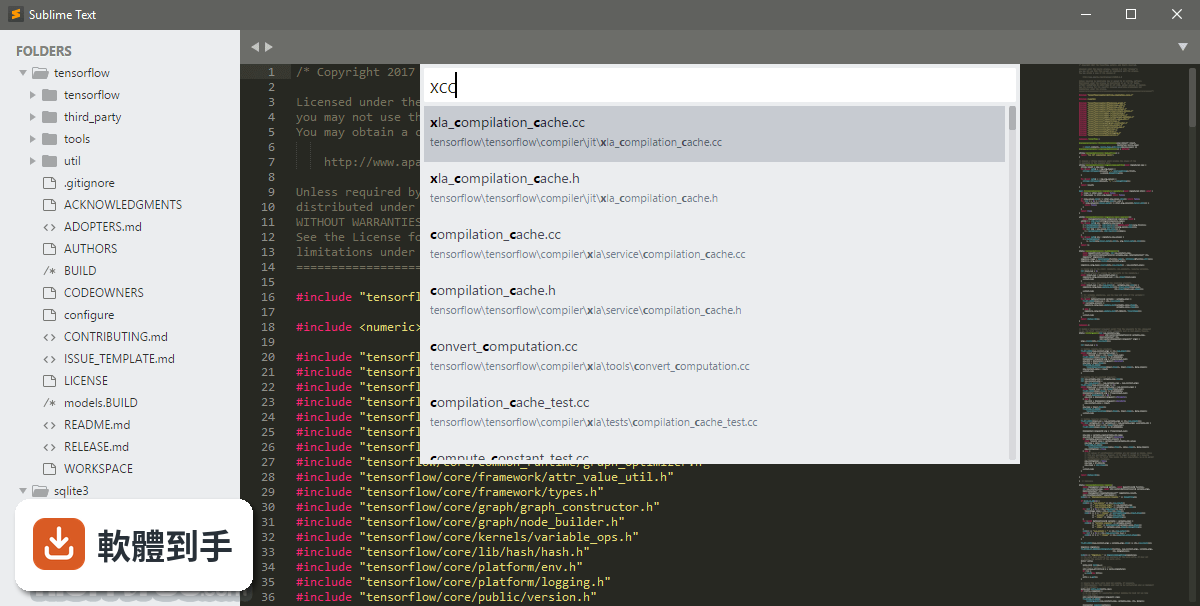
04外掛要怎麼安裝?
先透過 View > Show Console 開啟控制台,貼上 Package Control 的安裝指令,安裝完成後重新啟動。之後用 Ctrl + Shift + P 開啟指令面板,輸入 Install Package,就能搜尋並安裝你要的外掛。外掛生態是這套軟體的主要擴充方式,例如 GitGutter 可以在側邊欄顯示 Git 變更狀態,SublimeCodeIntel 可以增強自動補全。
05介面可以改成自己習慣的樣子嗎?
可以。主題、字型、配色都可以在設定檔裡調整,也有不少現成主題可以透過 Package Control 安裝。側邊欄的位置可以移到右側,編輯區可以分割成多個視窗同時檢視不同檔案。快速鍵也能在 Preferences > Key Bindings 裡自行修改,設定方式是以 JSON 格式編輯,對開發者來說不算太困難。
06這套軟體適合什麼樣的人用?
適合需要快速開啟檔案、大量編輯文字、而且願意花時間設定快速鍵和外掛的人。它特別適合前端開發、程式設計、或需要處理大型文字檔的使用者。因為它本身很輕量,在舊電腦或低規格裝置上也能順暢運作,如果你對編輯速度很敏感,不喜歡等待,這套軟體可以試試看。
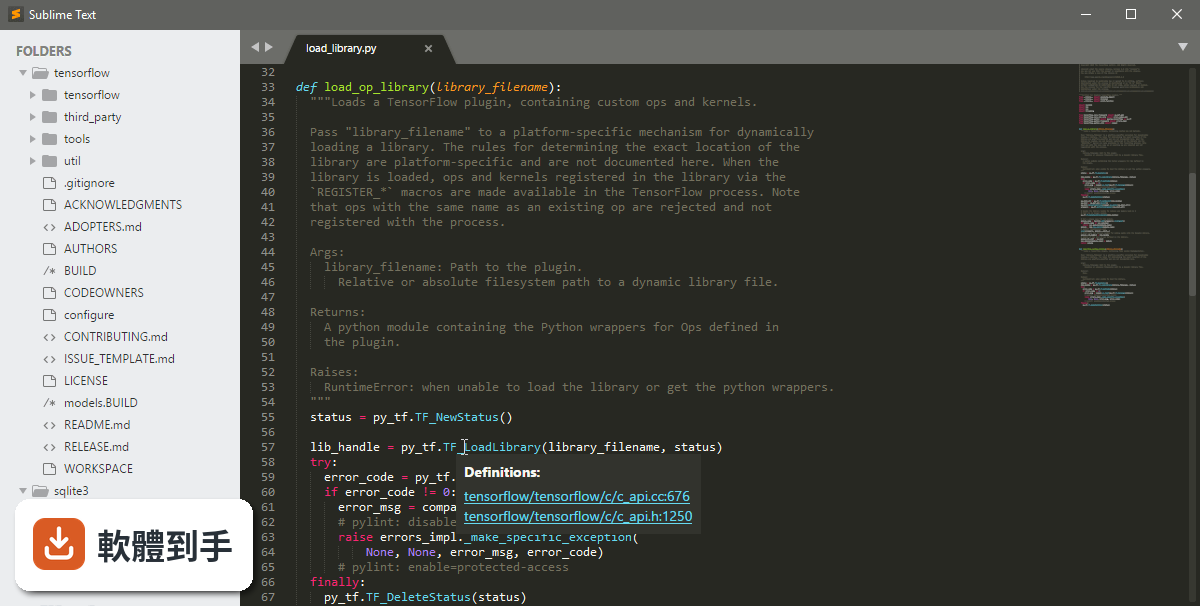
07完全沒用過這類工具的人,上手會很困難嗎?
基本的開啟檔案、打字編輯、儲存,跟一般文字編輯器沒有太大差別,不會有障礙。但它的進階功能,例如多重選取、指令面板、外掛安裝,需要花一點時間看文件或教學才能熟悉。如果你只是偶爾編輯文字檔,不打算學快速鍵,那它對你來說就只是另一個記事本,優勢發揮不出來。
08它跟 Atom 或 Brackets 比起來,差別在哪?
資料裡有收錄 Atom 和 Brackets 的評分,但沒有提供它們的功能細節,無法直接比較優劣。可以確認的是,Sublime Text 主打輕量與速度,Atom 和 Brackets 則分別以可駭性與網頁即時預覽為特色。如果你重視開啟速度和低資源占用,Sublime Text 的定位比較接近;如果你需要的是特定功能,建議先確認那些功能是否內建或需要外掛。
09它免費嗎?還是要付錢?
它可以免費下載使用,而且評估期沒有時間限制,可以一直用下去。但它是 Demo 授權,免費使用時會不定期跳出購買授權的提醒。如果不想看到提醒,需要支付一次性授權費用。資料顯示授權費是 99 美元,實際價格以官方網站為準。
10介面只有英文,會不會很難用?
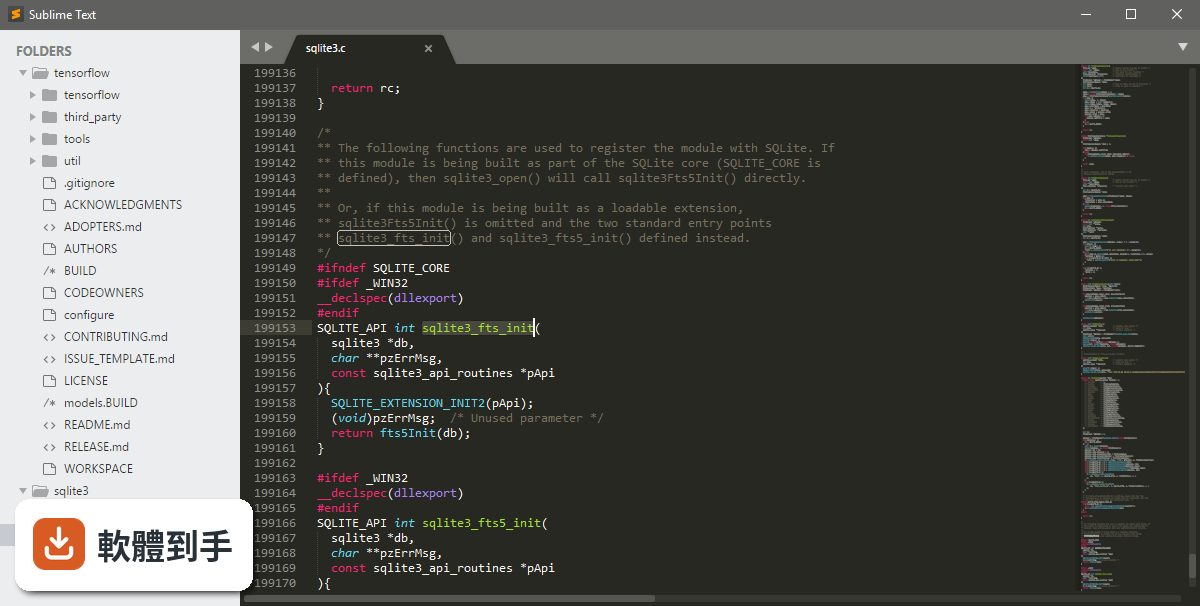
介面確實只有英文,沒有官方中文語系。如果英文介面對你來說是個障礙,操作上會需要多花一點時間熟悉選單和設定。不過它的核心操作大多靠快速鍵和指令面板,指令名稱都是常見的英文單字,例如 Open、Save、Install Package,對有基本英文能力的人來說,影響不大。
11我的電腦是 32 位元的 Windows,可以用嗎?
資料顯示它支援 Windows 7、8、10、11 的 64 位元版本,沒有提到 32 位元系統的支援。如果你的系統是 32 位元,安裝時可能會遇到問題或無法執行。建議先確認官方網站上的系統需求說明,再決定是否下載。
12它很久沒更新了,還值得用嗎?
資料顯示近 12 個月有 1 次更新,近 24 個月有 4 次更新,代表它仍然有在維護,但更新頻率不算高。它本身是穩定的編輯器,核心功能不會因為更新慢而失效。不過如果你需要的是持續新增功能、或對新技術支援很敏感的軟體,更新頻率這點需要納入考量。
下載與官方連結
sublime_text_build_4142_x64_setup.exe · 連結指向軟體原廠
版本紀錄
- 2026-09-28 Sublime Text 4215 20.96 MB
- 2026-09-22 Sublime Text 4213 20.96 MB
- 2026-08-03 Sublime Text 4200 15.45 MB
再看 5 筆
- 2025-01-20 Sublime Text 4192 15.34 MB
- 2024-12-20 Sublime Text 4189 15.32 MB
- 2024-12-17 Sublime Text 4186 15.33 MB
- 2024-08-06 Sublime Text 4180 15.3 MB
- 2023-11-24 Sublime Text 4169
這一版改了什麼
What's new in this version:
Added:
- Added syntax-based code folding
- Various syntax highlighting improvements
- Newly rewritten Haskell syntax highlighting thanks to deathaxe
- The recent file list is now global instead of per window
- Files opened in Sublime Text are now added to the system recent file list (See the "update_system_recent_files" setting)
- Added commands for converting between common identifier cases (See Edit > Convert Case)
- Added "hot_exit_projects" setting to control what data gets saved in workspace files
- Added "minimap_horizontal_scrolling" setting
- Added "open_tabs_after_current" setting for controlling where tabs are opened
- Added "show_spelling_errors" and "show_line_column" settings
- Added "goto_anything_exclude_gitignore" setting
- Added "ruler_style" setting
- Reworked comment toggling to better handle embedded languages
- Sub-word separators are now configurable using the "sub_word_separators" setting
- Added support for Nordic (Windows 865) encoding
Fixed:
- Fixed very large unsaved files being lost on hot exit; a prompt is now shown to save them
- Fixed extraneous window getting created at startup with hot exit disabled
- Fixed case where multiple reload prompts could show simultaneously
- Drag operations are no longer interrupted when reloading a file
- Fixed case where text in command palette was incorrectly colored
- Fixed side bar button theming issue in the Default theme
- Fixed sometimes not being able to type a space after completing a snippet
- Fixed wrong default extension being used in open file dialog
- Fixed centered views jumping in some cases when whole content is replaced
- Fixed scroll jumping when folding
- Fixed Reveal in Side Bar not working in some cases
- Fixed scroll bar sometimes showing when text is wrapped
- Fixed sheets not being added to the current selection in some cases
- Added missing theming attributes to update dialog
- Reopening a file now asks for confirmation when there are unsaved changes
- Improved filesystem symbolic link detection
- Improved performance while open folders are scanned for the side-bar
- Improved regex performance for syntax highlighting
- Find: Patterns taken from an open file are now escaped for regex searches
- Find in Files: Improved binary file detection for find-in-files
- Find in Files: Find-in-files now supports project-relative patterns starting with //
- Find in Files: Added the "find_in_files_max_file_size" setting
- Syntax Highlighting: Context backtraces now link to their origin in sublime-syntax files
- Syntax Highlighting: Fixed crash caused by starting a branch point at the end of a line
- Syntax Highlighting: Fixed various syntax highlighting bugs related to backtracking
- Rendering: Improved performance with large folded regions
- Rendering: Fixed OpenGL issue related to the wrong context being active
- Rendering: Fixed shadow related OpenGL rendering bug
- Rendering: Fixed region rendering edge case
- Rendering: Improved performance in files with large diffs
- Rendering: Fixed various issues with faded labels in the sidebar
- Rendering: Fixed text annotation underlines not drawing when combined with other font styles
- Sort Lines no longer includes the newline at EOF when nothing is selected
Windows:
- Adjusted for the new Windows 11 window border
- Open Containing Folder and similar now respect file explorer replacements
- Fixed GDI font glow glyph positioning
API:
- Added buffer variable to the console
- A noop command can now be used for keybindings to block default behavior
- "encoded_position": true may be passed to open_file command for the same behavior as sublime.ENCODED_POSITION
- View.context_backtrace can be used to get a stack trace from syntax highlighting
- View.expand_to_scope now returns None when the text point doesn't match the selector
- Added View.expand_to_scope
- Added Window.promote_sheet
- Fixed crash when running hide_panel command from EventListener.on_deactivated
- The toggle_comment command can now take a variant argument for languages with multiple comment variants