
這是歷史版本頁面 — 看 TrueCrypt 最新版本
TrueCrypt 停更多年,現在拿來加密硬碟還行嗎
 TrueCrypt 4.3
資料更新 2007-03-20
閱讀約 7 分鐘
你手上有一顆裝著舊資料的外接硬碟,或是一支不想被別人亂翻的隨身碟。你想把裡面的東西鎖起來,但 Windows 內建的加密功能不是要轉成特定格式,就是步驟繁瑣,而且換一台電腦讀取就卡關。你上網找「硬碟加密軟體」,看到 TrueCrypt 這個名字,但它最後更新停在好多年前,心裡難免猶豫:這套東西現在還能用嗎?用了會不會有風險?
一般人遇到這種狀況,第一個念頭是找免費軟體,但免費的加密工具不是功能太陽春、只能鎖單一檔案,就是介面全是英文、設定複雜。更麻煩的是,很多軟體加密之後,換台電腦就讀不到,等於把自己鎖在門外。這類工具真正的切入點,是讓你把整個磁碟或隨身碟變成一個加密的容器,只要記得密碼,插到哪台電腦都能解開,而且加解密在背景自動進行,不需要每次手動處理。
01TrueCrypt 現在還能用嗎?它到底能做什麼?
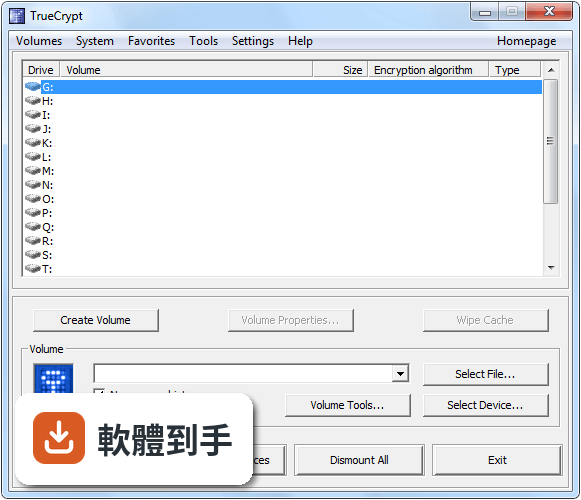
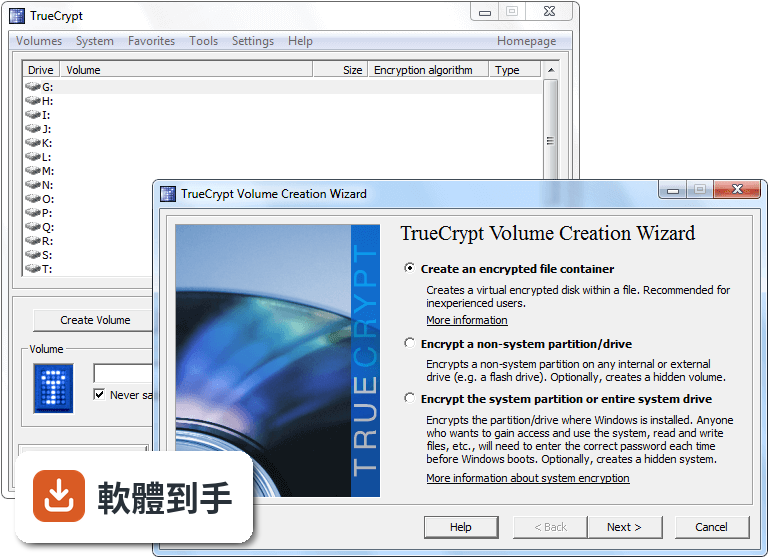
TrueCrypt 最後一次更新是 2014 年 5 月,官方在當時就宣布停止開發,所以它是一套已經停止維護的軟體。它能做的事包括:把一個檔案變成虛擬加密磁碟、加密整個隨身碟或硬碟分割區、加密 Windows 系統碟(開機時要輸入密碼),以及建立隱藏磁區。如果你只是要加密檔案或隨身碟,它仍然可以運作,但因為沒有後續更新,使用前要自己衡量風險。
02它跟一般把檔案壓縮加密碼有什麼不同?
壓縮檔加密是把檔案打包成一個壓縮檔,每次要讀取都得先解壓縮,而且壓縮檔裡的檔名、資料夾結構還是看得見。TrueCrypt 的做法是建立一個加密的磁碟,掛載之後就像多了一顆硬碟,你可以直接在裡面新增、刪除、修改檔案,所有動作在背景即時加解密,不需要手動解開再壓回去。整個磁碟的內容,包括檔名、資料夾名稱、剩餘空間,全部都是加密的。
03它能不能加密整顆隨身碟?插到別台電腦讀得到嗎?
可以。TrueCrypt 可以對整個隨身碟或外接硬碟進行加密,加密之後,這顆隨身碟在沒有安裝 TrueCrypt 的電腦上,會被辨識成「未格式化的磁碟」,看不到任何檔案。要讀取的話,那台電腦必須安裝 TrueCrypt,然後用密碼掛載。如果你常需要在不同電腦之間使用,記得隨身攜帶 TrueCrypt 的安裝檔,或是使用它提供的「隨身碟攜帶模式」功能。
04它有所謂的「隱藏磁區」,那是什麼?真的有用嗎?
隱藏磁區是 TrueCrypt 的一個特殊功能,讓你在加密磁碟裡面再建立一個隱藏的加密區。當有人脅迫你說出密碼時,你可以交出外層的密碼,對方只會看到你放在外層的普通檔案,而隱藏區的內容不會被發現。這個功能在資料上確實存在,但它的使用條件比較嚴格,例如寫入外層磁區時要小心不要覆蓋到隱藏區,需要照著官方文件的操作步驟來做。
05加密之後,讀寫速度會不會變很慢?
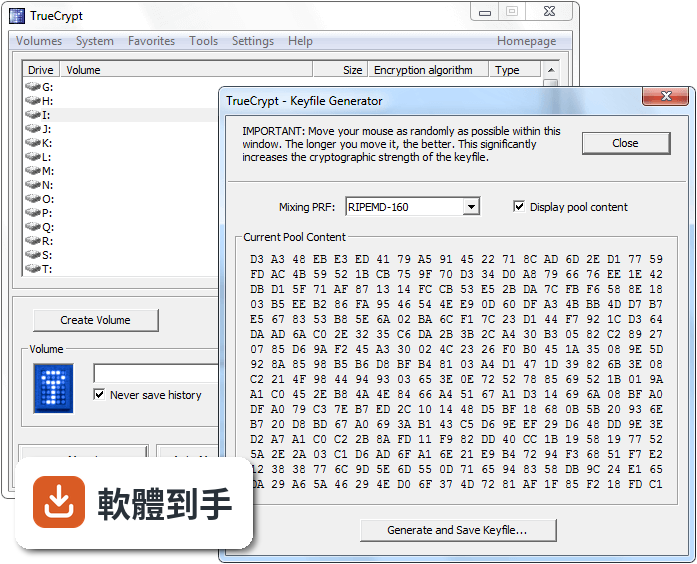
TrueCrypt 的官方說明提到,它使用了平行化和管線化技術,讓資料讀寫速度接近未加密的狀態。實際速度取決於你的電腦硬體、加密演算法和磁碟類型。它支援 AES、Serpent、Twofish 三種演算法,其中 AES 通常最快。如果你用的是舊電腦或 USB 2.0 的隨身碟,瓶頸可能出現在硬體本身,而不是加密過程。
06這套軟體適合什麼樣的人用?
適合手上還有 Windows 7 或更舊系統電腦的人,或是需要加密隨身碟、外接硬碟、但不想花錢買商業軟體的人。它也適合對隱私要求比較高、願意花時間研究文件、照著步驟操作的人。因為它已經停止更新,使用前最好先確認你的系統版本在它支援的範圍內(Windows 2000 到 Windows 7),而且你願意承擔沒有後續修補程式的風險。
07我電腦是 Windows 10 或 11,可以用 TrueCrypt 嗎?
官方支援的系統只到 Windows 7,包含 64 位元版本。在 Windows 10 或 11 上安裝,可能會遇到驅動程式不相容或系統安全性原則阻擋的問題,官方文件沒有提供這些新系統的支援資訊。如果你用的是新系統,建議直接找其他有在維護的加密軟體,不要冒險安裝一套停止開發多年的工具。
08它跟 VeraCrypt 有什麼關係?我該直接改用 VeraCrypt 嗎?
VeraCrypt 是 TrueCrypt 的分支,由不同的開發團隊接手維護,功能上很接近,而且持續有更新。VeraCrypt 可以讀取 TrueCrypt 建立的加密磁碟,但反過來 TrueCrypt 無法讀取 VeraCrypt 的格式。如果你要加密的是新資料,直接選 VeraCrypt 會是比較合理的選擇;如果你已經有 TrueCrypt 加密的舊磁碟,可以用 VeraCrypt 把它們轉換過來。
09什麼情況不該選 TrueCrypt?
如果你用的是 Windows 10 或 11,不該選,因為它不支援。如果你需要加密的是整顆系統碟、而且電腦是每天要用的主力機,也不建議,因為停止維護的軟體若出現安全性漏洞,不會有人修補。另外,如果你對電腦操作不熟、不想看英文文件,TrueCrypt 的介面和設定流程對新手不太友善,這種情況也別選它。
10它的評價好像不高,是不是代表不好用?
在收錄的資料中,TrueCrypt 的使用者評分是 6.32/10,只有 57 人評分,樣本數不多。這個分數反映的是少數使用者的主觀經驗,可能包含對它停止開發的不滿,或是操作上遇到的問題。評分低不一定代表功能差,但搭配「長期沒有新版本」這個事實來看,它確實不是一個還在活躍發展的軟體,選擇前要理解這點。
11我只是想簡單加密幾個檔案,有更適合的選擇嗎?
官方在停止開發的公告中,自己就提到:如果你只是想加密一批檔案,可以考慮 AxCrypt。AxCrypt 在收錄資料中有 99 人評分,比 TrueCrypt 多,而且它的定位就是簡化檔案加密流程。TrueCrypt 的強項是整顆磁碟或分割區的加密,拿來加密單一檔案反而有點殺雞用牛刀,操作也比較複雜。
下載與官方連結
truecrypt-4.3.zip · 1.44 MB
版本紀錄
- 2014-05-29 TrueCrypt 7.2
- 2012-02-08 TrueCrypt 7.1a 3.31 MB
- 2011-09-02 TrueCrypt 7.1 3.31 MB
再看 5 筆
- 2010-09-06 TrueCrypt 7.0a 3.33 MB
- 2010-07-20 TrueCrypt 7.0 3.3 MB
- 2009-11-25 TrueCrypt 6.3a 3.2 MB
- 2009-10-22 TrueCrypt 6.3 3.2 MB
- 2009-06-16 TrueCrypt 6.2a 3.04 MB
這一版改了什麼
What's new in this version:
New features:
- Full compatibility with 32-bit and 64-bit Windows Vista:
- Support for User Account Control (UAC).
- All .sys and .exe files of TrueCrypt are now digitally signed with the digital certificate of the TrueCrypt Foundation, which was issued by the certification authority GlobalSign.
- When moving the mouse on a single-CPU computer while reading or writing data to a TrueCrypt volume, the mouse pointer stopped moving for a second every few seconds. This will no longer occur. (Windows Vista issue)
- Other minor compatibility-related changes.
- TrueCrypt volume is automatically dismounted if its host device is inadvertently removed.
Important: You should always dismount the volume in TrueCrypt and then use the "Safely Remove Hardware" function (built in Windows) before you physically remove the host device (e.g. a USB flash drive).
- Support for devices and file systems that use a sector size other than 512 bytes (e.g., new hard drives, USB flash drives, DVD-RAM, MP3 players, etc.)
- Support for devices with a GPT partition table (GUID partitions). (Windows Vista/2003/XP)
- After a partition is successfully encrypted, the drive letter assigned to it (if any) is automatically removed. (Windows)
- Volume name (label) is displayed in device/partition selector. (Windows)
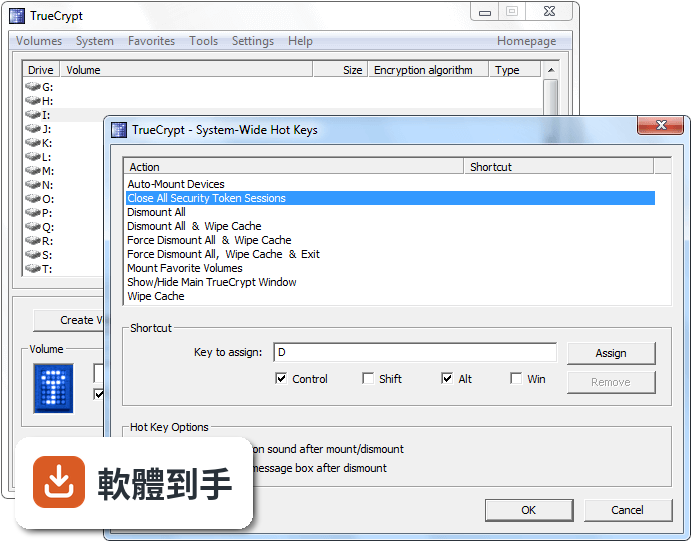
- New hotkey: 'Wipe Cache'. (Windows)
- New command line switch '/q background' for launching the TrueCrypt Background Task. (Windows)
Improvements:
- Portions of the TrueCrypt device driver redesigned.
- Maximum allowed size of FAT32 volumes increased to 2 TB (note that NTFS volumes can be larger than 2 TB).
- Traveller Disk Setup improved. (Windows)
- Volumes hosted on read-only media will always be mounted in read-only mode. (Windows)
- Improved support for big-endian platforms.
- Other minor improvements (Windows and Linux)
Bug fixes:
- The built-in FAT format facility now functions correctly on big-endian platforms.
- Improved handling of partitions and devices during volume creation. (Windows)
- Improved handling of low-memory conditions. (Windows)
- Fixed bug that rarely caused system errors when dismounting all volumes. (Windows)
- Tray icon is recreated when Windows Explorer is restarted (e.g. after a system crash).
- Other minor bug fixes (Windows and Linux)
Security improvements:
- Improved security of set-euid mode of execution. Volume can be dismounted only by the user who mounted it or by an administrator (root). (Linux)
Removed features:
- It is no longer possible to create new volumes encrypted with 64-bit-block encryption algorithms (Blowfish, CAST-128, and Triple DES). 64-bit block ciphers are being phased out. It is still possible to mount such volumes using this version of TrueCrypt. However, it will not be possible to mount such volumes using TrueCrypt 5.0 and later versions (this applies also to volumes encrypted with AES-Blowfish and AES-Blowfish-Serpent, which have been in the process of being phased out since TrueCrypt 4.1). If you have such a volume, we recommend that you create a new TrueCrypt volume encrypted with a 128-bit-block encryption algorithm (e.g., AES, Serpent, Twofish, etc.) and that you move files from the old volume to the new one.