
這是歷史版本頁面 — 看 VEGAS Pro 最新版本
VEGAS Pro 適合誰?跟 DaVinci Resolve 怎麼選
 VEGAS Pro 9.0 (64-bit)
資料更新 2009-05-16
閱讀約 7 分鐘
你手上有一批影片素材,可能是訪談、活動紀錄或自己拍的畫面,想剪成一支完整的影片。你打開電腦,發現內建的剪輯工具陽春到連字幕都不好加,更別說調色、去背或處理雜訊。你開始找專業剪輯軟體,卻發現每套都號稱功能強大,介面複雜到不知道從哪裡開始,下載試用後光是搞懂時間軸就耗掉整個晚上。
一般人遇到這種狀況,直覺是去抓免費或盜版軟體,但免費的往往閹割功能,盜版的又怕中毒或檔案損壞。另一條路是直接買最貴的套裝,結果買回來才發現一堆功能你用不到,介面還全是英文。這類專業剪輯工具的切入點,其實是讓你在「功能完整度」和「上手難度」之間找到平衡——不是越貴越好,而是要看它提供的工具是否對應你實際會遇到的剪輯工作,以及你願不願意花時間把介面摸熟。
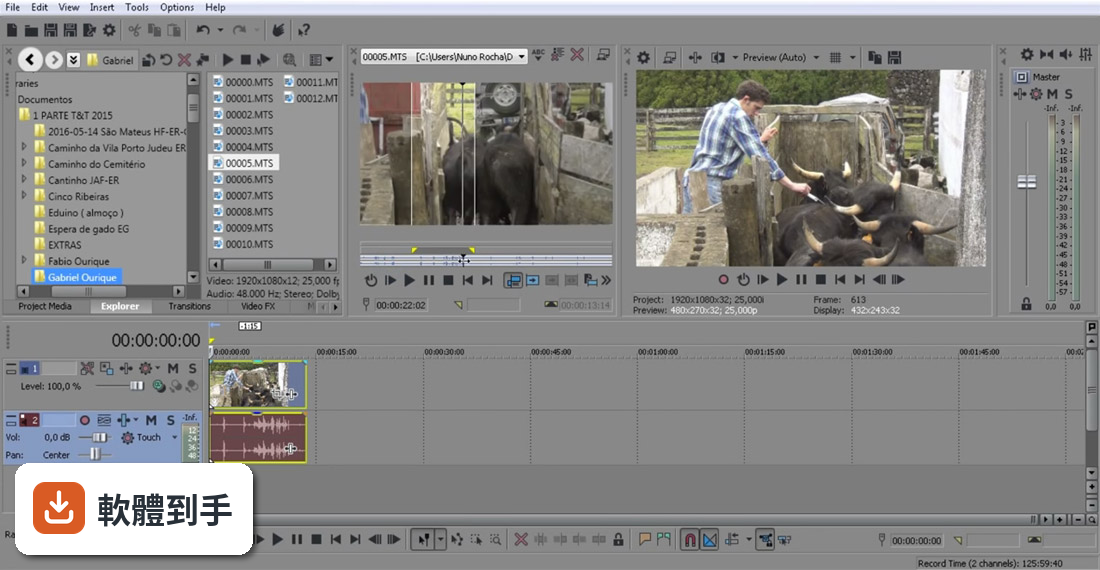
01VEGAS Pro 到底能拿來做什麼?
它是一套在 Windows 上跑的專業影片剪輯軟體,涵蓋剪接、調色、合成、音訊處理到輸出成片。官方列出的能力包括編輯最高 4K 解析度的影片、用 AI 工具去背或追蹤物件、製作字幕、調色、做 2D/3D 合成,也能燒錄 DVD 和藍光光碟。簡單說,從素材匯入到最終輸出,它想包辦整個流程。
02它的 AI 功能是噱頭還是真的有用?
官方列出的 AI 功能有幾項是實際可用的:Smart Mask 可以自動去背或追蹤移動物體,不用手動一格一格畫遮罩;Text-based Editing 把音訊轉成文字,你直接編輯文字就能剪掉贅詞和停頓;Speech to Text 自動產生字幕;Text to Speech 用文字生成配音;還有 AI Reframe 自動調整畫面比例。這些功能對訪談、多機剪輯或大量素材的案子確實能省時間,但實際效果還是要自己試。
03它調色能力夠專業嗎?
官方強調有詳細的色彩校正工具,可以調整色相、飽和度、明度,也支援 LUT,還提到新的版本支援 ACES 1.3 和 OpenColor IO,色彩管理有跟上專業流程。另外有「Footage Restoration」功能,可以消除影片雜訊、穩定晃動畫面、去除霓虹燈閃爍和黑邊。如果你只是要快速調出好看的顏色,它夠用;如果要做到電影級的精細分級,它提供的工具深度可能不如 DaVinci Resolve。
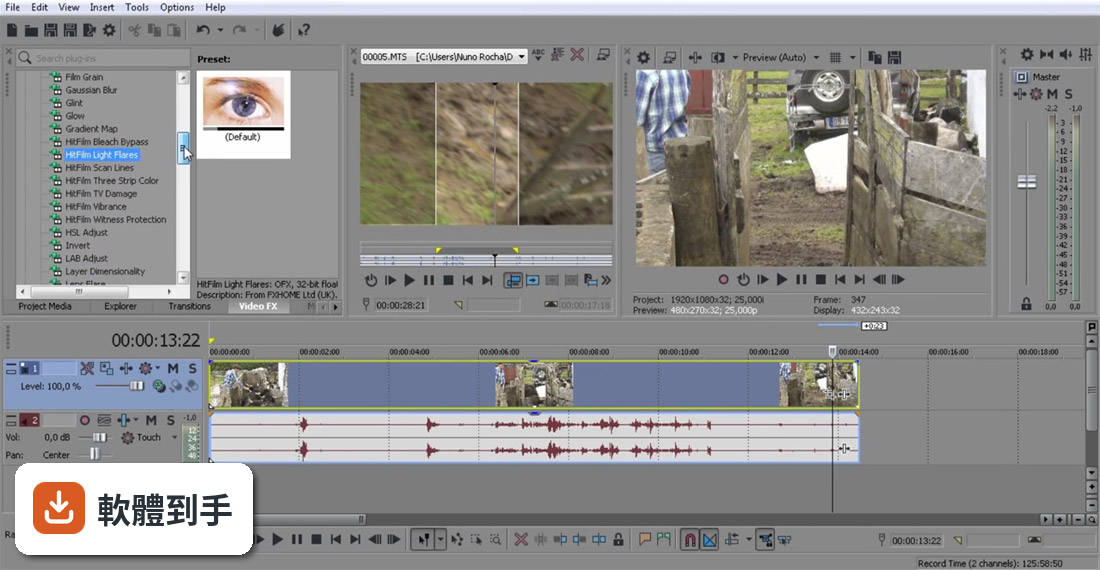
04音訊編輯做到什麼程度?
它內建專業音訊編輯工具,可以處理高品質音軌,也支援 VST-3 插件,等於能用外部音訊效果器。新版還加了現代化等化器,可以在訊號鏈的任何階段做精確的 EQ 調整。另外有 Audio Sync 功能,可以快速同步多機錄製的素材。如果你需要做細緻的對白修補、混音或音效設計,它比一般剪輯軟體內建的音訊功能強,但如果你主要做音樂製作,那 Sound Forge Pro 是更專門的工具。
05它跟 DaVinci Resolve 比,差在哪?
兩套都是專業剪輯軟體,但取向不同。DaVinci Resolve 的調色功能是業界標竿,而且有免費版本,使用者評分人數也較多(365 人)。VEGAS Pro 的強項是單一時間軸就能完成剪輯和後製,AI 工具整合得比較直接,介面對習慣 Windows 操作的人來說相對親切。如果你主要卡在調色,Resolve 是主流選擇;如果你想要一套軟體從剪輯到輸出都搞定,而且不想被節點式調色介面嚇到,VEGAS Pro 可以考慮。
06新手適合直接學這套嗎?
官方說它同時適合業餘和專業剪輯者,介面設計有把工具整合進時間軸,降低學習曲線。但要注意,它的介面語言只有英文,如果你不習慣英文選單,初期會比較吃力。另外它沒有免費版,只有 30 天試用,試用期過後就要付費。如果你完全沒碰過剪輯軟體,建議先從免費的 DaVinci Resolve 或手機剪輯 App 開始,確認自己真的需要這麼多功能再投入。
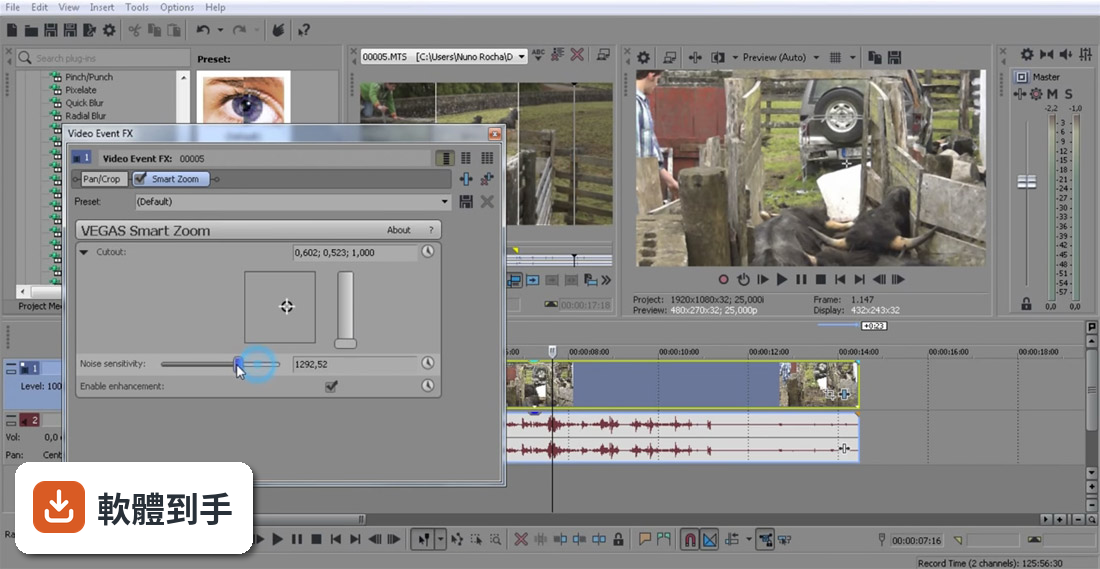
07我主要拍 YouTube 影片,用它會太超過嗎?
如果你拍的內容需要去背、動態字幕、多機同步或精細調色,它的 AI 工具確實能省時間。但如果你只是拍 talking head 加上一些 B-roll,用免費軟體或線上剪輯工具就夠了。它的價值在於把多個步驟整合在同一套軟體裡,不用在剪輯、調色、字幕軟體之間切換。如果你的工作流程很單純,花錢買它可能用不到一半功能。
08什麼情況不該選它?
有三種狀況建議先想清楚:第一,你完全看不懂英文介面,操作會很痛苦;第二,你主要需要調色,那 DaVinci Resolve 是更多人用的選擇,而且有免費版;第三,你的電腦規格不夠新,因為新版引擎強調 DirectX 11/12 和 GPU 加速,舊硬體跑起來可能不順。另外,它的使用者評分人數(387 人)比 DaVinci Resolve(365 人)多一點,但兩者都算小眾,社群資源和教學影片的數量,Resolve 明顯更多。
09我的電腦跑得動嗎?
官方只說支援 Windows 11,也支援 Windows on ARM(透過 NPU 加速),但沒有列出最低硬體需求。新版強調用 DirectX 11/12、VRAM 內處理和 ACES 1.3,代表顯示卡和記憶體會是關鍵。建議你先下載 30 天試用版,實際匯入你的素材跑看看,確認預覽和輸出不會卡頓再決定。如果你的電腦是五年前的機型,可能要考慮升級硬體或選更輕量的軟體。
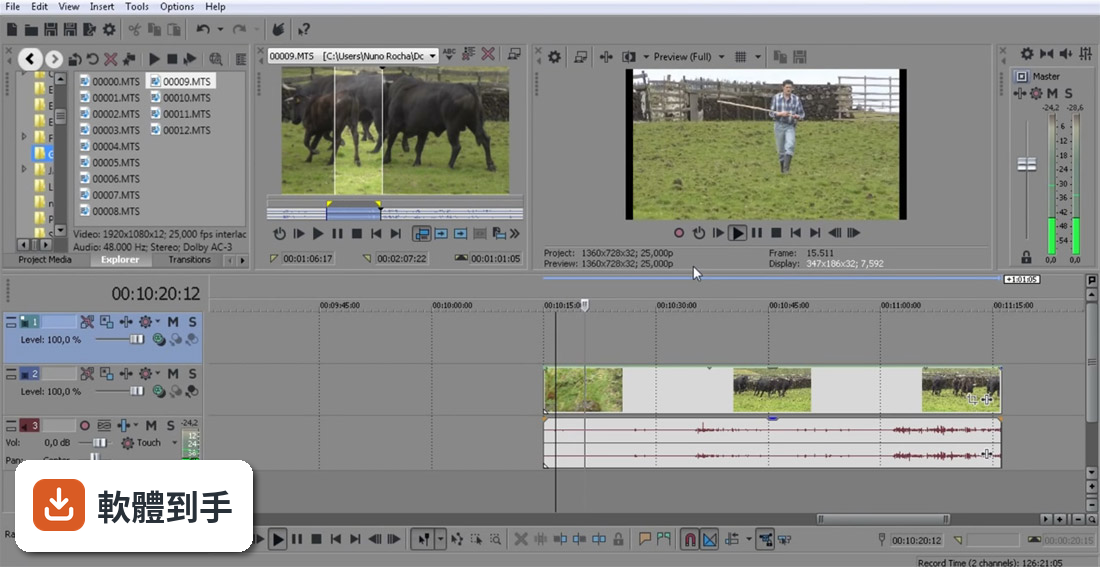
10它跟 Sound Forge Pro 有什麼關係?
它們現在是同一家開發商(Boris FX)旗下的產品,但定位不同。VEGAS Pro 是影片剪輯為主、附帶音訊編輯能力;Sound Forge Pro 是專業音訊編輯軟體,專門做錄音、音檔修復和聲音設計。如果你主要做影片,買 VEGAS Pro 就夠;如果你要處理 podcast、音樂或音效素材,Sound Forge Pro 是更專門的工具。兩者可以搭配使用,但不需要同時買。
11它值得從舊版升級嗎?
官方資料顯示近 12 個月只更新了 1 次,更新頻率不算高。新版的主要賣點是全新的 VEGAS Core Engine,宣稱效能大幅提升、預覽更流暢,還有 Windows on ARM 支援和介面更新。如果你目前用的版本跑得順,而且沒有遇到效能瓶頸,不急著升級;如果你常被預覽卡頓或色彩不準困擾,新版引擎可能值得試試。建議先看試用版的實際表現再決定。
12有免費的替代方案嗎?
官方只有 30 天試用,沒有免費版。功能相近的 DaVinci Resolve 有免費版本,而且調色能力更強,是許多人會先試的選擇。另外,微軟內建的 Clipchamp 或線上工具如 Canva、CapCut 也能應付基本剪輯。如果你的需求只是偶爾剪一支影片,不需要 AI 去背或專業調色,免費工具就夠了;如果你要長期做專業剪輯,再考慮付費買 VEGAS Pro。
下載與官方連結
vegaspro90_64bit.exe · 160.9 MB · 連結指向軟體原廠
版本紀錄
- 2026-11-02 VEGAS Pro Suite 2027
- 2026-07-13 VEGAS Pro Suite 26.0
- 2023-08-14 VEGAS Pro Suite 21.0 591.19 MB
再看 5 筆
- 2023-07-10 VEGAS Pro 20.0 Build 411 626.44 MB
- 2022-08-10 VEGAS Pro 29.0 Build 139
- 2022-06-23 VEGAS Pro 19.0 Build 643 738.2 MB
- 2022-06-09 VEGAS Pro 19.0 Build 636
- 2022-04-01 VEGAS Pro 19.0 Build 550
這一版改了什麼
What's new in this version:
- Support for frame sizes up to 4096x4096 (see the Video tab in Project Properties).
- Support for capturing directly to XDCAM-compatible MXF files from supported SDI devices.
- Vegas can now automatically adjust the video preview size and quality to optimize frame rate during preview.
- Right-click the Video Preview window and select Adjust Size and Quality for Optimal Playback if you want to emphasize frame rate during preview. When the command is not selected, video quality is emphasized, and the frame rate will be reduced if necessary.
- Select the Adjust source media to better match project or render settings check box on the Video tab of the Project Properties dialog to enable Vegas to make minor changes to your source media properties — including cropping/padding frame size or adjusting interlacing — to allow media files to work better with your project.
- Improved 32-bit, floating-point (video levels) processing mode ensures color level and contrast compatibility with 8-bit mode (see the Video tab in Project Properties).
- Gradient Wipe transition.
- New Glint, Rays, Defocus, Starburst, Soft Contrast and Fill Light video effects.
Audio:
- Audio-only edits (such as event moves, trims, and ASR times) are no longer quantized to frame boundaries by default when Quantize to Frames is enabled.
- If you want to quantize audio-only edits, clear the Do not quantize to frames for audio-only edits check box on the Preferences > Editing tab.
- Audio-waveform drawing during recording has been improved:
- Recorded waveforms are now updated at a faster rate.
- 16-bit peak files are used for increased resolution.
- The entire waveform is now visible during recording.
- Peaks no longer need to be built when recording is completed.
- A Use all Streams and Channels command has been added to the Trimmer window shortcut menu to allow you to choose how streams and channels are handled when adding media to the timeline.
Workflow:
- The Vegas interface uses a new, darker color palette that's easy on your eyes when working in a darkened editing booth.
- Vegas includes new default window layouts.
- The Device Explorer window allows you to import video from AVCHD and XDCAM EX cameras.
- In the Save As dialog, the Copy media with project radio button now copies only media files that are saved outside of the project folder; media files in folders below the project folder are no longer copied.
- In the Video Media Generators dialog, you can now click the Match Event Length button to set the length of the generated media to match the length of the event.
- Hold Alt+Shift while dragging inside an event to slip-trim the right edge of an event.
- Hold Ctrl+Alt+Shift while clicking an event to split it. You can then drag from that point to trim the event in the direction you drag (eraser mode).
- You can now slip all of an event's takes when slipping an event (choose Slip All Takes from the Options menu).
- You can hold Ctrl (or hold the right mouse button) for fine control while adjusting the sustain portion of event envelopes.
- Time selection envelope editing (adjusts multiple envelope points within a time selection for quick audio ducking).
- Muted events on muted tracks are now darkened on the timeline to indicate their muted state.
- You can now set default fade and keyframe types on the External Control & Automation tab in the Preferences dialog.
- You can now choose to automatically crop still images to match your project's output aspect ratio.
- In the Render As dialog, templates that match your project settings (frame size, pixel aspect ratio, and frame rate) are displayed with an = symbol in the Template drop-down list.
- Holding the Shift key while dragging now enables snapping if Enable Snapping is turned off.
- When you drag a group of selected events, the first and last event now snap to other snap points on the timeline.
- Pressing ` (grave accent) no longer restores track height for tracks that were previously minimized.
Formats:
- Native XDCAM EX reading and import.
- Improved support for still-image formats:
- Added support for gigapixel-resolution images.
- Improved performance when working with high-resolution still formats.
- You can now create still-image sequences from the Render As dialog.
- Added support for reading and saving DPX, OpenEXR, and MS HD Photo formats.
- Support for opening and editing RED ONE (.r3d) files on the timeline.
- Updated Sony AVC rendering templates for Internet distribution.