
這是歷史版本頁面 — 看 Oracle VM VirtualBox 最新版本
Windows上想跑Linux系統,Oracle VM VirtualBox能幫什麼
 Oracle VM VirtualBox 135406
資料更新 2019-12-11
閱讀約 7 分鐘
你手上這台電腦裝的是 Windows,但某天你突然需要一個 Linux 環境——可能是要跑某支只出 Linux 版的工具、想練習伺服器指令,或者只是想看看別的系統長什麼樣子。你不想重開機切換、更不想把整台電腦格式化重灌,你只想在現在這個 Windows 桌面裡,再開一個視窗,裡面跑另一個系統。
最直覺的做法是裝雙系統,但雙系統要分割硬碟、重開機才能切換,而且切過去就暫時用不到 Windows 這邊的檔案和程式。另一種做法是再買一台電腦,但為了偶爾的需求多花一筆錢,怎麼想都不划算。這類工具的切入點是:用軟體在現有系統裡模擬出一台「虛擬電腦」,把另一個系統裝在那台虛擬電腦裡,兩個系統同時開著、隨時切換,檔案也能互通。
01VirtualBox到底能拿來做什麼?
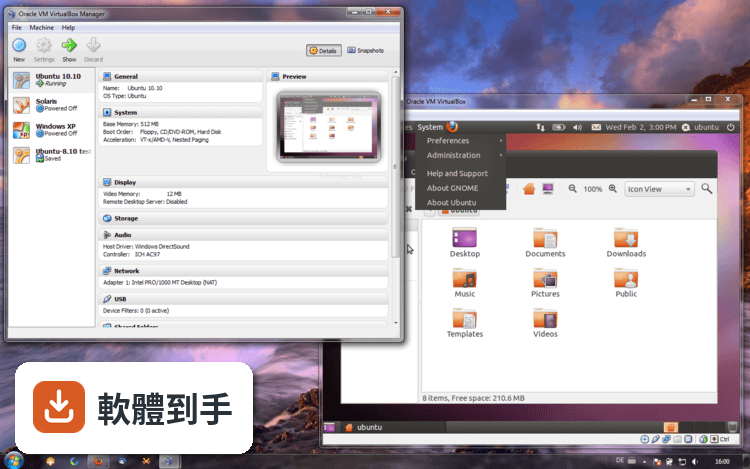
它讓你在現有的 Windows 系統裡,用軟體模擬出一台虛擬電腦,再在那台虛擬電腦裡安裝其他作業系統,例如 Linux 或更舊版的 Windows。裝好之後,你可以同時開著原本的系統和虛擬系統,不用重開機就能切換。開發者常用它來測試軟體在不同系統的相容性,一般使用者也可以拿來試用沒用過的系統,或把特定工作隔離在虛擬環境裡。
02它跟直接裝雙系統有什麼不同?
雙系統是硬碟分割成兩個區域,一次只能開一個系統,要切換就得重開機。VirtualBox 的做法是讓虛擬系統像一般應用程式一樣,開在 Windows 桌面的一個視窗裡,兩個系統同時運行。好處是切換不用重開機,而且虛擬系統只是幾個檔案,不滿意隨時可以刪掉重來,不影響原本的 Windows。代價是虛擬系統會跟你搶記憶體和 CPU,電腦不夠力的話會明顯變慢。
03能不能在Windows上跑macOS?
官方說明提到,在 VirtualBox 上跑 macOS 技術上可行,但沒有正式支援,需要額外設定和調整,而且 Apple 的授權條款有法律限制。如果你只是好奇想試試,可以自己研究看看,但遇到問題不會有官方技術支援。如果你是真的需要 macOS 環境來開發或測試,建議先確認授權問題,再考慮其他方案。
04虛擬機器之間能不能互相連線?
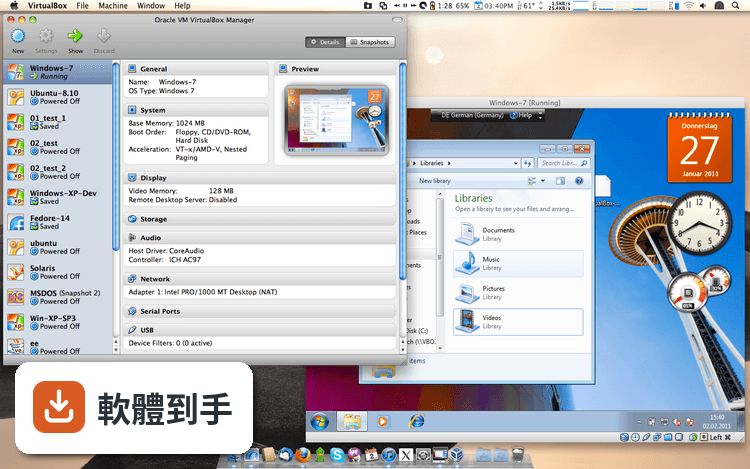
可以。它提供多種網路模式,包括 NAT、橋接網路和內部網路。NAT 適合虛擬機器需要上網但不需要被外部連線的狀況;橋接網路會讓虛擬機器直接取得區域網路的 IP,像一台實體電腦一樣跟其他裝置互通;內部網路則讓多台虛擬機器之間互相通訊,但不對外連線。設定在每台虛擬機器的設定選單裡,可以依需求切換。
05檔案怎麼在Windows和虛擬系統之間互傳?
有兩種主要方式。第一種是共享資料夾:在虛擬機器的設定裡指定一個 Windows 資料夾,裝好 Guest Additions 之後,虛擬系統裡就會看到這個資料夾,兩邊都能存取。第二種是共享剪貼簿:啟用之後,在 Windows 複製的文字可以直接貼到虛擬系統裡,反過來也行。這兩種功能都需要先安裝 Guest Additions,它是一包驅動程式和系統工具,官方建議裝完虛擬系統後就安裝。
06開發者拿它來測軟體夠用嗎?
對多數開發測試場景來說夠用。它支援快照功能,可以在某個狀態下拍一張快照,之後不管怎麼改、怎麼弄壞,都能一鍵回到快照時的狀態,很適合拿來測試安裝程式或實驗設定。它也提供命令列介面,進階使用者可以寫腳本批次建立、啟動、關閉虛擬機器,一次管理多台。不過如果你要測的是高效能運算或需要大量 3D 繪圖的軟體,它的 3D 加速能力有限,可能要考慮其他方案。
07一般使用者想試試別的系統,適合用嗎?
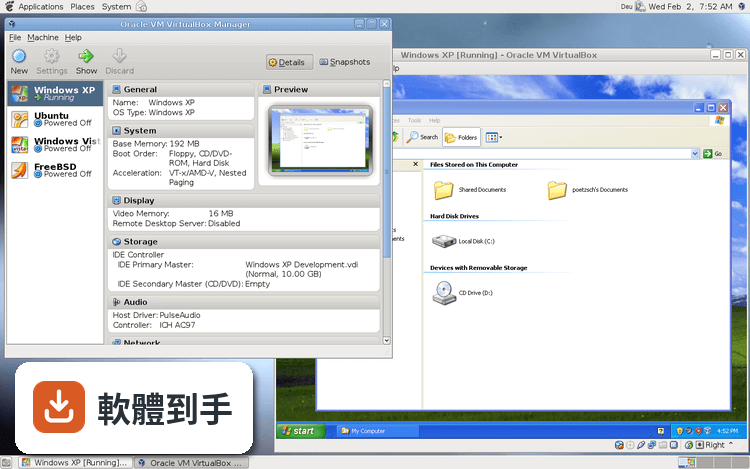
適合,前提是你有基本的概念。它的介面有建立虛擬機器的精靈,一步一步引導你選擇要安裝的系統類型、分配記憶體和硬碟空間,過程不算複雜。但介面是英文的,而且有些設定選項對沒接觸過虛擬化的人來說會看不懂。如果你只是想要一個 Linux 環境跑特定工具,照著網路上的教學走通常可以完成;如果你完全沒有耐心看說明,可能會卡在安裝 Guest Additions 或網路設定這類細節。
08學生或自學者可以用它練習系統管理嗎?
可以,而且很適合。它免費、開放原始碼,學生可以在一台電腦上同時開好幾台虛擬機器,練習安裝系統、設定網路、架設伺服器,弄壞了就用快照還原,不用擔心影響主要系統。它支援多種 guest 作業系統,包括各種 Linux 發行版和舊版 Windows,練習範圍很廣。唯一要注意的是,虛擬機器會消耗實體資源,如果電腦記憶體只有 4GB,同時開兩台以上會很吃力。
09拿來玩高效能遊戲或3D繪圖適合嗎?
不適合。它雖然有 3D 圖形加速功能,但官方定位是「支援需要硬體圖形加速的應用程式」,不是拿來跑高效能遊戲或專業 3D 繪圖的。虛擬機器裡的顯示效能本來就會打折扣,加上它對 GPU 的支援有限,如果你主要目的是玩遊戲或跑 3D 建模,直接裝雙系統或另外準備一台電腦會實際得多。這類需求建議先確認你的顯示卡和軟體在虛擬環境下的相容性再決定。
10公司要大量部署虛擬機器,適合嗎?
要看規模。它免費、開放原始碼,對預算有限的小團隊或個人開發者來說是合理的起點。但如果你要管理幾十台虛擬機器、需要集中管理介面、進階的資源調度或企業級技術支援,它的定位就不太符合。市場上有其他虛擬化產品,例如 VMware 系列,評分人數和企業採用度都更高,但那些是付費軟體。建議先評估你的管理需求和預算,再決定要不要投入學習成本。
11介面只有英文,看不懂怎麼辦?
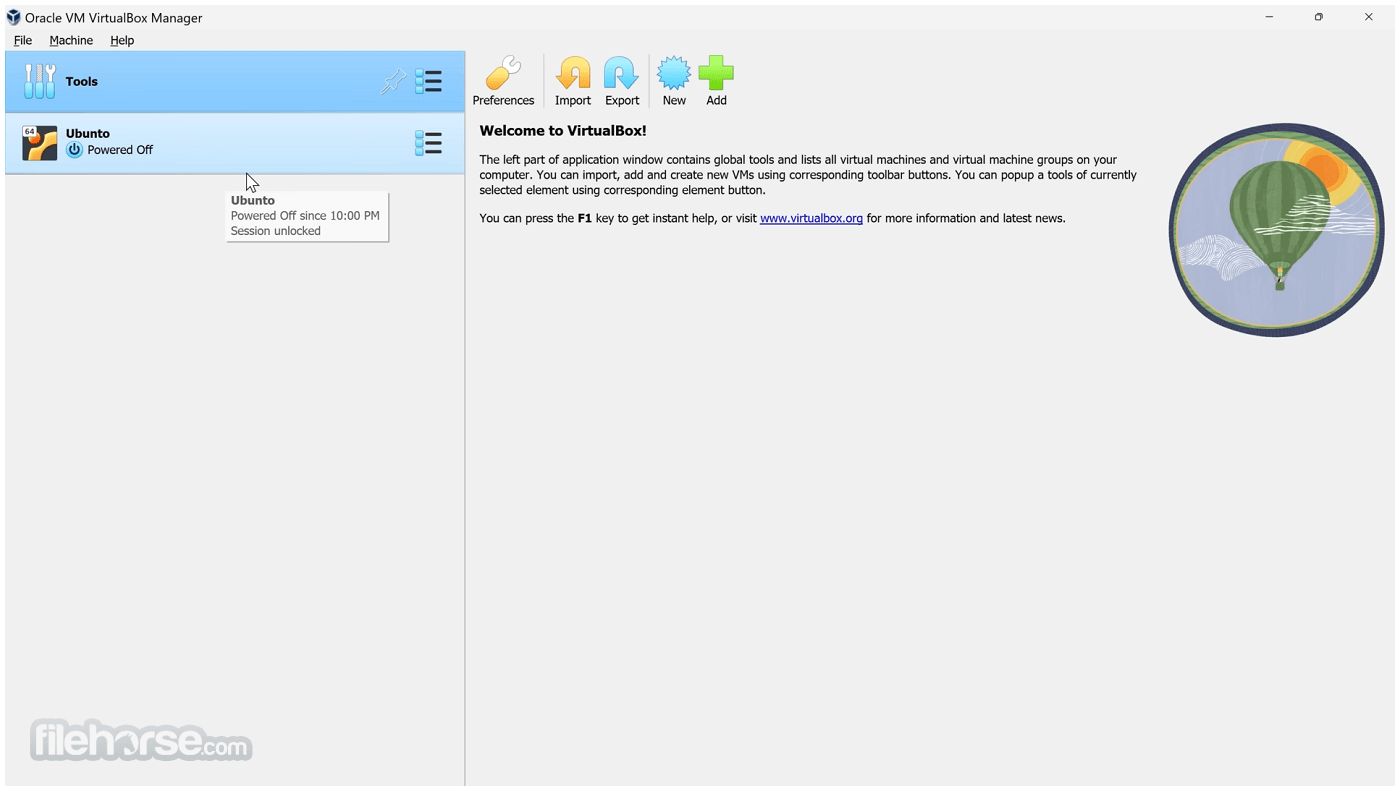
它的介面語系是英文,官方沒有提供繁體中文介面。如果你英文不熟,操作上會比較吃力,因為建立虛擬機器、設定網路、管理快照這些功能都藏在英文選單裡。網路上有不少中文教學文章和影片,可以邊看邊做,但遇到選單上的細節還是得自己對照。如果你完全無法接受英文介面,可以考慮其他有中文介面的虛擬機器軟體,或確認是否有社群提供中文化檔案。
12舊電腦跑得動嗎?
這取決於你的硬體規格和要跑的系統。虛擬機器會跟主系統搶記憶體和 CPU,官方說明建議分配足夠的資源給虛擬機器,但沒有給出最低硬體需求。一般來說,如果你要跑輕量的 Linux 系統,4GB 記憶體的電腦勉強可以;要跑圖形介面完整的系統或同時開多台,8GB 以上會比較順。如果你的電腦已經很舊,建議先確認記憶體和 CPU 規格,再決定要不要裝。
下載與官方連結
前往官方網站 下載 Oracle VM VirtualBox
VirtualBox-6.1.0-135406-Win.exe · 107 MB · 連結指向軟體原廠
版本紀錄
- 2026-10-21 VirtualBox 7.2.22 Build 175245 170 MB
- 2026-09-23 VirtualBox 7.2.20 Build 175154 170 MB
- 2026-09-15 VirtualBox 7.2.18 Build 175117 170 MB
再看 5 筆
- 2026-08-19 VirtualBox 7.2.16 Build 174877 170 MB
- 2026-07-22 VirtualBox 7.2.14 Build 174565 170 MB
- 2026-07-01 VirtualBox 7.2.12 Build 174389 170 MB
- 2026-06-17 VirtualBox 7.2.10 Build 174163 170 MB
- 2026-04-21 VirtualBox 7.2.8 Build 173730 170 MB
這一版改了什麼
What's new in this version:
Major new features were added:
- Implemented support for importing a virtual machine from Oracle Cloud Infrastructure
- Extended support for exporting a virtual machine to Oracle Cloud Infrastructure, allowing the creation of multiple virtual machines without re-uploading. Also added option to export a VM to the cloud using the more efficient variant "paravirtialized", and to specify free-form tags for cloud images
- Virtualization core: Support for nested hardware-virtualization on Intel CPUs (starting with 5th generation Core i, codename Broadwell), so far tested only with guest running VirtualBox
- Graphics: New style 3D support (with VBoxSVGA and VMSVGA) remains, old style 3D support (with VBoxVGA) has been completely removed
- Shared Clipboard: Implemented experimental support for file transfers (Windows hosts/guests only at the moment). Needs to be enabled via VBoxManage (disabled by default)
Fixed and/or added:
- Virtualization core: Drop recompiler, i.e. running VMs now needs a CPU supporting hardware virtualization
- Runtime: Works now on hosts with many CPUs (limit now 1024)
- Appliance and Cloud Import: Add field for defining firmware type (not part of OVF spec and thus manual in the Appliance case, for OCI it is automatically taken from the instance information)
- GUI: Improved the VISO creation and file manager dialogs
- GUI: Virtual machine list of VirtualBox Manager was improved. Machine groups are now more obvious visually and VM search functionality has been improved. Global Tools element can now be pinned in place, to avoid scrolling it with rest of machine list
- GUI: Virtual machine details pane is now extended with embedded editors for selected VM attributes, allowing user to edit them on-the-fly byi clicking corresponding hyper-links without opening VM settings dialog
- GUI: Details pane provides more complete information
- GUI: Internal medium enumeration routines were optimized to reduce the load and optimize the performance in cases when user have lots of media registered. Also, we again allowed to add existing media (and create new) via Virtual Media Manager
- GUI: More consistent medium selection (both showing known images and allowing to select using the file picker)
- GUI: VM storage settings page was adjusted a bit in usability regard. User is now allowed to change controller bus type and can move attachments between the controllers by using drag and drop
- GUI: Storage and Network settings pages bug-fixes and usability optimization
- GUI: Added a new soft (virtual) keyboard enabling arbitrary keyboard input to guests, including multimedia keys
- GUI: Fixed crash in cloud related wizards when accessibility functionality was enabled
- GUI: Show VM CPU load as part of status bar CPU indicator
- GUI: Improved and extended the Session Information dialog
- GUI: Fixed/improved mouse pointer scaling
- GUI: Some issues related to mouse integration cursor scaling were addressed (bug #14366), more to go
- GUI: Fix and unify geometry save/restore in various dialogs
- GUI: Added the missing restriction options for disabling new functionality such as the VISO creator
- GUI: Popup messages mouse click fix
- Graphics: Remove 3D support for VBoxVGA (old one deprecated with 6.0)
- Graphics: Additional texture format support on Windows host
- Graphics: Improved fix for flickering on Windows host
- Input: Added support for horizontal scrolling in the PS/2 mouse device using the IntelliMouse Explorer protocol. Note that this support is automatically used by Linux guests but not by Windows guests
- vboximg-mount: Experimental support for direct read-only access to NTFS, FAT and ext2/3/4 filesystems inside a disk image without the need for support on the host
- vboximg-mount: Now also available on Linux host
- Storage: Experimental support for virtio-scsi, for both hard disks and optical drives (including boot support in BIOS)
- Storage: For optical drive emulation fix empty host drive crash
- USB: Improvements for EHCI controller implementation
- USB: Filter can now specify port path, uniquely identifying a port in a system
- NAT: Fix TFTP OACK response, send only if request has options
- NAT Network: Use non-blocking sockets on Linux for accepted incoming connections (port forwarding)
- PCnet-ISA: Added new network adapter type, currently CLI only
- Audio: Allow changing the host audio backend while the VM is in saved state
- ACPI: Report NVMe controller
- VGA: Improve hardware and BIOS compatibility
- VBoxSVGA/VMSVGA: Support YUV2 and related texture formats with hosts using OpenGL (macOS and Linux), which accelerates video playback when 3D is enabled by delegating the color space conversion to the host GPU
- VBoxSVGA/VMSVGA: Several drawing fixes for the 3D case
- VMSVGA 3D: Fixed OpenGL compressed textures
- VBoxManage: More cloud functionality coverage, e.g. starting a cloud instance
- VBoxManage: As part of the guest control feature support moving multiple source files/directories to a target directory
- Guest Control/VBoxManage: Added support for specifying multiple sources when renaming guest files
- VBoxManage: Show "unrestricted guest" and "nested HW virtualization" CPU features when listing the host information
- API: Reduce the amount of leftovers from Move VM function
- Shared Clipboard: Implemented experimental support for file transfers for Linux hosts on Windows guests (disabled by default)
- SMBIOS: Store system UUID in little endian format which is the default for new VMs, while existing VMs stick to the old VirtualBox behavior of storing them in big endian format for backwards compatibility to avoid breaking the activation status of Windows VMs
- VBoxSDL frontend: Fixed running on Windows hosts
- macOS host: Fix VM crashes (most visible on macOS Catalina)
- Linux host: Improve vboxweb systemd service dependency information
- Linux host: Drop PCI passthrough, the current code is too incomplete (cannot handle PCIe devices at all), i.e. not useful enough
- Linux host and guest: Support Linux 5.4 (bug #18945)
- Linux host and guest: Force disabling of kernel module signing during build (user can do it afterwards)
- Windows host: When possible, distinguish USB devices by port number; helps with accurate capturing of devices when multiple otherwise identical devices are connected
- Windows Guest Additions: Many fixes for drawing problems in the driver for VBoxSVGA
- Windows Guest Additions: Fixes for legacy VBoxVGA adapter, restore previously working cases
- Windows Guest Additions: Restore VHWA functionality for VBoxSVGA
- Windows guest: DXVA implementation for WDDM driver
- Documentation: Updated supported host operating systems, added few new manual pages (more to come later)
- EFI: Switch to newer firmware code base and add NVRAM support, should improve compatibility with OSes significantly
- EFI: Added support for booting from APFS
- EFI: Added support for non-standard SATA and NVMe boot device paths created by OS X
- EFI: Modified updated EFI code base to support older OS X guests again