
這是歷史版本頁面 — 看 Oracle VM VirtualBox 最新版本
Windows上想跑Linux系統,Oracle VM VirtualBox能幫什麼
 Oracle VM VirtualBox 61806
資料更新 2010-05-19
閱讀約 7 分鐘
你手上這台電腦裝的是 Windows,但某天你突然需要一個 Linux 環境——可能是要跑某支只出 Linux 版的工具、想練習伺服器指令,或者只是想看看別的系統長什麼樣子。你不想重開機切換、更不想把整台電腦格式化重灌,你只想在現在這個 Windows 桌面裡,再開一個視窗,裡面跑另一個系統。
最直覺的做法是裝雙系統,但雙系統要分割硬碟、重開機才能切換,而且切過去就暫時用不到 Windows 這邊的檔案和程式。另一種做法是再買一台電腦,但為了偶爾的需求多花一筆錢,怎麼想都不划算。這類工具的切入點是:用軟體在現有系統裡模擬出一台「虛擬電腦」,把另一個系統裝在那台虛擬電腦裡,兩個系統同時開著、隨時切換,檔案也能互通。
01VirtualBox到底能拿來做什麼?
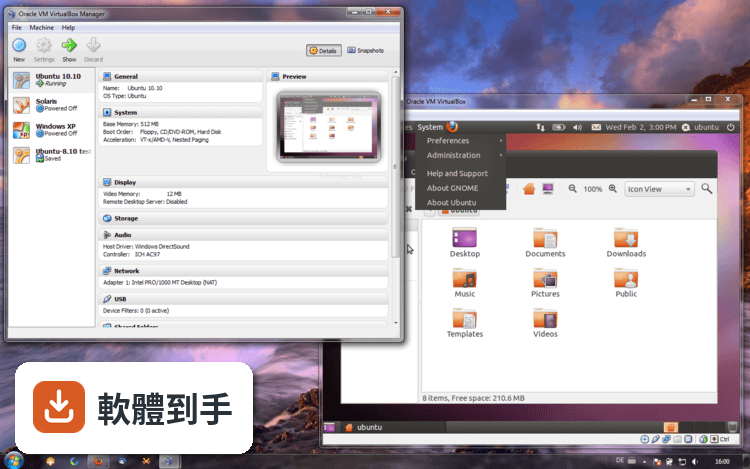
它讓你在現有的 Windows 系統裡,用軟體模擬出一台虛擬電腦,再在那台虛擬電腦裡安裝其他作業系統,例如 Linux 或更舊版的 Windows。裝好之後,你可以同時開著原本的系統和虛擬系統,不用重開機就能切換。開發者常用它來測試軟體在不同系統的相容性,一般使用者也可以拿來試用沒用過的系統,或把特定工作隔離在虛擬環境裡。
02它跟直接裝雙系統有什麼不同?
雙系統是硬碟分割成兩個區域,一次只能開一個系統,要切換就得重開機。VirtualBox 的做法是讓虛擬系統像一般應用程式一樣,開在 Windows 桌面的一個視窗裡,兩個系統同時運行。好處是切換不用重開機,而且虛擬系統只是幾個檔案,不滿意隨時可以刪掉重來,不影響原本的 Windows。代價是虛擬系統會跟你搶記憶體和 CPU,電腦不夠力的話會明顯變慢。
03能不能在Windows上跑macOS?
官方說明提到,在 VirtualBox 上跑 macOS 技術上可行,但沒有正式支援,需要額外設定和調整,而且 Apple 的授權條款有法律限制。如果你只是好奇想試試,可以自己研究看看,但遇到問題不會有官方技術支援。如果你是真的需要 macOS 環境來開發或測試,建議先確認授權問題,再考慮其他方案。
04虛擬機器之間能不能互相連線?
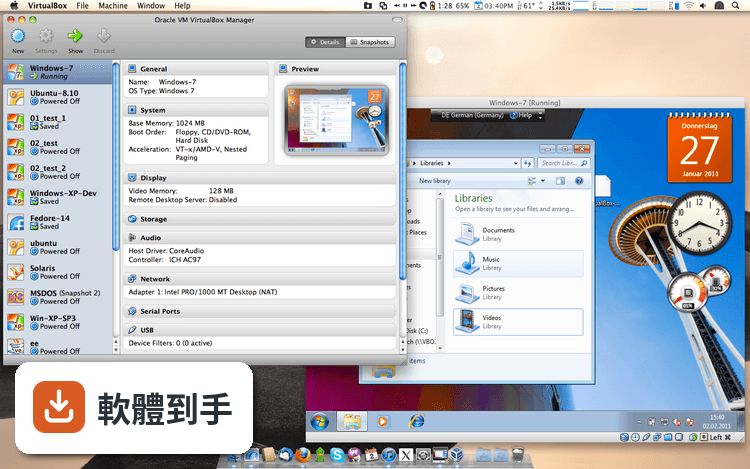
可以。它提供多種網路模式,包括 NAT、橋接網路和內部網路。NAT 適合虛擬機器需要上網但不需要被外部連線的狀況;橋接網路會讓虛擬機器直接取得區域網路的 IP,像一台實體電腦一樣跟其他裝置互通;內部網路則讓多台虛擬機器之間互相通訊,但不對外連線。設定在每台虛擬機器的設定選單裡,可以依需求切換。
05檔案怎麼在Windows和虛擬系統之間互傳?
有兩種主要方式。第一種是共享資料夾:在虛擬機器的設定裡指定一個 Windows 資料夾,裝好 Guest Additions 之後,虛擬系統裡就會看到這個資料夾,兩邊都能存取。第二種是共享剪貼簿:啟用之後,在 Windows 複製的文字可以直接貼到虛擬系統裡,反過來也行。這兩種功能都需要先安裝 Guest Additions,它是一包驅動程式和系統工具,官方建議裝完虛擬系統後就安裝。
06開發者拿它來測軟體夠用嗎?
對多數開發測試場景來說夠用。它支援快照功能,可以在某個狀態下拍一張快照,之後不管怎麼改、怎麼弄壞,都能一鍵回到快照時的狀態,很適合拿來測試安裝程式或實驗設定。它也提供命令列介面,進階使用者可以寫腳本批次建立、啟動、關閉虛擬機器,一次管理多台。不過如果你要測的是高效能運算或需要大量 3D 繪圖的軟體,它的 3D 加速能力有限,可能要考慮其他方案。
07一般使用者想試試別的系統,適合用嗎?
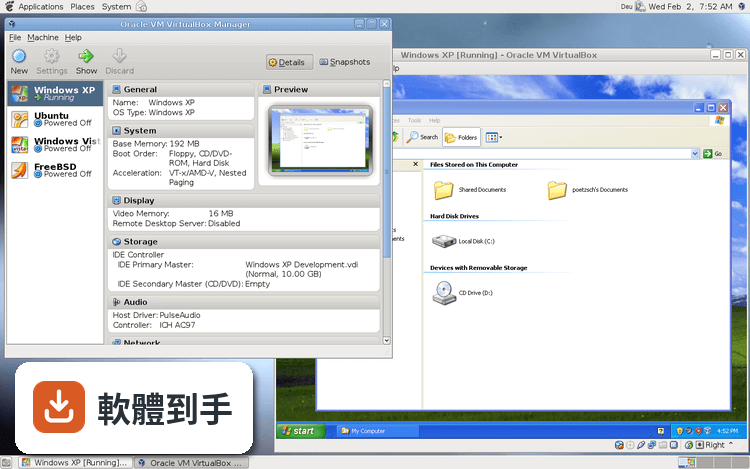
適合,前提是你有基本的概念。它的介面有建立虛擬機器的精靈,一步一步引導你選擇要安裝的系統類型、分配記憶體和硬碟空間,過程不算複雜。但介面是英文的,而且有些設定選項對沒接觸過虛擬化的人來說會看不懂。如果你只是想要一個 Linux 環境跑特定工具,照著網路上的教學走通常可以完成;如果你完全沒有耐心看說明,可能會卡在安裝 Guest Additions 或網路設定這類細節。
08學生或自學者可以用它練習系統管理嗎?
可以,而且很適合。它免費、開放原始碼,學生可以在一台電腦上同時開好幾台虛擬機器,練習安裝系統、設定網路、架設伺服器,弄壞了就用快照還原,不用擔心影響主要系統。它支援多種 guest 作業系統,包括各種 Linux 發行版和舊版 Windows,練習範圍很廣。唯一要注意的是,虛擬機器會消耗實體資源,如果電腦記憶體只有 4GB,同時開兩台以上會很吃力。
09拿來玩高效能遊戲或3D繪圖適合嗎?
不適合。它雖然有 3D 圖形加速功能,但官方定位是「支援需要硬體圖形加速的應用程式」,不是拿來跑高效能遊戲或專業 3D 繪圖的。虛擬機器裡的顯示效能本來就會打折扣,加上它對 GPU 的支援有限,如果你主要目的是玩遊戲或跑 3D 建模,直接裝雙系統或另外準備一台電腦會實際得多。這類需求建議先確認你的顯示卡和軟體在虛擬環境下的相容性再決定。
10公司要大量部署虛擬機器,適合嗎?
要看規模。它免費、開放原始碼,對預算有限的小團隊或個人開發者來說是合理的起點。但如果你要管理幾十台虛擬機器、需要集中管理介面、進階的資源調度或企業級技術支援,它的定位就不太符合。市場上有其他虛擬化產品,例如 VMware 系列,評分人數和企業採用度都更高,但那些是付費軟體。建議先評估你的管理需求和預算,再決定要不要投入學習成本。
11介面只有英文,看不懂怎麼辦?
它的介面語系是英文,官方沒有提供繁體中文介面。如果你英文不熟,操作上會比較吃力,因為建立虛擬機器、設定網路、管理快照這些功能都藏在英文選單裡。網路上有不少中文教學文章和影片,可以邊看邊做,但遇到選單上的細節還是得自己對照。如果你完全無法接受英文介面,可以考慮其他有中文介面的虛擬機器軟體,或確認是否有社群提供中文化檔案。
12舊電腦跑得動嗎?
這取決於你的硬體規格和要跑的系統。虛擬機器會跟主系統搶記憶體和 CPU,官方說明建議分配足夠的資源給虛擬機器,但沒有給出最低硬體需求。一般來說,如果你要跑輕量的 Linux 系統,4GB 記憶體的電腦勉強可以;要跑圖形介面完整的系統或同時開多台,8GB 以上會比較順。如果你的電腦已經很舊,建議先確認記憶體和 CPU 規格,再決定要不要裝。
下載與官方連結
前往官方網站 下載 Oracle VM VirtualBox
VirtualBox-3.2.0-61806-Win.exe · 73.8 MB · 連結指向軟體原廠
版本紀錄
- 2026-10-21 VirtualBox 7.2.22 Build 175245 170 MB
- 2026-09-23 VirtualBox 7.2.20 Build 175154 170 MB
- 2026-09-15 VirtualBox 7.2.18 Build 175117 170 MB
再看 5 筆
- 2026-08-19 VirtualBox 7.2.16 Build 174877 170 MB
- 2026-07-22 VirtualBox 7.2.14 Build 174565 170 MB
- 2026-07-01 VirtualBox 7.2.12 Build 174389 170 MB
- 2026-06-17 VirtualBox 7.2.10 Build 174163 170 MB
- 2026-04-21 VirtualBox 7.2.8 Build 173730 170 MB
這一版改了什麼
What's new in this version:
The following items were fixed and/or added:
- Following the acquisition of Sun Microsystems by Oracle Corporation, the product is now called Oracle VM VirtualBox and all references were changed without impacting compatibility
- Experimental support for Mac OS X guests (see the manual for more information)
- Memory ballooning to dynamically in- or decrease the amount of RAM used by a VM (64-bit hosts only) (see the manual for more information)
- Page Fusion automatically de-duplicates RAM when running similar VMs thereby increasing capacity. Currently supported for Windows guests on 64-bit hosts (see the manual for more information)
- CPU hot-plugging for Linux (hot-add and hot-remove) and certain Windows guests (hot-add only) (see the manual for more information)
- New Hypervisor features: with both VT-x/AMD-V on 64-bit hosts, using large pages can improve performance (see the manual for more information); also, on VT-x, unrestricted guest execution is now supported (if nested paging is enabled with VT-x, real mode and protected mode without paging code runs faster, which mainly speeds up guest OS booting)
- Support for deleting snapshots while the VM is running
- Support for multi-monitor guest setups in the GUI for Windows guests (see the manual for more information)
- USB tablet/keyboard emulation for improved user experience if no Guest Additions are available (see the manual for more information).
- LsiLogic SAS controller emulation (see the manual for more information)
- RDP video acceleration (see the manual for more information)
- NAT engine configuration via API and VBoxManage
- Use of host I/O cache is now configurable (see the manual for more information)
- Guest Additions: added support for executing guest applications from the host system (replaces the automatic system presimparation feature; see the manual for more information)
- OVF: enhanced OVF support with custom namespace to preserve settings that are not part of the base OVF standard
- VMM: fixed Windows 2000 guest crash when configured with a large amount of RAM (bug #5800)
- Linux/Solaris guests: PAM module for automatic logons added
- GUI: guess the OS type from the OS name when creating a new VM
- GUI: added VM setting for passing the time in UTC instead of passing the local host time to the guest (bug #1310)
- GUI: fixed seamless mode on secondary monitors (bugs #1322 and #1669)
- GUI: offer to download the user manual in the OSE version (bug #6442)
- Main: allow to start a VM even if a virtual DVD or floppy medium is not accessible
- Settings: be more robust when saving the XML settings files
- Mac OS X: rewrite of the CoreAudio driver and added support for audio input (bug #5869)
- Mac OS X: external VRDP authentication module support (bug #3106)
- Mac OS X: Moved the realtime dock preview settings to the VM settings (no global option anymore). Use the dock menu to configure it.
- Mac OS X: added the VM menu to the dock menu
- 3D support: fixed corrupted surface rendering (bug #5695)
- 3D support: fixed VM crashes when using ARB_IMAGING (bug #6014)
- 3D support: fixed assertion when guest applications uses several windows with single OpenGL context (bug #4598)
- 3D support: added GL_ARB_pixel_buffer_object support
- 3D support: added OpenGL 2.1 support
- 3D support: fixed Final frame of Compiz animation not updated to the screen (Mac OS X only) (bug #4653)
- 3D support: fixed blank screen after loading snapshot of VM with enabled Compiz
- Added support for virtual high precision event timer (HPET)
- OVF: fixed mapping between two IDE channels in OVF and the one IDE controller in VirtualBox
- OVF: fix VMDK format string identifiers and sort XML elements from rasd: namespace alphabetically as prescribed by standard
- VBoxShell: interactive Python shell extended to be fully functional TUI for VirtualBox
- Linux Additions: support Fedora 13 (bug #6370)
- VBoxManage: fixed overly strict checks when creating a raw partition VMDK (bugs #688, #4438)