
這是歷史版本頁面 — 看 VMware Workstation Player 最新版本
想試別的系統又怕弄壞電腦?VMware Workstation Player 能幫你什麼
 VMware Workstation Player 118166
資料更新 2008-09-24
閱讀約 6 分鐘
你可能有過這種念頭:想試試看新出的 Linux 發行版、想跑一套只有舊版 Windows 才能開的軟體、或者想在乾淨的環境裡測一個來路不明的程式。但一想到要在自己正在用的電腦上分割硬碟、裝雙系統,就覺得風險太大——萬一開機選單壞了、萬一裝到一半後悔了、萬一整個系統被搞亂,光是想像就讓人卻步。
一般人最直覺的替代方案是找一台舊電腦來試,但舊電腦不一定跑得動新系統,而且為了試一套軟體去翻出一台機器,成本也太高。另一條路是裝雙系統,但每次切換都要重開機,而且分割硬碟的過程對不熟的人來說就像在拆炸彈。這類工具的切入點是:用一個檔案把整個作業系統包起來,在你現在的 Windows 裡面直接跑,不碰你原本的系統,玩壞了就把那個檔案刪掉重來。
01VMware Workstation Player 到底能拿來做什麼?
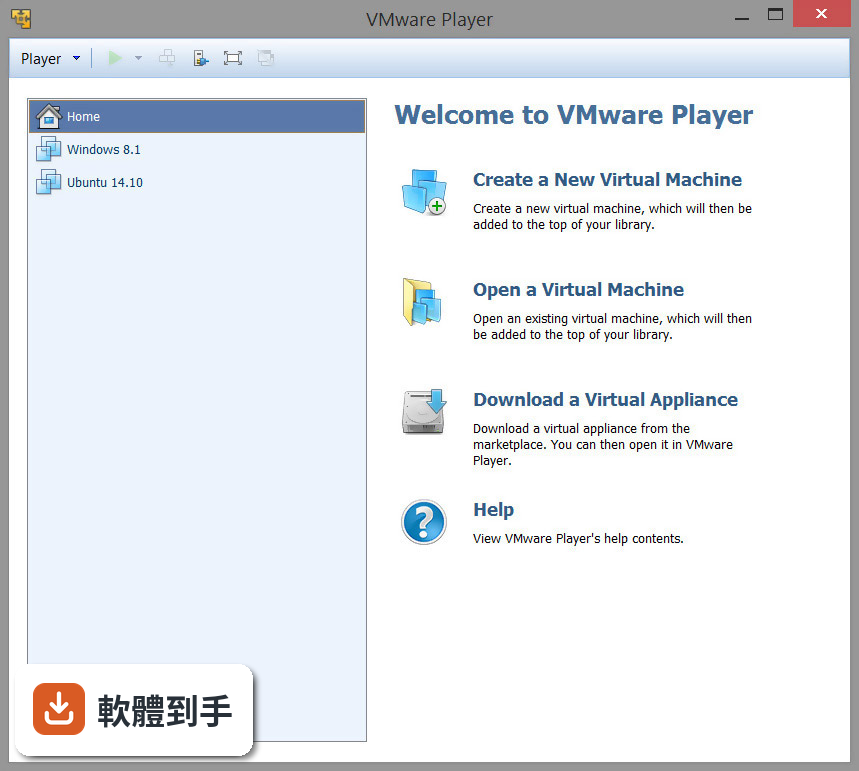
它讓你在 Windows 11 上直接跑一個或多個虛擬機器。虛擬機器就像一個被隔離的電腦,裡面可以安裝不同的作業系統,例如 Windows 10、Ubuntu、Debian 或 FreeBSD。你可以把來路不明的軟體丟進去測試、練習安裝伺服器、或者體驗一套你沒用過的作業系統,而這些動作都不會影響你正在使用的桌面環境。
02它只能開別人做好的虛擬機器,還是自己也能從頭建一個?
兩者都可以。它原本的定位是「播放器」,也就是開啟別人用 VMware 系列產品做出來的虛擬機器檔案;但後來的版本也允許你自己從零建立新的虛擬機器。建立時要指定要安裝的作業系統、分配 CPU 和記憶體,再用 ISO 檔或光碟來安裝系統,流程跟用一台實體電腦裝系統差不多。
03這套軟體要錢嗎?
官方說明指出,VMware Workstation Player 供個人與非商業用途免費使用。也就是說,你個人在自己電腦上拿來測試、學習,不需要付費。但如果是公司或組織內部使用,通常需要取得商業授權,實際的授權條件要看你所屬單位的使用情境來確認。
04它支援哪些作業系統當作虛擬機器裡的「客人」?
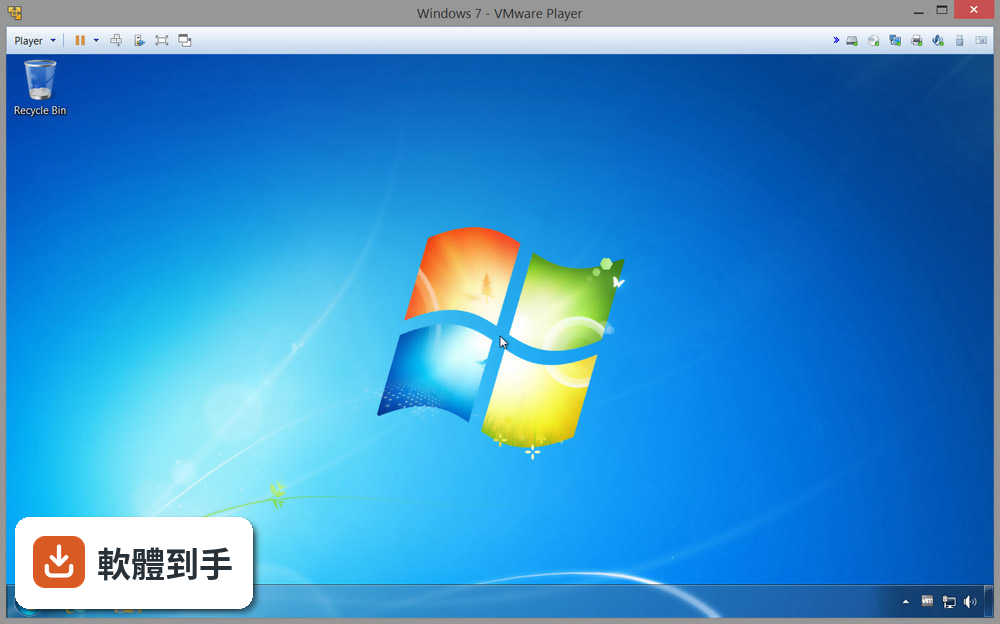
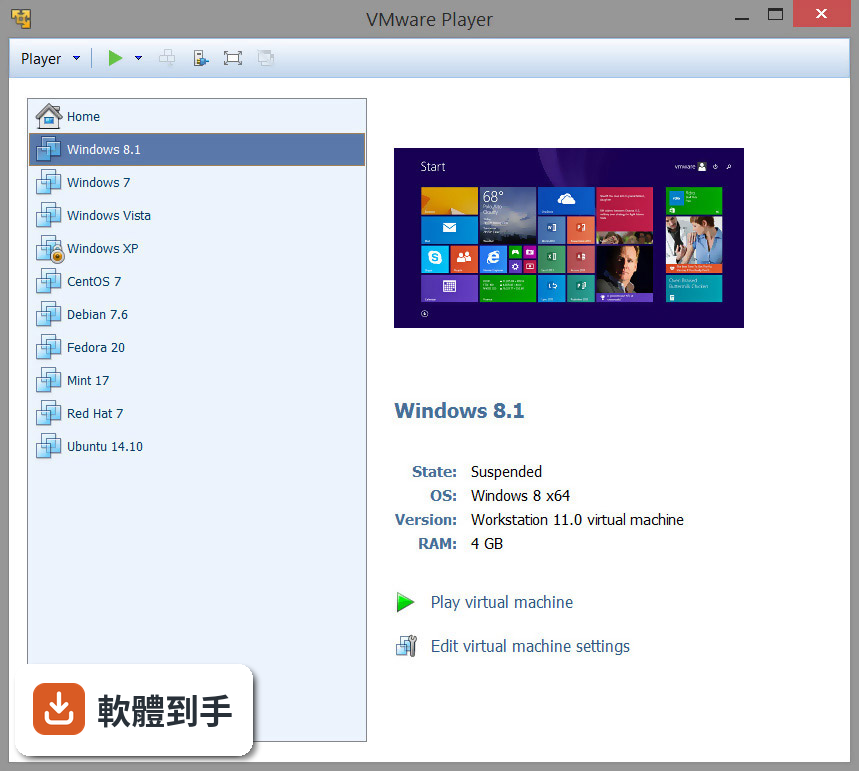
官方列出的支援清單包括 Windows 11、10、8、7、XP,以及 Ubuntu、RedHat、SUSE、Oracle Linux、Debian、Fedora、openSUSE、Mint、Solaris、FreeBSD 和其他多種 Linux 發行版。換句話說,常見的桌面和伺服器系統大多在支援範圍內,但清單以外的系統能不能跑,官方沒有保證。
05虛擬機器可以回復到之前的狀態嗎?
可以。它提供快照(snapshot)功能,讓你在某個時間點儲存虛擬機器的完整狀態。如果之後在虛擬機器裡裝了什麼東西導致系統不穩,你可以回復到先前儲存的狀態,不需要重灌。這對測試軟體或嘗試系統設定很有用,因為你隨時有退路。
06什麼樣的人適合用這套軟體?
官方說明點名學生、教職員、企業和公司用戶,他們需要一個小型的沙盒環境來做測試或管控。另外,想學習作業系統原理、練習架設伺服器環境、或想在「真實世界」環境中摸索軟體開發的人,也適合用它。它的介面相對簡單,操作流程直觀,不需要太深的虛擬化知識就能開始用。
07我只是一般使用者,偶爾想試試看別的系統,會太難上手嗎?
官方強調它的介面友善、設定流程精簡,建立虛擬機器時只要照著步驟選作業系統、分配資源、指定 ISO 檔,就能開始安裝。比起需要手動調整大量參數的專業工具,它的切入點比較低。不過介面是英文的,如果你不習慣看英文,還是會需要一點耐心。
08它跟 VMware Workstation Pro 差在哪?我該直接選 Pro 嗎?
官方資料指出,Player 的功能比 Pro 版少,例如不支援進階網路設定、不支援加密虛擬機器、不能建立連結式或完整複製的虛擬機器,也沒有官方技術支援。如果你只是個人測試、學習用途,Player 的功能通常夠用;但如果你需要那些進階功能,就必須考慮 Pro 版或其他方案。
09我公司想拿來給員工測試軟體,適合嗎?
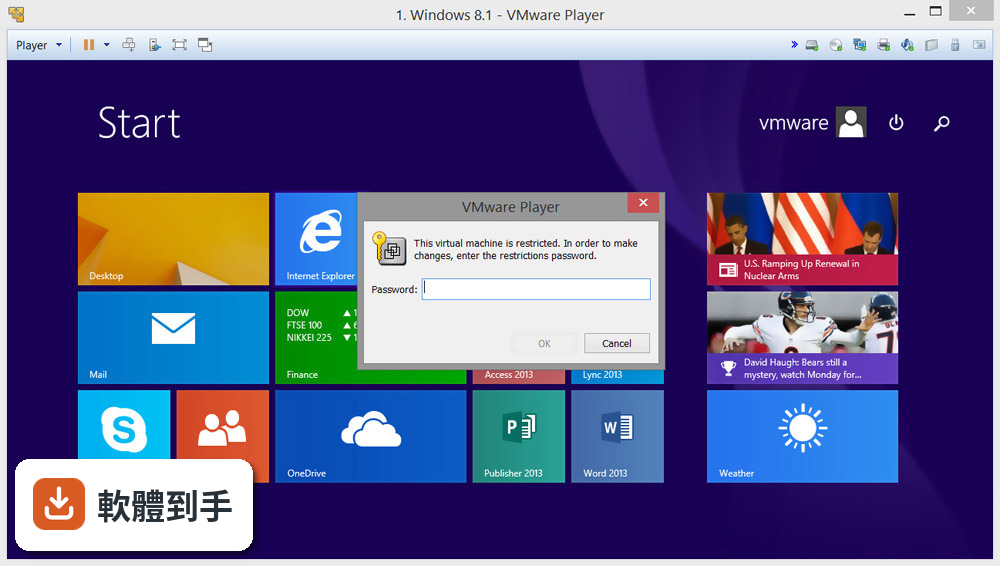
官方說明提到,企業用戶可以用它來隔離公司桌面與自帶裝置(BYO),例如停用複製貼上、拖放、共用資料夾和 USB 裝置存取,也可以執行加密且受密碼保護的虛擬機器,確保只有授權人員能接觸公司資料。不過要注意,商業使用通常需要付費授權,而且它沒有官方技術支援,公司要自行評估風險。
10有人說它比 VirtualBox 快,是真的嗎?
官方宣稱它的效能表現很有競爭力,常常比付費軟體甚至微軟自家的方案還快。但這是一句行銷性質的陳述,沒有提供具體的測試數據。VirtualBox 的評分人數(468 人)比它(200 人)多,代表 VirtualBox 有更廣泛的使用者基礎。實際效能取決於你的硬體、虛擬機器的設定和工作負載,建議自己裝來跑跑看。
11這套軟體是不是已經沒人在用了?
它的評分人數是 200 人,分數 7.8 分,更新頻率方面近一年有 1 次更新、近兩年有 3 次,代表開發團隊仍在維護。但同一個開發商的 VMware Workstation Pro 有 898 人評分,人氣明顯更高。如果你在意的是社群活躍度和資源多寡,Pro 版或 VirtualBox 可能更有優勢。
12什麼情況下我應該放棄它,改找別的軟體?
如果你需要建立虛擬機器的複製(克隆)、需要進階網路設定、需要加密虛擬機器、或者需要官方技術支援,它都做不到,這些是官方明確列出的限制。另外,它的介面只有英文,不習慣英文介面的使用者會比較吃力。如果你的需求超出個人測試和學習的範圍,建議直接考慮功能更完整的方案。
下載與官方連結
前往官方網站 下載 VMware Workstation Player
VMware-player-2.5.0-118166.exe · 65.17 MB · 連結指向軟體原廠
版本紀錄
- 2026-03-12 VMware Player 17.6.3 Build 24583834 212.5 MB
- 2024-12-18 VMware Player 17.6.2 Build 24409262 212.53 MB
- 2024-10-10 VMware Player 17.6.1 Build 24319023 212.55 MB
再看 5 筆
- 2024-09-03 VMware Player 17.6.0 Build 24238078 212.57 MB
- 2024-05-15 VMware Player 17.5.2 Build 23775571 229.58 MB
- 2024-03-09 VMware Player 17.5.1 Build 23298084 562.71 MB
- 2023-10-21 Select Version
- 2023-10-21 VMware Player 17.5.0 Build 22583795
這一版改了什麼
What's new in this version:
New Support for 32-Bit and 64-Bit Operating Systems
This release provides experimental support for the following operating systems:
- 32-bit and 64-bit Microsoft Windows Preinstallation environment (all versions) as a guest operating system
- 32-bit and 64-bit Microsoft Windows Recovery environment as a guest operating system
- 32-bit and 64-bit Ubuntu LTS 8.04.1 as a guest operating system
This release provides full support for the following operating systems in addition to those operating systems supported in previous releases:
- 32-bit and 64-bit Microsoft Windows 2008 Standard Server, Data Center, Enterprise, and Small Business Server as guest operating systems without Hyper-V
- 32-bit and 64-bit Asianux 3 as a guest operating system
- 32-bit and 64-bit CentOS 5.0-5.2 as host and guest operating systems
- 32-bit and 64-bit Oracle Enterprise Linux 5.0-5.2 as host and guest operating systems
- 32-bit and 64-bit Red Hat Enterprise Linux 4, Update 7 (Workstation, Enterprise Server, and Advanced Server) as host and guest operating systems
- 32-bit and 64-bit Red Hat Enterprise Linux 5.1 and 5.2 (Advanced Platform, Desktop, and Server) as host and guest operating systems
- 32-bit and 64-bit SUSE Linux Enterprise Desktop 10 and 10 SP1 and SP2 as host and guest operating systems
- 32-bit SUSE Linux Enterprise Server 10 SP2 as a guest operating system
- 32-bit and 64-bit Mandriva Linux 2008 as a guest operating system
- 32-bit and 64-bit Ubuntu LTS 8.04 as host and guest operating systems
- 32-bit and 64-bit Solaris 10 Operating System for x86 Platforms, 10 5/08 (Update 5), as a guest operating system
- Note: In the VMware Player Getting Started Guide, the following operating systems should not be listed as supported for this release: 32-bit and 64-bit CentOS 5.3, Oracle Enterprise Linux 5.3, and Red Hat Enterprise Linux 4.8. In addition, only Microsoft Windows 2008 operating systems without Hyper-V are supported.
Major New Features:
- Unity view — Integrate your favorite guest applications with your host. Open the application window, enter Unity view, and the VMware Player window is automatically minimized. The guest application windows look just like host application windows, but with color-coded borders. You can access the virtual machine's Start menu (for Windows virtual machines) or Applications menu (for Linux virtual machines) by placing the mouse pointer over the host's Start or Applications menu, or by using a key combination.
- Installer bundle for Linux hosts — Installing VMware Player on Linux hosts just got a lot easier. The new bundle format provides a graphical UI wizard for most Linux operating systems. With a few mouse clicks, VMware Player is installed. For users who want a custom installation, a command-line interface provides complete control.
- Accelerated 3-D graphics on Windows XP guests — VMware Player 2.5 virtual machines now work with applications that use DirectX 9 accelerated graphics with shaders up through Shader Model 2.0 on Windows XP guests. Hosts can be running Windows 2000, Windows XP, Windows Vista, or Linux.
Usability Enhancements:
- Full screen mode — While in full screen mode, you can now switch from one powered-on virtual machine to another.
- Suspend and exit — Both Windows and Linux hosts now support suspending the virtual machine when exiting.
- Change preferences — Set preferences, such as how devices are displayed in VMware Player.
- Expanded in-product help system — When you choose Help > Help Topics, or click a Help button in a dialog box, you have access to twice as much content as was provided in VMware Player 2.0.
Performance Improvements:
- Folder sharing and dragging, dropping, copying, and pasting text and files — Transferring files between virtual machines or between host and guests using these features is up to 25 percent faster.
- Memory allocation — Change the amount of memory allocated to the virtual machine.
New Platform Capabilities:
- (Experimental) Support for smart cards in virtual machines — You can plug a smart card reader into a host and insert your smart card to authenticate yourself on your host or on a guest. Smart cards can be shared between the host and guests or between guests.
- Text copy and paste enhancements — On Windows guests, you can copy and paste text in rich text format, and copy up to 4MB of text. (On Linux guests, the old limitations still apply. You can copy and paste up to 64K of plain text.)