
這是歷史版本頁面 — 看 VMware Workstation Pro 最新版本
想在Windows上跑多個系統測試,VMware Workstation Pro夠用嗎
 VMware Workstation Pro 812388
資料更新 2012-08-23
閱讀約 6 分鐘
你手上只有一台Windows電腦,卻需要同時測試不同版本的Linux、Windows,甚至要模擬伺服器環境。每次要換系統就得重開機切換雙系統,裝到一半發現不相容又得整個砍掉重來。你只是想趕快把程式跑起來、把環境測完,不想為了這件事再買一台機器或把主力電腦搞壞。
最直覺的做法是直接分割硬碟裝雙系統,但切換要重開機,測試完想回到原本的環境又得再重開一次。更麻煩的是,有些測試環境需要同時開兩個系統互相連線,雙系統根本做不到。虛擬機器軟體的做法是在你的Windows裡用軟體模擬出一台完整的電腦,讓另一個作業系統跑在一個獨立視窗裡,隨時開、隨時關,不影響你原本的系統。
01VMware Workstation Pro到底能幹嘛?
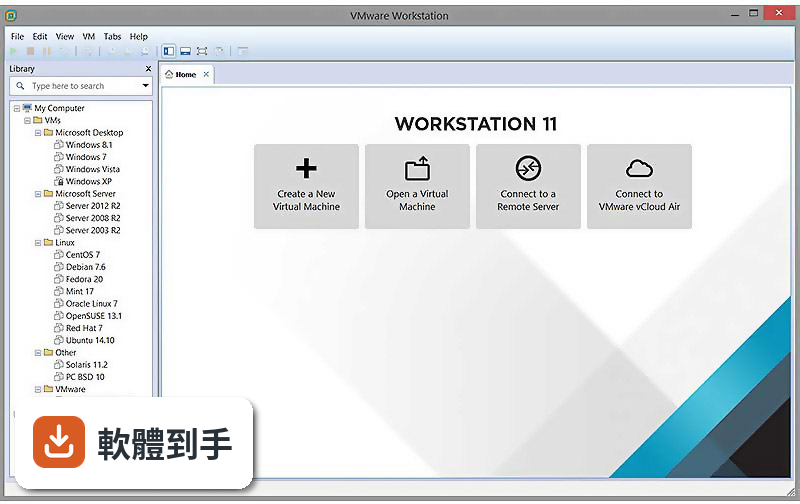
它讓你在同一台Windows電腦上同時跑多個作業系統,每個系統各自獨立,不用重開機就能切換。你可以建立新的虛擬機器、從頭安裝作業系統,也可以匯入別人做好的虛擬機器檔。跑起來之後,虛擬機器就像一個普通視窗,裡面是完整的桌面環境,滑鼠鍵盤直接操作,檔案也能跟本機互相拖放。
02能不能同時開Windows和Linux一起跑?
可以。官方說明明確列出支援Windows、Linux、macOS等多種來賓作業系統,而且強調「同時」執行,不用重開機。你可以在一個視窗跑Ubuntu、另一個視窗跑Windows Server,它們會同時運作,彼此之間還能透過虛擬網路連線,模擬真實的伺服器與客戶端架構。
03快照功能是幹嘛用的?對測試有什麼幫助?
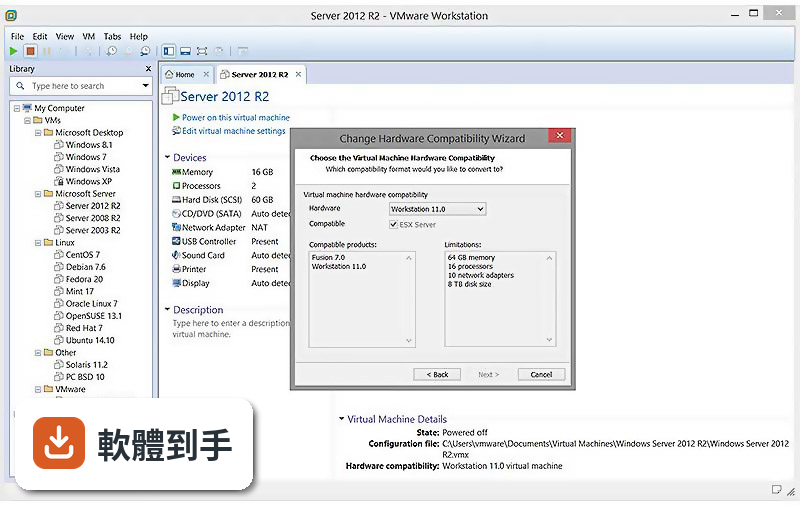
快照就是把虛擬機器當下的狀態整個存下來,包含系統、軟體、設定、檔案。測試到一半想試一個有風險的操作,先拍一張快照,失敗了直接還原,不用重灌。官方說明也提到可以建立多個快照,隨時回到之前的狀態。這對測試軟體更新、安裝套件、改設定特別實用。
043D圖形支援到什麼程度?能跑遊戲或繪圖軟體嗎?
官方說明提到支援DirectX 11和OpenGL 4.3的3D加速圖形,並說適合在虛擬機器裡跑圖形密集的應用程式和遊戲。不過實際跑起來順不順,取決於你的實體顯示卡和虛擬機器分配的資源。如果你要測的是高效能3D遊戲,建議先確認你的硬體夠不夠力。
05能不能跟vSphere或ESXi連動?
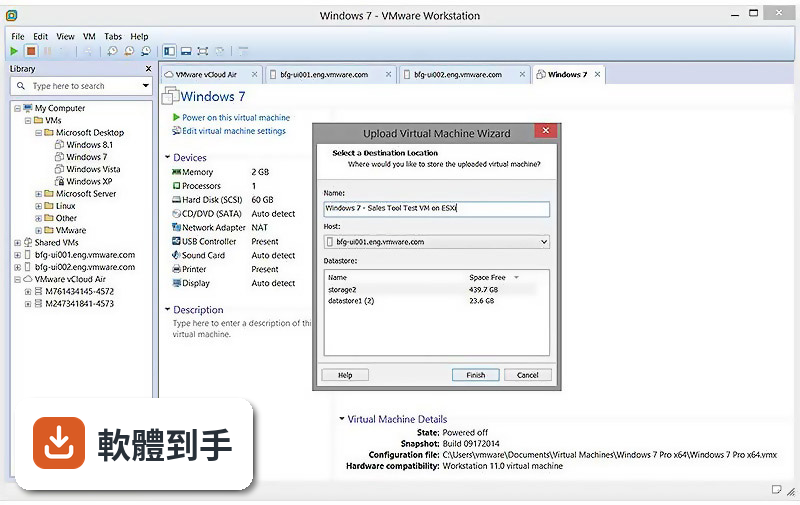
可以。官方說明提到Workstation Pro可以直接把ESXi和vCenter當成虛擬機器跑在桌面上,也能連線到遠端的vSphere環境,管理上面的虛擬機器。這表示你在本機建好的虛擬機器,可以上傳到伺服器環境繼續跑,測試流程可以從桌面上延伸到正式環境。
06寫程式的人用這套適合嗎?
適合。官方說明明確提到,這套軟體是給技術專業人員開發、測試、示範、部署軟體用的。你可以在不同作業系統上測試你的程式,確認相容性,也可以建立多個乾淨的測試環境,避免把主力開發環境弄髒。容器和Kubernetes叢集也能透過內建的vctl指令工具在虛擬機器裡跑。
07新手第一次用虛擬機器,這套會不會太難?
官方說明強調介面直覺、主控台設計清楚,建立虛擬機器只要幾個步驟,安裝過程有精靈引導。不過它功能很多,網路設定、硬體配置這些進階選項對新手來說需要一點時間摸索。如果你只是要開一個虛擬機器裝Linux,照著精靈走不會太困難;要玩到網路模擬或容器,就得先看一些教學。
08這套是免費的嗎?
不是。它的授權型式是Trial,也就是試用版,不是免費軟體。官方說明提到安裝時可以輸入授權金鑰或選擇試用版,代表試用期過後需要付費才能繼續用。如果你在找完全免費的方案,可以看看Oracle VM VirtualBox,它也是虛擬機器軟體,評分人數有468人,但功能上跟Workstation Pro有差異,要自己比較。
09介面只有英文,看不懂怎麼辦?
這套軟體的介面語系是English,沒有中文介面。如果你英文不熟,操作上會比較吃力,尤其是網路設定、硬體配置這些進階選項。替代方案是找中文教學文章或影片跟著做,或者考慮用有中文介面的VirtualBox。不過要注意,虛擬機器軟體的操作邏輯大同小異,學一套之後換另一套門檻不會太高。
10這套軟體還有人在維護嗎?
根據版本紀錄,它收錄了56個版本,最早在2012年,最近一次更新在2025年6月,但近12個月更新次數是0,近24個月是4次。也就是說,它不是完全停止維護,但更新頻率不算高。如果你在意新作業系統的支援或新功能,建議先確認你需要的作業系統版本有沒有被支援,再決定要不要用。
11我只是偶爾開個虛擬機器來用,有更輕量的選擇嗎?
如果你的需求只是偶爾開一台虛擬機器,不常做複雜的網路模擬或容器測試,可以考慮VMware Workstation Player,它跟Workstation Pro是同一個開發商,評分人數200人,定位比較輕量。或者Oracle VM VirtualBox,免費且評分人數較多。不過這些替代方案的功能範圍跟Workstation Pro不完全一樣,要看你實際需要哪些功能。
下載與官方連結
前往官方網站 下載 VMware Workstation Pro
VMware-workstation-full-9.0.0.812388.exe · 425.99 MB · 連結指向軟體原廠
版本紀錄
- 2025-06-15 VMware Workstation 17.6.4 Build 24832109 405.72 MB
- 2025-03-05 VMware Workstation 17.6.3 Build 24583834 245.43 MB
- 2025-01-10 VMware Workstation 17.6.2 Build 24409262 447.93 MB
再看 5 筆
- 2024-10-10 VMware Workstation 17.6.1 Build 24319023 245.44 MB
- 2024-09-03 VMware Workstation 17.6.0 Build 24238078 245.48 MB
- 2024-05-15 VMware Workstation 17.5.2 Build 23775571 618.26 MB
- 2024-03-09 VMware Workstation 17.5.1 Build 23298084 594.29 MB
- 2023-10-21 VMware Workstation 17.5.0 Build 22583795
這一版改了什麼
What's new in this version:
Windows 8:
- Workstation 9 has been designed to run on Windows 8 and run Windows 8 virtual machines. Easy Install has been enhanced to recognize Windows 8. Workstation 9 has been enhanced to support the Windows 8 user interface (formerly known as Metro). Toggling between Metro and the Windows Desktop can be done by simply pressing the Windows key on the keyboard and Unity intelligently handles the Metro interface. Workstation 9 also includes multi-touch support for driving the Windows 8 Metro interface running in Workstation on a Windows 8 tablet.
Graphics Improvements:
- VMware has made substantial changes to Workstation 9 graphics virtualization infrastructure. The enhancements include a display-only graphics driver that can render 3D in Windows 8 without hardware acceleration, improvements to make graphics applications like AutoCAD and SolidWorks render more quickly and accurately, an improved Windows XP graphics driver and fundamental changes to improve performance and enable more advanced graphics capabilities in the future.
OpenGL for Linux Guests:
- VMware has developed an OpenGL graphics driver and up-streamed it to X.Org. This allows VMware's customers to use the new graphics capabilities in current Linux distributions without needing to install VMware Tools. The version of X.Org that includes the driver is being shipped in Ubuntu 12.04 among other Linux new distributions. Workstation 9 includes enhancements to the virtual graphics device to improve the overall speed and accuracy of rendering OpenGL graphics in Linux virtual machines.
Restricted Virtual Machines:
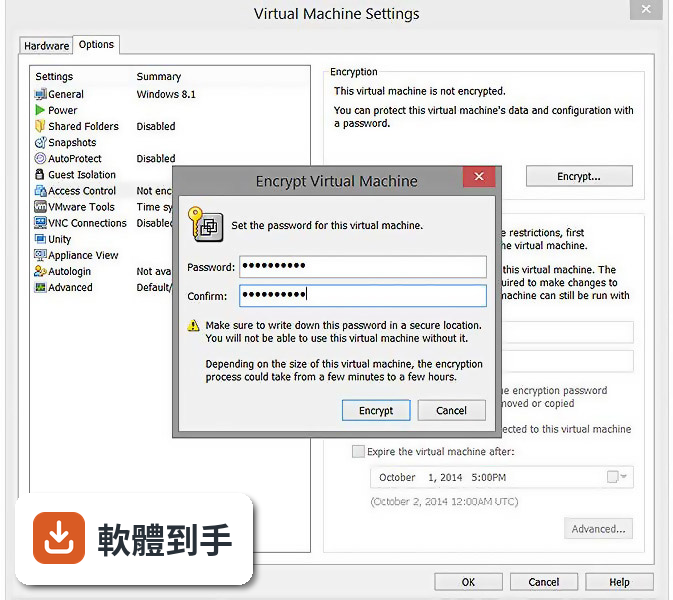
- This new capability allows the author of an encrypted virtual machine to require users to enter an additional password to change their virtual machine settings. This feature enables IT professionals and educational institutions to create virtual machines to be used by their employees and students that prevent these users from enabling shared folders, dragging and dropping files, attaching USB devices, and overcommitting system resources. Restricted virtual machines can be run in VMware Workstation 9, VMware Player 5, and VMware Fusion 5 on Windows, Linux or Mac PCs.
WSX:
- WSX is a prototype of a new VMware Workstation web interface that enables users to access their Shared virtual machines via a web browser on a tablet, smart phone or PC without installing any additional applications or browser plug-ins. This service renders an HTML5 web page that can connect to your Workstation hosts, enumerate the available Shared virtual machines and allow you to power them on and interact with the desktop. Both the Windows .msi and Linux .bundle installations are available for download along with VMware Workstation 9.0
- WSX is currently not supported for production environments. The number of devices and browsers available on the market make it extremely difficult to test this feature thoroughly to ensure it works well everywhere.
- This feature requires a very modern browser that supports HTML5 with WebSockets. VMware recommends using the Google Chrome 17 browser on PCs and the Apple Safari 5 browser on Mac OS hosts and iPads. Currently there are issues using this feature with Microsoft Internet Explorer 10. WSX may work with other browsers and on Android tablets running Ice Cream Sandwich with the latest version of Google Chrome installed, but more testing is required.
Downloading Virtual Machines from vSphere:
- Workstation 8 enabled customers to upload virtual machines to vSphere. Workstation 9 now enables downloading virtual machines from vSphere by dragging them from the remote host to the My Computer section of the Virtual Machine Library.
USB 3.0:
- Workstation 9 supports attaching USB 3.0 devices to Windows 8 virtual machines. The latest portable devices use USB 3 (SuperSpeed) to achieve faster transfer rates for data. USB 3.0 devices such as portable storage devices and video equipment can be connected directly to Windows 8 and Linux virtual machines that contain in-box drivers USB 3.0 controllers.
Nested Virtualization:
- Workstation 9 improves the implementation of virtual Intel VT-x/EPT or AMD-V/RVI extensions. This allows users to run ESX as a guest OS and run a 64-bit operating system nested in ESX using less system resources.
- Note: If you enabled the virtualization extensions in a virtual machine running on Workstation 8, you might need to disable the extensions, upgrade the virtual machine to the latest virtual hardware version (compatible with Workstation 9), and then re-enable the extensions.
Hyper-V:
- Hyper-V has been added to the Workstation 9 guest operating system list. This enables customers to run Windows 8 with Hyper-V enabled, or install Hyper-V Server. This can be used for educational purposes or for building prototype Hybrid Clouds. This feature is NOT SUPPORTED and probably never will be. Microsoft does not support nesting of their hypervisor which makes it extremely difficult - if not impossible for VMware to fix issues that may occur in this configuration. For this reason, this capability has been implemented purely to see if we could do it!
- CAUTION: DO NOT ATTEMPT TO RUN HYPER-V ON A VIRTUAL MACHINE IN PRODUCTION.
Virtual Performance Counters:
- VMware virtual processors now include the capability to enable virtual performance counters which will allow developers to run profiling applications, such as Intel's vTune, in a virtual machine.
Remoting Improvements:
- The experience when remotely connecting to a virtual machine running in Workstation 9 with a VNC client or interacting with the desktop of a virtual machine running on vSphere from within Workstation has been significantly improved.
Disk Cleanup:
- Virtual machines consume a large amount of space on your hard drive. Workstation 9 includes a new management option to easily recover disk space.
Quick Switch II:
- Previous versions of VMware Workstation included a view mode called "Quick Switch" that displayed tabs along the top of the screen to easily switch between running virtual machines. We removed this functionality in Workstation 8. The feedback we received has encouraged us to introduce a similar feature. On Windows, hosts tabs have been included in the full screen toolbar.
Thumbnail Actions:
- Views of your virtual machine on the task bar now include controls to change the power state.
Saved Filters:
- Workstation 9 automatically saves recent virtual machine library searches as filters to easily apply them the next time you run Workstation.
VMware Player:
- In addition to getting all of the virtual hardware improvements, the VMware Player user interface has been completely revamped. The user interface conforms with Windows standards, menus have been updated, the toolbar now matches Workstation in regular and full screen mode, we have added device icons, and we have made many more little improvements.
- VMware Player is also now available for commercial use. A commercial license for VMware Player 5 is included with VMware Fusion 5 Professional to enable customers to run virtual machines on Windows or Linux PCs and on Macs using a single license key!