
這是歷史版本頁面 — 看 VMware Workstation Pro 最新版本
想在Windows上跑多個系統測試,VMware Workstation Pro夠用嗎
 VMware Workstation Pro 16894299
資料更新 2020-09-15
閱讀約 6 分鐘
你手上只有一台Windows電腦,卻需要同時測試不同版本的Linux、Windows,甚至要模擬伺服器環境。每次要換系統就得重開機切換雙系統,裝到一半發現不相容又得整個砍掉重來。你只是想趕快把程式跑起來、把環境測完,不想為了這件事再買一台機器或把主力電腦搞壞。
最直覺的做法是直接分割硬碟裝雙系統,但切換要重開機,測試完想回到原本的環境又得再重開一次。更麻煩的是,有些測試環境需要同時開兩個系統互相連線,雙系統根本做不到。虛擬機器軟體的做法是在你的Windows裡用軟體模擬出一台完整的電腦,讓另一個作業系統跑在一個獨立視窗裡,隨時開、隨時關,不影響你原本的系統。
01VMware Workstation Pro到底能幹嘛?
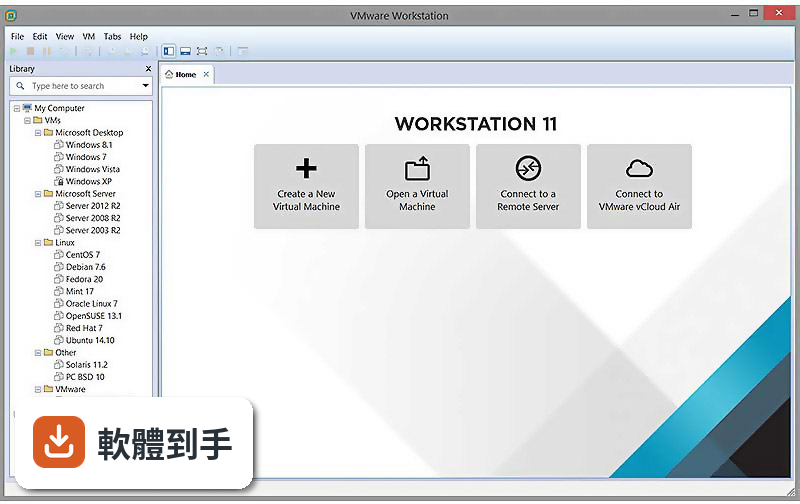
它讓你在同一台Windows電腦上同時跑多個作業系統,每個系統各自獨立,不用重開機就能切換。你可以建立新的虛擬機器、從頭安裝作業系統,也可以匯入別人做好的虛擬機器檔。跑起來之後,虛擬機器就像一個普通視窗,裡面是完整的桌面環境,滑鼠鍵盤直接操作,檔案也能跟本機互相拖放。
02能不能同時開Windows和Linux一起跑?
可以。官方說明明確列出支援Windows、Linux、macOS等多種來賓作業系統,而且強調「同時」執行,不用重開機。你可以在一個視窗跑Ubuntu、另一個視窗跑Windows Server,它們會同時運作,彼此之間還能透過虛擬網路連線,模擬真實的伺服器與客戶端架構。
03快照功能是幹嘛用的?對測試有什麼幫助?
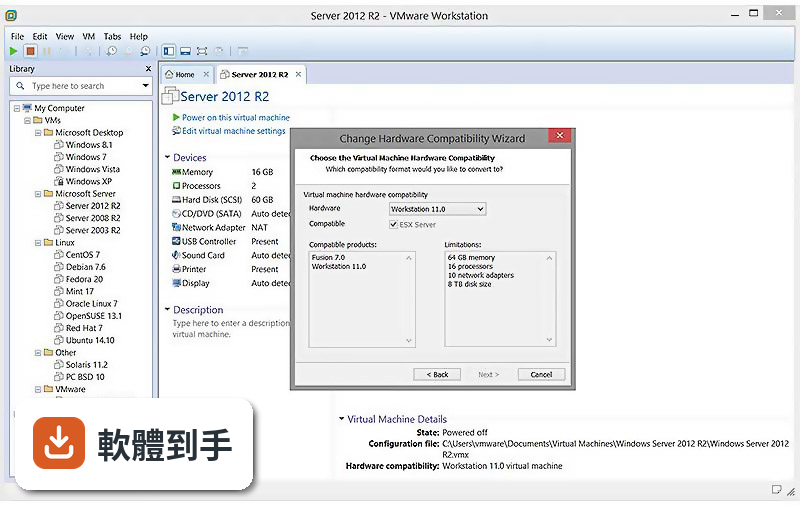
快照就是把虛擬機器當下的狀態整個存下來,包含系統、軟體、設定、檔案。測試到一半想試一個有風險的操作,先拍一張快照,失敗了直接還原,不用重灌。官方說明也提到可以建立多個快照,隨時回到之前的狀態。這對測試軟體更新、安裝套件、改設定特別實用。
043D圖形支援到什麼程度?能跑遊戲或繪圖軟體嗎?
官方說明提到支援DirectX 11和OpenGL 4.3的3D加速圖形,並說適合在虛擬機器裡跑圖形密集的應用程式和遊戲。不過實際跑起來順不順,取決於你的實體顯示卡和虛擬機器分配的資源。如果你要測的是高效能3D遊戲,建議先確認你的硬體夠不夠力。
05能不能跟vSphere或ESXi連動?
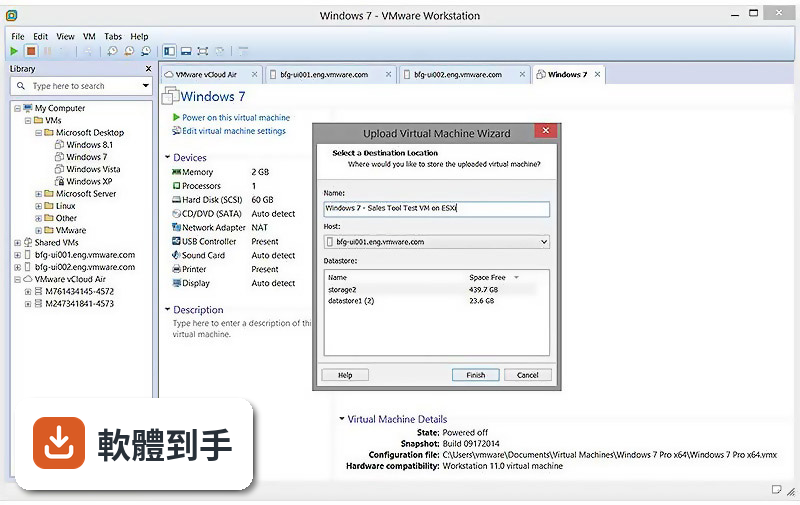
可以。官方說明提到Workstation Pro可以直接把ESXi和vCenter當成虛擬機器跑在桌面上,也能連線到遠端的vSphere環境,管理上面的虛擬機器。這表示你在本機建好的虛擬機器,可以上傳到伺服器環境繼續跑,測試流程可以從桌面上延伸到正式環境。
06寫程式的人用這套適合嗎?
適合。官方說明明確提到,這套軟體是給技術專業人員開發、測試、示範、部署軟體用的。你可以在不同作業系統上測試你的程式,確認相容性,也可以建立多個乾淨的測試環境,避免把主力開發環境弄髒。容器和Kubernetes叢集也能透過內建的vctl指令工具在虛擬機器裡跑。
07新手第一次用虛擬機器,這套會不會太難?
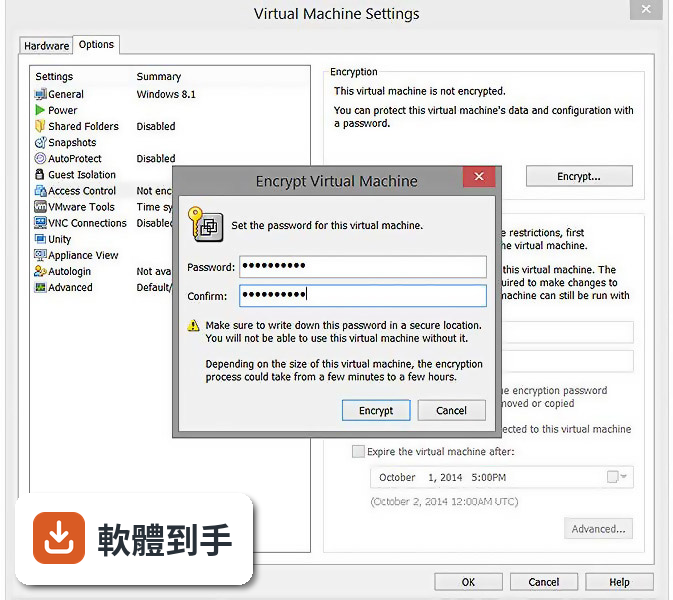
官方說明強調介面直覺、主控台設計清楚,建立虛擬機器只要幾個步驟,安裝過程有精靈引導。不過它功能很多,網路設定、硬體配置這些進階選項對新手來說需要一點時間摸索。如果你只是要開一個虛擬機器裝Linux,照著精靈走不會太困難;要玩到網路模擬或容器,就得先看一些教學。
08這套是免費的嗎?
不是。它的授權型式是Trial,也就是試用版,不是免費軟體。官方說明提到安裝時可以輸入授權金鑰或選擇試用版,代表試用期過後需要付費才能繼續用。如果你在找完全免費的方案,可以看看Oracle VM VirtualBox,它也是虛擬機器軟體,評分人數有468人,但功能上跟Workstation Pro有差異,要自己比較。
09介面只有英文,看不懂怎麼辦?
這套軟體的介面語系是English,沒有中文介面。如果你英文不熟,操作上會比較吃力,尤其是網路設定、硬體配置這些進階選項。替代方案是找中文教學文章或影片跟著做,或者考慮用有中文介面的VirtualBox。不過要注意,虛擬機器軟體的操作邏輯大同小異,學一套之後換另一套門檻不會太高。
10這套軟體還有人在維護嗎?
根據版本紀錄,它收錄了56個版本,最早在2012年,最近一次更新在2025年6月,但近12個月更新次數是0,近24個月是4次。也就是說,它不是完全停止維護,但更新頻率不算高。如果你在意新作業系統的支援或新功能,建議先確認你需要的作業系統版本有沒有被支援,再決定要不要用。
11我只是偶爾開個虛擬機器來用,有更輕量的選擇嗎?
如果你的需求只是偶爾開一台虛擬機器,不常做複雜的網路模擬或容器測試,可以考慮VMware Workstation Player,它跟Workstation Pro是同一個開發商,評分人數200人,定位比較輕量。或者Oracle VM VirtualBox,免費且評分人數較多。不過這些替代方案的功能範圍跟Workstation Pro不完全一樣,要看你實際需要哪些功能。
下載與官方連結
前往官方網站 下載 VMware Workstation Pro
VMware-workstation-full-16.0.0-16894299.exe · 619 MB · 連結指向軟體原廠
版本紀錄
- 2025-06-15 VMware Workstation 17.6.4 Build 24832109 405.72 MB
- 2025-03-05 VMware Workstation 17.6.3 Build 24583834 245.43 MB
- 2025-01-10 VMware Workstation 17.6.2 Build 24409262 447.93 MB
再看 5 筆
- 2024-10-10 VMware Workstation 17.6.1 Build 24319023 245.44 MB
- 2024-09-03 VMware Workstation 17.6.0 Build 24238078 245.48 MB
- 2024-05-15 VMware Workstation 17.5.2 Build 23775571 618.26 MB
- 2024-03-09 VMware Workstation 17.5.1 Build 23298084 594.29 MB
- 2023-10-21 VMware Workstation 17.5.0 Build 22583795
這一版改了什麼
What's new in this version:
Container and Kubernetes Support:
- Build/run/pull/push container images using the vctl CLI.
- Supports KIND kubernetes clusters running on top of Workstation Player.
- Note: Windows 10 1809 or higher is required
New Guest Operating System Support:
- RHEL 8.2
- Debian 10.5
- Fedora 32
- CentOS 8.2
- SLE 15 SP2 GA
- FreeBSD 11.4
- ESXi 7.0
Support for DirectX 11 and OpenGL 4.1 in the Guest:
- Hardware Requirements:
- For Windows hosts, a native GPU that supports DirectX 11.0 is required.
- For Linux hosts, latest NVIDIA proprietary drivers are required.
Software Requirements:
Host Operating System (64-bit):
- Windows 8 or higher
- GNU/Linux with NVIDIA drivers that support OpenGL 4.5 and above
- Guest Operating System
- Windows 7 or higher
- GNU/Linux with vmwgfx
- Vulkan Render Support for Linux Workstation Player
- Workstation 16 Player enables 3D support for Intel GPUs on Linux hosts to deliver DirectX 10.1 and OpenGL 3.3 to VMs using Vulkan Renderer.
- Note: Linux host operating system with a recent Intel/Vulkan driver is needed, Mesa 20.1 or later is recommended.
- Sandboxed Graphics:
- Virtual machine security is enhanced by removing graphics render from vmx and running it as a separate sandbox process.
- USB 3.1 Controller Support
- The virtual machines virtual XHCI controller is changed from USB 3.0 to USB 3.1 to support 10 Gbps.
- Larger VM
- 32 virtual CPUs
- 128 GB virtual memory
- Note: Running virtual machines with 32 vCPUs requires that your host and guest operating systems both support 32 logical processors.
- 8 GB virtual graphics memory
Dark Mode:
- Workstation 16 Player supports Dark Mode for optimized user experience.
- Note: Requires host operating systems to be Windows 10 1809 or higher
- vSphere 7.0 Support:
In Workstation 16 you can perform the following:
- Connect to vSphere 7.0.
- Upload a local virtual machine to vSphere 7.0.
- Download a remote virtual machine running on vSphere 7.0 to the local desktop.
Performance Improvements:
- Improved file transfer speeds (Drag and Drop, Copy and Paste)
- Improved virtual machine shutdown time.
- Improved virtual NVMe storage performance.
Improved Accessibility Support:
- Accessibility improvements have been added so Fusion is compliant with WCAG 2.1 criteria.
Product Support Notices:
- Removal of restricted virtual machines
- Restricted virtual machine has reached end of life and been removed from VMware Workstation 16 Player.
Important Fixes:
- This release of VMware Workstation addresses the following issues:
- Workstation addresses multiple out-of-bounds read vulnerabilities in Cortado Thinprint component. The Common Vulnerabilities and Exposures project (cve.mitre.org) has assigned the identifiers CVE-2020-3986, CVE-2020-3987, and CVE-2020-3988 to these issues. For more information, see VMSA-2020-0020.
- Workstation addresses a denial of service vulnerability due to an out-of-bounds write issue in Cortado Thinprint component. The Common Vulnerabilities and Exposures project (cve.mitre.org) has assigned the identifier CVE-2020-3989 to this issue. For more information, see VMSA-2020-0020.
- Workstation addresses an information disclosure vulnerability due to an integer overflow issue in Cortado Thinprint component. The Common Vulnerabilities and Exposures project (cve.mitre.org) has assigned the identifier CVE-2020-3990 to this issue. For more information, see VMSA-2020-0020.