
這是歷史版本頁面 — 看 WinSCP 最新版本
想安全傳檔案到伺服器?WinSCP 能幫你做什麼
 WinSCP 4.1.7
資料更新 2008-09-29
閱讀約 3 分鐘
當你需要將網站程式碼或設定檔上傳到遠端伺服器時,常會發現直接用作業系統內建的檔案管理員無法連線。尤其是在需要加密傳輸以確保安全性,或是必須在本地電腦與伺服器之間快速對比檔案差異時,缺乏一個直觀的介面來操作,導致只能依賴複雜的指令碼或反覆下載再上傳。
一般人習慣使用簡單的檔案複製貼上,但在處理遠端伺服器時,必須透過特定的通訊協定才能建立連線。這類工具的切入點在於提供一個雙面板的視覺化介面,讓使用者能像操作本地資料夾一樣,透過拖放方式完成不同協定下的檔案傳輸與同步。
01WinSCP 可以用來做什麼?
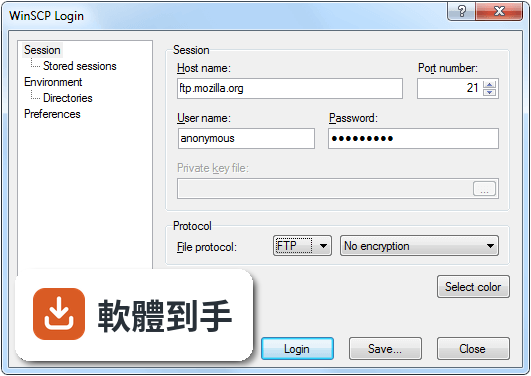
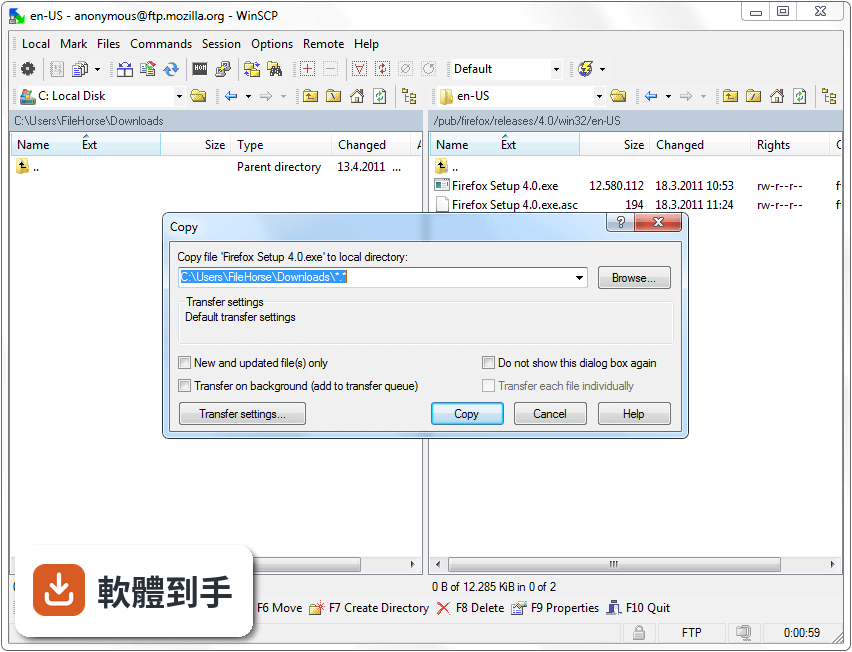
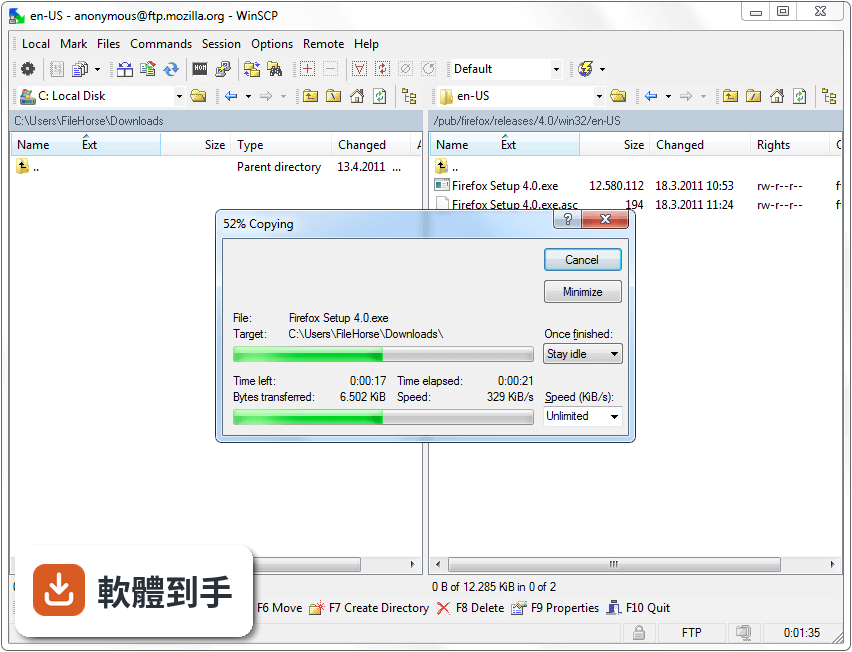
這套軟體主要用於 Windows 電腦與遠端伺服器之間的檔案傳輸,支援 SFTP、SCP、FTP 及 WebDAV 等多種協定。它提供類似檔案管理員的雙面板介面,讓使用者能方便地在本地路徑與遠端路徑之間移動檔案,並確保傳輸過程經過加密以維持安全性。
02這套軟體能直接修改伺服器上的檔案嗎?
可以。它內建了文字編輯器,使用者不需要先將檔案下載到本地電腦,就可以直接開啟並編輯遠端伺服器上的內容,修改完成後儲存即可同步回伺服器,省去重複上傳的步驟。
03它支援自動化傳輸功能嗎?
支援。它提供指令碼編寫能力,可以與 Windows 工作排程器整合,讓使用者將重複性的檔案傳輸任務設定為自動執行,不需要每次都手動操作介面。
04這套軟體可以同步本地和遠端資料夾嗎?
可以。它具備目錄同步功能,能比對本地資料夾與遠端伺服器路徑中的檔案差異,並將兩者同步至一致狀態,適合需要定期更新伺服器內容的使用者。
05什麼樣的工作環境會需要用到它?
系統管理員、網頁開發人員或經常需要管理遠端伺服器檔案的人員較適合使用。因為這些角色需要頻繁且安全地在本地與伺服器間交換資料,而這套軟體提供的協定支援能滿足其需求。
06如果不想安裝軟體到電腦裡,這套工具可以用嗎?
可以。它提供免安裝的可攜式模式(Portable Mode),使用者可以直接執行程式而不需要經過正式的安裝流程,方便在不同電腦間切換使用。
07為什麼 Mac 使用者不能選這套軟體?
因為這套軟體僅支援 Windows 系統,並不提供 macOS 或 Linux 版本。如果作業環境不是 Windows,將無法運行此工具。
08如果需要介面是中文的,它適合嗎?
可能不適合。其介面語系僅提供英文,對於完全無法使用英文介面操作的使用者來說,設定與使用過程會有較高的門檻。
09想直接管理雲端儲存空間(如 Google Drive),這套軟體好用嗎?
不太適合。根據功能說明,它缺乏內建的雲端儲存支援。雖然它支援 WebDAV 協定,但若追求的是直接整合主流雲端硬碟的功能,它並非針對此需求設計。
10市面上有很多類似工具,什麼情況下該考慮其他選擇?
當使用者需要跨平台支援(如同時在 Mac 和 Windows 使用),或是傾向選擇評分人數更多、社群驗證更廣的軟體(例如 FileZilla)時,可以考慮其他替代方案。
下載與官方連結
winscp417setup.exe · 2.31 MB · 連結指向軟體原廠
版本紀錄
- 2026-10-15 WinSCP 6.7 12.54 MB
- 2026-09-09 WinSCP 6.5.7 11.79 MB
- 2026-03-26 WinSCP 6.5.6 11.75 MB
再看 5 筆
- 2026-02-02 WinSCP 6.5.5 11.69 MB
- 2024-09-11 WinSCP 6.3.5 11.07 MB
- 2024-06-18 WinSCP 6.3.4 11.06 MB
- 2024-04-18 WinSCP 6.3.3 11.05 MB
- 2024-03-13 WinSCP 6.3.2 11.05 MB
這一版改了什麼
What's new in this version:
Output from console interface tool is no longer buffered. 281
System error message is shown when FTP connection is refused.
Transfer mode and resume support status are no longer shown on progress window.
Internal editor is opened faster. 312
It is possible to reference session in folder from command line and script. 300
Session name can contain special characters like []/. 305
In scripting on session start local working directory is set to the one saved in stored session. 303
Bug fix: Wrapping of long files were not applied to newly opened internal editors. 287
Bug fix: Alias to directory listing command was not cleared (SCP only). 285
Bug fix: Failure when creating directory with SFTP. 307
Bug fix: “List index out of bounds (-1)” error on startup with Explorer interface and Show full path on address bar option disabled. 294
Bug fix: Transfer progress indication was not completed with FTP protocol. 278
Bug fix: Paste in an internal editor lost final new line. 277
Bug fix: Dialogs opened from Preferences dialog opened from internal editor are properly placed over them. 282
Bug fix: Failure when dragging item in editor list.
Bug fix: Internal editor status bar was not updated after reload.
Bug fix: WinSCP closed without warning even when internal editor with modified local file was opened.
Bug fix: Changes to internal editor configuration were not applied to opened editors with local files.
Bug fix: Random pieces of log were duplicated in log window. 310
Bug fix: Log window was not updated while connecting.
Bug fix: Some administrative restrictions were not being applied. 315