
這是歷史版本頁面 — 看 Winstep Nexus Dock 最新版本
Windows 工作列不夠用?Winstep Nexus Dock 能做什麼
 Winstep Nexus Dock 18.12
資料更新 2018-12-17
閱讀約 6 分鐘
你每天打開電腦,工作列上擠滿了釘選的程式、開著的視窗,右下角還有一堆常駐圖示。想快速啟動常用軟體,得在密密麻麻的圖示裡找半天;開了很多視窗時,工作列上的按鈕小到難以分辨。你只是想讓桌面乾淨一點、啟動東西快一點,卻發現 Windows 內建的工作列怎麼調整都不太順手。
一般人會試著把工作列圖示變小、釘選更多捷徑,但空間就那麼多,塞越多越難找。也有人改用桌面捷徑,可是桌面被圖示淹沒,反而更亂。這類工具的切入點是:把常用的應用程式、檔案、資料夾集中到一條可自訂的長條上,放在螢幕邊緣,需要時才出現,不需要時自動隱藏,讓工作區保持清爽,同時用視覺化的方式快速啟動東西。
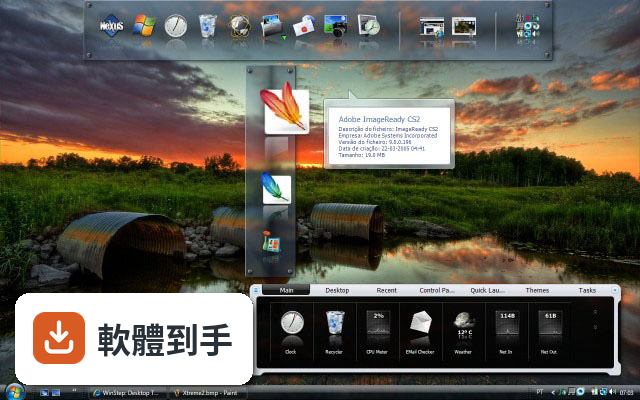
01Winstep Nexus Dock 是什麼?它能取代工作列嗎?
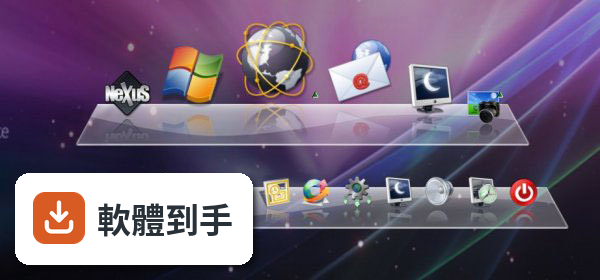
它是一套 Windows 桌面 Dock 工具,提供一條可自訂的長條,讓你放應用程式捷徑、檔案和資料夾,也能顯示正在執行的任務。它定位為 Windows 預設工作列的替代方案,但官方說明也提到缺乏深度的工作列整合,所以它比較像是工作列之外的輔助啟動列,而不是完全取代工作列。
02這套軟體除了放捷徑,還能做什麼?
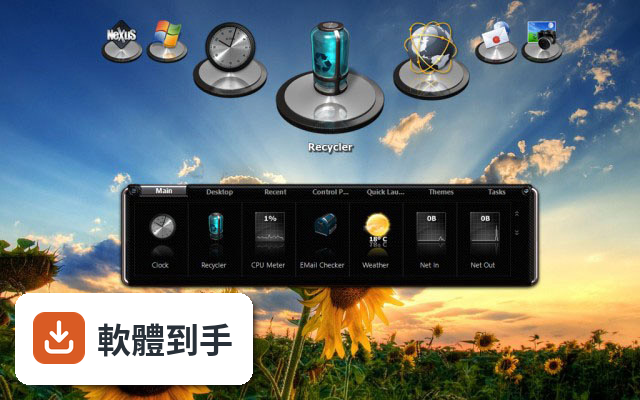
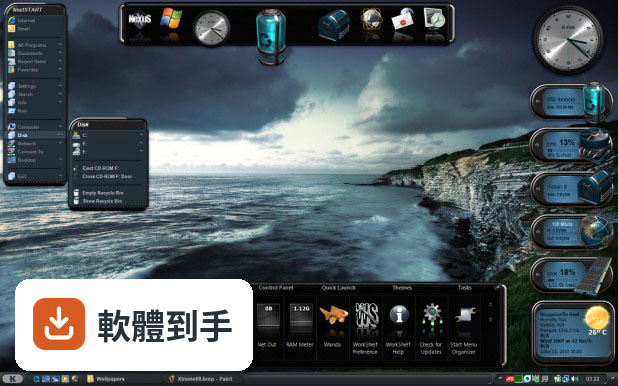
它內建多種小工具,包含 CPU、RAM、網路監控、天氣和時鐘。圖示有即時反射效果,支援拖放新增捷徑,也有多種滑鼠懸停和點擊動畫。付費的 Ultimate 版本額外支援多個 Dock、分頁式 Dock 和進階自訂選項,免費版則提供基本 Dock 功能和自訂能力。
03它支援多螢幕嗎?我雙螢幕想兩邊都放一條 Dock。
支援。官方說明明確指出它支援多螢幕設定,可以在不同螢幕上放置 Dock。你可以在每個螢幕的邊緣各自放一條 Dock,各自獨立設定內容和位置,方便在不同螢幕上快速啟動常用程式。
04介面只有英文,會不會很難上手?
介面語系只有英文,但操作邏輯不算複雜。安裝後 Dock 會出現在螢幕底部,右鍵點 Dock 選「Insert New Dock Item」就能新增捷徑,進到 Preferences 可以調整主題、透明度和圖示大小。如果你對英文介面不熟悉,初期可能需要花點時間摸索選單位置,但基本操作沒有太多障礙。
05這套軟體會很吃資源嗎?我電腦比較舊。
官方說明它本身輕量,系統需求是 1 GHz 處理器、512 MB 記憶體(建議 1 GB)、50 MB 磁碟空間,並需要支援 DirectX 的顯示卡。但要注意,過多的動畫效果和小工具會增加系統資源使用,舊電腦上如果開太多特效,可能會感到卡頓,建議關閉部分動畫或減少小工具數量。
06免費版和付費版差在哪?我該先從哪個開始?
免費版包含基本 Dock 功能、自訂選項和內建小工具,對多數人來說已經夠用。付費的 Nexus Ultimate 版本要價 24.95 美元,額外提供多個 Dock、分頁式 Dock 和進階自訂功能。建議先試用免費版,確認它符合你的使用習慣,再考慮是否需要付費功能。
07我可以在多台電腦之間同步我的 Dock 設定嗎?
軟體內建備份和還原功能,可以將 Dock 設定儲存起來,之後在另一台電腦上還原。但官方說明沒有提到自動雲端同步,所以你需要手動備份設定檔,再搬到另一台電腦上還原。如果你習慣多台電腦用一樣的配置,這功能可以省去重新設定的時間。
08這套軟體適合什麼樣的人用?
適合覺得 Windows 預設工作列不夠用、想要更多自訂彈性的人。如果你常用小工具監控系統狀態、需要快速啟動大量應用程式、或有多螢幕需求,它提供的自訂性和小工具會比較符合你的需求。它也適合喜歡美化桌面、調整介面外觀的人。
09什麼情況下不該選它?
如果你期待它能深度整合 Windows 工作列,例如完整管理系統通知、時間軸或虛擬桌面,它做不到。另外,它介面只有英文,如果你完全無法接受英文介面,使用上會比較吃力。還有,如果你只是想要一個簡單的應用程式啟動器,不太需要自訂或小工具,免費版的功能可能超過你的需求,但也不構成障礙。
10它和 ObjectDock、RocketDock 比起來如何?
這三套都是 Windows 上的 Dock 工具,功能定位相近。Winstep Nexus Dock 的評分人數(147 人)比 ObjectDock(67 人)和 RocketDock(125 人)多,分數也略高。但評分人數都不算多,參考價值有限。實際使用感受會因個人需求而異,建議都裝來試試看,看哪一套的操作邏輯和自訂方式比較順手。
11我擔心動畫特效太多會拖慢電腦,可以關掉嗎?
可以。在 Preferences 設定中可以調整動畫效果,包含滑鼠懸停和點擊的特效,也能調整透明度、主題和圖示大小。如果你覺得動畫影響效能,把特效關掉或調低就能減少資源消耗。官方說明也提到過度使用動畫和小工具可能影響效能,所以這部分是可以自行控制的。
12這套軟體還在持續更新嗎?會不會裝了之後沒人維護?
根據收錄的版本紀錄,它從 2013 年開始持續更新,最近一年內有 4 次更新、兩年內有 7 次,顯示開發團隊仍持續維護。不過軟體授權型式是 Demo,免費版可以一直用,但部分進階功能需要付費解鎖。如果你在意長期維護,目前看起來更新狀況是正常的。
下載與官方連結
nexus.zip · 37.52 MB · 連結指向軟體原廠
版本紀錄
- 2026-09-22 Winstep Nexus Dock 26.9 40.94 MB
- 2026-06-28 Winstep Nexus Dock 26.6 40.11 MB
- 2026-04-07 Winstep Nexus Dock 26.4 38.26 MB
再看 5 筆
- 2026-01-28 Winstep Nexus Dock 26.1 39.96 MB
- 2025-09-30 Winstep Nexus Dock 25.9 39.55 MB
- 2025-07-30 Winstep Nexus Dock 25.7 39.2 MB
- 2025-06-29 Winstep Nexus Dock 25.6 37.97 MB
- 2025-02-18 Winstep Nexus Dock 25.2 37.92 MB
這一版改了什麼
What's new in this version:
- Updated Portuguese language file
- In the Shelf/Drawer Transparency dialog, the user can now also specify that the tab text and control icons remain opaque. This allows making the Shelf or Drawer background fully transparent while still being able to switch to different tabs, collapse it, etc.
- Floating label settings have now been moved to their own independent dialog, with immediate preview of changes
- Type of text effect applied to floating labels can now be specified (Normal, Outline, Shadow, Sharp, Emboss)
- Opacity of the text effect applied to floating labels can now be specified
- The luminosity of the background color used in the label preview box can be changed with the mouse scroll wheel
- Improved sharpness of icon label text in Shelves and Drawers
- Moved the menu scaling setting to the Appearance tab of Docks, Shelves and Drawers Properties dialog
- 'Pin to Dock' right click menu option has been moved to the top of the menu
- Sub-docks attached to Shelves and Drawers are now properly named in context menus and in the Item Properties dialog as 'Sub-Docks'
- The right click context menu of a sub-dock attached to a Shelf or Drawer now more suitably says 'Delete sub-dock' instead of 'Remove from Shelf'
- Themes can now also specify the running indicator image by including a 'NxIndicator.png/.tif/.ico' bitmap file in the theme folder. The theme will only use that indicator bitmap, however, if the user has left the running indicator selection as 'Default' instead of specifically choosing an indicator from the list of available indicator bitmaps
- you can now specify 'No Label' for icon labels in Shelves and Drawers, at which point not even a floating label on mouseover is displayed
- The entire contents of sub-docks can now be copied by dragging & dropping a sub-dock icon while pressing the CTRL key
- Right clicking on a Folder item set to open as a menu and selecting Open from the context menu that pops up now opens the folder in Explorer
- The Browse for Folder feature now uses a more flexible version of the dialog
- Added new 'Grid Stacks'. Grid Stacks can be added as icons to docks, shelves and drawers. Like Shelf tabs, a Grid Stack can be one of many different types (Regular, Folder, Desktop, Recent, etc...). Like sub-docks, Grid Stacks are only kept open temporarily, until the user clicks somewhere else. The size of Grid Stacks is calculated automatically. Grid Stacks, like sub-docks, can be nested inside each other to as many levels as the user wants. Each Grid Stack has individual settings that can be accessed by right clicking the icon and selecting 'Grid Stack Properties'. To add a new Grid Stack, right click, select 'Add New Item', then Grid Stack then select the type of Grid Stack you want
- Added 'Convert to Grid Stack' option to the context menu of folders in docks and Regular Shelf tabs or Drawers
- Added 'Convert to Folder' to the context menu of folder type Grid Stacks
- Added 'change Folder' to the context menu of folder type Grid Stacks, to make it quicker to change the folder a 'folder type' Grid Stack is pointing to
- Added 'Downloads' (shows the contents of the Downloads folder) new tab type to Shelves, Drawers and Grid Stacks
- Replaced the old 'RAS Connections' tab type with new 'Connections' tab, showing all the available network connections on the sytem
- The user now always gets a confirmation dialog When deleting a sub-dock or Grid Stack regardless of the current delete confirmation settings
- Improved the icon caching mechanism
- Contents of Grid Stacks are now cached in memory after opening the Grid Stack for the first time
- The colors of the icon grid in Shelves and Grid Stacks are now calculated automatically when the original theme did not support them or the theme author did not set them correctly
- Added new 'Open folders in Grid Stacks' setting to Folder type tabs in a Shelf or Folder type Drawers and Grid Stacks. Opens all folders as a temporary Grid Stack when clicking on them - note that folders can still be opened in Explorer by right clicking and selecting Open or in a menu by right clicking and selecting 'Browse'
- Added 'Open as Grid Stack' option to the right click context menu of folders
- Deleting a 'Regular' type tab in the Contents tab of a Shelf Properties dialog now prompts for confirmation
- Changed the default Capture Delay of the Capture Desktop internal command from none to 5 seconds
- Added 'Ascending/Descending' settings to the Sort By options of tabs that can be sorted
- Opening Network related tabs (such as Network Connections) no longer blocks the application while Windows discovers all the network objects
- Grid Stacks can be detached by dragging them away from the original position. Detached Grid Stacks stay open until the user explicitily closes them
- Some previous per-dock/shelf settings are now global (i.e.; they apply to all docks and shelves): switch shelf mini-tabs, shift icons to insert, open sub-docks on mouseover, no final boing animation effect, close sub-docks on launch, no icon reflection on vertical sub-docks
- Added new 'Detach' sound event, played when a Grid Stack is detached
- Improved keyboard navigation of Shelves, Drawers and Grid Stacks
- Added new 'Quick Search Filter' to Shelves, Drawers and Grid Stacks. Simply start typing to start filtering content: a search box pops up so you can see what you are typing and know that content is currently being filtered. The ESC key can be used to terminate the filter and backspace to delete characters
- The Quick Search filter and be disabled in the More Options dialog of the Behavior tab of Shelves, Drawers and Grid Stacks. The color of the Quick Search filter can be customized in the same place
- A Shelf set to hide the tabs can now always be activated by screen edge bump or swipe
- A Shelf or Drawer docked to a screen edge and inverted can now also be expanded by pulling the bottom edge
- Pressing ESC on a Shelf/Drawer now collapses the Shelf Drawer. Pressing Enter when the Shelf/Drawer is collapsed expands it
- Some Shelf themes no longer appear as if the top of the Shelf body has been 'cropped' when the tabs are set to be left, centered, or right justified
- Windows shortcuts (.lnk files) to folders and now also be opened as Grid Stacks and browsed via menus
- Added automatic multi-monitor profiles, allowing different objects to be at different positions and enabled/disabled for each monitor configuration. Multi MOnitor Profiles can be disabled in the General tab of Preferences
- Thumbnail extraction should now be much faster as it now uses the local Windows thumbnail cache when available
- Added new 'Reset Icon Cache' option to the Dock and Shelf Management sub-menu in the main right click context menu of Shelves, Drawers and Grid Stacks. It purges and rebuilds the internal icon cache
- Fixed some lingering issues with pinning some Windows Store Apps to the dock
- Dragging a floating Drawer across the screen when collapsed by dragging it by the tab, would make it randomly jump all over, sometimes even going off screen
- When using a Dock and Shelf Management option to create a tab in a Shelf from a Drawer or a Dock, the application was asking the user to select a Shelf even if there was only one Shelf created
- Text greater than 10.pt with the outline and shadow effects was being rendered at a smaller size than it should
- The balloon tooltip was not displaying file information if the filename was enclosed in quotes
- The Media Player icon in Shelves and Drawers was not accepting dropped audio files or folders
- Selecting 'Run As Administrator' from a context menu and then replying 'No' to the UAC prompt would result in a second UAC prompt appearing on a 64 bit system
- When deleting alarms in the Alarm Manager the alarm selection could jump to a different alarm than the next one on the list
- Fixed potential data loss issue where a sub-dock could be deleted when dragging it into a new position in the main dock
- An in-Shelf sub-dock could become 'stuck' and not open again until the application was restarted if a Shelf or Drawer was closed with a sub-dock still open
- Fixed issue that could cause the wrong item to be deleted when moving an item from one Shelf or Drawer to another
- Clicking on a Language Bar IC in a sub-dock to open the Language Bar menu was closing the sub-dock
- The 'Run As' and 'Open Folder in a Menu' item attributes where not being carried over when moving or copying items via drag & drop
- Clicking on a folder menu for the second time now closes the menu instead of closing it and immediately opening it again
- Fixed issue displaying the icon of and the launching of some files with a filename containing non-ANSI characters
- Fixed issue with drag & drop of some files with a filename containing non-ANSI characters
- Text in the Shareware Reminder dialog was getting cropped at the end on high DPI systems
- When removing an item from a Shelf the confirmation prompt mentioned a Drawer instead
- Fixed minor memory leak when closing Shelfs, Drawers or Grid Stacks showing folders in the user's hard drive
- Fixed potential corruption if changing the contents of docks while also changing the contents of Shelves via the Contents tab of a Shelf Properties dialog
- Fixed access violation error that could happen when deleting the last file in a folder type tab and also an associated visual glitch where the icon disappeared only to re-appear immediately
- Sort By Date was only taking the date into consideration and ignoring the time
- When opening a 'Network' tab type in a Shelf or Grid Stack for the second time, items with exactly the same name would show identical icons
- Monochrome 1bit icons (i.e.; color bitmap) could crash the application
- Animated icons were not being properly colorized when icon colorization was applied
- Fixed issue where the blur region of a fully expanded Shelf could be displayed for a collapsed Shelf
- The left mini-tab symbol was not being positioned properly for Shelves/Drawers docked to the right screen edge
- Under some circustances a tab would still show when the Shelf/Drawer was collapsed even if 'Hide Tabs' was enabled
- Fixed Power Options icon in a Windows Control Panel tab appearing as a Question Mark icon
- When opening or closing a sub-dock, any particle animation launch effect in the parent dock would be cut short
- Deleting or moving a Shelf tab while the Shelf Properties dialog was open could lead to corruption and/or content loss of one or more Regular tabs in that Shelf
- Changes made to the properties of a Shelf tab while the Shelf Properties dialog was open would be lost
- Fixed minimum Drawer size calculation which could allow the tab header to become cropped with certain themes
- 'Disable menu scaling on high DPI settings' was no longer working properly after adding manual menu scaling in v18.10
- 'Disable Shelf scaling on high DPI settings' was not properly scaling font size after v18.8
- Selecting 'No Effect' in the Effects Panel and then clicking on the Effect Settings button would crash the application