
這是歷史版本頁面 — 看 Winstep Nexus Dock 最新版本
Windows 工作列不夠用?Winstep Nexus Dock 能做什麼
 Winstep Nexus Dock 20.10
資料更新 2020-10-28
閱讀約 6 分鐘
你每天打開電腦,工作列上擠滿了釘選的程式、開著的視窗,右下角還有一堆常駐圖示。想快速啟動常用軟體,得在密密麻麻的圖示裡找半天;開了很多視窗時,工作列上的按鈕小到難以分辨。你只是想讓桌面乾淨一點、啟動東西快一點,卻發現 Windows 內建的工作列怎麼調整都不太順手。
一般人會試著把工作列圖示變小、釘選更多捷徑,但空間就那麼多,塞越多越難找。也有人改用桌面捷徑,可是桌面被圖示淹沒,反而更亂。這類工具的切入點是:把常用的應用程式、檔案、資料夾集中到一條可自訂的長條上,放在螢幕邊緣,需要時才出現,不需要時自動隱藏,讓工作區保持清爽,同時用視覺化的方式快速啟動東西。
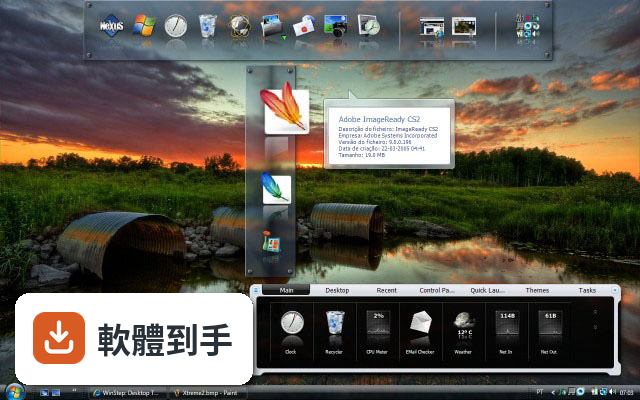
01Winstep Nexus Dock 是什麼?它能取代工作列嗎?
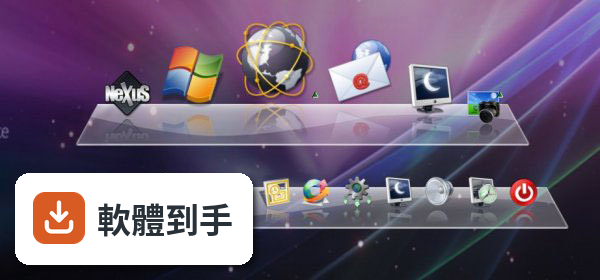
它是一套 Windows 桌面 Dock 工具,提供一條可自訂的長條,讓你放應用程式捷徑、檔案和資料夾,也能顯示正在執行的任務。它定位為 Windows 預設工作列的替代方案,但官方說明也提到缺乏深度的工作列整合,所以它比較像是工作列之外的輔助啟動列,而不是完全取代工作列。
02這套軟體除了放捷徑,還能做什麼?
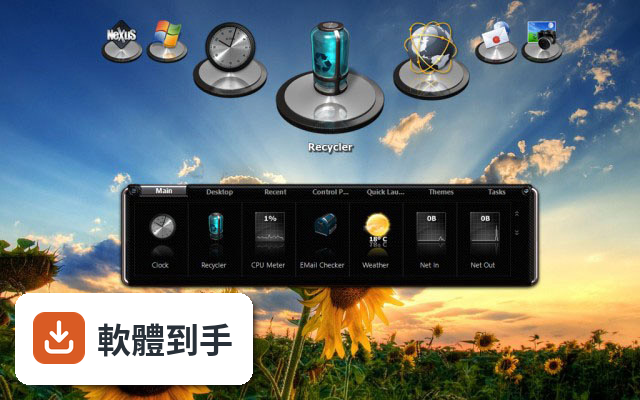
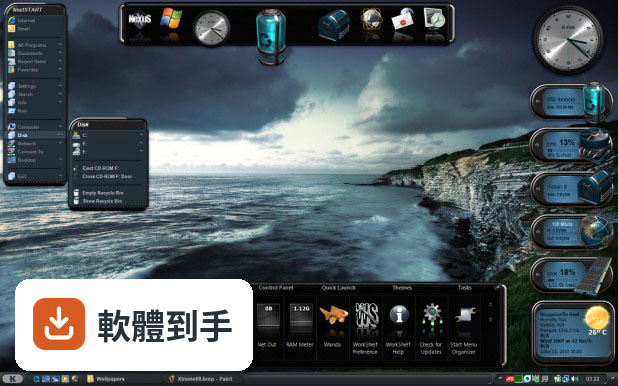
它內建多種小工具,包含 CPU、RAM、網路監控、天氣和時鐘。圖示有即時反射效果,支援拖放新增捷徑,也有多種滑鼠懸停和點擊動畫。付費的 Ultimate 版本額外支援多個 Dock、分頁式 Dock 和進階自訂選項,免費版則提供基本 Dock 功能和自訂能力。
03它支援多螢幕嗎?我雙螢幕想兩邊都放一條 Dock。
支援。官方說明明確指出它支援多螢幕設定,可以在不同螢幕上放置 Dock。你可以在每個螢幕的邊緣各自放一條 Dock,各自獨立設定內容和位置,方便在不同螢幕上快速啟動常用程式。
04介面只有英文,會不會很難上手?
介面語系只有英文,但操作邏輯不算複雜。安裝後 Dock 會出現在螢幕底部,右鍵點 Dock 選「Insert New Dock Item」就能新增捷徑,進到 Preferences 可以調整主題、透明度和圖示大小。如果你對英文介面不熟悉,初期可能需要花點時間摸索選單位置,但基本操作沒有太多障礙。
05這套軟體會很吃資源嗎?我電腦比較舊。
官方說明它本身輕量,系統需求是 1 GHz 處理器、512 MB 記憶體(建議 1 GB)、50 MB 磁碟空間,並需要支援 DirectX 的顯示卡。但要注意,過多的動畫效果和小工具會增加系統資源使用,舊電腦上如果開太多特效,可能會感到卡頓,建議關閉部分動畫或減少小工具數量。
06免費版和付費版差在哪?我該先從哪個開始?
免費版包含基本 Dock 功能、自訂選項和內建小工具,對多數人來說已經夠用。付費的 Nexus Ultimate 版本要價 24.95 美元,額外提供多個 Dock、分頁式 Dock 和進階自訂功能。建議先試用免費版,確認它符合你的使用習慣,再考慮是否需要付費功能。
07我可以在多台電腦之間同步我的 Dock 設定嗎?
軟體內建備份和還原功能,可以將 Dock 設定儲存起來,之後在另一台電腦上還原。但官方說明沒有提到自動雲端同步,所以你需要手動備份設定檔,再搬到另一台電腦上還原。如果你習慣多台電腦用一樣的配置,這功能可以省去重新設定的時間。
08這套軟體適合什麼樣的人用?
適合覺得 Windows 預設工作列不夠用、想要更多自訂彈性的人。如果你常用小工具監控系統狀態、需要快速啟動大量應用程式、或有多螢幕需求,它提供的自訂性和小工具會比較符合你的需求。它也適合喜歡美化桌面、調整介面外觀的人。
09什麼情況下不該選它?
如果你期待它能深度整合 Windows 工作列,例如完整管理系統通知、時間軸或虛擬桌面,它做不到。另外,它介面只有英文,如果你完全無法接受英文介面,使用上會比較吃力。還有,如果你只是想要一個簡單的應用程式啟動器,不太需要自訂或小工具,免費版的功能可能超過你的需求,但也不構成障礙。
10它和 ObjectDock、RocketDock 比起來如何?
這三套都是 Windows 上的 Dock 工具,功能定位相近。Winstep Nexus Dock 的評分人數(147 人)比 ObjectDock(67 人)和 RocketDock(125 人)多,分數也略高。但評分人數都不算多,參考價值有限。實際使用感受會因個人需求而異,建議都裝來試試看,看哪一套的操作邏輯和自訂方式比較順手。
11我擔心動畫特效太多會拖慢電腦,可以關掉嗎?
可以。在 Preferences 設定中可以調整動畫效果,包含滑鼠懸停和點擊的特效,也能調整透明度、主題和圖示大小。如果你覺得動畫影響效能,把特效關掉或調低就能減少資源消耗。官方說明也提到過度使用動畫和小工具可能影響效能,所以這部分是可以自行控制的。
12這套軟體還在持續更新嗎?會不會裝了之後沒人維護?
根據收錄的版本紀錄,它從 2013 年開始持續更新,最近一年內有 4 次更新、兩年內有 7 次,顯示開發團隊仍持續維護。不過軟體授權型式是 Demo,免費版可以一直用,但部分進階功能需要付費解鎖。如果你在意長期維護,目前看起來更新狀況是正常的。
下載與官方連結
nexus.zip · 37.72 MB · 連結指向軟體原廠
版本紀錄
- 2026-09-22 Winstep Nexus Dock 26.9 40.94 MB
- 2026-06-28 Winstep Nexus Dock 26.6 40.11 MB
- 2026-04-07 Winstep Nexus Dock 26.4 38.26 MB
再看 5 筆
- 2026-01-28 Winstep Nexus Dock 26.1 39.96 MB
- 2025-09-30 Winstep Nexus Dock 25.9 39.55 MB
- 2025-07-30 Winstep Nexus Dock 25.7 39.2 MB
- 2025-06-29 Winstep Nexus Dock 25.6 37.97 MB
- 2025-02-18 Winstep Nexus Dock 25.2 37.92 MB
這一版改了什麼
What's new in this version:
- Updated Portuguese language file
- Updated Hungarian language file
- Added Pause, Play, Stop, Next and Previous commands to the right click context menu of the Media Player internal command
- The application's invisible main control window is now monitored to make sure it's not made visible again by 3rd party applications
- Added new 'Windows Settings' internal command to open the Windows 10 UWP Windows Settings panel
- The Most Active Programs History dialog now automatically adjusts font size to make up for very large process names
- Added new 'Show decimal place for processes' option to the settings of the CPU Meter module. When enabled, any list of running processes - like the one shown in the Most Active Programs dialog - will display a decimal place in the percentage of CPU usage for that process (e.g.; 1.3% instead of just 1%, or 1.8% instead of just 2%)
- Added several new internal commands for accessing Windows 10 settings dialogs: Windows Settings, Apps, System, Network and Internet, Devices, Gaming, Time and Language, Accounts, Personalization, Ease of Access, Phone, Privacy, Windows Update, Search Settings and Power Options. These new Internal Commands are all grouped under 'Internal Commands - Settings' in the insert new item right click context menus
- Sunrise and sunset times are now correctly calculated for the MSN weather feed, which allows choosing whether to display a moon or a sun icon with nearly 100% accuracy
- An icon pointing to Explorer.exe in the dock now only displays a running indicator if there are Explorer windows open
- The dock can now be docked to and undocked from any screen edge and monitor by simply dragging it (users can press the ALT key while left clicking to make it easier). When docked it will show some initial resistance to being undocked by 'shaking' when about to detach. When docking or undocking by dragging, the Detach event sounds to give the user some audio feedback. To dock an horizontal dock drag it so the top edge touches the top screen edge or the bottom edge touches the bottom screen edge. To dock an horizontal dock to the side of the screen so it changes orientation, slowly drag it until the mouse pointer nearly touches the desired screen edge. To prevent the dock from accidentally docking when moving it from one monitor to another, the auto-docking mechanism is speed sensitive: move across monitors rapidly to prevent the auto-docking mechanism from kicking in. The auto-docking/snap-to feature can be disabled in the 'More Options' dialog of the Behavior tab of Preferences
- The width of checkboxes in the User Interface is now automatically cropped so that clicking on a blank space right after the setting description no longer toggles the setting
- Added 'Disable simulated ALT key press when forcing windows to the foreground' setting to the More Options dialog in the General tab of Preferences. This should be checked only if having trouble with ALT+TAB or the ALT key getting stuck
- The Winstep Update Manager will now report hidden updates if the user performs a manual check for updates
- Increased the transparency of the non-lit LCD digits for better readability in full screen alarms/clock/sleep tim
- Under Windows 10 viewing the Change Log could freeze the application for a long time or even crash it with an out of memory error
- The 'snap mouse pointer to default button' feature only worked when using the 'Standard User Interface' mode
- Disabling or Enabling icon reflections in the dock via the right click context menu would cause icons of UWP apps to show as question marks
- Disabling the "Do not launch multiple sessions on the same application" setting would still require the user to double click on an icon to launch another session if the 'Combine dock icons with running applications' setting was also enabled
- The sub-menu drop down delay setting in the Behavior tab of Preferences had no effect
- On modern systems running more than 256 simultaneous processes, the CPU hog list might not accurately reflect the applications using the most of the CPU at the time. This was fixed in the Winstep service by doubling the limit to 512 simultaneous processes
- Themes with no name on the INI configuration file would appear on Theme right click context menus as blank entries. They now appear labeled as 'Untitled'
- Certain SYSTEM processes were not being enumerated properly and/or always returned 0% CPU and RAM usage
- METAR weather information retrival is now automatically disabled if the application crashes when using a 3rd party DLL to access NOAA's website via HTTPS
- The MSN weather feed was not reporting the correct observation time for locations outside the GMT timezone
- The first forecast day of the MSN weather feed sometimes pointed to the previous day, which caused the 5 day forecast to be out by one day (e.g.; the forecast for Fri would appear on the Sat slot)
- Albany Airport, Australia had the wrong METAR code and was showing the conditions for Albury, Australia
- The 'Repeat every (x) years' option for alarms was not working properly
- Dropping a folder into the left panel of the Media Player Settings dialog would create a playlist with the name of that folder and all the mp3 files in it, but it would miss the very first file
- Version 2004 of Windows 10 changed the default initial dimensions of system tray pop ups which now caused them to appear off screen