
這是歷史版本頁面 — 看 Zoom Player MAX 最新版本
Windows播放器格式不全?Zoom Player MAX能補什麼
 Zoom Player MAX 10.0
資料更新 2015-02-19
閱讀約 6 分鐘
你從網路上下載了一部影片,興沖沖地雙擊檔案,播放器卻跳出「無法播放」的訊息。換了另一個播放器,畫面是出來了,但字幕跟不上、聲音斷斷續續,想調整色彩或播放速度,卻找不到對應的設定。你只是想好好看個影片,卻得在好幾個播放器之間來回切換,每個都有各自的毛病。
一般人遇到這種狀況,直覺是再裝一套免費播放器試試。但免費播放器往往為了追求簡單,把進階設定藏得很深,甚至直接拿掉;遇到冷門格式或特殊編碼,還是得自己上網找解碼包,裝完也不見得有用。這類專業播放器的切入點,是從「播放」這件事本身出發:先想辦法讓所有格式都能播,再把調整的權限完整交給使用者,讓你可以針對每一部影片、每一種使用情境,自己決定要怎麼播。
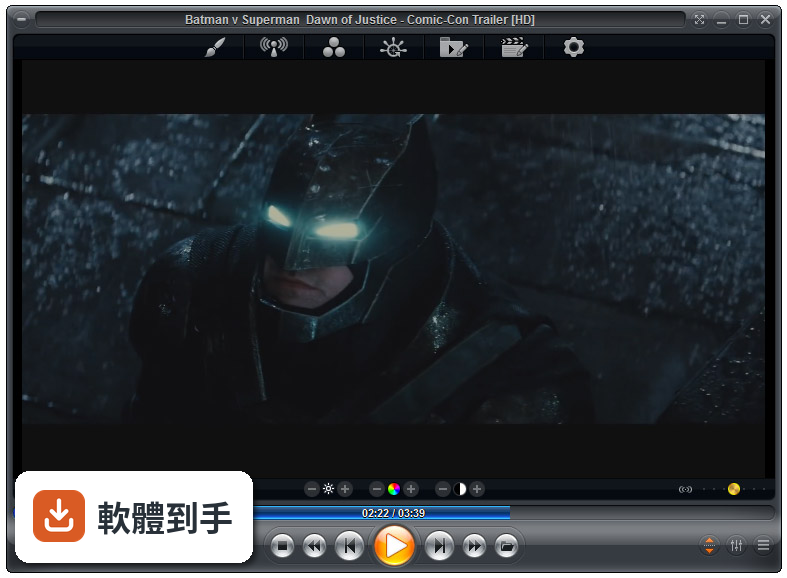
01Zoom Player MAX到底能播什麼格式?
官方列出的支援清單很長,影片涵蓋MKV、AV1、H.264、H.265、WebM、AVI、FLV、WMV、MOV、MP4、VOB、TS、MTS、3GP、Real Media、QuickTime、DV、MXF、SWF等;音訊有MP3、FLAC、AAC、WMA、OGG、OPUS、AC3、DTS、WAV、ALAC、APE等。另外也支援DVD、未加密的藍光資料夾結構,以及JPG、PNG、GIF等圖片格式。基本上常見的影音檔案都在涵蓋範圍內。
02它跟一般播放器有什麼不同?
主要差在兩點。第一是Smart Play技術,播放時會自動挑選最適合的解碼器和濾鏡,減少你手動調整的次數。第二是模組化架構,除了內建的解碼包,也允許掛載LAV Filters這類第三方解碼器,遇到特殊情況可以自己換。介面高度可自訂,支援DirectShow、libVLC、Chromium三種引擎,這在一般播放器上很少見。
03可以調整哪些播放細節?
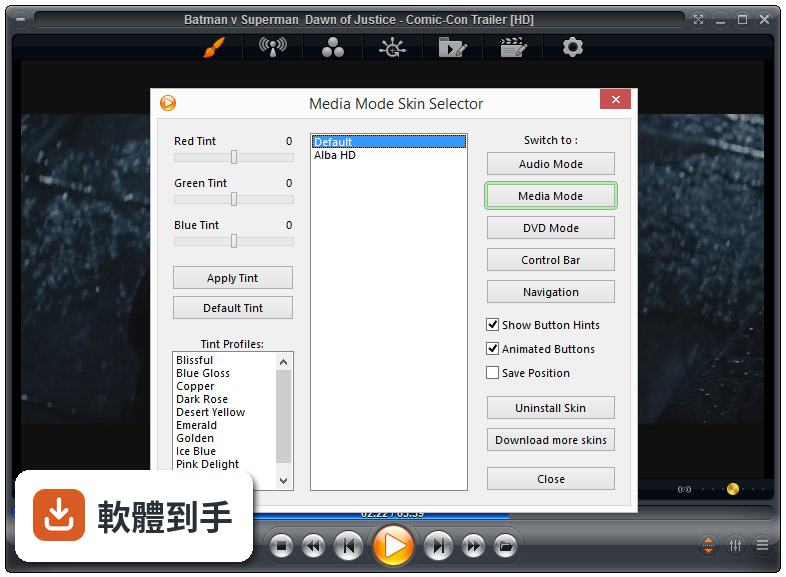
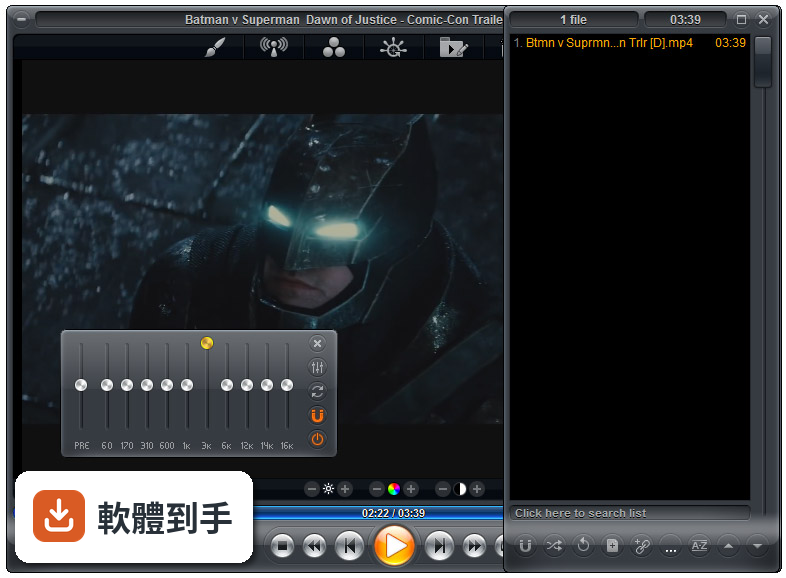
播放速度、縮放、畫面比例、色彩設定、等化器、字幕同步都可以調。音訊方面有10頻段等化器,支援S/PDIF和位元流輸出。另外還有子母畫面、多顯示器影片牆、磁吸式視窗、章節時間軸、滑鼠懸停預覽等功能。這些設定可以從右鍵選單或進階選項對話框進入,不是只有播放、暫停、快轉而已。
04能看網路影片或IPTV嗎?
可以。它支援直接輸入網址播放串流影片和音訊,也支援IPTV服務,可以透過播放清單檔案載入。YouTube串流需要額外設定才能使用。網路芳鄰(SMB/UPnP)的分享檔案也可以直接播放,另外有內建Emby、Plex、Jellyfin的支援,方便連到家裡的媒體伺服器。
05可以自訂界面和操作嗎?
可以,而且這方面做得相當深。完整支援換膚,鍵盤、滑鼠、手勢、螢幕角落都可以自訂,也有腳本功能可以寫自動化。新版介面改成半透明的控制覆蓋層,按鈕配置、大小、字型、顏色、透明度都能調。也支援遙控器、遊戲手把,甚至可以用Android手機App控制,適合搭配電視或投影機使用。
06什麼人適合用這套?
如果你會自己調整播放設定、對畫質和音質有要求,或是常遇到別人播不了的檔案,這套會比較適合。它內建播放歷史與續播功能,會記住多個檔案的播放位置,對常看一半就關掉的人很方便。另外,如果你有HTPC(客廳電腦)的建置需求,它支援Kiosk模式和遙控器操作,可以當作家庭劇院的核心播放器。
07拿來當HTPC播放器可以嗎?
可以,官方FAQ也明確提到這點。它支援全螢幕Kiosk模式、遙控器操作、高度自訂的導覽介面,也有螢幕烙印保護、網路磁碟機保持連線、Wake-on-LAN等功能。另外可以跨電腦續播、變更解析度、關閉顯示器、設定家長鎖。如果你打算組一台專門接電視的電腦,這些功能會比一般播放器實用很多。
08數位看板或公共場所播放適合嗎?
這套有GuardDog自動重啟功能,播放程式異常時會自己恢復,也有螢幕烙印保護和Wake-on-LAN,這些都是公共播放會需要的機制。Kiosk模式可以鎖定界面,避免路人亂按。不過要注意,它畢竟是付費軟體,而且界面只有英文,如果只是要簡單輪播幾支影片,市面上有更便宜或免費的選擇。
09界面只有英文,會不會很難上手?
介面語系確實只有英文,沒有中文。如果你不習慣英文選單,初期會需要花時間摸索。不過播放器的主要操作其實很直覺——拖曳檔案進去、右鍵叫出選單——日常使用不太會卡住。但如果你要深入調整解碼器、設定腳本或自訂界面,就需要一定的英文閱讀能力,這點要自己評估。
10要付費嗎?免費版夠用嗎?
這套是付費軟體,單人授權定價約29.95美元,有升級折扣和終身授權選項。官方也提供功能較少的免費版Zoom Player FREE,但具體少了哪些功能,官方資料沒有細列。如果你只是偶爾看片,免費版可能夠用;但如果你需要進階功能,就得先付費才能用MAX版,建議先試用再決定。
11跟K-Lite Codec Pack比,哪個比較多人用?
以評分人數來看,K-Lite Codec Pack Basic有781人評分,Mega也有266人,而Zoom Player MAX只有69人,差距很明顯。K-Lite是解碼包,搭配播放器使用;Zoom Player是完整的播放器,定位不同。如果你只是缺解碼器,K-Lite的使用者基數大、討論多,遇到問題比較好找答案。Zoom Player的社群相對小很多。
12能播藍光嗎?加密的可以嗎?
可以播放藍光資料夾結構,但官方明確表示,因為授權限制,不支援加密藍光光碟。也就是說,如果你手邊是正版藍光片,這套沒辦法直接播,需要先自行處理解密。另外,4K和HDR播放需要你的硬體和系統有對應的支援,不是裝了軟體就一定跑得動,這點在購買前要先確認自己的設備。
下載與官方連結
zp1000max.exe · 28.1 MB · 連結指向軟體原廠
版本紀錄
- 2026-07-09 Zoom Player MAX 22.5 95.56 MB
- 2026-02-25 Zoom Player MAX 22.2 95.57 MB
- 2026-01-12 Zoom Player MAX 22.0.1 95.52 MB
再看 5 筆
- 2025-12-18 Zoom Player MAX 22.0.0 95.51 MB
- 2025-08-04 Zoom Player MAX 21.5.1 95.57 MB
- 2025-07-14 Zoom Player MAX 21.5 95.54 MB
- 2025-05-28 Zoom Player MAX 21.4 94.99 MB
- 2025-05-15 Zoom Player MAX 21.3 95.33 MB
這一版改了什麼
What's new in this version:
NEW PRE-CONFIGURATION WIZARD:
- The wizard opens automatically on a fresh installation or can be manually triggered by using the Alt+Shift+F12 keyboard macro. The wizard lets you automatically configure Zoom Player based on the playback PC device profile:
PC:
- This is the default configuration used in previous versions of Zoom Player.
HTPC (Home Theater PC) - When choosing the HTPC profile, the following settings are adjusted:
- Buttons added to the Control Bar: Subtitle Cycling;Open the Media Library fullscreen navigation interface; Maximize video to fullscreen.
- Buttons removed from the Control Bar: Fullscreen on/off toggle.
- The mouse left button-click is assigned to 'Mouse Gestures'.
- The open file function is assigned to open the file browsing fullscreen navigation interface, affecting the control bar button and the 'Open file' right-click menu entry.
- Zoom Player automatically starts in fullscreen mode with the main fullscreen navigation interface open.
TABLET - When choosing the Tablet profile, the following settings are adjusted:
- Buttons added to the Control Bar: Seeking controls; Lock user interface function; Maximize video to fullscreen.
- Buttons removed from the Control Bar: Fullscreen on/off toggle. Open File
- The mouse left button-click is assigned to 'Mouse Gestures' with the static mouse click set to toggle the Control Bar on/off.
- The open file function is assigned to open the file browsing fullscreen navigation interface, affecting the control bar button and the 'Open file' right-click menu entry.
- Zoom Player automatically starts in fullscreen mode with the main fullscreen navigation interface open.
- Zoom Player prompts for the tablet screen's physical size. Zoom Player uses the screen size information to adjust the following settings to ensure they work well with touch input: Fullscreen navigation scroll bar size; Control Bar size; Hot-Corner click-region size; Color Control UI size.
- The control bar auto-hides after 15 seconds instead of 3.
- The number of lines displayed in the fullscreen navigation interfaces is reduced, making line selection easier.
- Do not show timeline position when hovering with the mouse over the timeline since tablets do not use mouse as input device by default.
- Disable quick searching using the keyboard.
- Set LAV Video hardware acceleration to DXVA2 Native
- Hide button hints (no mouse to hover with).
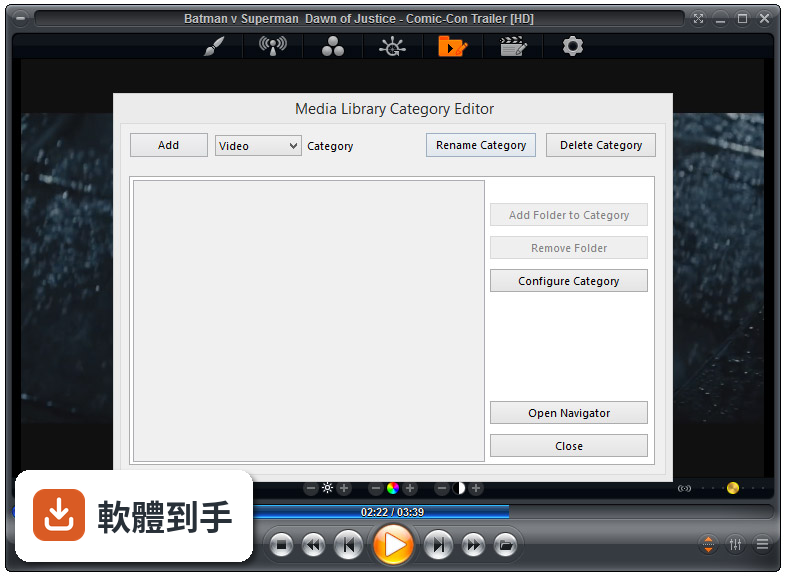
- New "Media Scanner" fullscreen navigation interface (Ctrl+Shift+"M"). The Media Scanner scans the PC's drives, searching for media content audio/video/images) and presenting a clear list featuring the content of each folder identified to contain media. Each media folder can be browsed, added to existing media library categories or used as a base for a new media library category. With the new Media Scanner, you no longer have to leave the fullscreen navigation interface to setup the media library.
- New "Stream Selection" fullscreen navigation interface (Shift+"E"). The stream selection navigation interface allows you to easy select which of the playing media's Audio and Subtitle streams to enable.
- New "Mini Color Control" fullscreen navigation interface that by default replaces the old color control fullscreen navigation interface. The new minified version uses as little screen-space as possible to ensure color changes are clearly seen as they are being applied.
- New "Control Bar" button on the skin selection dialog, introducing a new class of skinning specifically for the control bar, allowing you to pick custom control bar designs, regardless of the currently used skin. By default, Zoom Player ships with 5 custom control bars: Onyx Very Small, Onyx Small, Onyx Medium, Onyx Large, Onyx Very Large.
- Zoom Player is now "Large Address Aware". This means that Zoom Player and filters in use by Zoom Player can now allocate more than 2GB of RAM. Large Address Aware is required when playing 4K video content through MadVR using a very large frame buffer.
- New "Media Scanner" entry on the media library fullscreen navigation category list giving easy access the new media scanner fullscreen navigation interface.
- New "Remove folder(s) from categories" function on the media library fullscreen navigation category list enabling easy removal of folders from existing media library categories.
- New "Hot Corner" feature (Adv. Options / Interface / Mouse / Settings) that triggers customizable functions when the mouse (or finger with touch input devices) clicks on one of the screen's corners while in fullscreen mode. By default the functions are:
- Top-Left corner : Main fullscreen navigation interface
- Top-Right corner : Playlist fullscreen navigation interface
- Bottom-Left corner : File browsing fullscreen navigation interface
- Bottom-Right corner : Media library fullscreen navigation interface
- New setting (Adv. Options / Interface / Mouse / Settings) to limit "Hot Corner" feature to fullscreen mode (enabled by default).
- New settings (Adv. Options / Interface / Mouse) to set which function is triggered when using the 4th (Forward) and 5th (Backward) buttons on the mouse. By default the forward and backward buttons are set to perform a medium distance seek, but any Zoom Player function can be assigned to the buttons using the 'Custom' option.
- New setting (Adv. Options / Playback / Video) to control LAV Video Decoder's hardware acceleration. By default, Zoom Player now sets the hardware acceleration to DXVA2 Copyback (which falls back to software mode if it is not supported by the hardware/drivers) in tablet mode and "Use LAV's setting" on PCs and HTPCs.
- New setting (Adv. Options / Interface / Fullscreen Navigation / Settings) that controls whether clicking the right/left screen edges navigates to the left/right. This behavior was previously enabled and hard coded, it is now optional and disabled by default.
- New setting (Adv. Options / Interface / Fullscreen Navigation) that switches between the old color control navigation style and the new mini-color control navigation style. The current navigation skin must support the mini-color control navigation mode for the setting to have an affect. A few great looking background patterns for the customizable dark/light fullscreen navigation interfaces are now included with the installer. The browse button next to the "Override navigation background image" setting now opens the new patterns folder by default. The advanced playlist control can now be searched with either an "OR" or an "AND" type Boolean search when using multiple words.
- New "Lock user interface" control bar button. When enabled, the mouse and keyboard interfaces are disabled until the top-left corner of the screen is quickly clicked 3 times or the space bar is quickly pressed 3 times.
- New "/MainNav" command line parameter that starts the player with the main navigation interface visible and fullscreen.
- New "Main Navigator" setting for the "Start Player in" feature Adv. Options / Interface / Position & Size).
- New Text Viewer font size settings for both ASCII and ANSI (used to display art in NFO files) under "Adv. Options / Interface / On Screen Display".
- New "exLAVHWAccel" extended function that specifies the type of video hardware acceleration used by the LAV Video Decoder filter. Values: 0 = Use LAV's setting; 1 = None (software decoding); 2 = NVIDIA CUVID; 3 = Intel½ QuickSync; 4 = DXVA2 (copy-back); 5 = DXVA2 (native)
- Extended functions can be mapped to keyboard events to make switching
- between different hardware acceleration modes more accessible.
- New smart play profile to support decoding of Apple's ProRes format. Media can now be played directly from the fullscreen download manager navigation interface.
- New API message #1935 to add a file to the playlist and automatically start playing it. Zoom Player should load faster, especially on a fresh install or when upgrading to a new version.
- Rewrote the entire fullscreen navigation mouse click/touch code to prevent clicking and double clicking outside list boundaries selecting the first/last list entry.
- The Image Adjust, Image Blanking, Equalizer and Color Control navigation interfaces are now much more reactive when quickly clicking the mouse or touch input devices.
- The GoTo Time fullscreen navigation interface is now much more touch-intuitive with +/- icons under the Hours/Minutes/Seconds fields to quickly change the values without having to use the more cumbersome directional arrows interface.
- The file browsing fullscreen navigation interface no longer displays the volume label of network drives as it caused massive slow downs if the network drive was disconnected.
- The fullscreen navigation interfaces' close button now only reacts when the mouse button is released or when the finger is moved off the touch surface. The change makes the interface more intuitive when used with touch interfaces.
- Double clicking on the fullscreen media library category or file browsing drive list now opens the last position instead of the first item in the list.
- When hovering with the mouse over the main fullscreen navigation interface's grid, the active entry is now set to the item selected instead of just highlighted, making use of a keyboard+mouse setup more intuitive.
- The order of the navigation interfaces has been changed along with the default navigation interfaces listed in the main navigation interface. You can still choose which navigation interfaces to list through the advanced options dialog.
- The on-screen clock is now hidden when a fullscreen navigation interface is visible.
- The default value for "Navigation Scroll Mode" is now set to "Middle Centered".
- The icon in the path area was removed from several fullscreen navigation interfaces.
- The path text was changed to be more subtle in several fullscreen navigation interfaces.
- Played items in the media library and file browsing fullscreen navigation interfaces are made easier to spot by changing played media's icon to 25% transparency (compared to 50% in previous versions).
- Several actions, (for example trying to open a category in the media library that contained no files) would not show any visual cue to indicate why no action took place. These action will now Pop-up an OSD message to indicate the cause.
- When opening the options dialog for the very first time, it will now open centered within the active monitor (previously it would open centered on the main UI window).
- Due to a bug, the scheduler interface became impossible to enable even when using the MAX version.
- The "Check for updates" setting was broken and may have notified of new components on the install center even though they may have not been any.
- Closing a fullscreen navigation interface by clicking/touching the "X" area located at the top-right corner of the screen could accidentally trigger a "right" navigation function, which by default is to seek forward 20 seconds.
- Long-presses on buttons now work when used with a touch screen (instead of the default windows behavior of a long-press being used to right-click).
- Double-click action will not trigger accidentally when trying to quickly select/unselect entries in the Playlist, Media Library and File Browsing fullscreen navigation interfaces.
- The selected file(s) attribute in the Media Library, Playlist and File
- Browsing fullscreen navigation interfaces would not clear after performing several actions (Cut, Paste, Add to Playlist, Remove from Playlist and Clear Playlist).
- Fixed a memory leak when using the main navigation interface in grid mode.
- Certain mouse actions and features did not perform well when the text viewer was used.
- When playing a file using the file browsing fullscreen navigation interface, opening the interface will now mark the file as seen without requiring you to exit and re-enter the folder.
- Scrolling quickly through the "image adjust" and "image blanking" fullscreen navigation interfaces could cause values to change using a multiplier instead of accurately one at a time.
- In the FREE and PRO versions, the chapter points on the timeline could not be disabled.
- Pressing Backspace before typing anything else in a fullscreen navigation interface that had QuickSearch enabled could cause the dialog to appear frozen until other characters were entered.
- Using the "End" key to go to the end of the line when using the fullscreen keyboard navigation interface would go one character after the line's end.
- If the "Auto-Show the Control Bar on Mouse Movement" setting was enabled and the "Limit Control Bar Auto-Show to Fullscreen / Zoom mode" was disabled, it took two clicks to close the control bar.
- Using the CommAPI #1930 message to add files to the playlist now automatically translates "/" characters to "" if the path is local, fixing cosmetic issues in the playlist.