
這是歷史版本頁面 — 看 Zoom Player MAX 最新版本
Windows播放器格式不全?Zoom Player MAX能補什麼
 Zoom Player MAX 12.0
資料更新 2016-05-22
閱讀約 6 分鐘
你從網路上下載了一部影片,興沖沖地雙擊檔案,播放器卻跳出「無法播放」的訊息。換了另一個播放器,畫面是出來了,但字幕跟不上、聲音斷斷續續,想調整色彩或播放速度,卻找不到對應的設定。你只是想好好看個影片,卻得在好幾個播放器之間來回切換,每個都有各自的毛病。
一般人遇到這種狀況,直覺是再裝一套免費播放器試試。但免費播放器往往為了追求簡單,把進階設定藏得很深,甚至直接拿掉;遇到冷門格式或特殊編碼,還是得自己上網找解碼包,裝完也不見得有用。這類專業播放器的切入點,是從「播放」這件事本身出發:先想辦法讓所有格式都能播,再把調整的權限完整交給使用者,讓你可以針對每一部影片、每一種使用情境,自己決定要怎麼播。
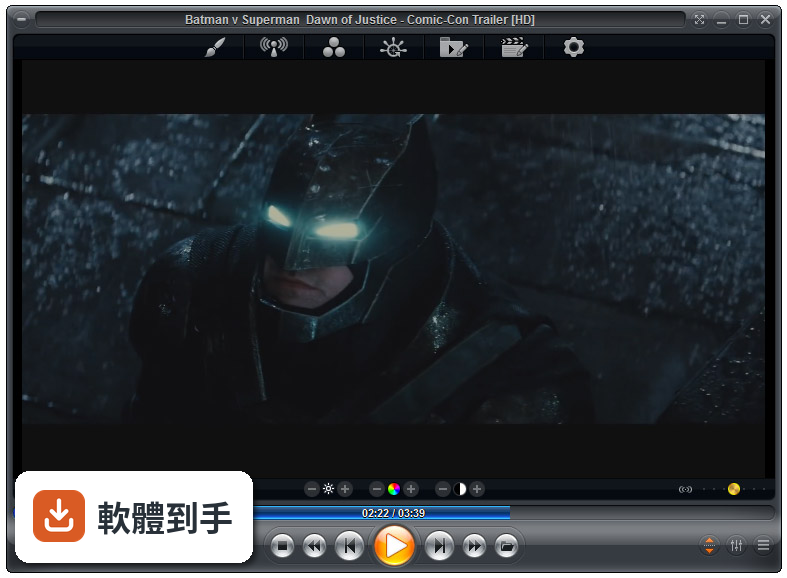
01Zoom Player MAX到底能播什麼格式?
官方列出的支援清單很長,影片涵蓋MKV、AV1、H.264、H.265、WebM、AVI、FLV、WMV、MOV、MP4、VOB、TS、MTS、3GP、Real Media、QuickTime、DV、MXF、SWF等;音訊有MP3、FLAC、AAC、WMA、OGG、OPUS、AC3、DTS、WAV、ALAC、APE等。另外也支援DVD、未加密的藍光資料夾結構,以及JPG、PNG、GIF等圖片格式。基本上常見的影音檔案都在涵蓋範圍內。
02它跟一般播放器有什麼不同?
主要差在兩點。第一是Smart Play技術,播放時會自動挑選最適合的解碼器和濾鏡,減少你手動調整的次數。第二是模組化架構,除了內建的解碼包,也允許掛載LAV Filters這類第三方解碼器,遇到特殊情況可以自己換。介面高度可自訂,支援DirectShow、libVLC、Chromium三種引擎,這在一般播放器上很少見。
03可以調整哪些播放細節?
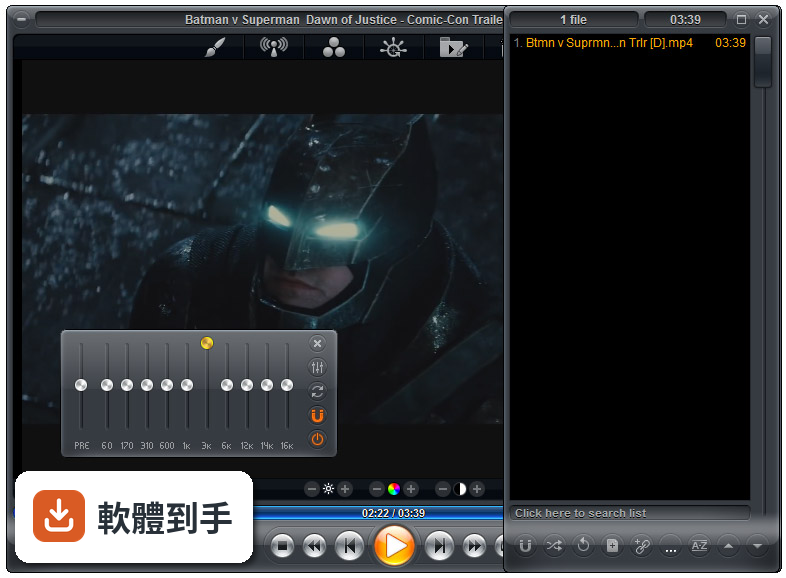
播放速度、縮放、畫面比例、色彩設定、等化器、字幕同步都可以調。音訊方面有10頻段等化器,支援S/PDIF和位元流輸出。另外還有子母畫面、多顯示器影片牆、磁吸式視窗、章節時間軸、滑鼠懸停預覽等功能。這些設定可以從右鍵選單或進階選項對話框進入,不是只有播放、暫停、快轉而已。
04能看網路影片或IPTV嗎?
可以。它支援直接輸入網址播放串流影片和音訊,也支援IPTV服務,可以透過播放清單檔案載入。YouTube串流需要額外設定才能使用。網路芳鄰(SMB/UPnP)的分享檔案也可以直接播放,另外有內建Emby、Plex、Jellyfin的支援,方便連到家裡的媒體伺服器。
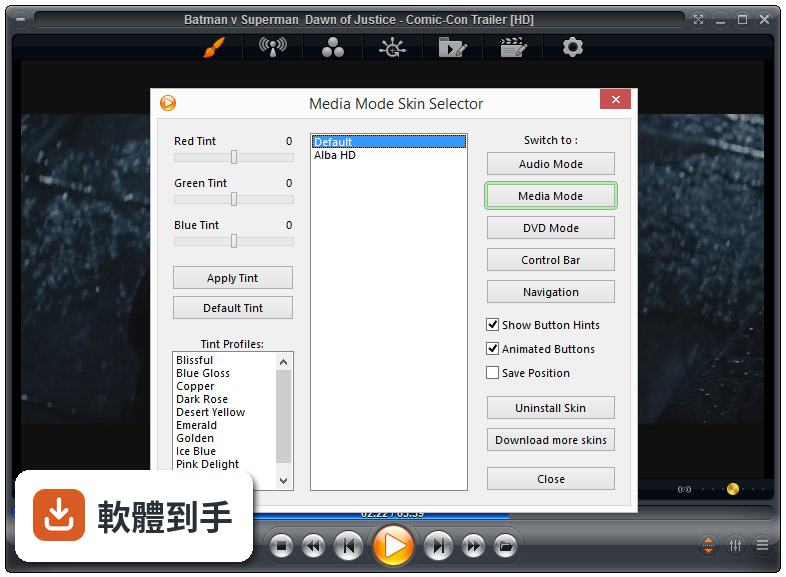
05可以自訂界面和操作嗎?
可以,而且這方面做得相當深。完整支援換膚,鍵盤、滑鼠、手勢、螢幕角落都可以自訂,也有腳本功能可以寫自動化。新版介面改成半透明的控制覆蓋層,按鈕配置、大小、字型、顏色、透明度都能調。也支援遙控器、遊戲手把,甚至可以用Android手機App控制,適合搭配電視或投影機使用。
06什麼人適合用這套?
如果你會自己調整播放設定、對畫質和音質有要求,或是常遇到別人播不了的檔案,這套會比較適合。它內建播放歷史與續播功能,會記住多個檔案的播放位置,對常看一半就關掉的人很方便。另外,如果你有HTPC(客廳電腦)的建置需求,它支援Kiosk模式和遙控器操作,可以當作家庭劇院的核心播放器。
07拿來當HTPC播放器可以嗎?
可以,官方FAQ也明確提到這點。它支援全螢幕Kiosk模式、遙控器操作、高度自訂的導覽介面,也有螢幕烙印保護、網路磁碟機保持連線、Wake-on-LAN等功能。另外可以跨電腦續播、變更解析度、關閉顯示器、設定家長鎖。如果你打算組一台專門接電視的電腦,這些功能會比一般播放器實用很多。
08數位看板或公共場所播放適合嗎?
這套有GuardDog自動重啟功能,播放程式異常時會自己恢復,也有螢幕烙印保護和Wake-on-LAN,這些都是公共播放會需要的機制。Kiosk模式可以鎖定界面,避免路人亂按。不過要注意,它畢竟是付費軟體,而且界面只有英文,如果只是要簡單輪播幾支影片,市面上有更便宜或免費的選擇。
09界面只有英文,會不會很難上手?
介面語系確實只有英文,沒有中文。如果你不習慣英文選單,初期會需要花時間摸索。不過播放器的主要操作其實很直覺——拖曳檔案進去、右鍵叫出選單——日常使用不太會卡住。但如果你要深入調整解碼器、設定腳本或自訂界面,就需要一定的英文閱讀能力,這點要自己評估。
10要付費嗎?免費版夠用嗎?
這套是付費軟體,單人授權定價約29.95美元,有升級折扣和終身授權選項。官方也提供功能較少的免費版Zoom Player FREE,但具體少了哪些功能,官方資料沒有細列。如果你只是偶爾看片,免費版可能夠用;但如果你需要進階功能,就得先付費才能用MAX版,建議先試用再決定。
11跟K-Lite Codec Pack比,哪個比較多人用?
以評分人數來看,K-Lite Codec Pack Basic有781人評分,Mega也有266人,而Zoom Player MAX只有69人,差距很明顯。K-Lite是解碼包,搭配播放器使用;Zoom Player是完整的播放器,定位不同。如果你只是缺解碼器,K-Lite的使用者基數大、討論多,遇到問題比較好找答案。Zoom Player的社群相對小很多。
12能播藍光嗎?加密的可以嗎?
可以播放藍光資料夾結構,但官方明確表示,因為授權限制,不支援加密藍光光碟。也就是說,如果你手邊是正版藍光片,這套沒辦法直接播,需要先自行處理解密。另外,4K和HDR播放需要你的硬體和系統有對應的支援,不是裝了軟體就一定跑得動,這點在購買前要先確認自己的設備。
下載與官方連結
zp1200max.exe · 32.1 MB · 連結指向軟體原廠
版本紀錄
- 2026-07-09 Zoom Player MAX 22.5 95.56 MB
- 2026-02-25 Zoom Player MAX 22.2 95.57 MB
- 2026-01-12 Zoom Player MAX 22.0.1 95.52 MB
再看 5 筆
- 2025-12-18 Zoom Player MAX 22.0.0 95.51 MB
- 2025-08-04 Zoom Player MAX 21.5.1 95.57 MB
- 2025-07-14 Zoom Player MAX 21.5 95.54 MB
- 2025-05-28 Zoom Player MAX 21.4 94.99 MB
- 2025-05-15 Zoom Player MAX 21.3 95.33 MB
這一版改了什麼
What's new in this version:
New:
- The media library has a new metadata-scraping capability that automatically downloads Movie and TV show posters, backdrops, still images and displays them in a JukeBox mode.
- This is a major feature, Here is a full guide explaining the best methods to ensure your media library collection is scraped correctly.
- The default fullscreen navigation interface has been cleaned up and polished. If you have previously used a non-default navigation skin, you will need to re-apply the skin through the skin selection dialog.
- Within the Media Library fullscreen navigation interface, the area below the file list/thumbnail view that previously showed the filter category icons is now replaced with metadata and file information.
- The category filter icon are still accessible on the category selection page.
- New Zoom Player icon on the taskbar and desktop.
- New Setting (Adv. Options / Interface) to specify whether Zoom Player should use the enhanced (Windows Vista+) open file dialog. This setting is enabled by default.
- The older open dialog has issues with high DPI monitor setting, causing some of the icon to appear extremely small.
- New Setting (Adv. Options / Interface / Fullscreen Navigation / Settings) to add Extended Controls (Delete Media and Functions Menu) to the path area of the media library, playlist and file browsing fullscreen navigation interfaces.
- New Setting (Adv. Options / Interface / Fullscreen Navigation / Settings) that prevents the "Previous Folder" entry from being added to the media library and file browsing fullscreen navigation interfaces.
- New Setting (Media Library Editor / Configure Category) to use a video frame from the media file as thumbnail if the meta data scrapers fail.
- New Setting (Media Library Editor / Configure Category) that controls whether the thumbnail's background is darkened or not. The default value for this setting is determined by the category type.
- New Setting (Media Library Editor / Configure Category) that controls the number of text lines to display under each thumbnail. Depending on the media file's name length, the file name will be word-wrapped across multiple lines.
- New Setting (Media Library Editor / Configure Category) that enables JukeBox mode, where the movie poster, backdrop images and metadata are scraped from an online database (TheMovieDB.org) and then displayed as a full-screen presentation when opening a folder.
- New Setting (Media Library Editor / Configure Category) that controls whether folders with thumbnails should display the folder icon in the background or only the thumbnail.
- New Setting (Media Library Editor / Configure Category) that determines whether the metadata derived title or file name is drawn on thumbnails.
- New folder scraping blacklist (Adv. Options / Interface / Fullscreen Navigation / Thumb View), enabling you to prevent scraping of folders. The main use of this new feature is to prevent "sample" and "subs" folder from being scraped, especially when downloading movie posters from TheMovieDB.org or other online databases.
- New Setting (Adv. Options / Playback / BluRay) to let DirectShow filters handle BluRay parsing. This setting is enabled by default and allows 3rd party filters (such as LAV filters) to parse the BluRay structure and decide on the best title selection.
- New media library scraping indicator to make the scraping process clearer by displaying the number of media files waiting to be scraped.
- New media library fullscreen navigation thumbnail view mode's folder icon designed to better display poster aspect ratio (1:1.5) thumbnails.
- When creating a new media library video category, a new dialog prompts for the type of video category, either "Videos", "TV shows" or "Movies". The category type is then use to control the category initial configuration and layout.
- On a fresh install, the Play History dialog's column width are now automatically spaced to better cover the grid's width.
- New skin script variables that control the position and height of the thumbnail drawing area (previously it was set to the file-list height), allowing the thumbnail grid to better utilize the available screen space.
Changed:
- The media library category editor now remembers the last selected tab and category mode when re-opening the dialog.
- Clearing the playlist through the playlist editor now prompts you to confirm you want the playlist cleared.
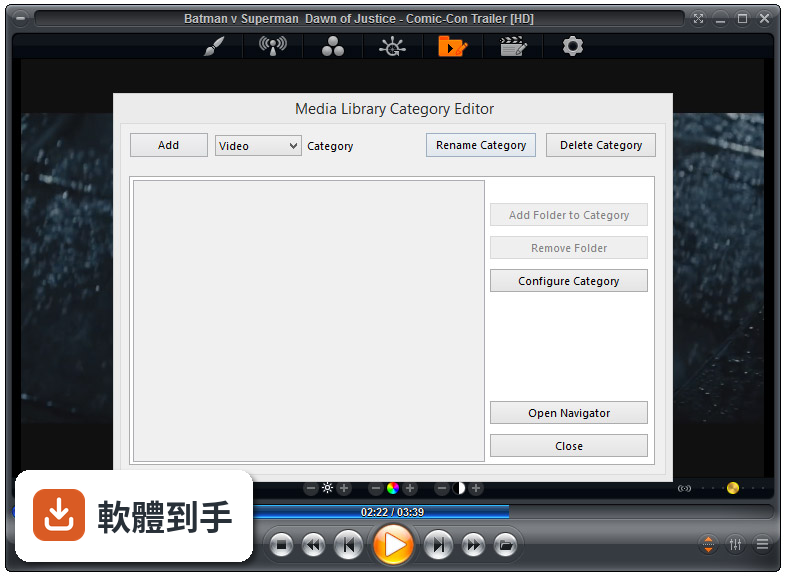
- The media library category editor (use Shift+"M" or access using the right click menu) has been redesigned for enhanced simplicity and user experience.
- The thumbnail layout setup (Media Library Editor / Configure Category) has been rewritten. Instead of manually specifying the thumbnail width and height or using the built-in calculator to do so, you can now directly select the thumbnail's aspect ratio and number of columns to display along with a new horizontal spacing layout option. When changing the thumbnail's aspect ratio, you are now given the option to reset the category settings to a new default based on the selected aspect ratio.
- The clear media cache button has moved from the options dialog to the media library category editor dialog (Shift+"M").
- The "Scrape for parent folder name when file name scraping using metadata scrapers fails" setting has been moved to the category editor's "Configure Category" page. This makes the setting now per-category instead of global for all categories.
- The "Create folder thumbnails from first media file within the folder (if scraping is disabled or fails)" setting has been moved to the category editor's "Configure Category" page. This makes the setting now per-category instead of global for all categories.
- The thumbnail view's thumbnail memory cache now syncs cached thumbnails directly with the main thread without waiting for other scraping threads, ensuring memory cached thumbnails show up faster while scraping for new content.
- The subtitle overlay icon, displayed over a thumbnail in the media library has been enhanced for extra clarity (the sub-bits are now highlighted in yellow).
- The media library fullscreen navigation thumbnail view mode's folder icon has been enhanced to give extra space to the thumbnail image.
- When the 'Treat the "Play" function as "Open Media" or "Enter"' setting is enabled, using the "Play" function on a folder within the file browsing or media library fullscreen navigation interfaces will now play the content of the entire folder instead of just entering the folder.
- Setting thumbnail mode's left/right bump action to 'do nothing' will now move the selected entry up/down a row instead of doing nothing.
- Installing a new skin now prompts you to apply the skin to all skin modes (Media/DVD/Audio/Navigation) supported by the newly installed skin. Previously, you were only prompted to open the skin selection dialog.
- Opening a new file through file association (for example, opening a media file through explorer) now closes the media library and file browsing fullscreen navigation interfaces before playback starts.
- Input boxes and error/warning/confirmation/information dialogs are no longer skinned when triggered from a non-skinned dialog for both consistency and to prevent issues with monitor DPI values not matching the current skin's resolution.
- Zoom Player now tries to automatically reduce the font size in the options dialog to ensure certain elements fit inside the dialog regardless of windows font or DPI settings.
- The Playlist and Equalizer dialogs are now automatically closed when entering fullscreen while using MadVR with "Fullscreen Exclusive Mode" enabled if either dialog is opened on the playback monitor.
Fixed:
- Fixed several high DPI layout issues, especially evident when using a high DPI value (300%) used by 4K monitors/TV sets. Thank you Adam Howarth for the in-depth 4K testing.
- The "LAV Hardware Acceleration" setting (Adv. Options / Playback / Video) was not applied correctly, forcing the LAV Video Decoder filter to drop back to software decoding.
- Trying to create a new folder through the media library while in thumbnail view mode could trigger a "list index out of bounds" crash.
- Extended functions that can use a negative value parameter (like "exFastForward") did not work when a negative value was used.
- The background image no longer flashes when opening media files through explorer (or other applications) while Zoom Player was already playing.
- The "Chapter editor/Seek to" dialog did not scale properly with monitor DPI adjustments.
- Entering and leaving a media library folder in thumbnail view mode extremely quickly could result in a crash or thumbnails not appearing.
- When two or more media library categories shared the same folder paths and the same thumbnail width but with a different thumbnail height, it would have prevented the thumbnails from drawing in some of the categories.
- When using the media library in thumb view mode with the media names sorted by date, erasing a file within a folder and then going up a folder would no longer show the highlighted folder (the folder itself changed position as the folder date changes when files inside are modified).
- When "Automatically restore last media position on replay" was disabled, the "Retain Media Playback History for [x] days" setting became inaccessible.
- The audio device list would re-list the same device multiple times under some circumstances, possibly causing audio issues.
- Using the media library category editor's 'Configure Category' dialog to edit a category's settings would reset the category's password protection.
- Switching to some video renderers in the options dialog when running under Windows 10 would incorrectly notify you that your version of Direct-X is too old.
- The title area in the bundled fullscreen navigation skins did not properly account for the width of Time display when using 12H AM/PM format.
- The "Multi-Part file loader" automatic match mode did not always load multi-part GoPro sequences into the playlist correctly.
- Smart Play's "Auto-Configure" option could improperly set a partially unregistered profile comprising of multiple filters if the unregistered filter was sandwiched between two registered filters.
- Zoom Player should now terminate properly even if there are scraper threads busy or stalled.
- The "Select category type" dialog would not always draw properly and you could not use the keyboard to navigate to the "OK" button.
- Fixed small cosmetic glitch in the "Registered Filter Manager" dialog, where a text area was overlayed by an edit box.
- The options dialog's search box did not return values for settings with a description over 100 characters long.
- Fixed a "Is not a valid integer value" crash when playing a DVD and adding chapters with the "Show chapter points on the Timeline" setting enabled.
- DVD bookmarks were listed with a cosmetic glitch (an added ".z" at the end of the chapter name).
- Closing Zoom Player with the Station Manager window open would not save any changes made to the station list.
- Double-Clicking the title area to maximize Zoom Player would also trigger a single-click action (default play/pause).
- If the options dialog was originally opened on a monitor that is now turned off, the options dialog will appear screen-centered on the main Zoom Player window.