
這是歷史版本頁面 — 看 Zoom Player MAX 最新版本
Windows播放器格式不全?Zoom Player MAX能補什麼
 Zoom Player MAX 12.7
資料更新 2016-11-30
閱讀約 6 分鐘
你從網路上下載了一部影片,興沖沖地雙擊檔案,播放器卻跳出「無法播放」的訊息。換了另一個播放器,畫面是出來了,但字幕跟不上、聲音斷斷續續,想調整色彩或播放速度,卻找不到對應的設定。你只是想好好看個影片,卻得在好幾個播放器之間來回切換,每個都有各自的毛病。
一般人遇到這種狀況,直覺是再裝一套免費播放器試試。但免費播放器往往為了追求簡單,把進階設定藏得很深,甚至直接拿掉;遇到冷門格式或特殊編碼,還是得自己上網找解碼包,裝完也不見得有用。這類專業播放器的切入點,是從「播放」這件事本身出發:先想辦法讓所有格式都能播,再把調整的權限完整交給使用者,讓你可以針對每一部影片、每一種使用情境,自己決定要怎麼播。
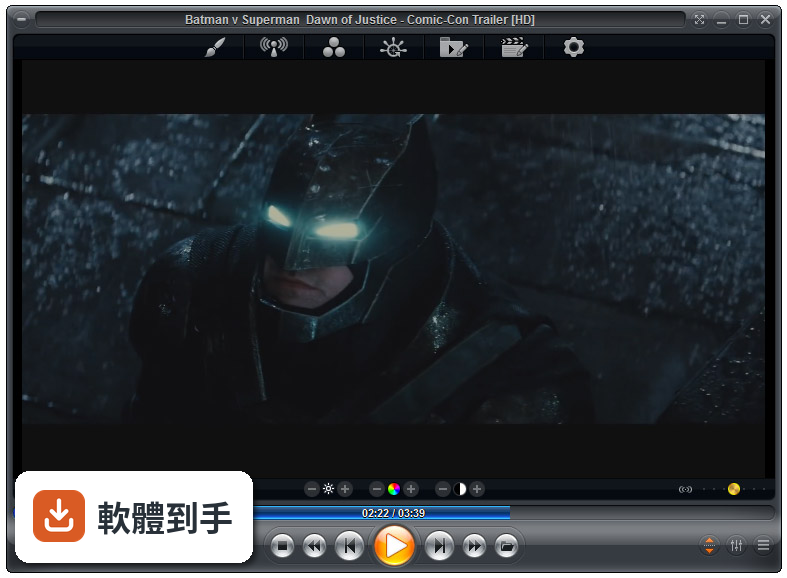
01Zoom Player MAX到底能播什麼格式?
官方列出的支援清單很長,影片涵蓋MKV、AV1、H.264、H.265、WebM、AVI、FLV、WMV、MOV、MP4、VOB、TS、MTS、3GP、Real Media、QuickTime、DV、MXF、SWF等;音訊有MP3、FLAC、AAC、WMA、OGG、OPUS、AC3、DTS、WAV、ALAC、APE等。另外也支援DVD、未加密的藍光資料夾結構,以及JPG、PNG、GIF等圖片格式。基本上常見的影音檔案都在涵蓋範圍內。
02它跟一般播放器有什麼不同?
主要差在兩點。第一是Smart Play技術,播放時會自動挑選最適合的解碼器和濾鏡,減少你手動調整的次數。第二是模組化架構,除了內建的解碼包,也允許掛載LAV Filters這類第三方解碼器,遇到特殊情況可以自己換。介面高度可自訂,支援DirectShow、libVLC、Chromium三種引擎,這在一般播放器上很少見。
03可以調整哪些播放細節?
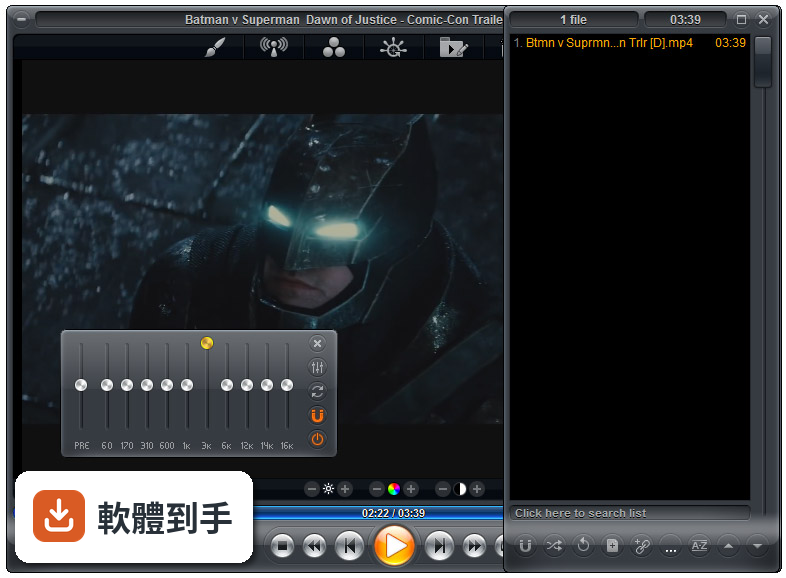
播放速度、縮放、畫面比例、色彩設定、等化器、字幕同步都可以調。音訊方面有10頻段等化器,支援S/PDIF和位元流輸出。另外還有子母畫面、多顯示器影片牆、磁吸式視窗、章節時間軸、滑鼠懸停預覽等功能。這些設定可以從右鍵選單或進階選項對話框進入,不是只有播放、暫停、快轉而已。
04能看網路影片或IPTV嗎?
可以。它支援直接輸入網址播放串流影片和音訊,也支援IPTV服務,可以透過播放清單檔案載入。YouTube串流需要額外設定才能使用。網路芳鄰(SMB/UPnP)的分享檔案也可以直接播放,另外有內建Emby、Plex、Jellyfin的支援,方便連到家裡的媒體伺服器。
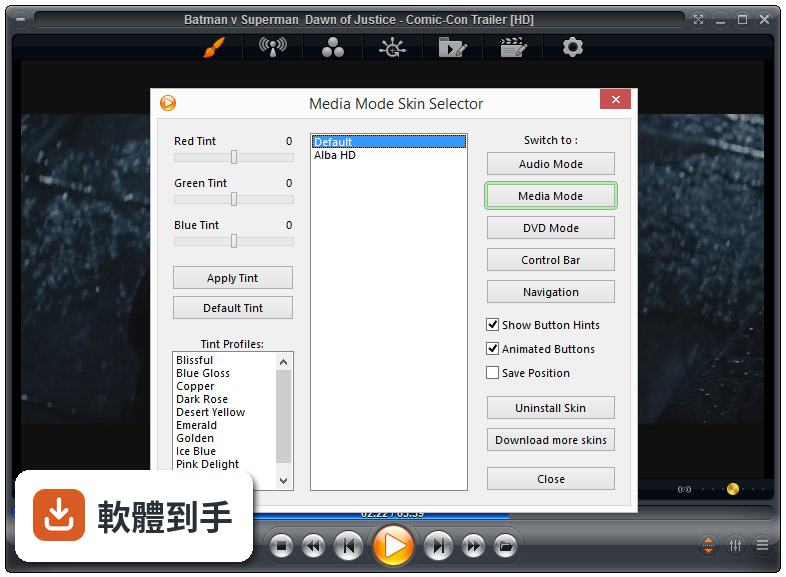
05可以自訂界面和操作嗎?
可以,而且這方面做得相當深。完整支援換膚,鍵盤、滑鼠、手勢、螢幕角落都可以自訂,也有腳本功能可以寫自動化。新版介面改成半透明的控制覆蓋層,按鈕配置、大小、字型、顏色、透明度都能調。也支援遙控器、遊戲手把,甚至可以用Android手機App控制,適合搭配電視或投影機使用。
06什麼人適合用這套?
如果你會自己調整播放設定、對畫質和音質有要求,或是常遇到別人播不了的檔案,這套會比較適合。它內建播放歷史與續播功能,會記住多個檔案的播放位置,對常看一半就關掉的人很方便。另外,如果你有HTPC(客廳電腦)的建置需求,它支援Kiosk模式和遙控器操作,可以當作家庭劇院的核心播放器。
07拿來當HTPC播放器可以嗎?
可以,官方FAQ也明確提到這點。它支援全螢幕Kiosk模式、遙控器操作、高度自訂的導覽介面,也有螢幕烙印保護、網路磁碟機保持連線、Wake-on-LAN等功能。另外可以跨電腦續播、變更解析度、關閉顯示器、設定家長鎖。如果你打算組一台專門接電視的電腦,這些功能會比一般播放器實用很多。
08數位看板或公共場所播放適合嗎?
這套有GuardDog自動重啟功能,播放程式異常時會自己恢復,也有螢幕烙印保護和Wake-on-LAN,這些都是公共播放會需要的機制。Kiosk模式可以鎖定界面,避免路人亂按。不過要注意,它畢竟是付費軟體,而且界面只有英文,如果只是要簡單輪播幾支影片,市面上有更便宜或免費的選擇。
09界面只有英文,會不會很難上手?
介面語系確實只有英文,沒有中文。如果你不習慣英文選單,初期會需要花時間摸索。不過播放器的主要操作其實很直覺——拖曳檔案進去、右鍵叫出選單——日常使用不太會卡住。但如果你要深入調整解碼器、設定腳本或自訂界面,就需要一定的英文閱讀能力,這點要自己評估。
10要付費嗎?免費版夠用嗎?
這套是付費軟體,單人授權定價約29.95美元,有升級折扣和終身授權選項。官方也提供功能較少的免費版Zoom Player FREE,但具體少了哪些功能,官方資料沒有細列。如果你只是偶爾看片,免費版可能夠用;但如果你需要進階功能,就得先付費才能用MAX版,建議先試用再決定。
11跟K-Lite Codec Pack比,哪個比較多人用?
以評分人數來看,K-Lite Codec Pack Basic有781人評分,Mega也有266人,而Zoom Player MAX只有69人,差距很明顯。K-Lite是解碼包,搭配播放器使用;Zoom Player是完整的播放器,定位不同。如果你只是缺解碼器,K-Lite的使用者基數大、討論多,遇到問題比較好找答案。Zoom Player的社群相對小很多。
12能播藍光嗎?加密的可以嗎?
可以播放藍光資料夾結構,但官方明確表示,因為授權限制,不支援加密藍光光碟。也就是說,如果你手邊是正版藍光片,這套沒辦法直接播,需要先自行處理解密。另外,4K和HDR播放需要你的硬體和系統有對應的支援,不是裝了軟體就一定跑得動,這點在購買前要先確認自己的設備。
下載與官方連結
zp1270max.exe · 27.4 MB · 連結指向軟體原廠
版本紀錄
- 2026-07-09 Zoom Player MAX 22.5 95.56 MB
- 2026-02-25 Zoom Player MAX 22.2 95.57 MB
- 2026-01-12 Zoom Player MAX 22.0.1 95.52 MB
再看 5 筆
- 2025-12-18 Zoom Player MAX 22.0.0 95.51 MB
- 2025-08-04 Zoom Player MAX 21.5.1 95.57 MB
- 2025-07-14 Zoom Player MAX 21.5 95.54 MB
- 2025-05-28 Zoom Player MAX 21.4 94.99 MB
- 2025-05-15 Zoom Player MAX 21.3 95.33 MB
這一版改了什麼
What's new in this version:
New:
- Zoom Player settings Export/Import feature that saves all of Zoom Player's settings, profiles and configuration files to a single ZIP archive and can later on restore Zoom Player's settings from within Zoom Player itself (making it compatible with the Windows Store version of Zoom Player). Both settings are accessible through Zoom Player's advanced options dialog by pressing the "Help / Export" button
- The following settings are supported by the export feature: Activation Key file, Options dialog settings, Smart Play profiles, Skin color tinting profiles, Equalizer presets, Media library categories, Play history cache, Playback scheduler schedule, Streaming station manager entries, Custom right-click context menu script file, Custom Media/DVD background images, Custom Media/DVD keyboard mapping files
- The smart play source filter configuration dialog now allows you to specify a partial URL instead (or in combination) with file extensions, allowing you to setup custom filters based on the site's URL. This allows using such filters as the "3DYD YouTube Source" to stream youtube content directly (https://ys.3dyd.com/)
- Two new category types have been introduced "TV Shows" and "Movies". Zoom Player tries to automatically assign previous categories to these new types based on the 'scrape content mode' previously assigned to the category
- The media library filter icons that appear under the category list are now accessible using the keyboard by pressing the up or down arrow keys on the first/last category entry. Once activated, you can use the left/right arrow keys to switch between the filtering modes
- The playlist editor and the playlist fullscreen navigation interface now show the current play position next to the actively playing track
- New Setting (Adv. Options / Interface / Fullscreen Navigation / Customization) to switch the category layout between list and thumbnail view modes
- New Setting (Adv. Options / Interface / Fullscreen Navigation / Thumb View) that controls how the thumbnail memory cache encodes the images. The default value is to store as JPEG images which uses the least amount of RAM. But for higher performance, especially on lower end CPUs, switching to RAW 24bit or 32bit will improve performance.
- New Setting (Adv. Options / Interface / Fullscreen Navigation / Settings) to control whether the Media Library's fullscreen navigation 'Media Scanner' is displayed.
- New Setting (Adv. Options / Interface / Fullscreen Navigation / Settings) to control whether the Media Library's fullscreen navigation 'Remove category folder(s)' is displayed.
- New Setting (Adv. Options / Interface / Playlist) to prevent Zoom Player from trying to parse ".PLS" files and instead lets directshow choose a filter to parse the files. This improves SHOUTcast streaming reliability. If you use .PLS files as SHOUTcast stations outside the station manager, you will need to enable this setting.
- New "/MediaFilter:[Number]" command line parameter to set the media library's filter mode. Valid values are: 0 = ALL, 1 = Movies, 2 = TV Shows, 3 = Videos, 4 = Audio, 5 = Pictures, 6 = Executables
- The media library's filter mode is now saved/restored when re-opening Zoom Player
- With the "Continue to the next Playlist item when an invalid file is played (otherwise show error)" setting enabled, you can now press the Stop button to stop from continuing to the next Playlist item.
- The station manager has been enhanced with an integrated search box
- New "fnPlayingToClipboard" function that copies the currently playing media file/URL to the clipboard
Changed:
- Zoom Player should start between 10%-300% faster, especially if there are many items in the play history
- Optimized the default fullscreen navigation skin to require less resize operations improving load/open time and taking up to 20% less RAM
- Optimized the file name hashing algorithm which should improve performance in several areas
- When fullscreen navigation 'Safe Mode' is enabled, the media library's 'Media Scanner' and 'Remove category folder(s)' are no longer displayed
- Disabling the "Show media content specific to the media library's category type" setting now shows all media files in a category (previously it would show the content based on the category filter)
- The selected entry on the station manager is now restored when re-opening the interface
- The station manager now lets you specify a "SHOUTcast" station type. Any station set as SHOUTcast are now opened as SHOUTcast streams even if the "Assume audio streaming (SHOUTcast, ICEcast) if no file ext. is specified in the URL (link)" setting is disabled
- SHOUTcast stations added from station browser or the fullscreen navigation station list are now automatically marked as SHOUTcast
- The Station Browser dialog entries no longer resets each time the dialog is closed and reopened
- The Add station dialog (station manager) remembers the last station mode (TV/Radio/SHOUTcast) used
- The default media library folder scraping blacklist has been cleaned up
- The "Assume audio streaming (SHOUTcast, ICEcast) if no file ext. is specified in the URL (link)" advanced options setting is now disabled by default and reset to default on initial run. This setting may be removed entirely in future versions as it conflicts with streaming video and is no longer necessary when playing shoutcast streams through the station manager or fullscreen navigation interface.
- The playing track on the fullscreen playlist navigation interface has changed from green to blue
Fixed:
- Removing every entry from the "Scrapers folder name blacklist" or "Scrapers file name blacklist" would crash and freeze Zoom Player
- Resizing the media library window could trigger a crash or show an improperly-sized thumbnail
- Fixed several memory leaks
- Fixed a freeze when trying to open the media library before the scraping DLL finished initializing
- Fixed several cases of "List index out of bounds" errors when trying to use the media library with no thumbnail selected
- Switching media library filter mode would reset several values changed since opening the media library (e.g. sorting)
- Opening a new media file while the media information dialog was visible did not update to the new media's date and file size
- Fixed a small memory leak when re-scraping modified media library folders
- The mouse scroll wheel did not work within the media information window while in fullscreen mode
- The integrated keyboard-mapping editor did not show the correct key-value for multimedia keys (play/stop/etc), which prevented assigning new functions to multimedia keys
- Using the station manager's "Play (Add to Playlist)" button would not actually start playing the new station
- In Windows 10 with the "Blank non-Playing Monitors while in Fullscreen / Zoom mode" enabled and Zoom Player set to start in fullscreen mode, Zoom Player appeared as a blank black box
- The timeline thumbnail preview appeared in the wrong position on some multi-monitor setups
- The windows task bar icon was not correctly updated with the specified task list after restarting Zoom Player
- Fixed a crash when trying to close Zoom Player while Zoom Player was in the process of opening a media file or URL
- Fixed a crash when trying to play over a 1000 non-existant files or non-responding URLs
- Trying to switch stations through the station manager while the previous station did not complete loading could have triggered unforeseen issues
- Trying to close Zoom Player while a track was loading could have caused instability in certain cases
- When using the media library category filter and then loading a media file that's currently in a filtered-out category, Zoom Player will now switch the category filter to match the playing file and then show the file highlighted when opening the media library
- If you enabled the video resolution display on the timeline, it should now display even when playing live streams
- Error messages should no longer appear partially offscreen if the message's content is wider than the resolution of the screen
- The play history no longer lists duplicate entries for URL streams
- Zoom Player failed to identify "https://" and "rtmp://" URLs with no duration as live streams, which could trigger a freeze when trying to seek
- Panning a Zoomed video with the mouse would trigger the mouse's click-event (by default play/pause) after letting go of the mouse button
- The station manager dialog was showing character tags instead of the actual characters (e.g. "&" instead of "&")
- The station manager wasn't updating the station list display after editing a station
- With "Show OSD filename when opening a new file" enabled, failing to play would show a blank OSD message
- The error dialog wouldn't show "&" characters correctly