
這是歷史版本頁面 — 看 Zoom Player MAX 最新版本
Windows播放器格式不全?Zoom Player MAX能補什麼
 Zoom Player MAX 17.0
資料更新 2022-06-25
閱讀約 6 分鐘
你從網路上下載了一部影片,興沖沖地雙擊檔案,播放器卻跳出「無法播放」的訊息。換了另一個播放器,畫面是出來了,但字幕跟不上、聲音斷斷續續,想調整色彩或播放速度,卻找不到對應的設定。你只是想好好看個影片,卻得在好幾個播放器之間來回切換,每個都有各自的毛病。
一般人遇到這種狀況,直覺是再裝一套免費播放器試試。但免費播放器往往為了追求簡單,把進階設定藏得很深,甚至直接拿掉;遇到冷門格式或特殊編碼,還是得自己上網找解碼包,裝完也不見得有用。這類專業播放器的切入點,是從「播放」這件事本身出發:先想辦法讓所有格式都能播,再把調整的權限完整交給使用者,讓你可以針對每一部影片、每一種使用情境,自己決定要怎麼播。
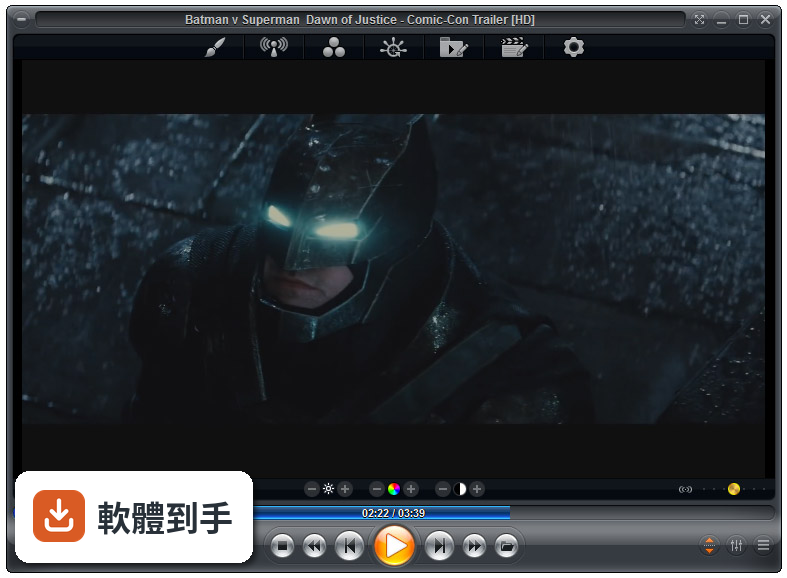
01Zoom Player MAX到底能播什麼格式?
官方列出的支援清單很長,影片涵蓋MKV、AV1、H.264、H.265、WebM、AVI、FLV、WMV、MOV、MP4、VOB、TS、MTS、3GP、Real Media、QuickTime、DV、MXF、SWF等;音訊有MP3、FLAC、AAC、WMA、OGG、OPUS、AC3、DTS、WAV、ALAC、APE等。另外也支援DVD、未加密的藍光資料夾結構,以及JPG、PNG、GIF等圖片格式。基本上常見的影音檔案都在涵蓋範圍內。
02它跟一般播放器有什麼不同?
主要差在兩點。第一是Smart Play技術,播放時會自動挑選最適合的解碼器和濾鏡,減少你手動調整的次數。第二是模組化架構,除了內建的解碼包,也允許掛載LAV Filters這類第三方解碼器,遇到特殊情況可以自己換。介面高度可自訂,支援DirectShow、libVLC、Chromium三種引擎,這在一般播放器上很少見。
03可以調整哪些播放細節?
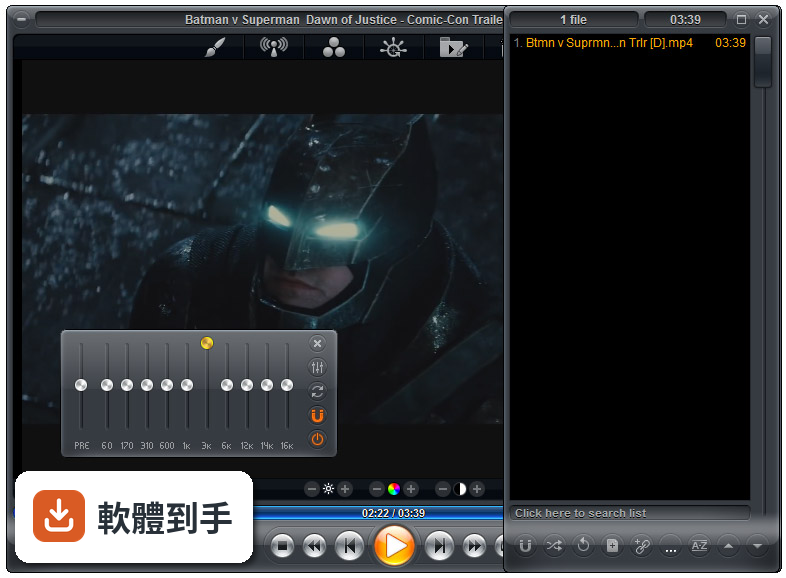
播放速度、縮放、畫面比例、色彩設定、等化器、字幕同步都可以調。音訊方面有10頻段等化器,支援S/PDIF和位元流輸出。另外還有子母畫面、多顯示器影片牆、磁吸式視窗、章節時間軸、滑鼠懸停預覽等功能。這些設定可以從右鍵選單或進階選項對話框進入,不是只有播放、暫停、快轉而已。
04能看網路影片或IPTV嗎?
可以。它支援直接輸入網址播放串流影片和音訊,也支援IPTV服務,可以透過播放清單檔案載入。YouTube串流需要額外設定才能使用。網路芳鄰(SMB/UPnP)的分享檔案也可以直接播放,另外有內建Emby、Plex、Jellyfin的支援,方便連到家裡的媒體伺服器。
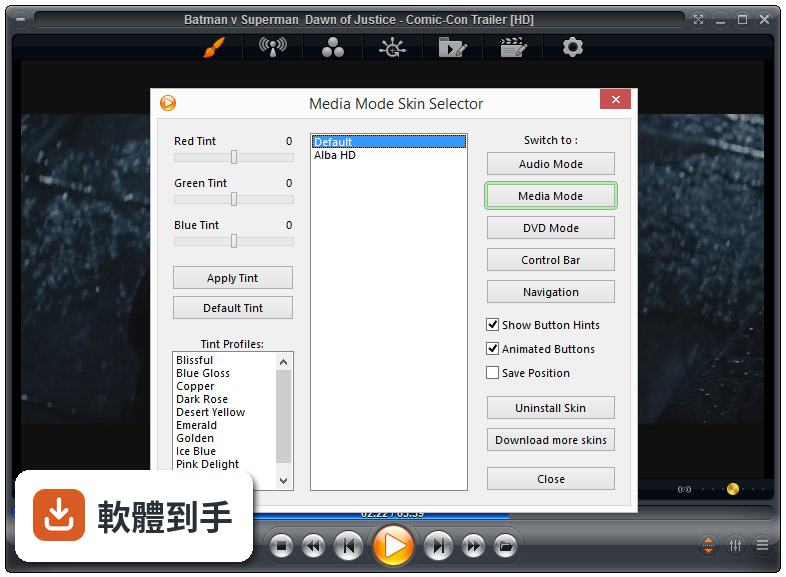
05可以自訂界面和操作嗎?
可以,而且這方面做得相當深。完整支援換膚,鍵盤、滑鼠、手勢、螢幕角落都可以自訂,也有腳本功能可以寫自動化。新版介面改成半透明的控制覆蓋層,按鈕配置、大小、字型、顏色、透明度都能調。也支援遙控器、遊戲手把,甚至可以用Android手機App控制,適合搭配電視或投影機使用。
06什麼人適合用這套?
如果你會自己調整播放設定、對畫質和音質有要求,或是常遇到別人播不了的檔案,這套會比較適合。它內建播放歷史與續播功能,會記住多個檔案的播放位置,對常看一半就關掉的人很方便。另外,如果你有HTPC(客廳電腦)的建置需求,它支援Kiosk模式和遙控器操作,可以當作家庭劇院的核心播放器。
07拿來當HTPC播放器可以嗎?
可以,官方FAQ也明確提到這點。它支援全螢幕Kiosk模式、遙控器操作、高度自訂的導覽介面,也有螢幕烙印保護、網路磁碟機保持連線、Wake-on-LAN等功能。另外可以跨電腦續播、變更解析度、關閉顯示器、設定家長鎖。如果你打算組一台專門接電視的電腦,這些功能會比一般播放器實用很多。
08數位看板或公共場所播放適合嗎?
這套有GuardDog自動重啟功能,播放程式異常時會自己恢復,也有螢幕烙印保護和Wake-on-LAN,這些都是公共播放會需要的機制。Kiosk模式可以鎖定界面,避免路人亂按。不過要注意,它畢竟是付費軟體,而且界面只有英文,如果只是要簡單輪播幾支影片,市面上有更便宜或免費的選擇。
09界面只有英文,會不會很難上手?
介面語系確實只有英文,沒有中文。如果你不習慣英文選單,初期會需要花時間摸索。不過播放器的主要操作其實很直覺——拖曳檔案進去、右鍵叫出選單——日常使用不太會卡住。但如果你要深入調整解碼器、設定腳本或自訂界面,就需要一定的英文閱讀能力,這點要自己評估。
10要付費嗎?免費版夠用嗎?
這套是付費軟體,單人授權定價約29.95美元,有升級折扣和終身授權選項。官方也提供功能較少的免費版Zoom Player FREE,但具體少了哪些功能,官方資料沒有細列。如果你只是偶爾看片,免費版可能夠用;但如果你需要進階功能,就得先付費才能用MAX版,建議先試用再決定。
11跟K-Lite Codec Pack比,哪個比較多人用?
以評分人數來看,K-Lite Codec Pack Basic有781人評分,Mega也有266人,而Zoom Player MAX只有69人,差距很明顯。K-Lite是解碼包,搭配播放器使用;Zoom Player是完整的播放器,定位不同。如果你只是缺解碼器,K-Lite的使用者基數大、討論多,遇到問題比較好找答案。Zoom Player的社群相對小很多。
12能播藍光嗎?加密的可以嗎?
可以播放藍光資料夾結構,但官方明確表示,因為授權限制,不支援加密藍光光碟。也就是說,如果你手邊是正版藍光片,這套沒辦法直接播,需要先自行處理解密。另外,4K和HDR播放需要你的硬體和系統有對應的支援,不是裝了軟體就一定跑得動,這點在購買前要先確認自己的設備。
下載與官方連結
zp1700max.exe · 連結指向軟體原廠
版本紀錄
- 2026-07-09 Zoom Player MAX 22.5 95.56 MB
- 2026-02-25 Zoom Player MAX 22.2 95.57 MB
- 2026-01-12 Zoom Player MAX 22.0.1 95.52 MB
再看 5 筆
- 2025-12-18 Zoom Player MAX 22.0.0 95.51 MB
- 2025-08-04 Zoom Player MAX 21.5.1 95.57 MB
- 2025-07-14 Zoom Player MAX 21.5 95.54 MB
- 2025-05-28 Zoom Player MAX 21.4 94.99 MB
- 2025-05-15 Zoom Player MAX 21.3 95.33 MB
這一版改了什麼
What's new in this version:
- New metadata editor accessible by right-clicking TV and Movie entries in the media library (also available through the functions page and as a mini-menu option). The metadata editor allows you to replace thumbnails and backdrops along with editing the Title, Sort Title, Release date, Rating, Overview, Genre, Tags and Collections
- New media library filtering by Genre, Tags and Collections. Accessible through the functions menu or by clicking the new "funnel shape" filter icon in the path area. Your filtering choice is remembered on a per-category basis and is stored across sessions even after exiting Zoom Player)
- New "Sort by Release Date" media library sort option (Only works on scraped media [TV & Movies])
- New "Sort by Play Date" media library sort option to sort your categories by the most recently played files (or folders containing files that have been played)
- New "Sort by Sort Title" media library sort option (Only works on scraped media [TV & Movies]). This sorting mode allows you to use the meta-data editor to specify an "invisible" custom title that Zoom Player will use for sorting while still displaying the original title
- When no sorting title is specified, Zoom Player automatically uses the media's title (if one exists) or file name
- New "Sort by Star Rating" media library sort option (Only works on scraped media [TV & Movies]). Initially populated with scraped data, you can adjust the Movie/TV Show's star rating using the metadata editor
- The media library mini-menu has been extended with two new functions you can select : "Filter list" and "Edit metadata"
- The mouse's backward and forward button can now be assigned custom functionality when a navigation interface is visible
- New ".ISO" drive mounting and playback settings to help automate the process of mounting ISO images and playing their content. An external mounting tool (such as Virtual CloneDrive) is required
- Accessible under "Adv. Options / File Format Association / File Extensions." Please note that with this change, it is no longer possible to extract and play ISO files as if they were archives
- New setting (Adv. Options / Playback) to select the web engine used to render the YouTube IFRAME player, either the old Edge Chakra engine or the newer (and much better quality) Edge Chromium. Please note that that Edge Chromium requires the WebView2 component installed. WebView2 comes pre-installed in Windows 11 and is an optional download for Windows 10
- The WebView2 component is available for download directly from Microsoft or using Zoom Player's install center application
- New Setting (Adv. Options / Interface / Fullscreen Navigation / Settings) that controls whether filtering lists in the media library can use multiple parameters (e.g. "Genre" and "Tag") at the same time
- YouTube kids URLs should now work with the IFRAME player
- Added support for YouTube Shorts URL parsing and playbac
- New Setting (Adv. Options / Interface / Playlist) to automatically hide the Playlist editor when entering fullscreen mode
- New Setting (Adv. Options / Playback / Video / Subtitles) that limits the "next subtitle" feature to specified languages. For example to limit the subtitle tracks to Spanish, English and Directory Commentary, you only need to specify "spa;eng;dir" and any subtitle track not containing these values will by skipped when switching to the next subtitle track
- New "9:16" thumbnail aspect ratio option for media library thumbnails suitable to vertical videos
- The ".WEBP" image format is now supported when using the internal image decoder
- New feature that replaces the TV Jukebox thumbnail for the currently playing media with the currently displayed image. This feature is limited to "TV Shows" media library categories and can be triggered through the Alt+Ctrl+"F" keyboard macro and the "fnCaptureScrapedImage" function
- New "Edit Metadata" option in the media library's functions page for TV and Movie categories
- New configuration option for TheMovieDB scraping plugin that allows you to select the poster/backdrop/still image sizes
- New Smart Play profile for the Apple ProRes codecs
- New "exSetAudioSync" extended function that allows you to set a positive or negative millisecond accurate audio synchronization offset
- YouTube media library plugins no longer return a star rating or dislike count since YouTube removed public dislike data
- The "Pause playback when minimizing the player window while playing video content" setting is now ignored for live streams with no duration specified as it just caused the stream to close
- Disabled the Startup sound if a media was already in the process of loading
- The Media Library's function page is now more dynamic, removing entries that may not be useful in some contexts (e.g. using plugins)
- TheMovieDB scraper plugin will now download movie poster images at full resolution (previously limited to 500x750px). This change means you will see sharper looking posters on 4K displays. This fix requires that you re-scrape movies to download the higher resolution poster images
- To prevent longer copy times, when using the Media Library's Cut/Copy/Paste functionality, Performing a "Paste" operation in the root virtual folder of a category containing multiple folders
- ZP will now try to paste the file(s) to a folder on the same drive when possible and only use the folder of the currently highlighted entry if no folders in the pasted category are on the same drive
- In combination with the new ISO mounting feature, ISO files are now always visible in media library video categories
- The YouTube IFRAME player's preferred video quality setting has been removed as YouTube depreciated this feature
- The YouTube IFRAME player did not function properly in regions using the "," character as a decimal separator
- Play history features such as "resume playback" and "previous play position on thumbnails" did not function on files with over 128 characters
- Playing files with over 128 characters in their name created duplicate play history entries
- Pressing "Stop" twice to perform a Stop/Resume action did not work when using the YouTube IFRAME player
- When customizing the media library to use full height in combination with the category display set to list mode, using the Up/Down arrows at the Start/End of the category list would not roll-over to th
- Start/End of the list correctly
- When the setting to show file extensions in the navigation interfaces was disabled, URLs appeared cropped in the play history fullscreen navigation interface
- Opening a subtitle file for a playing video when using MadVR as the video renderer could cause the video to appear in a new window
- Fixed a bug in TV jukebox mode that prevented some file meta-data from displaying when the file name contained Unicode characters
- Seeking Ahead/Back on YouTube streams using the IFRAME player would reset the play position to 0 if the windows decimal separator was set to something other than "."
- Restoring last play position for YouTube videos played using the IFRAME player did not function currently on some PCs with a slower internet connection
- Displaying the current video resolution on the timeline while using the YouTube IFRAME playback engine displayed a fixed value instead of the value returned by the YouTube IFRAME engine
- The "Open Media Library" button on the Media Library category editor did not function if the category mode was set to view all (prism)
- YouTube channels containing the "&" character in the name would not show the correct channel name under some conditions
- Fixed a cosmetic bug in the play history dialog that would show the current position with a negative value
- Edits to the playlist using the playlist editor should now be reflected in the advanced playlist control interface
- The playing information fullscreen navigation interface was not updating in real time and didn't update at all when playing new SHOUTcast content
- The "Open Drive" feature broke down for multiple use cases, including using Zoom Player to auto-play a drive
- The Media Library's "mark as seen:archive" option will now close the currently playing media if it's being archived
- Under some conditions, pressing the ESC/Menu keys to close the right-click context menu would break some keyboard functionality
- You could actually click on media library path icons even when they were invisible in the category list
- When viewing the media library's categories page, you could click above/below the scroll-bar area and it would still affect the scroll position