
這是歷史版本頁面 — 看 Camtasia Studio 最新版本
錄了螢幕不會剪?Camtasia 把錄製和剪輯綁在一起
 Camtasia Studio 2023.1.1
資料更新 2023-07-19
閱讀約 5 分鐘
你剛錄完一段操作示範,打算做成教學影片放給同事看。錄的當下很順,但回頭播放才發現中間有幾段停頓、滑鼠點錯地方、還有一段長長的沉默。你想把這些剪掉,卻發現手邊的錄製工具只能錄不能剪,只好把影片丟進另一個剪輯軟體,結果介面複雜到不知道從哪裡開始。
一般人遇到這種狀況,通常會先找免費的錄影工具,錄完才發現剪輯功能陽春到幾乎等於沒有。再去找免費剪輯軟體,又得重新學一套時間軸、關鍵影格、轉場這些名詞。你只是想剪掉幾段多餘的畫面、加個字幕、把影片交出去,不是想成為剪輯師。這類工具的切入點,就是把「錄製」和「剪輯」放在同一個流程裡,錄完直接開剪,不用轉檔、不用切換軟體。
01Camtasia Studio 是用來做什麼的?
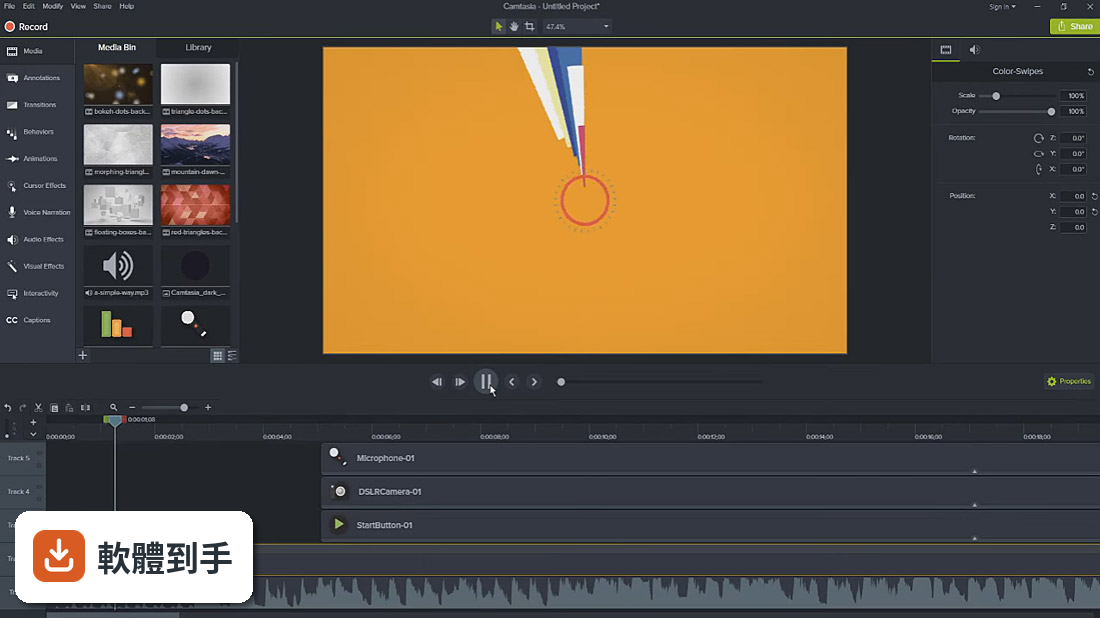
它是螢幕錄製加影片剪輯的軟體,可以錄電腦螢幕、網路攝影機畫面,然後在時間軸上剪接、加字幕、過場效果、調整音訊。錄製和剪輯在同一個程式裡完成,不用錄完再另外開剪輯軟體。官方說明提到它同時具備錄製和編輯功能,適合做教學影片、產品示範、簡報錄影這類內容。
02錄好的螢幕畫面可以怎麼剪?
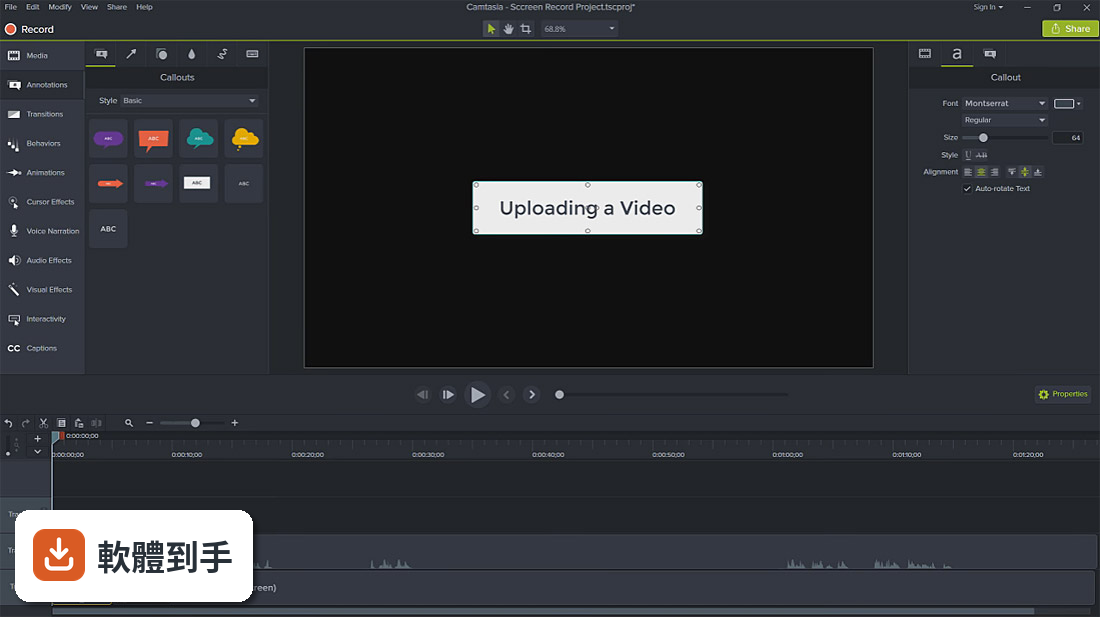
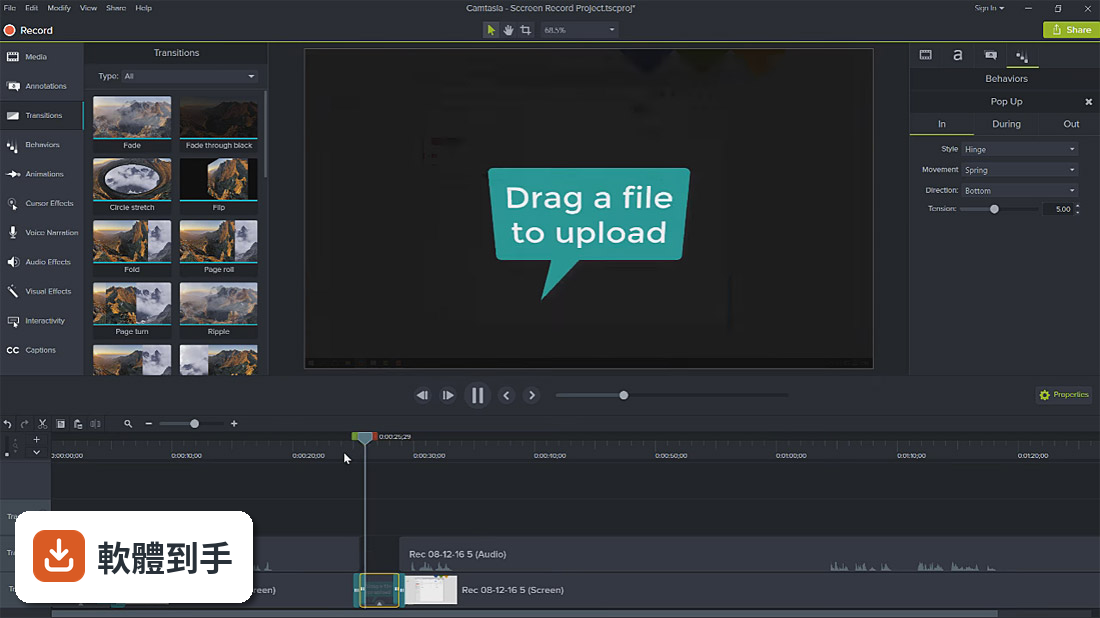
錄完之後可以在時間軸上剪掉不要的片段、調整順序、分割影片。它提供超過75種過場效果,也有動作模糊、圓角效果可以套用。如果素材是大型高解析度影片,可以開啟代理影片功能,用低解析度副本先剪輯,最後再還原成原始畫質,剪輯過程會比較順暢。
03AI功能具體有哪些?
官方列出的AI功能包括:AI輔助背景移除、文字式剪輯(把影片轉成文字稿,直接編輯文字來剪片)、AI腳本生成、填充詞自動移除、AI配音、音訊和字幕翻譯成7種語言和9種方言、AI圖片生成、AI自動產生標題和章節、音訊轉文字。這些功能大多需要訂閱Create以上的方案才使用得到。
04剪好的影片要怎麼分享?
可以直接從Camtasia匯出到Screencast平台,對方可以在線上觀看、留言、自動轉錄字幕。也可以輸出成一般影片檔案,再上傳到其他平台。專案檔可以打包成單一檔案,方便傳給同事或轉移到另一台電腦繼續編輯。
05音訊可以調整嗎?
可以。它有一個「強調音訊」效果,直接拖到片段上,就會自動調整背景音樂和旁白的音量比例。編輯器裡也有音量表,可以即時看到音量大小。旁白可以傳到TechSmith Audiate做進一步的降噪和修音,再傳回來。
06不會剪片的人用得了嗎?
官方說它的功能設計同時考慮到初學者和專業使用者。操作介面是時間軸式的剪輯,但常用功能都有預設效果可以直接套用。不過介面是英文的,如果對英文介面不熟悉,學習成本會比較高。建議先下載試用版,實際操作看看再決定。
07做教學影片的人適合嗎?
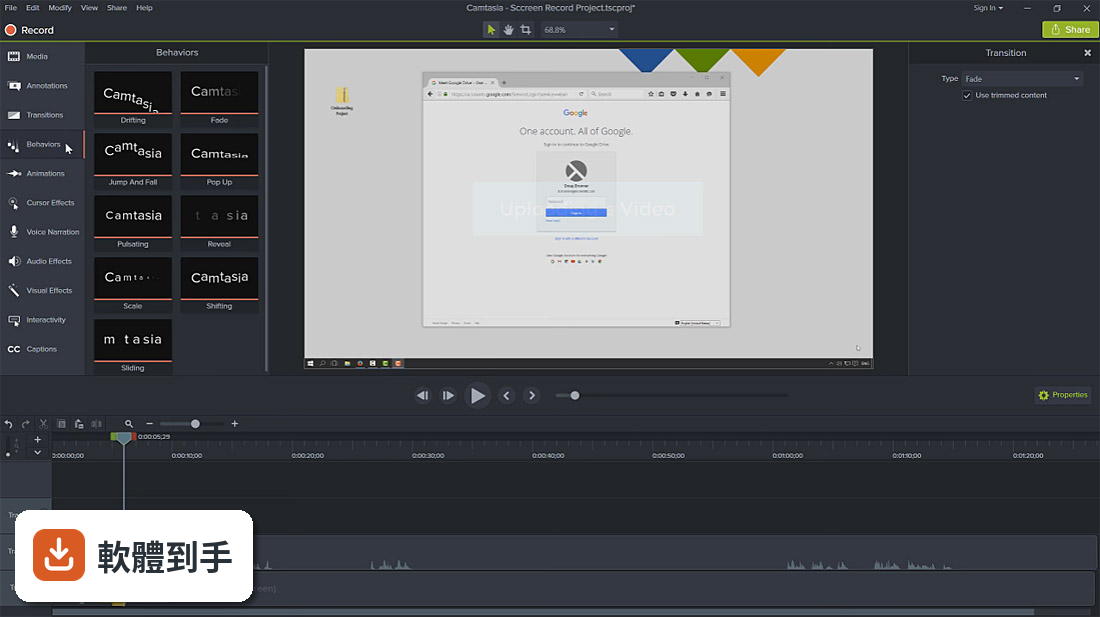
適合。它的核心用途就是螢幕錄製加剪輯,可以錄製操作步驟、加上字幕和標註、輸出成教學影片。AI功能裡的腳本生成、填充詞移除、自動字幕,都是為了加速教學影片製作而設計的。不過這些AI功能需要訂閱Create以上的方案,要確認預算。
08跟免費的OBS比起來差在哪?
OBS是免費開源的錄製和直播軟體,但剪輯功能很有限,錄完通常要另外用剪輯軟體處理。Camtasia把錄製和剪輯整合在一起,還有AI輔助功能,但它是付費訂閱制,一年要€197.94起。如果只需要錄製不需要剪輯,OBS就夠了;如果需要完整的剪輯流程,Camtasia的整合性比較高。
09只有Windows可以用嗎?
根據資料,Camtasia Studio支援Windows 10(64位元)和Windows 11。官方說明提到Mac和Windows平台都可以編輯內容,但這份資料的系統需求只列出Windows,如果要用Mac版,需要自行到官方網站確認。
10一定要付費才能用嗎?
可以免費試用,但官方說明提到「各種限制」。正式使用需要訂閱,有三個方案:Essentials一年€197.94、Create一年€274.01、Pro一年€659.16。Essentials包含螢幕錄製、剪輯工具和語音轉文字;Create多了AI腳本生成、音訊清理、200多種配音聲音;Pro再多了協作審閱、AI翻譯、AI標題章節生成和1億多個素材。
11介面是英文的,看不懂怎麼辦?
這套軟體的介面語系是英文,沒有提到中文介面。如果英文不熟,可以考慮用其他有中文介面的替代軟體,例如Filmora或ScreenPal,官方FAQ裡有列出這些替代方案。或者先下載試用版,看能不能接受英文介面。
12有免費替代品嗎?
有。官方FAQ列出的替代方案包括:OBS Studio(免費開源錄製和直播)、Shotcut(免費開源剪輯軟體,也有螢幕錄製功能)。如果預算有限,可以考慮OBS錄製加Shotcut剪輯的組合,但流程上會比Camtasia多一道手續。
下載與官方連結
camtasia.exe · 連結指向軟體原廠
版本紀錄
- 2026-10-27 Camtasia Studio 2026.2.3 306 MB
- 2026-09-24 Camtasia Studio 2026.2.2 304 MB
- 2026-08-19 Camtasia Studio 2026.2.1 304 MB
再看 5 筆
- 2026-08-11 Camtasia Studio 2026.2.0 304 MB
- 2025-11-12 Camtasia Studio 2025.2.5 335 MB
- 2025-01-22 Camtasia Studio 2024.1.5 327 MB
- 2023-08-23 Camtasia Studio 2023.2.0
- 2023-08-09 Camtasia Studio 2023.1.2
這一版改了什麼
What's new in this version:
Camtasia Studio 2023.1.1
Editor:
- Added ability to filter typefaces by typing into the font menu
- Added support for opening Mac projects that were zipped instead of being Exported for Windows
- Improved hover preview performance for h.264 videos
- Project playback will now pause when starting a media preview from the Media Bin or Library
Dependency Updates:
- Updated libexpat to v2.5.0
- Updated Microsoft.Rest.ClientRuntime to v2.3.24
- Updated Lua to v5.4.6
- Removed outdated D3DX9_42.dll
- Removed outdated Microsoft Visual C++ 2010 Redistributable files from installation
Fixed:
- Fixed a bug that could cause Speech to Text to stop before transcribing an entire media
- Fixed a bug that could cause auto-normalization settings for media to be out of sync with Project settings
- Fixed a bug that could cause a user to be prompted for a license key when one had already been entered
- Fixed a bug that caused images to be saved in PNG format when saved as a JPG
- Fixed a bug that could cause flickering in some MP4 source files
- Fixed a crash that could occur when online activation fails
- Fixed a crash that could occur when importing from Google Drive after a reinstallation
- Fixed a hang that could occur when closing the application while loudness calculations were taking place
Camtasia 2023.1.0
New Features:
- Added Variable Speed Playback
Feature Updates:
- Added MP3 Export Option
- Added option to purchase an individual subscription license
Fixed:
- Fixed an issue when playing back audio with clip speed applied
- Fixed an issue with changes to cursor path and images not saving properly for library assets
Camtasia 2023.0.3
Fixed:
- Made improvements to capturing cursor metadata on Silicon hardware
- Fixed an issue where system may indicate the camera was in use when it was not
- Fixed a bug that could cause transfer of projects between Camtasia and Audiate to fail
- Fixed a crash that could occur when exporting with SCORM options
- Miscellaneous bug fixes and improvements
Camtasia 2023.0.2
Fixed:
- Miscellaneous bug fixes and improvements
Camtasia 2023.0.1
Fixed:
- Fixed an issue where Camtasia may hang when loading
- Miscellaneous bug fixes and improvements
Camtasia 2023.0.0
New Features:
Cursor:
Cursor Color Effect:
- The new Cursor Color effect lets you instantly change the color scheme of any cursor on the screen. Tired of black and white? Us too. Simply drop the Cursor Color effect onto any media with a recorded cursor or Cursor Path Creator effect and use the color pickers to breathe new life into your cursors. Use bold color choices to grab your audience's attention, or map the cursor colors to your brand with this simple drag and drop effect found in the Cursor Effects tool bin.
Cursor Shadow Effect:
- The cursor is the lead actor of any video that has screen content. You know every hero needs depth and contrast to stand out in a scene. That’s where the new Cursor Shadow effect comes to the rescue. Simply drag the Cursor Shadow effect from the Cursor Effects tool bin onto your media and then adjust the Angle, Offset, Blur and Opacity to draw the cursor away from the screen and increase contrast.
Cursor Packs:
- Really want to stand out from the crowd? Need to put a smile of delight on your audience's face? Our visual designer CoCo has created two cursor packs that unleash a visual feast that’s sure to engage viewers. Replace any cursor in your recording using the drop down menu inside the Cursor Image Replace properties of any recording or media with the Cursor Path Creator effect applied. You won’t be disappointed.
- Neon Cursor Pack - (58 cursors)
- Hand Drawn Cursor Pack (25 cursors)
Visual Effects:
Camtasia Filters:
- Create a wide range of looks from warm and sunny to cool and moody. Whether you’re looking to achieve a cinematic color tone, give your footage a vintage feel, or lean into a futuristic look Camtasia Filters gets you there with a simple drag and drop effect.
- Thirty-two unique color Filters (Color LUTs) can now be found in the new Filters tab of the Visual Effects tool bin.
Motion Path Effect:
- Add dynamic animation that flows and swoops along a path using the new Motion Path effect. This delightfully simple effect lets you add movement to any element in your video. Once applied, it’s super simple to add additional path animations just by context-clicking anywhere on the canvas and choosing Extend Path to Here. Looking for some EXTRA awesome sauce? Toggle on Auto Orient in the properties panel and make your media rotate as if it really is following the path. And that’s just the beginning my friends–dig into the effect properties for granular control over easing and line types.
Vignette Effect:
- One of the most iconic and versatile effects in the photo / video world is now a simple drag and drop effect in Camtasia. The new Vignette effect makes it easy to create a cinematic look that draws viewers attention to the center of your content. Make your photos or videos appear as though they were shot using expensive, vintage glass, or just wash away unwanted details at the edges of your media. Vignette ships with a number of simple adjustments that let you refine and shape the effect.
- Control the intensity and black and white color tone of the effect using the Amount slider.
- Use the Size, Roundness, and Feather sliders to control the focus area.
AI Background Removal (Beta):
- Don’t have the time, patience or money to set up a green screen? No problem–let the robots do the heavy lifting. Fire up your camera, record yourself, add that video to your Camtasia timeline and then just drop the Background Removal effect onto the clip. Now place your footage in the perfect position over your screen content to get that modern streaming influencer look.
Editing:
Corner Pinning:
- Use the new Corner Pin editing mode to map an image or video to a 3d perspective. Found the perfect hand model photo? It’s now super simple to make a screenshot of your app appear as if it’s part of the original scene in that stock photo–just click on Corner Pin mode and drag the corners of your content to match the desired scene.
Assets:
New 2023 Asset Library:
- Hand crafted with love in the Mitten, the 2023 Camtasia Asset Library has been revamped from the bottom up. This year's focus has been on making the content easier to browse and even more customizable. There are a ton of new assets including the headliners of the Camtasia 2023 release–Dynamic Backgrounds and Dynamic Fills. Just dropping these assets on the Canvas will instantly elevate the style and appearance of your video. Camtasia’s powerful and flexible Quick Properties and Dynamic Properties make it easy to customize the assets to put your own personal spin on how your content looks.
Dynamic Background / Dynamic Fill Assets:
- Whether you’re looking for a stunning background or a sexy fill, Camtasia has you covered. These aren’t run of the mill video assets or stock footage, either. Need that background to last a few seconds or a few hours? No problem, just drag the length to match whatever you want. Need to scale things, but don’t want jaggies / softness? Again we’ve got you covered. Tired of backgrounds that eat up hundreds of megabytes or even gigabytes? Our Dynamic Backgrounds and Fills are insanely small–just a few kilobytes in size. Want that background to contain fluid, looping motion? Just drag the speed slider to set the speed of the motion in your background for the duration it appears on the timeline. Really want to have some fun? Every single Dynamic Background and Fill has its own set of dynamic properties that allow you to adjust color, speed, number of elements and much, much more. It’s as if Camtasia ships with an ultra slick set of expensive plugins that create beautiful motion backgrounds and fills. No extra cost. No plugins needed.
Templates:
- Looking for some inspiration? Need a beautiful layout to drop a title and a screenshot on? On the hunt for elegant framing that wraps around mobile and desktop screen content? Our new unstructured templates give you the perfect starting point without forcing a narrative structure that doesn’t fit your needs.
Asset Discovery in Camtasia Home:
- Looking for more inspiration? Facing a deadline and need stunning results immediately? A collection of customizable titling, lower thirds, animations, motion graphics and more is available via our cloud based asset service. Our content team is working hard to surface the best free, premium, and featured assets for use in your next video. And now, it’s easier than ever to discover these assets in Camtasia Home just below Recent Projects.
Portfolio:
Snagx Support and Roundtrip Snagit Editing (Mac):
- Captured the perfect screenshot only to discover that its UI elements are too busy for your video? No problem, simply context-click on the image in the media bin, choose Edit in Snagit, let the Simplify Tool there do its magic and then send it back to Camtasia. Even better, the Snagx image format is now supported, allowing you to perform roundtrip editing of annotations and adjustments made in Snagit.
Feature Updates:
Export:
- An all new state of the art rendering engine improves preview performance and export rendering speed. Those export coffee breaks just got a whole lot shorter.
Screencast Export (Mac):
- Share directly to Screencast and take advantage of all the feedback and collaboration features of our modern online video platform.
Lottie:
Lottie Color Quick Properties:
- Camtasia's Lottie color support makes it easy to quickly customize slick animations to match your branded content. Quick Properties take this to the next level. Group any Lottie animation and color wells are automatically generated in the properties panel. The Quick Property Asset editor allows you to map Lottie colors to Theme colors making it incredibly easy to style elements from the Camtasia Asset Library and Asset Service.
Properties:
Improved Radial Angle Controls (Mac):
- Radial controls have been reworked from the ground up to allow precise, fluid control of angle values when dragging radial controls in the properties panel.
Fixed:
- Edit All Animations now applies when making changes to media on the Canvas.
- Fixed a hang that could occur when updating a stitched media.
- Fixed a bug that could lead to all-black frames when reversing a video.
- Fixed a bug that could lead to a corrupt video when exporting a project with no audio.
- Fixed a bug that could cause a gap between media on the timeline when trimming a transition.
- Fixed a bug that could cause Themes to be missing in the dropdown for non-ENU customers.
- Fixed a bug that could cause an error when changing the color of text-only annotations.
- Fixed a bug that could cause fx trackers to fail to properly scale down with small media.
Updates for IT Administrators:
- Fixed a folder permissions issue that prevented some enterprise end-users from accessing Camtasia