
電腦變慢想清垃圾,CCleaner 能幫上什麼忙
 CCleaner Free 7.13.1573
資料更新 2026-10-21
閱讀約 6 分鐘
電腦用久了,開機越來越慢,開個資料夾都要轉圈圈,硬碟空間也莫名其妙一直減少。你想把那些暫存檔、瀏覽器快取、登錄檔殘骸清一清,讓電腦恢復剛買來時的順暢,但打開系統內建的清理工具,又怕砍掉不該砍的東西,或是根本不知道哪些檔案可以安心刪。
手動去翻資料夾一個一個刪,既花時間又怕誤刪系統檔,風險太高。市面上這類清理工具的做法,是幫你掃描系統裡常見的暫存位置,列出可以安全清除的項目,再一併處理瀏覽器紀錄、登錄檔和開機啟動項目,讓你不必自己判斷哪些檔案能刪,用一個動作完成清理和優化。
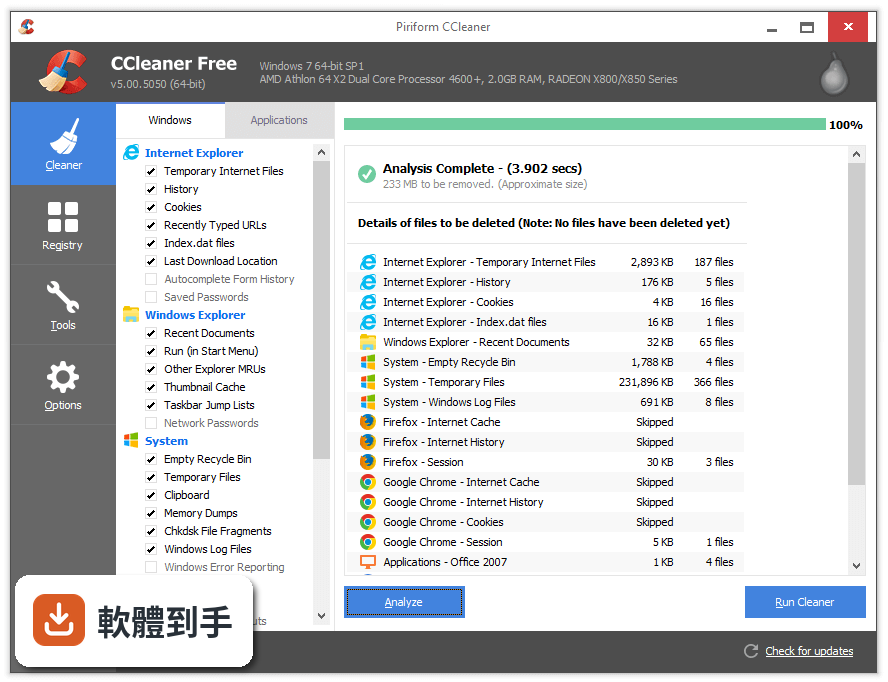
01CCleaner 到底能清哪些東西?
它主要清理三類東西:一是系統暫存檔和無用檔案,像是安裝程式留下的殘骸、資源回收筒內容;二是瀏覽器使用痕跡,包括上網紀錄、cookie 和快取;三是登錄檔裡的錯誤和殘留設定。清理後能釋放硬碟空間,也讓系統少讀取一些垃圾檔案,開機和執行程式理論上會比較順。
02它清瀏覽器紀錄和 cookie 是怎麼運作的?
它會掃描你電腦裡已安裝的瀏覽器,找出各自的快取資料夾、歷史紀錄檔和 cookie 存放位置,然後列出清單讓你看有哪些項目可以清除。你可以勾選要清哪些瀏覽器、哪些類型的資料,也可以全部一次清掉。清除後網站就認不出你之前登入過,需要重新輸入帳號密碼。
03登錄檔清理真的有用嗎?會不會把系統弄壞?
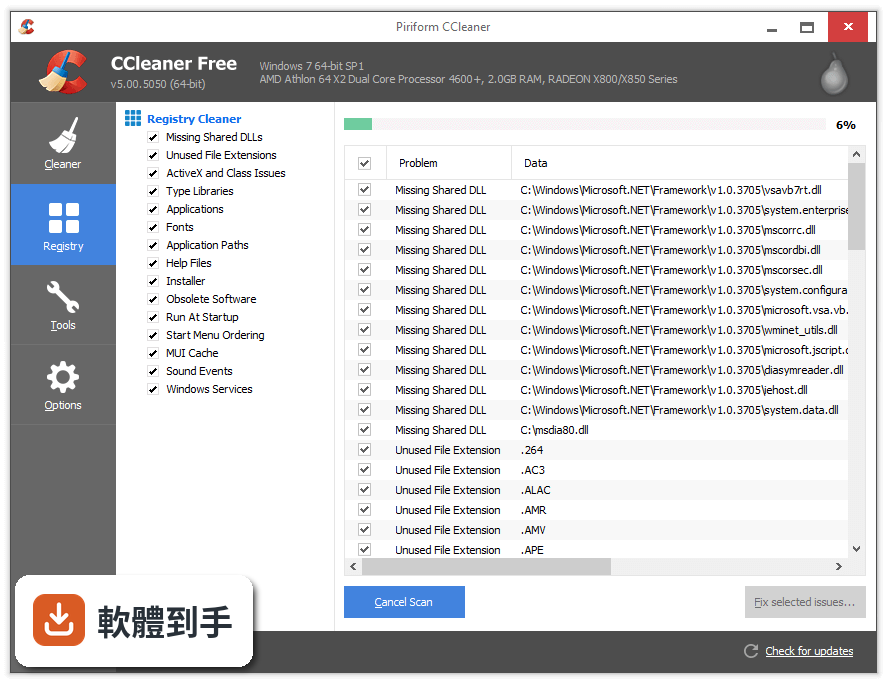
登錄檔是 Windows 存放設定和軟體資訊的地方,軟體移除後常留下殘缺的登錄項目,累積多了可能導致系統不穩或錯誤。它會掃描這些無效項目並移除,但登錄檔是系統核心資料,清理前它會先建立備份,萬一出問題可以還原。不過對一般使用者來說,登錄檔清理的實際效益有限,不是非做不可。
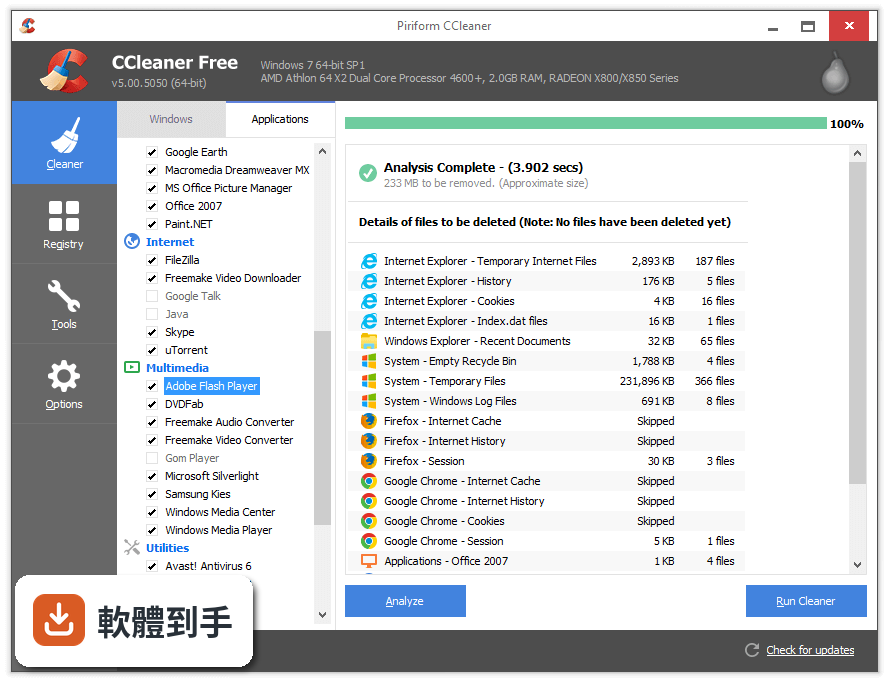
04它說能讓電腦變快,是怎麼做到的?
它透過幾種方式來提升效能:清除佔空間的暫存檔讓硬碟有更多餘裕、關閉開機時自動啟動的程式減少載入負擔、清理登錄檔讓系統讀取設定時更順暢。另外它還有效能優化功能,號稱能提升速度和電池續航,但這部分的效果會因電腦硬體和系統狀態而異,不是每台電腦都能感受到明顯差異。
05開機變慢,它能處理嗎?
可以。它會列出開機時自動啟動的程式清單,讓你看哪些程式在背景默默執行,你可以選擇停用不需要的項目,減少開機時的載入量。不過要注意,有些程式是系統必要的,停用可能導致功能異常,建議只關閉你確定用不到的軟體,像是即時通訊、下載工具這類。
06電腦不太熟的人用這套會不會太難?
它的介面設計是給一般使用者用的,主要操作就是按一個「分析」按鈕,它掃描完會列出可清理的項目,再按「開始清理」就完成了。預設的清理項目已經挑選過,不會動到個人文件或照片。不過介面是英文的,對不習慣看英文的人來說,按鈕和選項名稱可能需要花點時間對照理解。
07我電腦已經很舊了,用它還有意義嗎?
如果你的舊電腦硬碟空間小、開機慢,清理暫存檔和停用開機啟動程式確實能讓它順一點,這是這類工具最直接的幫助。但舊電腦效能瓶頸往往在硬體本身,像是記憶體不足或硬碟老化,清理軟體能做的只是把軟體層面的垃圾清掉,無法讓老舊硬體脫胎換骨,這點要先有心理準備。
08它跟 Windows 內建的清理工具差在哪?
Windows 內建的磁碟清理只能清除系統暫存檔和更新備份,範圍有限。它除了清暫存,還多了瀏覽器痕跡清除、登錄檔清理、開機啟動管理、軟體更新等功能,覆蓋面比較廣。但如果你只需要清硬碟空間,內建工具其實就夠用了,不一定需要額外裝軟體。
09介面只有英文,看不懂怎麼辦?
這確實是使用上的門檻。它的介面沒有中文,對不熟悉英文的人來說,要分辨「Temporary Files」「Registry Cleaner」「Startup」這些選項需要一點英文基礎。如果完全看不懂,操作時容易誤按,建議先對照翻譯工具了解每個按鈕的功能,或考慮改用有中文介面的其他清理軟體。
10它跟其他清理軟體比起來,有什麼限制?
它是免費軟體,但免費版的功能有範圍限制,像是效能優化、驅動程式更新、軟體自動更新這些進階功能,可能只開放付費版使用。另外它的介面只有英文,對中文使用者不友善。市面上有 CleanMyPC、AVG PC TuneUp 等類似工具,功能相近,但介面和授權方式各有不同,可以比較後再決定。
11我已經在用別的清理軟體了,還需要換嗎?
如果你目前的清理軟體用起來沒問題,就不一定要換。清理工具的本質是掃描和刪除暫存檔,各家功能大同小異,差別在於介面語言、額外功能和更新頻率。它的評分人數較多,代表有一定使用基礎,但這不代表它一定比別套好。建議先確認你現有的軟體是否能滿足需求,再決定是否更換。
12它會不會誤刪我的重要檔案?
它預設的清理項目集中在暫存檔、快取和登錄檔,不會主動刪除你的文件、照片或下載資料。但如果你手動勾選了某些項目,例如清空資源回收筒或清除特定瀏覽器的表單資料,就可能刪掉你原本想保留的東西。操作前看清楚勾選了什麼,養成先分析再清理的習慣,就能避免誤刪。
下載與官方連結
ccsetup_offline_setup.exe · 136 MB · 連結指向軟體原廠
版本紀錄
- 2026-10-21 CCleaner Free 7.13.1573 136 MB
- 2026-09-30 CCleaner Free 7.12.1526 135 MB
- 2026-09-17 CCleaner Free 7.11.1522 127 MB
再看 5 筆
- 2026-09-04 CCleaner Free 7.11.1509 127 MB
- 2026-08-26 CCleaner Free 7.11.1504 127 MB
- 2026-07-30 CCleaner Free 7.10.1464 128 MB
- 2021-12-14 CCleaner 5.88
- 2021-11-16 CCleaner 5.87
這一版改了什麼
- Enhanced Uninstaller: Reliably remove apps using the upgraded uninstall engine, skip pop-ups, delete multiple programs at once, and clear leftover files.
- Improved Disk Analyzer: Detect and remove duplicate files in bulk with flexible deletion and preview options.
- Sleek New Design: A modern, responsive interface with full customization features, including the new dark mode.
- Expanded Support: Now fully compatible with ARM64 architecture for next-generation devices.
Take back control of your Google Drive and Microsoft OneDrive. Scan them for duplicates, large and old files. Quickly see how much space you can free up and choose what to delete. Reclaim valuable space easily and fast with Cloud Drive Cleaner.
With latest version, it has improved cookie cleaning and updated the user interface to offer quicker access to the Software Updater, ensuring a smoother, more efficient user experience.
- Improved Performance Optimizer – Smarter detection of resource-heavy background apps to free up RAM and boost system speed.
- Enhanced Driver Updater – Expanded driver database with better compatibility checks and safer update process.
- Software Updater Improvements – Faster scanning and support for more third-party applications.
- Health Check Refinements – More accurate system diagnostics with clearer recommendations for cleanup and optimization.
- Browser Cleaning Updates – Improved detection of tracking files, cookies, and cache across Chromium-based and other major browsers.
- User Interface Enhancements – Cleaner dashboard layout with simplified navigation and clearer status indicators.
- Stability and Bug Fixes – Reduced crashes and improved reliability during deep cleaning operations.
- Security Improvements – Strengthened protection against malicious files and safer registry cleaning processes.
- Faster Scan Engine – Optimized scanning algorithms for quicker results with lower CPU usage.
- Updated Privacy Features – Improved tracking protection and more detailed privacy reports.
- Enhanced cookie cleaning in Chromium browsers for increased thoroughness.
- The Software Updater is now easily accessible in the main navigation, simplifying the process of updating your apps with the latest features, bug fixes, and security patches.
- Registry Cleaning can now be found under the Tools section.
- The Health Check results screen has been revamped for a clearer display of identified issues and their details.
To use CCleaner, you will first need to download and install the program on your computer. Once it is installed, you can open the program and select the areas of your computer that you want to clean, such as your browser history, temporary files, and the recycle bin.
You can also use the program to remove unnecessary programs and files from your computer, as well as to manage your startup programs. Additionally, CCleaner Free also has a registry cleaner to help fix any errors or broken settings in your Windows registry. Once you have selected the areas you want to clean, simply click the "Run Cleaner" button and CCleaner will remove the selected files.
Other Features
- PC cleaner
- System cleaning
- Registry cleaner
- Junk file remover
- Browser history cleaner
- Temporary file cleaner
- Startup program manager
- Disk cleanup
- Windows optimization
- Privacy protection
- Malware removal
- System optimization
- Disk space recovery
- PC performance improvement
- PC maintenance tool
- Advanced system care
- Cleaning software
- Uninstaller tool
- PC optimization software
FAQ
Can CCleaner be trusted?
Answer: 100% Absolutely. The program is both reliable and safe for use.
What is CCleaner, and what does it do?
Answer: CCleaner is a system optimization and cleaning tool that helps to remove unwanted files, temporary files, and other junk that accumulates on your PC. It also has features to optimize your computer's performance.
Is CCleaner safe to use?
Answer: Yes, CCleaner is safe to use. It has been around for many years and has a good reputation. However, it's always important to download CCleaner from the official website to avoid downloading a fake or malicious version.
Does CCleaner delete important files?
Answer: CCleaner is designed to only delete files that are safe to remove, such as temporary files and other unnecessary data. However, it's always a good idea to review the items that CCleaner suggests deleting before giving the final approval.
Is CCleaner free to use?
Answer: It offers a free version of the software that provides basic cleaning and optimization features. However, there is also a paid version, CCleaner Professional, that provides additional features and support.
Can CCleaner speed up my computer?
Answer: Yes, it can help speed up your computer by removing unnecessary files and optimizing your system settings. However, it's important to note that CCleaner is just one tool that can help improve your computer's performance.
Can CCleaner remove viruses?
Answer: No, the app is not an antivirus program and cannot remove viruses. However, it can help remove temporary files and other junk that may be contributing to a slow or infected system.
How often should I run CCleaner?
Answer: It's recommended to run CCleaner at least once a week to keep your system clean and optimized.
Will CCleaner delete my browsing history?
Answer: Yes, It can delete your browsing history, cookies, and other temporary files associated with your web browser. However, you can configure the program to leave certain items untouched if desired.
How do I use CCleaner to clean my PC?
Answer: To use CCleaner Free to clean your PC, simply download and install the program, select the items you want to clean, and then click the "Run Cleaner" button. CCleaner will then scan your system for unnecessary files and delete them accordingly.
Why is my PC so slow?
Answer: A slow computer can be caused by a range of factors, including an excessive accumulation of junk files and settings, too many background apps running, a fragmented hard drive, or the presence of malware and viruses.
How do you fix a slow PC
Answer: Before considering purchasing a new computer or hardware, there are a range of solutions you can try. One useful tool is CCleaner or PC Repair, which can help you identify the causes of your slow computer and guide you on how to address them. By using the app, you can clean up unnecessary files and optimize your system settings to help improve your computer's performance.
Alternatives
Advanced SystemCare Pro - A popular all-in-one system optimization tool that cleans junk files, fixes registry errors, optimizes system performance, and provides real-time protection against malware.
PC Repair - The overall package of tools for your Windows PC issues! Take the bull by the horns: identify and resolve performance issues that might be affecting your PC.
System Mechanic Pro - Help you keep your Windows PC free of problem files and other junk!
Ashampoo WinOptimizer - A feature-rich system optimization suite that cleans up junk files, optimizes system settings, improves privacy, and offers various tools for disk management and performance enhancement.
System Requirements
- OS: Windows 11, Windows 10, Windows 8.1, Windows 7 (32-bit and 64-bit versions)
- Processor: Intel Pentium 4 or later, or equivalent AMD processor
- RAM: Minimum of 1 GB (recommended 2 GB or more for optimal performance)
- Hard Drive Space: At least 50 MB of free space for installation and temporary files
- An internet connection is required for product activation and updates
- Administrator rights are necessary to install and run CCleaner
- Cloud Drive Cleaner - NEW
- Efficient Junk File Cleanup
- Performance Optimizer
- Registry Cleaning
- Browser Privacy Protection
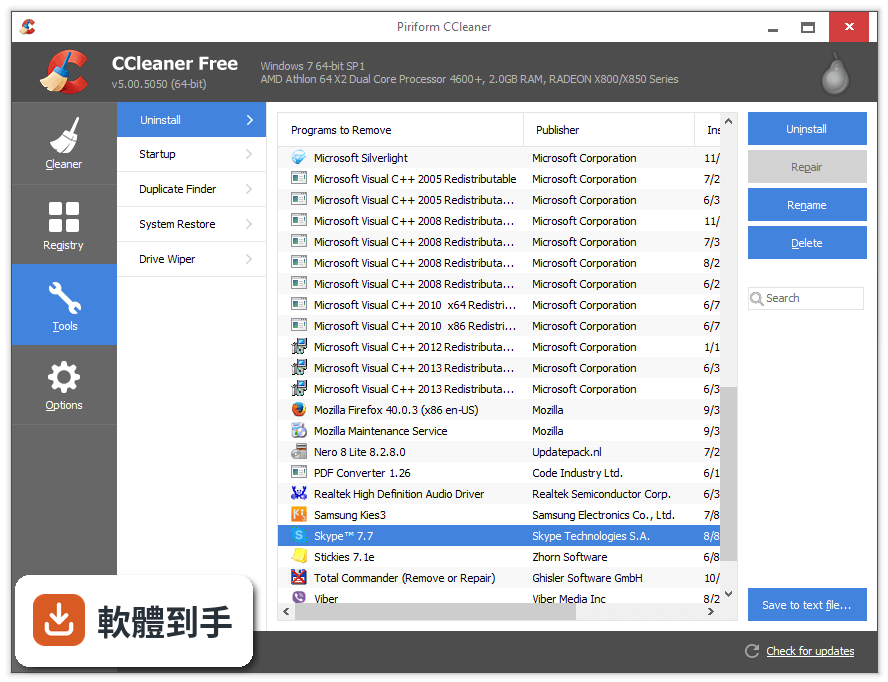
- Uninstalling Unwanted Applications
- System Startup Management
- Limited Customization Options
- Potentially Unnecessary Registry Cleaning
- Lack of Advanced System Optimization Features
Overall, CCleaner is a useful tool for maintaining and optimizing your Windows 11/10, but it's important to always backup your important files before using it, and to download it from our website to ensure you have a clean and safe version.
All in all, CCleaner is a popular system optimization and cleaning tool that can help improve the performance and speed of your computer. It offers a range of features, including cleaning temporary files, removing junk data, and optimizing system settings. CCleaner is easy to use and has a good reputation in the industry. However, while it can help improve the performance of your computer, it's important to note that it is just one tool that can be used in combination with other methods to keep your computer running smoothly.
Additionally, it's important to review the items that CCleaner suggests deleting to ensure that you do not accidentally delete any important files. Overall, the app is a useful tool for keeping your computer clean and optimized.
Also Available: Download CCleaner for Mac and CCleaner Portable
Download CCleaner Free Latest Version Why is this app published on FileHorse? (More info)