
這是歷史版本頁面 — 看 CopyQ 最新版本
Windows剪貼簿只能存一條?CopyQ能做什麼
 CopyQ 3.8.0
資料更新 2019-04-11
閱讀約 5 分鐘
你正在趕一份報告,剛複製了一段重要的引用,接著又複製了另一段資料,回頭想貼第一段時,發現它已經被覆蓋了。你只能回到原始網頁重新找,如果那個網頁已經關了,就得翻瀏覽記錄。這種狀況一天發生好幾次,每次都要中斷手邊的工作去搶救內容,久了真的很煩。
Windows 內建的剪貼簿一次只保留一份內容,這是系統原本的限制。很多人以為這是理所當然的,只能認命地複製一次、貼一次。其實有另一類工具專門解決這個問題:它們把每次複製或剪下的內容都存下來,變成一份歷史記錄,讓你隨時翻找、重新貼上,甚至整理分類。這類工具不改變你原本的複製習慣,只是在背後多幫你存幾份。
01CopyQ 到底能做什麼?
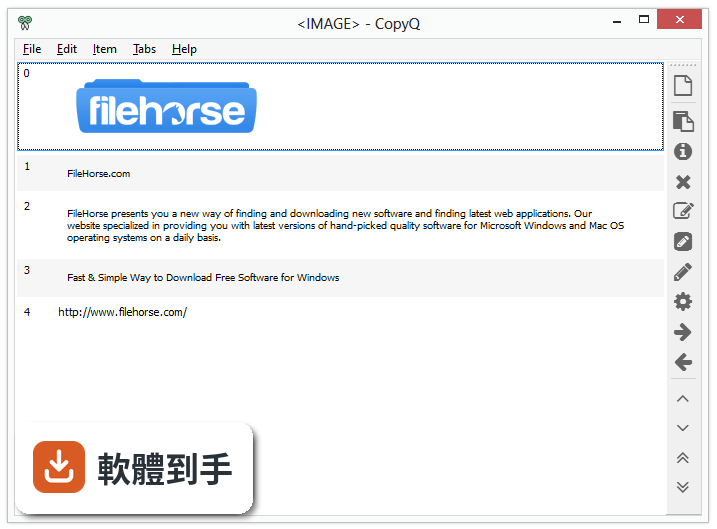
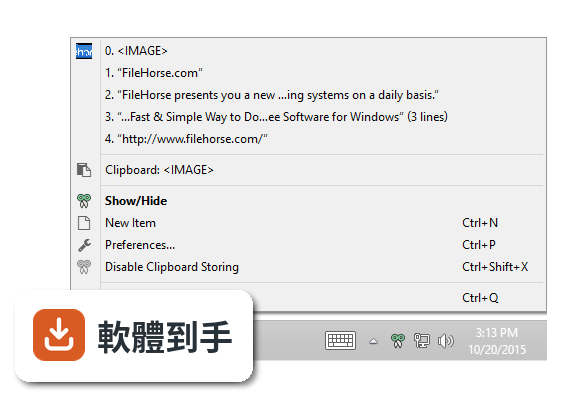
它把 Windows 原本只能存一份的剪貼簿,擴充成可以儲存多筆記錄的工具。每次你複製或剪下文字、檔案,內容都會存進它的歷史清單裡,之後可以隨時從清單中挑選、重新貼上,也可以刪除不要的條目。它還能把內容分頁存放,方便你依不同主題整理。
02它能存哪些格式的內容?
除了純文字,它也能存 HTML、圖片,以及其他應用程式自訂的格式。也就是說,你從網頁複製的帶格式內容、從螢幕擷取的圖片,都會被保留下來。實際能存哪些格式,取決於來源程式提供什麼,但一般常見的複製內容它都能接住。
03複製了很多筆之後,要怎麼找到我要的那一筆?
它的歷史清單支援快速篩選,你可以直接輸入關鍵字來過濾,不用一筆一筆往下翻。找到之後,用滑鼠點選或按快捷鍵就能貼上。如果你常複製特定型別的資料,也可以幫條目加上標籤或備註,之後用標籤來篩選會更省事。
04它可以用鍵盤操作嗎?
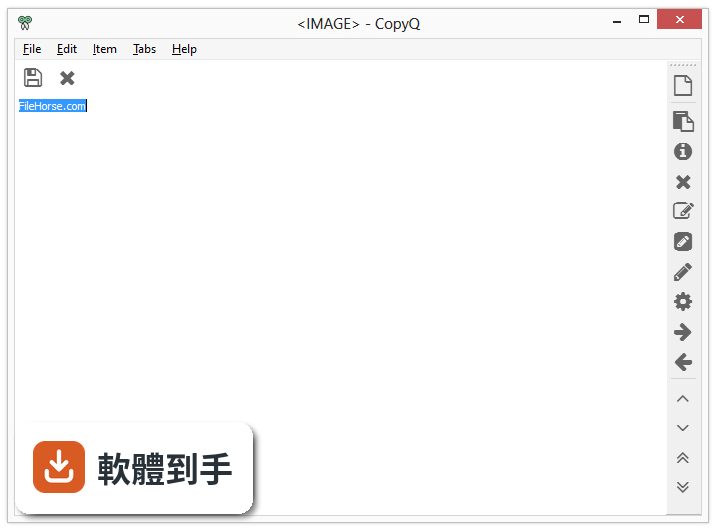
可以。它支援系統級的快捷鍵,你可以設定一組組合鍵來叫出主視窗或直接貼上某筆記錄。它也內建類似 Vim 的簡易編輯器操作方式,習慣鍵盤操作的人可以不用一直切換滑鼠。快捷鍵的設定都在選項裡,可以依自己的習慣調整。
05它能不能把內容丟到其他應用程式?
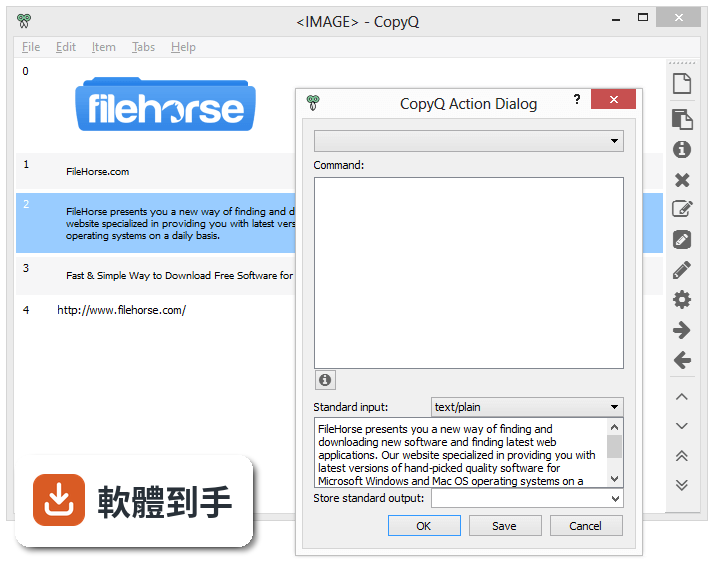
可以。你可以把清單裡的條目直接用拖曳的方式拉到其他程式的視窗中,例如把一段文字拖進記事本,或把檔案拖進郵件附件。它也可以把條目移動到其他分頁,方便你重新整理。這些操作都直接在介面上完成,不需要額外設定。
06我只會基本操作,這套軟體對我來說會不會太難?
基本用法其實很簡單:安裝後它會在背景運作,你照常複製東西,需要時叫出清單點選貼上。進階功能像是自訂命令、指令碼、Vim 編輯器,是用不到也不會礙事的。介面是英文,但操作邏輯不復雜,只要認得 Copy、Paste、Delete 這幾個字就能上手。
07它支援哪些系統?
官方說明支援 Windows 7 到 Windows 11,也支援 Linux 和 macOS 10.9 以上版本。也就是說,如果你在不同作業系統的電腦之間切換,可以沿用同一套工具,不用重新適應。不過各系統的安裝方式不同,需要分別下載對應版本。
08我習慣用中文介面,這套軟體有中文嗎?
根據現有資料,它的介面語系是英文,沒有提供中文介面。如果你完全無法接受英文選單,這套軟體可能不適合你。不過它的主要操作專案不多,英文介面影響有限,你可以先看官方截圖評估自己能不能接受。
09它會不會拖慢電腦速度?
有使用者反映偶爾會遇到效能問題,但這不是普遍現象。它本身是常駐背景的程式,會佔用少量記憶體,但一般文書或瀏覽網頁的用途感受不太到差異。如果你電腦硬體較舊,或同時開很多大型程式,建議先安裝試用看看,確認不影響日常操作再繼續使用。
10它的同步功能如何?我想在公司和家裡的電腦共用剪貼簿記錄。
官方說明提到同步選項有限,沒有提供內建的跨裝置同步功能。如果你需要多台電腦之間同步剪貼簿記錄,這套軟體可能無法滿足需求。你可以考慮用隨身碟或手動匯出的方式轉移,但那就不是自動同步了。在意這點的使用者,可能要評估其他方案。
11這套軟體還在持續更新嗎?
從版本紀錄來看,它持續有在更新,近一年內仍有多次新版本釋出,不是放著不管的專案。這對使用者來說是好事,代表 bug 有機會被修正、新功能有可能加入。不過更新頻繁也代表偶爾要花時間處理版本更新,如果你很在意穩定性,可以觀察一陣子再升級。
12它跟其他剪貼簿工具比起來,有什麼明顯缺點?
它的介面設計比較陽春,沒有華麗的視覺風格,功能選單也偏工程取向。另外,它的使用者評分樣本數不多,參考價值有限。如果你想要的是操作直覺、介面美觀的工具,這套軟體可能不是首選。但如果你重視功能完整度和可自訂性,它提供的選項比一般同類工具多。
下載與官方連結
copyq-v3.8.0-setup.exe · 10.18 MB · 連結指向軟體原廠
版本紀錄
- 2026-10-04 CopyQ 17.0.0 18.3 MB
- 2026-05-31 CopyQ 16.0.0 18.3 MB
- 2026-04-13 CopyQ 15.0.0 18.3 MB
再看 5 筆
- 2026-03-24 CopyQ 14.0.0 18.4 MB
- 2025-10-22 CopyQ 13.0.0 18.4 MB
- 2025-09-30 CopyQ 12.0.1 18.4 MB
- 2025-09-29 CopyQ 12.0.0 16.5 MB
- 2025-08-22 CopyQ 11.0.0 21.7 MB
這一版改了什麼
What's new in this version:
- Custom settings from scripts (using settings() function) are now saved in "copyq-scripts.ini" file in configuration directory. Existing configuration needs to be moved manually from "[script]" section in the main configuration file ("copyq info config" command prints the path) to "[General]" section to the new file (in the same directory)
- Correct clipboard owner (window title) is now used when the window is hidden after copy operation (e.g. password manager copies password and hides its window immediately)
- New script functions onStart and onExit allow to defined commands run when the application starts and exits
- New script functions pointerPosition and setPointerPosition to get/set mouse cursor position on screen
- New script callback onClipboardUnchanged called when clipboard changes but monitored content remains the same
- Block default shortcut overridden by a command while its filter command needs to run
- Item selection is not cleared when main window hides in response to activating an item or automatically when unfocused
- Clipboard dialog opens much faster and retrieves clipboard data only when needed
- Clipboard dialog contains special clipboard formats and the whole list is sorted - plain text first, HTML, other text, application, application specific (application/x-), special (uppercase)
- Detect encoding for other text formats
- Method text for ByteArray returns correctly formatted text from unicode encoded data (e.g. UTF-8)
- Show pin and tag menu items even if shortcut is not assigned (can be disabled completely in Command dialog)
- Hide encrypt/decrypt commands when keys for Encrypt plugin don't exist
- Command list is focused when Command dialog opens; the less important "Find" field is smaller and moved below the list
- Process manager is completely redone and the dialog is no longer created at application start (faster application start, smaller memory footprint)
- Process manager has filter field for searching for commands
- Process manager has new column showing error message
- Process manager has color status icons for running, starting and failed processes
- Next/Previous formats are no longer available (were rarely used and untested)
- Updated donation link: https://liberapay.com/CopyQ/
- FakeVim, if enabled, is used for other multi-line text fields in the application (e.g. item notes, command editor)
- FakeVim, if in a dialog, binds save and quit command to the dialog buttons - :w for Apply, :wq for OK, :q for Cancel
- FakeVim status bar shows an icon for errors and warnings
- FakeVim now handles set commands correctly
- FakeVim text cursor is gray if the editor is not focused
- Fix opening image editor for encrypted items
- Fix opening SVG image editor if the bitmap one is unset
- Fix stopping client processes properly
- Fix showing main window under mouse pointer (with showAt function)
- Fix client crash when calling a method without instance (e.g. command "copyq ByteArray().size")
- OSX: Fix opening main window above full screen window
- OSX: Fix selecting item with Up/Down keys when searching
- X11: Fix setting wrong window title for own clipboard
- X11: Fix synchronizing selection if the change is quick
- X11: Fix tray icon on KDE