
這是歷史版本頁面 — 看 ESET Online Scanner 最新版本
中毒了不想裝防毒軟體,ESET Online Scanner能掃出什麼
 ESET Online Scanner 2.4.0
資料更新 2019-05-30
閱讀約 5 分鐘
電腦最近怪怪的,開網頁變慢、跳出奇怪的廣告,或是某個檔案怎麼看都不對勁。你懷疑是不是中毒了,但手邊沒有安裝任何防毒軟體,或者已經裝了卻還是覺得不放心,想找另一個工具來交叉檢查。當下你只想快速確認電腦到底有沒有問題,卻不想為了這一次檢查,去下載一個幾百MB、還要註冊、還要重開機的完整防毒軟體。
一般人的直覺是上網找免費防毒,但裝下去才發現,免費版通常綁東綁西,要嘛要求建立帳號,要嘛一直跳出升級付費的視窗,掃描完還賴著不走,佔用系統資源。就算你已經有防毒軟體,想用第二套來掃描,很多防毒軟體之間還會互相衝突。這種時候,你需要的是「用完即走」的工具:不用安裝、不常駐背景、掃完就能關掉,專門處理「我懷疑電腦有問題,想確認一下」的臨時需求。
01ESET Online Scanner跟一般防毒軟體有什麼不同?
它是一個線上掃描工具,不需要安裝,直接用瀏覽器啟動。主要用途是「手動掃描」——你覺得電腦有問題時,打開它掃一遍,找出並移除惡意軟體。它不會像完整防毒軟體那樣常駐在背景提供即時防護,掃描完關掉就結束,適合當作第二意見或臨時檢查工具。
02這套軟體能掃出哪些類型的威脅?
根據官方說明,它能偵測已知和未知的病毒、蠕蟲、木馬、間諜軟體、釣魚攻擊和其他網路威脅。掃描範圍包含開機磁區、自動啟動位置,以及系統登錄檔中隱藏的威脅。也可以設定掃描壓縮檔(如zip、rar)裡面的內容,避免惡意程式藏在壓縮檔裡躲過偵測。
03掃描的時候可以自己決定要掃什麼嗎?
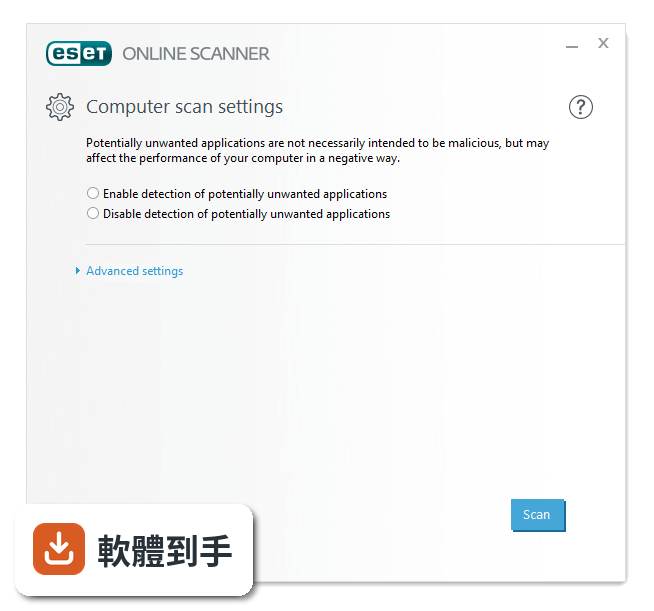
可以。啟動掃描後,你能勾選要掃描的項目,例如只掃系統磁碟或特定資料夾。進階選項裡可以開啟或關閉「偵測潛在不需要的應用程式」(PUA),也能選擇是否掃描壓縮檔、啟用Anti-Stealth技術來對抗隱藏威脅,以及設定自動清除找到的威脅。
04它需要安裝嗎?還是下載後就能用?
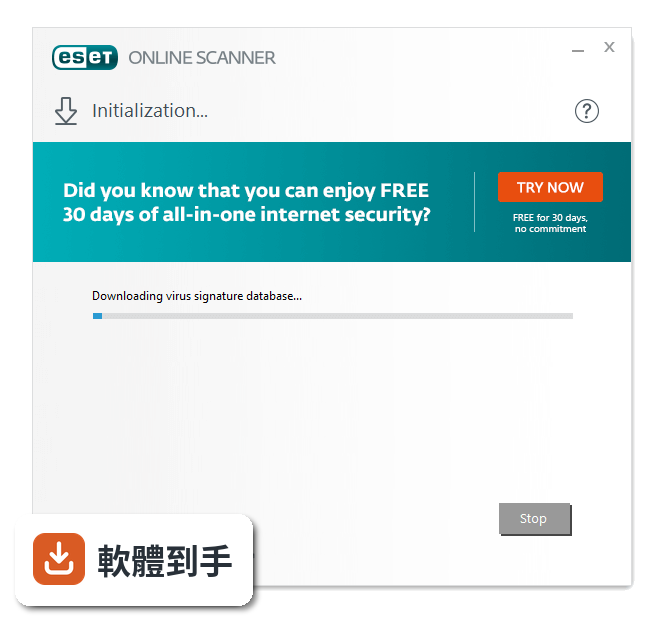
不需要安裝。它是網頁式工具,透過瀏覽器(Chrome、Firefox、Edge、Opera等)啟動,下載一個小型的啟動器後就能執行掃描。這代表它不會在系統中留下常駐程式,也不會跟其他防毒軟體搶資源或衝突,掃描完畢關閉瀏覽器即可。
05掃描之後發現威脅,它能直接清除嗎?
可以。掃描完成後,如果找到惡意軟體,它會顯示結果並提供清除選項。某些頑固的威脅可能需要重新啟動電腦才能移除,這套軟體也支援「重新啟動並重新掃描」的功能,讓你在重開機後繼續完成清除程序。
06我已經裝了防毒軟體,還需要這套嗎?
官方說明明確指出,它可以跟現有的防毒軟體並存使用。如果你的主要防毒軟體掃描結果正常,但你還是不放心,可以用它再掃一次當作第二意見。不過要注意,它不能取代你的主要防毒軟體,因為它沒有即時防護功能,只能在你手動執行時掃描。
07什麼樣的人適合用這套軟體?
適合三種人:一是電腦已經有防毒軟體,但想用另一個工具交叉檢查的人;二是臨時借用別人的電腦,不方便安裝軟體但想確認系統是否乾淨的人;三是電腦效能較差,不想常駐防毒軟體拖慢速度,願意定期手動掃描的人。它不需要管理員權限就能執行,這點對權限受限的使用者很方便。
08這套軟體適合當作唯一的防毒方案嗎?
不適合。官方FAQ明確表示,它不能取代完整的防毒軟體,因為它沒有即時防護,不會在你下載檔案或瀏覽網頁時主動攔截威脅。它只能在你「想到」的時候掃描,如果兩次掃描之間中了毒,它不會有任何反應。建議還是要搭配一套有即時防護的主要防毒軟體。
09它掃描完之後會一直留在電腦裡嗎?
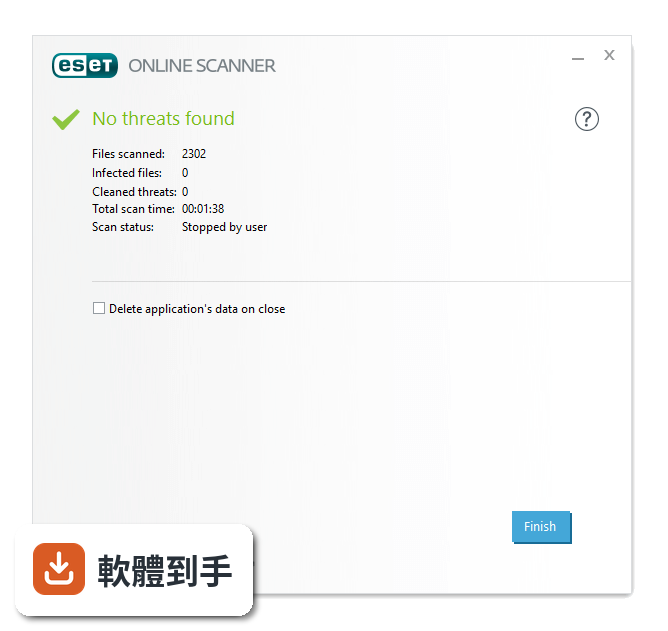
不會。因為它不需要安裝,掃描結束後關閉瀏覽器,相關的暫存檔案可以手動刪除。不過要注意,它不會提供持續保護,如果你希望電腦長期有防護,還是需要安裝完整的防毒軟體。它的定位是「一次性掃描工具」,不是長期駐守的解決方案。
10這套軟體有中文介面嗎?
沒有。官方提供的介面語言是英文,操作介面和選項說明都是英文顯示。如果你對英文介面不熟悉,使用上可能會需要對照翻譯。掃描結果的威脅名稱和說明也是英文,這點在評估掃描結果時需要留意。
11它會誤報正常檔案嗎?
有可能。官方列出的缺點之一就是「有時會產生誤報」,也就是把正常的檔案或程式誤判為威脅。如果你掃描到可疑項目,建議先確認檔案來源和用途,再決定是否刪除。誤刪系統檔案可能導致系統不穩定,這點在使用時要特別小心。
12這套軟體多久更新一次?還有人在維護嗎?
根據收錄的版本紀錄,它從2017年開始持續有更新,最近一次更新在2026年7月,近12個月內更新過1次。雖然更新頻率不算高,但至少代表官方還有在維護。另外,官方說明提到,它的病毒資料庫更新頻率比許多免費線上掃描工具來得頻繁,這點在選擇時可以參考。
下載與官方連結
WriteMapper Setup 2.4.0.exe · 45.8 MB · 連結指向軟體原廠
版本紀錄
- 2026-07-10 ESET Online Scanner 3.7.11.0 8 MB
- 2021-05-25 ESET Online Scanner 3.5.6.0
- 2021-04-09 ESET Online Scanner 3.4.7.0
再看 5 筆
- 2019-05-30 WriteMapper 2.4.0 45.8 MB
- 2019-05-30 ESET Online Scanner 3.1.6.0 7.6 MB
- 2018-12-14 ESET Online Scanner 3.0.17.0 7.3 MB
- 2018-01-27 ESET Online Scanner 2.0.19.0 6.6 MB
- 2017-08-24 ESET Online Scanner 2.0.17.0
這一版改了什麼
What's new in this version:
WriteMapper 2.4.0
- Furthering our attention on improving the robustness of WriteMapper as a productivity app that helps you meet your writing deadlines comes this update which brings a few new features to aid your work towards that goal
Quick Edit Node:
- You can now edit the contents of a node in a scaled-down editor mode, designed for making it easier to jump into jotting down some words without having to open the full editor. Quick Edit Node is accessible via a new keyboard shortcut, Ctrl+Cmd+E on the macOS and iPad versions, as well as on Alt+Ctrl+E on Windows
Export Options:
- More granular export configurations are now available in WriteMapper, allowing you to customise how your WriteMap should translate to the exported text document. A new "Export" section has been added to the preferences panel, from which you can adjust these new settings to your liking
Bug Fixes:
- Changed "+" to "=" for the zoom in keyboard shortcut to remove the need to also hold the Shift key on macOS
- Applied the "Export Header Numbering" setting to OPML export, on both desktop and iPad versions
WriteMapper 2.3.1
Improvements:
- Added method to easier include app and platform version info for debugging purposes in the Help menu
- New image export format
Bug Fixes:
- If quick search leads to a node that is collapsed, expand before selecting it
- Corrected an inconsistent behaviour that occurred in the “Collapse Other Nodes” option
- Fixed hitting Cmd+E causing a glitch while in the windowed editor on the macOS version
- Fixed OPML export bug that occurs when there are nodes with empty contents
- Fixed issue with zoom on Windows when triggered from trackpad or mouse wheel
- Fixed bug on desktop where arrow keys would traverse nodes during Quick Search
WriteMapper 2.3.0
Bug Fixes:
- Double clicking a node now works with the “Tap twice and drag to multi-select” setting for Windows trackpads
- Prevented the white collapse/expand button from glitching when clicked
- Fixed error that occurred when trying to select nodes above/below the root node
- Fixed overlapping elements in the Shortcuts tab of the Preferences window
- Corrected scrollbar from showing in the update window
WriteMapper 2.2.0
Snapshots:
- WriteMapper now keeps a backup of a history of your work with this new feature. The five most recent versions of the five most recently saved WriteMaps are saved to Snapshots, which can be accessed from the “File” menu, and from the “Open” button on the iPad. There also exists the option to remove all Snapshots, if you’re worried about them occupying disk space
Export As OPML:
- We’ve added another export format, on top of the five existing ones. Adding OPML format export, with the app already supporting import of OPML files, will enable you to move your work in and out of WriteMapper and use it with other programs that support the format
Quick Search:
- Finally, you can now search an entire WriteMap’s node topics at once, and find exactly what you were looking for. Quick Search is accessible from the WriteMap view in the menu bar on desktop under the “Node” menu, the toolbar’s more options button (•••) on iPad, and with keyboard shortcuts on both (Cmd/Ctrl+F)
Improvements:
- On desktop, added optimisations for improving performance of viewing and editing WriteMaps with numerous nodes
- Added padded clearance of the cursor from the bottom edge of the content editor as the editor auto-scrolls while you type
- Increased content editor’s maximum font size upwards to 26px
- Added a separator to the zoom toolbar menu on desktop
Bug Fixes:
- Fixed a bug where a link’s destination would not show up in WriteMaps created from imported files
- On desktop, fixed a bug where images could not be inserted when the editor wasn’t yet focused
- Prevented source information of images getting lost whenever the content editor was opened/closed
- Character count in Full Document Preview now does not count spaces and newline characters
- Set ‘mins’ to singular (‘min’) instead of plural if the estimated read time info is one (1) minute
WriteMapper 2.1.1
- Contains a bug fix where the Editor Width setting would always be stuck in “Relative”, even if set to “Fixed” in Preferences
WriteMapper 2.1.0
Other Improvements:
- New setting added to preferences options for choosing between fixed or relative width of the content editor
- Enabled WriteMap to scroll as a node is dragged to the bounds of the WriteMap’s edges
- Added link to License Manager page to the Help section of the menu bar of desktop versions
- Adjusted layout and height of the Preferences window on desktop to fit better on smaller screens
Bug Fixes:
- Fixed a bug where imported PNG and GIF images might not be formatted in the right encoding
- In the Windows version, fixed the height of the general tab of the Preferences window
- Remedied issue where the Windows desktop version would not correctly handle images imported from a local file
- Fixed errant white flash when showing a new window on macOS, in dark mode
- On macOS, corrected how buttons for modifier keys might not display correctly in the custom keyboard shortcuts section of Preferences
- Corrected a typo in the tutorial WriteMap
WriteMapper 2.0.2
- This update fixes a bug that caused the auto update mechanism to not work
- Also, the Full Document Preview option was added to the menu bar, alongside the existing export options to help make it more accessible
WriteMapper 2.0.1
Change log not available for this version
WriteMapper 2.0.0
Change log not available for this version
WriteMapper 1.7.2
Change log not available for this version